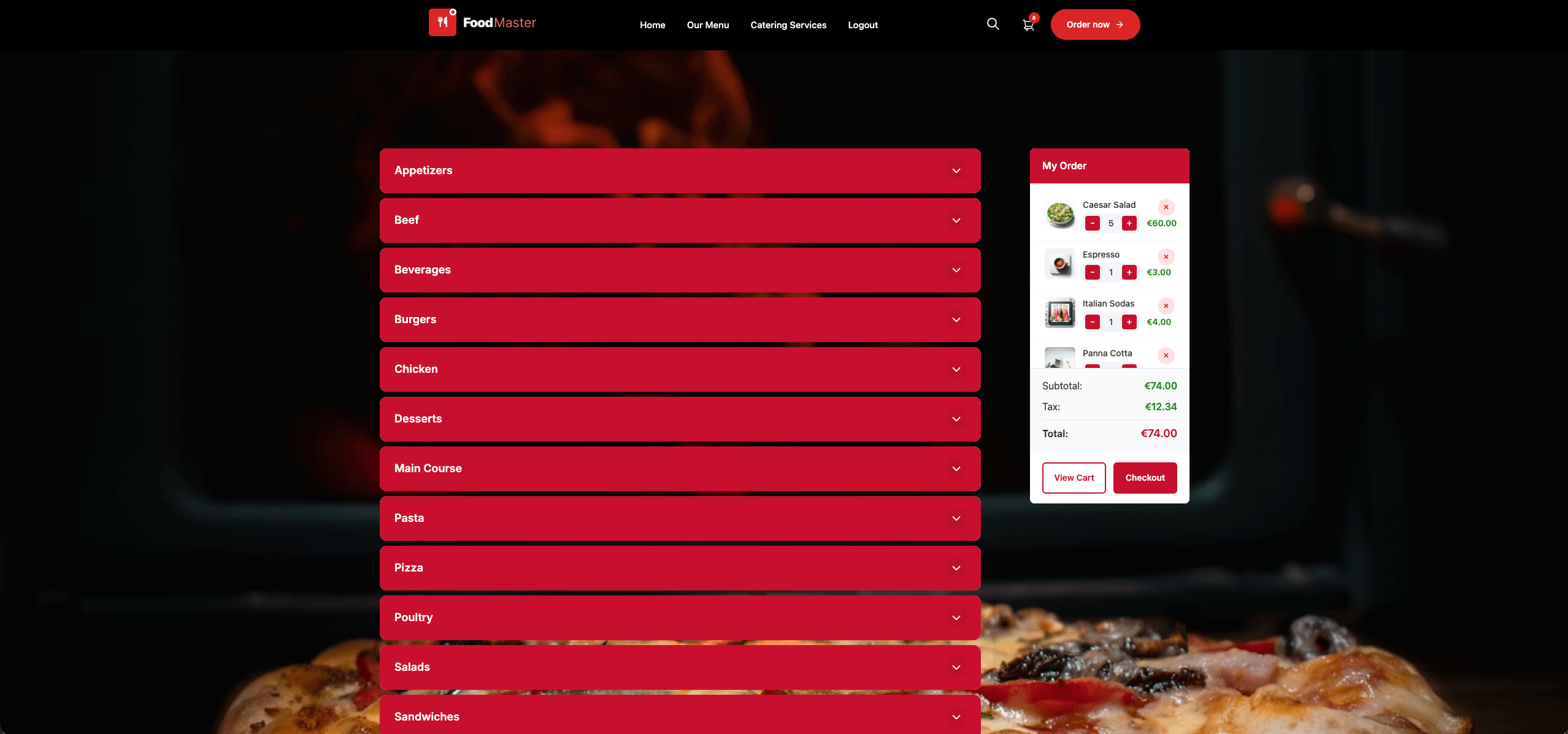
You do not need a third-party app or a monthly commission-based platform to take food orders online. With WordPress, WooCommerce, and the FoodMaster plugin you can build a complete food ordering system — delivery, pickup, and dine-in — that you fully own and control, with no per-order fees.
Why Build Your Own Food Ordering System?
Third-party platforms like Uber Eats, Just Eat, and Deliveroo charge between 15% and 35% commission on every order. On a £20 order, that is up to £7 gone before you pay for ingredients, staff, or rent. Over a year, commissions can cost a restaurant tens of thousands of pounds.
A self-hosted ordering system built on WooCommerce:
- Charges zero commission — you keep 100% of every order
- Puts customer data (emails, order history) under your control
- Lets you run promotions and loyalty schemes without restrictions
- Integrates with your payment gateway of choice
- Works with any professional theme or custom design
What You Need
- WordPress hosting — Any managed WordPress host (SiteGround, Kinsta, WP Engine) works well. Make sure the plan supports WooCommerce.
- WordPress — The world’s most popular CMS, free to install.
- WooCommerce — The free e-commerce plugin by Automattic.
- FoodMaster plugin — Extends WooCommerce with food-specific features: delivery zones, timeslots, extra options, QR table ordering, KDS, and more.
- A payment gateway — Stripe, PayPal, or any WooCommerce-compatible gateway.
- An SSL certificate — Required for any site accepting payments. Most hosts provide this free.
Step-by-Step Setup Guide
Step 1: Install WordPress and WooCommerce
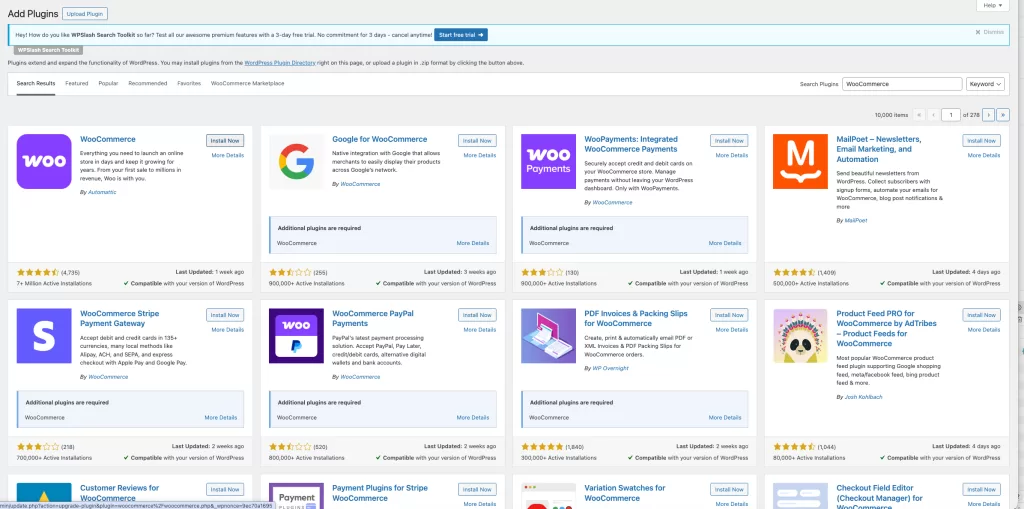
If you are starting fresh, most hosts offer a one-click WordPress installer. Once WordPress is running, go to Plugins → Add New, search for “WooCommerce,” and click Install Now. Run through the WooCommerce setup wizard to configure your store currency, address, and payment method.
Step 2: Install and Activate FoodMaster
Download the FoodMaster plugin from wpslash.com after purchasing a license. Go to Plugins → Add New → Upload Plugin, choose the ZIP file, and click Install Now then Activate.
After activation, a new FoodMaster menu will appear in your WordPress admin. Enter your license key under FoodMaster → Settings → License to unlock all features.
Step 3: Run the Setup Wizard
FoodMaster includes a setup wizard that guides you through the initial configuration. Navigate to FoodMaster → Setup Wizard and complete these key steps:
- Set your restaurant name and address
- Choose which order types to enable (delivery, pickup, dine-in)
- Configure your opening hours
- Set delivery area (radius, postal code, or city-based)
- Set minimum order amount and delivery fee
Step 4: Build Your Menu
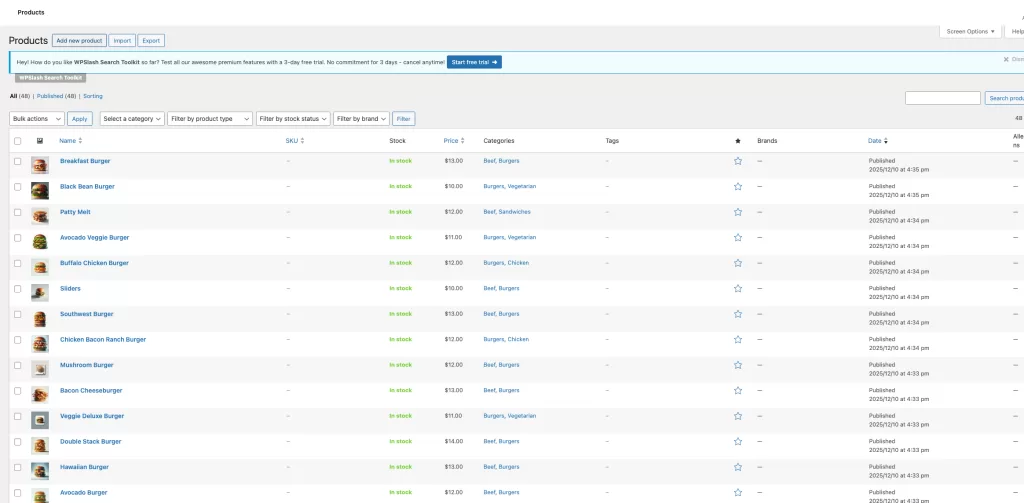
Your food menu is built using standard WooCommerce products. Go to Products → Add New for each dish. Set:
- Product name — The dish name
- Description — Ingredients or allergy info
- Price — The regular price
- Category — Group dishes by type (Starters, Mains, Desserts, Drinks)
- Featured Image — A high-quality photo of the dish
For dishes with choices (size, sauce, toppings), use the FoodMaster Extra Options feature to create option groups — no need to create separate product variations.
Step 5: Create Your Menu Page
Go to Pages → Add New and create a page called “Order Online” or “Menu.” Use the FoodMaster Gutenberg blocks or shortcode to display your menu. FoodMaster provides several built-in layouts: grid, list, accordion — all mobile-responsive out of the box.
Step 6: Configure Delivery Settings
Go to FoodMaster → Settings → Delivery to configure:
- Delivery type — Radius (km/miles), postal code, or city/area list
- Delivery fee — Flat rate, distance-based, or free above a threshold
- Estimated delivery time — Shown to customers at checkout
- Timeslots — If you want customers to choose a delivery window
Step 7: Set Up Payment
WooCommerce supports hundreds of payment gateways. For food ordering, the most popular are:
- Stripe — Card payments, Apple Pay, Google Pay
- PayPal — Widely trusted, good for guest checkout
- Cash on delivery — Built into WooCommerce, zero fees
Step 8: Configure Order Notifications
Go to FoodMaster → Settings → Notifications to set up:
- Email notifications — To the restaurant and the customer
- Push notifications — Browser alerts for new orders on the dashboard
- SMS notifications — Via Twilio or other configured provider
- Automatic printing — If you have a network printer, orders print automatically
Step 9: Test End-to-End
Before going live, place a complete test order from start to finish on a mobile device. Check:
- Menu displays correctly on mobile
- Adding items to the cart works
- Delivery/pickup options appear at checkout
- Payment processes correctly
- Confirmation email arrives
- Order appears in the FoodMaster orders dashboard
Key Features of FoodMaster
- Delivery, pickup, and dine-in in one plugin
- Flexible delivery zones — radius, postal code, or city list
- Timeslots — Let customers choose their preferred delivery window
- Extra options — Sizes, toppings, add-ons without creating product variations
- QR table ordering — Scan and order directly from the table
- Kitchen Display System (KDS) — Digital screen for the kitchen
- Automatic printing — Orders print the moment they come in
- Multi-location support — Run multiple branches from one WordPress installation
- SMS notifications — Keep customers informed at every stage
Frequently Asked Questions
Do I need WooCommerce to use FoodMaster?
Yes. FoodMaster is a WooCommerce extension. WooCommerce handles the cart, checkout, and payments, while FoodMaster adds all the food-ordering functionality on top.
Can I accept cash on delivery?
Yes. WooCommerce includes a built-in “Cash on Delivery” gateway that you can enable and configure to appear only for delivery or pickup orders.
How do I handle out-of-stock dishes?
WooCommerce’s standard stock management works for this. Set a product to “Out of Stock” and it will be greyed out or hidden from the menu automatically.
Can I take reservations as well as orders?
FoodMaster focuses on online food ordering. For reservations, a separate plugin like OpenTable for WordPress or Restaurant Reservations by themeofthecrop works well alongside FoodMaster.
Ready to Go Commission-Free?
FoodMaster is a one-time purchase — no monthly subscription, no per-order commission. Get FoodMaster →
Wrapping Up
Setting up a WooCommerce food ordering system with FoodMaster takes less than a day and instantly removes the 15–35% commission drain from third-party platforms. The setup is fully under your control, and you keep every penny your customers spend.
If you need help along the way, the FoodMaster support team is available to guide you through every step.
Commission-free ordering
Run restaurant orders on your own WordPress site
FoodMaster adds delivery, pickup, dine-in, POS, and kitchen tools — with zero per-order fees.