Let your dine-in customers scan a QR code at their table, browse your menu on their phone, and place an order — no app download, no waiting for a server. Here is how to set it up with FoodMaster in under 10 minutes.
Why QR Table Ordering?
Post-pandemic dining habits are here to stay. A 2025 Hospitality Technology survey found that 67% of diners prefer ordering from their phone when eating in. QR table ordering removes friction, speeds up table turnover, reduces order errors, and cuts labour costs — all without requiring customers to install anything.
With FoodMaster (formerly WooFood), your WordPress restaurant website becomes a complete ordering platform. The built-in QR Table Ordering feature lets you:
- Generate unique QR codes per table
- Redirect customers straight to your menu
- Lock the order type to dine-in automatically
- Show the table number on the order and receipt
- Print orders to the kitchen automatically
- Support multiple zones (indoor, outdoor, bar, terrace, VIP)
- Work with multi-location setups
- Clear sessions automatically after order completion
What You Need Before Starting
- WordPress website with WooCommerce installed and active
- FoodMaster plugin installed and licensed
- A menu page — the page where your food menu is displayed (using FoodMaster shortcodes or blocks)
- A printer — optional, but recommended if you want orders printed to the kitchen automatically
Step-by-Step Setup Guide
Step 1: Enable QR Table Ordering

Go to FoodMaster → Settings → Order Types → QR Table Ordering in your WordPress admin.
Check the box next to Enable QR Table Ordering to activate the feature.
Step 2: Select Your Menu Page
In the same settings tab, use the Menu Page dropdown to select the page customers will be redirected to after scanning a QR code. This should be the page that displays your food menu.
When a customer scans a QR code, FoodMaster automatically sets their session to dine-in and associates them with the correct table before redirecting them to this page.
Step 3: Configure Display Options
- Indicator Text — The text shown in the floating bar at the bottom of the screen (e.g.,
“Table {table_number} – Dine In”). Use
{table_number}as a placeholder. - QR Code Size — The pixel size for downloadable QR images (default: 600px).
- Restaurant Name — Text printed below the QR code image when you download or print it.
- Show Table at Checkout — Display the table number on the checkout page so customers can confirm.
- Auto-Clear Session — Automatically clear the table session when an order is completed, so the next customer starts fresh.
Click Save Changes.
Step 4: Create Your Tables
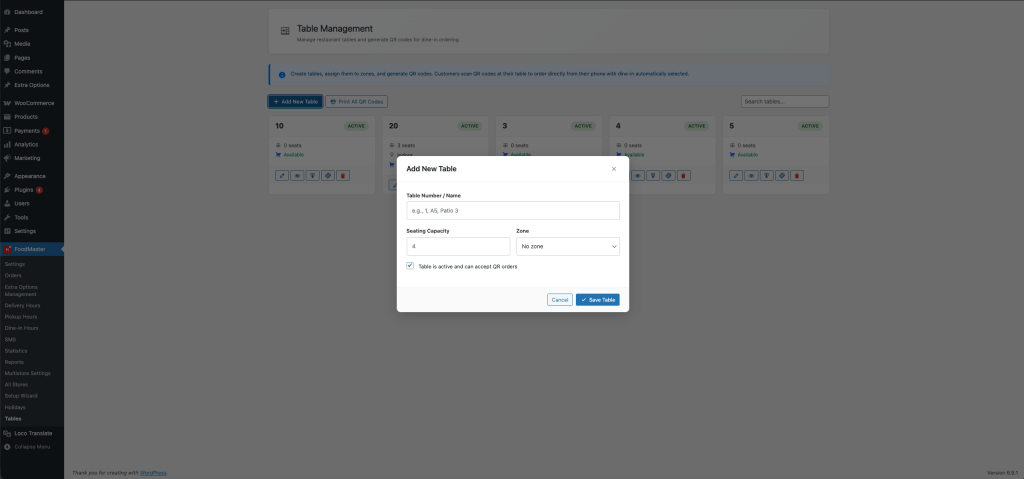
Navigate to FoodMaster → Tables in the admin menu. Click Add New Table and fill in:
- Table Number — A number (1, 2, 3), a label (A5), or a name (Patio 3).
- Capacity — How many guests the table seats (optional).
- Zone — Indoor, Outdoor, Bar, Terrace, or VIP.
- Store — If you use multi-location, assign the table to a specific store.
A unique QR URL token is automatically generated for each table. Click Save.
Step 5: Download and Print QR Codes
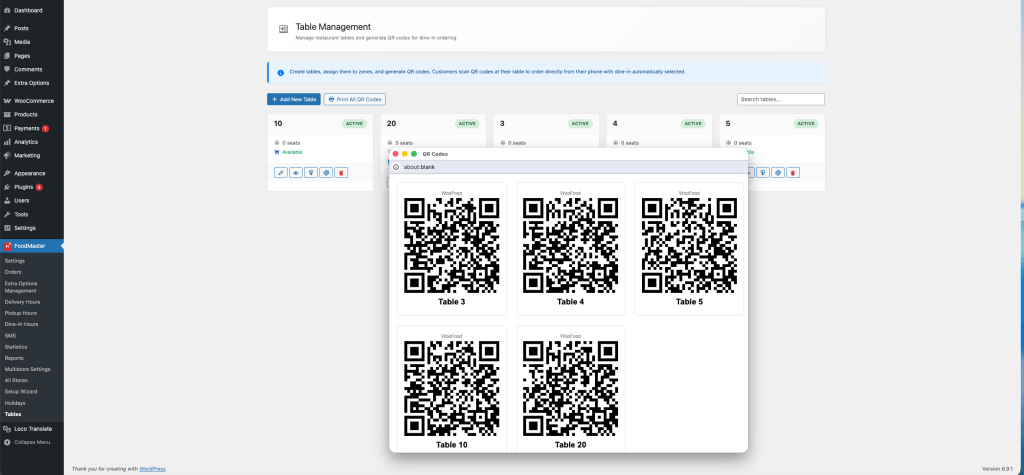
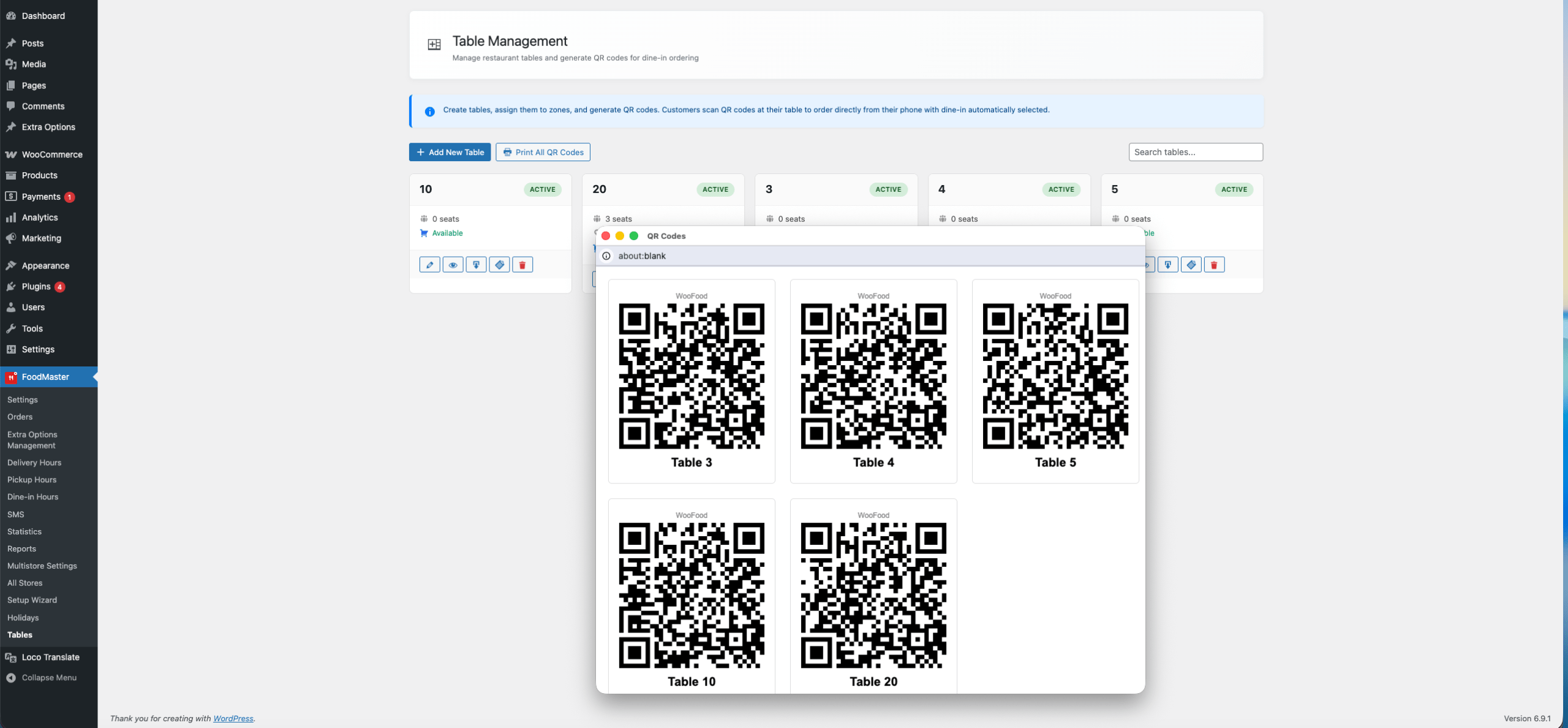
On the Tables list, each table shows its QR code preview. You have three options:
- Copy URL — Copy the QR link to share or use in your own materials.
- Download PNG — Download a high-resolution QR image with your restaurant name below it.
- Print All — Generate a printable sheet of all active table QR codes at once.
Print the QR codes, laminate them, and place one on each table. Tabletop stands or stickers work great.
Step 6: Test the Flow
- Scan a QR code with your phone
- Confirm you are redirected to the menu page
- Check the floating table indicator appears at the bottom
- Add items and go to checkout — confirm the table number shows
- Place a test order and verify it appears in the admin with the table number
How It Works Behind the Scenes
- The phone opens a URL like
yoursite.com/?woofood_table=t-a3x7k9m2 - FoodMaster looks up the table by its unique token
- A WooCommerce session is created with the table ID, table number, and order type set to dine-in
- The customer is redirected to your menu page
- They browse, add items, and check out normally
- The table number is saved to the order and appears in the admin, on receipts, in emails, and on the KDS
Best Practices
Keep Your Menu Mobile-Friendly
Since 100% of QR orders come from phones, make sure your menu page looks great on mobile. FoodMaster’s built-in menu templates are already responsive, but double-check your theme does not break the layout on small screens.
Enable Auto-Clear Sessions
Turn on the Auto-Clear Session setting so that after a customer’s order is completed, the next person who scans the same QR code starts with a fresh cart. This prevents session conflicts between consecutive guests.
Combine with Automatic Printing
For the best kitchen experience, pair QR table ordering with FoodMaster’s automatic order printing. New dine-in orders go straight to the kitchen printer with the table number on the receipt — zero manual steps.
Print QR codes at least 3cm × 3cm (about 1.2 inches) for reliable scanning. The default 600px download size works well for standard tabletop print.
Multi-Location Support
If you operate multiple restaurant locations with FoodMaster’s multi-store feature, each table is assigned to a specific store. When a customer scans a QR code at Location B, FoodMaster automatically sets their session to that store — showing the correct menu, hours, and delivery options for that branch.
Frequently Asked Questions
Do customers need to download an app?
No. QR table ordering works entirely through the phone’s camera and web browser. No app download required.
Can I use QR ordering alongside delivery and pickup?
Absolutely. FoodMaster supports all three order types simultaneously. QR scans automatically set the order type to dine-in, while your website continues accepting delivery and pickup orders as normal.
What if a customer scans an inactive table?
If a table is marked as inactive in the admin, the QR scan will not set a table session. You can enable or disable tables at any time from the Tables management page.
Does it work with WooCommerce payment gateways?
Yes. Dine-in orders use the standard WooCommerce checkout, so any payment gateway you have configured (Stripe, PayPal, cash, etc.) works automatically.
How does the kitchen know which table the order is for?
The table number is saved to the order and displayed on printed receipts, in the admin order view, in customer emails, and on the Kitchen Display System (KDS).
Ready to Add QR Table Ordering to Your Restaurant?
FoodMaster includes QR table ordering, automatic printing, KDS, POS, delivery, pickup, and more — all in one plugin. No commissions, no monthly fees. Get FoodMaster →
Wrapping Up
QR table ordering is one of the easiest wins for any restaurant. It reduces wait times, eliminates order errors, and gives your customers a modern, frictionless dining experience. With FoodMaster, the entire setup takes less than 10 minutes — no app for customers to install, no third-party services, no recurring fees.
If you have questions, open a support ticket and the FoodMaster team will help you get started.
Commission-free ordering
Run restaurant orders on your own WordPress site
FoodMaster adds delivery, pickup, dine-in, POS, and kitchen tools — with zero per-order fees.