Your online menu is the most important page on your restaurant website. It is where hungry customers make their decision — and a slow, confusing, or badly laid out menu sends them straight to your competitor. Here is how to build a fast, professional food menu with WooCommerce and FoodMaster that converts browsers into orders.
How WooCommerce Handles Food Products
WooCommerce treats each dish as a product. Categories (Starters, Mains, Desserts, Drinks) organise dishes into sections. The product image, name, short description, and price are the core information displayed on the menu page.
FoodMaster extends this with food-specific features: extra options (choices, add-ons, toppings), quick view popups, multiple layout templates, and category-level navigation — all designed specifically for food ordering, not general e-commerce.
Step 1: Structure Your Categories

Before adding products, plan your category structure. Good category organization directly affects how easy the menu is to navigate. Keep it simple:
- 5–8 top-level categories maximum
- Clear, obvious names (not creative names that confuse guests)
- Start with your best-selling or most popular section
Go to Products → Categories and add each section. Set a display order using the “Order” field. FoodMaster will use this order when displaying category tabs on the menu page.
Step 2: Add Your Products
Go to Products → Add New for each dish. Complete the following fields:
- Product Name — The dish name. Keep it concise and descriptive.
- Short Description — 1–2 sentences. Include key ingredients or allergen notes. This appears in the menu card and the quickview popup.
- Regular Price — The base price of the dish.
- Product Category — Assign to the relevant menu section.
- Featured Image — The product photo. See image tips below.
Step 3: Product Photography — The Biggest Conversion Lever

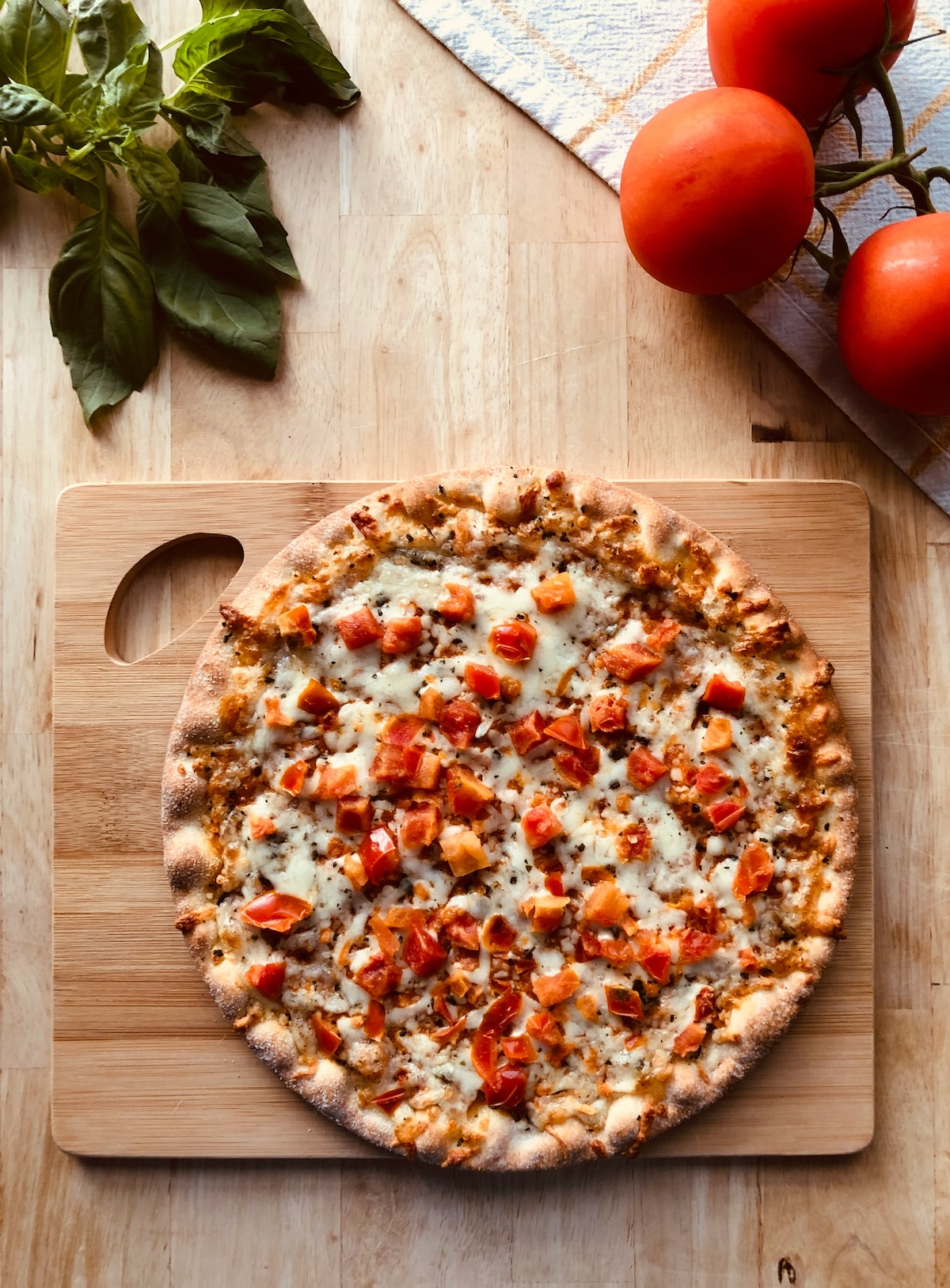
Product images have a bigger impact on food menu conversion than any other element. Research consistently shows that menus with photos sell 30–40% more than text-only menus.
You do not need a professional photographer. Here are practical guidelines:
- Natural light — Shoot near a window, during the day. Avoid flash.
- Overhead or 45° angle — Works best for most dishes.
- Clean backgrounds — A wooden board, white plate, or dark slate.
- Consistent aspect ratio — Shoot everything at the same ratio (1:1 or 4:3) for a uniform grid.
- Compress images — Aim for under 100KB per image. Use TinyPNG or ShortPixel.
Step 4: Add Extra Options (Sizes, Toppings, Add-Ons)
For dishes with choices — pizza size, burger toppings, sauce options, special requests — use FoodMaster’s Extra Options feature. This is much simpler than WooCommerce’s native product variations and is designed specifically for food:
- Go to FoodMaster → Extra Options and click Add Option Group
- Name the group (e.g., “Choose Your Size”)
- Add each option with its price modifier
- Set the selection type: single choice (radio), multiple choice (checkbox), or quantity-based
- Assign the option group to the relevant products
Options appear in the quickview popup or product page when a customer taps “Add to Cart.”
Step 5: Create the Menu Page
Go to Pages → Add New and create your “Order Online” or “Menu” page. Use the FoodMaster All Categories or Menu Block in the Gutenberg editor to display your products. FoodMaster offers several layouts:
- Grid layout — Compact cards with image, name, and price. Best for menus with many items.
- List layout — Full-width rows, better for text-heavy descriptions or allergen info.
- Accordion layout — Collapsible category sections. Great for long menus.
Set this page as the page your FoodMaster checkout and order widgets link to in FoodMaster → Settings → General → Menu Page.
Step 6: Optimise for Mobile
Over 80% of food orders are placed on mobile devices. Test your menu on a real phone before launching. Key things to check:
- Category tabs are easily tappable (minimum 44px touch target)
- Product images load quickly — use lazy loading (WordPress does this by default)
- The “Add to Cart” button is prominent and easy to tap
- The quickview popup or product page works smoothly on mobile
- The cart / checkout flow is frictionless with one thumb
Best Practices for Food Menu Conversion
- Feature your best sellers first. Put the highest-converting products at the top of each category. Customers spend most of their time on the top of the page.
- Use descriptive names and short descriptions. “Crispy Piri-Piri Chicken Burger with house slaw” sells better than just “Chicken Burger.”
- Mark popular items. Use a “Popular” badge via FoodMaster’s product labels to direct attention.
- Keep the menu updated. Remove seasonal or unavailable dishes promptly. An out-of-stock item with no explanation frustrates customers.
- Include allergen information. Many customers filter by dietary requirements. Clear labelling builds trust and reduces support queries.
Frequently Asked Questions
Can I have different menus for delivery and dine-in?
Yes. You can use FoodMaster’s blocks to display specific categories on specific pages, and use the
woofood_filter_products_query filter to show different products based on the active order type.
Can customers search for dishes?
WooCommerce’s built-in product search works on the menu page. For a better search experience, plugins like FiboSearch or Ivory Search add fast AJAX search to any WooCommerce store.
How do I handle dishes that are only available at certain times?
FoodMaster has a scheduled availability feature for products. You can set specific days or hours when a product is visible and orderable — ideal for breakfast menus, lunch specials, or happy hour deals.
Wrapping Up
A well-built online menu is your digital dining room. The effort you put into good photography, clear descriptions, and intuitive layout pays back directly in conversion rate. WooCommerce with FoodMaster gives you all the tools to build it properly — and the flexibility to customise every detail as your restaurant grows.
Commission-free ordering
Run restaurant orders on your own WordPress site
FoodMaster adds delivery, pickup, dine-in, POS, and kitchen tools — with zero per-order fees.