A restaurant that accepts orders at 3am when the kitchen is closed causes problems — angry customers, refunds, and damaged reputation. Getting your working hours right in FoodMaster means customers can only order when you are actually open, and they see clear, accurate availability information at all times.
How FoodMaster Handles Business Hours
FoodMaster uses an independent hours system separate from WooCommerce’s concept of a “shop.” This means:
- Working hours can be set per order type (delivery, pickup, dine-in)
- Hours can vary by day of the week
- You can set multiple time windows per day (e.g., 11:00–14:30, 17:30–22:00)
- Special dates (holidays, events) can be configured separately
- When closed, a customisable overlay message appears on your site
Step 1: Configure Delivery Hours
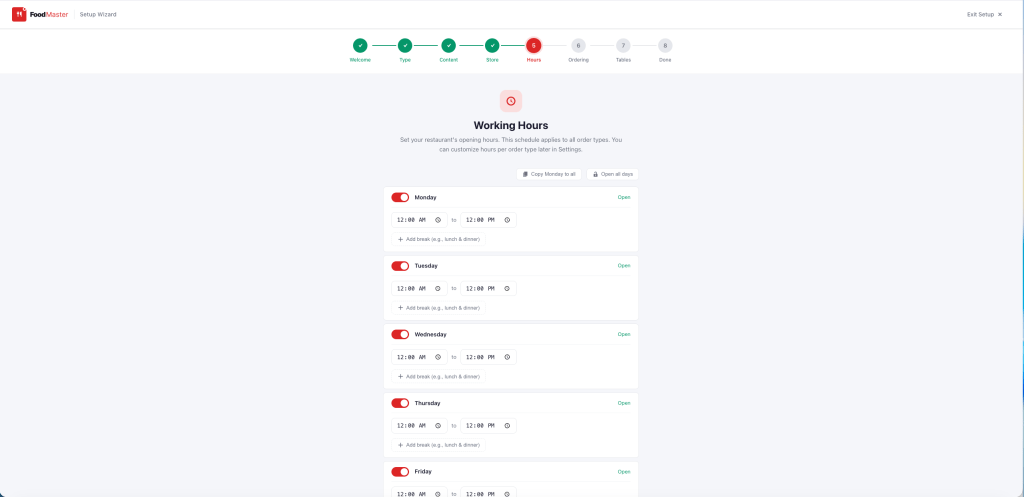
Go to FoodMaster → Delivery Hours. For each day of the week, you can:
- Mark the day as Open or Closed
- Enter one or more opening windows (e.g., 11:00–14:00 and 18:00–23:00)
- Set different hours for each day
Click Save Changes.
Step 2: Configure Pickup and Dine-In Hours
Repeat the same process under FoodMaster → Pickup Hours and FoodMaster → Dine-In Hours. Each order type has fully independent hours.
Common configurations:
- Delivery ends 30 minutes before dine-in closes (kitchen needs time to clear)
- Pickup available from 10:00, delivery from 11:30 (breakfast prep time)
- Sunday delivery only 12:00–20:00, but dine-in until 22:00
Step 3: Set Special / Holiday Hours
For bank holidays, Christmas, or special event days, FoodMaster lets you add date-specific overrides. Under Delivery Hours → Special Dates, add:
- Date — The specific date
- Status — Open with modified hours, or Closed all day
- Custom message — Optionally shown to customers (e.g., “Closed for the holidays — reopening 2 January”)
Step 4: Customise the Store-Closed Message
When your store is outside its opening hours, FoodMaster shows an overlay or a message instead of the ordering
interface. Customise this message with the woofood_disabled_overlay_message filter:
add_filter( 'woofood_disabled_overlay_message', function( $message ) {
    return 'We are closed right now. Our next delivery window opens at 11:30.
    You can browse the menu and we\'ll be ready to take your order soon!';
} );
The Availability Checker Widget

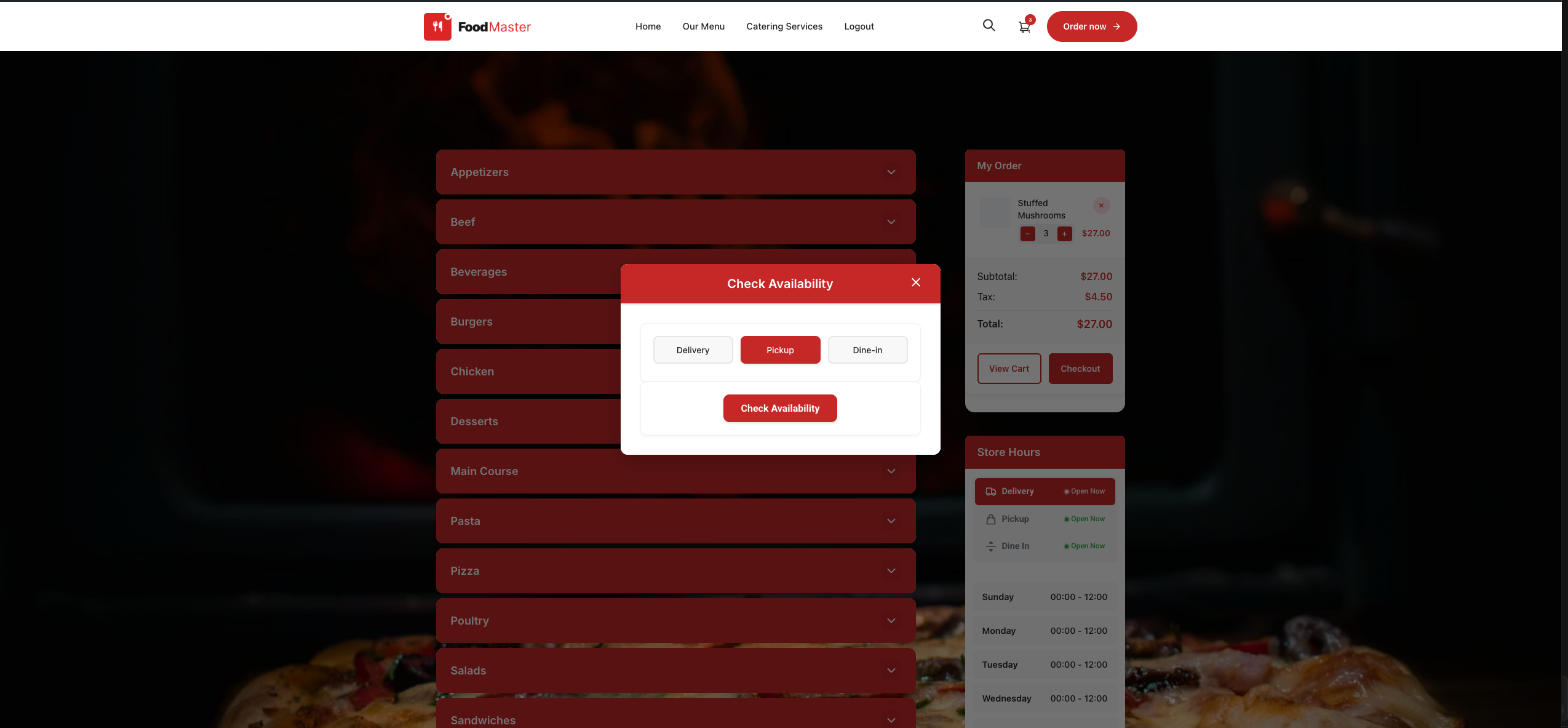
FoodMaster also provides an Availability Checker widget that customers can use to check if you deliver to their address before browsing the menu. This widget also respects your working hours — if you are closed, it shows the appropriate message.
Add it to any page or sidebar using the FoodMaster Availability Checker block or shortcode.
Force Store Open for Testing
During development or testing, you may want to bypass working hours to test the ordering flow. Use the
woofood_availability_checker_always_open filter:
// WARNING: remove this before going live
add_filter( 'woofood_availability_checker_always_open', '__return_true' );
Never leave the always-open filter active on a live site. Customers will be able to place orders outside your working hours, creating unfulfillable orders.
Frequently Asked Questions
Can I allow pre-ordering for the next day when closed?
Yes. FoodMaster’s time slot system supports future-day scheduling. Configure the number of days in advance customers can book, and they will be able to schedule orders for the next open window even when you are currently closed.
Can I have different hours for public holidays?
Yes. Use the Special Dates feature to override your regular hours for any specific date. All three order types can have independent special date settings.
What happens to orders placed just before closing?
Orders already placed are not affected by closing time. FoodMaster only prevents new orders from being placed after your closing time. You can configure a “last order time” buffer (e.g., stop taking orders 30 minutes before closing) to ensure the kitchen can fulfil everything.
Wrapping Up
Accurate business hours configuration protects your reputation and your kitchen. Setting independent hours per order type, adding holiday overrides, and customising the closed message takes about 20 minutes — and saves you from the headache of managing unfulfillable orders or confused customers.
Commission-free ordering
Run restaurant orders on your own WordPress site
FoodMaster adds delivery, pickup, dine-in, POS, and kitchen tools — with zero per-order fees.