On this page
- How FoodMaster Multistore Works
- Step 1: Enable Multistore
- Step 2: Add Your Stores
- Step 3: Configure Per-Store Hours
- Step 4: How Store Detection Works
- Step 5: Customise Store Redirect Behaviour
- Step 6: QR Table Ordering per Location
- Step 7: Per-Store Delivery Time Adjustments
- Frequently Asked Questions
- Wrapping Up
Running two or more restaurant locations from a single WordPress site is far simpler than managing separate websites. FoodMaster’s multistore feature lets each branch have its own menu, delivery zone, opening hours, delivery fees, and staff interface — all under one WooCommerce installation. Here is how to set it up.
How FoodMaster Multistore Works
In a standard single-store setup, the customer visits your website, enters their address, and sees your menu. In multistore mode, FoodMaster also checks which branch is closest to (or covers) the customer’s address and serves them content, hours, and pricing for that specific branch.
Each store can have:
- Its own delivery zone (radius, postal codes, or cities)
- Its own delivery and pickup hours
- Its own delivery fee and minimum order amount
- Its own address for distance calculations and pickup
- Its own table management (for QR dine-in ordering)
- Its own KDS screen
Step 1: Enable Multistore

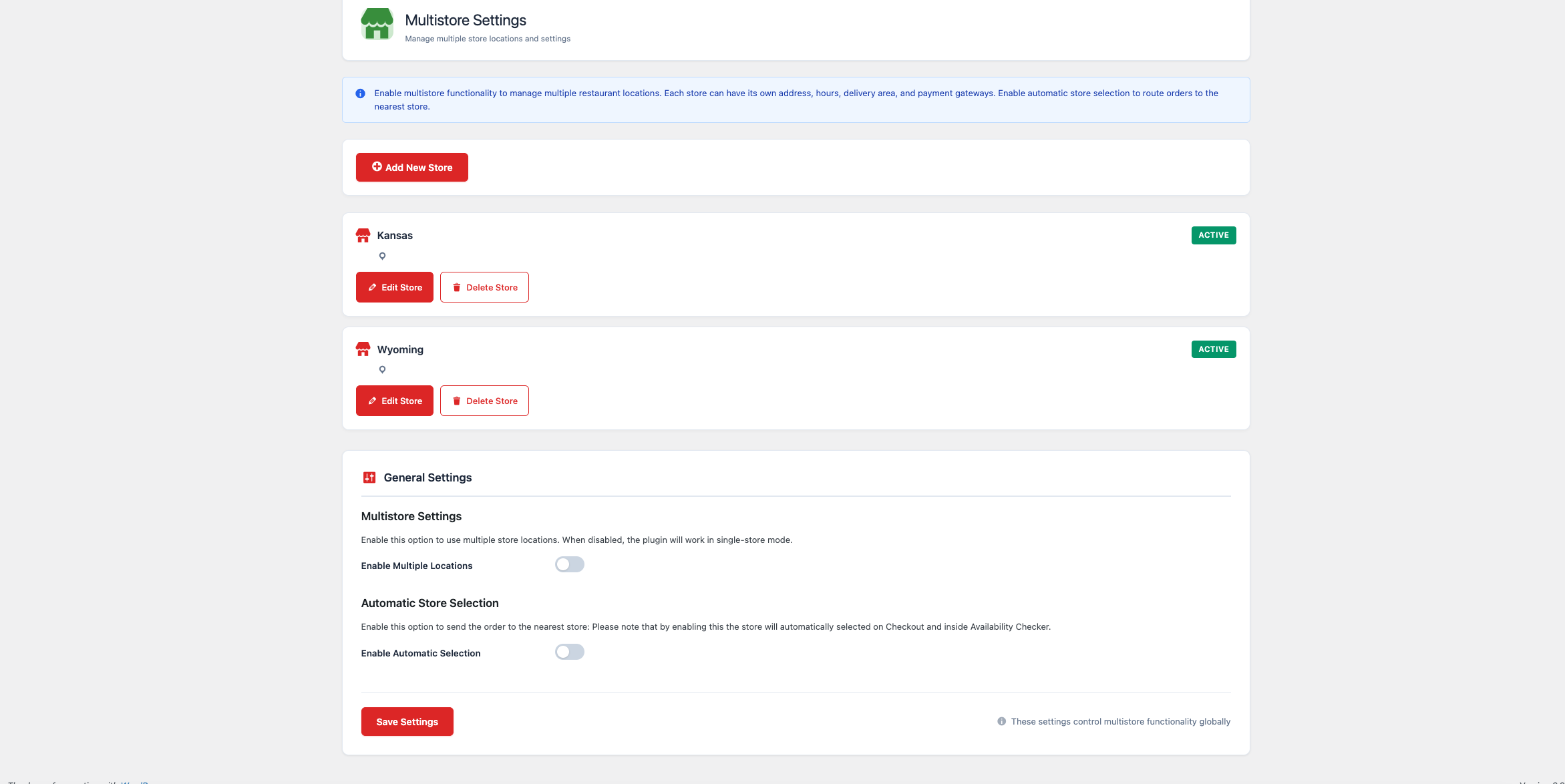
Go to FoodMaster → Settings → Multistore and enable the multistore mode. Once enabled, a new FoodMaster → Stores menu item appears in the admin.
Step 2: Add Your Stores
Go to FoodMaster → Stores → Add New Store and fill in the details for each location:
- Store Name — e.g., “Central Branch” or “North Location”
- Address — The physical address of this branch (used for distance calculations)
- Delivery Zone Type — Radius, postal code, or cities for this store
- Delivery Max Distance / Allowed Postcodes / Cities — Depending on zone type
- Delivery Fee — Per-store fee (can differ from other branches)
- Minimum Order Amount — Per-store minimum
Step 3: Configure Per-Store Hours
Each store has independent working hours. Navigate to FoodMaster → Stores → [Store Name] → Delivery Hours (and Pickup Hours, Dine-In Hours) to set the schedule for that branch. A city centre branch might open earlier for the lunch rush, while a suburban location closes earlier in the evening.
Step 4: How Store Detection Works

When a customer enters their address in the availability checker or at checkout, FoodMaster:
- Checks each active store’s delivery zone against the customer’s address
- Identifies which store(s) cover the address
- If multiple stores cover the address, selects the nearest one by default
- Sets the session to that store — applying its hours, fees, and menu
- Optionally redirects the customer to a store-specific URL
Step 5: Customise Store Redirect Behaviour
After detecting a customer’s store, FoodMaster can redirect them to a store-specific URL. Customise this with the
woofood_multistore_redirect_url filter:
add_filter( 'woofood_multistore_redirect_url', 'my_prefix_store_redirect', 10, 2 );

function my_prefix_store_redirect( $url, $store_id ) {
    // Redirect to a store-specific page
    $store_pages = array(
        1 => 'https://yoursite.com/central-menu/',
        2 => 'https://yoursite.com/north-menu/',
        3 => 'https://yoursite.com/south-menu/',
    );

    return isset( $store_pages[ $store_id ] ) ? $store_pages[ $store_id ] : $url;
}
To disable the automatic redirect entirely and keep customers on the same page after store detection:
add_filter( 'woofood_multistore_redirect_after_store_found', '__return_false' );Step 6: QR Table Ordering per Location
If you use QR table ordering, each table in FoodMaster is assigned to a specific store. When a customer scans a QR code at the North location, FoodMaster automatically sets their session to that store — showing the correct menu and hours for that branch.
Step 7: Per-Store Delivery Time Adjustments
Different locations may have different kitchen speeds or delivery distances. Use the multistore delivery time filters to apply per-store adjustments:
add_filter( 'woofood_adjust_delivery_time_multistore_checkout', 'my_prefix_store_delivery_time', 10, 2 );

function my_prefix_store_delivery_time( $delivery_time, $store_id ) {
    if ( 3 === (int) $store_id ) {
        return $delivery_time + 15; // Store 3 is further, needs extra 15 min
    }
    return $delivery_time;
}
Frequently Asked Questions
Can each store have a different menu?
By default, all stores share the same WooCommerce product catalogue. You can use the
woofood_filter_products_query hook to show different products based on the active store ID stored in
the session.
Can staff at each location see only their store’s orders?
Yes. FoodMaster supports store-level staff accounts with restricted admin access — a staff member assigned to Store 2 sees only Store 2’s orders in the dashboard.
What if the customer’s address is covered by two stores?
FoodMaster automatically selects the nearest store. You can override this logic using the redirect and store detection filters to implement custom priority rules.
Does multistore work with the KDS?
Yes. Each store has its own KDS screen, showing only the orders for that location. Staff at different branches can each have a dedicated kitchen display without seeing each other’s orders.
Wrapping Up
The multistore feature in FoodMaster is one of the most powerful tools for growing restaurant groups. Managing five locations from a single WordPress admin, with per-store hours, zones, fees, and staff access, is dramatically simpler and cheaper than running five separate websites. If you are expanding to a second location, this is the time to set it up correctly.
Commission-free ordering
Run restaurant orders on your own WordPress site
FoodMaster adds delivery, pickup, dine-in, POS, and kitchen tools — with zero per-order fees.