
On this page
- Why Multi-Location Restaurant Management Matters Online
- Setting Up Your WordPress Site Structure for Multiple Locations
- Option 1: Subdirectories (yourdomain.com/downtown/, yourdomain.com/midtown/)
- Option 2: Subdomains (downtown.yourdomain.com)
- Option 3: Single WooCommerce Store With Location Attributes
- Configuring Location-Specific Menus, Pricing, and Availability in WooCommerce
- Location-Specific Menus
- Location-Based Pricing
- Operating Hours Per Location
- Managing Delivery Zones and Pickup Options Per Location
- Defining Unique Delivery Zones Per Branch
- Geolocation-Based Auto-Detection
- Pickup Configuration
- Staff Roles, Order Routing, and Kitchen Management Across Locations
- Custom User Roles Per Location
- Order Routing Logic
- Kitchen Display System (KDS) Across Locations
- Local SEO Tips for Each Location Page
- Unique NAP Data Per Location
- LocalBusiness Schema Markup
- Embedded Google Maps and Location-Specific Content
- Google Business Profile Integration
- Bringing It All Together
Why Multi-Location Restaurant Management Matters Online
Running two or more restaurant locations used to mean maintaining separate websites, juggling different logins, and praying that someone remembered to update the lunch special across all of them. That approach doesn’t scale. As restaurant groups expand—whether from two locations to twenty—the operational overhead of managing disconnected digital storefronts becomes a genuine bottleneck.
The National Restaurant Association’s 2024 State of the Industry report highlighted that multi-unit operators account for roughly 55% of total restaurant industry sales in the United States. For these operators, a fragmented online presence creates real problems:
- Menu inconsistency — One location offers a seasonal item while another still shows last quarter’s menu, confusing customers who order online.
- Delivery zone overlap — Two branches may serve overlapping areas, leading to routing confusion and longer delivery times.
- Pricing discrepancies — Ingredient costs vary by region. A flat price across all locations either cuts into margins at one branch or overcharges customers at another.
- Staff access chaos — Without proper role separation, a manager at Location B can accidentally modify Location A’s orders or settings.
- Reporting fragmentation — Pulling consolidated sales data across separate WordPress installs requires manual exports and spreadsheet gymnastics.
The solution? A single WordPress + WooCommerce installation that intelligently segments content, orders, and operations by location—while giving you one dashboard to rule them all. Let’s walk through exactly how to set this up in 2025.
Setting Up Your WordPress Site Structure for Multiple Locations
Before installing a single plugin, you need to decide on your site architecture. This decision affects SEO, performance, maintenance complexity, and how customers interact with your ordering system. Here are the three main approaches:
Option 1: Subdirectories (yourdomain.com/downtown/, yourdomain.com/midtown/)
This is the most common and SEO-friendly approach for multi-location restaurants. All locations live under one domain, share the same WordPress installation, and benefit from consolidated domain authority. Each location gets its own landing page and menu section via URL path.
Best for: Restaurant groups with 2–10 locations in the same metro area or region.
Option 2: Subdomains (downtown.yourdomain.com)
Subdomains are treated as semi-separate entities by search engines. They add complexity without much benefit for most restaurant operations. Google has stated that subdomains and subdirectories are handled similarly in search, but in practice, subdirectories tend to consolidate ranking signals more effectively.
Best for: Franchises with dramatically different branding per location (rare for most restaurant groups).
Option 3: Single WooCommerce Store With Location Attributes
This is the approach I recommend for most restaurant owners using WooCommerce for online ordering. You maintain one product catalog (your menu) and use custom taxonomies, product attributes, or category structures to assign items to specific locations.
Here’s how to implement it:
- Create a custom taxonomy called “Location” (or use WooCommerce product attributes) with terms like “Downtown,” “Midtown,” “Airport.”
- Assign each menu item to one or more locations.
- Use a location selector on the frontend—either a dropdown, geolocation prompt, or dedicated landing pages—so customers only see menu items available at their chosen branch.
- Filter WooCommerce queries based on the selected location using pre_get_posts or a plugin that handles this logic.
If you’re using FoodMaster (formerly WooFood) as your restaurant ordering system, you already have a WooCommerce-native foundation that handles menu display, order types (delivery, pickup, dine-in), and scheduling. Building location logic on top of this gives you a unified ordering experience without starting from scratch.
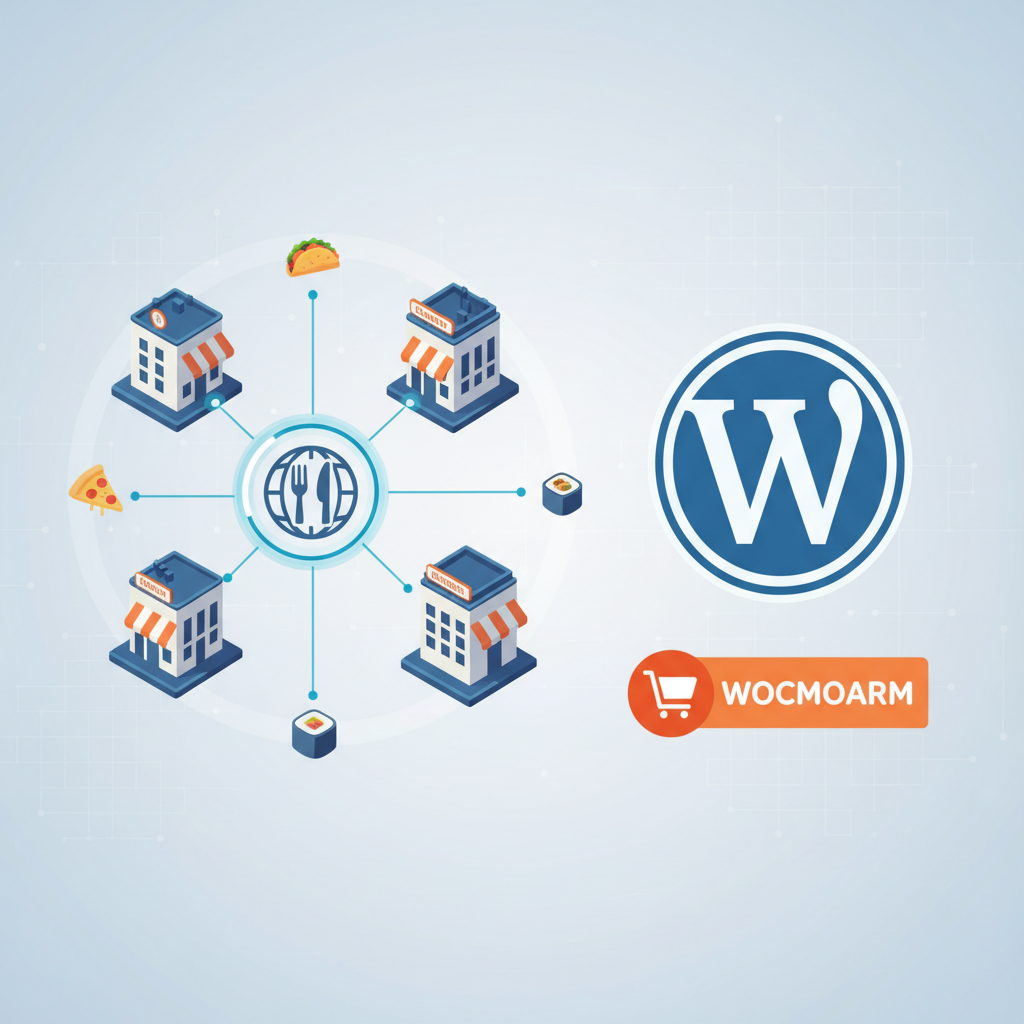
[IMAGE: Diagram showing WordPress site architecture with a single WooCommerce installation branching into multiple restaurant locations via custom taxonomies and category filters]
Configuring Location-Specific Menus, Pricing, and Availability in WooCommerce
Once your site structure is in place, the real work begins: making each location feel like its own restaurant while keeping management centralized.
Location-Specific Menus
Not every location serves the same items. Your downtown branch might offer a bar menu with craft cocktails, while your suburban location focuses on family-sized platters. Here’s how to handle this:
- Shared items: Products tagged with multiple location terms appear across those branches. Your signature burger that’s available everywhere gets all location terms assigned.
- Exclusive items: A location-specific seasonal dish only gets one location term. It won’t appear when customers browse other branches.
- Conditional visibility: Use WooCommerce conditional logic (via plugins like WooCommerce Conditional Content or custom code using
woocommerce_product_queryfilters) to show/hide products based on the customer’s selected location stored in their session.
Location-Based Pricing
Ingredient costs in Manhattan differ significantly from those in a mid-size Midwestern city. WooCommerce doesn’t natively support per-location pricing on a single product, but you have workable options:
- Duplicate products with location prefixes: Create “Downtown — Margherita Pizza” and “Midtown — Margherita Pizza” as separate WooCommerce products, each with its own price. Assign them to the appropriate location taxonomy. Customers only see one version based on their location selection.
- Product variations: Use WooCommerce variations where “Location” is an attribute. The customer selects their branch, and the price adjusts accordingly. This keeps your product catalog leaner but can clutter the variation dropdown if you have many locations.
- Role-based or zone-based pricing plugins: Plugins like WooCommerce Dynamic Pricing can apply rules based on user meta (their selected location stored in session data).
Operating Hours Per Location
Your airport location might open at 5 AM, while the downtown spot doesn’t start taking orders until 11 AM. FoodMaster includes built-in scheduling features that let you define operating hours and block orders outside those windows. For multi-location setups, you’d configure these time restrictions per location category so customers can’t place orders at a closed branch.
A practical implementation: when a customer selects “Airport Location,” the system checks that branch’s hours before displaying the order button. If they’re outside operating hours, a message shows the next available ordering window.
Managing Delivery Zones and Pickup Options Per Location
Delivery zone configuration is where multi-location management gets genuinely complex. Each branch has its own radius, its own fee structure, and potentially its own delivery staff.
Defining Unique Delivery Zones Per Branch
WooCommerce’s native shipping zones work on a country/state/postcode basis, which is too broad for restaurant delivery. Instead, you need radius-based or polygon-based zones tied to each location’s address. Here’s the approach:
- Set each location’s coordinates as the center point for its delivery radius.
- Define distance tiers — for example, 0–3 km (free delivery), 3–5 km ($3 fee), 5–8 km ($6 fee), beyond 8 km (no delivery).
- Handle overlap — When two branches can both deliver to an address, either let the customer choose their preferred location or automatically route to the nearest branch.
FoodMaster’s delivery zone system supports distance-based and postcode-based restrictions natively. For multi-location setups, you’d configure separate zone rules per location, ensuring each branch only accepts delivery orders within its defined service area.
Geolocation-Based Auto-Detection
The smoothest customer experience uses the browser’s Geolocation API (with permission) or IP-based geolocation to automatically suggest the nearest location. Here’s the flow:
- Customer lands on your site.
- A prompt asks: “Allow us to find your nearest location?” (or uses IP-based approximation without prompting).
- Based on their coordinates, the system calculates distance to each branch and pre-selects the closest one.
- The menu, pricing, delivery zones, and operating hours all adjust to that location.
- Customer can manually override by selecting a different branch from a dropdown.
You can implement this with a combination of the browser Geolocation API, the Haversine formula for distance calculation, and AJAX calls that update the WooCommerce session with the selected location.
Pickup Configuration
Each location needs its own pickup address displayed clearly at checkout. Store the address, phone number, and any special pickup instructions (e.g., “Enter through the side door on 5th Street”) as custom fields on each location term. Display these dynamically when a customer selects “Pickup” as their order type.
[IMAGE: Screenshot mockup of a restaurant website‘s location selector showing a map with multiple pins and a delivery zone radius overlay for each branch]
Staff Roles, Order Routing, and Kitchen Management Across Locations
Your downtown kitchen shouldn’t see orders destined for the midtown branch. And your midtown manager shouldn’t be able to edit downtown’s menu. WordPress user roles and order routing logic solve this.
Custom User Roles Per Location
WordPress’s built-in roles (Administrator, Editor, Author, etc.) aren’t granular enough for multi-location restaurant operations. You need custom roles like:
- Location Manager — Can edit products, view orders, and manage settings only for their assigned location.
- Kitchen Staff — Can view and update order status only for their branch. No access to pricing, settings, or other locations.
- Delivery Coordinator — Can see delivery orders for their zone, update delivery status, but can’t modify menu items.
Use the Members plugin or User Role Editor to create these custom roles. Then, restrict content visibility using custom meta on each user (e.g., assigned_location = "downtown") combined with filters on the WooCommerce orders screen that only display orders matching the user’s location assignment.
Order Routing Logic
When an order comes in, it needs to reach the right kitchen immediately. The routing logic works like this:
- Customer places an order with “Midtown” as their selected location.
- The order is tagged with a location meta field (
_order_location = midtown). - Notification emails/push notifications fire only to midtown staff.
- The midtown kitchen display shows the new order; downtown’s display doesn’t.
For email notifications, hook into woocommerce_new_order and conditionally send to different email addresses based on the order’s location meta. If you’re using FoodMaster’s automatic printing feature, configure separate printers per location so orders print directly in the correct kitchen.
Kitchen Display System (KDS) Across Locations
A KDS replaces paper tickets with a screen-based order queue. For multi-location operations, each kitchen runs its own KDS instance filtered to only show orders assigned to that branch. FoodMaster includes a kitchen display feature that can be filtered this way—each location’s kitchen accesses the same WordPress backend but only sees their relevant orders in the queue.
The key technical requirement: order meta must reliably tag every order with its location at the moment of purchase. If this tagging fails, orders get lost between branches. Build in a validation step at checkout that prevents order submission without a location selection.
Local SEO Tips for Each Location Page
Having a single WordPress site doesn’t mean sacrificing local search visibility. Each location deserves its own optimized landing page that ranks for “[your restaurant name] + [neighborhood/city]” queries.
Unique NAP Data Per Location
NAP (Name, Address, Phone) consistency is a foundational local SEO signal. Each location page must display its own:
- Full street address (not abbreviated)
- Local phone number (not a central call center number)
- Location-specific business name if applicable (e.g., “Mario’s Pizza — Greenville”)
Ensure this NAP data matches exactly what’s listed on your Google Business Profile for each location.
LocalBusiness Schema Markup
Add structured data to each location page using the Restaurant schema type (a subtype of LocalBusiness). Include:
@type: Restaurantname,address,telephoneopeningHoursSpecification— with each location’s actual hoursgeo— latitude and longitude coordinatesservesCuisine— your cuisine typemenu— URL pointing to that location’s menu page
Use a plugin like Rank Math or Yoast’s Local SEO add-on to generate this schema without hand-coding JSON-LD on every page.
Embedded Google Maps and Location-Specific Content
Each location page should include:
- An embedded Google Map centered on that branch’s address
- Driving/parking directions specific to that location
- Photos of that specific storefront and interior (not generic brand photos)
- Location-specific reviews or testimonials from customers who visited that branch
- Nearby landmarks or cross-streets to help with “near me” search context
Write at least 300–500 words of unique content per location page. Don’t just swap out the address and call it done—Google’s helpful content system can identify thin, duplicated location pages and may not rank them well.
Google Business Profile Integration
Create a separate Google Business Profile for each physical location. Link each profile to its corresponding location page on your WordPress site (not to your homepage). This creates a clear signal to Google about which page represents which branch. Post regular updates to each profile with location-specific offers or events to maintain engagement signals.
Bringing It All Together
Managing multiple restaurant locations from a single WordPress site isn’t just possible—it’s the operationally superior approach for 2025. You get consolidated reporting, single-point menu management, unified branding, and dramatically reduced maintenance overhead compared to running separate sites per location.
The implementation path breaks down into clear phases: first, establish your site architecture with location taxonomies. Second, configure per-location menus, pricing, and hours. Third, set up Restaurant Website (2025)”>Restaurant Website (2025)”>delivery zones and geolocation. Fourth, implement role-based access and order routing. Finally, optimize each location page for local search.
A WooCommerce restaurant ordering plugin like FoodMaster gives you the foundational ordering infrastructure—delivery/pickup/dine-in order types, scheduling, kitchen display, automatic printing, and QR table ordering—without paying per-order commissions to third-party platforms. Building multi-location logic on top of that foundation means each branch operates independently from the customer’s perspective while you maintain full control from a single WordPress dashboard.
Start with two locations, validate your workflow, then scale. The architecture described here supports growth from a handful of branches to dozens without requiring a platform migration down the road.
Commission-free ordering
Run restaurant orders on your own WordPress site
FoodMaster adds delivery, pickup, dine-in, POS, and kitchen tools — with zero per-order fees.