On this page
- A Quick Note About Real-Time Collaboration
- Native AI Integration Through the New Connectors Screen
- A Cleaner, Faster Admin Experience
- Command Palette, Now Everywhere
- Responsive Visibility Controls Inside the Block Editor
- Visual Revisions That Actually Tell You What Changed
- Per-Block Custom CSS
- Three New Blocks Worth Knowing About
- Icons Block
- Breadcrumbs Block
- Headings Block
- Mobile Navigation Overlays Come of Age
- Smarter Pattern Editing
- Gallery Lightbox Navigation
- Under-the-Hood Changes for Developers
- Pseudo-Element Support in theme.json
- PHP-Only Block Registration
- Block Selectors API
- Font Library Improvements
- WP-CLI 3.0
- Iframed Editor
WordPress 7.0 has officially landed, and after spending several weeks with it during the beta cycle, I can confidently say this is one of the most ambitious releases we’ve seen in years. It kicks off 2026 with a bang, introducing native AI integration, a noticeably more polished admin interface, responsive controls inside the block editor, and a host of smaller refinements that genuinely change how you’ll work with WordPress on a daily basis.
Whether you publish a hobby blog every now and then or manage a busy content operation with multiple authors, this update is going to touch your workflow in meaningful ways. In this article, I’ll walk you through everything worth knowing, share my hands-on impressions, and point out the details that might not be obvious at first glance.
Quick reminder before you upgrade: always run a full backup of your site (files and database) before applying any major WordPress release. If your host doesn’t handle updates automatically for you, schedule the upgrade for a low-traffic window and ideally test it on staging first.
A Quick Note About Real-Time Collaboration
Before diving into what made the cut, let’s address what didn’t. Real-time collaboration — the feature that would let multiple people edit the same post simultaneously, Google Docs style — was originally on the roadmap for 7.0. However, the core development team decided to pull it shortly before release.
The reasoning came down to engineering caution. There were unresolved concerns about race conditions, memory consumption on busy servers, and how the system would behave under real-world load. Rather than ship something half-baked, the team chose to keep iterating. You can still preview the feature through the Gutenberg plugin if you’re curious. When it’s ready for prime time, expect a thorough dive into how it works.
Native AI Integration Through the New Connectors Screen
The headline feature of WordPress 7.0 is undoubtedly the new Connectors screen, accessible under Settings → Connectors. For the first time, WordPress core ships with a dedicated framework for hooking your site up to AI services — and you don’t need a third-party plugin to do it.
The concept is straightforward but powerful. Instead of every AI-powered plugin asking for its own API key (and you potentially paying multiple subscription fees), you authenticate once at the platform level. Any plugin or theme that supports the new WordPress AI API can then tap into your chosen provider automatically.
Three providers are supported out of the gate:
- OpenAI (the ChatGPT family of models)
- Google Gemini
- Anthropic Claude
Credentials are stored securely within WordPress, and the connector layer handles all communication in a standardized way. This is a big deal for the broader plugin ecosystem because developers no longer need to build their own integration plumbing — they can simply consume the AI API and let users pick their preferred backend.
[IMAGE: Screenshot of the new AI Connectors screen in the WordPress 7.0 dashboard]
Want to opt out entirely? If you’d rather not have any LLM functionality available on your site — whether for privacy, compliance, or simplicity — add this single line to your wp-config.php:
define( 'WP_AI_SUPPORT', false );
That flag disables all AI-related capabilities across the entire installation, including features added by plugins that rely on the core API.
A Cleaner, Faster Admin Experience
The WordPress dashboard hasn’t been completely redesigned, but it has been thoughtfully refreshed. You’ll notice updated color palettes, sharper typography, and significantly smoother transitions when navigating between screens.
The single biggest improvement, in my opinion, is that moving between sections no longer triggers a full page reload every time. Jumping from your post list to settings to the editor feels closer to a modern single-page application than the traditional WordPress experience. It’s subtle, but once you’ve used it for a few hours, going back to an older version feels noticeably clunky.
Command Palette, Now Everywhere
If you’ve ever used VS Code, Linear, or Figma, you already know how addictive a good command palette can be. WordPress introduced one inside the block editor previously, but in 7.0 it’s available everywhere in the admin.
Hit Cmd+K on macOS or Ctrl+K on Windows and Linux, and you can:
- Jump to any admin page instantly
- Search posts and pages by title
- Open settings panels without clicking through menus
- Execute common actions like creating a new post or switching themes
This is purely optional — every action remains available through the standard menus — but if you spend a lot of time inside WordPress, learning the palette will pay dividends quickly.
Responsive Visibility Controls Inside the Block Editor
This is one of those features that page builders have offered for the better part of a decade, and it’s finally part of WordPress core. Every block now has built-in visibility controls that let you show or hide it based on the visitor’s device.
Select any block, open the block inspector, and you’ll see a new visibility section. From there, you can:
- Hide a block on mobile only
- Show a block exclusively on desktop
- Apply different combinations for tablet, phone, and large screens
- Use different font sizes, padding, or margins per breakpoint
Blocks with active visibility rules display a small device icon in the List View, which makes it easy to scan a complex layout and see exactly which elements have conditional rules applied. Visibility controls are also accessible from the Command Palette, which is handy when you’re editing keyboard-first.
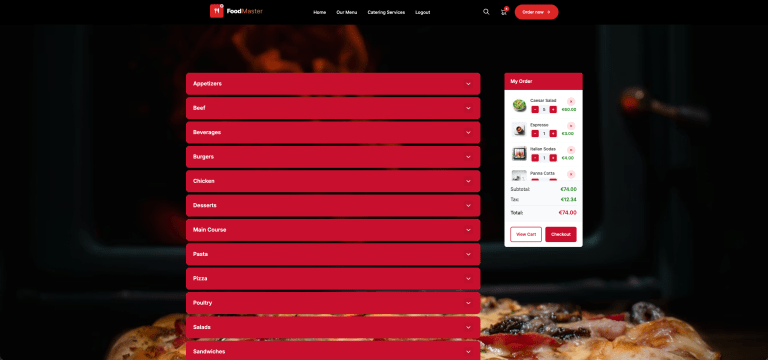
For restaurant sites or any business that depends heavily on mobile traffic, this is genuinely useful. You can finally build menus and ordering interfaces that adapt naturally without writing media queries by hand. If you’re running a restaurant ordering setup with something like FoodMaster, you can now hide certain promotional banners on small screens, display larger menu imagery on desktop, and keep your mobile checkout uncluttered — all from within the editor.
Visual Revisions That Actually Tell You What Changed
WordPress has had a revisions system since the early days, but it’s never been particularly visual. WordPress 7.0 fixes that with a redesigned side-by-side comparison view that uses color-coded outlines to highlight differences between any two saved versions.
Here’s how the new color system works:
- Green outlines — blocks that were added in the newer revision
- Red outlines — blocks that were removed
- Yellow outlines — blocks whose settings or attributes were changed
- Green underlines on text — newly added wording
- Red strikethrough text — deleted wording
The sidebar also lists the specific block attributes that changed, so you can see precisely which setting was modified rather than just spotting that something shifted. For multi-author sites this is a game-changer for editorial review, and even for solo bloggers it’s much easier to identify what you accidentally deleted last week.
Per-Block Custom CSS
Need to tweak the style of one specific button without affecting every other button on your site? Until now, you had to either add a custom CSS class, modify Global Styles, or wrestle with the Additional CSS panel. WordPress 7.0 introduces a dedicated Custom CSS field directly inside every block’s Advanced settings panel.
Whatever rules you write apply only to that specific block instance. The editor renders changes in real time, so there’s no guesswork. A few details worth knowing:
- Only users with the
edit_csscapability (typically Administrators and Editors) can see this field - The CSS travels with the block — duplicate or move the block and the styles come along
- Block developers can opt out of this feature via their
block.jsonif it conflicts with their design intent
This is the kind of feature that sounds small but quietly removes a recurring frustration for anyone who builds custom layouts regularly.
Three New Blocks Worth Knowing About
WordPress 7.0 adds three brand-new native blocks, each of which previously required a plugin.
Icons Block
You can now drop SVG icons directly into your content. The block ships with the complete WordPress icon library, supports search by name, and lets you resize, recolor, and adjust spacing per icon. Perfect for feature lists, service cards, or pricing tables where small visual cues make a big difference.
Third-party icon sets like Font Awesome or Heroicons aren’t bundled yet, but official support for registering custom icon libraries is slated for WordPress 7.1.
Breadcrumbs Block
Breadcrumbs are a small but important navigation aid, and they also serve as a recognized SEO signal that Google uses to enhance search snippets. The new Breadcrumbs block automatically generates a navigation trail based on your site’s hierarchy, no SEO plugin required.
Developers also get two new PHP filters for customizing the breadcrumb items and taxonomy preferences, so the block can adapt to unusual site structures.
Headings Block
The Headings block consolidates all six heading levels (H1 through H6) into a single block with built-in level variations. You can switch levels directly from the sidebar without transforming the block, and every level is searchable through the slash inserter.
This isn’t just a convenience improvement. Proper heading structure matters for accessibility (screen readers rely on it for navigation) and for SEO (search engines use heading hierarchy to understand page content). Making the right choice easier means more sites will get it right by default.
Mobile Navigation Overlays Come of Age
The overlay system for mobile menus inside the Navigation block has graduated from experimental to fully supported. You now get a guided Create overlay button that walks you through setup with several pre-built design patterns to choose from.
Theme developers can register a new navigation-overlay template part area, giving users full control over the mobile menu directly from the site editor. No more relying on page builders or custom code to get a proper hamburger menu experience.
Smarter Pattern Editing
Block patterns now default to content-only editing mode. When you click into a pattern, you’ll see a simplified view that focuses on what you actually need to change — text and images — rather than exposing every nested block’s design settings.
For content creators this is wonderful. Editing a hero section no longer means accidentally breaking the layout because you clicked one too many times. If you’re a developer who needs full access, you can disable content-only mode with a filter:
add_filter( 'block_editor_settings_all', function( $settings ) { $settings['disableContentOnlyForUnsyncedPatterns'] = true; return $settings; } );
Gallery Lightbox Navigation
If you use the Gallery block with the lightbox feature enabled, visitors can now navigate between images using on-screen back and forward buttons or the left and right arrow keys. Images where the lightbox is individually disabled are skipped automatically in the sequence. It’s a small touch, but it makes image-heavy posts and portfolios feel much more polished.
[IMAGE: Screenshot of the responsive block visibility controls in the WordPress block editor]
Under-the-Hood Changes for Developers
If you build themes or plugins, WordPress 7.0 includes several technical improvements that are worth your attention.
Pseudo-Element Support in theme.json
You can now style :hover, :focus, :focus-visible, and :active states directly inside theme.json, both for blocks and style variations. No more shipping a separate CSS file just to handle interaction states.
PHP-Only Block Registration
For server-rendered blocks, you can now register a fully functional block using PHP alone, with no JavaScript required for basic functionality. This dramatically reduces overhead for simple use cases like dynamic data blocks or short-code replacements.
Block Selectors API
Blocks can declare a selectors.css entry in their block.json to tell WordPress exactly which CSS selector to use when applying Global Styles. This gives developers far more precise control over how styles are scoped, which is helpful when the default selector doesn’t match the element you actually need to target.
Font Library Improvements
The Font Library now has its own dedicated management page in the dashboard, providing a single home for uploading, installing, and organizing fonts. Even better, it now works across all theme types — block themes, hybrid themes, and classic themes — rather than being limited to block themes with full site editing.
WP-CLI 3.0
Released alongside core, WP-CLI 3.0 introduces two new command families: wp block for read-only access to block entities, and wp ability commands for interacting with the new AI Abilities API.
Iframed Editor
The post editor now automatically switches to an iframed layout when every block in the post uses Block API version 3 or higher. This improves editor stability and performance considerably. If a post contains older blocks, the iframe is skipped to maintain backward compatibility. Plugin and theme developers should double-check
Commission-free ordering
Run restaurant orders on your own WordPress site
FoodMaster adds delivery, pickup, dine-in, POS, and kitchen tools — with zero per-order fees.