On this page
- Why AI Chatbots Are a Game-Changer for Restaurant Websites in 2026
- Choosing the Right AI Chatbot Solution for WooCommerce
- Native WordPress AI plugins
- Custom bots built on OpenAI or Claude APIs
- Hosted conversational platforms
- Step-by-Step: Installing and Connecting an AI Chatbot to Your WooCommerce Menu
- Step 1: Get your API key
- Step 2: Install the chatbot plugin
- Step 3: Sync your WooCommerce menu
- Step 4: Add the widget to your site
- Training Your Chatbot on Menu Items, Allergens, and Restaurant Policies
- Build a structured knowledge base
- Prompt engineering: the system prompt
- Human handoff
- Enabling In-Chat Ordering: From Conversation to WooCommerce Checkout
- The conversational ordering flow
- Technical integration
- Fallback flows for complex orders
- Testing, Monitoring, and Improving Chatbot Performance
Picture this: it’s Friday at 7:42 PM. Your pizzeria’s phone is ringing off the hook, three customers are asking about gluten-free crust on your website chat, and two more just abandoned checkout because they couldn’t figure out if you deliver to their postcode. Meanwhile, your kitchen is drowning. This is the exact scenario an AI chatbot is built to solve — and in 2026, the technology has finally matured enough that even small independent restaurants can deploy one in an afternoon.
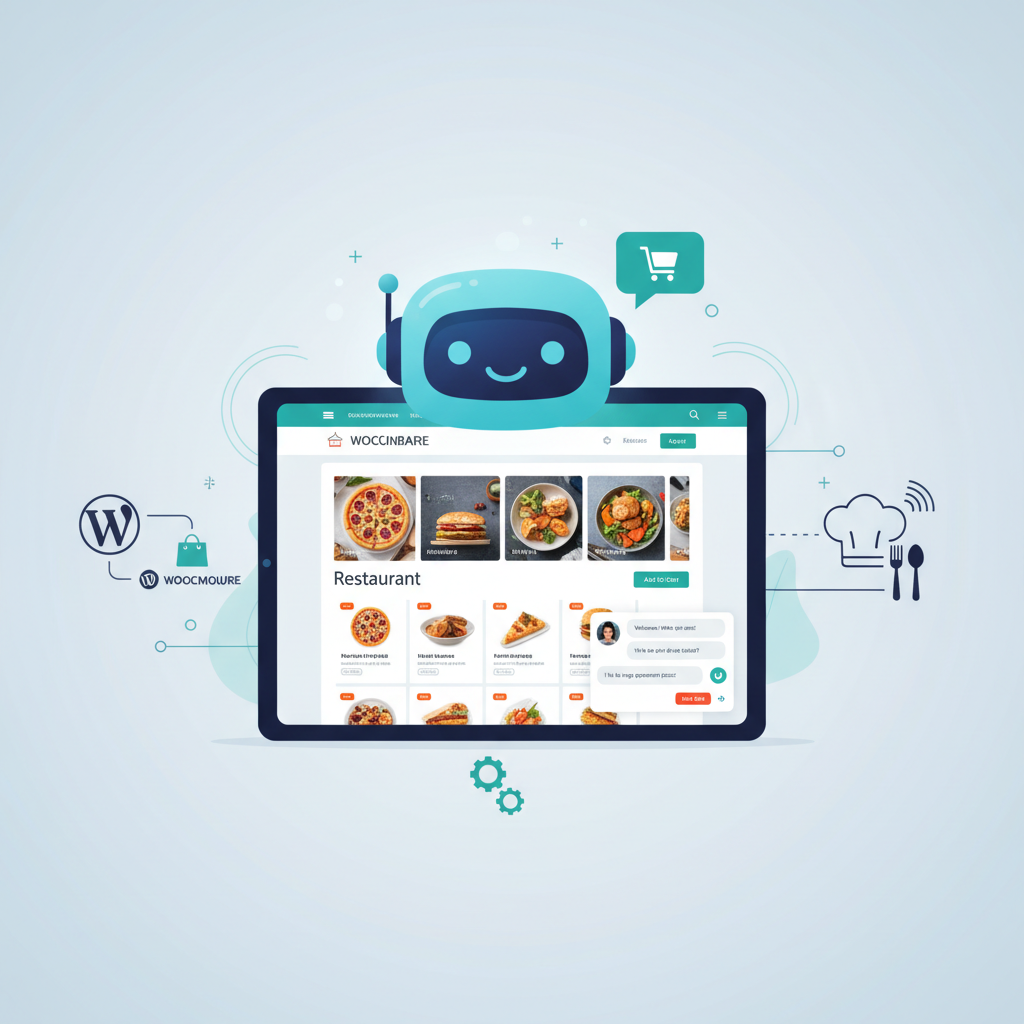
This guide walks you through adding a genuinely useful AI chatbot to a WooCommerce restaurant site: choosing the right tool, connecting it to your menu, letting it take orders, and making sure it doesn’t hallucinate a $3 lobster roll. Let’s get into it.
Why AI Chatbots Are a Game-Changer for Restaurant Websites in 2026
Restaurants lose orders in two places online: at the FAQ stage (“Do you deliver to me? Is this dish spicy? What time do you close?”) and at the friction stage (menu too long, checkout too clunky, no one answering the phone). A well-configured AI chatbot addresses both simultaneously.
According to a 2024 report by Juniper Research, chatbots are projected to save the retail, banking, and healthcare sectors billions in customer service costs annually, with food service being one of the fastest-growing adopters. On the restaurant side, Domino’s “Dom” and Wingstop’s conversational ordering bots have publicly reported that a meaningful share of digital orders now flow through conversational interfaces — proving customers are comfortable ordering by chat.
Here’s where AI chatbots deliver real ROI for a woocommerce-restaurant-ordering-plugin/” title=”WooCommerce Restaurant Ordering Plugin: 10 Best Must-Have Tools for Effortless Sales”>WooCommerce restaurant:
- Recovering missed orders during peak hours. A chatbot doesn’t put customers on hold. It handles 50 simultaneous conversations at 7 PM Friday just as easily as 2 PM Tuesday.
- Answering the same 15 questions forever. Hours, delivery zones, allergens, parking, kids’ menu, vegan options — these questions eat 60–70% of front-of-house phone time. Automate them.
- Reducing cart abandonment. When a customer hesitates at checkout, a proactive chatbot can offer a coupon, clarify delivery fees, or answer “will this arrive hot?” in real time.
- Multilingual coverage. A tourist-heavy restaurant can serve English, Spanish, French, and Greek customers from the same bot without hiring bilingual staff.
Cloud kitchens and delivery-only concepts benefit even more, because they don’t have a physical dining room to catch phone-shy customers. Pizzerias and burger joints — with heavily modified orders (extra cheese, no onions, swap fries for salad) — are ideal use cases because AI handles natural-language modifiers far better than rigid dropdown menus.
Choosing the Right AI Chatbot Solution for WooCommerce
Not every chatbot is built for restaurants, and not every “AI plugin” for WordPress is actually intelligent. Here’s how the current landscape breaks down.
Native WordPress AI plugins
Tools like AI Engine, WPBot, Tidio, and Chatbase install directly into WordPress. They’re the easiest starting point because they integrate with your existing site, respect your theme, and often have WooCommerce hooks out of the box. Tidio and AI Engine both support OpenAI and Anthropic (Claude) models, letting you pick the underlying LLM. Pricing typically ranges from free tiers (limited conversations) to $30–$100/month for serious volume.
Custom bots built on OpenAI or Claude APIs
If you have a developer, spinning up a custom bot using the OpenAI Assistants API or Anthropic’s Claude API gives you full control over prompts, memory, and WooCommerce integration. Expect $0.50–$5 per 1,000 conversations in raw API costs plus development time. Worth it for chains or high-volume operators.
Hosted conversational platforms
ManyChat, Botpress, and Voiceflow shine when you want the same bot on your website, WhatsApp, Instagram DMs, and Facebook Messenger. The downside: WooCommerce integration is usually via Zapier or webhooks, which adds latency and points of failure.
What to weigh before choosing:
- WooCommerce integration depth. Can the bot actually read your product catalog, or does it just point to your menu page?
- Order-taking capability. Some bots only answer questions. You want one that can add to cart.
- Language support. If you serve tourists, verify the model handles your target languages fluently (GPT-4o and Claude 3.5+ are excellent here).
- Handoff to humans. Peak-time escalation to a live staff member is non-negotiable for complex orders or complaints.
If you’re already running FoodMaster for WooCommerce restaurant ordering, you have a huge head start — your menu, modifiers, delivery zones, and business hours are already structured data the chatbot can consume directly.
Step-by-Step: Installing and Connecting an AI Chatbot to Your WooCommerce Menu
Let’s build this. For this walkthrough I’ll assume you’re using AI Engine (a popular, well-maintained WordPress AI plugin) with an OpenAI API key, alongside FoodMaster for the ordering backend. The same principles apply to Tidio or Chatbase.
Step 1: Get your API key
- Create an account at platform.openai.com (or console.anthropic.com for Claude).
- Add a payment method and set a hard monthly spending cap — start with $20 while testing.
- Generate a new API key and copy it somewhere safe. You won’t see it again.
Step 2: Install the chatbot plugin
- In WordPress, go to Plugins → Add New and search for your chosen plugin.
- Install and activate.
- Navigate to the plugin settings and paste your API key.
- Select the model: GPT-4o-mini or Claude 3.5 Haiku are the sweet spot for restaurants — fast, cheap, and smart enough.
Step 3: Sync your WooCommerce menu
This is the step most tutorials skip, and it’s the most important. Your bot needs to know what you sell. Three approaches, from simplest to most robust:
- Export as JSON/CSV. Export your WooCommerce products (WooCommerce → Products → Export) and upload as a knowledge base document to the chatbot.
- Auto-sync via plugin. Some AI plugins have a “scan site” feature that indexes your product pages automatically.
- API-based real-time lookup. The most powerful method: give the bot a “function” (in OpenAI terms, a tool call) that queries your WooCommerce REST API live. This way, when a customer asks “is the margherita available?”, the bot checks stock status in real time.
For most independent restaurants, option 1 or 2 is enough. Chains with 500+ SKUs across locations should invest in option 3.
Step 4: Add the widget to your site
Most plugins add a floating chat bubble in the bottom-right corner automatically. Customize the color to match your brand, write a friendly greeting (“Hi! I’m Bruno, I can help you order or answer questions about our menu 🍕”), and set trigger rules — for example, open the chat automatically if a visitor lingers on the menu page for 30 seconds.
[IMAGE: WordPress admin dashboard showing an AI chatbot plugin configuration screen with OpenAI API key field and WooCommerce product sync option]
Training Your Chatbot on Menu Items, Allergens, and Restaurant Policies
A bot that only knows your product catalog will still fail the moment someone asks “does the carbonara have nuts?” or “how late do you deliver on Sundays?” You need to feed it context.
Build a structured knowledge base
Create a single document — call it restaurant-knowledge-base.md — with these sections:
- Opening hours per day, including holidays and exceptions.
- Delivery zones with postcodes and minimum order values.
- Delivery fees and estimated times by zone.
- Allergen table for every menu item (gluten, dairy, nuts, soy, egg, shellfish).
- Dietary tags: vegan, vegetarian, halal, gluten-free options.
- Popular modifiers: extra cheese +$1.50, no onion, sub gluten-free bun +$2.
- Payment methods accepted online and in-store.
- Loyalty program rules and how to redeem points.
- FAQs: parking, kids’ menu, group bookings, refund policy.
Upload this document to the chatbot’s knowledge base or vector store. Most modern platforms handle PDFs, markdown, and Google Docs natively.
Prompt engineering: the system prompt
The system prompt is where you set the bot’s personality and boundaries. Here’s a battle-tested template:
“You are Bruno, the friendly assistant for Nonna’s Pizzeria in Athens. You help customers with the menu, take orders, answer allergen questions, and explain delivery. Always be warm and concise. If asked about anything outside restaurant matters (news, politics, math homework), politely redirect. If a customer wants to modify an order in a way not listed, or asks for a refund or complains, immediately offer to connect them with a human by collecting their phone number. Never invent menu items, prices, or delivery zones — if you don’t know, say so and offer to check.”
That last sentence is critical. It’s your primary defense against hallucination.
Human handoff
Set clear triggers for escalation: complaints, refund requests, custom catering, large group orders, allergen-critical questions (“my child has a severe peanut allergy”). Route these to your staff via email, SMS, or a live chat tool. Never let AI make guarantees about life-threatening allergens.
Enabling In-Chat Ordering: From Conversation to WooCommerce Checkout
Answering questions is table stakes. The real payoff is letting the bot take the order end-to-end. This is where most tutorials get vague, so let’s be specific.
The conversational ordering flow
- Intent detection. Customer says “I’d like a large pepperoni pizza.” Bot recognizes this as an order intent.
- Modifier gathering. Bot asks: “Great choice! Any extras? We can add mushrooms, extra cheese, or make it a gluten-free crust for $2 more.”
- Upsell. Bot suggests: “Want to add a Coke or garlic bread? Our combo saves you $3.”
- Delivery vs pickup. Bot asks the fulfillment method, then checks postcode against your zones.
- Contact and address collection. Name, phone, address — validated against your delivery area.
- Cart handoff. Bot creates a WooCommerce cart with all items and modifiers, then generates a checkout URL: “Perfect! Your order is €24.50. Tap here to pay: [link]”
Technical integration
The cleanest way to move a conversation into a real WooCommerce cart is via the Store API (introduced in WooCommerce Blocks). The bot’s backend calls /wp-json/wc/store/v1/cart/add-item for each item with its variation and metadata for modifiers. Then it returns a session-linked checkout URL to the customer.
If you’re using FoodMaster, this is dramatically easier because it already exposes menu items with modifiers (crust type, toppings, sides) as structured WooCommerce products with variations. You can find more detail on how FoodMaster structures its products in our related guides on building a WooCommerce restaurant ordering system.
[IMAGE: mobile phone showing a chatbot conversation with a customer ordering a pizza, including modifier selection and a checkout link]
Fallback flows for complex orders
Not every order fits neatly. Catering for 30 people, a birthday cake with a custom message, or a customer who wants “half margherita, half four cheeses with pesto drizzled on one side only” — these deserve human hands. Configure the bot to detect these signals (keywords like “catering”, “custom”, “special request”, “for a party”) and offer to text a human within 5 minutes.
Testing, Monitoring, and Improving Chatbot Performance
Launching a bot without a monitoring plan is like opening a restaurant without a POS. You need
Commission-free ordering
Run restaurant orders on your own WordPress site
FoodMaster adds delivery, pickup, dine-in, POS, and kitchen tools — with zero per-order fees.