
Advanced Opening Hours & Holiday Management
A reliable restaurant ordering system must know exactly when you are open. Setting accurate hours prevents frustrated customers from placing orders when your kitchen is closed.
1. Setting Regular Business Hours
You can set different hours for Delivery and Pickup. This is helpful if your kitchen stops delivery an hour before the store closes.
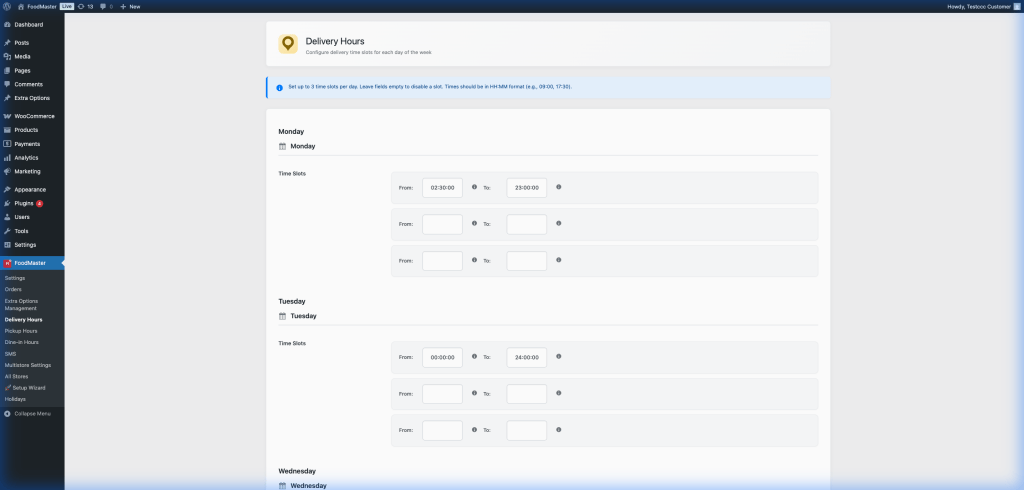
How to set hours:
- Navigate to FoodMaster > Delivery Hours.
- Select the day of the week.
- Use the time picker to set ‘Start’ and ‘End’ times.
- Add multiple shifts (e.g., 11 am – 3 pm and 6 pm – 11 pm) to account for afternoon breaks.
2. Managing Store Closures (Holidays)
Prevent orders on specific dates like Christmas or Labor Day by using the Holidays feature.
Steps:
- Go to FoodMaster > Holidays.
- Add the specific date you will be closed.
- The system will automatically stop accepting orders for that day and display a custom “Closed” message to customers.
3. Real-time Status Override
In case of an emergency (e.g., a power outage), you can manually set your store to “Closed” instantly from the main settings page. This override stays in place until you manually turn it back on.
4. Pro Tip: Pre-Orders
FAQ
Q: What happens if an order is placed exactly at closing time?
A: FoodMaster checks the time at the moment of checkout. If it’s past the closing time, the order will be blocked.
Q: Can I set different hours for different store locations?
A: Yes, if you use the Multistore feature, each store has its own independent calendar.