
Every restaurant needs online ordering. Customers expect to browse your menu and place orders from their phone — without downloading another app or calling in. In this step-by-step guide, you’ll learn how to build a complete food ordering website using WordPress, WooCommerce, and FoodMaster in under 30 minutes.
What You’ll Need
Before we start, make sure you have the following ready:
- A WordPress installation — self-hosted on any standard hosting provider (SiteGround, Cloudways, LocalWP for testing, etc.)
- WooCommerce — the free eCommerce plugin, installed and activated
- FoodMaster plugin — installed and activated
- FoodMaster Theme — optional but recommended for the best visual experience
No other plugins are needed. FoodMaster handles everything food-specific: menus, order types, store hours, color schemes, extra options (toppings, sides), and checkout customization.
Step 1: Install WooCommerce and FoodMaster
Start by installing WooCommerce from Plugins → Add New in your WordPress dashboard. Activate it, but you can skip the WooCommerce setup wizard — FoodMaster will handle the important configuration for you.
Next, upload and activate the FoodMaster plugin. As soon as you activate it, you’ll see a notification inviting you to run the Setup Wizard.
Click it. This is where the magic happens.
Step 2: The FoodMaster Setup Wizard
The FoodMaster Setup Wizard is a full-screen, guided experience that takes you from zero to a fully configured food ordering site in 7 steps. No guesswork. No hunting through settings pages. Just answer a few questions and let the wizard do the rest.
2.1 — Welcome Screen
The wizard opens with an overview of what it will configure for you: your restaurant type and color scheme, demo menu content, store information, working hours, ordering options, and dine-in/QR table ordering. Click Continue to begin.
2.2 — Choose Your Restaurant Type
This is the most visual step. FoodMaster presents a grid of restaurant type cards, each showing a live color scheme preview. You’ll see the header, background, button colors, and footer — exactly how your site will look.
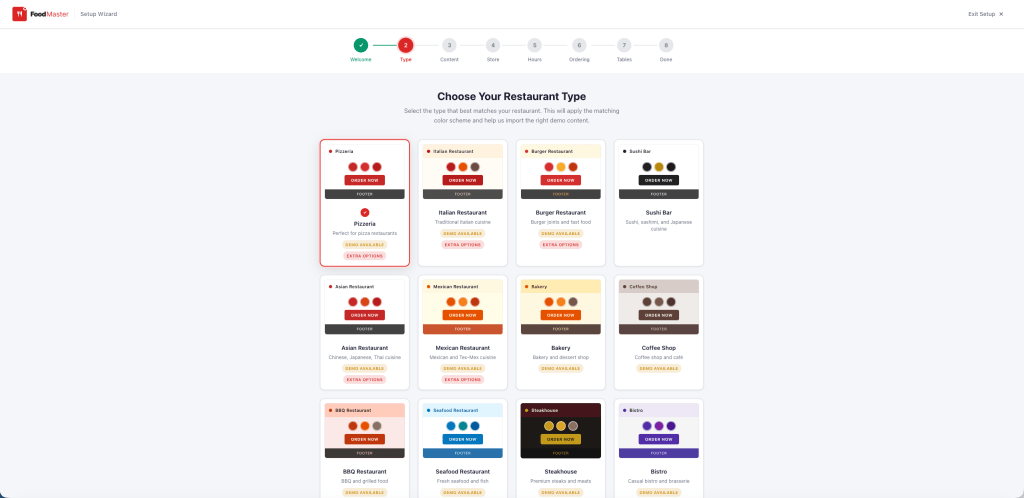
There are 23+ restaurant types to choose from:
- Pizzeria
- Burger Joint
- Sushi Bar
- Italian
- Mexican
- Coffee Shop
- Seafood
- BBQ Joint
- Asian Cuisine
- Steakhouse (Dark)
- Healthy / Organic
- Dessert Shop
- Bakery
- Bistro
- Fried Chicken
- Deli / Sandwich
- Fast Food
- Ice Cream Shop
- Mediterranean
- Ramen Shop
- Sports Bar
- Taco Bar
- Fine Dining (Dark)
Each type comes with a professionally designed color palette — primary, secondary, accent, background, header, footer, button, and text colors — all meeting WCAG accessibility standards for contrast. Click the card that best matches your business.
Pro Tip: The color scheme is applied to your entire site the moment you select a type — not just during demo import. You can always change it later from the FoodMaster settings panel.
2.3 — Import Demo Content
Based on the restaurant type you selected, FoodMaster can import a complete demo menu with real product categories, items, descriptions, prices, and images. This gives you a working menu immediately — you can customize the items later.
The import includes:
- Products — menu items with images, descriptions, and prices
- Categories — organized menu sections (Starters, Mains, Desserts, etc.)
- Extra Options — toppings, sides, size variations, and add-ons specific to your cuisine type
- Pages — pre-built menu, cart, and checkout pages
Click Import Products and watch the progress bar. In most cases, it takes under 30 seconds. You can also skip this step if you prefer to create your menu from scratch.
2.4 — Store Information
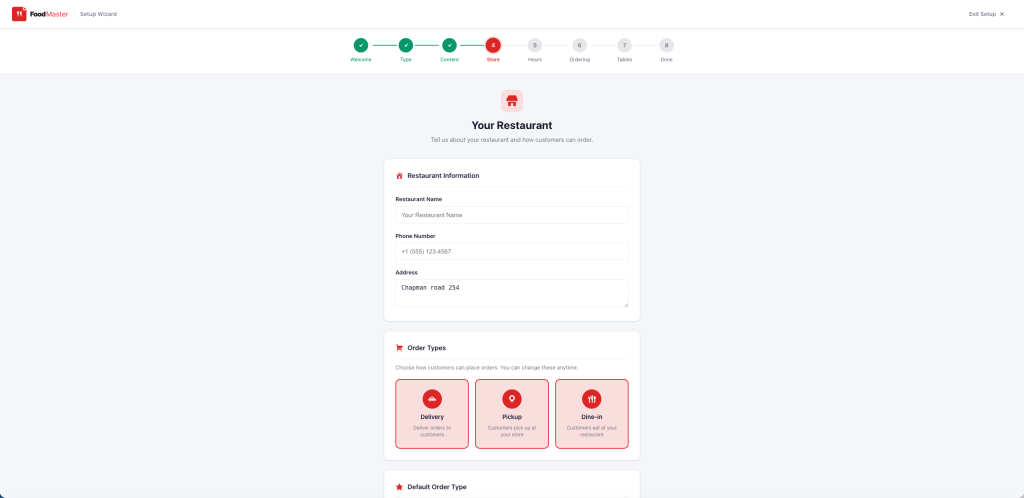
Enter your basic store details:
- Store name — your restaurant’s name
- Phone number — for order confirmations and customer contact
- Address — your physical location
Then select which order types you want to offer. FoodMaster supports three:
- Delivery — customers order online, you deliver to their address
- Pickup — customers order online, pick up at your location
- Dine-In — customers order from their table using QR codes or your website
You can enable any combination of these. Each one gets its own settings in the next steps.
2.5 — Set Working Hours
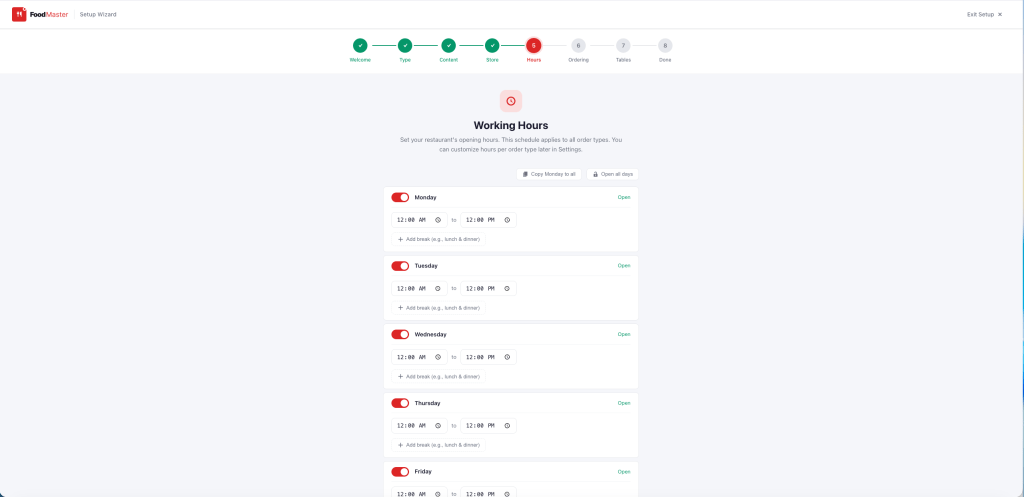
Configure your opening hours for each day of the week. FoodMaster supports:
- Open/Closed toggle per day
- Custom time ranges (e.g., 11:00 AM – 10:00 PM)
- Split shifts / break periods (e.g., closed between 3 PM – 5 PM)
- “Copy Monday to all” quick action for restaurants with consistent hours
These hours are enforced on the frontend. When your store is closed, customers see a clear message with your next available opening time — no wasted orders.
2.6 — Ordering Options
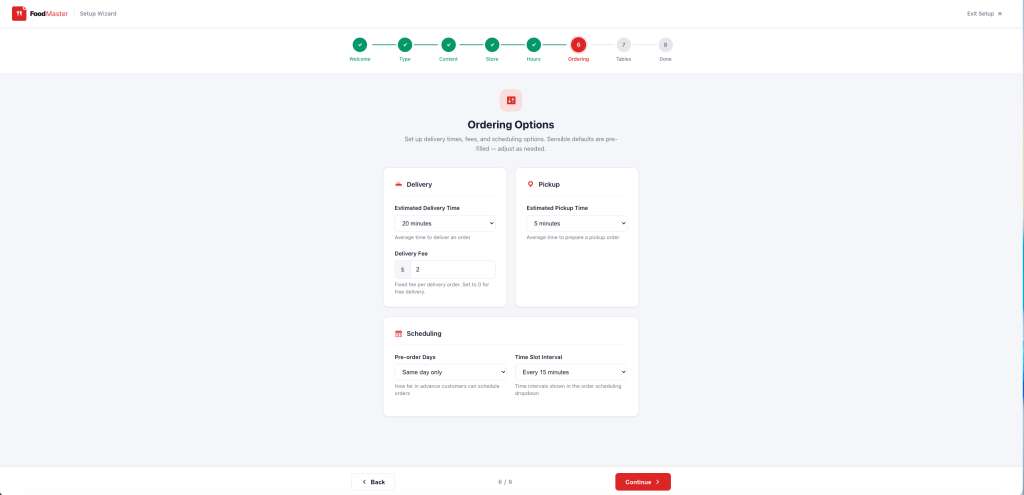
Fine-tune how ordering works:
- Estimated delivery time — shown to customers at checkout (e.g., “30–45 minutes”)
- Estimated pickup time — separate from delivery
- Delivery fee — flat fee added to delivery orders
- Pre-order days — how far ahead customers can schedule orders
- Time slot intervals — the gap between available delivery/pickup slots (e.g., every 15, 30, or 60 minutes)
2.7 — Dine-In and QR Table Ordering (Optional)
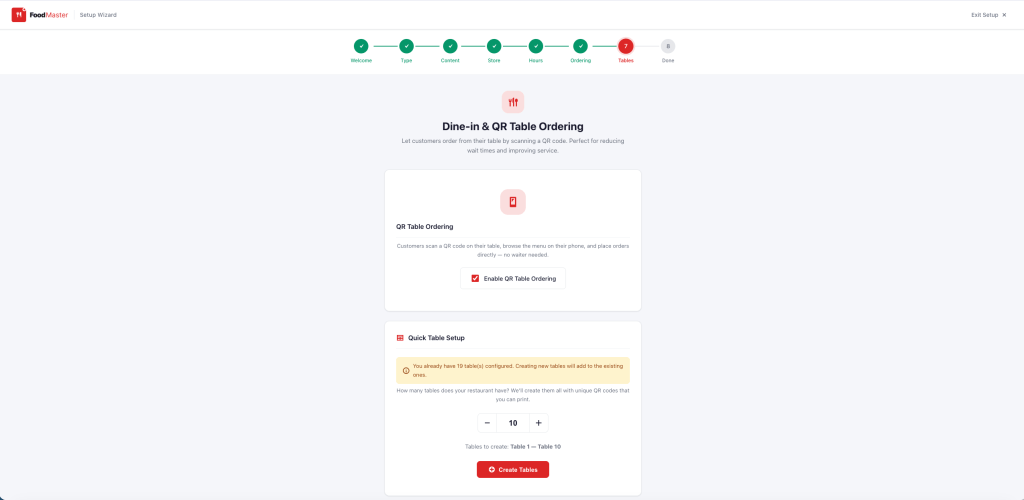
If you enabled dine-in ordering, this step lets you set up QR code table ordering. Choose how many tables your restaurant has, and FoodMaster will create a unique QR-linked ordering page for each table.
Print the QR codes, place them on your tables, and customers can scan to order directly from their phone — no app download required. Orders appear in your WooCommerce dashboard tagged with the table number.
2.8 — Setup Complete
That’s it. The wizard shows a summary of everything configured and gives you quick links to your next steps: view your menu page, customize settings further, or go to the WooCommerce dashboard.
Total time: 5–10 minutes.
Step 3: Explore Your New Food Ordering Site
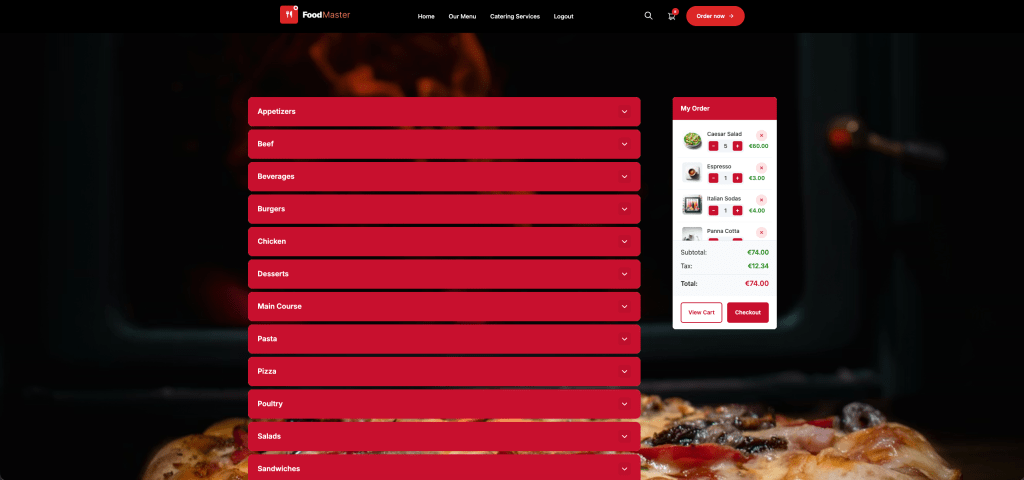
Visit your site’s frontend. If you imported demo content, you’ll already see a fully styled menu page with categories, product images, prices, and an “Add to Cart” flow.
Here’s what’s working out of the box:
Modern AJAX Add-to-Cart
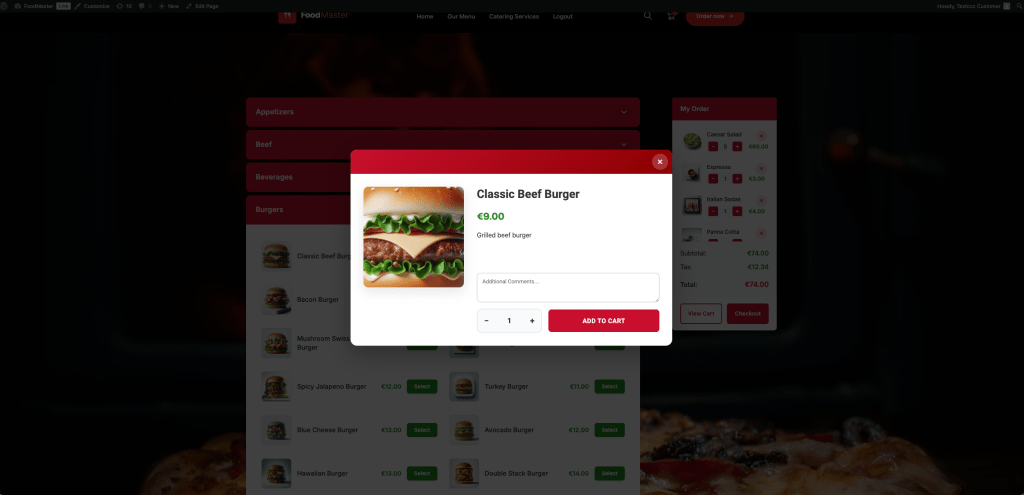
Customers click a menu item and a modal popup opens with the product details — image, description, price, extra options (toppings, sizes), and quantity controls. They can add to cart without ever leaving the menu page. No page reloads. Smooth, app-like experience.
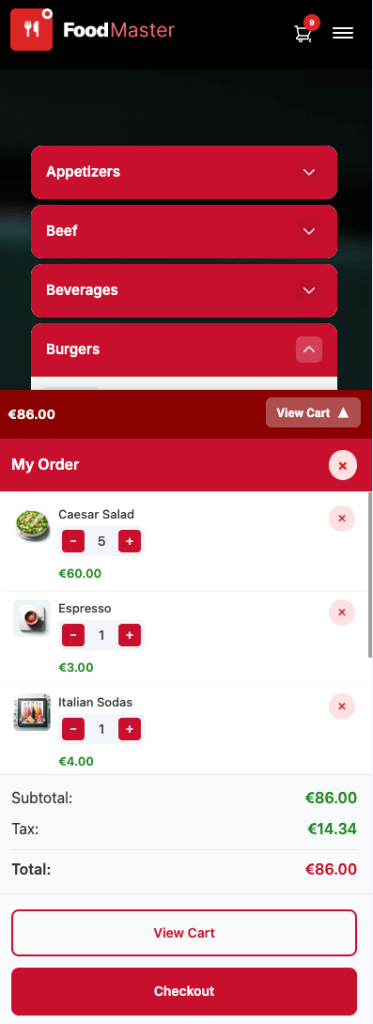
Sticky Mini Cart
As customers add items, a sticky mini cart appears at the bottom of the screen (on mobile) or the side (on desktop). It shows a running total, item count, and quick access to “View Cart” and “Checkout” — always visible, no scrolling needed.
Menu Layouts
FoodMaster includes multiple menu layout options:
- Accordion — categories collapse and expand, ideal for long menus
- Side Menu — fixed category navigation on the left, products on the right
- Sticky Tabs — category tabs stick to the top as the customer scrolls
All layouts are mobile-responsive and work with touch gestures out of the box.
Color Scheme Applied Everywhere
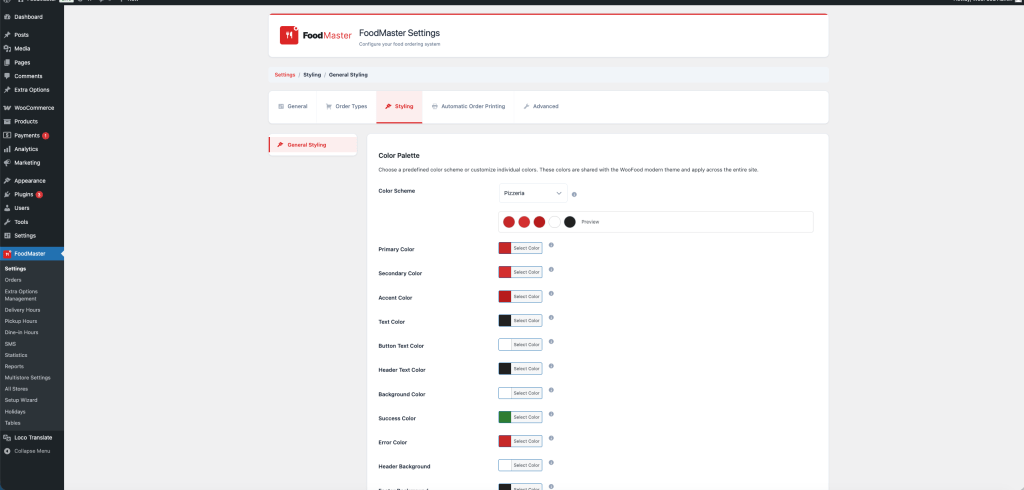
The color scheme you chose during setup is applied consistently across your entire site: menu page, product modals, cart, checkout, buttons, headers, footers, and even WooCommerce block-based pages. Everything matches. No manual CSS tweaking required.
Step 4: Customize Your Menu
The demo content gives you a head start, but you’ll want to make it your own. Here’s what to customize:
Edit Products
Go to Products in your WordPress dashboard. Each menu item is a WooCommerce product. Edit the name, description, price, and image. For items with variations (like pizza sizes or drink options), use WooCommerce’s built-in variable product type.
Add Extra Options (Toppings, Sides, Add-Ons)
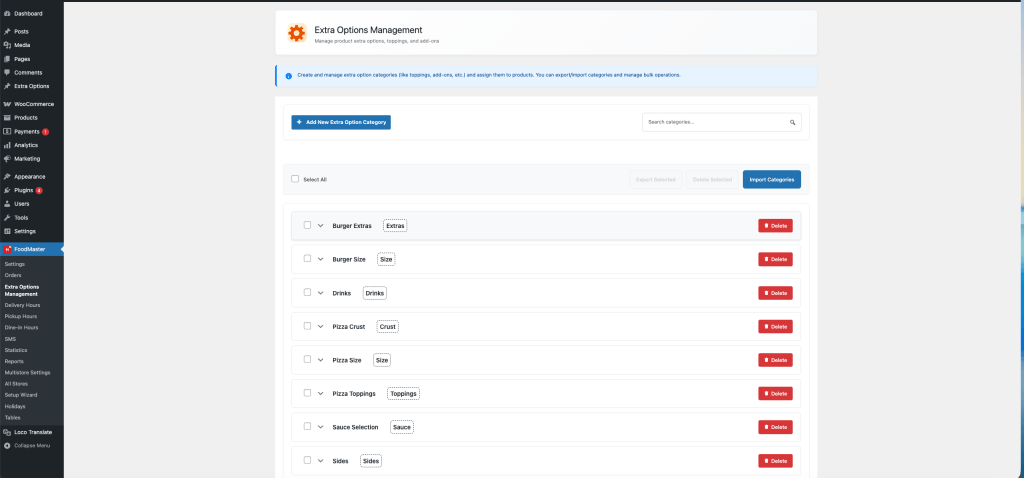
FoodMaster’s extra options system lets you create customizable add-ons for any product. Think:
- Pizza toppings (Mushrooms +$0.75, Extra Cheese +$1.50)
- Burger customizations (No Onions, Add Bacon +$2.00)
- Drink sizes (Small, Medium, Large)
- Side dishes (Fries, Salad, Soup)
These appear in the product modal when customers click “Add to Cart” — exactly where they’d expect to see customization options.
Organize Categories
Use WooCommerce product categories to structure your menu. Create categories like Appetizers, Main Courses, Burgers, Pizzas, Drinks, and Desserts. FoodMaster’s menu layouts automatically organize products by category.
Upload Product Photos
Good food photography sells. Upload square images (FoodMaster automatically generates optimized square thumbnails for the quickview modal) and make sure they’re appetizing. This single change can dramatically increase your conversion rate.
Step 5: Configure Payment Methods
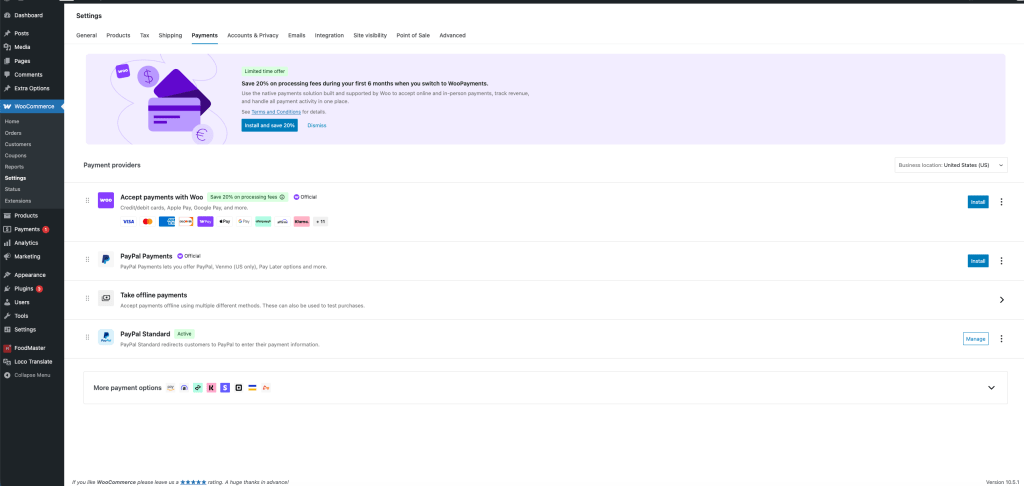
FoodMaster works with every WooCommerce payment gateway. The most common options for restaurants:
- Cash on Delivery — built into WooCommerce, enable it from WooCommerce → Settings → Payments. Rename it to “Cash on Delivery / Pickup” for clarity.
- Stripe — accept credit and debit cards online. Install the free Stripe for WooCommerce plugin.
- PayPal — built into WooCommerce. Enable PayPal Standard or install the PayPal Payments plugin for a modern checkout.
- Card on Delivery — if you have a portable card reader, offer this as an option.
Most restaurants enable both Cash on Delivery and Stripe to cover all customer preferences.
Step 6: Mobile Optimization (Already Done)
Here’s the thing — FoodMaster is built mobile-first. You don’t need to do anything extra. But here’s what your mobile customers experience:
- Full-screen product modals that feel like a native app
- Sticky add-to-cart footer with quantity controls always visible
- Touch-optimized buttons (minimum 48px tap targets)
- Sticky mini cart with “View Cart” and “Checkout” always accessible — no scrolling
- Fast AJAX interactions — no page reloads when adding items or changing quantities
- Responsive menu layouts that adapt to any screen size using pure CSS
Over 70% of food orders come from mobile devices. FoodMaster is designed for this reality.
Step 7: Go-Live Checklist
Before you announce your new ordering site to customers, run through this checklist:
- Test a complete order — add items, customize with extra options, go through checkout, and confirm the order appears in WooCommerce → Orders
- Verify working hours — check that your store shows “Open” during business hours and “Closed” outside them
- Test on your phone — open your site on a real mobile device, not just a desktop browser resize
- Check payment methods — place a test order with each payment method you’ve enabled
- Review email notifications — WooCommerce sends order confirmation emails to both you and the customer. Customize them in WooCommerce → Settings → Emails
- Set up order notifications — consider a plugin like “WooCommerce Order Notification” to get instant alerts on your phone
- Verify delivery/pickup information — make sure the estimated times and fees are accurate
- Test QR codes — if using dine-in ordering, scan each table’s QR code to verify it links to the correct ordering page
Why WordPress + FoodMaster vs. Third-Party Platforms?
You might wonder: why not just use UberEats, DoorDash, or Grubhub? Here’s the difference:
| Your Website (FoodMaster) | Third-Party Apps | |
|---|---|---|
| Commission per order | 0% | 15–30% |
| Customer data | You own it | Platform owns it |
| Branding | Fully custom | Their app, their rules |
| Monthly cost | Just hosting ($5–20/mo) | $0 + commission fees |
| Menu control | Complete | Limited by platform |
| Direct customer relationship | Yes — email, phone, repeat orders | No — platform controls communication |
On a $30 average order, a 25% commission means you’re giving away $7.50 per order. At 20 orders per day, that’s $4,500/month in fees. Your own website pays for itself on day one.
Frequently Asked Questions
Do I need coding skills?
No. The FoodMaster Setup Wizard handles the entire configuration. Customizing colors, menus, and settings is done through the WordPress dashboard — no code required.
Can I change the color scheme later?
Yes. Go to the FoodMaster settings panel and select a different color scheme at any time. Changes apply immediately across your entire site. You can also fine-tune individual colors (primary, secondary, accent, background, etc.) for a custom palette.
Does it work with my existing WordPress theme?
FoodMaster works with any WooCommerce-compatible WordPress theme. For the best experience, we recommend the FoodMaster Modern Theme, which is purpose-built for food ordering and fully inherits the plugin’s color scheme system.
Can I offer both delivery and pickup?
Yes. You can enable delivery, pickup, and dine-in ordering simultaneously. Each order type has its own settings for timing and fees. Customers choose their preferred order type at checkout.
How do customers find my ordering page?
Share the direct link to your menu page on social media, Google Business Profile, printed materials, and your existing website. For dine-in, use the generated QR codes on your tables. Since it’s your own website, you can also invest in SEO to attract local customers searching for food delivery in your area.
Can I manage multiple restaurant locations?
Yes. FoodMaster supports multi-store functionality. Each location can have its own hours, menu, delivery zones, and settings.
What’s Next?
You now have a fully functional food ordering website. Here are your next steps to grow:
- Add your restaurant to Google Business Profile and link to your ordering page
- Share on social media — Instagram, Facebook, TikTok — with a direct “Order Now” link
- Print QR codes linking to your menu for takeout bags, flyers, and table cards
- Set up Google Analytics to track which menu items are most popular
- Collect customer emails through WooCommerce and send promotions for repeat orders
- Invest in local SEO — target “[your cuisine] delivery in [your city]” keywords
Your website is your most valuable digital asset. Unlike third-party platforms, every customer who orders through your site becomes your customer — their email, their order history, their loyalty.
Ready to get started? Download FoodMaster, run the Setup Wizard, and have your food ordering website live in minutes — not months.