
Offering both delivery and pickup gives customers the flexibility they expect — and for restaurants, pickup orders are pure profit because there is no delivery cost. Here is how to configure both options cleanly in WooCommerce using FoodMaster, along with working hours, time slots, and fees for each.
Understanding FoodMaster Order Types
FoodMaster supports three order types that can be enabled independently or together:
- Delivery — The restaurant delivers to the customer’s address
- Pickup (Collection) — The customer collects from the restaurant
- Dine-In — The customer eats at the restaurant (with optional QR table ordering)
Each order type has its own hours, fees, minimum order amounts, and time slot configuration. You can enable all three simultaneously or any combination.
Step 1: Enable Order Types
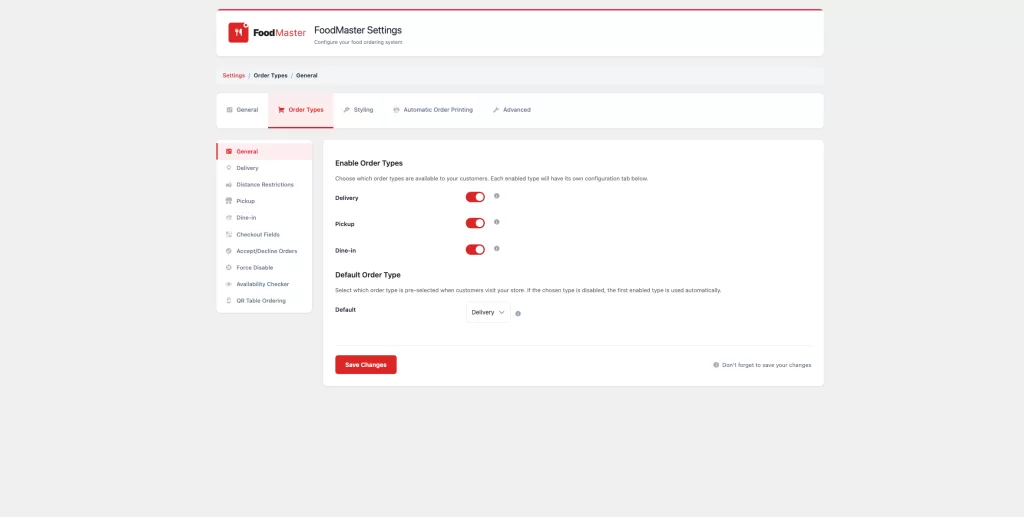
Go to FoodMaster → Settings → Order Types. You will see toggle switches for Delivery, Pickup, and Dine-In. Enable the order types your restaurant supports.
The order type selector appears at the top of your checkout or in the FoodMaster widget, allowing customers to choose before adding items to their cart.
Step 2: Configure Delivery Settings
Navigate to FoodMaster → Settings → Delivery and configure:
- Delivery Zone Type — Radius, postal code, or cities
- Delivery Fee — Flat rate, distance-based tiers, or free above a cart threshold
- Minimum Order Amount — The minimum cart value required to qualify for delivery
- Estimated Delivery Time — Shown to customers at checkout (e.g., “30–45 minutes”)
- Delivery Hours — Which days and hours you offer delivery (independent of your opening hours)
Step 3: Configure Pickup Settings
Navigate to FoodMaster → Settings → Pickup:
- Pickup Address — The address customers collect from (defaults to your main restaurant address)
- Pickup Time — Estimated preparation time shown to customers
- Pickup Minimum Order — Optional minimum for pickup orders (often lower than delivery)
- Pickup Hours — Which hours you accept pickup orders (can differ from delivery hours)
If you operate multiple locations, FoodMaster’s multistore feature lets each branch have its own pickup address, hours, and settings.
Step 4: Set Up Time Slots
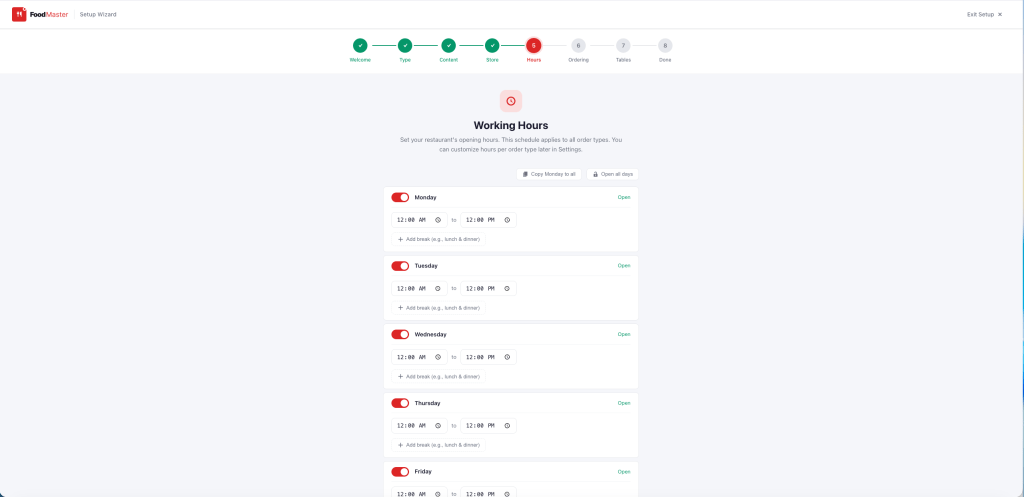
Time slots let customers choose when they want their order delivered or ready for pickup. This gives you control over order volume per time period and prevents kitchen overload during peak hours.
Enable time slots for delivery and/or pickup under FoodMaster → Settings → Delivery → Timeslots (and the corresponding pickup settings). Configure:
- Slot duration — How long each time window is (e.g., 30 minutes)
- Maximum orders per slot — Cap how many orders can be placed in each window
- Lead time — How many minutes in advance a slot must be booked (prevents impossible same-minute orders)
- Days in advance — How far ahead customers can order (1 day, 3 days, a week)
Step 5: Configure Working Hours per Order Type
One of FoodMaster’s most powerful features is independent working hours per order type. Your restaurant might:
- Accept delivery orders until 22:00 but close the kitchen for dine-in at 21:00
- Offer pickup from 10:00 but only start delivery from 11:30
- Run delivery only on weekdays and all three order types on weekends
Set hours for each type under FoodMaster → Delivery Hours, FoodMaster → Pickup Hours, and FoodMaster → Dine-In Hours.
Step 6: Test the Customer Journey
Before going live, place test orders for each order type on a mobile device:
- Select delivery — enter a valid address and confirm the fee and time appear correctly
- Select pickup — confirm the pickup location and estimated time appear
- Test an address outside your delivery zone — confirm the correct error message appears
- Test ordering outside working hours — confirm customers see a “closed” message
Programmatic Control with Filters
Need to show only delivery or only pickup to specific customers? Use the woofood_order_types_filter
hook:
// Example: show only pickup to logged-out users
add_filter( 'woofood_order_types_filter', function( $types ) {
    if ( ! is_user_logged_in() ) {
        return array( 'pickup' ); // guest users can only select pickup
    }
    return $types; // logged-in users see all types
} );
Frequently Asked Questions
Can I have different menus for delivery and pickup?
Yes. The woofood_filter_products_query filter lets you show different products based on the active order
type. You can hide certain products (e.g., bulky items) from delivery while keeping them available for pickup.
Can customers schedule orders for a future time?
Yes, this is handled by the time slot feature. You can allow customers to book delivery or pickup slots up to several days in advance.
Can the delivery fee be different from the pickup fee?
Yes. Delivery fees are configured separately from pickup. Pickup typically has no fee, which FoodMaster handles automatically — no delivery fee is added when the customer selects pickup.
Wrapping Up
Configuring both delivery and pickup in FoodMaster takes about 30 minutes but unlocks a significantly wider customer base. Pickup customers are some of the most loyal — they already come to you, and converting them to regular online orderers through your direct channel is one of the highest-ROI things you can do.