
Product add-ons — sizes, toppings, sauces, extras — are where food businesses make their best margins. A burger at $9 becomes a $14 order with a size upgrade, extra cheese, and a drink. FoodMaster’s built-in Extra Options system is a powerful, food-first alternative to generic WooCommerce variation plugins. Here is everything you need to know.
Why Not Use WooCommerce Variations?
WooCommerce’s native variable products work well for clothing and simple product options, but they become unwieldy for food. A pizza with 4 sizes, 10 bases, 20 toppings, and 5 sauce options would require hundreds of variation combinations. FoodMaster’s Extra Options system was designed specifically for this use case and handles unlimited choices without creating separate product variants.
Understanding Extra Option Groups
In FoodMaster, add-ons are organised into Option Groups. Each group has:
- A Group Name — shown as the section header (e.g., “Choose Your Size”)
- A Selection Type — how many choices the customer can make
- Individual Options — each with a name and optional price modifier
- Required or Optional — whether the customer must choose before adding to cart
Option Group Types
- Radio (single choice) — Customer picks exactly one option. Best for size (Small / Medium / Large) or base (Thin / Thick / Stuffed Crust).
- Checkbox (multiple choices) — Customer can select any number of options. Best for toppings, extras, or allergen preferences.
- Quantity (number input) — Customer enters a quantity for each option. Useful for set menus where the count of specific items matters.
- Select dropdown — A dropdown menu for selecting one option from a long list. Good when there are more than 6–8 options in a group.
Step-by-Step: Creating Your First Option Group
Step 1: Create the Option Group
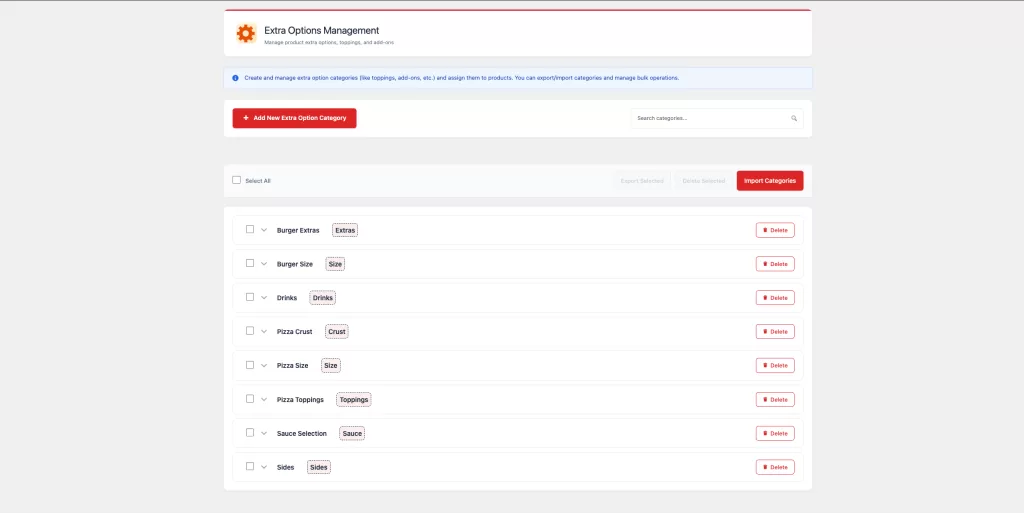
Go to FoodMaster → Extra Options and click Add Option Group. Enter:
- Group Name — e.g., “Choose Your Size”
- Type — Radio (single choice)
- Required — Yes (customers must choose a size)
- Minimum / Maximum selections — 1 / 1 for a radio group
Step 2: Add Options
Inside the group, add each option row:
- Small — $0.00 (no additional cost)
- Medium — $2.00 extra
- Large — $4.00 extra
Step 3: Assign to Products
Assign the option group to individual products or to entire product categories. Category-level assignment is a huge time-saver — create a “Choose Your Size” group once and assign it to the entire “Pizzas” category rather than each pizza individually.
Pricing Options
Each option can have its price displayed in several ways:
- Added to base price — The standard mode. Option price is added on top of the product price.
- Replaces base price — Useful if the size completely changes the price rather than adding to it.
- Percentage — Add a percentage of the base price (e.g., a 10% premium for the large size).
- Split by quantity — When using the quantity type, the option price multiplies by the chosen
quantity. Enable with the
woofood_extra_option_price_splitted_on_qtyfilter.
Customising the “Select” Label
By default, option group headers display a “Select [Group Name]” prefix. Customise this text using the
woofood_extra_option_prefix filter:
add_filter( 'woofood_extra_option_prefix', function( $prefix ) {
    return __( 'Pick your', 'my-theme' ); // becomes "Pick your Size"
} );
Upsell Strategies with Extra Options
- Size upgrades — Offer Small / Medium / Large with price increments. Most customers choose the middle option.
- Premium add-ons — Truffle oil, extra cheese, avocado — items with high perceived value and strong margin.
- Drink pairing — Add a “Add a drink?” option group to food products. Even at a low attachment rate this significantly increases AOV.
- Required customisation — Making the customer choose a sauce or base means they always engage with the add-on UI, increasing attachment chance for other groups.
How Options Appear on Orders
Selected options are saved to the order line item as meta data and appear on:
- The order confirmation page and email
- The admin order view
- Printed receipts (via automatic printing)
- The Kitchen Display System (KDS)
Kitchen staff see each dish with its full customisation clearly printed — no ambiguity, no errors.
Frequently Asked Questions
Can I show different options for different order types?
Yes. Option group visibility can be conditionally controlled in code. Use a filter on the options output to hide certain groups based on the active order type stored in the session.
Can option prices be tax-inclusive or exclusive?
Option prices follow WooCommerce’s tax settings. If your prices are tax-inclusive, option prices will also be displayed inclusive of tax.
Is there a limit on how many option groups a product can have?
There is no hard limit. In practice, more than 5–6 option groups per product creates a long scroll that can frustrate customers. Keep required groups at the top and optional upsells at the bottom.
Wrapping Up
Extra Options are one of the highest-impact features in FoodMaster for increasing average order value. A well-structured options system that makes customisation easy — and upsells feel natural rather than pushy — can add 20–30% to your average order value with zero additional kitchen cost.