On this page
- What Is a Kitchen Display System (KDS) and Why Every Restaurant Needs One
- Choosing the Right Hardware: Tablets, Monitors, and Receipt Printers for Your Restaurant
- Kitchen Display Screens
- Receipt and Ticket Printers
- Matching Hardware to Restaurant Size
- How to Connect WooCommerce Orders to a Kitchen Display System
- Option 1: Use a Restaurant Ordering Plugin with Built-In KDS
- Option 2: WooCommerce REST API + Custom KDS Application
- Option 3: Third-Party KDS Platforms
- Setting Up Automatic Receipt and Order Ticket Printing with WooCommerce
- Step 1: Connect Your Thermal Printer to Your Network
- Step 2: Choose a Printing Method
- Step 3: Configure Your Print Template
- Step 4: Test and Troubleshoot
- Optimizing Your Kitchen Workflow: Order Prioritization, Status Updates, and Sound Alerts
- Order Status Management
- Sound Alerts and Notifications
- Color-Coded Priority and Timing
- Station Routing
- Real-World Tips and Best Practices for Running a Smooth Digital Kitchen Operation
- Invest in Reliable Wi-Fi
- Always Have a Backup Printing Option
- Train Your Staff Thoroughly
- Handle Modifications and Cancellations Gracefully
- Scaling to Multiple Locations
- Monitor and Iterate
What Is a Kitchen Display System (KDS) and Why Every Restaurant Needs One
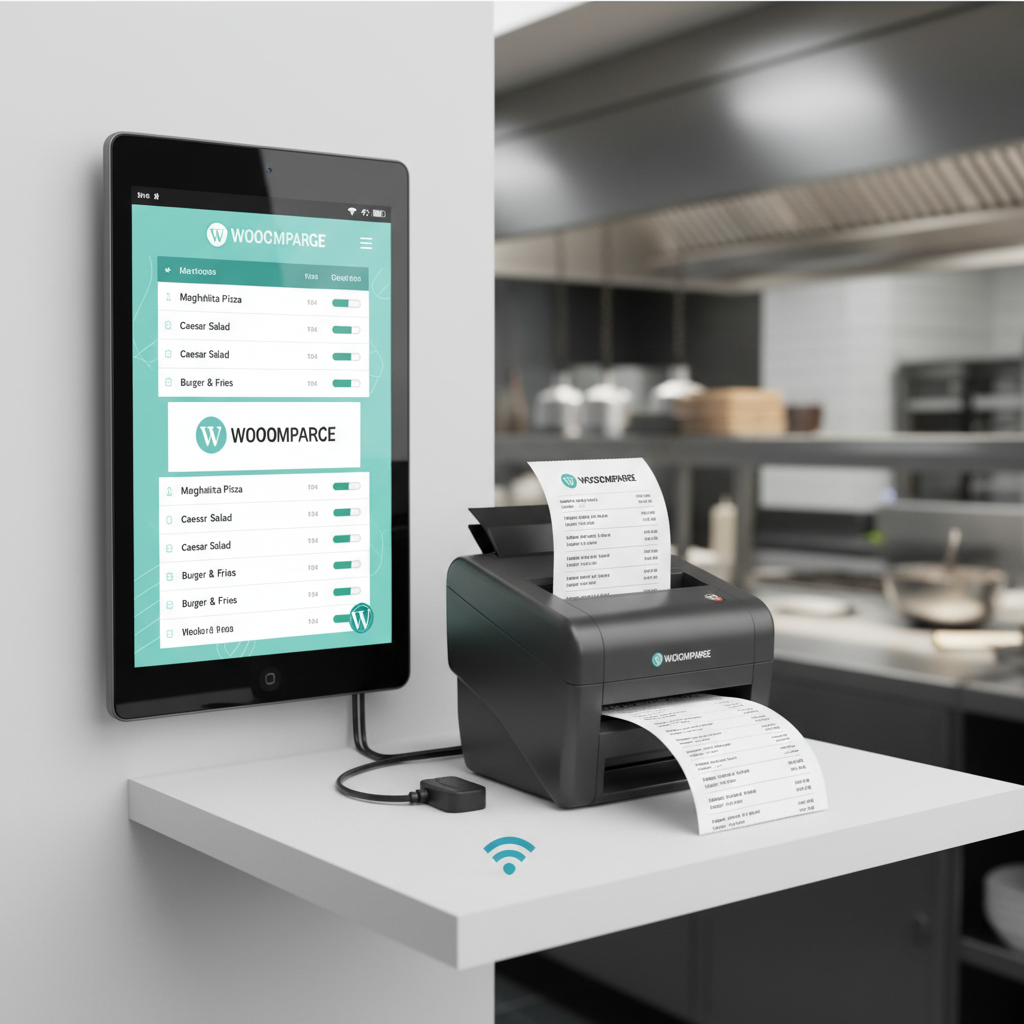
If your kitchen still relies on handwritten tickets or printed slips getting lost under a sauce splatter, it’s time for an upgrade. A Kitchen Display System (KDS) is a digital screen — typically a tablet or monitor — mounted in your kitchen that displays incoming orders in real time. Instead of a server shouting orders or a printer spitting out paper tickets that curl up and fall behind the fryer, your kitchen staff sees every order clearly, organized, and updated live.
For restaurants running Online Ordering System in WordPress (Step-by-Step Guide)”>online ordering through WooCommerce, a KDS becomes even more critical. Online orders arrive without any human intermediary — there’s no server to walk the ticket back to the kitchen. Without a KDS or automatic printing setup, you’re stuck manually checking your WooCommerce dashboard every few minutes, which is a recipe for missed orders and angry customers.
Here’s what a properly configured KDS brings to the table:
- Fewer errors: Digital orders eliminate handwriting misreads and lost tickets. What the customer ordered is exactly what the kitchen sees.
- Faster fulfillment: Orders appear instantly on screen, cutting lag time between placement and preparation.
- Better tracking: Kitchen staff can mark orders as “preparing,” “ready,” or “completed,” giving front-of-house staff (and customers) real-time status updates.
- Reduced waste: No more thermal paper rolls piling up. It’s greener and cheaper over time.
Whether you’re running a small pizza shop or a multi-location restaurant group, integrating a KDS with your WooCommerce ordering system transforms kitchen chaos into an organized workflow. Let’s walk through exactly how to make it happen.
Choosing the Right Hardware: Tablets, Monitors, and Receipt Printers for Your Restaurant
Before diving into software configuration, you need the right hardware. The good news: you don’t need to spend thousands of dollars. The bad news: not every device handles a hot, greasy kitchen environment equally well.
Kitchen Display Screens
You have three main options for your KDS display:
- iPads or Android tablets: The most affordable entry point. A 10-inch Android tablet (Samsung Galaxy Tab A series, Lenovo Tab M10) works well for small kitchens. iPads are more expensive but offer smoother performance. Budget around $150–$400 per device.
- Dedicated KDS monitors: Purpose-built screens from brands like Elo Touch or even commercial-grade TVs. These are more durable in kitchen environments and typically range from $300–$800. They’re ideal for high-volume restaurants.
- Repurposed monitors with a mini PC: A budget-friendly hack — connect a Raspberry Pi or Intel NUC to a standard monitor and run a browser-based KDS. Total cost: under $200.
Whichever you choose, invest in a protective case or enclosure rated for kitchen use. Grease, steam, and the occasional splash of water will destroy unprotected consumer electronics faster than you’d think.
Receipt and Ticket Printers
Even with a KDS, many restaurants keep a thermal printer as a backup or for customer-facing receipts. The two dominant brands are:
- Epson TM-T20III / TM-T88VI: Industry workhorses. Reliable, fast, and widely supported by printing plugins. The TM-T20III runs around $200 and is perfect for most setups.
- Star Micronics TSP143IV / mC-Print3: Excellent network printing capabilities and strong cloud printing support. The TSP143IV is particularly popular for its WebPRNT feature, which allows browser-based printing without drivers.
For connectivity, go with an Ethernet or Wi-Fi enabled printer over USB. Network printers can receive print jobs from any device on your local network — or even from cloud services — which is essential for WooCommerce integration.
Matching Hardware to Restaurant Size
- Small restaurant or food truck: One Android tablet + one Epson TM-T20III. Total investment: ~$350–$500.
- Mid-size restaurant: Two tablets (one per station) + one network thermal printer. Budget: ~$600–$900.
- High-volume or multi-location: Dedicated KDS monitors per station + multiple network printers + cloud printing service. Budget: $1,500+.
How to Connect WooCommerce Orders to a Kitchen Display System
This is where the magic happens — getting orders from your WooCommerce store to your kitchen screen automatically. There are several approaches, and the right one depends on your technical comfort level and budget.
Option 1: Use a Restaurant Ordering Plugin with Built-In KDS
The simplest path is using a plugin that already includes KDS functionality. FoodMaster is a WooCommerce restaurant ordering plugin that comes with a built-in kitchen display system. Orders placed through your site — whether delivery, pickup, or dine-in via QR table ordering — automatically appear on the kitchen screen in real time.
With FoodMaster, you don’t need to cobble together separate plugins for ordering, KDS, and printing. The kitchen display runs directly in your browser, so any tablet or monitor with a web browser becomes a KDS screen. Kitchen staff can view incoming orders, update statuses, and the system supports automatic printing as well. It’s an all-in-one approach that eliminates the integration headaches most restaurant owners face.
Option 2: WooCommerce REST API + Custom KDS Application
If you’re technically inclined (or have a developer on hand), WooCommerce’s REST API lets you build a custom KDS application that polls for new orders. Here’s the general flow:
- Enable the WooCommerce REST API in your WordPress dashboard under WooCommerce → Settings → Advanced → REST API.
- Generate API keys (Consumer Key and Consumer Secret) with read/write permissions.
- Build or deploy a lightweight web app (React, Vue, or even a simple PHP page) that queries the
/wp-json/wc/v3/ordersendpoint every 10–30 seconds. - Display new orders on the kitchen screen and use the API to update order statuses when staff marks them as complete.
This approach offers maximum customization but requires ongoing maintenance. For most restaurant owners, a ready-made solution is far more practical.
Option 3: Third-Party KDS Platforms
Services like Fresh KDS, QSR Automations, or Ordermark offer standalone KDS solutions. Integration with WooCommerce typically requires a webhook or Zapier connection. When a new WooCommerce order is placed, a webhook fires and pushes the order data to the third-party KDS platform, which then displays it on your kitchen screen.
To set up webhooks, go to WooCommerce → Settings → Advanced → Webhooks, create a new webhook with the topic “Order created,” and point it to your KDS platform’s API endpoint. This works, but adds a monthly subscription cost and introduces a dependency on an external service.
Setting Up Automatic Receipt and Order Ticket Printing with WooCommerce
Even with a KDS in place, automatic receipt printing remains essential for many restaurants — whether for customer receipts, packing slips, or as a backup ticket system. Here’s how to set it up step by step.
Step 1: Connect Your Thermal Printer to Your Network
Assign your thermal printer a static IP address on your local network. Most Epson and Star Micronics printers have a web configuration interface accessible by entering the printer’s IP in a browser. Set a static IP (e.g., 192.168.1.100) so it doesn’t change when your router reboots.
Step 2: Choose a Printing Method
There are two main approaches:
- Cloud printing services (PrintNode, Google Cloud Print successor, or QZ Tray): These services act as a bridge between your WooCommerce site and your local printer. PrintNode, for example, installs a small client on a computer connected to your printer. When WooCommerce triggers a print job via API or webhook, PrintNode routes it to your local printer. Monthly cost: ~$10–$20.
- Plugin-based direct printing: FoodMaster supports automatic printing directly, allowing you to configure thermal printer output for new orders without needing a separate cloud printing service. This keeps everything within your WordPress ecosystem and reduces points of failure.
Step 3: Configure Your Print Template
A good kitchen ticket should include:
- Order number (large and bold at the top)
- Order type: delivery, pickup, or dine-in (with table number if applicable)
- Timestamp
- Each item with quantity, special instructions, and modifiers
- Customer name and phone number
- Delivery address (for delivery orders)
- Any allergy notes — make these highly visible
Most printing plugins let you customize templates using HTML/CSS or a drag-and-drop editor. Keep the layout clean and scannable. Kitchen staff shouldn’t have to squint at tiny text during a dinner rush.
Step 4: Test and Troubleshoot
Common issues and fixes:
- Printer not responding: Check that the printer and your server/computer are on the same network. Verify the static IP hasn’t been reassigned.
- Garbled text or encoding issues: Ensure your print template uses the correct character encoding (UTF-8) and that your printer firmware is up to date.
- Delayed printing: If using cloud printing, latency depends on your internet connection. For time-critical operations, a local printing solution is more reliable.
- Paper jams or blank receipts: Check that the thermal paper is loaded correctly (the coated side must face the print head). Use high-quality paper to avoid jams.
Optimizing Your Kitchen Workflow: Order Prioritization, Status Updates, and Sound Alerts
Getting orders onto a screen is just the beginning. A well-configured KDS actively helps your kitchen staff manage the flow of work.
Order Status Management
Configure your system to support at least these statuses:
- New / Pending: Order just received. Highlighted prominently (usually in red or bright yellow).
- Accepted / Preparing: Kitchen has acknowledged the order and started working on it. Changes to blue or orange.
- Ready: Food is prepared and waiting for pickup or delivery. Turns green.
- Completed / Dispatched: Order has been handed off. Removed from the active display.
Kitchen staff should be able to tap or click to advance an order through these stages. With FoodMaster, these status updates sync back to your WooCommerce dashboard and can even trigger customer notifications — so your customer knows their food is being prepared or is ready for pickup without calling the restaurant.
Sound Alerts and Notifications
A visual display is useless if nobody’s looking at it during a busy shift. Configure audio alerts for new orders — a distinct chime or bell sound that cuts through kitchen noise. Most browser-based KDS solutions support this, but make sure your tablet or monitor has speakers loud enough for the kitchen environment. An external Bluetooth speaker ($20–$30) is a smart investment.
Color-Coded Priority and Timing
Set up your KDS to change the order card color based on elapsed time:
- White/Green (0–10 minutes): On track.
- Yellow/Orange (10–20 minutes): Getting close to target time.
- Red (20+ minutes): Overdue — needs immediate attention.
This visual cue system prevents orders from sitting forgotten on the screen. It’s especially important during peak hours when dozens of orders are flowing in simultaneously.
Station Routing
For larger kitchens with separate stations (grill, fryer, salad, drinks), consider routing specific items to specific screens. A burger order shows on the grill station KDS, while the side salad shows on the cold prep station. This requires either a KDS solution that supports item-level routing or multiple displays filtered by product category.
Real-World Tips and Best Practices for Running a Smooth Digital Kitchen Operation
Technology is only as good as its implementation. Here are practical lessons from restaurants that have successfully digitized their kitchen operations.
Invest in Reliable Wi-Fi
Your entire system depends on network connectivity. A consumer-grade router from 2018 isn’t going to cut it. Invest in a business-grade access point (Ubiquiti UniFi or TP-Link Omada series, $100–$200) and position it to cover both the front of house and kitchen. Run a dedicated SSID for your restaurant equipment, separate from guest Wi-Fi, to avoid bandwidth competition.
Always Have a Backup Printing Option
KDS screens can freeze, tablets can die, and Wi-Fi can drop during a Saturday night rush. Keep at least one thermal printer configured as a fallback. If your KDS goes down, orders should still print automatically. This redundancy has saved countless restaurants from order disasters.
Train Your Staff Thoroughly
Don’t just install the system and expect everyone to figure it out. Run a dedicated training session — ideally during a slow period — where every kitchen staff member practices:
- Reading orders on the KDS
- Updating order statuses
- Handling the printer (paper replacement, basic troubleshooting)
- What to do when the system goes down (manual fallback procedure)
Handle Modifications and Cancellations Gracefully
Customers will modify or cancel orders after placing them. Your system needs to handle this clearly. Modifications should appear as highlighted updates on the KDS — not as entirely new orders that confuse the kitchen. Cancellations should be visually distinct (strikethrough text, red overlay) so staff doesn’t prepare food that’s already been cancelled.
Scaling to Multiple Locations
If you operate more than one restaurant location, a cloud-based KDS and centralized WooCommerce setup becomes essential. Each location can run its own KDS screens and printers while orders route to the correct kitchen based on delivery zone or the location the customer selected. FoodMaster supports this kind of setup, making it feasible to manage multiple locations from a single WordPress installation without juggling separate systems for each restaurant.
Monitor and Iterate
Track your average order preparation time before and after implementing your KDS. Most restaurants see a 20–30% improvement in fulfillment speed within the first month. Use this data to identify bottlenecks — if salad orders consistently take longer than expected, maybe that station needs an additional prep cook or better ingredient staging.
Setting up a KDS and printer integration for your WooCommerce restaurant site isn’t just a tech upgrade — it’s an operational transformation. The combination of real-time order display, automatic printing, and status tracking eliminates the communication gaps that cause delays, errors, and frustrated customers. Start with the hardware and software that matches your current scale, get your team trained, and build from there. Your kitchen — and your customers — will thank you.
Commission-free ordering
Run restaurant orders on your own WordPress site
FoodMaster adds delivery, pickup, dine-in, POS, and kitchen tools — with zero per-order fees.