
On this page
- Why Real-Time Order Tracking Matters for Restaurant Websites
- How Restaurant Order Tracking Works With WooCommerce
- Step-by-Step: Setting Up Order Status Tracking With WooCommerce and FoodMaster
- Step 1: Install and Activate the Plugin
- Step 2: Configure Restaurant-Specific Order Statuses
- Step 3: Display a Visual Progress Indicator
- Step 4: Enable the POS and Kitchen Display for Staff
- Step 5: Test the Full Customer Journey
- Adding Live Delivery Tracking With GPS and Map Integration
- How GPS Tracking Works in Practice
- Integration Options for WooCommerce Restaurants
- Practical Considerations
- Sending Automatic Order Status Updates via Email, SMS, and Push Notifications
- Email Notifications
- SMS Notifications via Twilio
- Browser Push Notifications
- Choosing the Right Channel Mix
- Best Practices and Troubleshooting Common Order Tracking Issues
- Keep Status Updates Timely and Honest
- Handle Edge Cases Gracefully
- Optimize for Mobile
- Performance Considerations
- Testing Before Launch
- Frequently Asked Questions
Why Real-Time Order Tracking Matters for Restaurant Websites
Picture this: a hungry customer places an order on your Restaurant Website on Google: Local SEO for WordPress (2025)”>Restaurant Website to DoorDash, Uber Eats & Grubhub (2025)”>WordPress Restaurant Website (2025)”>restaurant website, hits “confirm,” and then… nothing. They’re left staring at their phone, wondering if the order went through, if someone’s actually making their food, or if the driver even knows where they live. That uncertainty breeds anxiety—and anxious customers flood your phone lines.
Real-time order tracking eliminates that information gap entirely. According to a 2023 survey by Salesforce, 88% of customers say the experience a company provides is as important as its products. For food delivery specifically, research from Oracle’s restaurant report found that 73% of consumers expect real-time visibility into their delivery status. When customers can see exactly where their order stands—from kitchen to doorstep—they feel in control.
The business impact is measurable. Restaurants that implement transparent order tracking typically see a significant reduction in “where’s my order?” support calls, freeing up staff to focus on what matters: preparing great food. There’s also a direct correlation with repeat business. Customers who have a smooth, transparent delivery experience are far more likely to order again compared to those left guessing. For independent restaurants competing against platforms like DoorDash and Uber Eats—which all offer built-in tracking—this feature isn’t a luxury anymore. It’s table stakes.
How Restaurant Order Tracking Works With WooCommerce
WooCommerce ships with a basic order status system: Pending Payment → Processing → Completed (or Cancelled/Refunded/Failed). For a typical e-commerce store selling physical products, that’s adequate. For a restaurant handling time-sensitive food orders, it’s nowhere near granular enough.
A proper restaurant order tracking flow needs to communicate these stages clearly to the customer:
- Order Placed – Payment received, order in the queue
- Order Confirmed – Kitchen has acknowledged and accepted the order
- Being Prepared – Your food is actively being cooked
- Ready for Pickup/Out for Delivery – Food is packaged and either waiting for the customer or handed to a driver
- Delivered/Completed – Order successfully fulfilled
The challenge is mapping these restaurant-specific stages to WooCommerce’s infrastructure. You have two paths: register custom order statuses programmatically using the register_post_status function and wc_order_statuses filter, or use a plugin that handles this automatically. The programmatic route gives you full control but requires development resources and ongoing maintenance. A purpose-built restaurant plugin streamlines the entire process.
The customer-facing side needs equal attention. Tracking information should appear on the order confirmation page immediately after checkout, within the customer’s “My Account” orders section, and ideally through proactive notifications (email, SMS, or push). The goal is zero friction—customers shouldn’t need to hunt for their order status.
[IMAGE: Visual flowchart showing the restaurant order lifecycle from order placed through delivery, with corresponding WooCommerce status mappings at each stage]
Step-by-Step: Setting Up Order Status Tracking With WooCommerce and FoodMaster
The fastest path to restaurant-grade order tracking on WooCommerce is using a plugin specifically designed for food ordering workflows. FoodMaster (formerly WooFood) handles this natively—it extends WooCommerce with custom order statuses tailored to restaurant operations, a kitchen display system, and customer-facing order progress indicators without requiring any code.
Step 1: Install and Activate the Plugin
Download FoodMaster from WPSlash, upload it through your WordPress dashboard under Plugins → Add New → Upload Plugin, then activate. The setup wizard will walk you through initial configuration including delivery zones, operating hours, and order type settings (delivery, pickup, or dine-in).
Step 2: Configure Restaurant-Specific Order Statuses
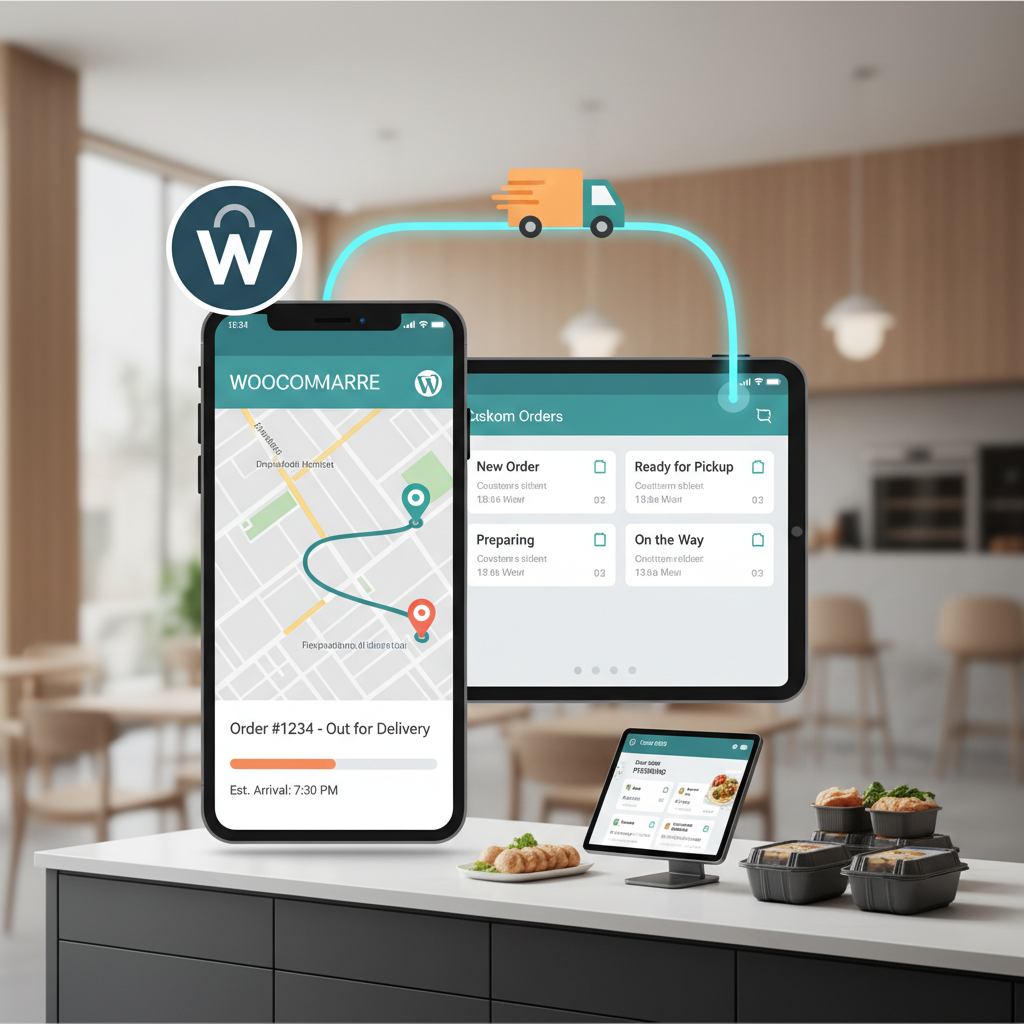
FoodMaster adds granular statuses that map to the real kitchen workflow. From the plugin settings, you can enable statuses like “Preparing,” “Ready,” and “Out for Delivery.” Each status change is visible to the customer in real time on their order tracking page. The kitchen display system (KDS) allows your staff to update statuses with a single tap—no need to navigate the WordPress admin panel while juggling orders during a rush.
Step 3: Display a Visual Progress Indicator
Customers need more than a text label—they need a visual representation of progress. FoodMaster provides a progress timeline on the order confirmation and “My Account” pages showing each stage with clear visual indicators of what’s complete, what’s current, and what’s upcoming. This mirrors the experience customers expect from major delivery platforms.
Step 4: Enable the POS and Kitchen Display for Staff
Real-time tracking is only as good as the humans updating it. FoodMaster’s built-in POS and kitchen display system gives your team a streamlined interface to manage incoming orders and advance them through each status. When a cook marks an order as “Ready,” the customer sees the update instantly. This tight loop between kitchen operations and customer visibility is what makes the tracking feel genuinely real-time rather than artificially delayed.
Step 5: Test the Full Customer Journey
Place a test order yourself. Walk through checkout, verify the confirmation page shows the tracking timeline, then log into the kitchen display and advance the order through each status. Confirm that the customer-facing page updates accordingly. Check both desktop and mobile views—most food orders come from phones.
Adding Live Delivery Tracking With GPS and Map Integration
Status updates tell customers what’s happening. A live map tells them where it’s happening. For delivery orders, showing the driver’s real-time location on a map is the gold standard of transparency.
How GPS Tracking Works in Practice
The basic architecture involves three components: a mobile app for drivers that shares their GPS coordinates, a backend that receives and stores those coordinates, and a frontend map widget on the customer’s tracking page that polls for location updates. The driver app typically uses the device’s native location services, sending latitude/longitude data to your server every 10-30 seconds.
Integration Options for WooCommerce Restaurants
Several approaches exist depending on your budget and technical comfort level:
- Dedicated driver management plugins – Solutions like “Jeebly” or delivery driver apps designed for WooCommerce provide companion mobile apps for drivers and embed tracking maps on the customer’s order page. These typically require the Google Maps API (or Mapbox as a cost-effective alternative).
- Google Maps Platform integration – If you’re building custom, you’ll need the Maps JavaScript API for displaying the map, the Geolocation API for the driver app, and the Directions API for route visualization. Google offers $200/month in free credits, which covers roughly 28,000 map loads—sufficient for most independent restaurants.
- Third-party delivery service APIs – If you use a service like DoorDash Drive or Uber Direct for fulfillment, their APIs can feed tracking data back to your site. This requires custom development but keeps everything under one roof.
Practical Considerations
GPS tracking adds complexity. Your drivers need to install and run an app (and keep location services enabled). Battery drain is a real concern for drivers doing multiple deliveries. You also need to handle edge cases: what happens when the driver’s phone loses signal? What if they close the app? Build in fallback behavior—if GPS data goes stale for more than 60 seconds, show the last known location with a “Last updated” timestamp rather than displaying nothing.
For restaurants just starting with online ordering, implementing full GPS tracking from day one might be over-engineering. A well-executed status-based tracking system (like what FoodMaster provides out of the box) covers 90% of customer needs. You can layer on GPS tracking later as your delivery volume grows and justifies the investment.
[IMAGE: Screenshot example of a customer-facing order tracking page showing a progress timeline at the top and an embedded map with driver location below]
Sending Automatic Order Status Updates via Email, SMS, and Push Notifications
Proactive communication beats reactive checking. Instead of making customers refresh their tracking page repeatedly, push updates to them at each meaningful status change.
Email Notifications
WooCommerce triggers emails automatically for certain status changes (processing, completed), but restaurant-specific statuses need custom email templates. Within FoodMaster’s settings, you can configure email notifications for each custom status. For deeper customization of email design and content, plugins like “Jeswinder’s Email Customizer for WooCommerce” or “Kadence WooCommerce Email Designer” let you build branded, visually appealing status update emails without touching code.
Keep restaurant status emails short and scannable. A subject line like “Your order from [Restaurant Name] is being prepared 🍳” with a one-line body and a “Track Your Order” button is far more effective than a wall of text.
SMS Notifications via Twilio
Email open rates hover around 20-30%. SMS open rates exceed 95%, typically within three minutes of receipt. For time-sensitive food delivery updates, SMS is significantly more effective.
To set this up with WooCommerce:
- Create a Twilio account and purchase a phone number (costs start around $1/month plus ~$0.0079 per SMS in the US)
- Install a WooCommerce-Twilio bridge plugin or use Twilio’s REST API with a custom function hooked to
woocommerce_order_status_changed - Map each status change to a specific SMS template: “Hi [name], your order #[number] is now being prepared! Estimated ready time: [time]”
- Include an opt-in checkbox at checkout for SMS updates (required for compliance with TCPA regulations in the US)
Browser Push Notifications
Push notifications work even when the customer has closed your website tab. Services like PushEngage or OneSignal integrate with WordPress and can be triggered via webhooks when order statuses change. The advantage: no phone number or email required—just a one-click browser permission. The limitation: they only work on devices where the customer has granted notification permission, and iOS Safari support for web push only arrived with iOS 16.4.
Choosing the Right Channel Mix
Don’t blast customers on every channel simultaneously. A sensible approach: send email confirmations for order placement and completion (bookend events), SMS for the high-urgency middle stages (“out for delivery” and “arriving in 5 minutes”), and offer push notifications as an optional layer. Let customers choose their preference at checkout when possible.
Best Practices and Troubleshooting Common Order Tracking Issues
Keep Status Updates Timely and Honest
A tracking system that shows “Being Prepared” for 45 minutes without any change is almost worse than no tracking at all. Train your kitchen staff to update statuses promptly. If you’re using FoodMaster’s kitchen display, the interface is designed for speed—a single tap advances the order. Set internal expectations: status should be updated within 2 minutes of the actual event occurring.
Handle Edge Cases Gracefully
- Delayed orders: If an order is running late, proactively notify the customer with a revised estimate rather than letting the original ETA silently expire. A message like “We’re running about 10 minutes behind—your order will arrive by 7:45 PM” builds trust.
- Cancelled orders: Trigger an immediate notification with a clear reason and refund timeline. Don’t leave a cancelled order sitting in “Processing” status.
- Partial refunds or item substitutions: Communicate changes before they arrive. Nobody wants to discover their missing item by opening the bag.
Optimize for Mobile
Over 70% of food delivery orders originate from mobile devices. Your tracking page must be fully responsive with touch-friendly elements. Progress bars should be readable on small screens. Maps should load quickly and support pinch-to-zoom. Test on actual phones—not just browser dev tools—across both iOS and Android.
Performance Considerations
Real-time features can strain your server if implemented poorly. If you’re polling for status updates (checking every few seconds via AJAX), use WordPress transients or a lightweight caching layer to avoid hammering your database. For higher-volume restaurants, consider WebSocket connections or a service like Pusher for truly real-time updates without constant polling overhead.
Testing Before Launch
Run through the complete flow at least 10 times before going live. Test every status transition, every notification channel, and every device type. Have someone outside your team (a friend, family member) place a real order and report their experience. Fresh eyes catch what you’ve become blind to.
Frequently Asked Questions
Do I need a custom-built app for order tracking?
No. A well-designed responsive web page handles tracking perfectly for customers. You only need a native app if you want to leverage device-specific features like persistent push notifications on iOS or GPS for drivers.
Will order tracking slow down my website?
Not if implemented correctly. The tracking page is only loaded by customers checking their specific order—it doesn’t affect your homepage or menu pages. Use lazy-loading for maps and efficient AJAX polling intervals (every 15-30 seconds is sufficient for food orders).
How do I handle tracking for pickup orders?
Pickup orders still benefit from tracking, just with fewer stages. The key status customers care about is “Ready for Pickup”—trigger an SMS or push notification at that moment so they don’t arrive too early and wait awkwardly at the counter.
Can I use order tracking with QR table ordering for dine-in?
Absolutely. FoodMaster supports QR table ordering alongside delivery and pickup. For dine-in, the tracking stages adapt: Order Placed → Confirmed → Being Prepared → Ready (served to table). Customers can follow along on their phone without flagging down a server.
What if my drivers don’t want to use a tracking app?
Start with status-based tracking managed by your dispatcher or front-of-house staff. Someone marks the order as “Out for Delivery” when the driver leaves, and “Delivered” when they return or confirm by phone. It’s less granular than GPS but still valuable to customers.
Real-time order tracking transforms your WooCommerce restaurant site from a simple ordering form into a professional, trust-building experience. Start with solid status-based tracking—get that working smoothly with your kitchen workflow first—then layer on GPS, SMS, and push notifications as your operation scales. Your customers will notice the difference, and your phone will finally stop ringing with “where’s my food?” calls.
Commission-free ordering
Run restaurant orders on your own WordPress site
FoodMaster adds delivery, pickup, dine-in, POS, and kitchen tools — with zero per-order fees.