On this page
- Why Self-Service Kiosks Are Transforming the Restaurant Industry (And Why You Don’t Need Expensive Hardware)
- What You Need to Build a DIY Restaurant Kiosk with WordPress and WooCommerce (Hardware, Software, and Plugin Checklist)
- Hardware Checklist
- Software and Plugin Checklist
- Step-by-Step Setup: Configuring WooCommerce and FoodMaster for Kiosk Mode on a Touchscreen Display
- Step 1: Install WordPress and WooCommerce
- Step 2: Install and Configure FoodMaster
- Step 3: Create a Kiosk-Optimized Page
- Step 4: Lock the Browser into Kiosk Mode
- Step 5: Test the Full Ordering Flow
- Connecting Your Kiosk to Payment Terminals: Accepting Card Payments, Apple Pay, and Contactless Options at the Screen
- Option 1: Stripe Terminal (Recommended)
- Option 2: Square Terminal
- Option 3: Pay-at-Counter Hybrid
- Routing Kiosk Orders to Your Kitchen Display System (KDS) and Receipt Printer for Seamless Workflow
- Kitchen Display System (KDS)
- Automatic Receipt Printing
- Order Flow Summary
- Best Practices for Kiosk UI Design, Menu Layout, and Upselling Strategies That Increase Average Order Value
- UI Design Principles for Touchscreens
- Menu Layout Strategy
- Upselling That Actually Works
- Accessibility Considerations
- Wrapping Up: Your Kiosk, Your Rules
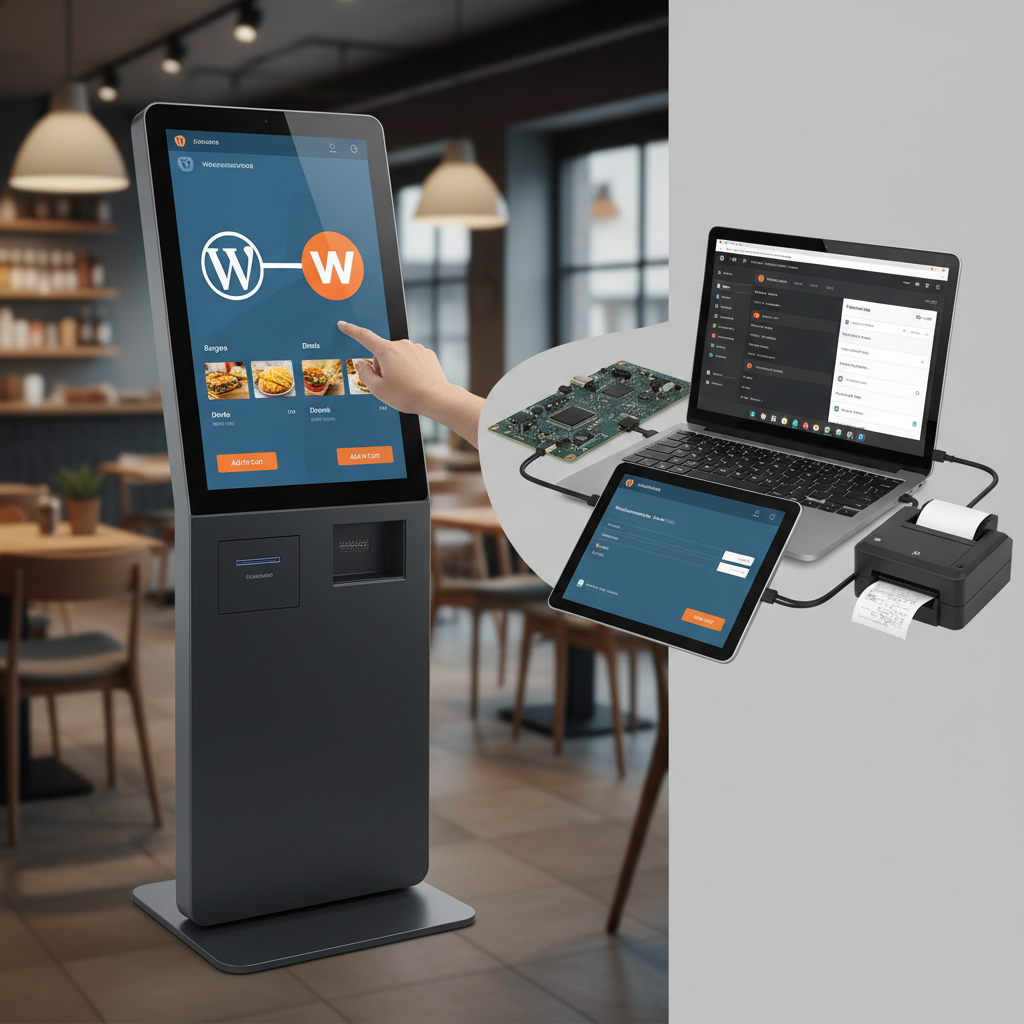
Self-service ordering kiosks used to be something only big chains like McDonald’s or Panera could afford. We’re talking $5,000–$15,000 per unit, proprietary software, and expensive maintenance contracts. But here’s the thing — you can build a fully functional self-service kiosk using WordPress, WooCommerce, and a consumer-grade touchscreen display for a fraction of that cost.
This guide walks you through every step: from choosing hardware and configuring your software to routing orders directly to your kitchen. Whether you run a quick-service restaurant, a café, or a fast-casual spot, this setup can reduce wait times, cut labor costs, and boost your average order value. Let’s build it.
Why Self-Service Kiosks Are Transforming the Restaurant Industry (And Why You Don’t Need Expensive Hardware)
Self-service kiosks aren’t a trend — they’re becoming a baseline expectation. A 2023 study by Tillster found that 65% of customers said they’d visit a restaurant more often if self-service kiosks were available. And it’s not just about speed. Kiosks consistently increase average order value by 15–30% because they present upsell prompts without the social awkwardness of a cashier asking “would you like to add fries?”
Here’s why the economics have shifted in favor of independent restaurants:
- Touchscreen hardware is cheap. A solid 21–24 inch touchscreen monitor costs $200–$500. A mini PC to run it costs another $150–$300.
- WordPress and WooCommerce are free. You’re not paying $200/month for proprietary kiosk software.
- No commissions. Unlike third-party kiosk platforms that take a cut of each transaction, a WooCommerce-based setup means you keep 100% of your revenue.
- You control everything. Menu changes happen in real-time. No calling a vendor to update your kiosk display.
The real barrier was never hardware — it was software that could handle restaurant-specific workflows like modifiers, toppings, meal combos, and kitchen routing. That’s where the right plugin setup makes all the difference.
What You Need to Build a DIY Restaurant Kiosk with WordPress and WooCommerce (Hardware, Software, and Plugin Checklist)
Let’s break this into two categories: what you need to buy and what you need to install.
Hardware Checklist
- Touchscreen display (21″–27″): Look for a capacitive touchscreen monitor with VESA mount compatibility. Elo Touch, Planar, and even some Dell models work great. Budget: $250–$600.
- Mini PC or NUC: An Intel NUC, Beelink, or similar mini PC running Windows or Linux. You just need enough power to run a web browser in full-screen mode. 8GB RAM and an SSD are sufficient. Budget: $150–$300.
- Kiosk stand or enclosure: A floor-standing kiosk enclosure or a countertop stand with cable management. You can find restaurant-grade stands on Amazon or from manufacturers like Displays2Go. Budget: $100–$400.
- Payment terminal (optional but recommended): A standalone card reader like the Stripe Terminal BBPOS WisePOS E or a Square Terminal. Budget: $250–$500.
- Receipt printer: A thermal receipt printer like the Epson TM-T20III or Star Micronics TSP143. Budget: $150–$300.
- Network connection: Wired Ethernet is ideal for reliability, but a strong Wi-Fi connection works too.
Software and Plugin Checklist
- WordPress (latest version) with WooCommerce installed
- FoodMaster — this is the engine that turns WooCommerce into a proper restaurant ordering system, with support for menu categories, product add-ons/modifiers, order types, kitchen display, and automatic printing
- A kiosk browser app — software like “Kiosk Browser” (for Windows) or “Fully Kiosk Browser” (for Android) to lock the touchscreen into full-screen browser mode so customers can’t exit to the desktop
- A payment gateway plugin compatible with your chosen terminal (Stripe Terminal, for example)
Total hardware investment? Roughly $900–$1,600 for a complete setup. Compare that to $5,000+ for a proprietary kiosk system with monthly software fees, and the math speaks for itself.
Step-by-Step Setup: Configuring WooCommerce and FoodMaster for Kiosk Mode on a Touchscreen Display
Once your hardware is assembled, it’s time to configure the software. Here’s the step-by-step process.
Step 1: Install WordPress and WooCommerce
Set up a fresh WordPress installation on your hosting provider. If you want the kiosk to work even if your internet goes down momentarily, consider a local server setup using something like LocalWP, though cloud hosting (SiteGround, Cloudways, etc.) is more practical for most restaurants since it lets you manage the menu remotely.
Install and activate WooCommerce. Run through the setup wizard, but skip the shipping configuration — you won’t need it for kiosk orders.
Step 2: Install and Configure FoodMaster
Install FoodMaster and activate it. This plugin transforms WooCommerce into a restaurant ordering system with features specifically designed for food service. Here’s what to configure:
- Order types: For a kiosk, you’ll typically want to enable “Dine-in” and possibly “Takeaway.” Disable delivery unless your kiosk also handles to-go orders.
- Menu categories: Set up your WooCommerce product categories to mirror your menu sections — Appetizers, Mains, Drinks, Desserts, etc.
- Product add-ons and modifiers: This is critical for kiosk ordering. Configure toppings, sizes, sides, and customization options for each menu item. FoodMaster handles these as product add-ons, so customers can build their order exactly how they want it.
- Table ordering (optional): If your kiosk is for dine-in, you can assign table numbers so the kitchen knows where to deliver the food.
Step 3: Create a Kiosk-Optimized Page
Create a dedicated WordPress page that serves as your kiosk’s home screen. This page should display your menu in a clean, touch-friendly layout. A few tips:
- Use a full-width page template with no header navigation or footer clutter.
- Display menu categories as large, tappable tiles with images.
- Make sure buttons are at least 44×44 pixels (Apple’s minimum touch target guideline) — bigger is better.
- Remove any links that could navigate customers away from the ordering flow.
Step 4: Lock the Browser into Kiosk Mode
On your mini PC, install a kiosk browser application. For Windows, “Kiosk Browser” or “KioWare Lite” works well. For Android-based tablets or touchscreens, “Fully Kiosk Browser” is the go-to option.
Configure the kiosk browser to:
- Open directly to your ordering page URL on startup.
- Disable the address bar, back button, and any navigation that could exit the browser.
- Auto-clear the session after each order (so the next customer starts fresh).
- Disable the system taskbar and any OS-level notifications.
This ensures customers interact only with your ordering interface — nothing else.
Step 5: Test the Full Ordering Flow
Before going live, walk through the entire experience yourself. Tap through every category, add modifiers, adjust quantities, and complete a test order. Check that the checkout process is smooth on the touchscreen and that the on-screen keyboard works properly for any text input fields (like special instructions).
Connecting Your Kiosk to Payment Terminals: Accepting Card Payments, Apple Pay, and Contactless Options at the Screen
A kiosk without payment processing is just a fancy menu board. Here’s how to handle payments.
Option 1: Stripe Terminal (Recommended)
Stripe Terminal is the most developer-friendly option for integrating a physical card reader with a WooCommerce-based kiosk. The BBPOS WisePOS E reader supports chip, tap, swipe, Apple Pay, and Google Pay. Stripe offers a WooCommerce-compatible plugin, and the terminal connects via your local network.
The flow works like this: the customer completes their order on the kiosk screen → WooCommerce sends the payment amount to the Stripe Terminal → the customer taps or inserts their card on the reader → payment is confirmed → the order is placed.
Option 2: Square Terminal
If you’re already using Square for your POS, their terminal can work alongside your kiosk. The integration is less seamless with WooCommerce than Stripe, but Square’s hardware is reliable and widely used in food service.
Option 3: Pay-at-Counter Hybrid
If you want to keep things simple, you can configure the kiosk to submit orders without collecting payment at the screen. The order goes to the kitchen, and the customer pays at the counter when picking up their food. This is common in fast-casual setups and eliminates the need for a payment terminal at the kiosk entirely.
Whichever option you choose, make sure to test transactions with real cards before launch. Declined cards, timeouts, and network hiccups all need to be handled gracefully with clear on-screen messaging.
Routing Kiosk Orders to Your Kitchen Display System (KDS) and Receipt Printer for Seamless Workflow
Getting the order from the kiosk screen to the kitchen is where everything comes together — and where many DIY setups fall apart. Fortunately, FoodMaster has built-in support for both kitchen display systems and automatic receipt printing.
Kitchen Display System (KDS)
FoodMaster includes a kitchen display feature that shows incoming orders on a separate screen in your kitchen. Here’s how to set it up:
- Mount a tablet or monitor in your kitchen area (a cheap Android tablet or a second touchscreen works perfectly).
- Open the FoodMaster KDS interface in a browser on that device.
- When a kiosk order comes in, it appears on the kitchen display in real-time with all item details, modifiers, and special instructions.
- Kitchen staff can mark items as “in progress” or “completed” directly on the screen.
This eliminates paper tickets and reduces errors from miscommunication. It also gives you a real-time view of order status, which is invaluable during rush periods.
Automatic Receipt Printing
FoodMaster also supports automatic printing to thermal receipt printers. When an order is placed at the kiosk, a ticket prints automatically in the kitchen — no manual intervention needed. This is especially useful as a backup to the KDS or if your kitchen staff prefers physical tickets.
Supported printers include popular models from Epson and Star Micronics. The printer connects to your network (via Ethernet or Wi-Fi), and FoodMaster sends print jobs directly when new orders arrive.
Order Flow Summary
Here’s what the complete workflow looks like:
- Customer walks up to the kiosk and browses the menu.
- They select items, customize with modifiers, and add everything to the cart.
- They complete payment (at the kiosk or at the counter).
- The order instantly appears on the kitchen display and/or prints on the receipt printer.
- Kitchen prepares the order and marks it complete.
- Customer picks up their food (optionally notified by an order number displayed on a screen).
Best Practices for Kiosk UI Design, Menu Layout, and Upselling Strategies That Increase Average Order Value
A kiosk is only as effective as its interface. Poor design leads to abandoned orders and frustrated customers. Here’s what actually works.
UI Design Principles for Touchscreens
- Big, bold buttons. Every interactive element should be easy to tap with a finger. No tiny links or hover-dependent interactions.
- Minimal text, maximum imagery. High-quality food photos sell better than descriptions. Invest in decent photography for your menu items.
- Three taps to cart. The ideal flow is: select category → select item → add to cart. Every additional step loses customers.
- Persistent cart visibility. Always show the current order total and item count on screen so customers feel in control.
- Clear “Start Over” button. People make mistakes. Make it easy to reset without calling for help.
Menu Layout Strategy
- Put high-margin items first. The first items customers see in each category get the most orders. Position your most profitable dishes at the top.
- Use “Popular” or “Most Ordered” badges. Social proof works even on a kiosk. Highlighting bestsellers nudges undecided customers.
- Limit choices per screen. Decision fatigue is real. Show 6–8 items per category view, with scrolling for more. Don’t overwhelm.
- Create combo/meal deal categories. Pre-built combos simplify ordering and increase average ticket size.
Upselling That Actually Works
This is where kiosks really shine compared to human cashiers. Kiosks never forget to upsell, never feel awkward about it, and present options visually.
- Add-on prompts after item selection: “Add bacon for $1.50?” or “Make it a large for $0.75 more?” — present these as simple yes/no buttons immediately after an item is added to the cart.
- Pre-checkout suggestions: Before the payment screen, show a “You might also like” section with drinks, desserts, or sides. This is the digital equivalent of the candy rack at the register.
- Default to medium or large sizes: If your items come in sizes, default the selection to the medium option. Customers often stick with the default.
- Bundle discounts: “Add a drink and dessert for $3.99” displayed prominently at checkout can push average order value up significantly.
Restaurants using kiosk upselling strategies consistently report 20–30% higher average order values compared to counter ordering. The kiosk pays for itself quickly.
Accessibility Considerations
Don’t forget about accessibility. Mount your kiosk at a height accessible to wheelchair users (ADA recommends operable parts between 15″ and 48″ from the floor). Use high-contrast colors for readability, and make sure font sizes are large enough to read without squinting. If your restaurant serves an older demographic, simplicity and large touch targets matter even more.
Wrapping Up: Your Kiosk, Your Rules
Building a self-service ordering kiosk with WordPress, WooCommerce, and FoodMaster gives you something that proprietary kiosk vendors can’t: complete control at a fraction of the cost. You own the hardware, you own the software, and you don’t pay commissions on every transaction.
The setup takes a weekend of focused effort — maybe less if you’re already familiar with WordPress. And once it’s running, you can update your menu in minutes, tweak your upsell strategy based on real sales data, and scale to multiple kiosks without multiplying your software costs.
Start with one kiosk. Measure the impact on your order volume and average ticket size. Then decide if you want to add more. The beauty of this approach is that it grows with your business — no vendor lock-in, no surprise fees, just a better ordering experience for your customers.
Commission-free ordering
Run restaurant orders on your own WordPress site
FoodMaster adds delivery, pickup, dine-in, POS, and kitchen tools — with zero per-order fees.