On this page
- Why Real-Time Order Tracking Matters for Restaurant Customers (and Your Bottom Line)
- Understanding the Order Lifecycle: From Placed to Delivered
- The Typical Restaurant Order Lifecycle
- Mapping These Statuses in WooCommerce
- Setting Up Live Order Status Display Pages for Customers
- Step 1: Create a Dedicated Order Tracking Page
- Step 2: Build a Visual Progress Tracker
- Step 3: Add AJAX Polling for Real-Time Updates
- Step 4: Display Estimated Times
- Configuring SMS, Email, and Push Notifications for Each Order Stage
- Email Notifications
- SMS Notifications
- Browser Push Notifications
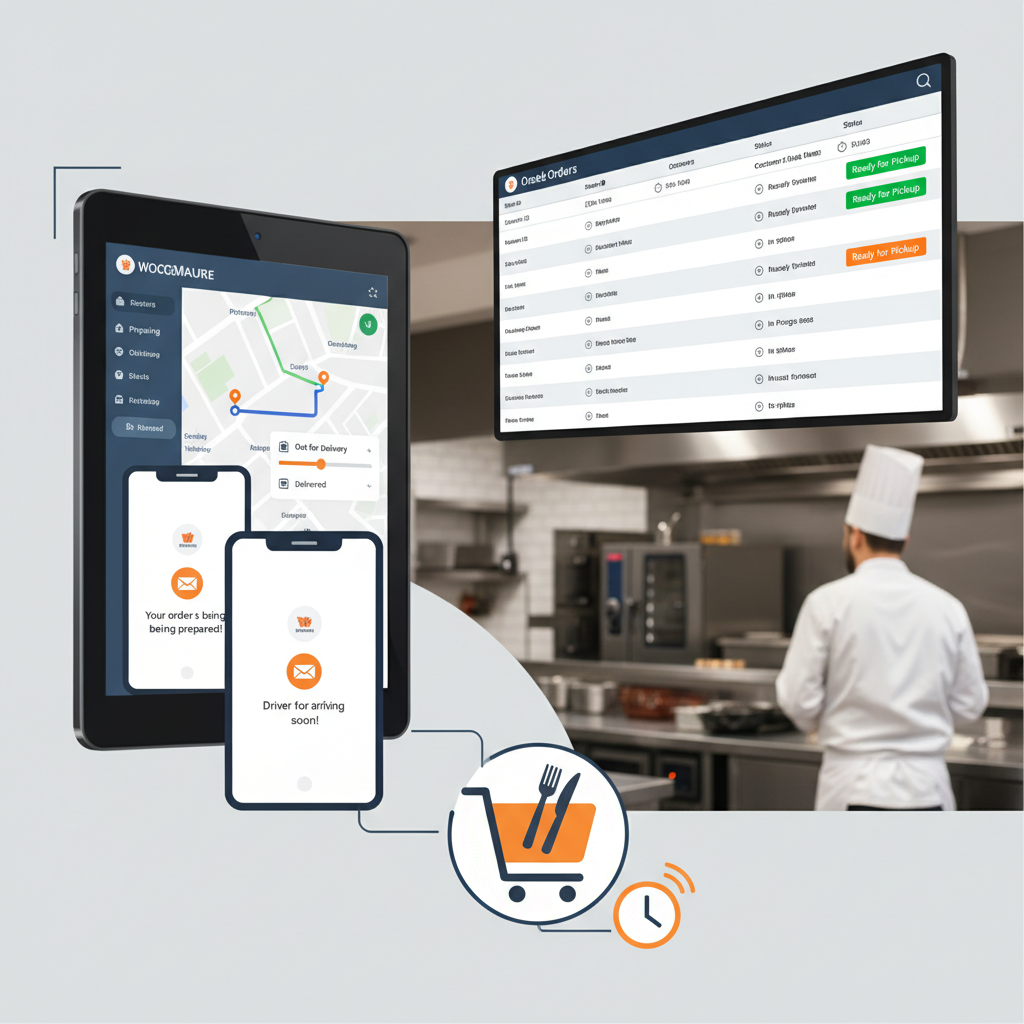
- Adding a Kitchen-Side Order Queue Display That Syncs with Customer-Facing Tracking
- The Kitchen Display Screen (KDS)
- Updating Statuses from the WordPress Dashboard
- Using a Tablet at the Counter
- Pro Tips: Estimated Time Calculations, Google Maps Delivery Tracking, and Reducing No-Shows
- Dynamic Prep Time Estimates
- Google Maps Delivery Tracking
- Reducing No-Shows and Missed Pickups
- Putting It All Together
There’s a moment every restaurant customer knows too well — you’ve placed an order online, and now you’re staring at your phone wondering: did they get it? Are they making it? When will it arrive? That uncertainty is more than just annoying. It’s the kind of friction that drives customers to call your restaurant, leave negative reviews, or simply never order again.
The good news? Setting up real-time order tracking and live status notifications on your WooCommerce restaurant website is entirely doable — and it doesn’t require a massive tech budget. In this guide, we’ll walk through every step: from mapping out order statuses and building a live tracking page, to configuring SMS and email notifications, syncing with your kitchen, and adding advanced features like estimated delivery times and map tracking.
Whether you’re running a single pizzeria or a multi-location restaurant operation, this guide will help you deliver the kind of transparent ordering experience that keeps customers coming back.
Why Real-Time Order Tracking Matters for Restaurant Customers (and Your Bottom Line)
Think about how you feel when you order from a major delivery app. You can see every step — order confirmed, food being prepared, driver en route. Now think about ordering from a small restaurant’s website where you get a confirmation email and then… silence. That gap is where customer trust erodes.
Real-time order tracking directly addresses several business-critical problems:
- Reduced customer anxiety: When customers can see their order moving through stages, they don’t need to wonder or worry. This is especially important for first-time customers who haven’t built trust with your restaurant yet.
- Fewer inbound support calls: “Where’s my order?” is the number one call restaurants receive during peak hours. Every one of those calls pulls staff away from actually fulfilling orders. Live tracking can cut these inquiries by 50% or more.
- Higher repeat order rates: A smooth, transparent experience makes people feel taken care of. Studies consistently show that post-purchase communication is one of the strongest drivers of customer loyalty in food delivery.
- Lower no-show and missed pickup rates: When customers get a “ready for pickup” notification, they show up on time. Without it, food sits on the counter getting cold, and some customers never come at all.
In short, order tracking isn’t a luxury feature — it’s infrastructure that directly impacts revenue, operational efficiency, and customer satisfaction.
Understanding the Order Lifecycle: From Placed to Delivered
Before you build anything, you need a clear mental model of how an order moves through your restaurant. WooCommerce ships with generic statuses like “Processing” and “Completed,” but those don’t mean much to a hungry customer. You need restaurant-specific stages.
The Typical Restaurant Order Lifecycle
Here’s how most restaurant orders flow, whether they’re for pickup or delivery:
- Order Received: The customer has placed the order and payment is confirmed. The order appears in your system.
- Preparing: The kitchen has acknowledged the order and is actively making the food.
- Ready for Pickup: The food is done and waiting at the counter (for pickup orders) or waiting for a driver (for delivery orders).
- Out for Delivery: A driver has picked up the order and is heading to the customer. (Delivery orders only.)
- Delivered / Completed: The customer has received their food. The order is closed.
Mapping These Statuses in WooCommerce
WooCommerce doesn’t include these statuses natively, but you can add custom order statuses. You have a few options:
If you’re using FoodMaster, this is significantly easier because the plugin is built specifically for restaurant workflows. FoodMaster includes a built-in order management system with restaurant-appropriate statuses, a kitchen display screen, and order tracking capabilities — all designed around how restaurants actually operate, not how a generic e-commerce store works.
For a manual approach, you can register custom order statuses using the register_post_status function and the wc_order_statuses filter in your theme’s functions.php file. You’d register statuses like wc-preparing, wc-ready-pickup, and wc-out-delivery. However, this requires ongoing code maintenance and won’t automatically integrate with tracking pages or notifications without additional development.
Whichever path you choose, the key principle is the same: every status should be meaningful to the customer. “Processing” tells them nothing. “Your food is being prepared” tells them everything.
Setting Up Live Order Status Display Pages for Customers
Now for the part your customers actually see. You need a page where they can check their order status in real time — without refreshing the browser.
Step 1: Create a Dedicated Order Tracking Page
WooCommerce includes a basic order tracking shortcode: [woocommerce_order_tracking]. You can add this to any WordPress page. It lets customers enter their order ID and email to view their order status.
However, the default display is bare-bones. It shows the WooCommerce order status text and order details, but it doesn’t provide a visual progress bar or restaurant-specific language. For most restaurant sites, you’ll want to enhance this.
Step 2: Build a Visual Progress Tracker
The most effective order tracking pages show a visual timeline — a horizontal progress bar with icons for each stage. Think of the Domino’s tracker. Here’s what to include:
- A clear progress bar showing all stages (Received → Preparing → Ready → Out for Delivery → Delivered)
- The current stage highlighted or animated
- An estimated time remaining, if possible
- Order details summary (items ordered, order total, delivery address or pickup location)
You can build this with custom HTML/CSS on your tracking page, pulling the current order status via WooCommerce’s order object. For the visual component, a simple flexbox layout with conditional CSS classes based on the order status works well.
Step 3: Add AJAX Polling for Real-Time Updates
The “real-time” part requires the page to check for status changes without the customer manually refreshing. The most straightforward approach is AJAX polling — a small JavaScript function that queries your server every 15-30 seconds to check if the order status has changed.
Here’s the general approach:
- Create a custom WordPress AJAX endpoint that accepts an order ID and returns the current status.
- On your tracking page, use JavaScript’s
setIntervalto call this endpoint every 15-30 seconds. - When the returned status differs from the currently displayed status, update the progress bar and show a subtle animation or notification.
A 20-second polling interval strikes a good balance between responsiveness and server load. For most restaurant sites handling under 200 concurrent orders, this won’t cause performance issues.
Step 4: Display Estimated Times
If you can show “Estimated ready in 25 minutes,” you’ve just eliminated 90% of the reason anyone would call your restaurant. We’ll cover how to calculate dynamic time estimates in the Pro Tips section below.
FoodMaster users benefit here because the plugin’s order tracking and management features are designed to work together out of the box, reducing the amount of custom development needed to achieve a polished tracking experience.
Configuring SMS, Email, and Push Notifications for Each Order Stage
A tracking page is great, but proactive notifications are even better. Customers shouldn’t have to check a page — the updates should come to them.
Email Notifications
WooCommerce sends emails for standard order status changes (new order, processing, completed). To send emails for your custom restaurant statuses, you need to hook into the status transition actions.
For each custom status, WooCommerce fires an action like woocommerce_order_status_preparing. You can attach a function to this hook that triggers a WooCommerce email. Use WooCommerce’s built-in email classes or a plugin like WooCommerce Email Customizer to design branded templates with your restaurant’s logo, order details, and a link to the tracking page.
Keep the emails short and scannable. A subject line like “Your order is being prepared 🍳” with a one-line body and a tracking link is far more effective than a wall of text.
SMS Notifications
SMS has open rates above 95% — vastly higher than email. For a restaurant where timing matters, SMS is the ideal channel. Twilio is the most popular and reliable option for sending SMS from WordPress.
Here’s how to set it up:
- Create a Twilio account and get a phone number (costs about $1/month plus ~$0.0079 per SMS in the US).
- Install the Twilio PHP SDK or use a WordPress plugin that integrates Twilio.
- Hook into the same order status change actions and trigger an SMS to the customer’s phone number (collected at checkout).
- Craft short, clear messages: “Hi Sarah! Your order #1042 is ready for pickup at our Main St location. See you soon!”
Make sure you collect phone numbers at checkout (WooCommerce includes a billing phone field by default) and get consent for SMS communications to stay compliant with regulations.
Browser Push Notifications
For customers who are browsing your site or have it open in a tab, browser push notifications provide instant alerts. Services like OneSignal offer free tiers and WordPress plugins that make setup relatively painless.
The flow: customer opts in to push notifications during or after checkout → when their order status changes → your server sends a push notification via the OneSignal API → the customer sees a browser notification even if they’ve navigated to another tab.
Push notifications work best as a supplement to SMS and email, not a replacement, since they require the customer to have opted in and to be using a supported browser.
Adding a Kitchen-Side Order Queue Display That Syncs with Customer-Facing Tracking
All of this tracking infrastructure is only as good as the data feeding it. If your kitchen staff can’t quickly and easily update order statuses, the whole system falls apart.
The Kitchen Display Screen (KDS)
A Restaurant Ordering Trends in 2026: Essential Shifts Reshaping the Industry”>Restaurant Ordering Site (Complete Step-by-Step Guide)”>kitchen display system shows incoming orders on a screen (usually a tablet or monitor mounted in the kitchen) and lets staff tap to advance orders through each stage. This replaces printed tickets and gives you the real-time data that powers customer-facing tracking.
FoodMaster includes a dedicated kitchen display screen feature that does exactly this. Orders appear in real time, kitchen staff can update statuses with a tap, and those changes immediately sync across the system — updating the customer’s tracking page and triggering any configured notifications. It’s one of the plugin’s strongest features for restaurants that want a professional setup without cobbling together multiple tools.
Updating Statuses from the WordPress Dashboard
If a dedicated KDS isn’t in your setup yet, staff can update order statuses directly from the WooCommerce Orders screen in the WordPress admin. The workflow is simple:
- Staff member sees a new order in the dashboard.
- They click on the order and change the status from “Received” to “Preparing.”
- When the food is ready, they change it to “Ready for Pickup” or “Out for Delivery.”
- Each change triggers the customer-facing updates and notifications you’ve configured.
For faster updates, you can use the bulk actions feature or add quick-action buttons to the orders list using a small custom plugin or code snippet. The goal is to make status updates take no more than two taps.
Using a Tablet at the Counter
Many restaurants set up an inexpensive Android or iPad tablet running a web browser pointed at the WordPress dashboard (or FoodMaster’s kitchen display). This gives kitchen staff a dedicated device for managing orders without needing access to the main POS computer. Mount it on the wall near the prep station, and you’ve got a functional KDS for under $200 in hardware.
Pro Tips: Estimated Time Calculations, Google Maps Delivery Tracking, and Reducing No-Shows
Once the basics are in place, these advanced strategies will take your order tracking from functional to genuinely impressive.
Dynamic Prep Time Estimates
Static estimates (“Your order will be ready in 30 minutes”) are better than nothing, but dynamic estimates are far more accurate and trustworthy. Here’s a practical approach:
- Base prep time: Assign an estimated prep time to each menu item (e.g., a salad takes 5 minutes, a pizza takes 15 minutes). Store this as product meta in WooCommerce.
- Order calculation: When an order is placed, calculate the total prep time based on the longest-prep item (since kitchens work in parallel, not sequentially) plus a small buffer per additional item.
- Queue adjustment: Factor in how many orders are currently in “Preparing” status. If there are 8 orders ahead, add a multiplier. A simple formula: estimated time = max item prep time + (2 minutes × additional items) + (3 minutes × orders in queue).
- Display it: Show the calculated estimate on the order confirmation page, in the confirmation email, and on the tracking page.
You’ll want to tune these numbers based on your actual kitchen speed over the first few weeks. Track how long orders actually take versus your estimates and adjust accordingly.
Google Maps Delivery Tracking
For delivery orders, showing the driver’s location on a map is the gold standard of order tracking. A full real-time GPS implementation requires a driver app and the Google Maps JavaScript API, which can get complex. But here’s a simpler approach that still adds value:
- When the order moves to “Out for Delivery,” display a static Google Map embed on the tracking page showing the route from your restaurant to the customer’s address.
- Include an estimated delivery time based on Google Maps distance calculations (you can use the Distance Matrix API to calculate drive time programmatically).
- If you want live driver tracking, services like Tookan or Onfleet offer APIs that integrate with WooCommerce and provide real-time map tracking with driver apps.
Even the static map approach gives customers a sense of progress and sets realistic expectations about delivery time.
Reducing No-Shows and Missed Pickups
No-shows are a real problem for pickup orders. Food gets made, sits on the counter, and the customer never arrives. Here’s how status notifications help:
- Send a “Ready for Pickup” SMS immediately when the order is done. Include your address and any specific pickup instructions (e.g., “Come to the side door”).
- Send a follow-up reminder if the order hasn’t been marked as picked up within 15 minutes. A gentle “Your order is waiting for you!” nudge works wonders.
- Set a pickup window policy and communicate it clearly: “Orders not picked up within 30 minutes may need to be remade.” Display this on the tracking page.
- For delivery failures, configure an automatic SMS when the driver arrives: “Your delivery driver is at your door!” This reduces the chance of missed deliveries and the costly re-delivery attempts that follow.
Putting It All Together
The combination of a visual tracking page, proactive multi-channel notifications, and an efficient kitchen-side status update system creates a closed loop. Customers feel informed and confident. Staff spend less time answering phones and more time making great food. And your restaurant operates with the kind of polish that used to be reserved for big delivery platforms — without paying their 15-30% commission fees.
If you’re running a WooCommerce restaurant site and want to implement all of this without stitching together a dozen different tools, FoodMaster is worth a serious look. It covers the order lifecycle management, kitchen display, and tracking infrastructure out of the box, giving you a solid foundation to build on. From there, you can layer on SMS via Twilio, push notifications, and the advanced features we covered to create an ordering experience your customers will genuinely love.
Start with the basics — custom order statuses and email notifications — and build up from there. Even small improvements in order transparency will have an immediate, measurable impact on customer satisfaction and repeat business.
Commission-free ordering
Run restaurant orders on your own WordPress site
FoodMaster adds delivery, pickup, dine-in, POS, and kitchen tools — with zero per-order fees.