On this page
- Why Legal Compliance Matters for Online Restaurant Ordering Sites
- How to Add Allergen Information and Dietary Disclosures to Your WooCommerce Menu Items
- Understanding Allergen Labeling Requirements
- Step-by-Step: Displaying Allergens in WooCommerce
- Best Practices for Allergen Display
- How to Set Up Restaurant-Specific Tax Rules in WooCommerce
- Why Food Tax Is Complicated
- Step-by-Step: Configuring WooCommerce Tax Classes
- Handling Delivery Fees and Tips
- Automated Tax Calculation Tools
- How to Make Your Restaurant Ordering Website ADA and WCAG Accessible
- The Legal Framework
- Actionable Accessibility Steps for WooCommerce
- Testing Tools and WordPress Plugins
- Essential Legal Pages and Policies Every Restaurant Ordering Website Needs
- Privacy Policy (GDPR and CCPA)
- Terms of Service
- Refund and Cancellation Policy
- Cookie Consent
- A Compliance Checklist and Ongoing Maintenance Plan for WooCommerce Restaurant Sites
- Allergen Compliance Checklist
- Tax Compliance Checklist
- Accessibility Compliance Checklist
- Legal Pages Checklist
- Staying Current
Why Legal Compliance Matters for Online Restaurant Ordering Sites
Running a restaurant website isn’t just about beautiful food photos and a smooth checkout. The moment you accept orders online, you step into a regulatory landscape that spans food safety law, tax code, disability rights, and data privacy — often simultaneously. And the consequences of getting it wrong are severe.
Consider the numbers: ADA-related website lawsuits exceeded 4,000 filings in 2023 alone, with restaurants and food service businesses among the most frequently targeted industries. The FDA’s Food Allergen Labeling and Consumer Protection Act (FALCPA) mandates disclosure of major allergens, and the EU’s Food Information for Consumers Regulation (FIC) carries fines that can reach tens of thousands of euros for non-compliance. Meanwhile, misconfigured sales tax on prepared food orders has triggered costly audits for small restaurant operators across multiple U.S. states.
What makes online ordering uniquely tricky is that your website serves as both your storefront and your legal documentation. Unlike a dine-in setting where a server can verbally communicate allergen information, your WooCommerce product pages need to do that work systematically and consistently for every single customer. This guide walks you through the three pillars of restaurant website compliance — allergen disclosures, tax configuration, and ADA accessibility — with concrete steps you can implement this week.
How to Add Allergen Information and Dietary Disclosures to Your WooCommerce Menu Items
Understanding Allergen Labeling Requirements
In the United States, FALCPA requires disclosure of nine major food allergens: milk, eggs, fish, crustacean shellfish, tree nuts, peanuts, wheat, soybeans, and sesame (added in 2023 under the FASTER Act). The EU’s FIC Regulation lists 14 allergens, adding celery, mustard, lupin, mollusks, and sulfites to the mix. If you serve customers in either jurisdiction, your online menu must clearly identify these allergens in every applicable dish.
Beyond legal mandates, clear allergen disclosure builds trust. Research from the Food Standards Agency (UK) found that 62% of food-allergic consumers would order more frequently from restaurants that provide detailed allergen information online.
Step-by-Step: Displaying Allergens in WooCommerce
There are three practical approaches for WooCommerce restaurant sites, and you can combine them:
- WooCommerce Product Attributes: Navigate to Products → Attributes and create a global attribute called “Allergens.” Add terms for each major allergen (Gluten, Dairy, Nuts, Shellfish, etc.). Assign relevant allergens to each menu item. This method enables customers to filter menu items by allergen, which is enormously helpful.
- Custom Fields via ACF (Advanced Custom Fields): Create a repeater field group called “Allergen Warnings” and attach it to WooCommerce products. Use checkboxes for each allergen, then display them on the product page template using a short code or theme customization. This gives you visual control — you can render allergen icons (a wheat symbol for gluten, a milk bottle for dairy) alongside each dish.
- Product Short Description: At minimum, list allergens in bold text within each product’s short description. Format it as: “Contains: Milk, Wheat, Eggs. May contain traces of Tree Nuts.” This is the fastest method and requires no plugins.
If you’re using a WooCommerce restaurant ordering plugin like FoodMaster, your menu items are already structured as WooCommerce products, which means all three methods work seamlessly with your existing menu setup. FoodMaster’s product-based architecture lets you attach attributes, custom fields, and descriptions to every dish without additional configuration.
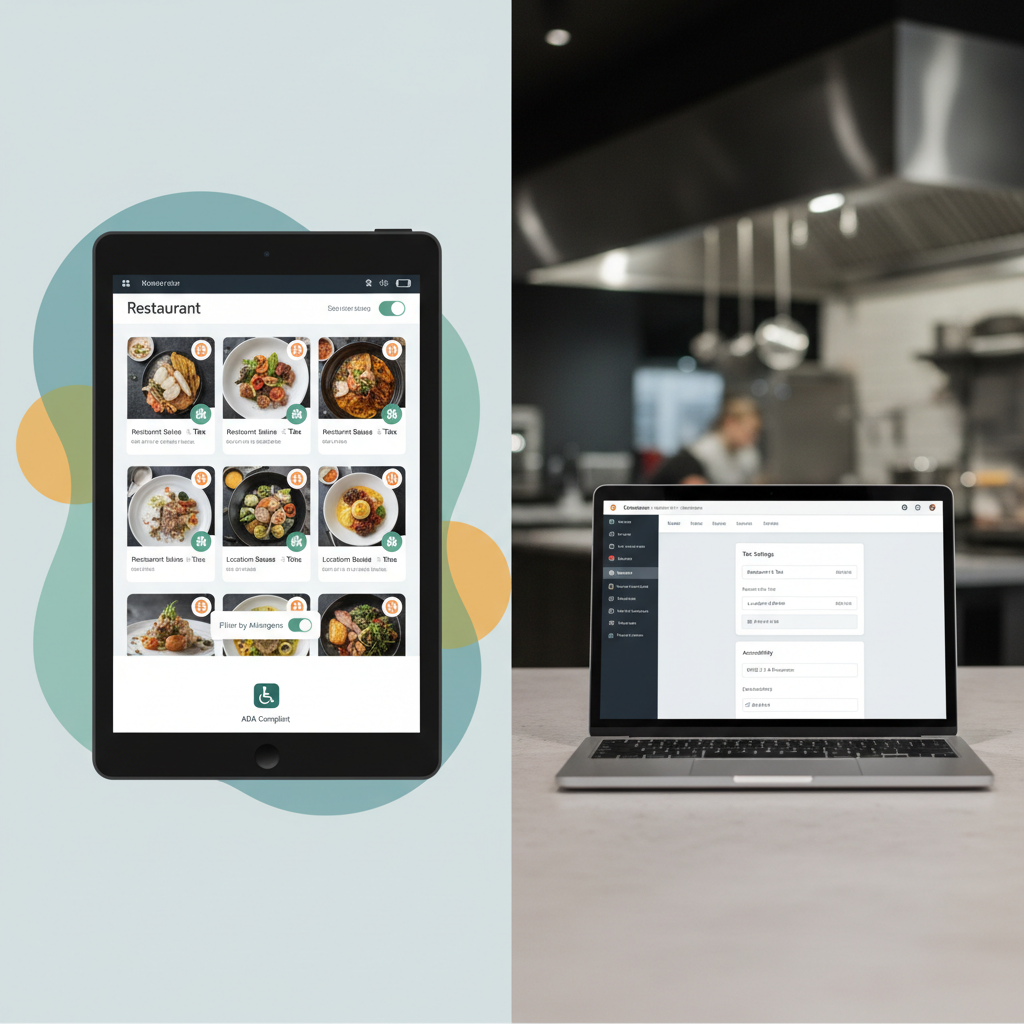
[IMAGE: WooCommerce product page showing allergen icons displayed beneath a menu item with checkboxes for Gluten, Dairy, Nuts, and Shellfish alongside ingredient information]
Best Practices for Allergen Display
- Use visual icons alongside text labels — they’re faster to scan and help non-native speakers.
- Place allergen information above the fold on product pages, not buried in a tab customers might miss.
- Add a site-wide disclaimer: “If you have a food allergy, please contact us before ordering. While we take precautions, cross-contamination may occur.”
- Create a dedicated Allergen Information page linked from your main navigation and footer.
- Update allergen data every time you change a recipe or supplier — assign a staff member to own this process.
How to Set Up Restaurant-Specific Tax Rules in WooCommerce
Why Food Tax Is Complicated
Food taxation is notoriously inconsistent. In the U.S., most states exempt unprepared grocery items from sales tax but do tax prepared food. The definition of “prepared food” varies wildly: in New York, a heated sandwich is taxable but a cold one under $1.50 isn’t. In Illinois, food sold for immediate consumption carries a higher tax rate (typically the full state + local rate) than food sold for later consumption. Delivery fees may or may not be taxable depending on the state.
Getting this wrong isn’t a minor bookkeeping issue. State tax audits can result in back taxes, penalties, and interest charges that accumulate quickly for high-volume restaurant operations.
Step-by-Step: Configuring WooCommerce Tax Classes
WooCommerce supports multiple tax classes, which is exactly what restaurant operators need. Here’s how to set them up:
- Enable taxes: Go to WooCommerce → Settings → General and check “Enable tax rates and calculations.”
- Create tax classes: Under Settings → Tax, add custom tax classes. For a restaurant, you’ll typically need: Prepared Food, Beverages, Alcohol (if applicable), and Delivery Fee.
- Set rates per class: Click into each tax class and add rows for each applicable jurisdiction. For example, if you’re in Texas, prepared food is taxed at 6.25% state + your local rate. Alcohol may have an additional excise component.
- Assign classes to products: Edit each menu item and select the appropriate tax class from the Product Data panel.
- Configure tax display: Under the Tax tab, choose whether to display prices inclusive or exclusive of tax. Most U.S. restaurants display prices excluding tax, while many European restaurants include VAT in displayed prices.
Handling Delivery Fees and Tips
Delivery fee taxation depends on your state. In California, delivery charges are generally taxable if they’re part of the sale of a taxable item. In Florida, separately stated delivery charges are typically exempt. Check your state’s Department of Revenue guidance or consult a tax professional.
For tips and gratuities: voluntary tips entered by customers at checkout are generally not subject to sales tax in the U.S. However, mandatory service charges or auto-gratuities are taxable in many states. If your WooCommerce setup includes a tipping feature, ensure voluntary tips are added after tax calculation, not before.
Automated Tax Calculation Tools
For multi-jurisdiction accuracy, consider automated tax calculation services. TaxJar and Avalara both integrate with WooCommerce and automatically apply the correct tax rates based on the customer’s delivery address. WooCommerce Tax (powered by Jetpack) offers a free option for basic setups. These tools are particularly valuable if you operate multiple locations or deliver across city and county lines where rates change.
How to Make Your Restaurant Ordering Website ADA and WCAG Accessible
The Legal Framework
ADA Title III applies to “places of public accommodation,” and federal courts have consistently ruled that this extends to websites — especially for businesses with physical locations. The Department of Justice has explicitly referenced WCAG 2.1 Level AA as the benchmark for web accessibility compliance. Restaurants are high-profile targets because food ordering is considered an essential service.
The Domino’s Pizza v. Robles case (2019) confirmed that a blind customer’s inability to order through a website or app constituted an ADA violation. That precedent applies to every restaurant with an online ordering system.
Actionable Accessibility Steps for WooCommerce
Here’s what to prioritize for your Ordering Website in WooCommerce (Complete Visual Guide)”>restaurant ordering flow:
- Keyboard navigation: Every element of your ordering process — menu browsing, item selection, quantity adjustment, cart management, and checkout — must be operable using only a keyboard. Test by pressing Tab through your entire order flow. If you get “trapped” in a modal or can’t reach the Place Order button, that’s a violation.
- Screen reader compatibility: Use semantic HTML (proper heading hierarchy, labeled form fields, descriptive link text). Avoid using images of text for menu item names or prices. Screen readers like NVDA and VoiceOver can’t read text embedded in images.
- Alt text for food images: Every menu item photo needs descriptive alt text. Instead of
alt="IMG_4521", usealt="Margherita pizza with fresh basil, mozzarella, and tomato sauce on a thin crust". This also benefits your SEO. - Color contrast: Text must have a contrast ratio of at least 4.5:1 against its background (3:1 for large text). This is especially important for price displays, allergen labels, and call-to-action buttons. Use the WebAIM Contrast Checker to verify.
- Accessible forms: Every checkout field needs a visible
element associated with its input. Placeholder text alone is not sufficient. Error messages must be programmatically associated with the field that triggered them usingaria-describedby. - ARIA labels for interactive elements: Add/remove buttons, quantity spinners, and cart toggles need
aria-labelattributes that describe their function (e.g.,aria-label="Add Margherita Pizza to cart").
[IMAGE: Split-screen comparison showing an inaccessible restaurant menu page with poor contrast and missing labels versus an accessible version with proper heading structure, high contrast, allergen icons with alt text, and visible form labels]
Testing Tools and WordPress Plugins
Run your site through these tools regularly:
- WAVE (Web Accessibility Evaluation Tool): Free browser extension that overlays accessibility errors directly on your page.
- Google Lighthouse: Built into Chrome DevTools, provides an accessibility score with specific remediation guidance.
- axe DevTools: A more technical scanner that catches issues WAVE might miss, particularly in dynamic content like AJAX-loaded cart updates.
- WP Accessibility plugin: Adds skip links, fixes common WordPress accessibility issues, and provides toolbar options for font resizing and contrast adjustments.
Automated tools catch roughly 30-40% of accessibility issues. For full compliance, supplement with manual keyboard testing and, ideally, user testing with people who rely on assistive technology.
Essential Legal Pages and Policies Every Restaurant Ordering Website Needs
Privacy Policy (GDPR and CCPA)
If you collect customer names, addresses, phone numbers, email addresses, or payment information through online orders — and you do — you need a comprehensive privacy policy. GDPR applies if any of your customers are EU residents. CCPA applies if you meet California’s revenue or data volume thresholds, but having a CCPA-compliant policy is best practice regardless.
Your privacy policy must specify: what data you collect, why you collect it, how long you retain it, who you share it with (payment processors, delivery partners, SMS notification services), and how customers can request deletion. If you use order data for marketing or loyalty programs, that requires explicit opt-in consent under GDPR.
Terms of Service
Your Terms of Service should address food-ordering-specific scenarios: order accuracy responsibilities, allergy disclaimers, delivery time estimates (and that they’re not guaranteed), minimum order amounts, delivery zone restrictions, and your right to refuse or cancel orders. Include a clause about pricing errors — a common issue when menus are updated frequently.
Refund and Cancellation Policy
Food orders are perishable by nature, so your refund policy needs to be clear and specific. Address: the window for cancellation after order placement (e.g., within 5 minutes or before preparation begins), how you handle incorrect orders, damaged-during-delivery claims, and whether refunds are issued as store credit or original payment method. Display this policy prominently during checkout, not just on a buried page.
Cookie Consent
If you use analytics, remarketing pixels, or session cookies (WooCommerce uses session cookies for cart functionality), you need a cookie consent banner. GDPR requires opt-in consent before non-essential cookies fire. Plugins like Complianz or CookieYes integrate well with WooCommerce and handle the technical blocking of scripts until consent is granted.
A Compliance Checklist and Ongoing Maintenance Plan for WooCommerce Restaurant Sites
Compliance isn’t a one-time project — it’s an ongoing operational commitment. Use this checklist for your initial audit and quarterly reviews:
Allergen Compliance Checklist
- ☐ All menu items list applicable major allergens (9 FDA / 14 EU)
- ☐ Allergen information is visible on product pages without extra clicks
- ☐ A general allergen disclaimer appears site-wide
- ☐ Allergen data is updated when recipes or suppliers change
- ☐ Staff handling online order inquiries are trained on allergen protocols
- ☐ Filterable allergen attributes are configured for menu browsing
Tax Compliance Checklist
- ☐ Tax classes are configured for prepared food, beverages, alcohol, and delivery fees
- ☐ Tax rates match current state and local requirements
- ☐ Delivery fee taxation aligns with your jurisdiction’s rules
- ☐ Tips/gratuities are calculated after tax, not included in taxable amount
- ☐ Tax display settings match regional conventions (inclusive vs. exclusive)
- ☐ Tax rates are reviewed quarterly or when you receive rate change notifications
Accessibility Compliance Checklist
- ☐ Full ordering flow is completable via keyboard only
- ☐ All food images have descriptive alt text
- ☐ Color contrast meets WCAG 2.1 AA minimums (4.5:1 for body text)
- ☐ Form fields have visible, associated labels
- ☐ WAVE or axe scan shows zero critical errors
- ☐ Screen reader testing completed on menu, cart, and checkout pages
Legal Pages Checklist
- ☐ Privacy Policy published and linked in footer (updated for current data practices)
- ☐ Terms of Service include food-ordering-specific clauses
- ☐ Refund/Cancellation Policy is visible during checkout
- ☐ Cookie consent banner is functional and blocks non-essential cookies until consent
- ☐ Data retention schedule documented and followed
Staying Current
Set calendar reminders to review compliance quarterly. Subscribe to updates from your state’s Department of Revenue (for tax changes), the FDA’s food labeling announcements, and the W3C’s Web Accessibility Initiative for WCAG updates. When you update your WordPress theme, plugins, or restaurant ordering system, re-run your accessibility scans — theme updates frequently introduce new contrast or navigation issues.
Assign a specific team member as your compliance owner. This person doesn’t need to be a lawyer, but they need to understand the basics covered in this guide and have the authority to make changes to your site. Document every compliance review with dates and findings so you can demonstrate good faith effort if questions ever arise.
Legal compliance for your WooCommerce restaurant site is an investment that protects your business, serves your customers better, and differentiates you from competitors who cut corners. Start with the highest-risk items — allergen disclosures and accessibility — then systematically work through tax configuration and legal pages. Every item you check off this list reduces your exposure and builds a more trustworthy online ordering experience.
Commission-free ordering
Run restaurant orders on your own WordPress site
FoodMaster adds delivery, pickup, dine-in, POS, and kitchen tools — with zero per-order fees.