On this page
- What Is a Kitchen Display System (KDS) and Why Your Restaurant Needs One
- How a KDS Integrates with WooCommerce: Architecture and Order Flow Explained
- The Order Journey
- Real-Time Communication Methods
- Order Statuses as Workflow Triggers
- Top Kitchen Display System Solutions for WooCommerce Restaurants: Plugin and Hardware Options Compared
- Dedicated Restaurant Plugins with Built-In KDS
- Tablet-Based Solutions
- POS Systems with KDS Modules
- Custom Self-Hosted Solutions
- Comparison Table
- Step-by-Step: Building a Simple KDS Dashboard in WordPress for Your Kitchen
- Step 1: Create a Dedicated Kitchen User Role
- Step 2: Build the KDS Page Template
- Step 3: Add Auto-Refresh Functionality
- Step 4: Wire Up the Bump Button
- Step 5: Configure Full-Screen Kiosk Mode
- Optimizing Your KDS Workflow: Order Prioritization, Color Coding, and Multi-Station Routing
- Color-Coding by Order Type
- Time-Based Alerts
- Multi-Station Routing
- Audio Alerts for New Orders
- Hardware Setup and Best Practices: Choosing the Right Screen, Mounting, and Kitchen-Proofing Your KDS
- Screen Selection
- Protective Enclosures
- Network Connectivity
- Screen Positioning
- Go-Live Checklist
What Is a Kitchen Display System (KDS) and Why Your Restaurant Needs One
Picture this: your restaurant’s lunch rush hits, online orders pour in through your WooCommerce site, and your kitchen printer jams. Tickets pile up, orders get lost, and customers wait. A Kitchen Display System (KDS) eliminates that entire failure point by replacing paper tickets with a digital screen that shows every order in real time, organized, prioritized, and impossible to lose under a pile of greasy receipts.
A KDS is essentially a screen — typically a tablet or mounted monitor — that displays incoming orders as digital cards. Kitchen staff can see what needs to be prepared, how long each order has been waiting, and any special instructions or modifications. When a dish is complete, they “bump” it off the screen, which updates the order status throughout your entire system.
For restaurants running their ordering through WooCommerce, a KDS brings several concrete advantages:
- Faster order processing: Orders appear on the kitchen screen the moment they’re placed online — no waiting for a server to walk a ticket back.
- Fewer errors: Digital displays show modifications and special instructions clearly, reducing misreads from handwritten or poorly printed tickets.
- Real-time visibility: Managers and front-of-house staff can see exactly where every order stands without shouting across the kitchen.
- Data and accountability: A KDS logs preparation times, giving you actual data on kitchen performance rather than guesswork.
- Environmental and cost savings: Thermal printer paper, ink, and maintenance costs add up. A one-time screen investment pays for itself within months.
If you’re already accepting online orders through a WooCommerce restaurant ordering plugin, adding a KDS is the natural next step to close the gap between your website and your kitchen line.
How a KDS Integrates with WooCommerce: Architecture and Order Flow Explained
Understanding the technical flow helps you make smarter decisions about which KDS approach to choose. Here’s what happens from the moment a customer clicks “Place Order” to the moment that order appears on your kitchen screen.
The Order Journey
When a customer completes checkout on your WooCommerce store, WordPress creates a new order record in the database with a status of “Processing” (for paid orders) or “On Hold” (for cash-on-delivery). This order contains everything the kitchen needs: item names, quantities, product add-ons, special instructions, and order type (delivery, pickup, or dine-in).
A plugin like FoodMaster enriches this data further, attaching delivery addresses, scheduled order times, table numbers for dine-in, and tip information to each order object. This structured data is what your KDS reads and displays.
Real-Time Communication Methods
The KDS screen needs to know about new orders without someone manually refreshing a page. There are two primary approaches:
- AJAX polling: The kitchen display page sends a request to your WordPress server every few seconds (typically 5–15 seconds) asking, “Are there new orders?” This is the simplest method and works well for most single-location restaurants. The tradeoff is a slight delay equal to your polling interval.
- WebSocket connections: A persistent connection between the kitchen screen and the server pushes new orders instantly. This requires additional server configuration (Node.js or a WebSocket service) but delivers true real-time updates with no polling delay.
Order Statuses as Workflow Triggers
WooCommerce’s built-in order status system becomes your kitchen workflow engine. A typical KDS flow looks like this: an order arrives as “Processing,” the kitchen staff begins preparation and optionally marks it “In Preparation” (a custom status), and when complete, they bump it to “Ready for Pickup” or “Completed.” Each status change updates the display for everyone — kitchen, front-of-house, and even the customer if you have order tracking enabled.
[IMAGE: Flowchart showing the order journey from WooCommerce checkout through order statuses to kitchen display screen, with arrows indicating data flow between customer, server, and KDS]
Top Kitchen Display System Solutions for WooCommerce Restaurants: Plugin and Hardware Options Compared
There’s no single “right” KDS solution — it depends on your budget, technical comfort level, and kitchen complexity. Here are the main approaches available to WooCommerce restaurant owners.
Dedicated Restaurant Plugins with Built-In KDS
The most seamless option is using a restaurant ordering plugin that includes KDS functionality natively. FoodMaster (formerly WooFood) includes a kitchen display system as part of its feature set, which means orders flow directly from checkout to the kitchen screen without any third-party integration or middleware. Since the KDS is built into the same plugin handling your menu, ordering, and order management, there’s no data translation layer where things can break.
Tablet-Based Solutions
Many restaurants use an Android tablet or iPad mounted in the kitchen running a full-screen browser pointed at a KDS dashboard page. This approach works with any WordPress-based KDS solution and keeps hardware costs between $150–$400 per screen. Budget Android tablets like the Samsung Galaxy Tab A series handle the job well since a KDS page is not computationally demanding.
POS Systems with KDS Modules
If you’re already using a POS system for in-house orders, some POS platforms offer KDS add-on screens. The challenge here is ensuring your WooCommerce online orders also feed into that POS system. FoodMaster’s built-in POS functionality can simplify this by keeping both in-house and online orders in one system.
Custom Self-Hosted Solutions
For technically inclined restaurant owners, building a custom KDS page using WooCommerce’s REST API and a JavaScript frontend (React, Vue, or even vanilla JS) gives you maximum control. This is the approach we’ll walk through in the next section.
Comparison Table
| Solution | Cost | Setup Difficulty | WooCommerce Compatibility | Best For |
|---|---|---|---|---|
| FoodMaster Built-In KDS | Included with plugin | Easy | Native | Most WooCommerce restaurants |
| Tablet + Browser KDS Page | $150–$400 hardware | Moderate | Good (via custom page) | Budget-conscious owners |
| External POS with KDS | $50–$150/month | Complex | Requires integration | Multi-system restaurants |
| Custom REST API Build | Developer time | Advanced | Full control | Tech-savvy owners or agencies |
Step-by-Step: Building a Simple KDS Dashboard in WordPress for Your Kitchen
If you want to understand the mechanics of a KDS — or if you want a lightweight custom solution — here’s how to build a basic kitchen display screen within WordPress. This approach works alongside any WooCommerce setup and gives you a functional starting point.
Step 1: Create a Dedicated Kitchen User Role
You don’t want kitchen staff accessing your full WordPress dashboard. Create a custom user role called “Kitchen” with minimal permissions — just enough to view orders and update their statuses. You can do this with a plugin like User Role Editor or with a small code snippet in your theme’s functions.php:
Assign this role to a dedicated kitchen account. This account will be logged into the kitchen display device permanently.
Step 2: Build the KDS Page Template
Create a custom page template in your WordPress theme that queries WooCommerce orders with the status “Processing.” The template should display each order as a card showing:
- Order number and timestamp
- Order type (delivery, pickup, dine-in)
- All line items with quantities
- Product add-ons and variations (extra cheese, no onions, etc.)
- Customer special instructions from the order notes field
- A “Bump” button to mark the order as complete
Use wc_get_orders() with the appropriate status filter to pull the right orders. Display them in a CSS grid layout — three or four columns works well on a wide kitchen monitor.
Step 3: Add Auto-Refresh Functionality
The simplest auto-refresh method uses a JavaScript setInterval() that makes an AJAX call to check for new orders every 10 seconds. When new orders are found, the script updates the DOM without a full page reload. This keeps the display responsive without the screen flashing white during refreshes.
A basic implementation fetches orders via the WooCommerce REST API endpoint /wp-json/wc/v3/orders?status=processing and compares the returned order IDs against what’s currently displayed. New orders get appended; completed ones get removed.
Step 4: Wire Up the Bump Button
Each order card’s bump button should trigger an AJAX request that updates the WooCommerce order status from “Processing” to “Completed” (or a custom status like “Ready”). When the next polling cycle runs, that order disappears from the kitchen screen. For immediate feedback, also remove the card from the DOM on button click before the server confirms.
Step 5: Configure Full-Screen Kiosk Mode
On your kitchen device, set the browser to full-screen or kiosk mode so staff can’t accidentally navigate away. On Android tablets, apps like Fully Kiosk Browser lock the device to a single URL. On iPads, Guided Access mode achieves the same result. On a mounted monitor connected to a mini PC, Chrome’s --kiosk flag launches directly into full-screen mode.
That said, building and maintaining a custom KDS requires ongoing development effort. For most restaurant owners, using a plugin like FoodMaster that includes KDS functionality out of the box saves significant time and ensures the display stays compatible with WooCommerce updates.
Optimizing Your KDS Workflow: Order Prioritization, Color Coding, and Multi-Station Routing
A basic KDS shows orders. A well-optimized KDS actively helps your kitchen run faster. Here’s how to take your setup from functional to genuinely powerful.
Color-Coding by Order Type
Assign distinct background colors to different order types so kitchen staff can instantly identify what they’re preparing. A common scheme:
- Blue cards for delivery orders (these often need packaging)
- Green cards for pickup orders
- Orange cards for dine-in orders
- Red border for orders that have been waiting beyond a threshold (e.g., 15 minutes)
This visual differentiation means a cook never has to read the order type text — they recognize it by color in their peripheral vision.
Time-Based Alerts
Implement a timer on each order card that starts counting from the moment the order hits the screen. After a configurable threshold — 10 minutes for a quick-service restaurant, 20 minutes for a full-service kitchen — the card changes color or starts flashing. This creates a built-in accountability system without a manager hovering over the line.
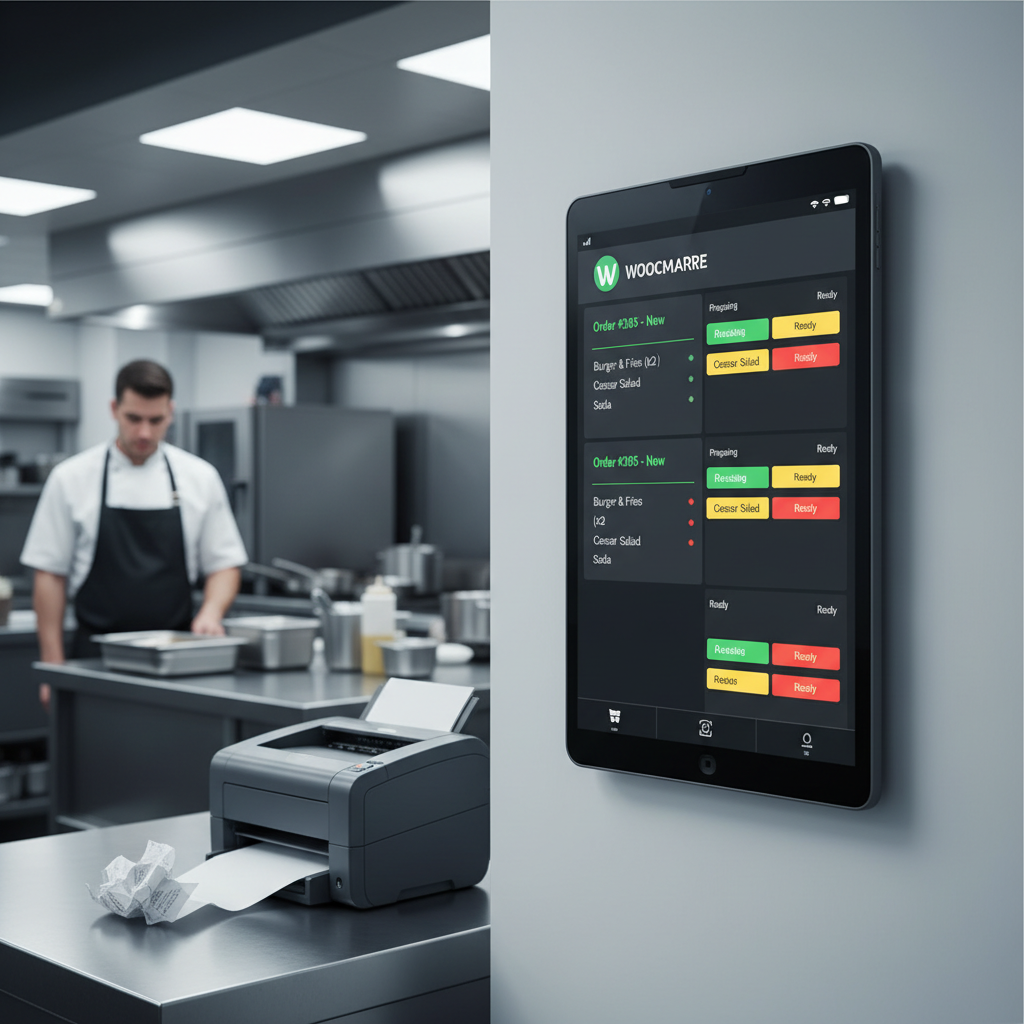
[IMAGE: Kitchen display screen showing color-coded order cards with timer indicators, bump buttons, and order details organized in a grid layout on a wall-mounted monitor]
Multi-Station Routing
In kitchens with separate stations (grill, fryer, salad, drinks), you can filter the KDS display by product category. Set up multiple screens or browser tabs, each showing only the items relevant to that station. A burger order might appear on the grill station’s screen showing the patty, while the same order appears on the cold station’s screen showing the side salad. Both stations bump their portion independently, and the order only moves to “Ready” when all stations have completed their items.
This requires mapping your WooCommerce product categories to kitchen stations — something you’d configure once during setup. If you’re using FoodMaster, the category structure you’ve already built for your online menu can double as your station routing map.
Audio Alerts for New Orders
During a busy service, kitchen staff aren’t staring at the screen constantly. A short audio chime when a new order arrives gets immediate attention. Use the browser’s Web Audio API or a simple HTML5 element triggered by the same AJAX polling script that checks for new orders. Keep the sound distinct but not jarring — a clear two-tone chime works better than a loud alarm bell that becomes stressful during peak hours.
Hardware Setup and Best Practices: Choosing the Right Screen, Mounting, and Kitchen-Proofing Your KDS
Software is only half the equation. A KDS that can’t survive the heat, grease, and chaos of a commercial kitchen is worthless. Here’s what to get right on the hardware side.
Screen Selection
For a single-station kitchen, a 10-inch to 12-inch tablet (Samsung Galaxy Tab A8, iPad 10th generation, or Lenovo Tab M10) provides enough screen real estate for 4–6 order cards. For larger kitchens or high-volume operations, a 22-inch to 32-inch commercial-grade monitor connected to a Raspberry Pi 4 or Intel NUC mini PC delivers better visibility from across the kitchen. Aim for at least 1080p resolution — text readability matters when cooks are reading orders from several feet away.
Protective Enclosures
Kitchen environments are harsh. Grease, steam, flour dust, and occasional splashes will destroy unprotected electronics. For tablets, invest in a sealed silicone case with a screen protector rated for food-service environments. For mounted monitors, commercial KDS enclosures from manufacturers like Armodilo or custom-fabricated stainless steel housings provide IP-rated protection. At minimum, use a VESA-mount enclosure with a polycarbonate screen shield.
Network Connectivity
Wi-Fi is convenient but can be unreliable in a kitchen full of metal equipment and microwave ovens that create interference. If possible, run an Ethernet cable to your KDS screen’s device. For tablets without Ethernet ports, a USB-C to Ethernet adapter solves the problem for under $20. A dropped connection during dinner service means missed orders — wired connections eliminate that risk.
Screen Positioning
Mount the screen at eye level for the primary cook working the line, typically 55–65 inches from the floor. Position it where staff can see it without turning their backs to their workstations. Avoid placing it directly above a fryer or steamer where rising heat and moisture will shorten its lifespan. If your kitchen layout requires a screen near heat sources, angle it downward from a higher mount point to keep it above the thermal zone.
Go-Live Checklist
Before your first service with the KDS, run through this checklist:
- Place three test orders through your WooCommerce site and verify they appear on the kitchen screen within your expected timeframe.
- Test the bump button — confirm that bumped orders disappear from the KDS and update their WooCommerce status correctly.
- Verify the audio alert triggers for new orders and is audible over kitchen noise.
- Confirm the screen stays on without sleeping (disable auto-sleep on tablets, configure power settings on mini PCs).
- Test what happens when Wi-Fi drops — does the display recover automatically when connection returns?
- Run a mock rush with 10–15 rapid orders to confirm the display handles volume without lag.
- Ensure at least one staff member knows how to restart the KDS if something goes wrong (usually just refreshing the browser).
- Keep your old paper printer as a backup for the first two weeks until you’re confident in the system.
Transitioning from paper tickets to a digital kitchen display is one of the highest-impact upgrades a WooCommerce Restaurant Website: Stripe vs PayPal vs Square (Complete Guide to Faster Checkout, Lower Fees, and Higher Conversions)”>WooCommerce restaurant can make. It tightens the connection between your online ordering system and your kitchen, reduces errors during the noisiest moments of service, and gives you data you never had before about preparation times and bottlenecks. Whether you build a custom solution or use the built-in KDS that comes with FoodMaster’s restaurant ordering system, the key is to start simple — one screen, one station, auto-refresh polling — and expand from there as your team adapts to the digital workflow. Your kitchen staff will wonder how they ever managed with paper.
Commission-free ordering
Run restaurant orders on your own WordPress site
FoodMaster adds delivery, pickup, dine-in, POS, and kitchen tools — with zero per-order fees.