On this page
- Why Legal Compliance Matters for Online Restaurant Ordering Systems
- How to Add Allergen Information and Food Labeling to Your WooCommerce Menu Items
- Understanding the Legal Requirements
- Implementing Allergen Labels in WooCommerce
- Making Allergen Labels Accessible
- Setting Up Accurate Tax Configuration for Online Food Orders in WooCommerce
- Why Food Tax Is Uniquely Complicated
- Configuring WooCommerce Tax Classes and Rates
- Automating Tax Calculations Across Multiple Zones
- GDPR and CCPA Compliance for Restaurant Customer Data: Consent, Storage, and Rights Management
- What Data Does Your Restaurant Website Collect?
- Implementing Cookie Consent and Privacy Policies
- Managing Customer Rights: Erasure, Access, and Portability
- Putting It All Together: A Compliance Checklist for Your WordPress Restaurant Website
- Allergen Labeling
- Tax Configuration
- Data Privacy (GDPR/CCPA)
- Common Compliance Mistakes WooCommerce Restaurant Owners Make (And How to Avoid Them)
- Mistake #1: Outdated Allergen Information
- Mistake #2: Applying a Flat Tax Rate to Everything
- Mistake #3: Using a Generic Cookie Banner That Doesn’t Actually Block Cookies
- Mistake #4: Collecting Phone Numbers and Delivery Addresses Without a Clear Legal Basis
- Mistake #5: No Privacy Policy or a Copy-Pasted Template
Why Legal Compliance Matters for Online Restaurant Ordering Systems
Running a restaurant online isn’t just about beautiful food photography and a smooth checkout flow. The moment you accept orders through a website, you step into a legal landscape that’s significantly more complex than what a brick-and-mortar-only restaurant faces. You’re simultaneously a food service provider, an e-commerce retailer, and a data processor — and each of those roles carries distinct legal obligations.
The consequences of getting this wrong are severe. In the EU, GDPR violations can result in fines up to €20 million or 4% of annual global turnover, whichever is higher. In the United States, the FDA can issue warning letters and pursue enforcement actions against food businesses that fail to disclose allergens properly — and private lawsuits from customers who suffer allergic reactions can be devastating. Even tax misconfiguration can trigger audits, back-payment demands, and penalties that eat into already-thin restaurant margins.
Beyond the financial risk, there’s the trust factor. A 2023 survey by the National Restaurant Association found that 72% of consumers consider transparency about ingredients and allergens a key factor when ordering food online. Customers who discover you’ve been careless with their dietary safety or personal data won’t come back — and they’ll tell others.
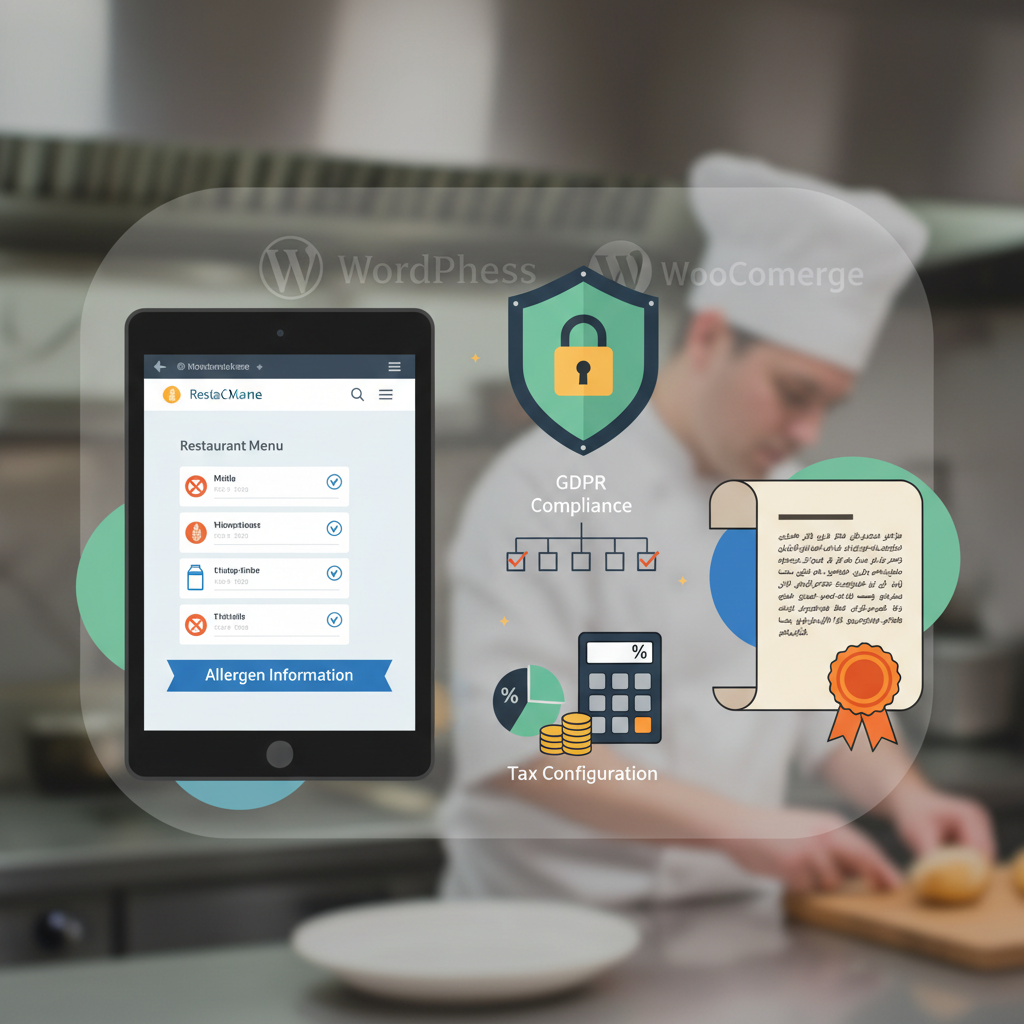
This guide covers the three pillars of legal compliance every WooCommerce restaurant site must address: allergen labeling, tax configuration, and data privacy. Whether you’re launching a new online ordering system or auditing an existing one, these are the areas that demand your attention right now.
How to Add Allergen Information and Food Labeling to Your WooCommerce Menu Items
Understanding the Legal Requirements
Allergen disclosure rules differ by jurisdiction, but the trend worldwide is toward more transparency, not less. In the EU and UK, Natasha’s Law (effective October 2021) and the EU Food Information for Consumers Regulation (FIC 1169/2011) require food businesses — including those selling online — to clearly identify the presence of 14 major allergens: celery, cereals containing gluten, crustaceans, eggs, fish, lupin, milk, molluscs, mustard, nuts, peanuts, sesame, soybeans, and sulphur dioxide.
In the United States, the Food Allergen Labeling and Consumer Protection Act (FALCPA) mandates disclosure of the “Big 9” allergens: milk, eggs, fish, shellfish, tree nuts, peanuts, wheat, soybeans, and sesame (added in 2023 under the FASTER Act). While FALCPA primarily targets packaged food, many state and local health departments extend similar requirements to restaurant menus, especially for online ordering.
Implementing Allergen Labels in WooCommerce
If you’re using FoodMaster (formerly WooFood) as your restaurant ordering plugin, you already have a strong foundation. FoodMaster is built specifically for food businesses on WooCommerce, which means product pages are structured around menu items rather than generic retail products. You can use WooCommerce’s custom fields or product attributes to add allergen data to each menu item.
Here’s a practical approach that works:
- Create a global “Allergens” product attribute in WooCommerce (Products → Attributes). Add each allergen as a term: Gluten, Eggs, Milk, Peanuts, Tree Nuts, Soy, Fish, Shellfish, Sesame, etc.
- Assign relevant allergens to each menu item on the product edit screen. Select all allergens present in the dish.
- Display allergen badges on the product page using your theme’s template or a short snippet in your child theme’s
single-product.php. Many restaurant themes already support this, or you can use a plugin like “WooCommerce Product Tabs” to add a dedicated “Allergen Info” tab. - Build a filterable allergen matrix by leveraging WooCommerce’s layered navigation widget. Customers can then filter your menu to show only gluten-free, nut-free, or vegan items — a feature that dramatically improves the ordering experience for people with dietary restrictions.
Making Allergen Labels Accessible
Accessibility isn’t optional — it’s both a legal requirement under the ADA (in the US) and the European Accessibility Act, and the right thing to do. If you’re using icon-based allergen labels (which are popular for visual clarity), make sure each icon has proper alt text and aria-label attributes so screen readers can announce them. For example: 
Also include a text-based allergen summary below or alongside any icons. Don’t rely on color alone to communicate allergen status — approximately 8% of men and 0.5% of women have some form of color vision deficiency.
[IMAGE: WooCommerce product page for a restaurant menu item showing allergen badges with icons and text labels for gluten, dairy, and nuts, plus a filterable sidebar with dietary restriction options]
Setting Up Accurate Tax Configuration for Online Food Orders in WooCommerce
Why Food Tax Is Uniquely Complicated
Food taxation is one of the most jurisdiction-dependent areas of tax law. In the United States alone, rules vary wildly by state, county, and even city. Some key distinctions that affect restaurant ordering:
- Prepared food vs. grocery items: Most US states tax prepared food (meals ready to eat) but exempt unpacked grocery items. If your restaurant sells both prepared dishes and packaged goods (sauces, spice mixes), you may need different tax classes.
- Delivery fees: In states like Texas and New York, delivery charges are generally taxable when associated with taxable items. In others, like California, delivery charges may be exempt if listed separately on the invoice.
- Pickup vs. delivery: Some jurisdictions apply different tax rates depending on whether the customer picks up the order or has it delivered.
- Tips and service charges: Voluntary tips are typically not taxable, but mandatory service charges or gratuities often are. If you’re using a tipping plugin on your WooCommerce site, this distinction matters.
In the EU, VAT rates for food also vary by country and by food type. The UK applies a 20% standard VAT rate to hot takeaway food and most restaurant meals, but zero-rates most cold food items. Germany applies a reduced 7% rate to food for takeaway but the standard 19% rate for dine-in consumption.
Configuring WooCommerce Tax Classes and Rates
WooCommerce has built-in tax configuration that’s flexible enough for most restaurant scenarios. Here’s how to set it up properly:
- Navigate to WooCommerce → Settings → Tax and enable tax calculations.
- Under Tax Options, choose whether prices are entered inclusive or exclusive of tax. For consumer-facing restaurant menus, inclusive pricing is usually cleaner — customers see the final price upfront.
- Create additional tax classes for different item types. For example: “Prepared Food” (taxable), “Packaged Grocery” (reduced rate or exempt), and “Delivery Fee” (varies by jurisdiction).
- Under each tax class, add tax rates by country, state, and ZIP/postcode. Be specific — a blanket state rate won’t cut it if your city imposes an additional restaurant tax.
- Assign the correct tax class to each WooCommerce product (menu item) on the product edit screen.
Automating Tax Calculations Across Multiple Zones
If you deliver across multiple tax jurisdictions — which is common for restaurants near city or county borders — manual tax configuration becomes a maintenance nightmare. This is where automated tax calculation services earn their keep.
Plugins like WooCommerce Tax (powered by Jetpack) offer basic automated tax rate lookups for US-based businesses at no additional cost. For more complex setups involving multiple states or international orders, TaxJar provides real-time tax calculations, automatic filing, and support for food-specific tax rules. TaxJar’s database recognizes the distinction between prepared food and grocery items, which is critical for restaurants that sell both.
When using FoodMaster for your WooCommerce restaurant ordering system, these tax plugins integrate seamlessly since FoodMaster builds on WooCommerce’s native product and checkout architecture. Your delivery zones, pickup options, and dine-in orders all flow through the standard WooCommerce tax pipeline.
GDPR and CCPA Compliance for Restaurant Customer Data: Consent, Storage, and Rights Management
What Data Does Your Restaurant Website Collect?
More than you might think. A typical WooCommerce Restaurant Ordering Website ADA Compliant and Accessible: Screen Reader Optimization, Keyboard Navigation, and WCAG 2.1 Guidelines for Online Menus and Checkout (Complete Guide)”>WooCommerce restaurant ordering site collects:
- Personal identifiers: Names, email addresses, phone numbers, delivery addresses
- Order history: What customers ordered, when, and how often
- Payment information: Credit card details (usually tokenized through your payment gateway, but still personal data)
- Device and browsing data: IP addresses, cookies, browser fingerprints (via analytics tools and marketing pixels)
- Communication records: SMS notifications, email marketing preferences, customer support interactions
Under GDPR (applicable to EU/UK residents regardless of where your business is based) and CCPA (applicable to California residents), all of this data is regulated. You need a lawful basis for collecting each type, and you must be transparent about how you use it.
Implementing Cookie Consent and Privacy Policies
Every WooCommerce restaurant site needs at minimum:
- A cookie consent banner that allows users to accept or reject non-essential cookies before they’re set. Under GDPR, pre-checked boxes and “by continuing to browse” implied consent are not valid. The banner must offer granular control (analytics cookies, marketing cookies, functional cookies).
- A comprehensive privacy policy that explains what data you collect, why, how long you retain it, who you share it with (payment processors, delivery partners, email marketing services), and how customers can exercise their rights.
- A data processing agreement (DPA) with every third-party service that handles customer data on your behalf — this includes your hosting provider, payment gateway, email marketing tool, and analytics platform.
For the cookie consent banner, Complianz and CookieYes are two well-regarded WordPress plugins that handle the technical implementation. Complianz automatically scans your site for cookies, generates a cookie policy, and provides a geo-targeted consent banner (showing GDPR-compliant banners to EU visitors and CCPA-compliant notices to California visitors). CookieYes offers similar functionality with a slightly simpler setup process.
[IMAGE: Screenshot of a restaurant website showing a GDPR-compliant cookie consent banner with granular options for analytics, marketing, and functional cookies, alongside a visible privacy policy link in the footer]
Managing Customer Rights: Erasure, Access, and Portability
WooCommerce includes built-in privacy tools that many restaurant owners don’t know about. Under Tools → Erase Personal Data and Tools → Export Personal Data, you can process customer requests for data deletion or data export — both required under GDPR’s “right to erasure” and “right to data portability.”
Set up a clear process for handling these requests: add a contact method (email or form) to your privacy policy, respond within 30 days (the GDPR deadline), and document every request and action taken. WooCommerce also allows you to configure automatic data retention policies under WooCommerce → Settings → Accounts & Privacy, where you can set inactive accounts and old orders to be anonymized after a specified period.
Putting It All Together: A Compliance Checklist for Your WordPress Restaurant Website
Use this checklist to audit your WooCommerce restaurant site. Print it, bookmark it, and revisit it quarterly.
Allergen Labeling
- ☐ All menu items display relevant allergen information on the product page
- ☐ Allergen labels follow your jurisdiction’s requirements (14 allergens for EU/UK, Big 9 for US)
- ☐ Customers can filter menu items by dietary restrictions
- ☐ Allergen icons include alt text and aria-labels for screen readers
- ☐ A process exists to update allergen info when recipes or suppliers change
- ☐ Allergen disclaimer is visible on the checkout page (“Please inform us of any allergies”)
Tax Configuration
- ☐ Tax calculations are enabled in WooCommerce settings
- ☐ Separate tax classes exist for different item types (prepared food, packaged goods, delivery fees)
- ☐ Tax rates are accurate for every delivery zone you serve
- ☐ Delivery fees are taxed or exempted correctly per your jurisdiction
- ☐ Tips/gratuities are handled correctly (voluntary tips excluded from tax base)
- ☐ Tax is displayed clearly on receipts and order confirmation emails
- ☐ Automated tax calculation is in place if you serve multiple jurisdictions
Data Privacy (GDPR/CCPA)
- ☐ Cookie consent banner is active and blocks non-essential cookies until consent is given
- ☐ Privacy policy is published, linked in the footer, and covers all data collection practices
- ☐ Data processing agreements are in place with all third-party services
- ☐ A process exists for handling data access, export, and deletion requests
- ☐ WooCommerce data retention settings are configured
- ☐ Marketing emails require explicit opt-in (no pre-checked boxes)
- ☐ SSL certificate is active and all pages load over HTTPS
Pro tip: Schedule a quarterly compliance review on your calendar. Regulations change, your menu changes, and your delivery zones may expand. A 30-minute quarterly review is far cheaper than a legal problem.
Common Compliance Mistakes WooCommerce Restaurant Owners Make (And How to Avoid Them)
Mistake #1: Outdated Allergen Information
You switch to a new bread supplier that uses sesame in their recipe, but your menu still says the sandwich is sesame-free. This is one of the most dangerous compliance failures because it directly endangers customers. Fix: Create a standard operating procedure that requires allergen data to be reviewed and updated every time a recipe, ingredient, or supplier changes. Assign a specific team member as the “allergen owner” responsible for keeping WooCommerce product data current.
Mistake #2: Applying a Flat Tax Rate to Everything
Many restaurant owners set a single tax rate and apply it to every item and fee. This leads to overcharging on exempt items (losing customer trust) or undercharging on taxable items (creating a liability with tax authorities). Fix: Take the time to set up proper tax classes in WooCommerce. If your setup is complex, invest in an automated tax service like TaxJar — the monthly cost is trivial compared to the risk of a tax audit.
Mistake #3: Using a Generic Cookie Banner That Doesn’t Actually Block Cookies
Many free cookie banner plugins display a notice but don’t actually prevent cookies from being set before consent. Under GDPR, this is non-compliant. The banner must functionally block analytics and marketing scripts until the user opts in. Fix: Use a compliance-focused plugin like Complianz or CookieYes that integrates with your analytics and marketing tools to conditionally load scripts based on consent status.
Mistake #4: Collecting Phone Numbers and Delivery Addresses Without a Clear Legal Basis
You need the customer’s phone number to contact them about their delivery, and their address to deliver the food — that’s a legitimate legal basis under GDPR (“performance of a contract”). But if you then use that phone number to send promotional SMS messages without separate consent, you’ve crossed a line. Fix: Separate the consent for order fulfillment from the consent for marketing. Add a clear, unchecked opt-in checkbox for marketing communications at checkout.
Mistake #5: No Privacy Policy or a Copy-Pasted Template
A privacy policy copied from another website almost certainly doesn’t reflect your actual data practices. If it mentions services you don’t use or omits ones you do (like your delivery tracking integration or your Email Marketing Automation for Your WooCommerce Restaurant: Abandoned Cart Recovery, Post-Order Follow-Ups, and Promotional Campaigns with Mailchimp and AutomateWoo (Complete Guide)”>email marketing platform), it’s worse than useless — it’s misleading. Fix: Use a privacy policy generator like the one built into WordPress (Settings → Privacy) as a starting point, then customize it to accurately describe your specific data flows. If your restaurant handles significant order volume, consult a lawyer who specializes in data privacy.
Legal compliance isn’t a one-time setup task — it’s an ongoing responsibility that evolves with your business and the regulatory environment. The good news is that building on a solid foundation like WordPress and WooCommerce, paired with a purpose-built restaurant ordering plugin like FoodMaster, gives you the flexibility and infrastructure to handle these requirements without reinventing the wheel. Start with the checklist above, address the gaps you find, and when in doubt, get professional legal advice. Your customers — and your business — deserve that level of care.
Commission-free ordering
Run restaurant orders on your own WordPress site
FoodMaster adds delivery, pickup, dine-in, POS, and kitchen tools — with zero per-order fees.