On this page
- Why Restaurant Website Security Matters More Than You Think
- Setting Up SSL Certificates and Enforcing HTTPS Across Your Entire Restaurant Site
- How to Obtain and Install an SSL Certificate
- Forcing HTTPS on Every Page
- Hardening Your WordPress and WooCommerce Installation: Essential Security Configurations
- Change the Default Login URL
- Enforce Strong Passwords and Limit Login Attempts
- Implement Role-Based Access Control
- Keep Everything Updated and Remove the Dead Weight
- Disable XML-RPC and Set File Permissions
- Installing and Configuring a Web Application Firewall (WAF) and Malware Scanner
- Comparing the Top WAF Options
- Configuration Best Practices for Restaurant Sites
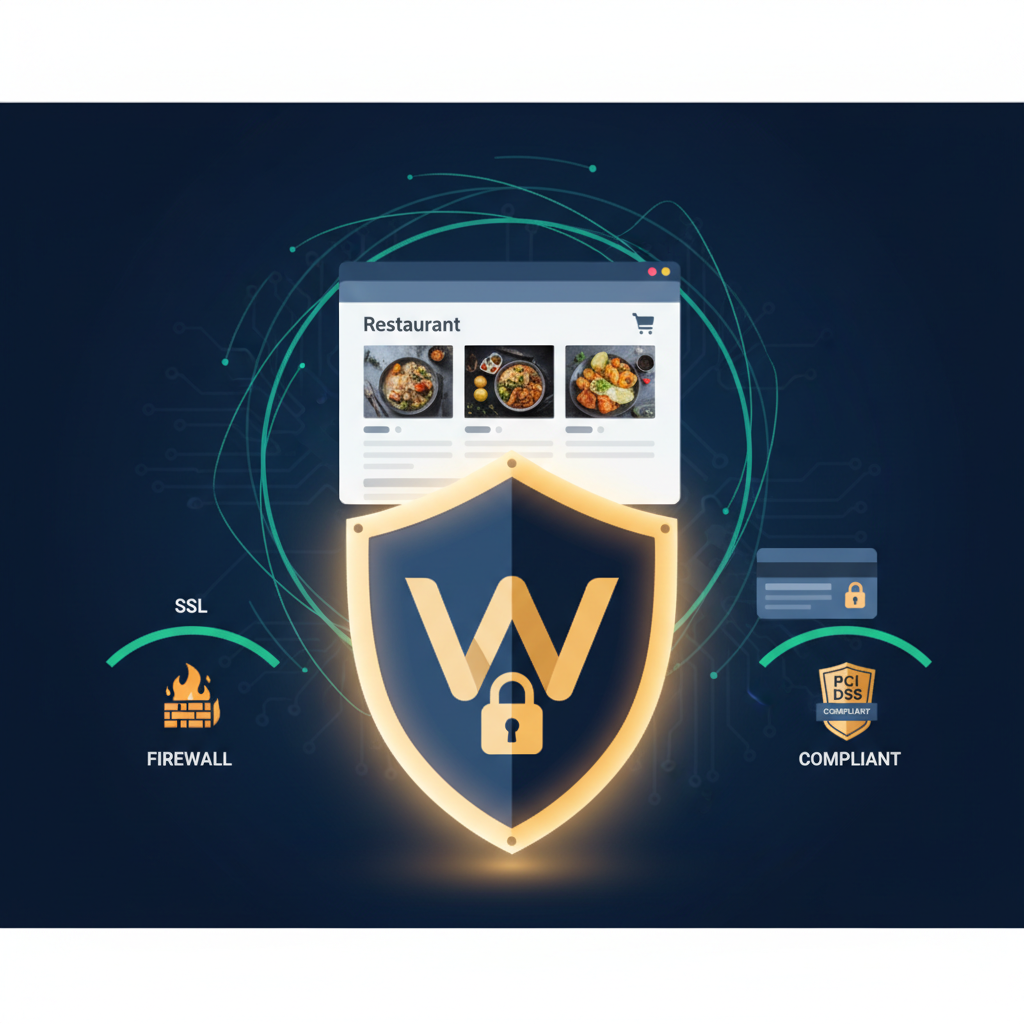
- PCI DSS Compliance for WooCommerce Restaurants: What You Actually Need to Do
- SAQ A vs. SAQ A-EP: Which Applies to You?
- The Simplest Path to Compliance
- PCI Compliance Checklist for Restaurant Owners
- Backup Strategy and Disaster Recovery: Keeping Your Restaurant Orders Safe
- Setting Up Automated Daily Backups
- Store Backups Offsite — Always
- Test Your Restores — Don’t Skip This
- Your Disaster Recovery Plan
- Putting It All Together
Why Restaurant Website Security Matters More Than You Think
A single data breach can shut down a restaurant faster than a failed health inspection. That’s not hyperbole — when a small restaurant loses customer credit card data, the average cost of remediation, fines, and lost business can reach tens of thousands of dollars. For an independent restaurant operating on thin margins, that’s often fatal.
WooCommerce restaurant websites face a unique combination of security risks. You’re processing a high volume of payment transactions, often dozens or hundreds per day during peak hours. You’re storing sensitive customer data — delivery addresses, phone numbers, order histories, and dietary preferences. And you likely have multiple staff members accessing the admin panel: owners, managers, kitchen staff pulling orders from a display screen, and delivery drivers checking assignments.
Real-world examples illustrate the threat. In 2023, several small restaurant chains reported breaches through outdated WordPress plugins that exposed customer payment details. The Verizon Data Breach Investigations Report consistently shows that accommodation and food services rank among the top industries targeted by attackers, largely because these businesses often lack dedicated IT staff and run outdated software.
Attackers know that restaurant websites are frequently built quickly, maintained infrequently, and rich with payment data. If you’re running a WooCommerce restaurant ordering system that handles delivery, pickup, and dine-in orders, you have a responsibility — and a legal obligation in many jurisdictions — to protect that data. Let’s walk through exactly how to do it.
Setting Up SSL Certificates and Enforcing HTTPS Across Your Entire Restaurant Site
SSL (Secure Sockets Layer) encryption is the absolute baseline of website security. It encrypts data traveling between your customer’s browser and your server, preventing attackers from intercepting credit card numbers, passwords, and personal information during transmission.
How to Obtain and Install an SSL Certificate
Most quality hosting providers — SiteGround, Cloudways, Bluehost, and others — include free SSL certificates through Let’s Encrypt. Here’s the typical process:
- Log into your hosting control panel (cPanel, Plesk, or a custom dashboard).
- Navigate to the SSL/TLS or Security section.
- Enable the free Let’s Encrypt certificate for your domain.
- Wait for propagation (usually under 15 minutes).
If your host doesn’t offer free SSL, you can purchase certificates from providers like DigiCert or Comodo, or use Cloudflare’s free tier which includes SSL.
Forcing HTTPS on Every Page
Having an SSL certificate installed isn’t enough — you need to enforce it everywhere. This includes your menu pages, checkout flow, WooCommerce REST API endpoints (critical if you use external integrations), and your admin dashboard. Add this to your .htaccess file:
RewriteEngine On

RewriteCond %{HTTPS} off

RewriteRule ^(.*)$ https://%{HTTP_HOST}%{REQUEST_URI} [L,R=301]
Then update your WordPress settings under Settings → General, changing both the WordPress Address and Site Address to use https://. In WooCommerce, navigate to WooCommerce → Settings → Advanced and ensure the “Force secure checkout” option is enabled.
Beyond security, SSL directly impacts your local search rankings. Google has confirmed HTTPS as a ranking signal, and for restaurant websites competing in local search results, every advantage matters. Customers also look for the padlock icon before entering payment details — its absence will drive them straight to a competitor or a third-party delivery app.
[IMAGE: Browser address bar showing a secure HTTPS connection with padlock icon on a restaurant ordering website]
Hardening Your WordPress and WooCommerce Installation: Essential Security Configurations
SSL protects data in transit, but you also need to secure the application itself. WordPress powers over 40% of the web, which makes it the biggest target for automated attacks. Here are the critical hardening steps for a restaurant site.
Change the Default Login URL
Every bot on the internet knows to try yoursite.com/wp-admin. Plugins like WPS Hide Login let you change this to a custom URL — something like /restaurant-portal — which immediately eliminates a large percentage of automated brute-force attempts.
Enforce Strong Passwords and Limit Login Attempts
This is where restaurant sites are particularly vulnerable. Kitchen staff and delivery managers often share simple passwords for convenience. Resist this temptation. Use WordPress’s built-in password strength meter and enforce a minimum complexity requirement. Install a plugin like Limit Login Attempts Reloaded to lock out IP addresses after 3-5 failed attempts.
Implement Role-Based Access Control
Not every staff member needs administrator access. WordPress’s built-in roles — and WooCommerce’s additional Shop Manager role — let you assign appropriate permissions:
- Administrator: Owner or IT manager only. Full access to everything.
- Shop Manager: Restaurant manager. Can view and manage orders, products (menu items), and customers, but can’t install plugins or modify code.
- Editor/Custom Role: Kitchen staff who only need to view incoming orders. Use a plugin like User Role Editor to create a custom “Kitchen Staff” role with read-only access to orders.
- Subscriber: Delivery drivers who need minimal dashboard access.
If you’re using FoodMaster with its built-in kitchen display and POS system, you can further control what each staff role sees and interacts with, keeping sensitive business data compartmentalized.
Keep Everything Updated and Remove the Dead Weight
Outdated plugins are the number one attack vector for WordPress sites. Enable automatic updates for minor WordPress core releases. Check for plugin and theme updates at least weekly. And critically, delete any plugins and themes you’re not actively using — deactivating them isn’t enough, as their code remains on the server and can still be exploited.
Disable XML-RPC and Set File Permissions
XML-RPC is a legacy WordPress feature that’s frequently exploited for brute-force and DDoS attacks. Unless you specifically need it (most restaurant sites don’t), disable it by adding this to your .htaccess file:
Order Deny,Allow

Deny from all
For file permissions, follow WordPress’s recommended settings: directories at 755, files at 644, and wp-config.php at 440 or 400.
Installing and Configuring a Web Application Firewall (WAF) and Malware Scanner
A web application firewall acts as a security guard between your restaurant website and the internet, filtering out malicious traffic before it reaches your server. For a Payment Gateways for Your WooCommerce Restaurant Website: Stripe vs PayPal vs Square (Complete Guide to Faster Checkout, Lower Fees, and Higher Conversions)”>WooCommerce restaurant site handling real money and real customer data, a WAF is non-negotiable.
Comparing the Top WAF Options
Wordfence is the most popular WordPress-specific security plugin. It runs directly on your server, which means it has deep visibility into WordPress-specific threats. The free version includes a firewall, malware scanner, and login security features. The premium version ($119/year) adds real-time firewall rules and IP blocklists.
Sucuri operates as a cloud-based WAF, meaning traffic is filtered before it even reaches your server. This provides DDoS protection and can improve performance through its CDN. Plans start at around $199/year and include malware removal guarantees.
Cloudflare offers a free tier with basic DDoS protection and SSL, while its paid plans ($20/month and up) include a full WAF with managed rulesets. Cloudflare is particularly effective for restaurant sites that experience traffic spikes during meal times.
Configuration Best Practices for Restaurant Sites
Whichever WAF you choose, configure these specific protections:
- Brute force protection: Rate-limit login attempts and block IPs that trigger multiple failed logins.
- SQL injection blocking: Critical for WooCommerce sites where attackers try to extract order and customer databases through malicious URL parameters.
- Cross-site scripting (XSS) prevention: Blocks attackers from injecting malicious scripts through form fields — including your checkout and contact forms.
- IP whitelisting: If your restaurant manager always accesses the order dashboard from the restaurant’s static IP, whitelist it and require additional verification for other IPs.
Schedule automated malware scans to run daily during off-peak hours (typically 3-5 AM). Configure real-time email or SMS alerts so you’re notified immediately if the scanner detects modified core files, suspicious new admin accounts, or injected code.
[IMAGE: WordPress security plugin dashboard showing firewall activity log with blocked threats and malware scan results]
PCI DSS Compliance for WooCommerce Restaurants: What You Actually Need to Do
PCI DSS (Payment Card Industry Data Security Standard) compliance sounds intimidating, but for most WooCommerce restaurant websites, the requirements are more manageable than you might expect. The key is understanding your specific compliance level.
SAQ A vs. SAQ A-EP: Which Applies to You?
PCI compliance uses Self-Assessment Questionnaires (SAQs) to categorize merchants by how they handle card data:
- SAQ A applies if you completely outsource payment processing. The customer enters their card details on the payment provider’s hosted page (like Stripe Checkout’s redirect or PayPal’s hosted buttons). Your server never touches card data. This is the simplest compliance level — roughly 22 questions.
- SAQ A-EP applies if your website serves the payment page but card data goes directly to the processor via JavaScript (like Stripe Elements embedded on your checkout page). Your server still doesn’t process card data, but your site could be compromised to intercept it. This requires around 139 questions and more rigorous controls.
The Simplest Path to Compliance
For most restaurant owners, the goal is to qualify for SAQ A by using a fully hosted payment gateway. Here’s how:
- Use Stripe, PayPal, or Square as your payment gateway in WooCommerce. These processors handle all card data on their own PCI-compliant servers.
- Never store raw credit card numbers. WooCommerce’s default payment gateways don’t store card data locally, but verify this in WooCommerce → Settings → Payments. If you see options for “storing card details for future use,” ensure this uses tokenization (a token reference, not the actual card number).
- Use HTTPS everywhere (covered above).
- Maintain a vulnerability management program — keep all software updated and run regular security scans.
PCI Compliance Checklist for Restaurant Owners
- ✅ SSL certificate installed and HTTPS enforced on all pages
- ✅ Payment processing fully handled by a PCI Level 1 certified gateway (Stripe, PayPal, Square)
- ✅ No raw credit card data stored on your server or in your database
- ✅ WordPress, WooCommerce, and all plugins updated to latest versions
- ✅ Web application firewall active and configured
- ✅ Strong passwords enforced for all user accounts with role-based access
- ✅ Regular malware scans and security monitoring in place
- ✅ Default admin username changed from “admin”
- ✅ Quarterly review of all user accounts (remove former employees immediately)
- ✅ Security incident response plan documented
One often-overlooked detail: when employees leave your restaurant, revoke their WordPress access immediately. Former staff with lingering admin credentials represent one of the most common security gaps in small businesses.
Backup Strategy and Disaster Recovery: Keeping Your Restaurant Orders Safe
Even with perfect security, things can go wrong. Hosting failures, accidental deletions, plugin conflicts during updates, or a zero-day exploit can take your ordering system offline. A solid backup strategy is your insurance policy — the difference between losing an hour of orders and losing everything.
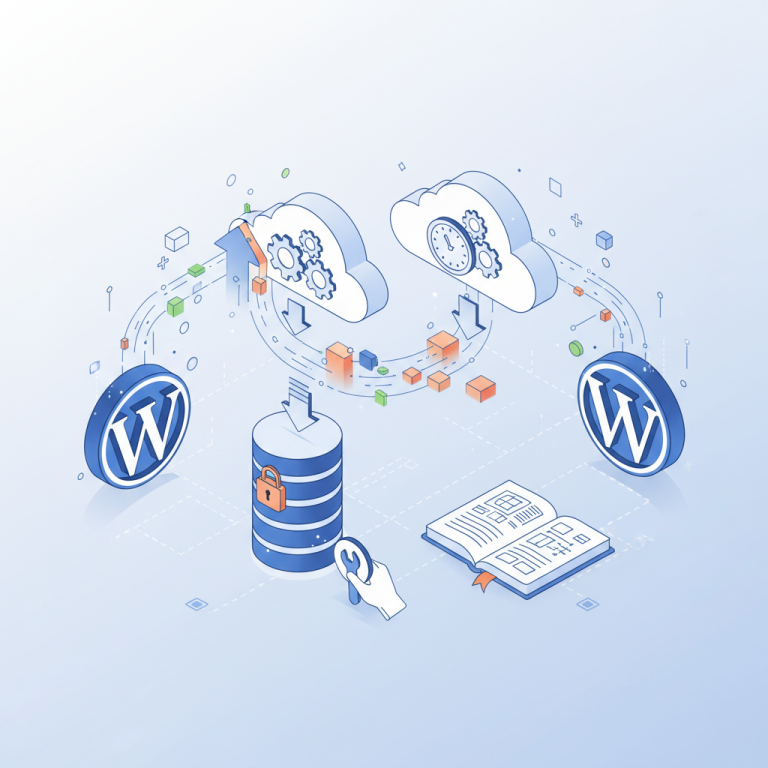
Setting Up Automated Daily Backups
UpdraftPlus (free version) is the most widely used WordPress backup plugin. It supports scheduled backups and can store them on remote destinations. BlogVault is a premium alternative ($89/year) that offers incremental backups, which are faster and use less server resources — an important consideration for busy restaurant sites where performance matters during peak ordering hours.
Configure your backup schedule based on your order volume:
- High-volume restaurants (50+ orders/day): Back up the database every 6 hours, full site backup daily.
- Medium-volume restaurants (10-50 orders/day): Daily database backup, full site backup every 2-3 days.
- Lower-volume restaurants: Daily database backup, weekly full site backup.
Store Backups Offsite — Always
Backups stored on the same server as your website are useless if that server is compromised or fails. Configure your backup plugin to send copies to at least one offsite location:
- Amazon S3: Highly reliable and inexpensive (a few dollars per month for most restaurant sites).
- Google Drive: Free up to 15GB, easy to set up with UpdraftPlus.
- Dropbox: Another solid option with a free tier.
For maximum safety, use two offsite destinations. If Google Drive has an outage when you need to restore, you’ll have Amazon S3 as a fallback.
Test Your Restores — Don’t Skip This
A backup you’ve never tested is a backup you can’t trust. At least once per quarter, perform a test restoration on a staging environment. Most managed WordPress hosts (like SiteGround or Cloudways) offer one-click staging sites for exactly this purpose. Verify that your menu items, order history, customer data, and WooCommerce settings all restore correctly.
Your Disaster Recovery Plan
Document a simple, step-by-step recovery plan that any authorized team member can follow. It should include:
- Who to contact first (hosting provider support number, your web developer).
- Where backups are stored and how to access them (credentials in a secure password manager).
- Step-by-step restoration instructions for your specific hosting environment.
- How to verify the restored site is functioning (test an order, check payment processing).
- A communication plan for customers (social media post, email notification if the outage is extended).
With a well-maintained food ordering plugin and a tested disaster recovery plan, you should be able to resume accepting online orders within 30-60 minutes of an incident — far better than the days or weeks some unprepared restaurants face.
Putting It All Together
Securing a WooCommerce restaurant website isn’t a one-time task — it’s an ongoing practice. Start with the foundations: SSL, strong passwords, and a reliable payment gateway that keeps you PCI compliant. Layer on a web application firewall and automated malware scanning. Lock down access with role-based permissions so your kitchen staff can see orders without accidentally (or intentionally) compromising your entire system. And back everything up, offsite, on a schedule you never have to think about.
The restaurants that take these steps aren’t just protecting data — they’re protecting their reputation, their revenue, and the trust that every customer places in them when they tap “Place Order.” That trust, once broken, is nearly impossible to rebuild. Invest the few hours it takes to implement this guide, and you’ll have a security posture that rivals businesses ten times your size.
Commission-free ordering
Run restaurant orders on your own WordPress site
FoodMaster adds delivery, pickup, dine-in, POS, and kitchen tools — with zero per-order fees.