On this page
- Why Restaurant Websites Need a Bulletproof Backup Strategy
- What to Back Up on a WooCommerce Restaurant Site (and What Most Owners Miss)
- The WordPress Database: Your Most Critical Asset
- The wp-content Folder: Themes, Plugins, and Media
- Configuration Files Most People Forget
- Full-Site vs. Database-Only Backups
- Best WordPress Backup Plugins for Restaurant Websites: UpdraftPlus, BlogVault, and Jetpack Compared
- UpdraftPlus: Best Free Option for Smaller Restaurants
- BlogVault: Best for High-Volume Restaurant Operations
- Jetpack Backup (VaultPress): Best for WordPress.com Integration
- Comparison Table
- How to Configure Automated Backup Schedules Based on Your Restaurant’s Order Volume
- Scheduling Recommendations by Order Volume
- Remote Storage: Never Store Backups on the Same Server
- Retention Policies: How Many Copies to Keep
- Testing Your Backups: How to Perform a Disaster Recovery Drill Without Taking Your Restaurant Offline
- Step 1: Create a Staging Environment
- Step 2: Restore Your Backup to Staging
- Step 3: Verify Everything Critical
- Building a Complete Disaster Recovery Plan for Your Restaurant Website
- Document Everything Before You Need It
- Prepare a Static Maintenance Page
- Create a Customer Communication Plan
- Your Disaster Recovery Checklist
Why Restaurant Websites Need a Bulletproof Backup Strategy
Picture this: it’s 6:30 PM on a Friday, your busiest night of the week. Orders are pouring in through your WooCommerce restaurant site, the kitchen is humming, and then — nothing. Your website goes dark. Maybe a plugin update went sideways. Maybe your hosting provider had a server failure. Maybe someone on your team accidentally deleted a critical WooCommerce setting. Whatever the cause, every minute your site is down, you’re losing real revenue.
Restaurant websites built on WooCommerce face risks that typical ecommerce stores simply don’t. A clothing store can recover from a few hours of downtime without catastrophic consequences — customers will come back tomorrow. But a restaurant losing its online ordering system during peak dinner service? That’s dozens of orders vanishing into thin air, customers calling competitors, and a kitchen crew standing idle while you scramble to fix things.
The financial impact is significant. A restaurant processing 50 online orders per evening with an average ticket of $35 loses $1,750 for every hour of downtime during peak hours. Extend that to a full evening, and you’re looking at $3,500 to $5,000 in lost revenue — not counting the long-term damage when frustrated customers decide your competitor’s website actually works.
Beyond crashes, there are subtler threats. A failed WordPress core update can corrupt your database, wiping out your entire menu structure. A security breach can compromise customer payment data and put you in violation of PCI compliance requirements. Even something as mundane as a team member accidentally deleting your delivery zone configurations can throw your entire operation into chaos. The only real insurance against all of these scenarios is a comprehensive, tested, automated backup system.
What to Back Up on a WooCommerce Restaurant Site (and What Most Owners Miss)
Most restaurant owners think “backup” means a copy of their website files. That’s only half the picture. A WooCommerce restaurant site has two distinct layers that both need protection, and missing either one leaves you vulnerable.
The WordPress Database: Your Most Critical Asset
Your MySQL database contains everything that makes your restaurant website functional: every WooCommerce order record, customer account, product (menu item), coupon code, tax setting, and plugin configuration. If you’re using a WooCommerce restaurant ordering plugin like FoodMaster, your database also stores delivery zone boundaries, time-slot configurations, table assignments for dine-in QR ordering, tipping records, and Kitchen Display System (KDS) for Your WooCommerce Restaurant: Replace Paper Tickets with Real-Time Digital Order Screens (Complete Setup Guide)”>kitchen display settings.
Restaurant sites generate far more dynamic database activity than a typical WooCommerce store. Every incoming order creates multiple database entries — the order itself, order items, order metadata (delivery address, special instructions, scheduled time), and potentially tipping data. On a busy night, your database might receive hundreds of new rows per hour. This means a backup from yesterday morning is already significantly out of date by dinner service.
The wp-content Folder: Themes, Plugins, and Media
This folder houses your active theme files, all installed plugins, and your media library — which for a restaurant includes every food photo, logo, and promotional banner you’ve uploaded. Losing your wp-content folder means losing your site’s entire visual identity and functionality. Reinstalling plugins from scratch is tedious; recreating a customized theme with your branding, colors, and layout can take days.
Configuration Files Most People Forget
Two files that sit outside wp-content are easy to overlook but critical: wp-config.php (which contains your database credentials, security keys, and custom PHP configurations) and .htaccess (which controls URL rewrites, redirects, and security rules). Without these, even a perfect restore of your database and wp-content folder won’t produce a working website.
Full-Site vs. Database-Only Backups
A full-site backup captures everything — database, files, themes, plugins, uploads, and configuration files. A database-only backup captures just the MySQL database. For restaurant sites, the ideal strategy combines both: frequent database-only backups (since order data changes constantly) with less frequent full-site backups (since files change only when you update plugins, themes, or upload new menu images).
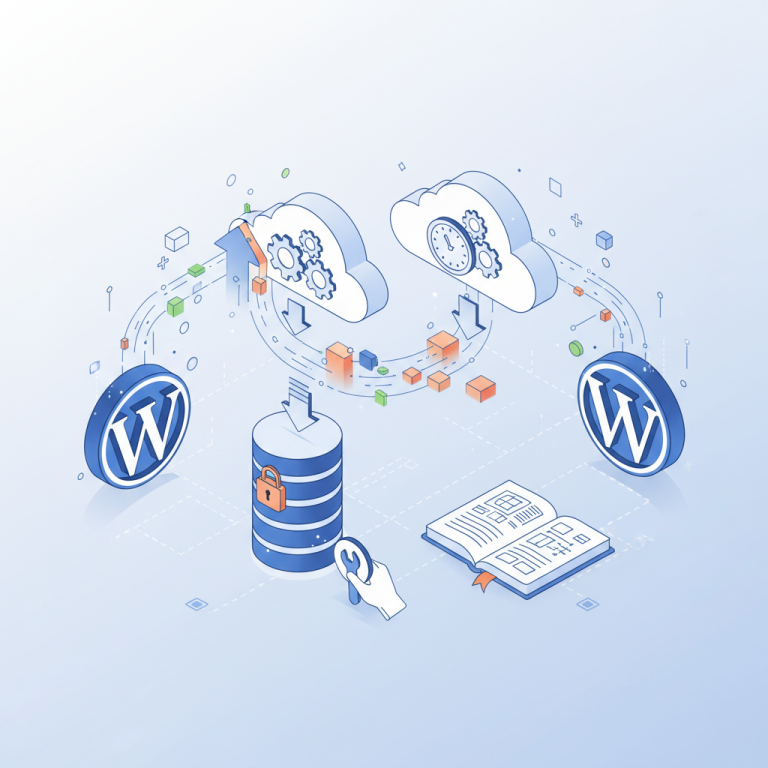
[IMAGE: Diagram showing the three layers of a WooCommerce restaurant website backup — database tables (orders, menu items, settings), wp-content folder (themes, plugins, media), and configuration files (wp-config.php, .htaccess)]
Best WordPress Backup Plugins for Restaurant Websites: UpdraftPlus, BlogVault, and Jetpack Compared
Three backup solutions stand out for WooCommerce restaurant sites, each with distinct strengths depending on your order volume and technical comfort level.
UpdraftPlus: Best Free Option for Smaller Restaurants
UpdraftPlus is the most widely installed WordPress backup plugin, with over 3 million active installations. The free version supports scheduled backups to Google Drive, Dropbox, Amazon S3, and other remote destinations. Setup takes about 10 minutes:
- Install and activate UpdraftPlus from the WordPress plugin repository.
- Navigate to Settings → UpdraftPlus Backups.
- Under the Settings tab, set your file backup schedule (weekly) and database backup schedule (daily).
- Choose your remote storage destination — Google Drive is the easiest to configure. Authenticate with your Google account when prompted.
- Click Save Changes, then run your first manual backup to verify everything works.
The free version handles basic scheduling well, but it lacks real-time backup capability and incremental backups. For a restaurant doing fewer than 20 orders per day, this is usually sufficient. The premium version ($70/year) adds incremental backups, WooCommerce-specific table support, and migrator tools.
BlogVault: Best for High-Volume Restaurant Operations
BlogVault was purpose-built for WooCommerce sites and offers real-time incremental backups — meaning it captures every database change as it happens rather than waiting for a scheduled interval. For a restaurant processing 50+ orders daily, this is the difference between losing zero orders and losing an entire evening’s worth of data.
BlogVault stores backups on its own cloud infrastructure (not your server), includes a one-click staging environment for testing restores, and offers a dedicated WooCommerce restore mode that preserves order data integrity. Pricing starts at $89/year for a single site with real-time backups.
Jetpack Backup (VaultPress): Best for WordPress.com Integration
Jetpack Backup (formerly VaultPress) integrates directly with the WordPress.com infrastructure. The real-time backup plan ($noted as part of Jetpack Security at roughly $9.95/month) provides continuous backup with a detailed activity log showing every change made to your site. One-click restores are genuinely seamless, and the interface is the most beginner-friendly of the three options.
Comparison Table
| Feature | UpdraftPlus (Free) | BlogVault | Jetpack Backup |
|---|---|---|---|
| Starting Price | Free ($70/yr premium) | $89/year | ~$9.95/month |
| Real-Time Backups | No (premium: incremental) | Yes | Yes |
| Remote Storage | Google Drive, Dropbox, S3 | BlogVault cloud | WordPress.com cloud |
| One-Click Restore | Yes | Yes | Yes |
| Built-in Staging | No | Yes | No |
| WooCommerce Optimized | Premium only | Yes | Yes |
| Best For | Small restaurants, tight budgets | High-volume operations | Non-technical owners |
How to Configure Automated Backup Schedules Based on Your Restaurant’s Order Volume
There’s no one-size-fits-all backup schedule. The right frequency depends entirely on how much data your restaurant generates and how much you can afford to lose.
Scheduling Recommendations by Order Volume
- Low volume (under 20 orders/day): Daily database backups at 4 AM (before your next business day begins) plus weekly full-site backups on your slowest day. UpdraftPlus free tier handles this well.
- Medium volume (20–75 orders/day): Database backups every 6 hours, with full-site backups twice per week. UpdraftPlus Premium or BlogVault both work here.
- High volume (75+ orders/day): Real-time incremental backups are non-negotiable. A single day’s lost order data at this volume could mean hundreds of missing records. BlogVault or Jetpack Backup’s real-time plans are your only practical options.
Remote Storage: Never Store Backups on the Same Server
This is the single most common backup mistake. If your backups live on the same server as your website, a server failure destroys both your live site and your backups simultaneously. Always configure a remote destination:
- Google Drive: Free up to 15 GB, easy to set up, sufficient for most single-location restaurants.
- Amazon S3: Extremely reliable and inexpensive (roughly $0.023 per GB/month for standard storage). Best for restaurants that want enterprise-grade durability.
- Dropbox: Simple interface, 2 GB free tier, works well as a secondary backup location.
For maximum protection, configure backups to two remote destinations. If Google Drive has an authentication hiccup and silently fails, your Amazon S3 backup still captures everything.
Retention Policies: How Many Copies to Keep
Keeping every backup forever will eventually consume all your storage. A practical retention policy for restaurant sites: retain daily database backups for 14 days, weekly full-site backups for 60 days, and one monthly archive for 12 months. This gives you granular recovery options for recent issues while maintaining long-term protection against problems that aren’t discovered immediately — like a slow data corruption that only becomes apparent weeks later.
[IMAGE: Screenshot of a backup plugin’s scheduling settings showing daily database backups and weekly full-site backups configured with Google Drive as remote storage]
Testing Your Backups: How to Perform a Disaster Recovery Drill Without Taking Your Restaurant Offline
Here’s an uncomfortable truth: a backup you’ve never tested is not a backup. It’s a hope. Roughly 37% of backup restores fail, according to data from infrastructure monitoring firms. The only way to know your backups actually work is to restore one and verify it.
Step 1: Create a Staging Environment
Most managed WordPress hosts (SiteGround, Cloudways, WP Engine, Kinsta) offer one-click staging site creation. If your host doesn’t, install the free WP Staging plugin, which clones your live site into a subdirectory like yourdomain.com/staging. This gives you a safe sandbox that’s completely isolated from your live restaurant site.
Step 2: Restore Your Backup to Staging
Using your backup plugin’s restore function, push your most recent backup to the staging environment. With UpdraftPlus, you can download the backup files and upload them to the staging site’s UpdraftPlus instance. BlogVault makes this even easier with its built-in staging restore feature — one click and it deploys the backup to a test environment on BlogVault’s own servers.
Step 3: Verify Everything Critical
Once the restore completes, systematically check these elements on your staging site:
- Menu items: Browse your WooCommerce products. Are all categories, prices, descriptions, and images intact?
- Recent orders: Open WooCommerce → Orders. Verify that your most recent orders appear with correct customer data, items, and statuses.
- Plugin settings: If you’re running FoodMaster for your restaurant ordering system, check that delivery zones, operating hours, time-slot configurations, and dine-in table settings all survived the restore.
- Theme and appearance: Load the front end. Does your site look correct? Are menu images displaying properly?
- Checkout flow: Place a test order through the full checkout process (use WooCommerce’s test payment gateway) to confirm the ordering pipeline is functional.
Schedule these recovery drills quarterly. Put it on your calendar. The 30 minutes you spend testing a backup could save you days of frantic rebuilding after an actual disaster.
Building a Complete Disaster Recovery Plan for Your Restaurant Website
Backups are the foundation, but a real disaster recovery plan covers everything you need to get back online fast — even if you’re panicking at 7 PM on a Saturday night.
Document Everything Before You Need It
Create a secure document (a password-protected Google Doc or a note in your password manager) containing:
- Hosting provider: Login URL, account credentials, and emergency support phone number or live chat link.
- Domain registrar: Login credentials and DNS settings (A records, CNAME records, nameservers). If your DNS is misconfigured during recovery, your domain won’t point to your server even after the site is restored.
- Complete plugin list: Every active plugin with its version number, license key, and download source. This is especially important for premium plugins where you can’t just reinstall from the WordPress repository.
- Theme details: Theme name, version, license key, and any child theme customizations you’ve made.
- Payment gateway credentials: Stripe, Square, or PayPal API keys and account details. Without these, your checkout won’t process payments even after a successful restore.
- SMTP/email service settings: If you use a transactional email service for order confirmations, document those API keys too.
Prepare a Static Maintenance Page
Have a simple HTML maintenance page ready to deploy at a moment’s notice. This page should display your restaurant’s name, phone number, a brief “we’re experiencing technical difficulties” message, and a link to your Google Business Profile or social media where customers can still find your hours and phone number. Upload this file to your server’s root directory as maintenance.html so you can activate it instantly via .htaccess redirect rules.
Create a Customer Communication Plan
When your ordering site goes down, customers need to know what’s happening. Prepare template messages for:
- Social media posts: A quick Facebook/Instagram update acknowledging the issue and providing your phone number for call-in orders.
- Email blast: A pre-drafted email to your customer list explaining the situation and offering a discount code for their next online order once you’re back. Having an email marketing strategy already in place makes this seamless — you can trigger the notification within minutes instead of scrambling to set something up.
- SMS notifications: If you use SMS for order updates, send a brief text to recent customers letting them know phone orders are available.
Your Disaster Recovery Checklist
When disaster strikes, follow this sequence:
- Deploy maintenance page so visitors see a professional message instead of an error screen.
- Diagnose the issue — is it a hosting outage, a plugin conflict, a hack, or data corruption?
- Contact hosting support if the issue is server-side. They may resolve it faster than you can.
- Restore from your most recent backup if the site needs to be rebuilt. Start with the database, then files.
- Verify the restore using the testing checklist above — orders, menu, checkout flow, delivery settings.
- Re-enable the live site by removing the maintenance page redirect.
- Communicate recovery to customers via social media and email.
- Post-mortem: Document what went wrong and adjust your backup strategy to prevent a repeat.
Commission-free ordering
Run restaurant orders on your own WordPress site
FoodMaster adds delivery, pickup, dine-in, POS, and kitchen tools — with zero per-order fees.