On this page
- What Is a Staging Site and Why Every WooCommerce Restaurant Needs One
- How to Create a WordPress Staging Site: 3 Methods for Restaurant Owners
- Method 1: Built-In Hosting Panel Staging (Easiest)
- Method 2: Using a Staging Plugin (Good Middle Ground)
- Method 3: Manual Cloning via FTP and phpMyAdmin (Advanced)
- What to Test on Your Staging Site Before Pushing Changes Live: A WooCommerce Restaurant Checklist
- Menu and Product Changes
- Plugin Updates
- Checkout Flow and Payment Testing
- Theme and Design Changes
- Order Notification Workflows
- How to Sync Your Staging Site with Your Live Restaurant Database Without Losing Orders
- The Golden Rule: Never Do a Full Database Overwrite
- Selective Migration with Plugins
- Timing Your Deployments
- Combining Staging with Automated Backups: A Complete Safety Net
- The Pre-Deployment Backup
- Protecting WooCommerce Order Data Specifically
- Establishing a Rollback Workflow
- Common Staging Mistakes That Break WooCommerce Restaurant Sites (and How to Avoid Them)
- Mistake 1: Leaving Live Payment Gateways Active on Staging
- Mistake 2: Search Engines Indexing Your Staging Site
- Mistake 3: Hardcoded URLs Breaking After Migration
- Mistake 4: Caching Serving Old Menu Pages After Deployment
- Mistake 5: Email Notifications Firing to Real Customers
- Mistake 6: Forgetting to Test Mobile Ordering
- Putting It All Together: Your Staging Workflow
What Is a Staging Site and Why Every WooCommerce Restaurant Needs One
Picture this: it’s Friday at 6:30 PM. Your restaurant is slammed with online orders, and you decide to quickly update your menu plugin. The screen goes white. Your checkout page throws a fatal error. For the next 45 minutes — during your most profitable window of the week — customers see a broken website instead of your menu. Every refresh is a lost order, and those customers are already pulling up a competitor’s site.
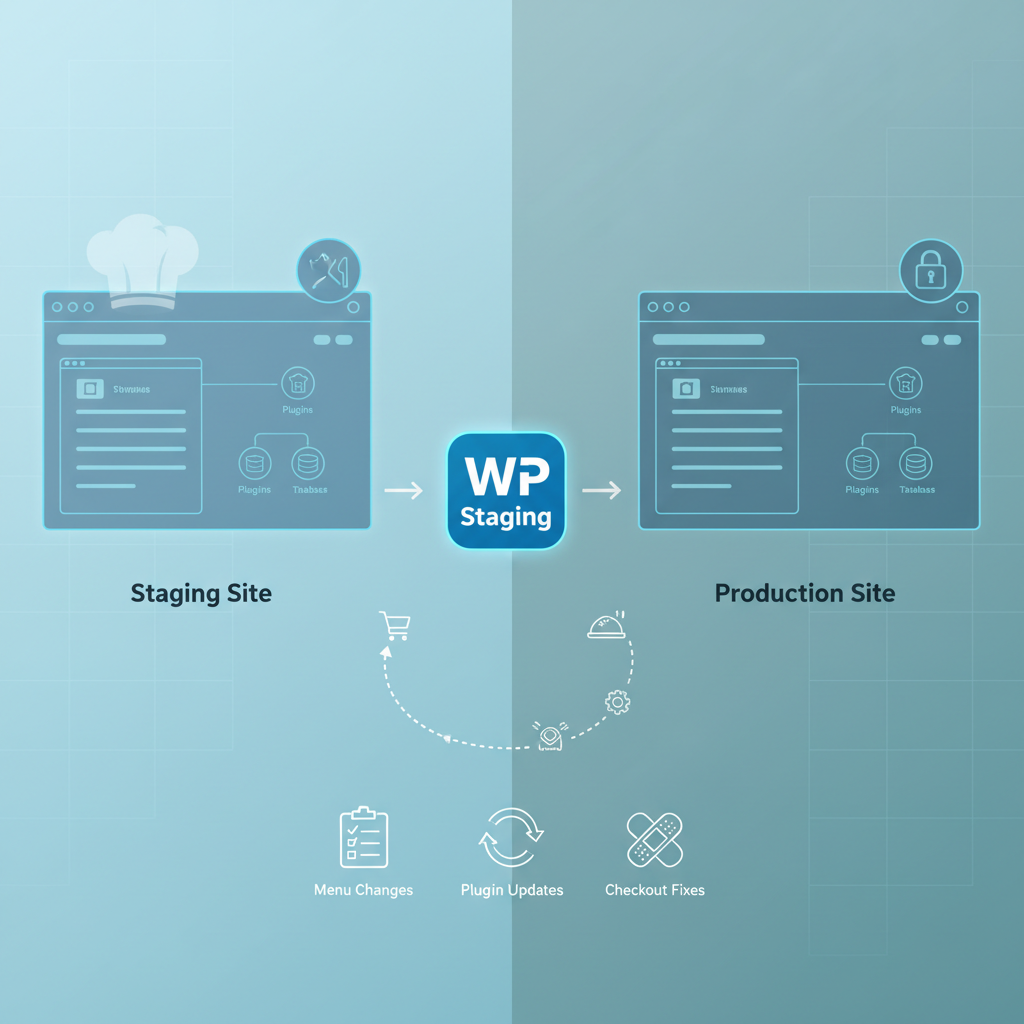
A staging environment is a private, identical copy of your live website where you can test changes without any risk to your real ordering system. Think of it as a dress rehearsal for your website. You make changes on the staging copy, verify everything works, and only then push those changes to your live (production) site.
Restaurant websites running on WooCommerce are uniquely vulnerable compared to standard ecommerce stores. Your revenue is concentrated into tight windows — lunch and dinner rushes — and even 20 minutes of downtime during peak hours can translate to hundreds or thousands of dollars in lost orders. Unlike someone browsing for shoes who might come back later, a hungry customer won’t wait. They’ll order from somewhere else.
The consequences of testing on a live restaurant site go beyond lost revenue:
- Broken checkout flows — customers add items to their cart but can’t complete payment, leading to abandoned orders and frustrated diners.
- Menu display errors — incorrect prices, missing modifiers (no extra cheese option), or invisible menu categories that make your restaurant look unprofessional.
- Payment gateway conflicts — a plugin update that breaks Stripe or PayPal integration means zero orders until you fix it.
- Order notification failures — your kitchen stops receiving order alerts, and customers wait for food that never gets prepared.
A staging site eliminates all of these risks. It’s not a luxury or a “nice to have” — it’s a non-negotiable best practice for any restaurant that depends on online ordering revenue.
How to Create a WordPress Staging Site: 3 Methods for Restaurant Owners
There are three main approaches to creating a staging environment, each suited to different skill levels and budgets. Here’s how they compare for restaurant owners.
Method 1: Built-In Hosting Panel Staging (Easiest)
Many managed WordPress hosts now include one-click staging tools. SiteGround offers staging through their Site Tools dashboard, Cloudways has a staging feature accessible from the application management panel, and Bluehost includes it in their WordPress dashboard integration. Kinsta and WP Engine also provide robust staging environments.
The process is nearly identical across hosts: navigate to your hosting dashboard, find the staging option, click “Create Staging Copy,” and wait a few minutes. Your host clones your entire site — files, database, plugins, theme, and all WooCommerce data — to a separate URL (usually something like staging.yourrestaurant.com or yourrestaurant.staging.host.com).
Pros: No technical knowledge required, usually free with your hosting plan, one-click push from staging to live.
Cons: Limited control over what gets synced, not available on all hosting plans (especially shared hosting).
Difficulty: Beginner-friendly.
Method 2: Using a Staging Plugin (Good Middle Ground)
If your host doesn’t offer staging, plugins like WP Staging or BlogVault can create a staging copy directly within your WordPress installation. WP Staging’s free version creates a staging site in a subdirectory of your existing hosting account (e.g., yourrestaurant.com/staging). BlogVault creates an external staging site on their servers.
To use WP Staging: install the plugin, go to WP Staging → Create New Staging Site, select which database tables and folders to include, and click “Start Cloning.” The process takes anywhere from 2 to 15 minutes depending on your site’s size.
Pros: Works on any host, more control over what’s cloned, affordable (WP Staging free version handles most needs).
Cons: Uses your existing server resources, pushing changes back to live requires the Pro version in most cases.
Difficulty: Intermediate.
Method 3: Manual Cloning via FTP and phpMyAdmin (Advanced)
The manual approach involves downloading all WordPress files via FTP (using FileZilla or similar), exporting your database through phpMyAdmin, uploading everything to a new directory or subdomain, and updating the wp-config.php file and database URLs. You’ll also need to run a search-and-replace on the database to update all URL references.
Pros: Complete control, no dependency on third-party tools, works on any server.
Cons: Time-consuming, error-prone for non-developers, easy to break things if you miss a step.
Difficulty: Advanced — only recommended if you have development experience.
My recommendation for restaurant owners: Use your hosting provider’s built-in staging tool if available. It’s the fastest, safest option and keeps things simple so you can focus on running your restaurant rather than managing server configurations.
[IMAGE: Side-by-side comparison showing the three staging methods with icons representing difficulty level, cost, and time required for each approach]
What to Test on Your Staging Site Before Pushing Changes Live: A WooCommerce Restaurant Checklist
Having a staging site is only useful if you know what to test on it. Restaurant Ordering Site from Spam Orders, Fake Submissions, and Bot Attacks (Complete Security Guide)”>Restaurant Ordering Site (Complete Step-by-Step Guide)”>WooCommerce Restaurant Ordering Site for Peak Hours: Complete Performance Optimization Guide (Caching, Database Tuning, and CDN Setup)”>Restaurant ordering systems have far more moving parts than a typical WooCommerce store. Here’s a comprehensive checklist tailored specifically to restaurant websites.
Menu and Product Changes
- Adding new menu items with correct prices, descriptions, images, and categories
- Modifying existing items — verify that changes to product variations (sizes, add-ons, toppings) display correctly
- Testing menu category ordering and navigation on both desktop and mobile
- Confirming that out-of-stock items or seasonal specials toggle on and off properly
- Verifying that product images load at the correct resolution without slowing page load times
Plugin Updates
This is where staging saves you the most headaches. Before updating any plugin on your live site, update it on staging first and test thoroughly. Pay special attention to:
- Your restaurant ordering plugin — if you’re using FoodMaster or any WooCommerce-based ordering system, test that delivery zones, pickup scheduling, dine-in/QR ordering, and kitchen display features all function after the update
- Payment gateway plugins — Stripe, PayPal, and other payment plugins should process test transactions successfully in sandbox/test mode
- WooCommerce core updates — major WooCommerce releases occasionally introduce breaking changes that affect cart behavior, tax calculations, or REST API endpoints
- Delivery zone and shipping plugins — verify that delivery radius calculations and delivery fee logic remain accurate
Checkout Flow and Payment Testing
- Walk through the entire order process: browse menu → add items → customize order → apply coupon → select delivery/pickup → enter payment → receive confirmation
- Test tipping functionality if your site supports it — ensure tip amounts calculate correctly and appear in the order total
- Verify that order confirmation emails fire with the correct details
- Test guest checkout and account-based checkout separately
- Confirm that mobile checkout works flawlessly — over 60% of restaurant orders come from mobile devices according to industry data from the National Restaurant Association
Theme and Design Changes
- Test responsive behavior across phone, tablet, and desktop screen sizes
- Verify that menu pages render correctly with your theme changes
- Check that font changes, color updates, or layout modifications don’t break the ordering interface
- Test page load speed after design changes using Google PageSpeed Insights
Order Notification Workflows
- Confirm that order notifications reach the kitchen (email, POS system, or kitchen display)
- Test automatic printing if you use receipt printer integration
- Verify SMS or push notification integrations if configured
How to Sync Your Staging Site with Your Live Restaurant Database Without Losing Orders
Here’s the trickiest part of the staging workflow: your live site keeps taking orders while you’re testing on staging. When it’s time to push your staging changes live, you absolutely cannot overwrite the production database — doing so would erase every order, customer account, and transaction that came in during your testing window.
The Golden Rule: Never Do a Full Database Overwrite
Instead, you need selective migration. This means pushing only the specific changes you made — theme files, plugin files, specific WordPress options, or individual database tables — without touching order data.
Selective Migration with Plugins
BlogVault and WP Migrate both support selective migration. When pushing from staging to live, you can exclude specific database tables. For a WooCommerce restaurant site, you should always exclude:
wp_wc_ordersandwp_wc_order_items— your actual order records (WooCommerce’s HPOS tables)wp_postmetaentries related to orders (if using the legacy post-based order storage)wp_usersandwp_usermeta— customer accounts and loyalty datawp_woocommerce_sessions— active customer shopping sessionswp_comments— if you use WooCommerce’s review system
If your changes are purely file-based (theme modifications, plugin updates), the safest approach is to push only files and skip the database entirely. Most hosting staging tools let you choose between pushing files only, database only, or both.
Timing Your Deployments
Even with selective migration, push changes during your lowest-traffic window. For most restaurants, this is between 2:00 AM and 6:00 AM local time, or between the lunch and dinner rush (typically 2:30 PM – 4:30 PM). Check your WooCommerce analytics to identify your specific quiet periods.
Before pushing, temporarily enable a brief maintenance mode on your live site. This prevents customers from starting an order during the 2-5 minute deployment window, which could result in a broken checkout experience mid-transaction.
[IMAGE: Flowchart showing the staging-to-production deployment process with decision points for file-only vs. database migration and database table exclusion checklist]
Combining Staging with Automated Backups: A Complete Safety Net
Staging and backups are two halves of the same safety strategy. Staging prevents problems from reaching your live site. Backups let you recover if something slips through anyway.
The Pre-Deployment Backup
Before pushing any staging changes to production, always create a fresh, complete backup of your live site. This includes both files and the full database. If the deployment introduces an unexpected issue — a JavaScript conflict that breaks the cart, a CSS change that hides the checkout button — you can restore from this backup within minutes.
Use a backup solution that stores copies off-site (Google Drive, Amazon S3, or Dropbox). A backup stored only on the same server as your website doesn’t protect you from server-level failures.
Protecting WooCommerce Order Data Specifically
Your WooCommerce orders and customer database tables deserve extra protection. Set up automated daily backups at minimum, but consider more frequent backups during high-volume periods. Key tables to prioritize:
- All
wp_wc_*tables (WooCommerce HPOS order storage) wp_woocommerce_order_itemsandwp_woocommerce_order_itemmetawp_usersandwp_usermetafor customer account data- Any custom tables created by your restaurant ordering plugin for delivery zones, table reservations, or kitchen queue data
Establishing a Rollback Workflow
Document a simple rollback procedure that anyone on your team can follow:
- Identify the issue (broken checkout, display error, payment failure)
- Enable maintenance mode immediately to prevent further broken orders
- Restore from the pre-deployment backup
- Verify the site is functioning by placing a test order
- Disable maintenance mode
- Investigate what went wrong on the staging site before attempting the deployment again
This entire process should take under 10 minutes with a good backup solution. That’s 10 minutes of planned downtime versus hours of troubleshooting a broken live site.
Common Staging Mistakes That Break WooCommerce Restaurant Sites (and How to Avoid Them)
Even experienced developers make these errors. Knowing them in advance can save you from some genuinely painful situations.
Mistake 1: Leaving Live Payment Gateways Active on Staging
This is the most dangerous mistake. If your staging site has Stripe or PayPal in live mode (not sandbox/test mode), test orders will charge real credit cards. Worse, if someone discovers your staging URL and places an order, you’ll process a real payment for food you never prepare or deliver.
Fix: Immediately after creating your staging site, switch all payment gateways to test/sandbox mode. In Stripe, toggle to test mode and use test card number 4242 4242 4242 4242. In PayPal, switch to the sandbox environment.
Mistake 2: Search Engines Indexing Your Staging Site
If Google crawls your staging site, you’ll have duplicate content issues that can damage your restaurant’s search rankings. Two identical versions of your menu, about page, and location pages competing against each other dilutes your SEO authority.
Fix: Add a noindex, nofollow meta tag to your staging site. In WordPress, go to Settings → Reading and check “Discourage search engines from indexing this site.” For extra protection, add password protection or IP-restrict access to the staging URL.
Mistake 3: Hardcoded URLs Breaking After Migration
If your staging site lives at staging.yourrestaurant.com and you push to yourrestaurant.com, any hardcoded URLs in custom CSS, theme files, or page builder content will point to the wrong domain. This causes broken images, non-functional links, and mixed content warnings.
Fix: Use a search-and-replace tool like Better Search Replace to update all staging URLs to production URLs before or during deployment. Most hosting staging tools handle this automatically, but verify by inspecting your site’s source code after pushing.
Mistake 4: Caching Serving Old Menu Pages After Deployment
You push your updated menu to production, but customers still see the old prices and items. Why? Your caching plugin (WP Super Cache, W3 Total Cache, LiteSpeed Cache) or CDN (Cloudflare) is serving cached versions of the old pages.
Fix: After every deployment, purge all caches — your WordPress caching plugin cache, your server-level cache (if using LiteSpeed or Nginx FastCGI), and your CDN cache. Make this step part of your deployment checklist so it never gets skipped.
Mistake 5: Email Notifications Firing to Real Customers
Your staging site shares the same email configuration as your live site. When you place test orders on staging, real order confirmation emails go out to whatever email addresses you use during testing. If you test with a real customer’s email, they’ll receive a confusing order confirmation for food they never ordered.
Fix: Install a plugin like WP Mail Logging on staging and disable actual email sending by using a mail trap service like Mailtrap or MailHog. Alternatively, configure your staging site’s SMTP settings to route all emails to a single test inbox you control.
Mistake 6: Forgetting to Test Mobile Ordering
You verify everything looks perfect on your desktop browser, push to production, and then discover the mobile checkout is broken. Since the majority of restaurant online orders come from smartphones, this is a critical oversight.
Fix: Always test your staging changes on actual mobile devices — not just browser developer tools. Use both iOS and Android devices, and test the complete ordering flow from menu browsing through payment confirmation.
Putting It All Together: Your Staging Workflow
Here’s the streamlined workflow that keeps your restaurant’s online ordering system safe while giving you full freedom to make changes:
- Create a staging copy of your live site using your hosting panel or a staging plugin
- Disable live payment gateways and email sending on the staging copy immediately
- Make your changes — update plugins, modify the menu, adjust the theme, test new features
- Run through the restaurant testing checklist — order flow, mobile responsiveness, notifications, delivery zones
- Create a full backup of your live site before deployment
- Push changes during off-peak hours using selective migration (files only when possible, exclude order tables if database changes are needed)
- Purge all caches and verify the live site with a test order
- Monitor for 30 minutes — watch for order notification failures, payment errors, or display issues
This process adds maybe 30-60 minutes to any change you’d make to your website. That small investment of time protects you from hours of emergency troubleshooting, lost revenue during peak hours, and the reputational damage of customers encountering a broken ordering experience. Whether you’re running a single-location pizzeria or managing a multi-location restaurant group with WooCommerce-based food ordering, a staging environment transforms website updates from a gamble into a controlled, predictable process. Set it up once, follow the workflow every time, and you’ll never have to explain to your kitchen staff why online orders suddenly stopped coming in.
Commission-free ordering
Run restaurant orders on your own WordPress site
FoodMaster adds delivery, pickup, dine-in, POS, and kitchen tools — with zero per-order fees.