On this page
- Why Restaurant Website Security Matters More Than You Think
- How to Set Up and Configure SSL Certificates for Your WooCommerce Restaurant Website
- Obtaining Your SSL Certificate
- Installing and Forcing HTTPS
- Fixing Mixed Content Warnings
- Hardening WordPress and WooCommerce Against Common Restaurant Site Attacks
- Secure Your Login Page
- Disable Unnecessary Attack Surfaces
- Set Correct File Permissions and Security Headers
- Install a Web Application Firewall
- PCI Compliance Basics for WooCommerce Restaurant Owners
- How Hosted Payment Gateways Reduce Your Burden
- Practical Steps for PCI Compliance
- Protecting Customer Accounts, Order Data, and Staff Access with Role-Based Permissions
- Two-Factor Authentication for All Admin Accounts
- Configure Role-Based Access Control
- Secure the WooCommerce REST API
- GDPR and Privacy Considerations
- Ongoing Security Maintenance: Monitoring, Updates, and Incident Response
- Monthly Security Checklist
- What to Do If Your Restaurant Site Gets Hacked
- Building a Security-First Restaurant Website
Why Restaurant Website Security Matters More Than You Think
A busy Friday night generates hundreds of online orders, each carrying a customer’s name, address, phone number, and payment details. For hackers, your WooCommerce restaurant website isn’t just another WordPress site — it’s a goldmine of personally identifiable information (PII) paired with financial data, all flowing through a system that many restaurant owners treat as an afterthought.
The consequences of a breach are devastating and immediate. According to IBM’s 2024 Cost of a Data Breach Report, the average cost of a data breach for small businesses exceeds $150,000 when you factor in forensic investigation, legal fees, regulatory fines, and lost revenue. For a restaurant, the damage compounds: imagine your ordering system going down during Saturday dinner service, or customers discovering their card details were stolen after placing a delivery order through your site.
Beyond the financial hit, there’s the trust factor. A single security incident can trigger a wave of chargebacks, negative reviews, and social media backlash that takes months to recover from. If you’re processing payments, you also face potential liability under PCI DSS (Payment Card Industry Data Security Standard) — and “I didn’t know” isn’t a valid defense.
SSL certificates are a critical first step, but they’re just one layer. A truly secure restaurant website requires hardened WordPress configuration, properly scoped PCI compliance, role-based access controls, and an ongoing maintenance routine. This guide walks you through every layer, step by step.
How to Set Up and Configure SSL Certificates for Your WooCommerce Restaurant Website
SSL (Secure Sockets Layer) encrypts the data traveling between your customer’s browser and your server. Without it, order details, login credentials, and payment information travel in plain text — readable by anyone intercepting the connection. Google Chrome also flags non-HTTPS sites as “Not Secure,” which kills customer confidence before they even browse your menu.
Obtaining Your SSL Certificate
Most quality hosting providers — SiteGround, Cloudways, Bluehost — include free SSL certificates through Let’s Encrypt, which auto-renews every 90 days. For most restaurant websites, a free domain-validated (DV) certificate provides sufficient encryption. If you want the organization name displayed in the certificate details (useful for building brand trust), consider a paid Organization Validated (OV) certificate from providers like Sectigo or DigiCert, typically costing $50–$200 per year.
Installing and Forcing HTTPS
After activating your SSL certificate through your hosting control panel, you need to enforce HTTPS across your entire site. Here’s the process:
- In your WordPress dashboard, go to Settings → General and update both the WordPress Address and Site Address to use
https://. - In WooCommerce → Settings → Advanced, verify your checkout page URLs use HTTPS.
- Add a redirect rule in your
.htaccessfile to force all HTTP traffic to HTTPS:
RewriteEngine On
RewriteCond %{HTTPS} off
RewriteRule ^(.*)$ https://%{HTTP_HOST}%{REQUEST_URI} [L,R=301] - Install a plugin like Really Simple SSL to catch edge cases and fix mixed content automatically.
Fixing Mixed Content Warnings
Mixed content occurs when your HTTPS page loads resources (images, scripts, stylesheets) over HTTP. This commonly happens with menu item images, custom fonts, or embedded maps on your restaurant’s location page. Use your browser’s developer console (F12 → Console tab) to identify offending resources, then update those URLs in your media library or theme settings. For WooCommerce restaurant plugins like FoodMaster, all assets are served relative to your site URL, so switching to HTTPS typically resolves these automatically.
Verify your setup by visiting every key page — homepage, menu, cart, checkout, and order confirmation — and confirming the padlock icon appears in the address bar without warnings.
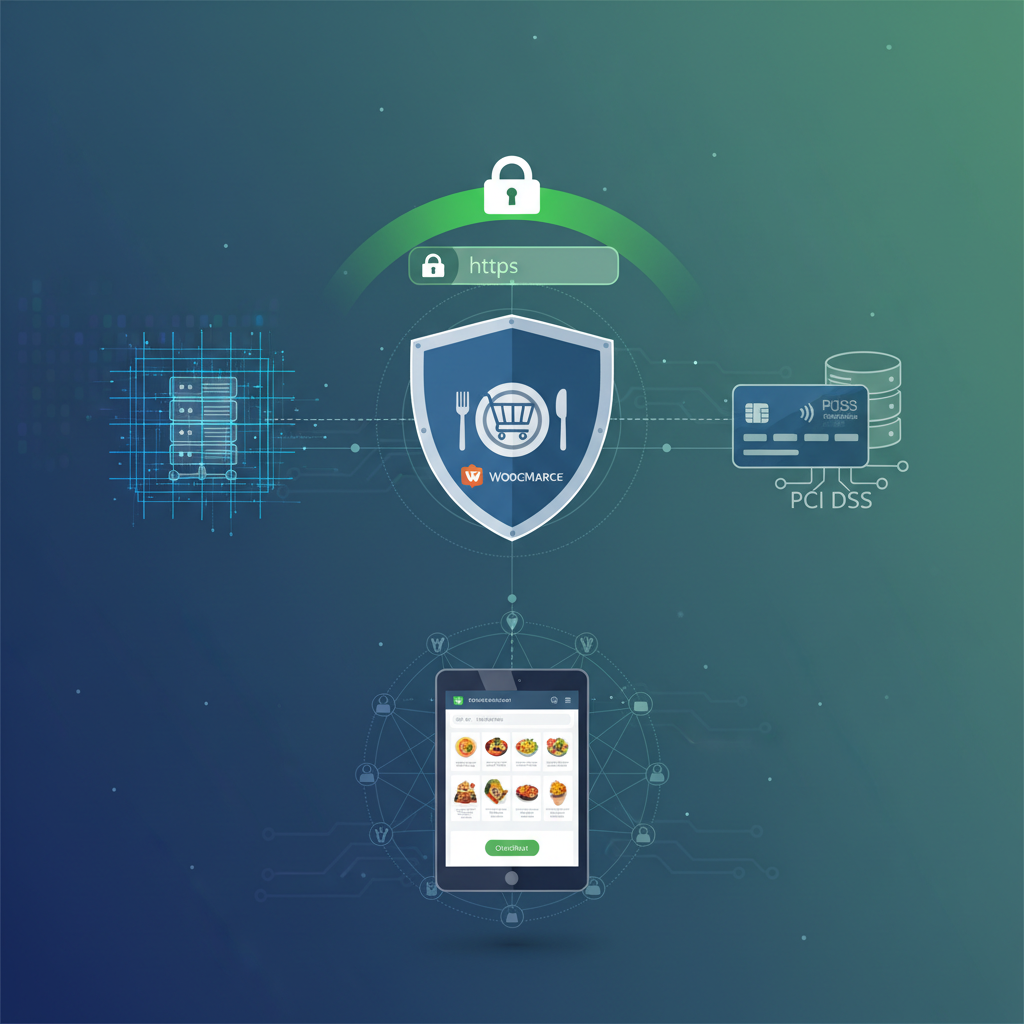
[IMAGE: Browser address bar showing a secure padlock icon on a restaurant checkout page with HTTPS enabled]
Hardening WordPress and WooCommerce Against Common Restaurant Site Attacks
SSL encrypts data in transit, but it does nothing to prevent someone from breaking into your WordPress admin panel, injecting malicious code into your database, or exploiting a vulnerable plugin. Hardening your site closes these doors.
Secure Your Login Page
The default WordPress login URL (/wp-admin or /wp-login.php) is the first place attackers probe. Three changes make a significant difference:
- Change the login URL using a plugin like WPS Hide Login. Move it to something unpredictable like
/restaurant-portal. - Limit login attempts to 3–5 per IP address using Limit Login Attempts Reloaded. Brute force attacks — where bots try thousands of password combinations — rely on unlimited retries.
- Enforce strong passwords for every account, especially staff members who might default to “password123.” WordPress 6.x includes a built-in password strength meter; make sure no one bypasses it.
Disable Unnecessary Attack Surfaces
XML-RPC is a legacy WordPress feature that allows remote publishing but is frequently exploited for brute force amplification attacks. Unless you’re using the WordPress mobile app or Jetpack features that require it, disable it by adding add_filter('xmlrpc_enabled', '__return_false'); to your theme’s functions.php file or using a security plugin.
Remove any themes and plugins you’re not actively using — not just deactivated, but deleted. Each unused plugin is dormant code that might contain unpatched vulnerabilities. A restaurant site typically needs WooCommerce, your ordering plugin, a security plugin, and a handful of essentials. Anything beyond that increases your attack surface.
Set Correct File Permissions and Security Headers
WordPress files should follow these permission standards: directories set to 755, files set to 644, and wp-config.php set to 440 or 400. Your hosting provider can verify these if you’re unsure.
Add HTTP security headers to your .htaccess or through a plugin to prevent clickjacking, XSS attacks, and content sniffing:
- X-Frame-Options: SAMEORIGIN — prevents your site from being embedded in malicious iframes
- X-Content-Type-Options: nosniff — stops browsers from MIME-type sniffing
- Content-Security-Policy — controls which scripts and resources can load on your pages
- Strict-Transport-Security — tells browsers to always use HTTPS
Install a Web Application Firewall
Wordfence (free tier available) provides a WordPress-level firewall, malware scanner, and real-time traffic monitoring. Sucuri offers a cloud-based WAF that filters malicious traffic before it even reaches your server — particularly useful during high-traffic periods like lunch and dinner rushes when you can’t afford slowdowns from attack traffic. Either option dramatically reduces your exposure to SQL injection, cross-site scripting, and file inclusion attacks.
PCI Compliance Basics for WooCommerce Restaurant Owners
If your restaurant accepts credit card payments online, PCI DSS applies to you. The good news: for most WooCommerce Restaurant Website: Protect Customer Payment Data, Prevent Hacking, and Set Up SSL, Firewalls, and PCI Compliance (Complete Guide)”>Restaurant Website: Protect Orders, Menus, and Customer Data from Crashes, Hacks, and Human Error (Complete Guide)”>WooCommerce Restaurant Website: Safely Test Menu Changes, Plugin Updates, and Checkout Fixes Without Breaking Your Live Ordering System (Complete Guide)”>WooCommerce restaurant sites, compliance is far more achievable than it sounds.
How Hosted Payment Gateways Reduce Your Burden
The single most impactful decision you can make is to never let credit card data touch your server. When you use hosted payment gateways like Stripe, Square, or PayPal, the customer’s card details are entered directly into the gateway’s secure iframe or redirected page. Your WooCommerce site receives only a token confirming the payment — not the actual card number.
This approach puts you under SAQ A (Self-Assessment Questionnaire A), the simplest PCI compliance category. SAQ A has roughly 22 requirements, mostly focused on maintaining a secure website and choosing compliant service providers. Compare this to SAQ A-EP, which applies if your site’s code could affect the security of the payment page (such as custom JavaScript on the checkout) — this questionnaire has significantly more requirements and may require vulnerability scans.
Practical Steps for PCI Compliance
- Use only PCI-compliant payment gateways — Stripe, Square, and PayPal all maintain Level 1 PCI DSS certification.
- Never store card data in your WordPress database, WooCommerce order notes, or email logs. If you see full card numbers anywhere in your system, something is seriously wrong.
- Maintain your SSL certificate (covered above) and ensure TLS 1.2 or higher is enforced on your server.
- Document your compliance by completing the appropriate SAQ annually. Your payment processor (Stripe Dashboard, for example) often provides tools to guide you through this.
- Run quarterly external vulnerability scans if required by your SAQ level, using an Approved Scanning Vendor (ASV) like Qualys or SecurityMetrics.
When setting up your restaurant ordering system with FoodMaster, payment processing is handled entirely through WooCommerce’s gateway integrations, meaning your card data security depends on your chosen gateway — not the ordering plugin itself. This clean separation keeps your PCI scope minimal.
[IMAGE: Diagram showing how hosted payment gateways process credit card data without it touching the restaurant’s WordPress server]
Protecting Customer Accounts, Order Data, and Staff Access with Role-Based Permissions
Security isn’t just about external threats. Internal access management determines who can see what — and prevents a kitchen staff member’s compromised account from exposing your entire business.
Two-Factor Authentication for All Admin Accounts
Enable two-factor authentication (2FA) on every account with administrative or shop manager access. Plugins like WP 2FA or the 2FA feature built into Wordfence add a time-based one-time password (TOTP) step after the username/password login. Even if a password is stolen through phishing, the attacker can’t get in without the second factor.
Configure Role-Based Access Control
WordPress’s built-in role system, combined with WooCommerce’s shop-specific roles, lets you create appropriate access levels:
- Administrator — reserved for the site owner or trusted developer. Full access to everything.
- Shop Manager — can manage orders, products, and customers but can’t install plugins or modify site settings. Suitable for a general manager.
- Custom “Kitchen Staff” role — using a plugin like Members or User Role Editor, create a role that can only view and update order statuses. No access to payment settings, customer email addresses, or WooCommerce configuration.
FoodMaster’s built-in kitchen display system works within this framework — kitchen staff interact with incoming orders through a dedicated interface without needing backend WooCommerce access.
Secure the WooCommerce REST API
If you’ve integrated external delivery services or POS systems through the WooCommerce REST API, ensure that API keys are scoped with the minimum necessary permissions (read-only where possible), rotated periodically, and never committed to public code repositories. Restrict API access by IP address if the integration connects from a fixed server.
GDPR and Privacy Considerations
Restaurant sites collect delivery addresses, phone numbers, dietary preferences, and order histories — all personal data under GDPR and similar regulations. Implement these practices:
- Set WooCommerce to automatically anonymize or delete completed order data after a defined retention period (e.g., 90 days for accounting, then anonymize).
- Include a clear privacy policy explaining what data you collect, why, and how long you keep it.
- Honor data deletion requests promptly using WooCommerce’s built-in personal data tools under Tools → Erase Personal Data.
Ongoing Security Maintenance: Monitoring, Updates, and Incident Response
Security isn’t a one-time setup — it’s an ongoing practice. Restaurant websites are particularly vulnerable to “set and forget” syndrome because owners are busy running a physical business, not monitoring server logs.
Monthly Security Checklist
Print this out and tape it next to your office computer:
- Update WordPress core within 48 hours of any security release. Enable auto-updates for minor versions.
- Update WooCommerce and all plugins — but test on a staging site first if possible. A broken checkout during peak hours is its own kind of disaster.
- Review your security plugin’s firewall logs for unusual patterns: spikes in blocked login attempts, new IP ranges targeting your site, or unfamiliar file change alerts.
- Run a full malware scan using Wordfence or Sucuri.
- Verify SSL certificate expiration dates — Let’s Encrypt certificates expire every 90 days. Most hosts auto-renew, but verify this is actually happening.
- Check uptime monitoring using a free service like UptimeRobot. Set alerts for downtime longer than 2 minutes.
- Review user accounts — remove access for any staff who’ve left, and audit that no unauthorized accounts have been created.
- Test your backup restoration process — a backup you can’t restore is worthless. Verify that your automated backups are completing successfully and that you can restore to a staging environment.
What to Do If Your Restaurant Site Gets Hacked
Having a plan before disaster strikes is the difference between 30 minutes of downtime and 3 days of chaos. Here’s a practical incident response plan:
Immediate (first 15 minutes):
- Put your site into maintenance mode to prevent customers from entering data on a compromised site. If you can’t access the dashboard, ask your host to take the site offline.
- Change all admin passwords immediately — WordPress, hosting panel, FTP, and database.
- Contact your hosting provider’s security team. Many managed hosts (SiteGround, Kinsta, WP Engine) offer emergency malware removal.
Investigation (first 24 hours):
- Scan your site with your security plugin and review file change logs to identify what was modified.
- Check whether customer payment data could have been exposed. If you use hosted gateways (Stripe, PayPal), card numbers likely weren’t on your server — but verify this with your gateway provider.
- Restore from your most recent clean backup. This is why maintaining regular, tested backups is non-negotiable.
Recovery and notification (48–72 hours):
- If customer PII was potentially exposed, you may be legally required to notify affected individuals (GDPR requires notification within 72 hours; U.S. state laws vary).
- Notify your payment processor so they can monitor for fraudulent transactions.
- Document everything for your records and any potential regulatory inquiry.
- Implement additional hardening measures to prevent recurrence.
Temporary ordering alternatives: While your site is down, post your phone number prominently on social media for phone orders. If you’re using FoodMaster’s QR table ordering feature, those QR codes will also be offline — have printed menus ready as a fallback for dine-in guests.
Building a Security-First Restaurant Website
Every layer of security you implement — from SSL certificates to role-based permissions to a tested incident response plan — reduces your risk exponentially. No single measure is bulletproof, but together they create a defense that discourages all but the most determined attackers, who will move on to easier targets.
Start with the highest-impact items: install and force SSL, switch to a hosted payment gateway if you haven’t already, enable 2FA on all admin accounts, and install a firewall plugin. These four actions alone eliminate the majority of common attack vectors. Then work through the hardening steps and establish your monthly maintenance routine.
Your customers trust you with their personal information every time they place an order. Protecting that data isn’t just a technical requirement — it’s a core part of running a reputable restaurant business online.
Commission-free ordering
Run restaurant orders on your own WordPress site
FoodMaster adds delivery, pickup, dine-in, POS, and kitchen tools — with zero per-order fees.