On this page
- Why Time Slot-Based Ordering Is Essential for Restaurant Websites
- Planning Your Time Slot Strategy: Slot Duration, Capacity Limits, and Business Rules
- Choosing Your Slot Duration
- Calculating Slot Capacity
- Differentiating Pickup vs. Delivery Slots
- Buffer Time and Blackout Periods
- Setting Up Time Slot Ordering in WooCommerce with FoodMaster (Step-by-Step)
- Step 1: Enable Scheduled Ordering
- Step 2: Define Available Time Slots Per Day
- Step 3: Set Per-Slot Order Capacity Limits
- Step 4: Configure Lead Time and Advance Ordering Window
- Step 5: Customize the Slot Picker on Checkout
- Advanced Configuration: Dynamic Slot Availability, Same-Day Cutoffs, and Multi-Location Scheduling
- Real-Time Slot Availability Updates
- Same-Day Order Cutoffs
- Day-Specific Slot Schedules
- Multi-Location Scheduling
- Optimizing the Customer Experience: Slot Picker Design, Mobile UX, and Reducing Checkout Abandonment
- Mobile-First Slot Picker Design
- Handling Sold-Out Slots Gracefully
- Reducing Checkout Abandonment
- Monitoring and Adjusting: Using Order Data to Fine-Tune Your Time Slots Over Time
- Identifying Popular and Underutilized Slots
- Balancing Demand with Pricing
- Connecting to Analytics for Deeper Insights
- Seasonal and Event-Based Adjustments
Why Time Slot-Based Ordering Is Essential for Restaurant Websites
Picture this: it’s Friday evening, and your online ordering system just accepted 47 orders in the span of 20 minutes. Your kitchen crew can realistically handle 15 orders per half hour. The result? Delivery times balloon from 30 minutes to over 90, customers start calling to complain, and your Google reviews take a hit that lasts months. This scenario plays out at restaurants every single week — and it’s entirely preventable.
Unlimited open ordering treats your kitchen like it has infinite capacity, which it obviously doesn’t. Every kitchen has a throughput ceiling — the maximum number of orders it can prepare within a given window without sacrificing food quality or accuracy. When incoming orders exceed that ceiling, everything downstream breaks: prep times increase, delivery drivers wait around, food sits under heat lamps, and customers receive lukewarm meals 45 minutes late.
Time slot-based ordering solves this by letting you define when customers can receive their orders and how many orders you’ll accept during each window. Instead of a free-for-all, you create a structured schedule that matches order volume to your actual kitchen capacity. The benefits cascade through the entire operation:
- Consistent food quality — your kitchen never gets buried under more orders than it can handle
- Accurate delivery estimates — customers pick a real time window and receive their food within it
- Better labor planning — you can staff shifts based on pre-booked order volume rather than guessing
- Higher customer satisfaction — a meal that arrives on time at the promised hour beats a “30-minute” estimate that turns into 75 minutes
- Reduced refund requests — fewer late or cold deliveries means fewer complaints and chargebacks
Restaurants that implement slot-based ordering commonly report a 20–30% reduction in order-related complaints within the first month. More importantly, they often see higher average order values because customers ordering in advance tend to browse the menu more carefully and add extras.
Planning Your Time Slot Strategy: Slot Duration, Capacity Limits, and Business Rules
Before touching any settings, you need to map out your time slot strategy on paper (or a spreadsheet). Rushing into configuration without planning leads to slots that are either too restrictive — frustrating customers who can’t find availability — or too generous, defeating the purpose entirely.
Choosing Your Slot Duration
The right interval depends on your order complexity and delivery radius. Here’s a practical breakdown:
- 15-minute slots — best for fast-casual restaurants with simple menus (pizza, sandwiches, bowls) and short prep times. Gives customers precise pickup windows.
- 30-minute slots — the sweet spot for most restaurants. Provides enough flexibility for kitchen prep while keeping customer expectations tight. This is the most common configuration.
- 60-minute slots — suitable for catering-style orders, complex multi-course meals, or restaurants with a wide delivery radius where transit times vary significantly.
A useful rule of thumb: your slot duration should be roughly 1.5× your average order preparation time. If most orders take about 20 minutes to prepare, 30-minute slots give you breathing room without making customers wait unnecessarily.
Calculating Slot Capacity
This is where many restaurant owners stumble. Your maximum orders per slot should reflect your kitchen’s actual throughput, not your optimistic best case. Start by answering: during a controlled test, how many orders can your kitchen complete in one slot duration without rushing?
If your kitchen can comfortably produce 12 orders in 30 minutes, set your slot capacity to 10. That 15–20% buffer accounts for complex orders, ingredient restocking, and the occasional equipment hiccup. You can always increase capacity later once you have data — it’s much harder to recover from consistently overloading your kitchen.
Differentiating Pickup vs. Delivery Slots
Pickup and delivery orders place different demands on your operation. Pickup orders only require kitchen time, while delivery orders also consume driver availability and transit time. Consider setting separate capacity limits for each: perhaps 10 pickup orders per slot but only 6 delivery orders, depending on how many drivers you have available.
Buffer Time and Blackout Periods
Build in a lead time buffer — the minimum advance notice required before an order can be placed. A 30-minute lead time prevents customers from placing an order at 12:15 for the 12:30 slot, which your kitchen can’t realistically fulfill. For delivery, a 45–60 minute lead time is more appropriate given transit logistics.
Don’t forget to configure blackout periods for holidays, private events, staff meetings, or reduced-capacity days. It’s far better to proactively block slots than to accept orders you can’t fulfill.
[IMAGE: A planning worksheet or spreadsheet showing time slot configuration with columns for slot times, pickup capacity, delivery capacity, and buffer periods across different days of the week]
Setting Up Time Slot Ordering in WooCommerce with FoodMaster (Step-by-Step)
Now that your strategy is mapped out, let’s implement it. The FoodMaster plugin for WooCommerce provides built-in time slot management designed specifically for restaurant ordering workflows. Here’s how to configure it from scratch.
Step 1: Enable Scheduled Ordering
Navigate to WooCommerce → FoodMaster Settings → Ordering Options in your WordPress dashboard. Look for the scheduling section and enable the scheduled ordering toggle. This activates the time slot picker on your checkout page, replacing the default “ASAP” ordering mode with structured time windows.
You’ll also want to enable the option to allow both ASAP and scheduled ordering if your restaurant supports walk-in-style immediate orders alongside pre-scheduled ones. Many restaurants offer ASAP during off-peak hours but switch to scheduled-only during lunch and dinner rushes.
Step 2: Define Available Time Slots Per Day
Under the scheduling configuration, you’ll set your operating hours and slot intervals for each day of the week. For example:
- Monday–Thursday: 11:00 AM – 9:00 PM, 30-minute intervals
- Friday–Saturday: 11:00 AM – 10:30 PM, 30-minute intervals
- Sunday: 12:00 PM – 8:00 PM, 30-minute intervals
FoodMaster automatically generates the individual time slots based on your operating window and chosen interval. So a Monday configuration would produce slots at 11:00, 11:30, 12:00, 12:30, and so on through 9:00 PM — that’s 20 bookable slots per day.
Step 3: Set Per-Slot Order Capacity Limits
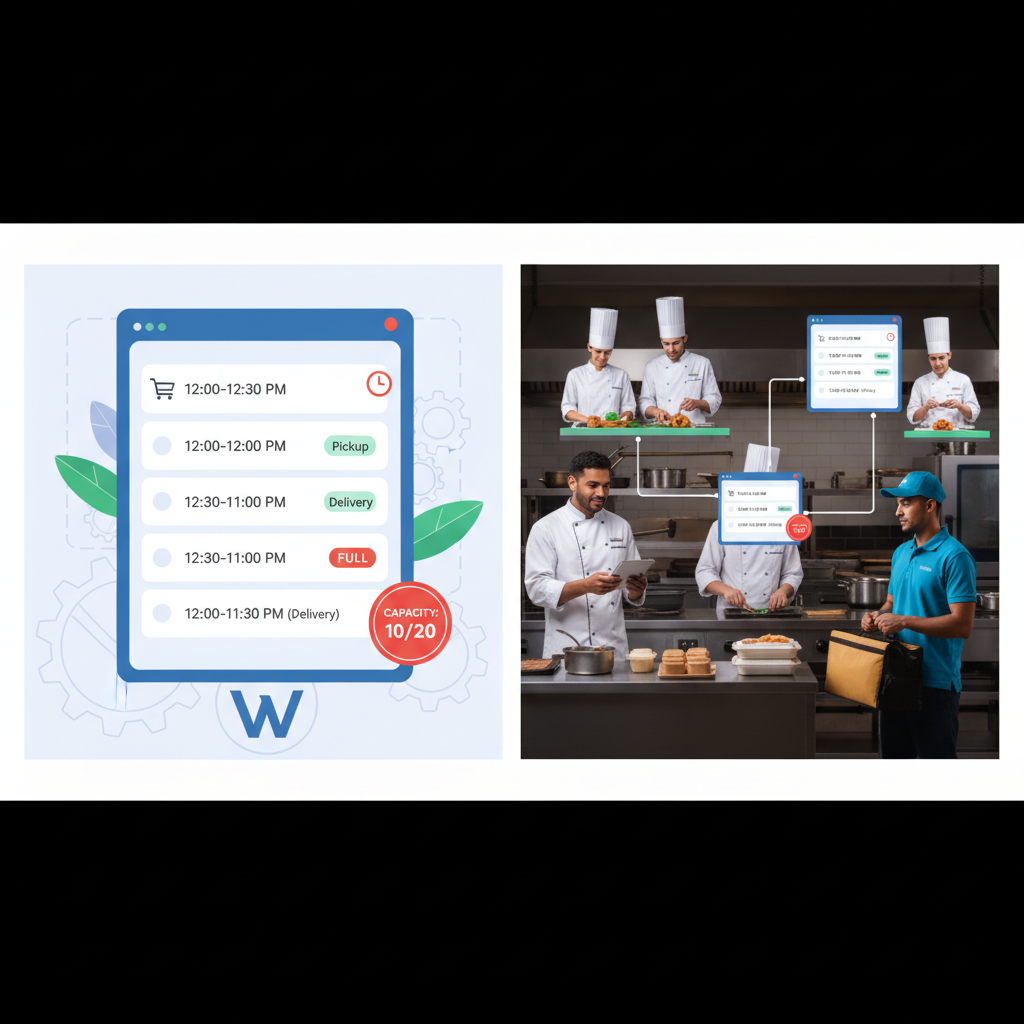
This is the critical step that prevents kitchen overload. In the slot settings, define the maximum number of orders each time slot can accept. Once a slot reaches capacity, it’s automatically marked as unavailable on the customer-facing checkout page.
You can set a uniform capacity across all slots (e.g., 8 orders per slot) or customize capacity for specific time windows. Many restaurants increase capacity during periods when they have extra staff — for instance, 12 orders per slot during the 6:00–8:00 PM dinner rush when a second prep cook is on shift, but only 6 per slot during the quieter 3:00–5:00 PM window.
Step 4: Configure Lead Time and Advance Ordering Window
Set your minimum lead time — the earliest a customer can schedule an order from the current time. A 45-minute lead time means if a customer visits your site at 5:15 PM, the earliest available slot they’ll see is 6:00 PM (assuming it’s not full).
Also configure how far in advance customers can order. Allowing orders up to 7 days ahead is common for regular restaurants, while catering-focused operations might allow 14–30 days. Be careful with very long advance windows — your menu or pricing might change, creating fulfillment headaches.
Step 5: Customize the Slot Picker on Checkout
FoodMaster renders a time slot picker directly on the WooCommerce checkout page. You can customize its appearance to match your restaurant’s branding. The picker typically displays available dates first, then shows available time slots for the selected date, with fully booked slots either hidden or grayed out.
For the best user experience, configure the picker to show the order type selector (pickup or delivery) before the time slot picker, since available slots may differ between order types. This prevents customers from selecting a slot only to discover it’s unavailable for their chosen fulfillment method.
Advanced Configuration: Dynamic Slot Availability, Same-Day Cutoffs, and Multi-Location Scheduling
Basic time slot setup handles most scenarios, but real-world restaurant operations often require more nuanced controls.
Real-Time Slot Availability Updates
When a customer places an order for the 6:30 PM slot, that slot’s remaining capacity should decrease immediately — not after a page refresh. FoodMaster updates slot availability dynamically, so if two customers are checking out simultaneously and only one spot remains in a slot, the second customer will see it become unavailable in real time. This prevents double-booking, which is one of the most common complaints with basic scheduling plugins.
Same-Day Order Cutoffs
Most restaurants don’t want to accept same-day orders right up until closing time. A restaurant that closes at 10:00 PM might set a same-day cutoff at 8:30 PM — meaning after 8:30, customers can only order for the next available day. This gives your kitchen time to work through the existing queue without new orders trickling in during the final hour.
You can configure this in FoodMaster’s scheduling settings by specifying the cutoff as a time or as a duration before closing (e.g., “stop accepting orders 90 minutes before closing”).
Day-Specific Slot Schedules
Your Tuesday lunch operation probably looks very different from Saturday dinner. FoodMaster allows per-day scheduling rules, so you can run 15-minute slots with higher capacity on busy Friday and Saturday evenings while using 30-minute slots with lower capacity on quieter weekdays. You can also disable ordering entirely on specific days — useful if your restaurant is closed on Mondays or runs a limited menu on certain days.
Multi-Location Scheduling
If you operate multiple branches, each location needs its own slot configuration. A downtown location with a larger kitchen might handle 15 orders per slot, while a smaller suburban branch caps at 8. FoodMaster supports multi-location restaurant setups where each branch maintains independent operating hours, slot intervals, capacity limits, and delivery zones — all managed from a single WordPress dashboard.
[IMAGE: A frontend checkout page showing a time slot picker with date selection, available and grayed-out time slots, and order type toggle between pickup and delivery]
Optimizing the Customer Experience: Slot Picker Design, Mobile UX, and Reducing Checkout Abandonment
A perfectly configured backend means nothing if customers abandon checkout because the slot picker is confusing or slow. The frontend experience deserves just as much attention as the operational logic behind it.
Mobile-First Slot Picker Design
Over 70% of food orders are placed from mobile devices, according to multiple industry reports from Statista and the National Restaurant Association. Your time slot picker must work flawlessly on small screens. Key mobile UX principles:
- Use large, tappable buttons for each time slot — at least 44×44 pixels, per Apple’s Human Interface Guidelines
- Display slots in a scrollable vertical list rather than a grid that requires horizontal scrolling
- Show the selected date and slot prominently so customers can confirm their choice at a glance
- Minimize the number of taps required — ideally, selecting a date and time should take no more than 3 taps
Handling Sold-Out Slots Gracefully
When a customer’s preferred time slot is full, don’t just show a dead end. Display the next available slot prominently, with a message like “6:30 PM is fully booked — the next available slot is 7:00 PM.” This gentle redirect keeps customers in the ordering flow instead of bouncing to a competitor.
Some restaurants also implement a waitlist feature for popular slots. If a customer cancels, the next person on the waitlist receives a notification. While this requires additional customization beyond the default plugin setup, it can recover orders that would otherwise be lost.
Reducing Checkout Abandonment
Slot selection adds friction to the checkout process — there’s no way around it. But you can minimize that friction by showing slot availability before the customer reaches the checkout page. Consider adding a slot preview on the cart page or even on the menu page itself. When customers know their preferred time is available before they start checking out, they’re far more likely to complete the order.
Also, clearly display what happens if no slots are available today. A message like “Next available ordering date: Saturday, March 15” is infinitely better than an empty slot picker with no explanation.
Monitoring and Adjusting: Using Order Data to Fine-Tune Your Time Slots Over Time
Your initial time slot configuration is an educated guess. The real optimization happens over weeks and months as you collect order data and refine your settings based on actual patterns.
Identifying Popular and Underutilized Slots
Review your WooCommerce order reports weekly, filtering by order time slot. You’re looking for two patterns: slots that consistently fill up (indicating unmet demand) and slots that rarely get booked (indicating wasted capacity or poor timing).
If your 12:00–12:30 PM slot fills up every weekday by 10:00 AM, you likely have demand for more orders during that window. Consider increasing capacity for that specific slot — if your kitchen can handle it — or splitting it into two 15-minute slots with separate capacities to spread the load more evenly.
Conversely, if your 3:00–3:30 PM slot averages only 1–2 orders, you might consolidate it with adjacent slots or reduce staffing during that window to cut labor costs.
Balancing Demand with Pricing
A strategy borrowed from the airline and ride-sharing industries: use pricing to shift demand from peak to off-peak slots. Offer a small discount (10–15%) for orders placed in underutilized slots, or add a modest peak-hour surcharge ($1–2) during your busiest windows. This doesn’t require complex dynamic pricing — a simple coupon code or fee rule in WooCommerce handles it.
For example, a restaurant might advertise “Order between 2:00–4:00 PM and get 10% off your order” on their homepage. This fills otherwise empty slots and smooths out the demand curve, reducing kitchen stress during peak hours.
Connecting to Analytics for Deeper Insights
WooCommerce’s built-in reports show you order volume and revenue by time period, but for deeper analysis, connect your store to Google Analytics 4. Track which time slots have the highest cart abandonment rates — this often reveals UX issues with specific slot configurations. If customers consistently abandon orders when selecting Saturday dinner slots, the available options might be too limited or the lead time too restrictive.
Cross-reference your time slot data with customer satisfaction metrics — reviews, ratings, and support tickets. If complaints spike during slots where you’ve set higher capacity limits, that’s a clear signal to dial the capacity back down. The goal is finding the sweet spot where you maximize orders without degrading the WordPress Restaurant Website: Combine Dine-In Bookings with WooCommerce Food Ordering for a Seamless Customer Experience (Complete Guide)”>customer experience.
Seasonal and Event-Based Adjustments
Your time slot strategy shouldn’t be static. Increase capacity and extend hours during high-demand periods like Valentine’s Day, Super Bowl Sunday, or local festivals. Reduce capacity during historically slow weeks (post-holiday January, for instance). Review your slot data quarterly and make adjustments before the next seasonal shift hits, not during it.
With FoodMaster’s scheduling controls, you can pre-configure these seasonal changes and schedule them to activate automatically — so you’re not scrambling to update settings at 6:00 AM on Valentine’s Day.
Time slot-based ordering isn’t just an operational convenience — it’s a competitive advantage. Restaurants that control their order flow deliver better food, earn better reviews, and retain more customers over time. Start with conservative capacity limits, collect data for two to three weeks, and then refine. Your kitchen staff will thank you, your delivery drivers will thank you, and most importantly, your customers will keep coming back.
Commission-free ordering
Run restaurant orders on your own WordPress site
FoodMaster adds delivery, pickup, dine-in, POS, and kitchen tools — with zero per-order fees.