What Is a Kitchen Display System (KDS) and Why Your Restaurant Needs One
Picture this: it’s Friday night, orders are flooding in from your website, and your kitchen printer jams. Tickets pile up, the cook misses a special instruction (“no onions — severe allergy”), and a delivery driver is standing at the counter tapping their foot. Sound familiar?
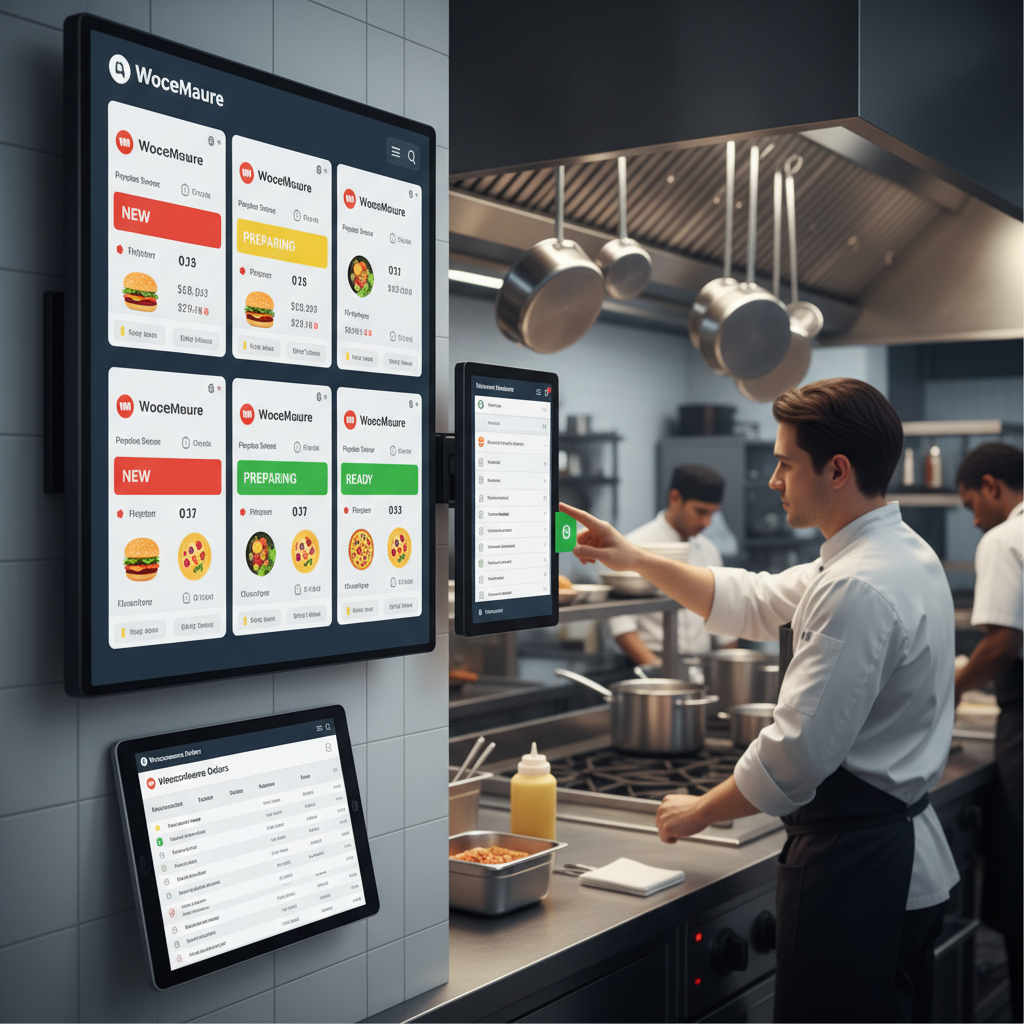
A Kitchen Display System (KDS) replaces that fragile chain of printed paper tickets with a screen — mounted right in your kitchen — that shows incoming orders in real time. Each order appears the moment it’s placed, complete with item names, modifications, special instructions, and timestamps. Kitchen staff tap the screen to mark items as “preparing” or “done,” and the whole team stays synchronized without shouting across the line.
For restaurants running on WordPress and WooCommerce, a KDS closes the gap between your online storefront and the people actually making the food. Instead of someone manually checking the WooCommerce dashboard and relaying orders verbally, the system pushes orders directly to the kitchen screen. The benefits are concrete: faster preparation times, fewer errors on customized orders, and a clear audit trail showing exactly when each order moved through each stage.
The pain points a KDS eliminates aren’t trivial. The National Restaurant Association has consistently identified order accuracy and speed of service as top factors driving customer satisfaction. A misread handwritten ticket or a lost printout during a rush can cascade into refunds, negative reviews, and wasted food. A digital display removes those failure points entirely.
How WooCommerce Orders Flow From Customer to Kitchen
Before setting up hardware and plugins, it helps to understand the full journey an online food order takes through your system. Here’s the lifecycle:
- Customer places an order on your WordPress site — selecting menu items, adding special instructions, choosing delivery or pickup, and completing payment.
- WooCommerce processes the payment and creates an order record with a status of “Processing.”
- The order appears in your WooCommerce dashboard under Orders, with all item details, customer info, and notes attached.
- The kitchen needs to see it — instantly. This is where most basic WooCommerce setups fall short. Without a KDS or real-time notification system, someone has to manually refresh the dashboard and relay the information.
The default WooCommerce order statuses — Pending, Processing, Completed, Cancelled — weren’t designed for restaurant workflows. A food order needs more granular stages: Received, Preparing, Ready for Pickup, Out for Delivery, Delivered. These custom statuses let kitchen staff, front-of-house, and delivery drivers all know exactly where an order stands at any moment.
Real-time order management is the key concept here. When a customer submits an order at 6:47 PM, the kitchen should see it at 6:47 PM — not at 6:52 PM when someone remembers to check the laptop. This is what a properly configured KDS delivers, and it’s what separates a smooth WooCommerce Restaurant Website (2025)”>Restaurant Website (Stripe, PayPal & More in 2025)”>Restaurant Website With WordPress and WooCommerce (From Scratch)”>online ordering operation from a chaotic one.
[IMAGE: Diagram showing the flow of a WooCommerce food order from customer checkout through payment processing to the kitchen display screen, with order status stages labeled at each step]
Setting Up a Kitchen Order Display With WooCommerce: Step by Step
Step 1: Choose Your Hardware
You don’t need expensive proprietary equipment. A KDS runs in a web browser, so your options are wide open:
- Dedicated tablet (recommended for most kitchens): A 10-inch Android or iPad tablet mounted on the wall works perfectly. Look for models with an IP-rated case or buy a waterproof kitchen mount — grease and steam are real threats.
- Old laptop or desktop with a monitor: If you have a spare computer, connect it to a wall-mounted monitor. This gives you a larger screen, which helps during high-volume periods.
- Smart TV: Some restaurants repurpose a basic smart TV with a built-in browser. The screen real estate is generous, but interaction (tapping to update order status) requires a wireless mouse or a separate device.
Whichever you choose, make sure it stays plugged in (battery-powered tablets die at the worst times) and connects to your restaurant’s Wi-Fi reliably. More on Wi-Fi in the troubleshooting section below.
Step 2: Install and Configure Your Restaurant Ordering Plugin
Standard WooCommerce doesn’t include a kitchen display out of the box. You need a plugin built specifically for restaurant operations. FoodMaster (formerly WooFood) includes a dedicated Kitchen Display System as part of its feature set, alongside online menu management, delivery and pickup order handling, QR table ordering, and automatic order printing. Because it’s built directly on WooCommerce, there’s no need to sync between separate platforms — orders flow natively through the same system.
Here’s how to get the KDS running with FoodMaster:
- Install and activate the FoodMaster plugin on your WordPress site.
- Navigate to the plugin settings and enable the Kitchen Display module.
- Configure which order types appear on the display — you can filter by delivery, pickup, or dine-in so the kitchen only sees what’s relevant.
- Set the auto-refresh interval. A 10–15 second refresh is a good starting point. This means the kitchen screen checks for new orders every 10–15 seconds without anyone touching it.
- Customize the information shown per order: item names, quantities, special instructions, order time, customer name, and order type (delivery/pickup/dine-in).
- Copy the KDS page URL and open it in the browser on your kitchen hardware. Bookmark it and set it as the homepage so it loads automatically if the device restarts.
Step 3: Configure Auto-Refresh and Real-Time Updates
The auto-refresh setting is critical. If it’s too slow (say, 60 seconds), you’ll have a full minute of lag during peak hours — that’s an eternity when orders are stacking up. If it’s too fast (every 2 seconds), you’ll put unnecessary load on your server and the display may flicker annoyingly.
FoodMaster’s kitchen display uses AJAX-based polling, meaning it checks for new orders at your configured interval without reloading the entire page. This keeps the display smooth and prevents the screen from going blank during updates. For most restaurants doing moderate online order volume (say, 20–50 orders per hour during peak), a 10-second interval strikes the right balance.
Step 4: Customize What the Kitchen Sees
Kitchen staff don’t need the customer’s billing address or payment method. Strip the display down to what matters:
- Order number (for reference when calling out completed orders)
- Item names and quantities
- Modifications and special instructions (highlighted prominently — this is where errors happen)
- Order type — delivery, pickup, or dine-in (color-coded is ideal)
- Time since order was placed (a running timer creates urgency and accountability)
- Scheduled time if the customer chose a future pickup/delivery slot
The goal is maximum clarity at a glance. A cook standing six feet from the screen should be able to read the next order without squinting.
Customizing Order Statuses and Preparation Workflow for Your Kitchen
Default WooCommerce statuses don’t tell a kitchen story. Here’s a practical set of custom statuses that map to how a real restaurant kitchen operates:
- New Order (Received) — just placed, payment confirmed, waiting for kitchen acknowledgment
- Preparing — kitchen has started working on it
- Ready — food is done, waiting for pickup by customer or delivery driver
- Out for Delivery — driver has left with the order
- Completed — customer has received the food
With the FoodMaster plugin, these restaurant-specific statuses are built in. Kitchen staff tap a single button on the KDS to move an order from “New” to “Preparing” to “Ready.” Each status change can automatically trigger a notification to the customer — an email or SMS letting them know their food is being prepared or is ready for pickup. This closes the communication loop without anyone picking up a phone.
[IMAGE: Screenshot of a kitchen display screen showing multiple active orders with color-coded labels for dine-in, pickup, and delivery, each with item details, special instructions, and a timer showing elapsed time]
Color-Coding by Order Type
Visual differentiation saves seconds per order, and those seconds compound fast during a rush. A common scheme:
- Green for dine-in orders (these are already in the building — fast turnaround expected)
- Blue for pickup orders (customer is on their way)
- Orange or red for delivery orders (driver timing matters)
This lets the expeditor (or the cook, in smaller operations) prioritize at a glance. A dine-in order with a 12-minute timer demands attention differently than a delivery order scheduled for 45 minutes from now.
Tips to Make Your Kitchen Display Actually Work in a Busy Restaurant
Setting up the technology is only half the job. Here’s what separates a KDS that gathers dust from one that transforms your kitchen:
Screen Placement Matters More Than You Think
Mount the display where every station can see it — typically above the pass or expo station, angled slightly downward. If your kitchen layout has blind spots, consider a second smaller screen. A KDS nobody looks at is worse than no KDS at all, because you’ll assume it’s working while orders pile up unseen.
Use Sound Alerts for New Orders
During a busy service, eyes are on the food, not the screen. Configure an audible chime or beep when a new order arrives. Most tablets can handle this through the browser. Keep the volume loud enough to hear over hood fans and sizzling pans — test it during actual service conditions, not in a quiet kitchen before opening.
Handle Modifications and Cancellations in Real Time
Customers occasionally modify or cancel orders after placing them. Your KDS needs to reflect these changes immediately. With FoodMaster’s WooCommerce integration, when an admin updates an order from the dashboard — removing an item, adding a note, or cancelling entirely — the kitchen display reflects the change on the next refresh cycle. Train your staff to watch for flashing or highlighted modifications so they don’t prepare something that’s already been cancelled.
Keep the Display Uncluttered
Once an order is marked “Ready” or “Completed,” it should disappear from the active display (or move to a separate completed column). If finished orders linger on screen, the display gets noisy and staff start overlooking new ones. Configure your KDS to auto-archive completed orders after a set period — 60 seconds is usually enough for the expeditor to confirm it’s been handed off.
Training Staff Who Aren’t Tech-Savvy
Resistance to new technology is normal, especially from experienced cooks who’ve worked with paper tickets for years. Keep training simple:
- Show them the screen and explain: “This replaces the printer. New orders show up here.”
- Teach exactly two actions: tap to start preparing, tap to mark as done.
- Run a practice session by placing test orders from a phone while the kitchen watches them appear on screen.
- Keep a backup plan for the first week — have someone ready to manually relay orders if staff forget to check the display.
Most kitchen teams adapt within a few days once they experience the reliability advantage over paper tickets.
Troubleshooting Common KDS Issues and Keeping Everything Running Smoothly
Orders Not Appearing in Real Time
This is the most common complaint, and it usually comes down to one of three causes:
- Caching: If you’re running a WordPress caching plugin (WP Super Cache, W3 Total Cache, LiteSpeed Cache, etc.), it may be serving a cached version of the KDS page. Exclude the KDS URL from your caching rules entirely. This is the single most frequent fix.
- Auto-refresh not configured: Double-check that the refresh interval is set and active. Open the KDS page, place a test order, and time how long it takes to appear.
- Server-side object caching: If your hosting uses Redis or Memcached, AJAX responses might be cached at the server level. Contact your host and ask them to exclude the KDS endpoint from object caching.
Wi-Fi Reliability in Kitchen Environments
Kitchens are hostile environments for wireless signals. Metal shelving, thick walls, commercial refrigerators, and microwave ovens all interfere with Wi-Fi. Practical solutions:
- Place a dedicated Wi-Fi access point inside or immediately adjacent to the kitchen — don’t rely on a router in the dining room or office.
- Use the 5 GHz band if your devices support it — it’s less prone to interference from microwaves.
- If Wi-Fi is truly unreliable, run an Ethernet cable to a wall-mounted monitor. Wired connections don’t drop.
Browser Crashes on Tablets
Cheap tablets with limited RAM can struggle if the browser tab runs for hours. Mitigate this by:
- Closing all other apps and browser tabs on the device.
- Using Chrome or Firefox in full-screen (kiosk) mode.
- Restarting the tablet once daily — do it as part of your pre-opening routine.
- Enabling Android’s “Stay Awake While Charging” developer option to prevent the screen from sleeping.
What to Do When the System Goes Down Mid-Service
Technology fails. Have a plan. Keep a small thermal receipt printer as a backup — FoodMaster supports automatic order printing alongside the KDS, so you can run both simultaneously. If the display dies, the printer takes over seamlessly. You can also assign one staff member to monitor orders from a phone or laptop and call them out verbally until the display is restored.
Daily KDS Health Check (Pre-Opening Checklist)
Tape this next to the KDS screen and run through it every day before service:
- Is the device powered on and charged (or plugged in)?
- Is it connected to Wi-Fi? Load any website to confirm.
- Is the KDS page open and showing the current date/time?
- Place a test order from your phone — does it appear within 15 seconds?
- Tap the test order through each status — does it update correctly?
- Is the sound alert audible from every kitchen station?
- Is the backup printer loaded with paper and powered on?
This checklist takes under two minutes and prevents the gut-wrenching moment mid-rush when you realize the kitchen hasn’t received any orders for the last 20 minutes.
Bringing It All Together
A kitchen display system isn’t a luxury reserved for chain restaurants with six-figure tech budgets. With WordPress, WooCommerce, and a purpose-built plugin like FoodMaster, you can have a fully functional KDS running on a $150 tablet by the end of today. The real payoff isn’t the technology itself — it’s the cascade of improvements that follow: fewer order errors, faster preparation times, happier customers who get accurate food on time, and kitchen staff who can focus on cooking instead of deciphering crumpled paper tickets.
Start with the basics — one screen, auto-refresh enabled, custom order statuses configured — and expand from there. Add sound alerts after the first week. Introduce color-coding once your team is comfortable. Run the backup printer in parallel until everyone trusts the system. Within a month, your kitchen will wonder how it ever functioned without a display, and your online ordering operation will run with the kind of precision that earns repeat customers.
Commission-free ordering
Run restaurant orders on your own WordPress site
FoodMaster adds delivery, pickup, dine-in, POS, and kitchen tools — with zero per-order fees.