Why Real-Time Order Tracking Matters for Restaurant Websites
Think about the last time you ordered food through DoorDash or Uber Eats. You probably watched that little map update in real time, tracking your driver’s every turn. Now think about what happens when you order from a local restaurant’s website and get… silence. Maybe a confirmation email. Then nothing until someone knocks on your door (or doesn’t). That gap between “order placed” and “food arrived” is where customer anxiety — and frustration — lives.
Customer expectations have fundamentally shifted. A 2023 survey by Salesforce found that 73% of customers expect companies to understand their unique needs and expectations, and real-time communication sits at the top of that list. For restaurants, this translates directly to the ordering experience. When customers can see that their pad thai is being prepared or that their driver just left the restaurant, they feel in control. That feeling drives loyalty.
The business case is equally compelling. Restaurants that implement order tracking and proactive notifications typically see a 25-40% reduction in inbound “where is my order?” calls and messages, according to data from various SMS marketing platforms. For a busy restaurant handling 100+ WooCommerce Restaurant Website for SEO: Local Search, Schema Markup for Menus, Google Business Profile Integration, and Ranking Strategies to Drive More Online Orders (Complete Guide)”>online orders per day, that’s a significant labor savings at the front counter or phone line. Fewer interruptions mean your staff focuses on making food, not fielding anxious calls.
Beyond reducing support burden, order transparency directly impacts repeat business. Customers who feel informed throughout the process are far more likely to order again. It’s the difference between a one-time transaction and a regular customer who trusts your operation enough to skip the third-party apps — and the 15-30% commissions that come with them.
Choosing the Right SMS and Notification Plugin for WooCommerce
Before you start sending text messages, you need to pick the right infrastructure. The SMS landscape for WooCommerce breaks down into three categories: dedicated API providers you connect via plugins, WooCommerce-native notification plugins with built-in SMS, and all-in-one platforms. Here’s what matters for restaurant use cases specifically.
Twilio
Twilio is the industry standard for programmatic SMS. It’s what most serious WooCommerce SMS plugins use under the hood. Pricing starts at $0.0079 per outbound SMS in the US, with a dedicated phone number costing about $1.15/month. Twilio supports 180+ countries, has near-instant delivery, and provides detailed delivery reports. The downside: it requires some technical setup and a separate account.
Vonage (formerly Nexmo)
Vonage’s SMS API is Twilio’s closest competitor, with slightly lower pricing in some regions (around $0.0068 per SMS in the US). It offers solid international coverage and reliability. However, the WooCommerce plugin ecosystem for Vonage is thinner — fewer plugins support it natively, which means more custom development work.
WooCommerce-Native Notification Plugins
Plugins like “JEEP WooCommerce SMS Notifications” or “WooCommerce Twilio SMS Notifications” act as bridges between your WooCommerce order statuses and an SMS provider. These are generally the fastest path to implementation since they hook directly into WooCommerce’s order status change events.
| Provider | Cost per SMS (US) | Phone Number | WooCommerce Plugin Support | International Reach |
|---|---|---|---|---|
| Twilio | $0.0079 | $1.15/mo | Excellent (many plugins) | 180+ countries |
| Vonage (Nexmo) | $0.0068 | $0.90/mo | Limited | 160+ countries |
| Amazon SNS | $0.00645 | Varies | Minimal (custom needed) | 200+ countries |
For most restaurant owners running WooCommerce, Twilio paired with a WooCommerce SMS plugin is the most practical choice. The plugin ecosystem is mature, documentation is abundant, and even at 200 orders per day, your monthly SMS cost stays under $50.
[IMAGE: Comparison table showing SMS provider options with pricing, features, and WooCommerce compatibility ratings side by side]
Setting Up Custom Order Statuses for Restaurant Workflows
WooCommerce ships with generic order statuses: Pending, Processing, On Hold, Completed, Cancelled, Refunded, and Failed. These work fine for shipping physical products, but they’re terrible for communicating a restaurant workflow. A customer doesn’t care that their order is “Processing” — they want to know if the kitchen has started making their food.
For a restaurant, you need statuses that mirror what’s actually happening:
- Order Received — The order came through and the kitchen has been notified
- Preparing — The kitchen is actively making the food
- Ready for Pickup / Ready — Food is done, waiting for the customer or driver
- Out for Delivery — A driver has the food and is en route
- Delivered / Completed — Food has arrived
Registering Custom Statuses with Code
You can register custom order statuses by adding the following to your theme’s functions.php file or a site-specific plugin:
// Register 'Preparing' order status
function register_preparing_order_status() {
    register_post_status('wc-preparing', array(
        'label'                     => 'Preparing',
        'public'                    => true,
        'show_in_admin_status_list' => true,
        'show_in_admin_all_list'    => true,
        'exclude_from_search'       => false,
        'label_count'               => _n_noop('Preparing (%s)', 'Preparing (%s)')
    ));
}
add_action('init', 'register_preparing_order_status');

// Add to WooCommerce order status dropdown
function add_preparing_to_order_statuses($order_statuses) {
    $new_order_statuses = array();
    foreach ($order_statuses as $key => $status) {
        $new_order_statuses[$key] = $status;
        if ('wc-processing' === $key) {
            $new_order_statuses['wc-preparing'] = 'Preparing';
        }
    }
    return $new_order_statuses;
}
add_filter('wc_order_statuses', 'add_preparing_to_order_statuses');
You’d repeat this pattern for each custom status — “Ready,” “Out for Delivery,” and so on. Each registered status becomes available in the WooCommerce order dropdown, and more importantly, each status change fires WooCommerce’s woocommerce_order_status_changed action hook — which is exactly what SMS plugins listen for.
How FoodMaster Simplifies This Entire Process
If you’re running FoodMaster (formerly WooFood), much of this is already handled for you. FoodMaster includes a built-in WooCommerce Restaurant: Real-Time Prep Tracking, Scheduled Order Queues, and Streamlining Back-of-House Operations (Complete Guide)”>kitchen display system and order management flow designed specifically for restaurants. Order statuses are structured around the actual kitchen-to-delivery workflow, so you don’t need to write custom code to register new statuses. The plugin’s POS and kitchen display features let staff update order progress with a single tap, and each status transition can trigger customer-facing notifications.
This matters because manually registering custom statuses is fragile — WordPress updates, theme changes, or plugin conflicts can break custom code. Having the workflow baked into a purpose-built restaurant ordering system eliminates that maintenance headache.
Configuring Twilio SMS Notifications for Each Order Stage
With your order statuses in place, it’s time to wire up SMS notifications. Here’s the full walkthrough using Twilio.
Step 1: Create a Twilio Account and Get a Phone Number
Sign up at twilio.com. After verifying your email and phone number, you’ll land in the console. Navigate to Phone Numbers → Manage → Buy a Number. Choose a local number with SMS capability in your country. In the US, this costs $1.15/month. Note your Account SID, Auth Token, and the phone number — you’ll need all three.
Step 2: Install a WooCommerce SMS Plugin
Install a Twilio-compatible WooCommerce SMS notification plugin from the WordPress repository or a premium source. Popular options include “Jeep WooCommerce SMS Notifications” and “AutomateWoo” (which includes SMS as part of a broader automation suite). After installation, go to the plugin’s settings page and enter your Twilio Account SID, Auth Token, and sending phone number.
Step 3: Map Order Statuses to SMS Messages
This is where it gets fun. Most SMS plugins let you create notification rules: when order status changes to X, send SMS with message Y. Here are message templates that work well for restaurants:
- Order Received: “Hi {customer_name}! 🎉 Your order #{order_number} has been received by {restaurant_name}. Estimated time: {estimated_time} minutes. Track your order: {tracking_url}”
- Preparing: “Great news, {customer_name}! The kitchen is now preparing your order #{order_number}. We’ll let you know when it’s ready!”
- Ready for Pickup: “{customer_name}, your order #{order_number} is ready for pickup! Head to the counter whenever you’re ready.”
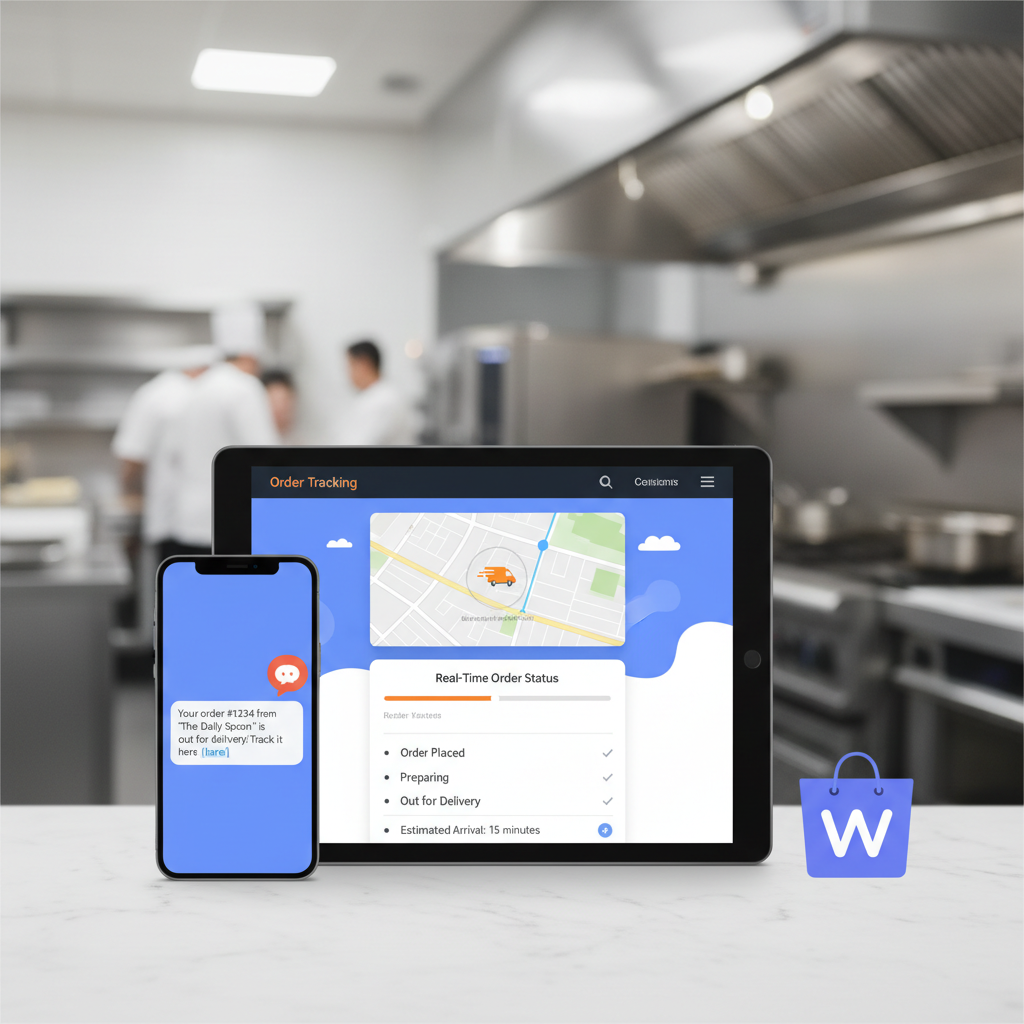
- Out for Delivery: “Your order #{order_number} is on its way, {customer_name}! Your driver should arrive in approximately {delivery_estimate} minutes.”
- Delivered: “Your order #{order_number} has been delivered. Enjoy your meal, {customer_name}! 🍕 Questions? Reply to this text.”
The tokens in curly braces (like {customer_name} and {order_number}) are dynamic merge tags that most SMS plugins support. Check your specific plugin’s documentation for the exact syntax — some use %customer_name% or [customer_name] instead.
Step 4: Configure Admin Notifications
Don’t forget the other direction. Set up an SMS alert to the restaurant owner or manager whenever a new order comes in. This is especially valuable for restaurants that don’t have staff watching a dashboard constantly. A simple “New order #{order_number} — {order_total} — {order_type}. Check dashboard.” sent to the manager’s phone ensures nothing gets missed.
[IMAGE: Screenshot of a WooCommerce SMS notification plugin settings page showing order status triggers mapped to custom SMS message templates with personalization tokens]
Building a Customer-Facing Order Tracking Page with Live Status Updates
SMS notifications tell customers what’s happening. A tracking page lets them check what’s happening on their own terms. Combining both dramatically reduces inbound inquiries.
The Simple Approach: A Shortcode-Based Tracking Page
WooCommerce already includes an order tracking shortcode: [woocommerce_order_tracking]. Create a new WordPress page, add this shortcode, and customers can enter their order number and email to see their current order status. It’s basic, but it works immediately with zero development.
To make it more useful, customize the status display names so they show your restaurant-specific labels (“Your food is being prepared!”) rather than generic WooCommerce terminology. You can filter the display text using the wc_order_status_name filter.
Linking Directly from SMS
The real power comes from including a direct tracking link in your SMS messages. Instead of making customers type in their order number, generate a URL that takes them straight to their order status. WooCommerce’s order-received endpoint already does this: yoursite.com/my-account/view-order/{order_id}/?key={order_key}. Include this URL (shortened with a service like Bitly for cleaner SMS messages) in your notification texts.
Adding Auto-Refresh for Live Updates
Nobody wants to manually refresh a page to check if their status changed. Add a simple JavaScript snippet to your tracking page that polls for updates every 30 seconds:
// Auto-refresh order status every 30 seconds
setInterval(function() {
    var statusElement = document.querySelector('.order-status');
    if (statusElement) {
        fetch(window.location.href)
            .then(response => response.text())
            .then(html => {
                var parser = new DOMParser();
                var doc = parser.parseFromString(html, 'text/html');
                var newStatus = doc.querySelector('.order-status');
                if (newStatus) {
                    statusElement.innerHTML = newStatus.innerHTML;
                }
            });
    }
}, 30000);
This is a lightweight approach that doesn’t require WebSockets or complex real-time infrastructure. For a restaurant with typical order volumes, polling every 30 seconds is perfectly adequate and won’t strain your server.
Branded Tracking Experience
If you’re using FoodMaster for your restaurant ordering, the plugin already provides a structured order flow that customers can follow. Since FoodMaster handles delivery, pickup, and dine-in orders with distinct workflows, the status updates are contextually appropriate — a dine-in QR table order won’t show “out for delivery” status, for example. This kind of order-type awareness is something you’d otherwise have to build custom conditional logic for.
Style your tracking page to match your restaurant’s brand. Add your logo, use your brand colors, and consider including a progress bar that visually shows how far along the order is. A five-step progress indicator (Received → Preparing → Ready → On the Way → Delivered) gives customers an instant visual read on their order status.
Testing, Troubleshooting, and Optimizing Your Order Tracking System
Getting everything set up is only half the battle. The other half is making sure it actually works reliably under real conditions.
Run a Full End-to-End Test
Before going live, place a test order using a real phone number (not a Twilio test number). Walk through every status change manually in WooCommerce and verify that:
- Each SMS arrives within 10 seconds of the status change
- All personalization tokens resolve correctly (no {customer_name} appearing literally)
- The tracking URL in the SMS actually loads the correct order
- The tracking page displays the correct, updated status
- The auto-refresh script updates without requiring a manual reload
Common Pitfalls and Fixes
SMS not delivering: Check your Twilio console’s message logs. The most common culprit is an unverified phone number on trial accounts — Twilio trial accounts can only send to verified numbers. Upgrade to a paid account (even $20 credit is enough for extensive testing) to send to any number.
Messages marked as spam: If you’re in the US, register your Twilio number for A2P 10DLC (Application-to-Person messaging on 10-digit long codes). Without registration, carriers increasingly filter business SMS as spam. This registration process takes a few days but is essential for reliable delivery.
Timezone issues with estimated delivery times: If your estimated delivery time shows “3:45 PM” but the customer is in a different timezone than your server, you’ll confuse people. Use relative times instead (“approximately 35 minutes”) or explicitly include the timezone. WordPress stores times in UTC by default — make sure your site’s timezone setting under Settings → General matches your restaurant’s local timezone.
Duplicate notifications: Some plugin combinations can fire status change hooks multiple times. If customers receive the same SMS twice, check for conflicting plugins that both listen to woocommerce_order_status_changed. Deactivate plugins one at a time to isolate the conflict.
Optimizing Notification Timing and Frequency
Resist the urge to notify customers at every micro-step. Five notifications for a single order is the practical maximum — more than that feels spammy. For pickup orders, you really only need three: received, preparing, and ready. For delivery orders, four or five makes sense.
Monitor your Twilio delivery rates weekly for the first month. Aim for a delivery rate above 97%. If you see rates dropping, check for carrier filtering issues or invalid phone numbers in your customer database. Some SMS plugins include built-in analytics; if yours doesn’t, the Twilio console provides detailed message-level delivery reporting.
Finally, consider adding an
Commission-free ordering
Run restaurant orders on your own WordPress site
FoodMaster adds delivery, pickup, dine-in, POS, and kitchen tools — with zero per-order fees.