On this page
- Why Allergen Labels and Dietary Filters Matter for Online Restaurant Ordering
- Planning Your Allergen and Dietary Categories: What to Include
- The Major Allergens to Track
- Dietary Preference Labels
- How to Set Up Custom Product Attributes and Taxonomy for Allergens in WooCommerce
- Step 1: Create Global Product Attributes
- Step 2: Assign Attributes to Menu Items
- Step 3: Enable Archive Pages for Filtering
- Alternative: Custom Taxonomy Approach
- Adding Front-End Dietary Filters So Customers Can Browse by Preference
- Implementing Filter Navigation
- Displaying Allergen Icons and Badges
- Mobile Considerations
- Displaying Allergen Warnings on the Cart and Checkout Pages
- Adding a Disclaimer Notice at Checkout
- Enabling Customer Allergy Notes
- Cart-Level Allergen Summaries
- Best WordPress Plugins for Restaurant Allergen Management and Recommended Workflow
- Plugin Options Compared
- Recommended Workflow for Large Menus
- Multi-Location Considerations
- Final Thoughts on Getting This Right
Why Allergen Labels and Dietary Filters Matter for Online Restaurant Ordering
A customer with a severe peanut allergy places an order through your restaurant’s website. There’s no allergen information listed anywhere on your menu. They assume a dish is safe, have a reaction, and suddenly your restaurant faces a liability claim, a reputation crisis, and a preventable tragedy. This scenario plays out more often than most restaurant owners realize—and it’s entirely avoidable with proper allergen labeling on your online menu.
Legal requirements around allergen disclosure vary by region, but the trend globally is toward stricter enforcement. In the European Union, Regulation (EU) No 1169/2011 requires all food businesses—including those selling online—to declare 14 specific allergens before purchase completion. The UK’s Natasha’s Law (2021) extended labeling requirements to pre-packed foods. In the United States, the Food Allergen Labeling and Consumer Protection Act (FALCPA) mandates disclosure of the eight major allergens, with sesame added as the ninth under the FASTER Act of 2021.
Beyond legal compliance, there’s a powerful business case. Research from the Food Standards Agency indicates that approximately 2 million people in the UK alone live with a diagnosed food allergy. In the US, that number exceeds 32 million according to FARE (Food Allergy Research & Education). These customers actively seek restaurants that make allergen information accessible—and they become fiercely loyal when they find one that does it well.
The demand for dietary-specific options has also exploded. Plant-based food sales grew 6.2% in 2022 according to the Good Food Institute, and searches for “gluten-free restaurants near me” continue to climb year over year. If your WooCommerce restaurant menu doesn’t accommodate these preferences with clear labeling and filtering, you’re leaving revenue on the table and potentially exposing yourself to legal risk.
Planning Your Allergen and Dietary Categories: What to Include
Before touching any code or plugin settings, you need a systematic audit of your menu. Grab a spreadsheet, list every menu item, and work with your kitchen team to identify exactly what each dish contains. This step is non-negotiable—guessing leads to dangerous inaccuracies.
The Major Allergens to Track
Start with the allergens most commonly regulated worldwide:
- Gluten (wheat, barley, rye, oats)
- Peanuts
- Tree nuts (almonds, cashews, walnuts, etc.)
- Dairy/Milk
- Eggs
- Fish
- Shellfish/Crustaceans
- Soy
- Sesame
- Celery (required in EU)
- Mustard (required in EU)
- Lupin (required in EU)
- Molluscs (required in EU)
- Sulphites (required in EU when exceeding 10mg/kg)
Dietary Preference Labels
Separate from allergens, dietary labels help customers filter based on lifestyle or religious choices:
- Vegan – no animal products whatsoever
- Vegetarian – no meat or fish
- Keto/Low-carb – high fat, very low carbohydrate
- Halal – prepared according to Islamic dietary law
- Kosher – prepared according to Jewish dietary law
- Paleo – no grains, legumes, or processed foods
Organize your spreadsheet with two column groups: “Contains” (for allergens present) and “Suitable For” (for dietary preferences met). A grilled chicken salad might contain sesame and mustard (in the dressing) while being suitable for gluten-free, keto, and halal diners. This dual-axis approach will directly map to how you structure the data in WooCommerce.
[IMAGE: Spreadsheet example showing restaurant menu items with columns for allergen contents and dietary suitability labels]
How to Set Up Custom Product Attributes and Taxonomy for Allergens in WooCommerce
WooCommerce’s built-in attribute system is surprisingly well-suited for allergen management. Here’s how to set it up properly so your data is structured, filterable, and scalable.
Step 1: Create Global Product Attributes
Navigate to Products → Attributes in your WordPress dashboard. Create two global attributes:
- Contains (slug:
contains) – for allergen declarations - Suitable For (slug:
suitable-for) – for dietary preference labels
After creating each attribute, click “Configure terms” and add your individual allergens or dietary labels as terms. For the “Contains” attribute, add: Gluten, Peanuts, Tree Nuts, Dairy, Eggs, Fish, Shellfish, Soy, Sesame, and so on. For “Suitable For,” add: Vegan, Vegetarian, Keto, Halal, Kosher, Gluten-Free.
Step 2: Assign Attributes to Menu Items
Edit any product (menu item), scroll to the Product Data section, and click the Attributes tab. Select your “Contains” attribute from the dropdown, then check all applicable allergens for that dish. Repeat with “Suitable For.” Critically, check the “Visible on the product page” box so customers can see this information, and check “Used for variations” only if you plan to create variable products based on allergen profiles (rarely needed for restaurants).
Step 3: Enable Archive Pages for Filtering
When creating your global attributes, make sure “Enable Archives” is checked. This generates a dedicated URL for each term (e.g., yoursite.com/contains/dairy/), which improves SEO and enables plugin-based filtering.
Alternative: Custom Taxonomy Approach
If you need more control—such as adding allergen icons or detailed descriptions to each term—register a custom taxonomy using a plugin like Custom Post Type UI or a code snippet in your theme’s functions.php. This approach lets you attach custom fields (like an SVG icon) to each allergen term, which is useful for visual badges on the front end.
If you’re running your restaurant ordering through FoodMaster, these WooCommerce attributes integrate seamlessly since the plugin is built directly on WooCommerce’s product architecture. Your allergen data carries through to the ordering flow, POS system, and kitchen display without any additional configuration.
Adding Front-End Dietary Filters So Customers Can Browse by Preference
Structured data means nothing if customers can’t use it. You need visible, intuitive filters on your menu page that let someone with a nut allergy instantly hide every dish containing nuts—or let a vegan customer see only plant-based options.
Implementing Filter Navigation
Several approaches work here, depending on your theme and page builder:
WooCommerce’s native layered navigation widget supports attribute filtering out of the box. Add the “Filter Products by Attribute” widget to your shop/menu page sidebar, select your “Suitable For” or “Contains” attribute, and customers can check/uncheck terms. The limitation is that it requires a sidebar layout and uses page reloads rather than AJAX filtering.
For a smoother experience, dedicated filter plugins offer AJAX-powered filtering without page reloads. JetSmartFilters (part of Crocoblock) and WooCommerce Product Filter by Barn2 both support attribute-based filtering with customizable UI elements—checkboxes, radio buttons, or visual swatches. These let you place filter bars directly above your menu grid rather than relegating them to a sidebar.
Displaying Allergen Icons and Badges
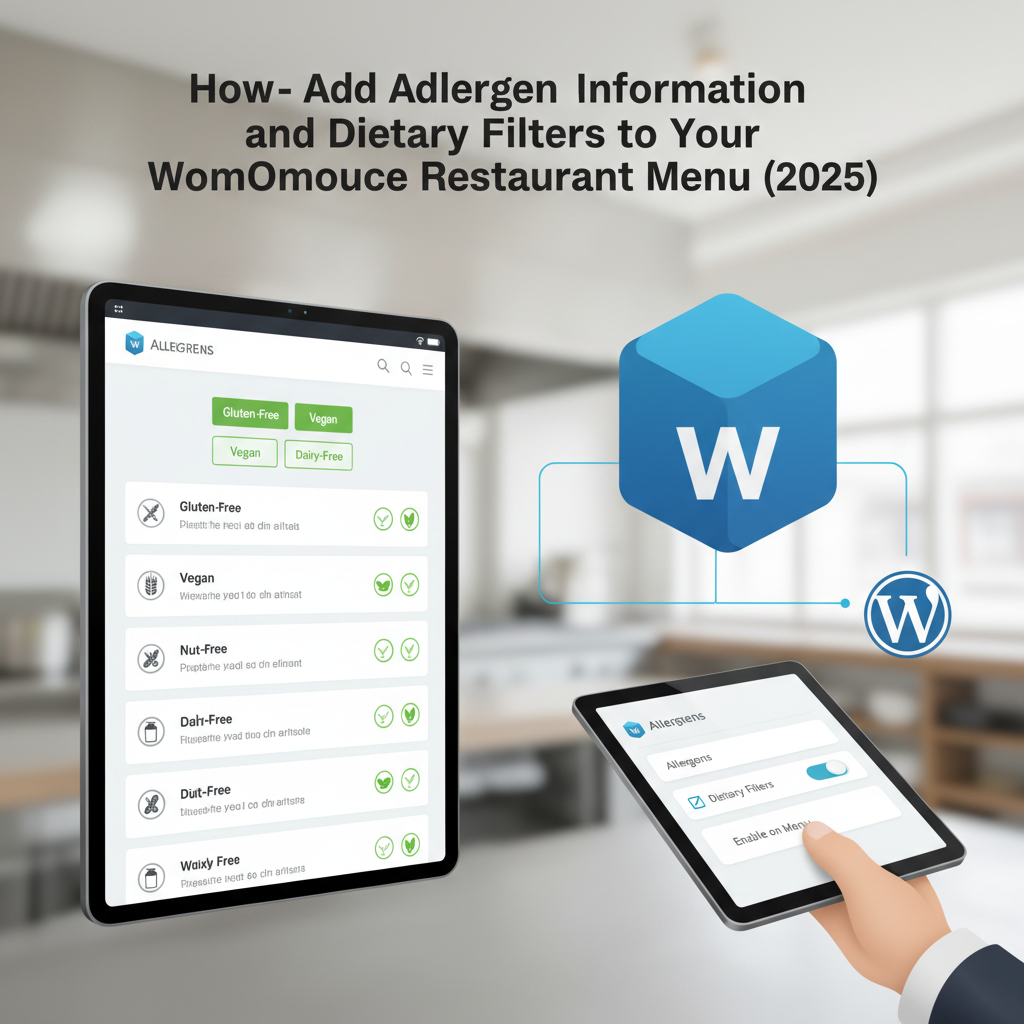
Visual badges are far more effective than text-only labels. A small green “V” badge for vegan or a wheat icon with a strikethrough for gluten-free communicates instantly without requiring customers to read fine print.
To implement badges on product cards, add a code snippet to your theme’s functions.php or a site-specific plugin:
Hook into woocommerce_after_shop_loop_item_title to display badges on archive/menu pages, and woocommerce_single_product_summary for single product pages. Pull the attribute terms using wc_get_product_terms() and output them as styled spans or image tags with appropriate CSS classes.
For the visual design, use a consistent icon set. The Allergen Icons set from The Noun Project or custom SVGs work well. Keep icons small (16-20px), use consistent colors (red for “contains allergen,” green for “free from”), and always include a tooltip or screen-reader text for accessibility.
Mobile Considerations
Over 60% of restaurant orders now come from mobile devices. Your filters need to work flawlessly on small screens. Collapsible filter panels that expand on tap, sticky filter bars, or a simple toggle row of dietary buttons at the top of the menu page all work well. Test thoroughly on actual phones—what looks fine in a browser’s responsive mode sometimes breaks on real devices.
[IMAGE: Restaurant menu page on mobile showing dietary filter buttons (Vegan, Gluten-Free, Nut-Free) at the top and allergen badge icons displayed on menu item cards]
Displaying Allergen Warnings on the Cart and Checkout Pages
Filtering and labeling on the menu page is essential, but your allergen communication shouldn’t stop there. The cart and checkout pages are your last opportunity to remind customers about potential allergens and protect your business legally.
Adding a Disclaimer Notice at Checkout
Use WooCommerce’s built-in hook system to inject an allergen disclaimer above the order button. Add this to your theme’s functions file or a custom plugin:
Hook into woocommerce_review_order_before_submit to display a notice like: “Allergen Notice: While we take precautions, our kitchen handles all major allergens including nuts, gluten, dairy, and shellfish. Cross-contamination may occur. Please inform us of severe allergies in the order notes below.”
Style this with a distinct background color (light yellow or light red) and a warning icon so it doesn’t get lost among other checkout elements.
Enabling Customer Allergy Notes
WooCommerce includes an “Order notes” field by default at checkout, but many themes hide it or customers don’t notice it. Make this field prominent and rename it to something specific like “Allergy or Dietary Requirements” using the woocommerce_checkout_fields filter. Change the placeholder text to: “Please list any allergies or dietary requirements here.”
For a more structured approach, add a dedicated custom field with checkboxes for common allergies. This makes the information easier for kitchen staff to parse than free-text notes—especially during a busy service. These notes should flow through to your order management system and, ideally, print on kitchen tickets.
If you’re using a WooCommerce restaurant ordering plugin with integrated kitchen display and automatic printing capabilities, make sure these allergy notes are prominently displayed on the kitchen output. A missed allergy note buried in small print on a ticket is almost as dangerous as having no system at all.
Cart-Level Allergen Summaries
An advanced but highly effective approach: display a consolidated allergen summary on the cart page. Loop through all cart items, aggregate their “Contains” attributes, and display a single line like: “Your order contains: Gluten, Dairy, Eggs, Sesame.” This gives customers one final check before proceeding to payment.
Best WordPress Plugins for Restaurant Allergen Management and Recommended Workflow
Let’s compare the tools available and establish a workflow that scales from a single location to a multi-branch operation.
Plugin Options Compared
Advanced Custom Fields (ACF) Pro – The most flexible option for custom allergen data. Create repeater fields, true/false toggles for each allergen, and rich text fields for detailed ingredient lists. Works beautifully for restaurants that need granular control. Downside: requires developer involvement to display data on the front end and doesn’t natively support filtering.
WooCommerce Native Attributes – Free, built-in, and immediately filterable. Best for most restaurants. Supports front-end display through theme template overrides and works with all major filter plugins. The limitation is that you can’t easily attach metadata (like icons or severity levels) to individual terms without additional code.
FoodMaster – As a complete restaurant ordering system built on WooCommerce, FoodMaster inherits full compatibility with WooCommerce attributes and any filter plugin you layer on top. The advantage here is that allergen data flows through the entire ordering pipeline—from menu display through QR table ordering, POS, kitchen display screens, and printed tickets. For restaurants managing delivery, pickup, and dine-in simultaneously, this integrated approach means allergen information never gets lost between systems.
WP Recipe Maker – Primarily designed for food blogs, but its structured recipe data includes allergen and dietary fields with Schema.org markup. Useful if you want allergen data to appear in Google rich results, though it’s not built for ordering workflows.
Recommended Workflow for Large Menus
For restaurants with 50+ menu items or multiple locations, here’s the workflow that minimizes errors and maintenance headaches:
- Centralize your allergen data in a master spreadsheet (Google Sheets works well for collaboration). Include columns for every allergen and dietary label. Have your head chef sign off on accuracy.
- Use WooCommerce’s built-in CSV import/export to bulk-assign attributes. Format your spreadsheet with pipe-separated attribute values (e.g., “Gluten|Dairy|Eggs” in the “Contains” column) and import using WooCommerce’s product importer. This is dramatically faster than editing 100+ products individually.
- Set up global attributes with archives enabled as described above. This gives you filtering capability and SEO-friendly URLs simultaneously.
- Install a front-end filter plugin that supports AJAX filtering on your menu/shop page. Configure it to display your “Suitable For” attribute as the primary filter (positive filtering feels better to customers than exclusion-based filtering).
- Add visual badges via a code snippet or your theme’s customization options. Keep the icon set consistent across all locations if you’re multi-site.
- Implement checkout disclaimers and allergy note fields using hooks or a checkout customization plugin.
- Establish a review cycle – every time a recipe changes, the spreadsheet gets updated and re-imported. Assign ownership of this process to a specific team member.
Multi-Location Considerations
If you operate multiple locations with slightly different menus or suppliers, allergen profiles may differ between branches. A WordPress multisite setup or location-specific product variations can handle this, but the key principle remains: never assume allergen data is identical across locations unless you’ve verified it. Each site or location should maintain its own verified allergen spreadsheet.
Final Thoughts on Getting This Right
Allergen management isn’t a set-and-forget feature. Ingredients change, suppliers switch, recipes evolve. Build a quarterly review into your operations calendar where kitchen staff and your web team verify that online allergen data matches current reality. The combination of WooCommerce’s flexible attribute system, proper front-end filtering, and a robust ordering plugin that carries allergen data through to the kitchen gives your customers confidence—and keeps your restaurant on the right side of both the law and public trust.
Start with the spreadsheet audit this week. Get your chef involved. Then implement the technical pieces knowing your data foundation is solid. Your customers with dietary restrictions will notice—and they’ll come back.
Commission-free ordering
Run restaurant orders on your own WordPress site
FoodMaster adds delivery, pickup, dine-in, POS, and kitchen tools — with zero per-order fees.