On this page
- Why Restaurant Websites Are a Prime Target for Hackers
- Essential WordPress Hardening Steps Every Restaurant Owner Should Take
- 1. Choose hosting built for WooCommerce
- 2. Enforce strong admin credentials
- 3. Turn on two-factor authentication (2FA)
- 4. Limit login attempts and hide wp-admin
- 5. Keep everything updated — and audit your plugins
- 6. Disable file editing in the dashboard
- Securing WooCommerce and the Checkout Process
- SSL/HTTPS isn’t optional
- Understand PCI-DSS basics (without panicking)
- Choose your gateway wisely
- Lock down user roles
- Protecting Against Fake Orders, Spam, and Bot Attacks
- Add CAPTCHA to checkout and contact forms
- Use honeypot fields
- Rate-limit orders by IP and phone
- Geo-block where you don’t deliver
- Build an order verification workflow
- Backups, Malware Scanning, and Disaster Recovery
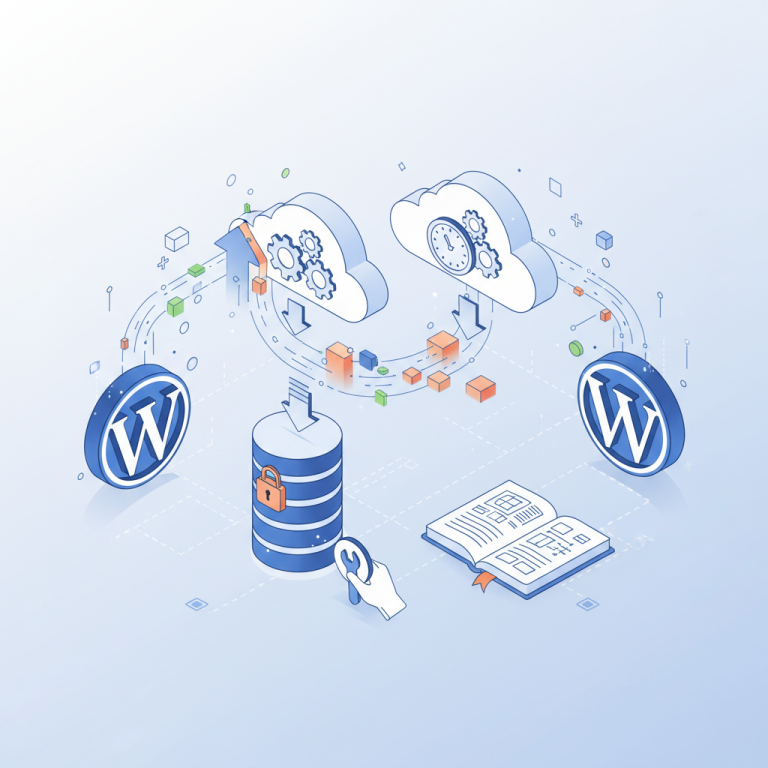
- Follow the 3-2-1 backup rule
- Recommended backup plugins
- Run malware scans weekly
- If you get hacked or blacklisted
- Ongoing Security Maintenance Routine for Busy Restaurant Owners
- Weekly (10 minutes)
- Monthly (30 minutes)
Running a restaurant website isn’t like running a blog. When your site goes down at 7 PM on a Friday, you’re not losing pageviews — you’re losing actual dinner orders, frustrated customers, and the trust you spent years building. And unfortunately, restaurant sites running WooCommerce have become a favorite playground for attackers in 2024 and 2025, partly because so many small operators set up their ordering system once and never touch the security settings again.
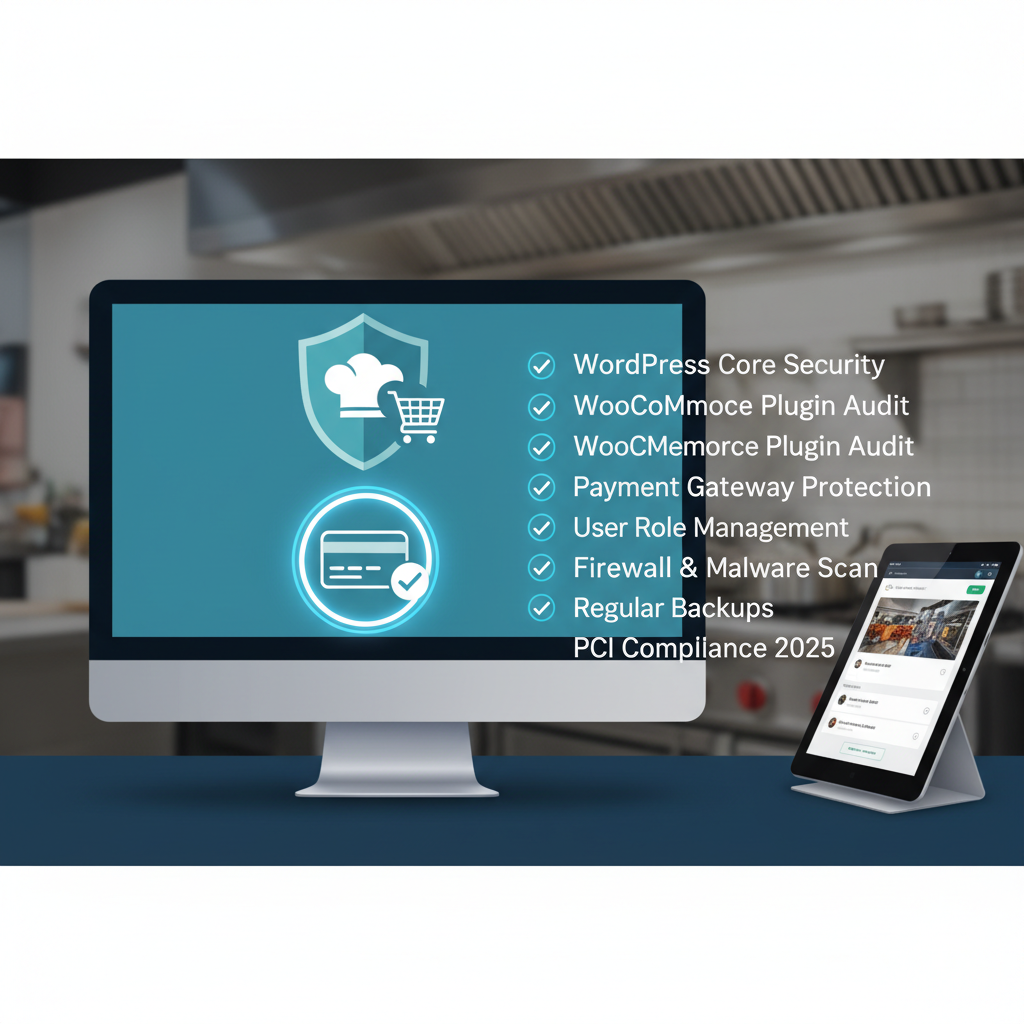
This checklist walks through everything you should have in place this year — from basic WordPress hardening to fraud prevention on your checkout — written for restaurant owners who’d rather be in the kitchen than in the wp-admin panel.
Why Restaurant Websites Are a Prime Target for Hackers
Restaurants tick almost every box on an attacker’s wish list. You process card payments daily, you store customer names, addresses, and phone numbers, and most importantly, you operate on tight margins with no dedicated IT staff. According to Verizon’s 2024 Data Breach Investigations Report, the accommodation and food services industry remains one of the top sectors hit by financially-motivated breaches, with payment card data being the most common target.
There are four specific risks every WooCommerce restaurant should understand:
- Payment skimming (Magecart-style attacks): Attackers inject malicious JavaScript into your checkout page that quietly copies card details as customers type them. The site looks normal. Orders go through. Nobody notices for weeks.
- Fake or fraudulent orders: Bots flood your kitchen with bogus cash-on-delivery orders, wasting food prep and driver time. During a busy Saturday, even 20 fake orders can derail service.
- PII leaks: Customer phone numbers, addresses, and order history are gold for phishing scams and resale on dark-web markets.
- Downtime during peak hours: A DDoS or ransomware hit at dinner rush can cost a single-location restaurant thousands in lost sales plus reputational damage that lingers in Google reviews.
The kicker: Google blacklists infected sites quickly. If your domain gets flagged for malware, your local SEO rankings vanish overnight, and customers searching “pizza near me” see a red warning screen instead of your menu.
Essential WordPress Hardening Steps Every Restaurant Owner Should Take
Security isn’t a single switch — it’s a stack of small, boring decisions that collectively make your site a hard target. Start with these foundations.
1. Choose hosting built for WooCommerce
Shared $3/month hosting is a false economy. Managed WordPress hosts like Kinsta, WP Engine, SiteGround, or Cloudways include server-level firewalls, automatic malware scanning, isolated environments, and free SSL certificates. For a busy restaurant, the extra $20–$50/month pays for itself the first time it blocks an attack.
2. Enforce strong admin credentials
Never use “admin” as your username. Require at least 14-character passwords with a mix of types, and store them in a password manager like 1Password or Bitwarden. If your front-of-house manager needs access, give them a Shop Manager role, never Administrator.
3. Turn on two-factor authentication (2FA)
This single step blocks the overwhelming majority of brute-force login attempts. Free plugins like Wordfence Login Security, Two Factor Authentication by Simba, or Solid Security add 2FA via apps like Google Authenticator or Authy in under five minutes.
4. Limit login attempts and hide wp-admin
Use Limit Login Attempts Reloaded to lock out IPs after 3–5 failed tries. Then change your login URL from /wp-admin to something custom (e.g., /staff-login) using WPS Hide Login. Bots scanning the open web for default WordPress logins will simply move on.
5. Keep everything updated — and audit your plugins
Outdated plugins remain the #1 entry point for WordPress hacks. Patchstack’s 2024 report identified that over 97% of WordPress vulnerabilities originated from plugins, not core. Enable auto-updates for trusted plugins, and uninstall (don’t just deactivate) anything you’re not actively using. Every dormant plugin is a potential backdoor.
[IMAGE: WordPress dashboard showing the Updates screen with pending plugin and theme updates highlighted]
6. Disable file editing in the dashboard
Add this single line to your wp-config.php file:
define('DISALLOW_FILE_EDIT', true);
If an attacker does get into your admin, they can’t inject malicious code through Appearance → Theme Editor.
Securing WooCommerce and the Checkout Process
The checkout is where money changes hands — and where the most damaging attacks target. Here’s how to lock it down without breaking the customer experience.
SSL/HTTPS isn’t optional
Every page on your site — not just the checkout — must serve over HTTPS. Most hosts now include free Let’s Encrypt certificates that auto-renew. Use the Really Simple SSL plugin to catch any mixed-content issues. Without a valid certificate, Chrome shows a “Not Secure” warning that scares off 80%+ of customers before they even see your menu.
Understand PCI-DSS basics (without panicking)
If you use hosted payment gateways like Stripe, PayPal, or Square — meaning the customer enters card details into a field served by them, not your site — you fall under PCI-DSS SAQ A, the simplest compliance tier. As long as you never see, store, or transmit raw card numbers through your own server, you avoid 95% of compliance complexity.
The rule is simple: never install a payment plugin that asks customers to enter card details directly on your WooCommerce site unless it uses iframes or tokenized fields. Stripe’s official WooCommerce plugin and PayPal’s checkout do this correctly out of the box.
Choose your gateway wisely
For most restaurants in 2025, Stripe offers the best mix of fraud detection (Radar), Apple Pay/Google Pay support, and reasonable fees. PayPal adds buyer trust and one-tap checkout. If you’re in a region with Stripe limitations, look for gateways that support 3D Secure 2 (3DS2), which shifts liability for fraudulent transactions from you to the issuing bank.
Lock down user roles
By default, customers in WooCommerce get the Customer role, which is fine. But review who has elevated access: only one or two people need Administrator. Drivers, hosts, and kitchen staff using a POS or kitchen display don’t need WordPress access at all — and if they do, custom roles via User Role Editor let you grant only what’s needed.
This is one reason FoodMaster’s restaurant ordering system uses a separate POS and kitchen display interface rather than exposing WordPress to floor staff — fewer people in the admin panel means a smaller attack surface.
Protecting Against Fake Orders, Spam, and Bot Attacks
This is the threat most restaurant owners underestimate until it happens to them. A bot can place 50 cash-on-delivery orders in 10 minutes, and your kitchen will start prepping every one of them before you realize what’s going on.
Add CAPTCHA to checkout and contact forms
Google reCAPTCHA v3 runs invisibly and scores each visitor’s behavior. For WooCommerce, use plugins like Advanced noCaptcha & Invisible Captcha or CAPTCHA 4WP to add it to login, registration, checkout, and reset forms. Cloudflare Turnstile is a privacy-friendly alternative that doesn’t require Google.
Use honeypot fields
A honeypot is an invisible form field that real customers can’t see but bots automatically fill in. If it’s filled, the order is rejected. Plugins like WooCommerce Anti-Spam add this with zero impact on UX.
Rate-limit orders by IP and phone
No legitimate customer places six orders in two minutes. Set rules at the firewall level (Wordfence, Cloudflare, or your host) to throttle requests from the same IP. For cash-on-delivery especially, require phone number verification via SMS — services like Twilio Verify cost pennies per order and stop fake-order floods cold.
Geo-block where you don’t deliver
If your restaurant only delivers within a 5-mile radius of Brooklyn, you have zero legitimate customers in Vietnam or Russia. Cloudflare’s free tier lets you block entire countries from accessing your site, eliminating a huge percentage of bot traffic in one click.
Build an order verification workflow
For larger or first-time cash orders, automate a quick verification call or SMS confirmation before the kitchen starts cooking. FoodMaster includes order confirmation workflows and SMS notifications that can be configured to require customer confirmation before tickets print, which has saved restaurants from preparing dozens of fraudulent orders during attempted attacks.
[IMAGE: Restaurant kitchen display screen showing incoming orders with verification status indicators]
Backups, Malware Scanning, and Disaster Recovery
Assume you will be compromised at some point. The difference between a 2-hour inconvenience and a 2-week catastrophe is your backup strategy.
Follow the 3-2-1 backup rule
- 3 copies of your data
- 2 different storage media (e.g., your host + cloud storage)
- 1 copy offsite
For a busy WooCommerce Restaurant Menu (2026)”>WooCommerce Restaurant Website (2026)”>WooCommerce restaurant taking orders daily, your database changes every minute. Hourly or real-time backups are non-negotiable.
Recommended backup plugins
- UpdraftPlus: Free version covers most needs; Premium adds incremental backups and cloned staging sites.
- BlogVault: Built specifically for WooCommerce with real-time order backups — arguably the best option for active stores.
- Jetpack VaultPress Backup: Polished, automatic, and integrates cleanly with WooCommerce activity logs.
Also confirm your host’s backup policy. Managed hosts typically keep 14–30 days of daily snapshots, but those alone aren’t enough — if your host account is compromised, the attacker can delete them.
Run malware scans weekly
Wordfence, Sucuri SiteCheck, and MalCare all scan WordPress for known malware signatures. Schedule automatic weekly scans and review the email reports. If you spot unfamiliar admin users, modified core files, or unexpected scheduled tasks (cron jobs), investigate immediately.
If you get hacked or blacklisted
- Put the site in maintenance mode to stop further damage and protect customers.
- Restore from a clean backup taken before the infection — date this carefully using your activity logs.
- Change all passwords: WordPress admin, hosting, database, FTP, and email.
- Scan and clean using Sucuri or hire a professional cleanup service ($100–$300 typically).
- Submit a review request through Google Search Console once clean to remove the blacklist warning.
- Notify customers if PII or payment data may have been exposed — required by GDPR, CCPA, and most state laws.
Write this incident response plan now, before you need it. Print it. Tape it inside the office. A restaurant owner with a checklist recovers in hours; one without panics for days.
Ongoing Security Maintenance Routine for Busy Restaurant Owners
You don’t need to become a security engineer. You just need a rhythm. Here’s a realistic schedule that takes about an hour a month.
Weekly (10 minutes)
- Check uptime monitoring alerts (UptimeRobot has a free tier).
- Review the previous week’s orders for unusual patterns — bursts of cash orders, repeated addresses, mismatched names and phones.
- Apply pending WordPress, theme, and plugin updates (test on staging first if you have one).
- Glance at your security plugin’s dashboard for blocked attacks or new alerts.
Monthly (30 minutes)
- Run a full malware scan manually.
- Review all user accounts — remove anyone who’s left the business.
- Audit installed plugins; delete anything unused.
- Verify your backups by downloading the latest one and confirming it opens.
- Check Google Search Console for security warnings or manual actions.
Quarterly (1 hour)
Commission-free ordering
Run restaurant orders on your own WordPress site
FoodMaster adds delivery, pickup, dine-in, POS, and kitchen tools — with zero per-order fees.