On this page
- What Is a PWA and Why Restaurants Should Care
- PWA vs Native App vs Regular Mobile Site: A Quick Comparison
- Preparing Your WooCommerce Restaurant Site for PWA Conversion
- Step-by-Step: Installing and Configuring a PWA Plugin on WordPress
- 1. Install the plugin
- 2. Configure the manifest
- 3. Verify the service worker
- 4. Test “Add to Home Screen”
- 5. Common gotchas
- Adding Push Notifications, Offline Menus, and Re-Engagement Features
- Push notifications
- Offline menu caching
- Re-engagement mechanics
- Testing, Launching, and Promoting Your Restaurant PWA
- Run a Lighthouse PWA audit
Your customers are already ordering from their phones. The question is whether they’re doing it from a clunky mobile browser tab that keeps getting lost, or from a slick icon sitting right on their home screen next to Instagram. If you run a WooCommerce-powered restaurant and you’ve been staring at native app quotes that start at $15,000 and go up from there, there’s a much smarter middle ground: a Progressive Web App.
A PWA gives your restaurant the “tap the icon, order the burger” experience without Apple’s 30% cut, without Android SDKs, and without hiring a mobile dev team. Below is a complete, practical walkthrough of turning your existing WooCommerce restaurant into a PWA that customers can install in two taps.
What Is a PWA and Why Restaurants Should Care
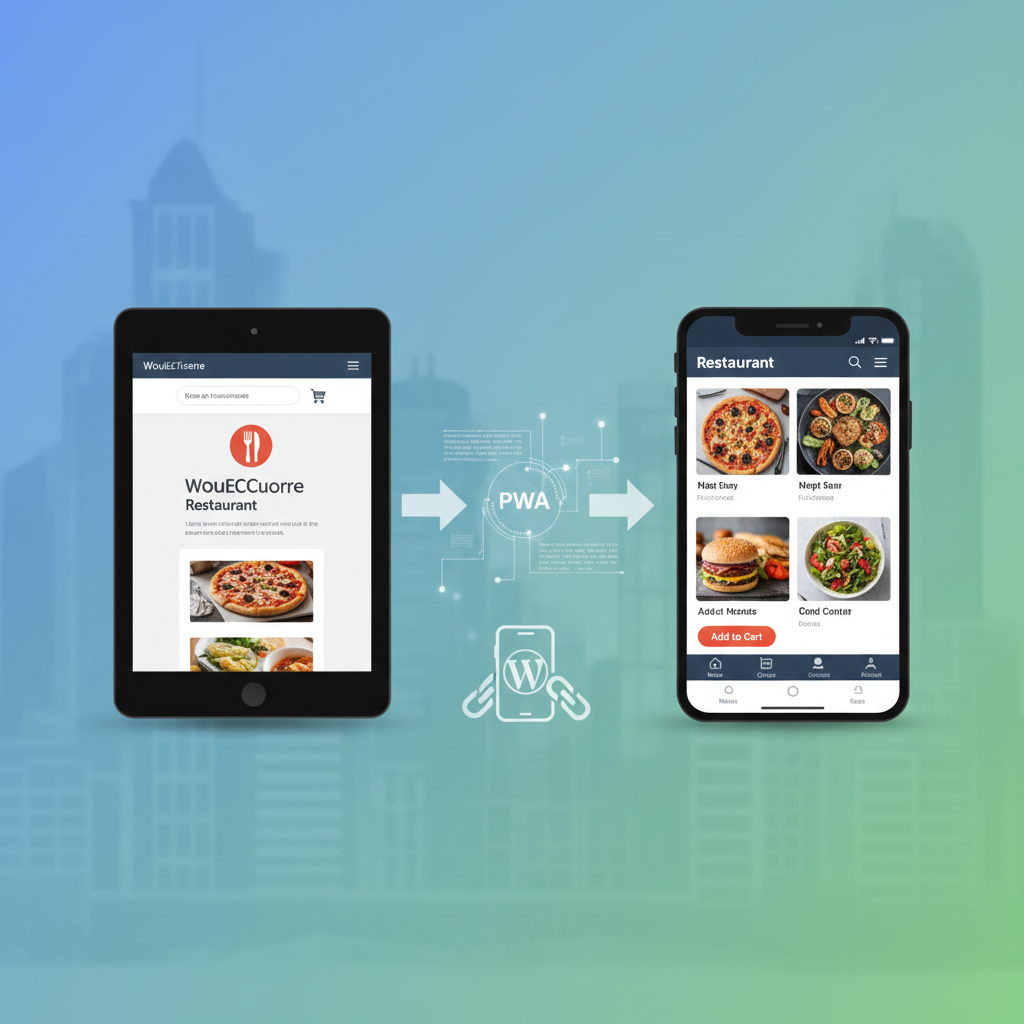
A Progressive Web App is a website that behaves like a native mobile app. When a customer visits your site on their phone, the browser offers to “Add to Home Screen.” Once they tap yes, an icon appears just like any other app. Open it, and there’s no browser bar, no URL, no pinch-to-zoom fumbling — just your menu, full screen, loading almost instantly.
Under the hood, PWAs rely on three technologies: a service worker (a background script that caches files and enables offline use), a web app manifest (a JSON file describing your icon, name, and colors), and HTTPS (mandatory for security). That’s it. No app store submission. No approval process. No 30% commission on every order.
Why does this matter for restaurants specifically? Mobile is where food ordering lives. Google’s own research on mobile behavior shows that users abandon sites that take longer than three seconds to load, and hungry customers are famously impatient. A PWA loads cached assets almost instantly on repeat visits, which directly impacts whether that hungry customer completes checkout or bounces to a competitor.
There’s also a retention angle. Customers who install your PWA are dramatically more likely to reorder because your restaurant is now one tap away instead of a Google search. Case studies published by companies like Twitter, Starbucks, and Uber (all of whom launched PWAs) have consistently reported higher engagement and lower data usage compared to their mobile web equivalents.
PWA vs Native App vs Regular Mobile Site: A Quick Comparison
Before you commit, it helps to see the three options side by side. Here’s how they stack up for a typical independent restaurant or small chain:
| Feature | Regular Mobile Site | PWA | Native iOS/Android App |
|---|---|---|---|
| Typical build cost | Included in your site | $0–$200 (plugin) | $15,000–$80,000+ |
| Home screen icon | No | Yes | Yes |
| Push notifications | No | Yes (Android + iOS 16.4+) | Yes |
| Offline browsing | No | Yes (cached menu) | Yes |
| App Store approval | Not required | Not required | Required (Apple + Google review) |
| Updates | Instant | Instant | User must update |
| SEO / discoverable in Google | Yes | Yes | No |
| App store commissions | None | None | 15–30% |
For 90% of independent restaurants and small chains, a PWA hits the sweet spot: near-native experience, real push notifications, offline menu access, and none of the app store gatekeeping. Native apps still make sense if you have a WooCommerce Restaurant Website”>Restaurant Website (2026)”>loyalty program with complex hardware integrations (like Bluetooth beacons) or if your marketing team specifically wants App Store presence, but for pure ordering? PWAs win on ROI every time.
Preparing Your WooCommerce Restaurant Site for PWA Conversion
A PWA is only as good as the site underneath it. Wrapping a slow, bloated WooCommerce store in a PWA shell doesn’t make it faster — it just makes the slowness feel more like an app. Before you install a single PWA plugin, check these prerequisites:
- HTTPS is non-negotiable. Service workers only run on secure origins. If you’re still on HTTP, get a free Let’s Encrypt certificate from your host today.
- Mobile-responsive theme. Test your menu pages on a real phone, not just Chrome’s device emulator. Buttons should be at least 44px tall, and the “Add to Cart” flow shouldn’t require zooming.
- Core Web Vitals in the green. Run your homepage and a category page through PageSpeed Insights. Aim for LCP under 2.5 seconds and CLS under 0.1. If you’re above 4 seconds, fix that first.
- Clean menu structure. Products organized into logical categories (Starters, Mains, Drinks, Desserts) with proper WooCommerce category images.
- A lightweight ordering plugin. This is where the plugin you choose matters enormously.
On that last point: bloated ordering plugins that load 40 JavaScript files on every page will tank your PWA performance. We built FoodMaster (formerly WooFood) specifically to stay lean while adding restaurant-critical features like delivery zones, pickup time slots, minimum order values, and tipping — without dragging down page load. It works with any properly coded theme, keeps your cart flow snappy, and doesn’t force jQuery bloat onto your checkout.
[IMAGE: side-by-side screenshot of a restaurant website loading in a normal mobile browser versus the same site installed as a PWA icon on an iPhone home screen]
Once your foundation is solid — HTTPS on, theme responsive, Core Web Vitals healthy, ordering plugin lean — you’re ready to layer PWA capabilities on top.
Step-by-Step: Installing and Configuring a PWA Plugin on WordPress
There are three well-regarded PWA plugins for WordPress: Super Progressive Web Apps (SuperPWA), PWA for WP & AMP, and Progressier. SuperPWA is the fastest to set up and works well for most restaurants. Progressier offers more advanced features (like richer push notification targeting) but comes with a monthly fee. We’ll walk through SuperPWA here because it’s free and gets 90% of restaurants where they need to go.
1. Install the plugin
In your WordPress dashboard, go to Plugins → Add New, search for “Super Progressive Web Apps,” install and activate. A new “SuperPWA” menu appears in your sidebar.
2. Configure the manifest
Open SuperPWA → Settings. This is where you define how your app looks on the home screen:
- Application Name: Your full restaurant name (e.g., “Luigi’s Pizza & Pasta”)
- Application Short Name: 12 characters max — this is what appears under the icon (e.g., “Luigi’s”)
- Description: One sentence describing what your app does. “Order pizza and pasta from Luigi’s for delivery or pickup.”
- Icon: Upload a 512×512 PNG. Use your logo on a solid brand-color background — transparent PNGs look terrible on iOS home screens.
- Splash Screen: Same principle. 512×512 or larger, branded, high contrast.
- Background Color: The color shown while your app loads. Match it to your site’s header.
- Theme Color: The color of the mobile status bar when the app is open.
- Start Page: Set this to your menu or ordering page — not your homepage. When customers open your app, they want the menu, not a hero video.
- Display: Choose “Standalone” — this hides the browser UI so it truly feels like an app.
3. Verify the service worker
SuperPWA generates a service worker automatically. To confirm it’s running, open your site in Chrome on desktop, press F12, go to the Application tab, then click Service Workers. You should see one registered and marked “activated and running.”
4. Test “Add to Home Screen”
On Android Chrome, visit your site — after a few seconds an “Install app” banner should appear at the bottom. On iPhone Safari, tap the share button and scroll to “Add to Home Screen.” If the icon appears with your logo and the app opens without the Safari address bar, you’re live.
5. Common gotchas
- If the icon shows a screenshot of your site instead of your logo, your icon PNG is missing or under 192×192.
- If the install prompt never appears on Android, your manifest is likely missing a required field. Run Lighthouse (covered below) to diagnose.
- Aggressive caching plugins (WP Rocket, W3 Total Cache) sometimes cache the manifest incorrectly. Exclude
manifest.jsonandsw.jsfrom caching rules. - WooCommerce checkout can behave oddly if the service worker caches cart pages. Make sure your PWA plugin is configured to never cache
/cart/,/checkout/, or/my-account/URLs.
Adding Push Notifications, Offline Menus, and Re-Engagement Features
Installation is table stakes. The real revenue driver is what you do with the app after a customer installs it. Three features matter most for restaurants:
Push notifications
Web push works on Android (all versions), Windows, macOS, and — as of iOS 16.4 released in March 2023 — iPhone and iPad, but only for PWAs that have been added to the home screen. This is a big deal. It means you can now reach iPhone users with push notifications without a native app for the first time in web history.
SuperPWA has a paid add-on for OneSignal integration, or you can integrate OneSignal directly with a separate plugin. OneSignal is free up to 10,000 subscribers, which covers the vast majority of independent restaurants.
Notification copy that actually gets tapped:
- Order status: “Your order is in the oven 🍕 — ready in 12 minutes.” (Sent automatically via webhook when order status changes.)
- Abandoned cart: “You left a Margherita in your cart. Still hungry? Tap to finish your order.”
- Time-based promo: “It’s Friday. It’s raining. We deliver. 15% off with code RAINY15.”
- New menu drop: “New: Truffle Mushroom Risotto. Tap to try it tonight.”
Send no more than two or three notifications per week. Restaurants that blast daily promos see subscription drop-off rates above 40% within a month.
Offline menu caching
Your service worker can cache menu pages so customers can browse even with a dropped signal — a common scenario for someone ordering delivery from a basement apartment or a moving train. SuperPWA handles basic caching automatically. For more control, the “Offline Page” setting lets you show a custom page (with a phone number to call for orders) if the network is completely down at checkout.
[IMAGE: mobile phone displaying a push notification from a restaurant PWA saying “Your order is ready for pickup” with the app icon visible]
Re-engagement mechanics
Combine the PWA with a loyalty layer to compound retention. Even a simple “order 5 times, get 20% off next order” system, tracked through WooCommerce customer accounts, turns first-time PWA installers into regulars. For deeper implementation ideas, our guides on restaurant customer retention and ordering optimization cover coupon strategies and loyalty setups that pair well with a PWA install base.
Testing, Launching, and Promoting Your Restaurant PWA
Before you tell customers about the app, audit it properly.
Run a Lighthouse PWA audit
In Chrome DevTools (F12), open the Lighthouse tab, check “Progressive Web App” and “Performance,” and click Analyze page load. You’re looking for:
- PWA badge: fully installable (green checkmark)
- Performance score: 85+ on mobile
- Manifest: all required fields present
- Service worker: registered, controls page, HTTPS
- Icons: maskable icon provided (a Chrome-specific requirement for adaptive icons)
Any red
Commission-free ordering
Run restaurant orders on your own WordPress site
FoodMaster adds delivery, pickup, dine-in, POS, and kitchen tools — with zero per-order fees.