
On this page
- Why Your Payment Gateway Choice Matters More Than You Think
- Stripe for WooCommerce Restaurants: Setup, Fees, and Best Use Cases
- Setting Up Stripe on WooCommerce
- Stripe’s Fee Structure
- Best Fit For
- PayPal for WooCommerce Restaurants: Setup, Fees, and Customer Trust
- Setting Up PayPal on WooCommerce
- PayPal’s Fee Structure
- The Dispute Reality for Food Orders
- Best Fit For
- Square for WooCommerce Restaurants: Setup, POS Sync, and In-Person Advantages
- Setting Up Square on WooCommerce
- Square’s Fee Structure
- Best Fit For
- Side-by-Side Comparison: What Actually Matters
- Fees (US, Online Transactions)
- Chargeback Fee
- Payout Speed
- Digital Wallets
- Subscription / Recurring Support
- Tipping Support
- POS Sync
- How to Choose the Right Gateway (or Combine Them)
Ask any restaurant owner what keeps them up at night, and payment processing rarely tops the list — until a payout gets held for a week, or 30% of mobile customers abandon checkout because Apple Pay isn’t enabled. Payment gateways are the plumbing of your online ordering business. Choose the wrong one, and you’ll bleed money in fees, lose orders to friction, and spend Sunday mornings arguing with dispute teams over a $14 burrito.
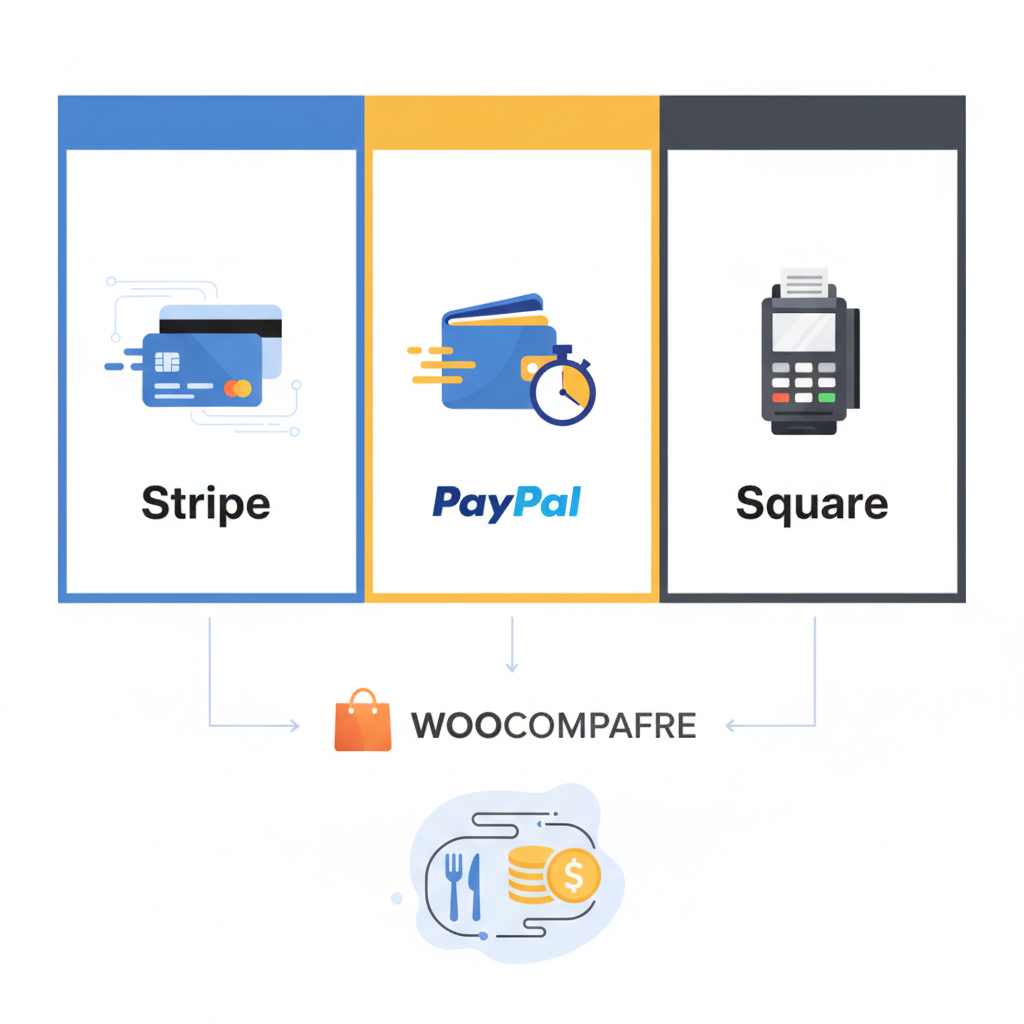
If you’re running a WooCommerce restaurant site, you have three serious contenders: Stripe, PayPal, and Square. Each has real strengths, real trade-offs, and setup quirks that matter more for food businesses than for typical eCommerce stores. Here’s the full breakdown — fees, speed, setup steps, and which one actually fits your kitchen.
Why Your Payment Gateway Choice Matters More Than You Think
Restaurants operate on razor-thin margins. Industry data from the National Restaurant Association consistently puts average profit margins between 3% and 6%. When your gateway charges 2.9% + 30¢ per transaction, that fee alone can swallow a meaningful chunk of what you actually keep from a $25 delivery order.
But fees are only one piece. Four factors directly influence your cash flow and conversion rate:
- Transaction fees — the per-order percentage and flat fee you pay.
- Payout speed — how quickly funds hit your bank (critical for buying tomorrow’s produce).
- Chargeback protection and dispute handling — food orders get disputed differently than physical goods.
- Checkout UX — one-click wallets like Apple Pay and Google Pay can lift mobile conversion by 20% or more, according to Stripe’s own published benchmarks.
A $30 order that takes 3 seconds to complete with Apple Pay is worth more than a $30 order that requires typing a 16-digit card number on a phone during a lunch rush. Keep that in mind as we go through each option.
Stripe for WooCommerce Restaurants: Setup, Fees, and Best Use Cases
Stripe is the developer-favorite gateway that became mainstream because it just works. For a Restaurant Website With WordPress and WooCommerce (From Scratch)”>Restaurant Website (2026)”>WooCommerce restaurant, it’s often the most flexible choice.
Setting Up Stripe on WooCommerce
- Install the official WooCommerce Stripe Payment Gateway plugin from the WordPress plugin repository.
- Go to WooCommerce → Settings → Payments and click Set up next to Stripe.
- Click Connect with Stripe — this launches OAuth. Log in or create a Stripe account (you’ll need your business tax ID, bank account, and a rough estimate of monthly volume).
- Once connected, enable Credit Card, Apple Pay / Google Pay, and Link (Stripe’s one-click checkout).
- Under Payment Request Buttons, verify your domain — Stripe walks you through uploading a small verification file to prove ownership. This is required for Apple Pay to appear.
- Enable Webhooks — the plugin generally does this automatically, but confirm under Stripe’s dashboard that events like
charge.succeededandcharge.refundedpoint to your site.
Test with Stripe’s sandbox cards (like 4242 4242 4242 4242) before flipping to live mode.
Stripe’s Fee Structure
In the US, Stripe charges 2.9% + 30¢ per successful card transaction. International cards add 1.5%, and currency conversion adds another 1%. Disputes cost $15, refunded only if you win. Instant payouts to a debit card cost an additional 1% (minimum 50¢) — useful when you need cash tonight instead of in two business days.
Standard payouts arrive in 2 business days in the US after your first payout (which typically takes 7 days while Stripe verifies your account).
Best Fit For
- Delivery-heavy restaurants where mobile checkout speed matters
- High-volume operations (Stripe negotiates lower rates above roughly $80k/month)
- International or tourist-heavy locations needing multi-currency support
- Anyone running subscriptions like meal plans or memberships (Stripe Billing integrates cleanly)
Stripe pairs particularly well with a modern ordering plugin. If you’re using FoodMaster for restaurant ordering, Stripe handles tips, delivery fees, and scheduled orders without extra configuration — the plugin passes those line items through as standard WooCommerce order data.
PayPal for WooCommerce Restaurants: Setup, Fees, and Customer Trust
PayPal is the gateway your parents trust. That’s not a joke — it’s a competitive advantage. For a subset of customers, seeing the PayPal button is what makes them complete the order.
Setting Up PayPal on WooCommerce
- WooCommerce now ships with PayPal Payments (the newer plugin replacing the legacy PayPal Standard). Install it from WooCommerce → Extensions.
- Go to Settings → Payments → PayPal and click Activate PayPal.
- Sign into your PayPal Business account (or create one — personal accounts won’t work for merchant processing).
- Grant permissions. WooCommerce will automatically configure the API credentials.
- Enable PayPal Checkout, Pay Later (splits orders over $30 into installments — surprisingly effective for family-sized catering orders), and Venmo if your customer base skews younger.
- Turn on Smart Buttons at the cart and product pages if you want express checkout without forcing customers through the standard flow.
[IMAGE: WooCommerce checkout page showing PayPal, Venmo, and Pay Later buttons side by side on mobile]
PayPal’s Fee Structure
PayPal charges 3.49% + 49¢ for standard PayPal Checkout transactions in the US — noticeably higher than Stripe. Advanced Credit and Debit Card processing runs 2.99% + 49¢. International transactions add 1.5%. Chargeback fees are $20, though PayPal’s Seller Protection can waive them for eligible orders (and here’s the catch for restaurants — food delivery generally isn’t covered because there’s no shipping tracking number).
Payouts to a linked bank account take 1–3 business days. Instant transfer to a debit card costs 1.75% (capped at $25).
The Dispute Reality for Food Orders
PayPal disputes lean toward the buyer. Because food isn’t shipped with tracking, “item not received” claims are hard to fight. Mitigate this by:
- Requiring signed delivery confirmation for orders over $50
- Photographing dropped-off orders (many delivery driver apps do this automatically)
- Keeping timestamps and driver communication logs
Best Fit For
- Restaurants with older customer demographics who trust the PayPal brand
- Catering businesses where Pay Later boosts average order value
- Sites that want a secondary payment option alongside Stripe or Square
Square for WooCommerce Restaurants: Setup, POS Sync, and In-Person Advantages
Square is the wildcard. If you have a physical location with a Square terminal on the counter, connecting it to WooCommerce turns your online store and your in-person register into a single system. That’s genuinely powerful for a restaurant.
Setting Up Square on WooCommerce
- Install the official WooCommerce Square plugin from the WordPress repository.
- Under WooCommerce → Settings → Square, click Connect with Square.
- Authorize your Square account and select the correct business location — this matters if you operate multiple sites.
- Configure Sync Settings: decide whether Square or WooCommerce is the source of truth for inventory. For most restaurants, Square (where the POS lives) should be primary.
- Enable Digital Wallets (Apple Pay, Google Pay) and configure your tipping options if you’re using a WooCommerce tipping plugin.
- Test by placing an online order and verifying it appears in your Square Dashboard within seconds.
One quirk: Square’s WooCommerce sync works best with simple products. Complex product variations (like a burger with 12 toppings and 4 sizes) sometimes need manual mapping. If you’re building a menu with lots of modifiers, a dedicated restaurant plugin handles the complexity better — FoodMaster’s food ordering system manages variations, extras, and half-and-half pizzas natively while still passing clean order data to Square.
Square’s Fee Structure
Square charges 2.9% + 30¢ for online transactions in the US — matching Stripe. In-person tap/dip is 2.6% + 10¢, and manually keyed transactions are 3.5% + 15¢. Chargeback protection is included up to $250 per month at no cost, which is a genuine differentiator.
Payouts are next business day by default, or instant for 1.75% (available 24/7, including weekends — great for food trucks).
Best Fit For
- Restaurants that do both online and in-person (dine-in, counter, or takeout)
- Food trucks and pop-ups needing weekend deposits
- Small operators who value unified reporting across online and offline sales
- Anyone already invested in the Square hardware ecosystem
[IMAGE: split-screen showing a Square POS terminal on a restaurant counter and a matching WooCommerce order dashboard on a laptop]
Side-by-Side Comparison: What Actually Matters
Here’s how the three stack up on the metrics that impact restaurants daily:
Fees (US, Online Transactions)
- Stripe: 2.9% + 30¢
- PayPal Checkout: 3.49% + 49¢
- Square: 2.9% + 30¢
Chargeback Fee
- Stripe: $15 (refunded if you win)
- PayPal: $20 (Seller Protection rarely covers food)
- Square: $0, up to $250/month covered by their protection program
Payout Speed
- Stripe: 2 business days (instant available for 1%)
- PayPal: 1–3 business days (instant for 1.75%)
- Square: Next business day standard, instant 24/7 for 1.75%
Digital Wallets
- Stripe: Apple Pay, Google Pay, Link — best-in-class integration
- PayPal: Venmo, Pay Later, PayPal balance
- Square: Apple Pay, Google Pay, Cash App Pay
Subscription / Recurring Support
- Stripe: Excellent — works with WooCommerce Subscriptions out of the box
- PayPal: Supported but historically clunky with WooCommerce Subscriptions
- Square: Limited recurring billing via WooCommerce
Tipping Support
All three pass tips as standard order line items, but the UX depends on your plugin. For a polished tipping experience — with preset amounts, custom values, and driver-specific routing — most restaurants pair their gateway with a purpose-built solution. Our team’s guides on restaurant plugins and tipping tools cover this in more depth.
POS Sync
- Stripe: Requires Stripe Terminal hardware (limited restaurant use)
- PayPal: Zettle POS available but weak WooCommerce integration
- Square: Native, bidirectional sync — clear winner
How to Choose the Right Gateway (or Combine Them)
There’s no universal answer. Here’s a decision framework based on restaurant type:
Commission-free ordering
Run restaurant orders on your own WordPress site
FoodMaster adds delivery, pickup, dine-in, POS, and kitchen tools — with zero per-order fees.