On this page
- Why Accurate Prep Time Estimates Matter for Your Restaurant Website
- Setting Up a Kitchen Display System (KDS) with WordPress and WooCommerce
- Hardware Recommendations
- Configuring FoodMaster’s Kitchen Display View
- Configuring Dynamic Prep Time Estimates Based on Menu Items and Order Volume
- Assigning Prep Times to Individual Menu Items
- Calculating Cumulative Order Prep Time
- Adjusting for Current Queue Volume
- Building a Scheduled Order Queue: Managing Pickup Windows, Delivery Slots, and Kitchen Capacity
- Setting Maximum Orders Per Time Slot
- Pickup vs. Delivery Slot Configuration
- Auto-Throttling When the Queue Is Full
- Displaying Prep Time and Order Status to Customers
- Checkout Page Estimates
- Order Tracking Pages with Real-Time Status
- Automated Notifications
- Advanced Tips: Analytics, Bottleneck Identification, and Continuous Improvement
- Tracking Estimated vs. Actual Prep Times
- Identifying Menu Item Bottlenecks
- Multi-Location Performance Comparison
- Using Data to Optimize Staffing
- Putting It All Together
Why Accurate Prep Time Estimates Matter for Your Restaurant Website
A customer places an order through your website, sees a vague “30-45 minutes” estimate, and then waits 55 minutes before their food arrives. That gap between expectation and reality is where you lose customers — permanently. A study by Technomic found that 40% of consumers said long wait times were the top reason they wouldn’t return to a restaurant, and online ordering amplifies that frustration because customers can’t see what’s happening in your kitchen.
Displaying accurate, real-time prep estimates on your WooCommerce checkout and order confirmation pages does three things simultaneously: it sets honest expectations, reduces “where’s my order?” calls and emails, and builds trust that translates into repeat business. Restaurants that provide transparent order tracking see measurably higher customer satisfaction scores and fewer negative reviews mentioning wait times.
The business case is straightforward. Every support inquiry about order status costs your staff time. Every inaccurate estimate risks a one-star review on Google. And every customer who abandons checkout because they see no time estimate at all is revenue you never capture. The solution isn’t just slapping a static number on your checkout page — it’s building a dynamic system that reflects what’s actually happening in your kitchen right now.
Setting Up a Kitchen Display System (KDS) with WordPress and WooCommerce
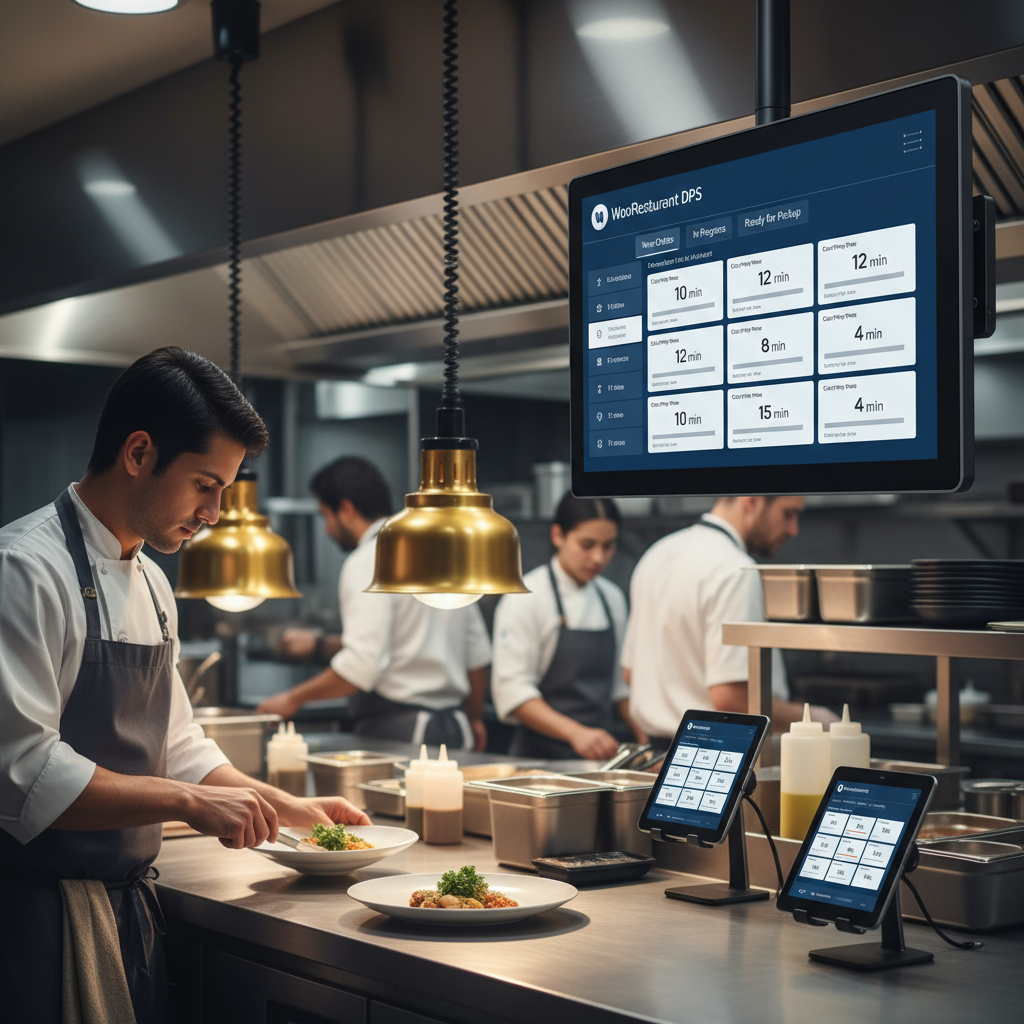
A Kitchen Display System replaces paper tickets and verbal callouts with a screen that shows incoming orders in real time. For WooCommerce-based restaurants, this doesn’t require expensive proprietary hardware — you can build a functional KDS with a tablet or wall-mounted monitor running a browser.
Hardware Recommendations
For most kitchens, you need a screen that’s readable from several feet away and resistant to heat and grease. Here’s what works well:
- Budget option: A 10-inch Android or iPad tablet mounted on a wall bracket with a protective case. Samsung Galaxy Tab A series or iPad 9th generation both work well and cost under $350.
- Mid-range option: A 22-24 inch commercial-grade monitor connected to a Raspberry Pi 4 or Intel NUC mini PC running Chrome in kiosk mode. Total cost around $300-$500.
- Premium option: A purpose-built kitchen display like an Elo Touch 15-inch touchscreen, which handles grease and steam better than consumer electronics. These run $600-$900 but last years in harsh kitchen environments.
Whichever hardware you choose, the key requirement is a browser that can auto-refresh and display your WooCommerce order dashboard without requiring staff to interact with it constantly.
Configuring FoodMaster’s Kitchen Display View
If you’re running FoodMaster (formerly WooFood), you already have a built-in kitchen display system designed specifically for this workflow. FoodMaster’s KDS shows incoming orders as cards on a dedicated screen, with color-coded statuses that kitchen staff can update with a single tap.
The setup process involves enabling the kitchen display feature in FoodMaster’s settings, then opening the KDS URL on your kitchen tablet or monitor. Orders flow in automatically as customers place them, and each card shows the order items, special instructions, order type (delivery, pickup, or dine-in), and the time since the order was placed. Staff tap an order card to move it from Received to Preparing to Ready, and each status change triggers customer-facing updates.
[IMAGE: Kitchen display system showing color-coded order cards on a tablet screen with statuses like Received (blue), Preparing (yellow), and Ready (green), displaying order items and elapsed time]
For the auto-refresh behavior, set the dashboard to reload every 15-30 seconds. FoodMaster handles this natively, but if you’re using a custom setup, a simple JavaScript interval or a browser extension like “Auto Refresh Plus” achieves the same result. The goal is zero manual intervention — kitchen staff should never need to hit a refresh button.
Configuring Dynamic Prep Time Estimates Based on Menu Items and Order Volume
Static prep time estimates (“all orders take 30 minutes”) are inaccurate by design. A single appetizer doesn’t take the same time as a full family meal with a custom pizza. Dynamic estimates require two layers of configuration: per-item prep times and queue-based adjustments.
Assigning Prep Times to Individual Menu Items
Start by timing your kitchen’s actual preparation for each menu item during normal operations. Be honest — use averages from real service, not best-case scenarios. Here’s an example breakdown for a typical restaurant menu:
- Appetizers/sides: 5-8 minutes (fries, salad, soup)
- Burgers/sandwiches: 8-12 minutes
- Pizzas: 12-18 minutes (depending on oven type)
- Pasta dishes: 10-15 minutes
- Desserts (pre-made): 2-3 minutes
In WooCommerce, you can store these values as custom product meta fields. FoodMaster supports assigning preparation times at the product or category level, which means you can set a default of 10 minutes for the “Burgers” category and override it to 15 minutes for a specific complex burger that requires extra steps.
Calculating Cumulative Order Prep Time
The simplest approach uses the longest single item in the order as the base time, not the sum of all items. Why? Because a kitchen prepares items in parallel. If someone orders a burger (10 min) and fries (6 min), the total prep time is roughly 10 minutes, not 16. The fries cook while the burger grills.
A more nuanced formula accounts for partial overlap:
Estimated prep time = max(item prep times) + (sum of remaining item prep times × 0.2)
So an order with a pizza (15 min), a salad (5 min), and garlic bread (6 min) would calculate as: 15 + ((5 + 6) × 0.2) = 17.2 minutes, rounded to 18 minutes. This accounts for the small additional workload of parallel items without absurdly inflating the estimate.
Adjusting for Current Queue Volume
During a Friday dinner rush with 15 orders in the queue, your kitchen can’t maintain the same prep speed as a quiet Tuesday afternoon. Dynamic queue adjustment adds buffer time based on the number of active orders ahead of the new one.
A practical approach: for every 5 active orders currently in “Preparing” or “Received” status, add 5 minutes to the base estimate. You can fine-tune this multiplier based on your kitchen’s actual throughput. If your kitchen handles 20 orders per hour comfortably, the buffer should be modest. If your max throughput is 10 orders per hour, the buffer needs to be more aggressive.
FoodMaster’s food ordering plugin can factor current order volume into displayed estimates, giving customers checkout-time visibility into how busy the kitchen is without revealing internal operational details.
Building a Scheduled Order Queue: Managing Pickup Windows, Delivery Slots, and Kitchen Capacity
Accepting unlimited orders during peak hours is a recipe for kitchen meltdown. Scheduled order queues let you cap how many orders your kitchen handles per time slot, preventing the quality collapse that happens when tickets pile up faster than your team can execute.
Setting Maximum Orders Per Time Slot
First, determine your kitchen’s realistic throughput. If your team can prepare 12 orders per hour without sacrificing quality, divide that into 15-minute or 30-minute windows:
- 15-minute slots: Cap at 3 orders per slot (12/hour ÷ 4 slots)
- 30-minute slots: Cap at 6 orders per slot (12/hour ÷ 2 slots)
When a slot fills up, the next available slot is offered to the customer. This is far better than accepting the order and delivering it late. Customers who choose a later time slot with realistic expectations are significantly happier than customers who expect food in 30 minutes and get it in 60.
Pickup vs. Delivery Slot Configuration
Pickup and delivery orders need separate slot management because delivery adds transit time. A practical configuration looks like this:
- Pickup slots: Available starting from current time + minimum prep time. If your minimum prep is 20 minutes, the earliest pickup slot is 20 minutes from now.
- Delivery slots: Available starting from current time + prep time + estimated delivery radius time. For a 3-mile delivery radius averaging 15 minutes of drive time, the earliest delivery slot is 35 minutes from now.
FoodMaster handles both pickup and delivery scheduling with configurable time slots, minimum order lead times, and the ability to set different operating hours for each order type. You can also restrict delivery to specific zones and assign different delivery time estimates per zone.
[IMAGE: WooCommerce checkout page showing a time slot picker with available pickup windows, some slots grayed out as full, and an estimated prep time displayed below the order summary]
Auto-Throttling When the Queue Is Full
Beyond individual slot caps, consider a global throttle. If your total active order count (orders in Received + Preparing status) exceeds a threshold — say, 20 orders — you can automatically display a notice on the checkout page: “We’re experiencing high demand. The earliest available time is [next open slot].” This prevents kitchen staff from being overwhelmed and protects your food quality and customer experience simultaneously.
Some restaurants go further and temporarily pause online ordering entirely during extreme rushes, displaying a message like “Online ordering will reopen at 7:30 PM.” While this costs you some orders, it protects the experience for the orders you’ve already accepted.
Displaying Prep Time and Order Status to Customers
All the backend work means nothing if customers can’t see what’s happening with their order. Transparency at every stage — from checkout through delivery — is what converts a first-time orderer into a regular.
Checkout Page Estimates
Display the estimated prep time directly on the cart and checkout pages, ideally near the order total. Something like: “Estimated ready time: 25 minutes (Pickup by 7:45 PM)” gives the customer a concrete expectation before they commit. If the estimate changes because they add more items to the cart, update it dynamically.
This is also the right place to show time slot selection if you’re using scheduled ordering. Present available slots as a dropdown or visual timeline, with full slots grayed out and the soonest available slot pre-selected.
Order Tracking Pages with Real-Time Status
After order placement, redirect the customer to a tracking page (or include a tracking link in the confirmation email) that shows a progress bar or step indicator:
- Order Received — Your order has been sent to the kitchen
- Preparing — The kitchen is working on your order
- Ready for Pickup / Out for Delivery — Your food is ready or on its way
- Completed — Order fulfilled
Each status transition should update the tracking page automatically. FoodMaster’s order management system updates these statuses when kitchen staff tap the order card on the KDS, creating a seamless loop: kitchen taps “Preparing” → customer’s tracking page updates instantly.
Automated Notifications
Pair the tracking page with automated notifications at key transitions. WooCommerce’s built-in email system handles basic status change emails, but for real-time impact, SMS notifications are far more effective — customers check texts immediately.
A typical notification flow:
- Order placed: Email confirmation with estimated ready time and tracking link
- Preparing: SMS — “Your order is being prepared! Estimated ready time: 7:45 PM”
- Ready/Out for delivery: SMS — “Your order is ready for pickup!” or “Your driver is on the way!”
For SMS integration using Twilio or similar services with your WooCommerce restaurant setup, you can connect notification triggers to each order status change. This creates the kind of real-time communication that customers now expect from any food ordering experience.
Advanced Tips: Analytics, Bottleneck Identification, and Continuous Improvement
Once your system is running, the data it generates becomes your most valuable optimization tool. Tracking actual prep times against estimates reveals patterns that can reshape your menu, staffing, and workflows.
Tracking Estimated vs. Actual Prep Times
Record timestamps for each status change: when an order was placed, when it moved to “Preparing,” and when it was marked “Ready.” The difference between order placement and “Ready” is your actual prep time. Compare this to the estimate you displayed at checkout.
WooCommerce stores order status change timestamps in the order notes. You can export this data and analyze it in a spreadsheet, or use WooCommerce reporting plugins to build dashboards. Track these metrics weekly:
- Average actual prep time vs. average estimated prep time
- Percentage of orders completed within the estimate (target: 85%+)
- Peak hour accuracy — estimates are usually least accurate during rushes
- Prep time by order type — delivery orders often take longer due to packaging
Identifying Menu Item Bottlenecks
Some menu items consistently slow down the kitchen. Maybe your wood-fired pizza takes 18 minutes but you’ve estimated 14, or a particular customizable bowl requires assembly steps that add unexpected time. Cross-reference slow orders with the items they contain to find patterns.
Once you identify bottleneck items, you have options: adjust the prep time estimate upward (the honest approach), simplify the item’s preparation process, limit the number of that item available per time slot, or remove it from online ordering entirely if it’s a low-margin item that disproportionately slows the kitchen.
Multi-Location Performance Comparison
For restaurants with multiple branches, comparing prep performance across locations reveals operational inconsistencies. If Location A averages 22 minutes per order and Location B averages 31 minutes for the same menu, that gap points to staffing, equipment, or workflow differences worth investigating.
FoodMaster’s WooCommerce restaurant plugin supports multi-location configurations, allowing you to track and compare metrics per branch. Combined with Google Analytics events fired at each order status change, you can build location-specific dashboards that surface these discrepancies automatically.
Using Data to Optimize Staffing
Prep time data also informs staffing decisions. If your average prep time jumps from 18 minutes to 32 minutes every Friday between 6-8 PM, that’s a clear signal you need an additional kitchen staff member during that window. The cost of one extra prep cook for two hours is almost certainly less than the revenue lost from delayed orders and frustrated customers during your busiest period.
Putting It All Together
Building a prep time estimation and kitchen display system for your WooCommerce Restaurant Website: Scheduled Backups, One-Click Restore, and Protecting Your Menu, Orders, and Customer Data from Catastrophic Loss (Complete Guide)”>WooCommerce Restaurant Website: Custom Menus, Minimum Order Requirements, Scheduled Delivery Windows, and Tiered Pricing for Events and Corporate Orders (Complete Guide)”>WooCommerce Restaurant Ordering System: Step-by-Step Configuration, Transaction Fees Comparison, and Optimizing Checkout for Faster Food Orders (Complete Guide)”>WooCommerce restaurant isn’t a single afternoon project — it’s a layered system where each component reinforces the others. Start with the KDS to give your kitchen real-time order visibility. Then assign per-item prep times and implement queue-based adjustments. Add scheduled order slots to prevent kitchen overload. Surface all of this to customers through checkout estimates, tracking pages, and automated notifications.
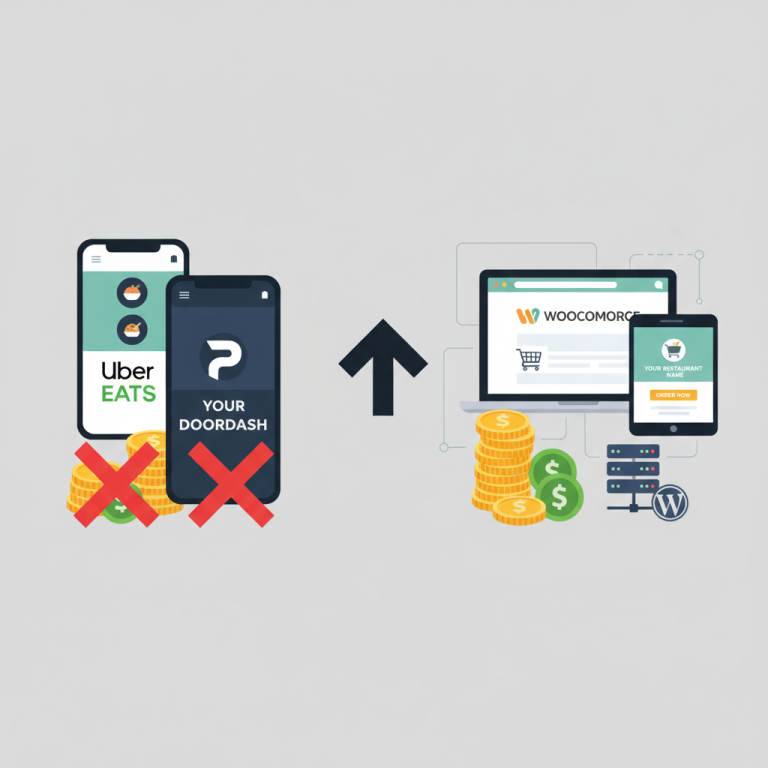
The restaurants that execute this well don’t just reduce complaints — they create an ordering experience that rivals the major delivery platforms, without paying 15-30% commission fees on every order. With a WordPress-based solution like FoodMaster handling the ordering, kitchen display, and order management, you own the entire system and the customer relationship that comes with it.
Start by timing your top 10 menu items this week. Set up a tablet in the kitchen. Display an honest estimate on your checkout page. Then refine from there — the data will tell you exactly where to improve next.
Commission-free ordering
Run restaurant orders on your own WordPress site
FoodMaster adds delivery, pickup, dine-in, POS, and kitchen tools — with zero per-order fees.