Why WordPress + WooCommerce Is the Best Platform for Restaurant Online Ordering
Third-party ordering platforms take a brutal cut from every order your restaurant processes. DoorDash, Grubhub, and UberEats charge commission rates that typically range from 15% to 30% per transaction. Even “restaurant-friendly” platforms like Square Online and Toast tack on per-order fees and monthly subscription costs that eat into already-thin margins. For a restaurant doing $10,000 in monthly online orders, that’s $1,500 to $3,000 walking out the door every month — money that could pay a part-time employee or cover your food costs for a week.
WordPress paired with WooCommerce flips this model entirely. WooCommerce is free, open-source software. You pay for hosting (typically $10–$30/month for a solid plan) and a domain name ($12–$15/year). That’s it for the foundation. There are no per-order commissions, no revenue sharing, and no surprise platform fees. You own every piece of customer data — email addresses, order histories, preferences — which means you can run your own marketing campaigns, build loyalty programs, and retarget customers without paying a middleman.
The flexibility angle matters too. With WordPress, you’re not locked into a template that looks like every other restaurant on the platform. You control the design, the checkout flow, the menu layout, and the customer experience. Want to add a blog with recipes to boost your SEO? Done. Want to integrate with your existing POS system? Possible. Need to set up QR code table ordering for dine-in guests? You can do that too. WordPress powers over 43% of all websites on the internet, which means finding help, tutorials, and compatible tools is never a problem.
What You Need Before You Start: Hosting, Domain, and WordPress Installation
Before you touch anything related to menus or ordering, you need three foundational pieces in place: a domain name, web hosting, and a WordPress installation. Think of the domain as your restaurant’s street address on the internet, hosting as the building it sits in, and WordPress as the interior you’ll design and fill with content.
Choosing a Domain Name
Your domain should match your restaurant name as closely as possible. If your restaurant is called “Bella’s Kitchen,” aim for bellaskitchen.com or bellaskitchennyc.com. Keep it short, easy to spell, and avoid hyphens. Register through a reputable registrar like Namecheap or Cloudflare Registrar — both charge around $10–$15/year for a .com domain without hidden upsells.
Picking Hosting That Won’t Choke During the Dinner Rush
WooCommerce is more resource-hungry than a basic WordPress blog. You need hosting that can handle traffic spikes — especially during Friday and Saturday evenings when orders pile up. Shared hosting plans from providers like SiteGround, Cloudways, or A2 Hosting work well for most single-location restaurants. Look for plans that offer at least 2GB of RAM, SSD storage, and built-in caching. Expect to spend $10–$30/month for a plan that won’t buckle under load.
Installing WordPress and WooCommerce
Most hosting providers offer one-click WordPress installation through their control panel. Once WordPress is installed, adding WooCommerce takes about 60 seconds:
- Log into your WordPress dashboard at yourdomain.com/wp-admin
- Navigate to Plugins → Add New
- Search for “WooCommerce”
- Click Install Now, then Activate
- Follow the WooCommerce setup wizard — it’ll walk you through basic store settings like your address, currency, and payment methods
During the setup wizard, WooCommerce will ask what type of products you sell. Select Physical products for now — we’ll customize everything for restaurant use in the next section.
[IMAGE: WordPress dashboard showing WooCommerce plugin installation screen with the setup wizard visible]
Installing and Configuring WooCommerce for a Restaurant (Not a Regular Store)
Here’s where most restaurant owners get stuck. WooCommerce out of the box is designed to sell physical goods — think t-shirts, electronics, and books. It comes with shipping calculators, product SKUs, inventory tracking by warehouse, and a checkout flow built for eCommerce. None of that makes sense for a restaurant selling a chicken parmesan with extra mozzarella for delivery to an address three miles away.
You need to reshape WooCommerce into a food ordering system. Here’s what to change immediately:
Disable Standard Shipping
Go to WooCommerce → Settings → Shipping and remove any default shipping zones. Restaurant delivery isn’t the same as UPS Ground. You’ll handle delivery configuration through a dedicated restaurant plugin (more on that below).
Configure Tax Settings for Food Orders
Food tax rules vary wildly by state and municipality. Some states exempt unprepared food but tax prepared meals. In New York, for example, food items under $1.50 are exempt from sales tax, but a $12 pasta dish is taxable. Go to WooCommerce → Settings → Tax, enable tax calculations, and set up your tax rates based on your local requirements. If you’re unsure, consult your accountant — getting this wrong can create headaches during tax season.
Streamline the Checkout
The default WooCommerce checkout page asks for company names, apartment numbers in separate fields, and other details that slow down hungry customers. Strip it down to the essentials: name, phone number, delivery address (if applicable), and order notes (for special instructions like “ring the doorbell” or “no onions on the burger”).
Install a Restaurant Ordering Plugin
This is the single most important step. A dedicated restaurant ordering plugin transforms WooCommerce from a generic store into a proper food ordering system. FoodMaster is purpose-built for exactly this. It adds delivery and pickup order types, lets you define delivery zones with specific fees, supports scheduled ordering, and includes features like a kitchen display system, QR table ordering for dine-in, and automatic order printing — all without per-order commissions.
After installing FoodMaster, you’ll find new settings panels specifically designed for restaurant operations: store hours, order throttling (limiting orders during peak times), minimum order amounts, and preparation time estimates. These are the controls that turn a WooCommerce store into something that actually works for a restaurant’s daily workflow.
Building Your Restaurant Menu in WooCommerce: Categories, Items, Prices, and Add-Ons
Your online menu is your storefront. If it looks like a generic product catalog with thumbnail images and “Add to Cart” buttons, customers won’t trust it. The goal is to make it feel like a real restaurant menu — organized by course, visually appetizing, and easy to navigate on a phone screen.
Create Menu Categories
In WooCommerce, product categories become your menu sections. Go to Products → Categories and create entries for each section of your menu:
- Appetizers & Starters
- Salads
- Main Courses
- Pasta & Risotto
- Sides
- Desserts
- Beverages
Order these categories the way you’d order them on a printed menu. WooCommerce lets you drag-and-drop to reorder categories, or you can assign a numerical sort order to each one.
Add Menu Items as Products
Each dish becomes a WooCommerce product. Go to Products → Add New for each item. Here’s what to fill in:
- Product name: The dish name exactly as it appears on your physical menu (e.g., “Margherita Pizza”)
- Description: A short, appetizing description — “Hand-stretched dough, San Marzano tomato sauce, fresh mozzarella, basil, extra virgin olive oil.” Keep it under 25 words.
- Price: Set in the Product data → General tab
- Category: Assign to the appropriate menu section
- Product image: Upload a high-quality photo of the dish. Natural lighting, shot from a 45-degree angle, on a clean plate. If you don’t have professional photos, even a well-lit smartphone photo beats a stock image.
Add Extras, Toppings, and Customizations
This is where restaurant ordering gets more complex than regular eCommerce. Customers expect to customize: extra cheese on a pizza, choice of dressing on a salad, protein add-ons for a bowl. FoodMaster handles this natively with built-in product add-ons and extras. You can create option groups like “Choose Your Size” (small, medium, large with different prices), “Add Extra Toppings” (each with an upcharge), or “Select Your Spice Level” (mild, medium, hot) — all directly within the product editor.
A common mistake is creating separate WooCommerce products for every variation. Don’t make “Margherita Pizza – Small,” “Margherita Pizza – Medium,” and “Margherita Pizza – Large” as three different products. Use variations or add-on options instead. This keeps your menu clean and manageable.
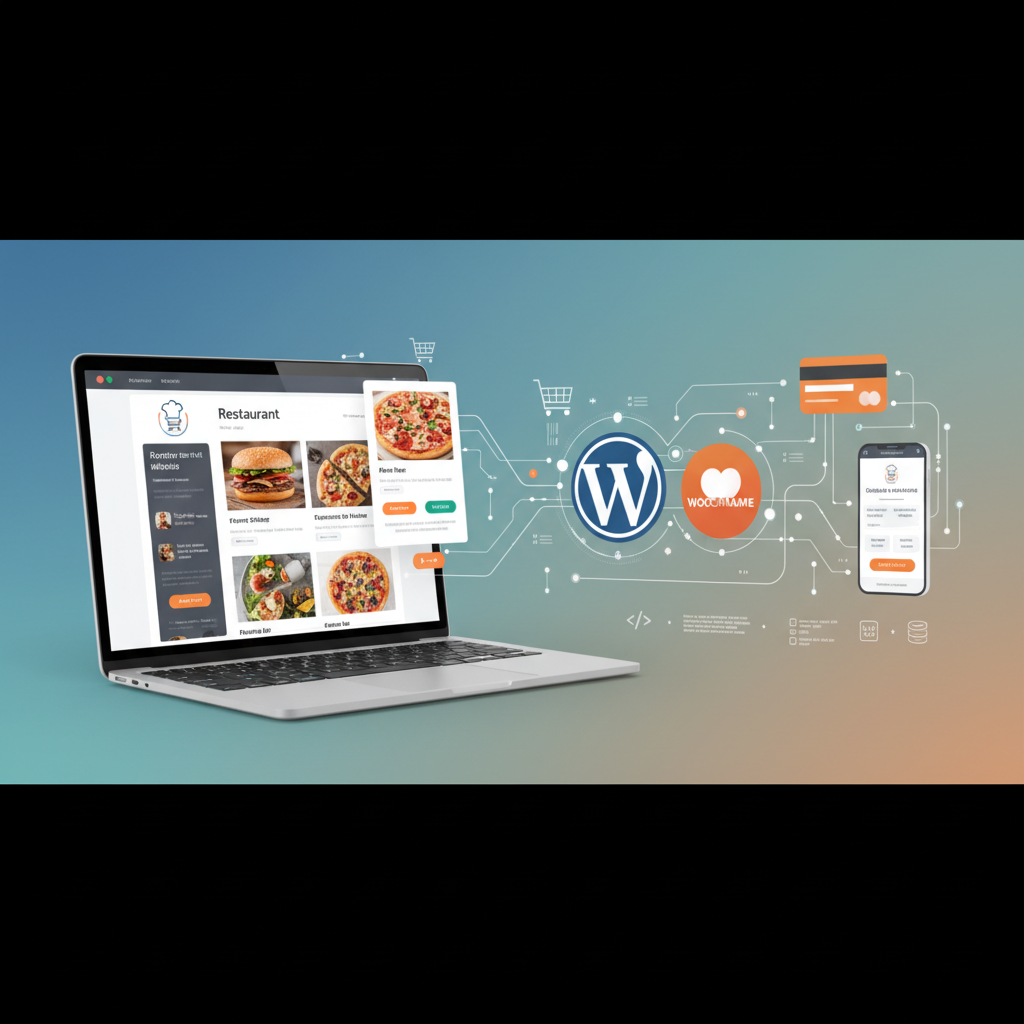
[IMAGE: Restaurant menu displayed on a mobile phone screen showing food categories, item photos, prices, and add-on options for customization]
Setting Up Pickup and Delivery Options for Your Restaurant Orders
Most restaurants offer at least two order types: pickup and delivery. Some also offer dine-in ordering through QR codes at the table. Configuring these options correctly prevents confusion, sets proper customer expectations, and protects you from delivering to addresses outside your service area.
Configuring Order Types
With FoodMaster, you can enable pickup, delivery, and dine-in as distinct order types. Customers select their preferred method early in the ordering process — not buried at checkout where they might abandon the order. Each order type can have its own settings:
- Pickup: No delivery fee, show estimated preparation time (e.g., “Ready in 20–30 minutes”), display your restaurant address with a map
- Delivery: Delivery fee applied based on zone, minimum order amount enforced, estimated delivery time displayed
- Dine-in: Table number selection, no address required, orders routed directly to kitchen display
Defining Delivery Zones and Fees
Drawing clear delivery boundaries saves you from impossible delivery requests. Most restaurants set a maximum delivery radius of 3–5 miles, though this varies by location and traffic patterns. You can create multiple zones with tiered pricing — for example, free delivery within 2 miles, $3 delivery fee for 2–4 miles, and $5 for 4–6 miles.
FoodMaster lets you define these zones using distance-based or zip code-based rules. You can also set different minimum order amounts per zone. A customer 5 miles away might need to order at least $25 to justify the delivery, while someone half a mile away can order with a $10 minimum.
Setting Store Hours and Scheduling
Nothing frustrates a customer more than placing an order only to discover the restaurant is closed. Configure your operating hours so the ordering system automatically disables orders outside business hours. You should also set up scheduled ordering — allowing customers to place an order now for a specific pickup or delivery time later. This is especially useful for catering orders or customers planning ahead for dinner.
Set realistic preparation times. If your kitchen needs 25 minutes for a typical order during off-peak hours, don’t promise 15. Underpromising and overdelivering builds trust and repeat business.
Testing Your First Order and Going Live: A Pre-Launch Checklist
You’ve built the menu, configured delivery zones, and set up payments. Before you announce online ordering to your customers, run through this checklist methodically. Launching with broken functionality is worse than not launching at all — it erodes trust instantly.
The Pre-Launch Testing Checklist
- Place a test order yourself. Go through the entire flow as a customer: browse the menu, add items with customizations, select delivery, enter an address, and complete payment. Do this on both desktop and your phone. If the checkout feels clunky on mobile, fix it — the majority of restaurant orders come from smartphones.
- Verify email notifications. After your test order, check that you (the restaurant) received an order notification email and that the “customer” received an order confirmation. Go to WooCommerce → Settings → Emails to customize these. Include your restaurant name, the order details, and estimated pickup/delivery time.
- Test payment processing. If you’re using Stripe or PayPal, make sure real payments go through successfully. Both Stripe and PayPal offer test/sandbox modes — use them first, then switch to live mode and process one real transaction with your own card to confirm everything works.
- Check the order management workflow. When an order comes in, it appears in WooCommerce → Orders. Make sure your staff knows how to view new orders, update order status (processing → completed), and handle any issues. FoodMaster’s kitchen display and automatic printing features streamline this — orders can print directly to your kitchen printer without anyone needing to check a laptop.
- Review mobile responsiveness. Pull up your site on at least two different phones. Tap through every menu category, add items, and go through checkout. Check that food photos load quickly, buttons are easy to tap with a thumb, and text is readable without zooming.
- Confirm delivery zone accuracy. Enter addresses at the edge of your delivery area and just outside it. The system should accept valid addresses and reject ones outside your zones with a clear message.
- Test store hours enforcement. Temporarily set your store hours to a closed period and confirm that the ordering system properly blocks new orders with a message about when you’ll reopen.
Announcing Your Launch
Once everything checks out, it’s time to tell people. Start with your existing customers — they’re the easiest to convert to online ordering:
- In-store signage: Print table tents and counter signs with a QR code linking directly to your online menu. “Skip the line — order online at [yourdomain.com]”
- Social media: Post on Instagram and Facebook with a screenshot of your online menu. Offer a small incentive for the first week — 10% off first online orders or free delivery for the first 50 orders
- Google Business Profile: Update your Google listing with a link to your online ordering page. This shows up when people search for your restaurant name and is one of the highest-converting placements you can get
- Email or SMS: If you have a customer email list or phone numbers from reservations, send a short announcement. Keep it to three sentences and a direct link
- Receipt messaging: Add a line to your printed receipts: “Now accepting online orders at [yourdomain.com]”
The first week after launch, monitor orders closely. Watch for common drop-off points in the checkout flow using WooCommerce’s built-in reports or a tool like Google Analytics. If customers are adding items to their cart but not completing orders, the issue is usually at checkout — too many fields, unclear delivery fees, or a payment method that isn’t working smoothly.
Your Restaurant’s Online Ordering System Is Closer Than You Think
Setting up online ordering with WordPress and WooCommerce isn’t a weekend project you’ll regret. It’s a one-time investment of a few hours that eliminates ongoing commission fees, gives you complete control over your customer relationships, and creates a direct revenue channel that no third-party platform can take away from you.
The stack is straightforward: reliable hosting, WordPress, WooCommerce, and a purpose-built food ordering plugin like FoodMaster to handle the restaurant-specific features that WooCommerce doesn’t include out of the box. Follow the steps above, test thoroughly before launch, and start with your existing customers as your first online ordering audience. From there, every order that comes through your own website instead of a third-party app is money that stays in your pocket.
Commission-free ordering
Run restaurant orders on your own WordPress site
FoodMaster adds delivery, pickup, dine-in, POS, and kitchen tools — with zero per-order fees.