On this page
- Why Email Marketing Is Essential for WooCommerce Restaurants
- Setting Up Your Email Marketing Foundation in WooCommerce
- Connecting Your Email Platform
- Opt-In Forms and List Building
- Segmenting Your Customer List
- Compliance: GDPR and CAN-SPAM
- Abandoned Cart Recovery Emails for Restaurant Orders
- Why Restaurant Customers Abandon Carts
- Building a 3-Email Abandoned Cart Sequence
- Post-Order Email Sequences That Drive Repeat Orders
- Order Confirmation with Estimated Time
- Review Request (48 Hours Post-Order)
- “We Miss You” Re-Engagement (After 30 Days of Inactivity)
- Birthday and Anniversary Emails
- Promotional Campaign Strategies: Weekly Specials, Seasonal Menus, and Event-Based Emails
- Weekly Specials and New Menu Items
- Holiday and Event-Based Campaigns
- Food Photography and Mobile-Responsive Design
- A/B Testing for Higher Open Rates
- Measuring Email Marketing Success: Key Metrics and WooCommerce Integration
- The KPIs That Matter Most
- Tracking Email-Attributed Revenue in WooCommerce
- Building a Simple Reporting Dashboard
- Continuous Optimization
- Putting It All Together
Why Email Marketing Is Essential for WooCommerce Restaurants
A customer places an order from your restaurant on a Tuesday night, enjoys the meal, and then… disappears. Not because the food was bad, but because nothing reminded them to come back. This is the reality for most restaurants operating without email marketing automation — and it’s costing them thousands in lost repeat revenue every year.
Email marketing consistently delivers one of the highest returns on investment of any digital channel. Campaign Monitor reports an average ROI of $36 for every $1 spent on email marketing, and the food and restaurant industry tends to perform even better than average due to the habitual nature of dining. According to Mailchimp’s own benchmark data, the food and restaurant industry sees average open rates around 40% — significantly higher than the cross-industry average of roughly 35%. People genuinely want to hear from restaurants they’ve ordered from.
If you’ve already set up SMS notifications for your WooCommerce restaurant, email is the natural complement. SMS works brilliantly for time-sensitive alerts like order confirmations and delivery updates, while email excels at longer-form content: showcasing new menu items with appetizing photography, delivering personalized coupons, or recovering abandoned carts with a well-timed nudge. Together with loyalty programs and gift cards, email forms the backbone of a retention strategy that turns one-time orderers into regulars.
The restaurants that thrive with online ordering aren’t just the ones with the best food — they’re the ones that stay top-of-mind. Automated email flows let you do exactly that without manually sending a single message after the initial setup.
Setting Up Your Email Marketing Foundation in WooCommerce
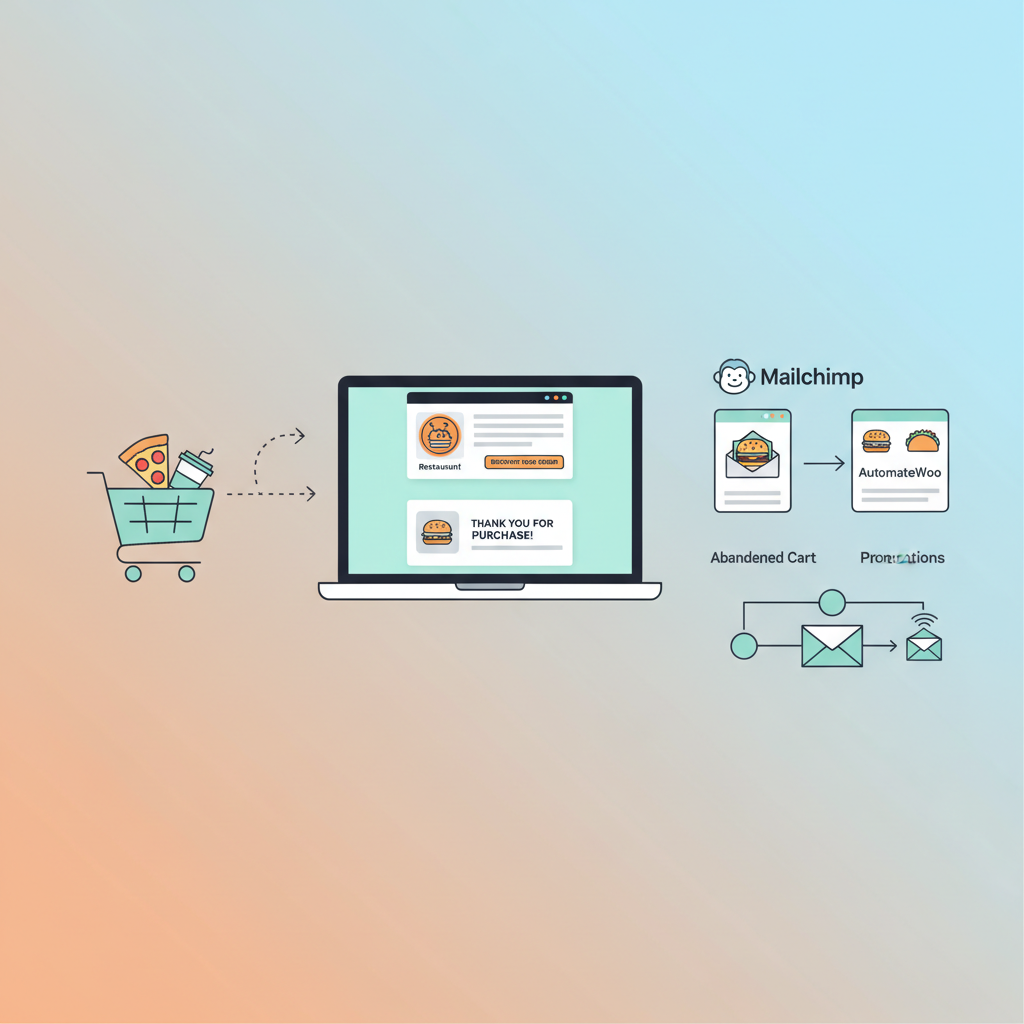
Before you can send a single automated email, you need the right infrastructure. For Customer Behavior, and Peak Ordering Hours (Complete Guide)”>WooCommerce Restaurant Ordering System: Sync Menus, Manage Orders from Multiple Platforms, and Avoid Double-Selling (Complete Guide)”>WooCommerce restaurant sites, two tools dominate: Mailchimp for WooCommerce (free tier available, great for broadcasts and basic automation) and AutomateWoo (a premium WooCommerce-native plugin with deeper integration for behavioral triggers). Your choice depends on complexity and budget.
Connecting Your Email Platform
For Mailchimp, install the official “Mailchimp for WooCommerce” plugin from the WordPress plugin repository. After activation, connect your Mailchimp account, select your audience list, and enable automatic e-commerce data syncing. This pushes order history, customer data, and product information directly into Mailchimp, enabling segmented campaigns based on actual purchase behavior.
For AutomateWoo, purchase and install the plugin, then navigate to AutomateWoo → Settings in your WordPress dashboard. AutomateWoo runs entirely within WooCommerce — no external platform needed — which means customer data never leaves your server. This is particularly appealing for GDPR-conscious restaurant operators in the EU.
Opt-In Forms and List Building
Place email opt-in opportunities at three critical touchpoints: your menu pages (a subtle banner offering “Get exclusive deals and new menu alerts”), your checkout page (a pre-checked or unchecked checkbox depending on your jurisdiction), and your order confirmation page (a post-purchase prompt). If you’re using FoodMaster as your WooCommerce restaurant ordering plugin, your menu pages and checkout flow are already optimized for conversions — adding an opt-in checkbox to the checkout form is straightforward through WooCommerce’s built-in settings or a simple snippet.
Segmenting Your Customer List
Generic blasts to your entire list will underperform. Segment customers by:
- Order frequency: First-time customers, occasional (1-2 orders/month), and regulars (3+ orders/month)
- Average order value: Budget-conscious vs. high-value customers who order premium items or large group orders
- Order type: Delivery customers vs. pickup vs. dine-in (if you use QR table ordering)
- Location: Critical for multi-location restaurants — customers should only receive promotions for their nearest location
- Menu preferences: Vegetarian orders, family meals, lunch vs. dinner orderers
Both Mailchimp and AutomateWoo can create these segments automatically based on synced WooCommerce order data. In AutomateWoo, use the “Customer Order Count” and “Customer Total Spent” rules. In Mailchimp, build segments under Audience → Segments using e-commerce conditions.
Compliance: GDPR and CAN-SPAM
Every marketing email must include a physical mailing address and a one-click unsubscribe link — this is non-negotiable under CAN-SPAM. For EU customers, GDPR requires explicit opt-in consent (no pre-checked boxes) and clear language about what subscribers will receive. Both Mailchimp and AutomateWoo include unsubscribe management. Document your consent collection method and keep records — a simple timestamp of when each customer opted in is usually sufficient.
[IMAGE: Screenshot showing a WooCommerce checkout page with an email marketing opt-in checkbox positioned below the order summary, alongside a sample Mailchimp audience segmentation dashboard with restaurant-specific segments]
Abandoned Cart Recovery Emails for Restaurant Orders
Cart abandonment on food ordering sites behaves differently than traditional e-commerce. The average e-commerce cart abandonment rate hovers around 70% according to Baymard Institute, but restaurant sites often see lower rates because food orders are more intent-driven. Still, even a 30-40% abandonment rate represents significant lost revenue — and the reasons are specific to food ordering.
Why Restaurant Customers Abandon Carts
The top culprits include unexpected delivery fees revealed at checkout, minimum order requirements they haven’t met, a checkout process that requires too many steps or account creation, and simple distraction (a phone call, a doorbell, a child demanding attention). Unlike someone browsing shoes, a hungry customer who abandons a food cart may order from a competitor within minutes. Speed of recovery matters enormously.
Building a 3-Email Abandoned Cart Sequence
The timing for restaurant abandoned cart emails should be compressed compared to standard e-commerce sequences:
- Email 1 — 30 minutes after abandonment: A gentle reminder. Subject line: “Your [Restaurant Name] order is waiting 🍕” or “Still hungry? Your cart is saved.” Keep the copy short — include a thumbnail of the items they added, the order total, and a prominent “Complete Your Order” button that links directly back to their cart.
- Email 2 — 2 hours after abandonment: Add a small incentive. Subject line: “Free delivery on your order — just for you” or “We saved your favorites (+ a little something extra).” Offer free delivery or a small discount (10% or a free side item). This addresses the most common abandonment trigger — delivery fees.
- Email 3 — 24 hours after abandonment: Final attempt with urgency. Subject line: “Last chance: your cart expires tonight” or “Your [specific menu item] is calling your name.” Emphasize that the cart won’t be saved forever and reiterate the incentive.
In AutomateWoo, set this up under AutomateWoo → Workflows. Choose the “Abandoned Cart” trigger, set the timing delay, and use the built-in cart content variables (like {{ cart.items }}) to dynamically populate item names and images. In Mailchimp, navigate to Automations → Customer Journey and select the abandoned cart template, then customize the timing and content for each step.
One critical detail: make sure the “Complete Your Order” link drops the customer back into a pre-filled checkout, not the menu page. Reducing friction from click to completion is everything. If you’re running your ordering system through FoodMaster’s food delivery plugin, cart contents are preserved in the WooCommerce session, so the recovery link will restore their exact order.
Post-Order Email Sequences That Drive Repeat Orders
The most profitable email you’ll ever send isn’t a promotion — it’s the one that arrives at exactly the right moment after a customer’s order, building a relationship that leads to their next purchase.
Order Confirmation with Estimated Time
This is technically transactional, not marketing, but it sets the tone. Customize your WooCommerce order confirmation email to include estimated delivery or pickup time, a link to track their order if available, and your restaurant’s phone number for questions. Both Mailchimp and AutomateWoo let you customize these templates while keeping them compliant with transactional email standards.
Review Request (48 Hours Post-Order)
Two days after delivery, send an automated email asking for a Google review. This directly supports your local SEO — Google reviews are one of the strongest ranking factors for local restaurant searches. Keep the email simple: “How was your [specific dish they ordered]? We’d love your feedback.” Include a direct link to your Google Business Profile review form. Avoid asking for a review and promoting a sale in the same email — it dilutes both objectives.
“We Miss You” Re-Engagement (After 30 Days of Inactivity)
In AutomateWoo, create a workflow with the trigger “Customer Win Back” and set the inactivity period to 30 days. The email should acknowledge the gap (“It’s been a while since your last order”) and include a compelling incentive — a free appetizer, free delivery, or a percentage discount. Include images of popular or new menu items to reignite cravings.
Birthday and Anniversary Emails
If you collect birth dates during account registration or through a preference center, birthday emails with a personalized coupon (like “A free dessert on us — Happy Birthday!”) generate some of the highest redemption rates of any automated email type. In Mailchimp, use the date-based automation trigger. In AutomateWoo, use the “Customer’s Birthday” or a custom date field trigger.
[IMAGE: Flowchart diagram showing a complete post-order email automation sequence with four branches: order confirmation, 48-hour review request, 30-day win-back email, and birthday coupon, each with example subject lines and timing indicators]
Promotional Campaign Strategies: Weekly Specials, Seasonal Menus, and Event-Based Emails
Beyond automated flows, broadcast campaigns keep your restaurant relevant between orders. The key is consistency without overwhelming your subscribers.
Weekly Specials and New Menu Items
A weekly email sent every Tuesday or Wednesday (when people start planning their weekend meals) showcasing that week’s specials performs remarkably well for restaurants. Structure it simply: a hero image of the featured dish, a brief description, the price, and a direct “Order Now” button. If you rotate your menu regularly, this becomes a powerful reason for customers to stay subscribed.
Holiday and Event-Based Campaigns
Plan your email calendar around key food-centric events:
- Super Bowl Sunday: Push party platters and group meal deals 5-7 days in advance
- Valentine’s Day: Promote special dinner packages for two, including dessert and wine pairings
- Mother’s Day / Father’s Day: Family meal bundles and gift card promotions
- Local events: If there’s a concert, festival, or game in your area, time a promotion around it
- Back to school: Family meal deals and lunch catering for school events
Schedule these campaigns at least one week before the event. For major holidays, consider a two-email sequence: an announcement email and a last-chance reminder the day before.
Food Photography and Mobile-Responsive Design
Restaurant emails live and die by their imagery. Use high-quality, well-lit photos of actual dishes — not stock photography. Keep images under 200KB for fast loading, and always include alt text describing the dish for accessibility. Since over 60% of emails are opened on mobile devices, use a single-column layout with large tap targets (buttons at least 44px tall). Both Mailchimp and AutomateWoo’s built-in email designers support responsive templates out of the box.
A/B Testing for Higher Open Rates
Test one variable at a time. Start with subject lines — they have the biggest impact on open rates. Test emoji vs. no emoji, question vs. statement, specific dish name vs. generic (“Our new Spicy Korean Fried Chicken is here” vs. “New menu item alert!”). In Mailchimp, use the built-in A/B test feature to send two variants to 20% of your list, then automatically send the winner to the remaining 80%.
Measuring Email Marketing Success: Key Metrics and WooCommerce Integration
Sending emails without tracking results is like cooking without tasting. Here are the metrics that actually matter for restaurant email campaigns — and how to track them.
The KPIs That Matter Most
- Open rate: Aim for 35-45% for restaurant emails. Below 25% signals a subject line or deliverability problem.
- Click-to-order rate: More useful than generic click-through rate. Track how many email clicks result in a completed order. Mailchimp’s e-commerce integration and AutomateWoo’s conversion tracking both report this.
- Revenue per email: Total revenue attributed to an email campaign divided by the number of emails sent. This is your north-star metric for comparing campaign effectiveness.
- List growth rate: Net new subscribers per month minus unsubscribes. A healthy restaurant list grows 3-5% monthly through organic checkout opt-ins.
- Unsubscribe rate: Keep this below 0.5% per campaign. Higher rates mean you’re emailing too frequently or the content isn’t relevant.
Tracking Email-Attributed Revenue in WooCommerce
When Mailchimp for WooCommerce or AutomateWoo is properly connected, orders placed through email links are automatically tagged with campaign attribution data. In Mailchimp, view this under Campaigns → Reports → E-commerce. In AutomateWoo, check AutomateWoo → Reports for workflow-level conversion data.
For more granular tracking, append UTM parameters to every link in your emails (e.g., ?utm_source=mailchimp&utm_medium=email&utm_campaign=weekly-special-jan15). This lets you see email-driven traffic and revenue in Google Analytics alongside your other channels. If you’re already tracking restaurant analytics in WooCommerce, email attribution data adds a powerful layer to understanding which marketing efforts actually drive orders.
Building a Simple Reporting Dashboard
Create a monthly spreadsheet or Google Sheet tracking these columns for each campaign: campaign name, send date, emails sent, open rate, click rate, orders generated, revenue generated, and revenue per email. After three months, you’ll have enough data to identify patterns — which day of the week performs best, which types of promotions drive the most orders, and which segments are most responsive. Use this data to double down on what works and cut what doesn’t.
Continuous Optimization
Review your automated workflows quarterly. Check whether your abandoned cart sequence is still converting, whether your win-back timing (30 days) is optimal or should be shortened, and whether your review request email is actually generating Google reviews. Small tweaks — adjusting send times by an hour, refreshing subject lines, updating food photography — compound into significantly better performance over time.
Putting It All Together
Email marketing automation for a WooCommerce restaurant isn’t a single campaign — it’s an ecosystem. Your abandoned cart sequence recovers immediate lost revenue. Your post-order flow builds loyalty and generates reviews that fuel local SEO. Your promotional broadcasts keep customers engaged between orders. And your analytics tell you exactly where to invest more effort.
Start with the highest-impact automation first: abandoned cart recovery. Even a single well-timed recovery email can recapture 5-10% of abandoned orders. Once that’s running, layer in your post-order review request and win-back sequence. Then build out your promotional calendar.
If you’re running your restaurant’s online ordering through FoodMaster’s WooCommerce restaurant plugin, you already have the order data, customer profiles, and checkout infrastructure that make these automations possible. The email layer simply activates the revenue potential that’s already sitting in your WooCommerce database — waiting to be turned into repeat orders, glowing reviews, and loyal customers who think of your restaurant first every time hunger strikes.
Commission-free ordering
Run restaurant orders on your own WordPress site
FoodMaster adds delivery, pickup, dine-in, POS, and kitchen tools — with zero per-order fees.