Why Pre-Ordering and Scheduled Meal Pickup Matters for Restaurants
Picture this: a customer wants to order a full Thanksgiving turkey dinner for 12 people, scheduled for pickup three days from now. Another wants to pre-order a weekly meal prep package every Sunday for the month ahead. A third is planning a birthday dinner and wants to guarantee their favorite entrée is ready at exactly 7 PM next Saturday. None of these scenarios work with a standard “order now, deliver in 45 minutes” setup.
Pre-ordering — where customers place orders hours, days, or even weeks in advance — has become a significant revenue driver for restaurants that embrace it. According to the National Restaurant Association’s 2023 State of the Industry report, off-premises dining (which includes pre-orders, takeout, and delivery) continues to represent a growing share of restaurant revenue, with many operators reporting that advance orders carry higher average ticket sizes than walk-in or same-day orders.
The operational benefits are substantial. When a restaurant knows on Monday that it needs to prepare 40 holiday meal packages by Friday, the kitchen can batch prep ingredients, schedule staff accordingly, and reduce food waste by purchasing only what’s needed. Contrast that with the chaos of handling a sudden surge of orders on the day itself.
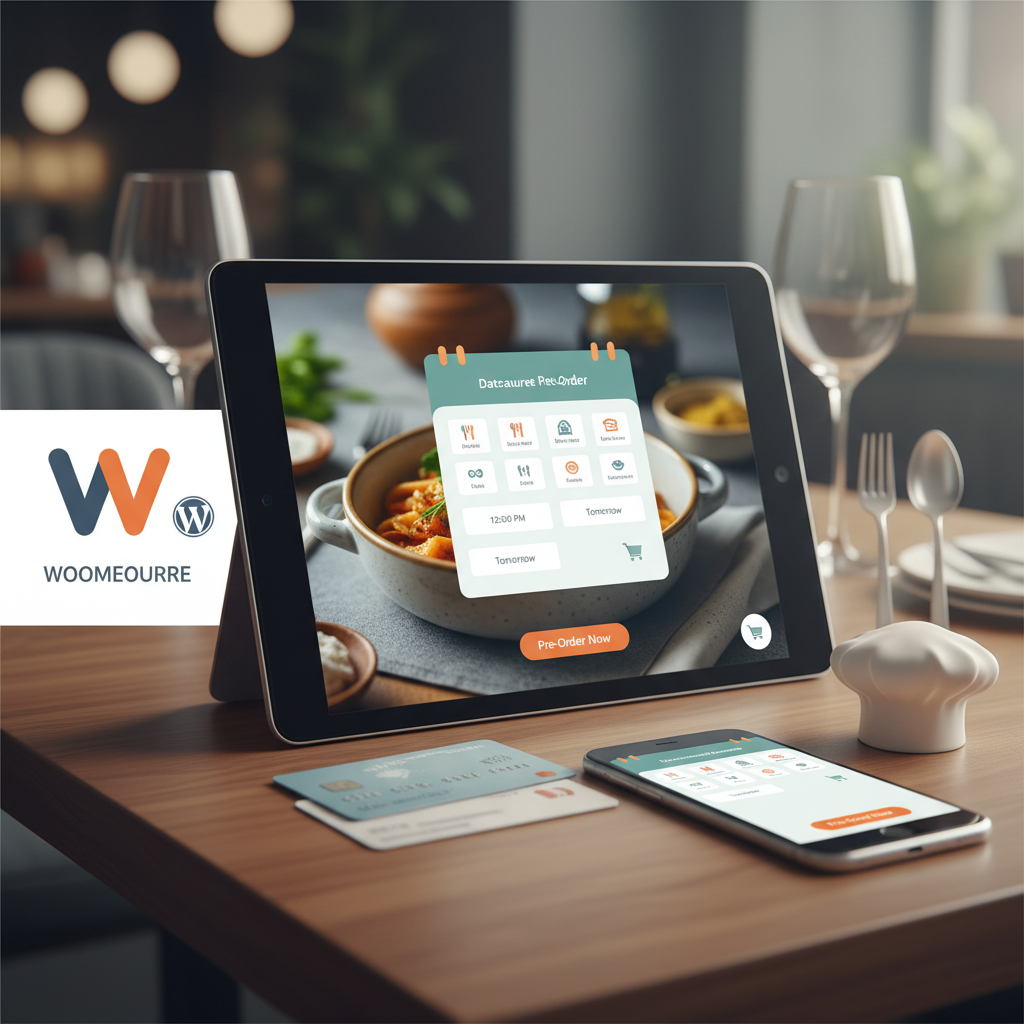
This is different from time-slot ordering — choosing a delivery window for today’s lunch — which many restaurant plugins already handle well. What we’re talking about here is a full date and time picker that lets customers browse a calendar, select a future date, and choose an available time slot. It’s the difference between scheduling a same-day appointment and booking a hotel room weeks out. Both require different UX patterns, validation rules, and backend logic.
Choosing the Right Date and Time Picker Plugin for WooCommerce
Not every date picker is built for restaurant workflows. A plugin designed for booking hotel rooms or scheduling consultations won’t understand concepts like kitchen prep time, daily order capacity, or different rules for pickup versus delivery. Here’s what to evaluate when choosing a solution.
Key Features to Look For
- Blackout dates: The ability to block specific dates (holidays, maintenance days, private events) from the calendar.
- Lead time settings: Minimum advance notice (e.g., orders must be placed at least 24 hours before the requested time) and maximum booking windows (e.g., no more than 14 days ahead).
- Cutoff times: A daily cutoff after which orders for the next day are no longer accepted — critical for kitchens that need to finalize prep lists by a certain hour.
- Per-day capacity limits: Restricting how many orders can be scheduled for a single date to prevent kitchen overload.
- Mobile-friendly calendar UI: A touch-optimized date picker that doesn’t frustrate smartphone users.
- Order type awareness: Different rules for delivery, pickup, and catering orders.
How the Options Compare
WooCommerce Bookings is a popular choice for appointment-style scheduling, but it’s primarily designed for services like salons and tours. It can be adapted for restaurants, though it requires significant configuration and doesn’t natively understand food ordering concepts like order types or kitchen prep workflows.
Order Delivery Date Pro by TycheSoftwares focuses specifically on delivery date selection at checkout. It handles blackout dates and time slots reasonably well, but it’s a standalone scheduling tool — you’ll need to pair it with a separate restaurant ordering plugin to manage menus, order types, and kitchen operations.
FoodMaster takes a different approach by building scheduling directly into a complete restaurant ordering system. Because it’s purpose-built for food ordering on WooCommerce, the date and time picker is already integrated with delivery/pickup logic, menu management, and kitchen workflows. You’re not stitching together three plugins and hoping they play nicely — the scheduling, the menu, and the order routing are all part of the same system. It also includes features like QR table ordering and POS integration, which means dine-in orders can bypass the date picker entirely without any conditional logic hacks.
[IMAGE: Side-by-side comparison of date and time picker interfaces on a WooCommerce restaurant checkout page, showing calendar widget with blocked dates and available time slots]
Step-by-Step Setup: Adding a Date and Time Picker to Your Restaurant Checkout
Let’s walk through the practical setup process. While the exact interface varies by plugin, the core configuration steps are consistent across most WooCommerce-compatible solutions.
Step 1: Install and Activate Your Plugin
If you’re using FoodMaster, install it like any WordPress plugin — upload via Plugins → Add New → Upload Plugin, activate it, and follow the setup wizard. The scheduling features are found within the plugin’s settings panel, typically under a “Delivery/Pickup” or “Order Scheduling” section. No separate plugin is needed for the date picker; it’s built in.
Step 2: Define Your Operating Schedule
Set the days and hours your restaurant accepts pre-orders. This is your baseline availability. For example:
- Monday–Friday: 10:00 AM – 8:00 PM
- Saturday: 11:00 AM – 9:00 PM
- Sunday: Closed (blocked automatically on the calendar)
These hours should reflect when customers can receive their orders, not when they can place them. A customer browsing your site at 11 PM on Tuesday should still be able to schedule a pickup for Wednesday afternoon.
Step 3: Set Minimum and Maximum Lead Times
This is where pre-ordering diverges from same-day ordering. Configure two critical values:
- Minimum lead time: The earliest a customer can schedule an order. For standard menu items, 24 hours might suffice. For catering platters or specialty items, you might need 48–72 hours.
- Maximum advance window: How far ahead customers can book. Two weeks (14 days) is a common sweet spot — long enough for event planning, short enough that your menu and pricing remain accurate.
Step 4: Configure Time Slot Intervals
Decide the granularity of your available time slots. Thirty-minute intervals work well for most restaurants (e.g., 11:00, 11:30, 12:00). Fifteen-minute intervals offer more flexibility but can overwhelm the kitchen if too many slots fill up. Some restaurants prefer one-hour windows for pre-orders to simplify logistics.
Step 5: Add Blackout Dates and Holidays
Manually block dates when your restaurant will be closed: major holidays, renovation periods, staff retreats. Most plugins let you add these as one-time dates or recurring annual events. For holidays where you’ll offer a special menu instead of closing (like Thanksgiving or Christmas Eve), don’t block the date — instead, use a separate menu or product category tied to that date range (more on this in the edge cases section below).
Step 6: Set Daily Cutoff Times
A cutoff time determines when orders for a specific date stop being accepted. If your cutoff is 6:00 PM the day before, a customer trying to order at 7:00 PM on Monday for Tuesday pickup will see Tuesday grayed out and be directed to Wednesday instead. This gives your kitchen a firm deadline to finalize prep lists and ingredient orders.
Step 7: Test the Checkout Flow
Place several test orders from different devices. Verify that blocked dates don’t appear, that lead times are enforced correctly, and that the time slots shown match your operating hours. Pay special attention to edge cases like orders placed just before midnight or during timezone transitions.
Customizing the Picker Experience for Different Order Types (Pickup, Delivery, and Catering)
A one-size-fits-all calendar doesn’t work when your restaurant handles multiple order types. A customer picking up a sandwich needs a different scheduling experience than someone ordering a catering spread for 50 people.
Pickup vs. Delivery Rules
Delivery orders typically need longer lead times because you’re adding transit time and driver coordination. If pickup orders require a 2-hour minimum lead time, delivery orders might need 3–4 hours. The available time slots might also differ — your delivery radius might only be serviceable during certain hours when drivers are on shift.
With FoodMaster’s WooCommerce restaurant plugin, the order type selection (delivery, pickup, or dine-in) happens early in the ordering flow, which means the date and time picker can dynamically adjust its rules based on what the customer chose. If they select pickup, they see one set of available slots. Switch to delivery, and the calendar updates accordingly — no page reload required.
Catering and Large Group Orders
Catering orders are a different beast entirely. They often require:
- Longer minimum lead times: 3–7 days instead of 24 hours, because ingredients may need to be specially ordered.
- Restricted time slots: Catering pickup or delivery might only be available during off-peak hours (e.g., 9:00–11:00 AM) to avoid disrupting regular service.
- Manual confirmation: Rather than auto-confirming, catering orders might go into a “pending” status so the kitchen manager can review capacity before accepting.
You can implement this by creating a separate WooCommerce product category for catering items and applying different scheduling rules to that category. Some plugins support per-category or per-product scheduling overrides, which is exactly what you need here.
Hiding the Picker for Dine-In and Instant Orders
If a customer is placing a dine-in order via QR code at their table, showing them a date picker makes no sense — they want their food now. Use conditional logic to hide the scheduling fields when the order type is set to dine-in or when the customer hasn’t selected a future date. This keeps the checkout clean and avoids confusing customers who just want to order lunch.
Handling Edge Cases: Blackout Dates, Holiday Menus, and Capacity Limits Per Day
The real complexity of restaurant pre-ordering shows up in edge cases. These are the scenarios that separate a polished system from one that creates more problems than it solves.
Thanksgiving and Holiday Pre-Order Rushes
Thanksgiving is the single biggest pre-order event for most American restaurants. Customers start ordering holiday meal packages weeks in advance. Your date picker needs to handle this gracefully: open up a specific date range (say, November 20–27) with special menu items visible only during that window. Set a hard order cap — if your kitchen can handle 100 holiday packages, the 101st customer should see a “sold out” message for that date, not a broken checkout.
Valentine’s Day and Limited Seatings
For restaurants offering prix fixe Valentine’s Day dinners, the date picker functions more like a reservation system. You might allow only 30 orders for the 6:00 PM slot and 30 for the 8:00 PM slot. Once those fill, the time slots disappear from the calendar. This creates natural urgency and prevents overbooking.
Weekly Specials on Specific Days
Some restaurants run specials that are only available on certain days — Taco Tuesday, Fish Friday, Sunday Brunch. The date picker should reflect this by only showing these items as orderable on their designated days. In WooCommerce, you can achieve this with product visibility rules tied to the selected delivery/pickup date.
[IMAGE: Mobile phone screen showing a restaurant checkout page with a touch-friendly date picker calendar and time slot selection dropdown, with some dates grayed out as unavailable]
Daily Order Caps
This is arguably the most important edge case. Without daily order caps, a viral social media post could flood your kitchen with 300 pre-orders for a single Saturday. Configure your date picker to track how many orders have been placed for each date and automatically disable that date once the cap is reached. A reasonable cap depends on your kitchen’s throughput — start conservative (maybe 80% of your theoretical maximum) and adjust based on real performance data.
Optimizing the Mobile Experience and Reducing Cart Abandonment
Here’s a stat that should guide every design decision: the vast majority of restaurant website traffic comes from mobile devices. If your date picker is clunky on a phone, you’re losing orders. Period.
Touch-Friendly Calendar Design
Desktop date pickers with tiny clickable dates are a nightmare on mobile. Each date cell should be at least 44×44 pixels (Apple’s recommended minimum tap target size). The calendar should support swipe gestures for navigating between months, and the currently selected date should have clear visual feedback — a bold highlight color, not a subtle underline.
Auto-Suggest the Next Available Date
Don’t make customers hunt through the calendar. When the date picker opens, it should automatically highlight or pre-select the next available date and time. If the minimum lead time is 24 hours and the customer is ordering at 3 PM on Wednesday, the picker should open with Thursday pre-selected and the first available afternoon slot highlighted. This small UX detail can meaningfully reduce the time from “add to cart” to “place order.”
Inline Validation and Clear Error Messages
If a customer selects a date that’s too soon or a time slot that’s full, show the error immediately — right next to the picker, in plain language. “Sorry, we need at least 24 hours to prepare your order. The earliest available pickup is Thursday at 2:00 PM” is infinitely better than a generic red banner at the top of the page that says “Invalid date selected.”
Minimize Steps and Reduce Friction
Every additional tap or page load increases the chance of abandonment. The ideal flow is: select order type → pick date → pick time → review cart → checkout. If possible, keep the date and time selection on the same screen rather than splitting them across multiple steps. Collapsible sections or a two-part inline picker (date on top, time slots below) works well on mobile without requiring a page transition.
Performance Matters
A date picker that loads a heavy JavaScript calendar library can add noticeable delay on slower mobile connections. Test your checkout page with Google’s PageSpeed Insights and aim for a Largest Contentful Paint under 2.5 seconds. If your calendar widget is the bottleneck, consider lazy-loading it — only initialize the picker when the customer taps the date field, not on initial page load.
Putting It All Together
Building a robust date and time picker for restaurant pre-orders isn’t just a technical exercise — it’s a direct revenue opportunity. Customers who can confidently schedule meals days or weeks ahead tend to order more items, plan larger gatherings, and return more frequently. The key is choosing a solution that understands restaurant-specific workflows rather than trying to retrofit a generic booking tool.
If you’re running a WooCommerce-based restaurant site, a purpose-built food ordering plugin like FoodMaster gives you scheduling, menu management, kitchen display, and order routing in a single package — no plugin conflicts, no compatibility headaches. Pair that with the configuration principles outlined above, and you’ll have a pre-ordering system that keeps your kitchen organized, your customers happy, and your revenue growing.
Commission-free ordering
Run restaurant orders on your own WordPress site
FoodMaster adds delivery, pickup, dine-in, POS, and kitchen tools — with zero per-order fees.