On this page
- Why Integrating Third-Party Delivery Platforms With Your Restaurant Website Matters
- Understanding How Third-Party Delivery Integrations Work With WooCommerce
- 1. Direct API Connections
- 2. Middleware Aggregators
- 3. Webhook and Zapier-Based Syncing
- Step-by-Step: Setting Up DoorDash Drive for Your WooCommerce Restaurant Website
- Step 1: Apply for DoorDash Drive
- Step 2: Set Up Your WooCommerce Ordering System
- Step 3: Connect DoorDash Drive to Your Site
- Step 4: Configure Delivery Fees
- Step 5: Test Your First Order
- How to Sync Your Menu and Orders With Uber Eats and Grubhub
- Using an Aggregator Tool
- Handling Pricing Differences
- Manual Management (The Budget Option)
- Avoiding Common Pitfalls: Duplicate Orders, Menu Mismatches & Commission Traps
- Duplicate Orders
- Menu Mismatches
- Tablet Fatigue
- Hidden Commission Traps
- Best Strategy: Using Third-Party Apps to Drive Traffic Back to Your Own WordPress Ordering Site
- Include Physical Inserts in Every Delivery Bag
- Price Your Website Menu Lower
- Build an Email and SMS List
- Leverage Website-Only Exclusives
- Use Coupons and Loyalty Programs Strategically
- Track Your Channel Mix Over Time
- Putting It All Together
Why Integrating Third-Party Delivery Platforms With Your Restaurant Website Matters
Running a restaurant in 2025 means juggling a brutal reality: third-party delivery platforms like DoorDash, Uber Eats, and Grubhub command enormous consumer attention, but they charge commission fees that typically range from 15% to 30% per order. On a $40 delivery order, that’s $6 to $12 going straight to the platform — money that could cover food costs or staff wages.
Yet ignoring these platforms entirely isn’t realistic for most restaurants. According to data from the National Restaurant Association, off-premise dining (delivery, takeout, and drive-through combined) continues to represent a growing share of total restaurant revenue, with delivery specifically accounting for a significant and increasing portion of orders at independent restaurants. Customers who’ve never heard of your restaurant discover you through these apps daily.
The winning strategy? A hybrid approach. You maintain your presence on DoorDash, Uber Eats, and Grubhub for discovery and new customer acquisition, while simultaneously running your own WordPress/WooCommerce ordering website where you keep 100% of the margin. The trick is connecting these systems so your kitchen doesn’t descend into chaos managing five different tablets and three different menus.
This guide walks you through exactly how to make that connection work — from the technical plumbing to the marketing strategy that shifts customers from high-commission apps to your own site over time.
Understanding How Third-Party Delivery Integrations Work With WooCommerce
Before diving into setup steps, it helps to understand the basic architecture of how these integrations function. There are three primary methods restaurants use to connect third-party delivery platforms with a WooCommerce-based ordering site:
1. Direct API Connections
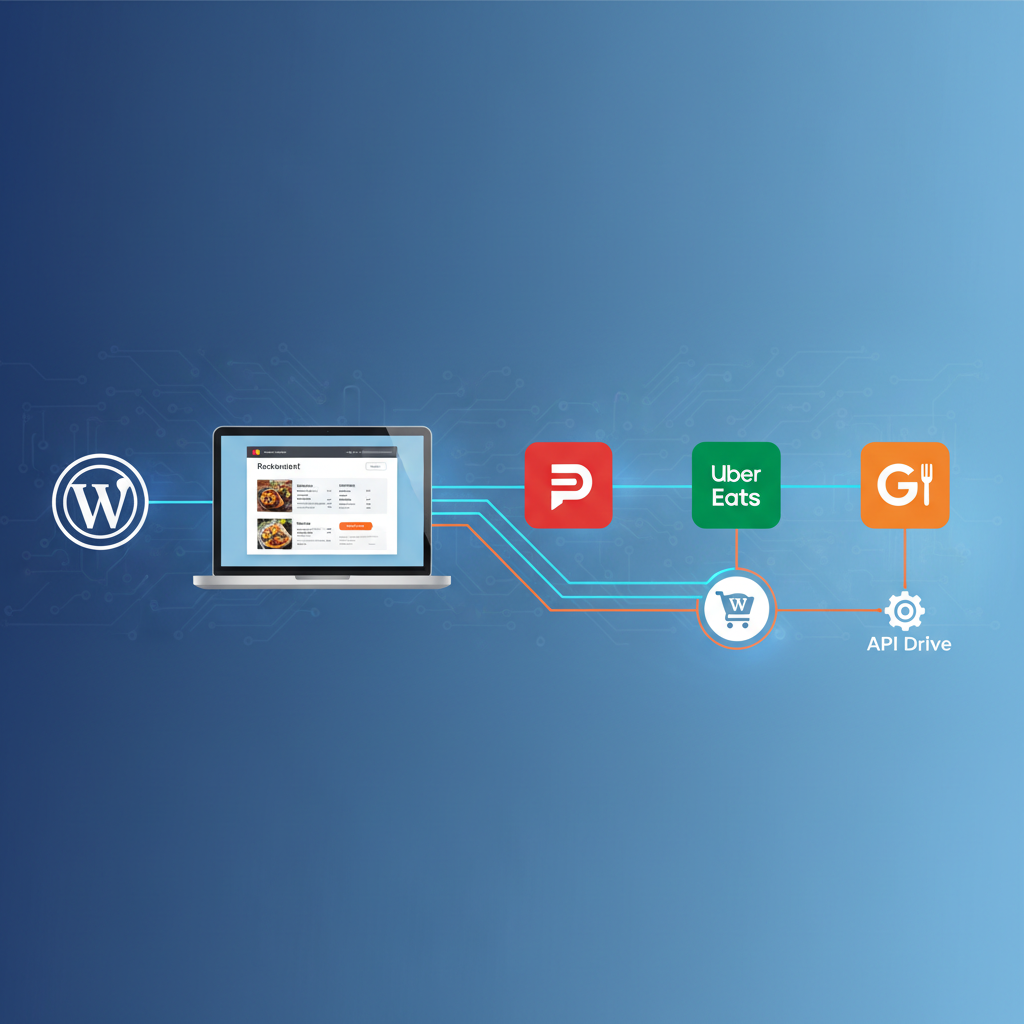
DoorDash, Uber Eats, and Grubhub each offer APIs (Application Programming Interfaces) that allow external systems to send and receive data — things like menu items, order details, delivery status updates, and pricing. DoorDash Drive, for example, provides a white-label delivery API that lets you use DoorDash’s driver network for orders placed on your own website.
2. Middleware Aggregators
Tools like Deliverect, ItsaCheckmate, and Otter (formerly Ordermark) act as a central hub. They sit between your restaurant’s POS or ordering system and multiple delivery platforms, translating data back and forth. Think of them as universal translators: an order comes in from Uber Eats, the middleware reformats it, and pushes it into your existing system — whether that’s a POS terminal, a kitchen display, or your WooCommerce dashboard.
3. Webhook and Zapier-Based Syncing
For restaurants that don’t need enterprise-level middleware, webhook-based integrations or Zapier automations can bridge the gap. When a new order arrives on a third-party platform, a webhook fires, triggering an action in WooCommerce — like creating a new order entry or sending a notification to your kitchen.
Here’s how the flow typically works in practice:
- Customer places an order on DoorDash, Uber Eats, Grubhub, or your own WooCommerce site
- The order data passes through your chosen integration method (API, middleware, or webhook)
- All orders land in a single dashboard — ideally your WooCommerce backend or a connected kitchen display
- Your kitchen prepares the order without needing to check multiple tablets
- Delivery is fulfilled by the respective platform’s drivers or your own staff
[IMAGE: Flowchart diagram showing how orders from DoorDash, Uber Eats, Grubhub, and a WooCommerce restaurant website all funnel through a middleware layer into a single kitchen dashboard]
The goal is consolidation. Every order, regardless of source, should end up in one place so your staff isn’t scrambling between devices during the Friday dinner rush.
Step-by-Step: Setting Up DoorDash Drive for Your WooCommerce Restaurant Website
DoorDash Drive is the most accessible entry point for restaurant owners who want to use third-party delivery drivers on their own website orders. Unlike the standard DoorDash marketplace (where customers find you on the DoorDash app), DoorDash Drive is a white-label delivery-as-a-service product. Customers order on your site, and DoorDash simply provides the driver.
Step 1: Apply for DoorDash Drive
Visit the DoorDash Drive portal and submit an application. You’ll need your restaurant’s basic information, tax ID, and bank details for payouts. Approval typically takes a few business days. DoorDash Drive charges a per-delivery fee (which varies by market and distance) rather than the 15-30% commission on marketplace orders — a significant cost difference.
Step 2: Set Up Your WooCommerce Ordering System
If you haven’t already, you’ll need a functioning online ordering system on your WordPress site. FoodMaster is purpose-built for this — it turns WooCommerce into a full restaurant ordering system with delivery, pickup, and dine-in capabilities, plus features like kitchen display screens and automatic order printing that become essential when you’re receiving orders from multiple channels.
Step 3: Connect DoorDash Drive to Your Site
There are two practical approaches here:
- Zapier Integration: Create a Zap that triggers when a new WooCommerce order with “delivery” as the fulfillment method is placed. The Zap sends the delivery details (pickup address, customer address, order contents) to DoorDash Drive via their API. This requires a Zapier account and some configuration but no coding.
- Custom API Integration: If you have a developer available, DoorDash Drive’s REST API allows direct integration. When a delivery order is placed through WooCommerce, your site automatically creates a DoorDash Drive delivery request. The API returns a tracking URL that you can pass to the customer via email or SMS.
Step 4: Configure Delivery Fees
With FoodMaster’s built-in delivery zone and fee management, you can set distance-based or zone-based delivery charges that cover (or partially offset) the DoorDash Drive per-delivery fee. For example, if DoorDash charges you $5.99 per delivery, you might set a $4.99 delivery fee for customers and absorb the $1.00 difference — still far cheaper than the 25% marketplace commission on a $40 order.
Step 5: Test Your First Order
Place a test delivery order on your own site. Verify that the order appears in your WooCommerce dashboard, that the DoorDash Drive delivery request is created, and that a driver is dispatched. Check that the customer receives tracking information. Iron out any kinks before going live.
How to Sync Your Menu and Orders With Uber Eats and Grubhub
While DoorDash Drive lets you use their drivers on your own site’s orders, syncing with Uber Eats and Grubhub is a different challenge. These platforms primarily want customers ordering through their apps, so the integration focus shifts to menu consistency and order consolidation.
Using an Aggregator Tool
Middleware platforms like Deliverect and ItsaCheckmate connect directly to Uber Eats and Grubhub’s merchant APIs. Once connected, they can:
- Push your menu from a central source to all connected platforms simultaneously
- Pull incoming orders from Uber Eats and Grubhub into your POS or WooCommerce dashboard
- Sync item availability — if you run out of a dish, it’s marked unavailable everywhere at once
- Standardize order formatting so your kitchen sees a consistent ticket regardless of order source
The setup process generally involves creating merchant accounts on each aggregator, authorizing access to your Uber Eats and Grubhub merchant portals, and mapping your menu items. Expect to spend a few hours on initial configuration.
Handling Pricing Differences
Many restaurants charge 10-20% more on third-party platforms to offset commission fees. This is common practice and explicitly allowed by most platforms (DoorDash removed its price parity clause in many markets following regulatory pressure). When using an aggregator, you can set platform-specific pricing rules — your WooCommerce site shows the base price, while Uber Eats and Grubhub show the marked-up price.
This pricing differential also becomes a powerful marketing tool: when customers notice the same burger is $14.99 on your website versus $17.99 on Uber Eats, they have a tangible reason to order direct next time.
Manual Management (The Budget Option)
If middleware costs don’t fit your budget yet, you can manage menus manually through each platform’s merchant dashboard. The trade-off is time: every menu change needs to be made in three or four places. For restaurants with smaller, stable menus, this is manageable. For restaurants with daily specials or frequently rotating items, it becomes unsustainable quickly.
[IMAGE: Side-by-side screenshot comparison of a restaurant menu displayed on a WooCommerce website using FoodMaster versus the same menu on a third-party delivery app, highlighting the pricing difference]
Avoiding Common Pitfalls: Duplicate Orders, Menu Mismatches & Commission Traps
Running on multiple platforms simultaneously introduces real operational risks. Here are the most common problems and how to handle them:
Duplicate Orders
This happens when a customer places the same order on your website and a third-party app (sometimes accidentally, sometimes testing both). It also occurs when middleware creates a WooCommerce order for a third-party app order that your kitchen also receives on the platform’s tablet.
Solution: Designate a single source of truth. Either route all orders through WooCommerce and silence the platform tablets, or use the platform tablets as primary and treat WooCommerce as a record-keeping backup. FoodMaster’s kitchen display system can serve as that single screen your staff watches, reducing the chance of preparing the same order twice.
Menu Mismatches
You add a new appetizer to your WooCommerce menu but forget to add it on Grubhub. Or you 86 the salmon on your website but it’s still showing as available on Uber Eats. Customers order it, your kitchen can’t fulfill it, and you get a cancellation that hurts your platform rating.
Solution: If using an aggregator, enable real-time stock syncing. If managing manually, create a checklist: every menu change triggers updates across all platforms before the change goes live. Some restaurant owners designate a specific staff member as the “menu manager” responsible for cross-platform consistency.
Tablet Fatigue
Three platforms means three tablets, each with its own notification sounds, its own interface, and its own way of displaying orders. During peak hours, this becomes overwhelming.
Solution: This is the strongest argument for middleware or a consolidated WooCommerce-based system. When all orders flow into one dashboard with consistent formatting, your kitchen staff only needs to watch one screen. FoodMaster’s automatic printing feature is particularly useful here — orders print directly to your kitchen printer regardless of source, so staff don’t need to interact with any screen at all.
Hidden Commission Traps
Watch out for “marketing fees,” “premium placement” charges, and “delivery subsidies” that platforms may add to your base commission rate. Some restaurants report effective commission rates above 30% once all fees are factored in.
Solution: Audit your platform statements monthly. Calculate your actual per-order cost (total fees divided by total orders) rather than relying on the advertised commission rate. Use this real number when deciding how aggressively to shift customers to your own site.
Best Strategy: Using Third-Party Apps to Drive Traffic Back to Your Own WordPress Ordering Site
The smartest restaurant operators treat DoorDash, Uber Eats, and Grubhub as customer acquisition channels, not as their permanent ordering infrastructure. The first order comes through the app; every subsequent order should come through your own site. Here’s how to make that shift happen:
Include Physical Inserts in Every Delivery Bag
This remains the single most effective tactic. Print a small card or flyer that goes into every delivery bag — whether the order came from your site or a third-party app. The card should include:
- A QR code linking directly to your online ordering page
- A first-order discount code (e.g., “Get 15% off your first order at [yoursite.com] — use code DIRECT15”)
- A brief, friendly explanation: “Order direct and save — same food, lower prices, no app fees”
This works because you’re reaching the customer at the moment they’re most engaged: when they’re about to eat your food. If the food is good, the incentive to order direct next time is compelling.
Price Your Website Menu Lower
As mentioned earlier, many restaurants mark up prices on third-party apps. Make this difference visible and explicit. On your website, consider adding a small banner: “Our website prices are always lower than delivery apps.” This isn’t aggressive — it’s factual, and customers appreciate the transparency.
Build an Email and SMS List
When customers order through your WooCommerce site, you capture their email address and (optionally) phone number. This data is yours — unlike third-party platforms, which keep customer data locked behind their walls. Use WooCommerce’s built-in email capabilities or connect a tool like Mailchimp to send:
- Weekly specials and limited-time offers
- Birthday or anniversary discounts
- Reorder reminders for customers who haven’t ordered in 30+ days
Leverage Website-Only Exclusives
Create menu items or bundles that are only available on your own site. A “Family Meal Deal” or a “Chef’s Special Box” that can’t be found on DoorDash gives customers a reason to visit your website specifically. With FoodMaster’s flexible menu management, you can create these exclusive items without affecting your standard menu that syncs to third-party platforms.
Use Coupons and Loyalty Programs Strategically
WooCommerce’s native coupon system, combined with FoodMaster’s ordering features, lets you create targeted promotions. Offer a “5th order free” loyalty punch card digitally, or send a coupon code after a customer’s second direct order to lock in the habit. The goal is making your website the default choice, not just an alternative.
Track Your Channel Mix Over Time
Monitor what percentage of your total delivery orders come from each source monthly. A healthy target for an established restaurant is shifting toward 40-60% direct orders within 6-12 months of launching your own site. If your direct percentage isn’t growing, revisit your insert cards, pricing strategy, and email marketing frequency.
Putting It All Together
Connecting your WordPress restaurant website to DoorDash, Uber Eats, and Grubhub isn’t about choosing one channel over another — it’s about building a system where every channel feeds your business without any single platform holding you hostage. Use DoorDash Drive for affordable delivery fulfillment on your own orders. Use middleware to consolidate third-party orders into your WooCommerce dashboard. And relentlessly funnel customers toward your own site where you control the experience, the data, and the margins.
The restaurants that thrive in 2025 won’t be the ones with the best placement on Uber Eats. They’ll be the ones who built their own ordering infrastructure with tools like FoodMaster for WooCommerce, used third-party platforms strategically for growth, and turned first-time app customers into lifelong direct-order regulars. Start with one integration, get it running smoothly, and expand from there. Your margins will thank you.
Commission-free ordering
Run restaurant orders on your own WordPress site
FoodMaster adds delivery, pickup, dine-in, POS, and kitchen tools — with zero per-order fees.