On this page
- Why Email and SMS Notifications Matter for Restaurant Orders
- Setting Up WooCommerce Email Notifications for New Orders, Status Changes, and Confirmations
- The Core Emails You Need Active
- Branding Your Email Templates
- Ensuring Emails Actually Arrive
- Adding SMS Order Notifications With Twilio or Other SMS Plugins
- Choosing Your SMS Integration
- Step-by-Step Twilio Setup
- Automating Follow-Up Emails: Reorder Reminders, Review Requests, and Weekly Specials
- Abandoned Cart Recovery
- Post-Order Review Requests
- Reorder Reminders Based on Purchase History
- Weekly Specials and Menu Updates
- Customizing Notification Templates With Order Details, Delivery Times, and Menu Items
- Essential Placeholders for Restaurant Notifications
- Writing Notification Copy That Feels Human
- Troubleshooting Common Issues: Emails Going to Spam, SMS Not Delivering, and Cost Management
- Emails Landing in Spam
- SMS Messages Failing to Send
- Managing SMS Costs at Scale
- Avoiding Notification Fatigue
- Bringing It All Together
Why Email and SMS Notifications Matter for Restaurant Orders
A customer places an order on your Restaurant Website With WordPress and WooCommerce (From Scratch)”>Restaurant Website (2025)”>WooCommerce Restaurant Website (2025)”>restaurant website at 6:47 PM during the Friday dinner rush. The kitchen never sees it. Twenty minutes later, an angry phone call comes in. That scenario — preventable, frustrating, and reputation-damaging — is exactly why automated order notifications aren’t optional for restaurants running online ordering.
The numbers paint a clear picture of why both channels matter. SMS messages carry an open rate hovering around 98%, with most read within three minutes of delivery, according to data from Gartner. Email open rates, by comparison, sit closer to 20-25% across industries, though transactional emails (like order confirmations) perform significantly better, often reaching 60-80% open rates. For restaurants, the takeaway is straightforward: SMS gets immediate attention, while email provides the detailed receipt and follow-up communication customers expect.
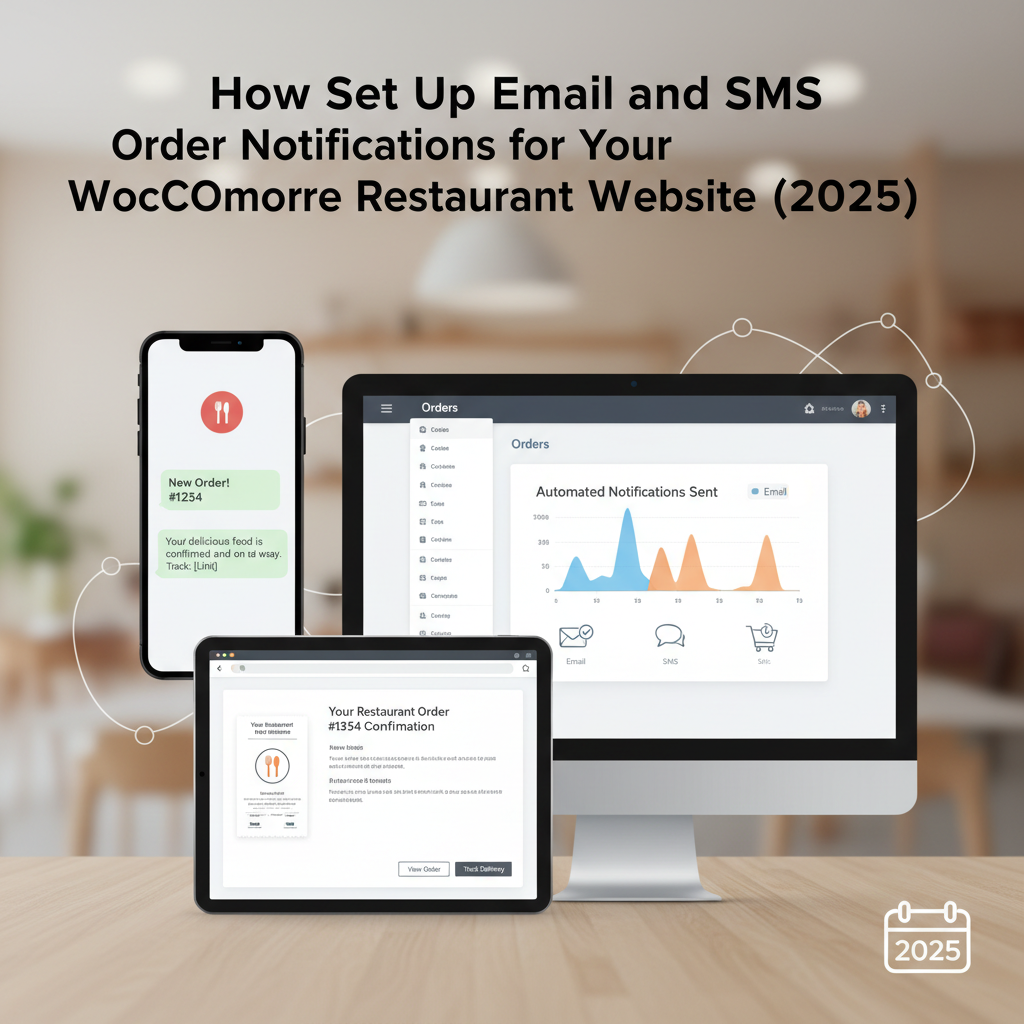
Running both channels together creates a safety net. The kitchen gets an instant SMS ping when an order drops in — no tab-switching, no refreshing a dashboard. The customer receives a detailed email confirmation they can reference later, plus a quick text when their food is ready for pickup or out for delivery. This dual approach cuts down on “where’s my order?” calls, reduces missed orders during peak hours, and builds the kind of reliability that turns first-time customers into regulars.
Setting Up WooCommerce Email Notifications for New Orders, Status Changes, and Confirmations
WooCommerce ships with a solid built-in email notification system that handles the basics right out of the box. You’ll find it under WooCommerce → Settings → Emails, where each order status change can trigger a separate email to either you (the store admin) or the customer.
The Core Emails You Need Active
- New Order (Admin): Fires when a customer places an order. This is your kitchen alert. Make sure the recipient email goes to whoever manages incoming orders — or better yet, a shared inbox the entire team monitors.
- Processing Order (Customer): Confirms the order has been received and payment captured. For restaurant orders, this is where you reassure the customer that their food is being prepared.
- Completed Order (Customer): Sent when you mark the order complete — ideally when the delivery driver leaves or the pickup is handed off.
To customize any of these, click Manage next to the email type. You can change the subject line, heading text, and additional content. For a restaurant, consider adding practical details: “Your order is being prepared and will be ready for pickup in approximately 25 minutes” hits differently than a generic “Your order is processing.”
Branding Your Email Templates
Scroll down to the Email sender options section to set your “From” name and address. Use your restaurant name, not “WordPress” or “admin.” Under the Email template section, you can set header image (your logo), footer text, and base/background colors to match your branding.
For deeper template customization, WooCommerce email templates live in wp-content/plugins/woocommerce/templates/emails/. Copy any template file to wp-content/themes/your-theme/woocommerce/emails/ to override it safely. This lets you add estimated delivery times, pickup instructions, or your restaurant’s phone number directly into the template HTML.
Ensuring Emails Actually Arrive
Here’s where many restaurant owners hit a wall: WordPress sends emails using PHP’s mail() function by default, which most hosting providers handle poorly. Emails end up in spam or never arrive at all. Install WP Mail SMTP and configure it with a transactional email service like SendGrid, Postmark, or Amazon SES. This routes your emails through authenticated servers, dramatically improving deliverability. For a restaurant handling dozens of orders daily, this step isn’t optional — it’s critical infrastructure.
[IMAGE: WooCommerce email settings screen showing restaurant-branded order confirmation email with custom logo, colors, and estimated delivery time]
Adding SMS Order Notifications With Twilio or Other SMS Plugins
Email handles the paper trail. SMS handles the urgency. When a new order hits your system during a busy service, you need something that cuts through the noise — and a text message on the kitchen manager’s phone does exactly that.
Choosing Your SMS Integration
Several WordPress plugins connect WooCommerce to SMS gateways. The most common approach uses Twilio as the underlying SMS provider, paired with a WordPress plugin that bridges the two systems. Options include Jetstash Connect, NotifyLk, and various Twilio-specific WooCommerce plugins. When evaluating, look for these capabilities:
- SMS to admin/staff on new orders (the kitchen alert)
- SMS to customers on order status changes
- Customizable message templates with dynamic order data
- Support for international phone numbers if you serve a diverse customer base
Step-by-Step Twilio Setup
- Create a Twilio account at twilio.com. You’ll get a trial account with free credits to test. Note your Account SID and Auth Token from the dashboard.
- Purchase a phone number — Twilio numbers cost about $1.15/month for a US number. This becomes the “from” number for your restaurant’s texts.
- Install your chosen SMS plugin on WordPress. Navigate to its settings page and enter your Twilio Account SID, Auth Token, and the phone number you purchased.
- Configure notification triggers. At minimum, enable SMS for “New Order” (sent to your staff) and “Order Status Changed to Completed” (sent to customers). Most plugins let you toggle each WooCommerce order status independently.
- Set up message templates. Use placeholders like
{order_number},{customer_name}, and{order_total}to create dynamic messages. Keep texts under 160 characters when possible to avoid multi-segment charges.
A solid admin notification template might read: “🔔 New order #{order_number} — {order_items_count} items — {order_total}. {order_type}: {delivery_time}.” Short, scannable, and actionable.
If you’re running your restaurant ordering through FoodMaster (formerly WooFood), the plugin already handles order type distinctions — delivery, pickup, and dine-in — which means your SMS templates can pull in that context automatically through WooCommerce order meta fields. This gives your kitchen staff instant clarity on whether they’re prepping for a delivery driver or a walk-in pickup.
Automating Follow-Up Emails: Reorder Reminders, Review Requests, and Weekly Specials
The order notification gets the food out the door. What happens after the meal determines whether that customer comes back. Automated email sequences turn one-time orders into repeat revenue without requiring you to manually send a single message.
Abandoned Cart Recovery
Cart abandonment in food ordering tends to be lower than general e-commerce (where rates hover around 70%), but it still happens — especially when customers get distracted or hit unexpected delivery fees. Plugins like AutomateWoo or Mailchimp for WooCommerce can trigger an email 30-60 minutes after someone adds items to their cart but doesn’t complete checkout. A simple “Still hungry? Your {item_name} is waiting” with a direct link back to their cart recovers a meaningful percentage of those lost orders.
Post-Order Review Requests
Timing matters here. Send a review request email 1-2 hours after order completion — enough time for the customer to eat, but soon enough that the experience is fresh. Include a direct link to your Google Business Profile or your website’s review section. Even a modest increase in positive reviews has outsized impact on local search rankings, which directly affects how many new customers find your restaurant online.
Reorder Reminders Based on Purchase History
This is where automation gets genuinely powerful for restaurants. If a customer orders every Friday evening, an automated email on Thursday afternoon — “Ready for your usual? Your last order: 2x Margherita Pizza, 1x Caesar Salad. Reorder with one click” — feels helpful rather than pushy. AutomateWoo’s purchase history triggers make this possible without custom development.
Weekly Specials and Menu Updates
Use Mailchimp for WooCommerce or a similar email marketing integration to build a subscriber list from your WooCommerce customers. A weekly email showcasing new menu items, seasonal specials, or limited-time offers keeps your restaurant top-of-mind. Keep these emails short, visual (food photography matters enormously here), and always include a direct “Order Now” button linking to your online menu.
[IMAGE: Example automated email sequence timeline showing order confirmation at 0 minutes, delivery update at 30 minutes, review request at 2 hours, and reorder reminder at 7 days]
Customizing Notification Templates With Order Details, Delivery Times, and Menu Items
Generic notifications feel impersonal. A text that says “Your order is on its way” is fine. A text that says “Your Pad Thai and Spring Rolls are on their way — estimated arrival 6:35 PM” builds confidence and reduces anxiety calls. The difference comes down to how you use dynamic placeholders in your templates.
Essential Placeholders for Restaurant Notifications
Most WooCommerce email and SMS plugins support these core placeholders:
{customer_first_name}— Personalizes the greeting{order_number}— Reference number for support inquiries{order_items}— Full list of items ordered{order_total}— Total amount charged{order_date}— When the order was placed{shipping_method}— Delivery, pickup, or dine-in
Restaurant-specific data like estimated delivery time, pickup location details, or table number often lives in custom order meta fields. If you’re using a dedicated WooCommerce restaurant ordering plugin like FoodMaster, these fields are already structured and accessible — delivery time slots, order types, and special instructions are stored as order meta that you can pull into notification templates using custom shortcodes or template tags.
Writing Notification Copy That Feels Human
Here are real examples of restaurant notification copy that works, versus generic defaults:
Email Subject Line (Default): “Your order has been received”
Email Subject Line (Better): “Got it, {customer_first_name}! Your order #{order_number} is heading to the kitchen 🍳”
SMS (Default): “Order confirmed. Thank you.”
SMS (Better): “Hey {customer_first_name}! Your {order_items_count} items are being prepared. Pickup at {restaurant_address} around {estimated_time}. Questions? Call us: {phone}.”
Notice the pattern: specificity builds trust, and a conversational tone matches how people actually communicate about food. Include your restaurant’s phone number in every customer-facing notification — it’s a small detail that prevents frustration when something goes wrong.
Troubleshooting Common Issues: Emails Going to Spam, SMS Not Delivering, and Cost Management
Setting up notifications is one thing. Keeping them reliably working at scale is another. Here are the problems restaurant owners hit most often, and how to fix them.
Emails Landing in Spam
If your order confirmation emails are hitting spam folders, the issue is almost always email authentication. You need three DNS records configured for your sending domain:
- SPF (Sender Policy Framework): Tells receiving mail servers which servers are authorized to send email on behalf of your domain.
- DKIM (DomainKeys Identified Mail): Adds a cryptographic signature to your emails proving they haven’t been tampered with.
- DMARC (Domain-based Message Authentication): Tells receiving servers what to do with emails that fail SPF or DKIM checks.
Your transactional email provider (SendGrid, Postmark, etc.) will provide the specific DNS records to add. Your domain registrar or hosting provider’s DNS settings is where you add them. After configuration, use a tool like Mail Tester (mail-tester.com) to send a test email and get a deliverability score. Aim for 9/10 or higher.
Also check your email content. Avoid ALL CAPS subject lines, excessive exclamation marks, and spam trigger words. Ironically, “free delivery” — a common restaurant promotion — can trigger spam filters if your authentication isn’t solid.
SMS Messages Failing to Send
Common culprits for failed SMS delivery include:
- Incorrect phone number formatting: Twilio requires E.164 format (e.g., +14155551234). If your WooCommerce checkout collects phone numbers without country codes, you’ll need to configure your SMS plugin to prepend the correct code.
- Exhausted Twilio credits: Trial accounts have limited funds. Set up auto-recharge or upgrade to a paid account before going live.
- Carrier filtering: Some carriers block messages from unregistered numbers. In the US, registering your Twilio number for A2P 10DLC (Application-to-Person messaging) is increasingly required and improves delivery rates significantly.
- Plugin conflicts: Test SMS sending with other plugins deactivated if messages aren’t triggering. WooCommerce order status hooks can sometimes be overridden by other plugins.
Managing SMS Costs at Scale
SMS isn’t free, and costs add up. Here’s a quick comparison of per-message pricing for popular providers (US domestic messages, as of early 2025):
- Twilio: ~$0.0079 per outbound SMS
- Vonage (Nexmo): ~$0.0068 per outbound SMS
- Plivo: ~$0.0050 per outbound SMS
- Amazon SNS: ~$0.00645 per outbound SMS
For a restaurant processing 50 orders per day with two SMS messages per order (one to admin, one to customer), you’re looking at roughly $2.40-$4.00 per month on Twilio — negligible. But if you add marketing texts, delivery driver notifications, and status updates, costs can climb. Set a monthly budget alert in your SMS provider’s dashboard, and be selective about which status changes trigger texts versus emails.
Avoiding Notification Fatigue
Resist the urge to text customers at every status change. A reasonable SMS cadence for restaurant orders is: order confirmed, and order ready/out for delivery. That’s two texts. Everything else — detailed receipts, review requests, promotional offers — belongs in email. Customers who feel spammed will opt out, and in the US, you’re legally required to honor those opt-outs under TCPA regulations.
Bringing It All Together
A well-configured notification system does more than send messages — it becomes the communication backbone of your restaurant’s online ordering operation. Start with the foundation: WooCommerce’s built-in emails, properly authenticated through WP Mail SMTP and a transactional email service. Layer on SMS for time-sensitive alerts to both your kitchen and your customers. Then build out automated follow-up sequences that drive repeat orders and reviews.
If you’re building your restaurant ordering system on WordPress, having a plugin that already structures order data cleanly — order types, delivery times, special instructions — makes notification customization dramatically easier. FoodMaster handles this natively, giving you structured order meta that feeds directly into your email and SMS templates without custom coding.
The restaurants that get notifications right share a common trait: they treat every automated message as a touchpoint that either builds or erodes trust. Write your notifications like you’re talking to a regular who just called in their usual order. Be specific, be warm, and be reliable. That’s the standard your customers are measuring you against — not other restaurants’ websites, but the seamless experience they get from the major delivery apps. Match that, and you keep the customer relationship (and the commission savings) entirely in your hands.
Commission-free ordering
Run restaurant orders on your own WordPress site
FoodMaster adds delivery, pickup, dine-in, POS, and kitchen tools — with zero per-order fees.