
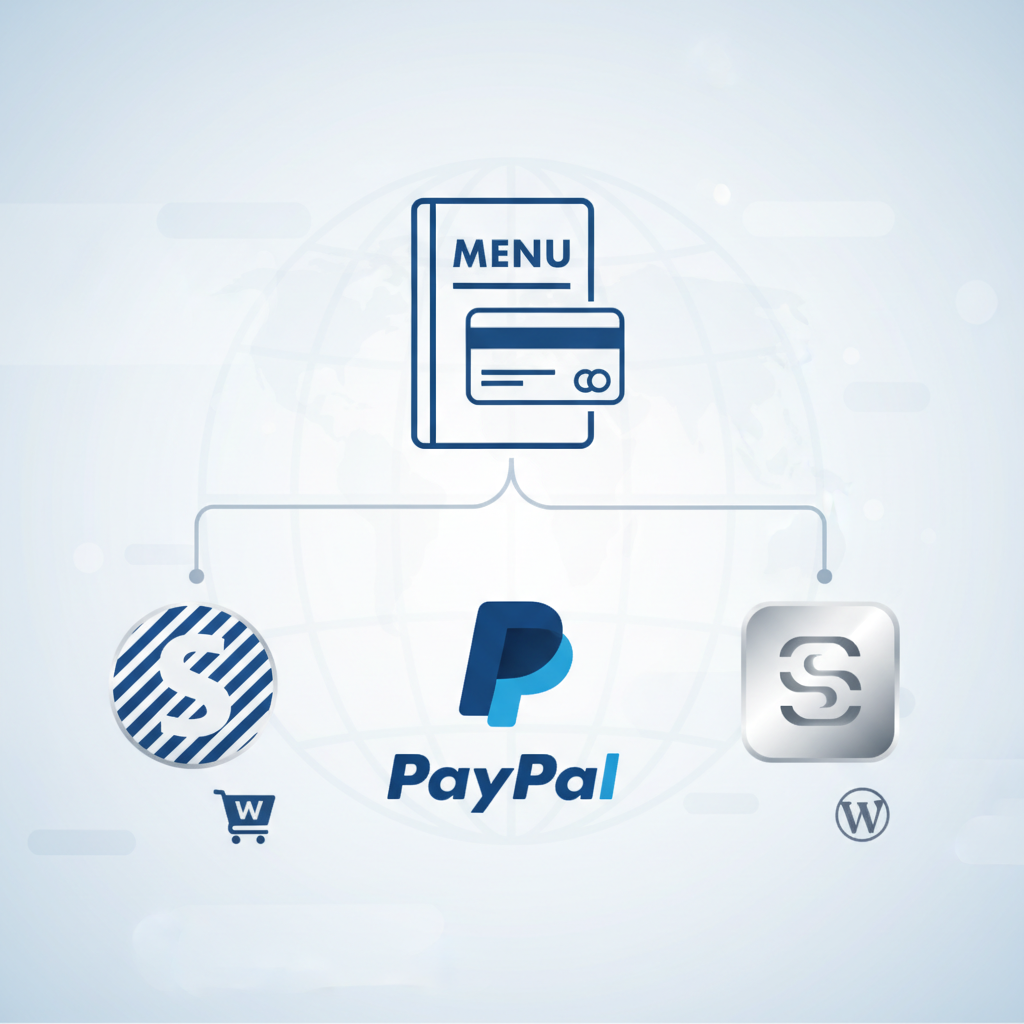
On this page
- Why Choosing the Right Payment Gateway Matters for Restaurants
- Stripe for WooCommerce Restaurant Websites: Setup, Fees & Pros/Cons
- Getting Stripe Running on Your Site
- Fees
- Pros and Cons for Restaurants
- PayPal for WooCommerce Restaurant Websites: Setup, Fees & Pros/Cons
- Setting Up PayPal Commerce Platform
- Fees
- Pros and Cons for Restaurants
- Square for WooCommerce Restaurant Websites: Setup, Fees & Pros/Cons
- The Unique Square Advantage: Online + In-Store Sync
- Fees
- Pros and Cons for Restaurants
- Head-to-Head Comparison: Which Payment Gateway Is Best for Your Restaurant?
- Recommendations by Restaurant Type
- How to Set Up Tipping and Service Charges at Checkout in WooCommerce
- Adding Tip Options to Your Checkout
- How Each Gateway Handles Tips
Why Choosing the Right Payment Gateway Matters for Restaurants
A customer has just spent five minutes customizing their burger, adding extra toppings, and selecting a delivery time slot. They hit checkout — and the payment page loads slowly, doesn’t support Apple Pay, or asks them to create an account. They close the tab. You just lost a sale, and probably a repeat customer.
Payment gateway selection isn’t a back-office detail you can figure out later. For restaurant websites, it directly shapes conversion rates, average order values, and whether customers come back. Research from the Baymard Institute consistently shows that complicated checkout processes are among the top reasons for cart abandonment, with rates hovering around 70% across eCommerce. For food ordering — where the average ticket is lower and the decision is more impulsive — even small friction points have an outsized impact.
Restaurants also have payment needs that a typical online store doesn’t. You need tipping at checkout, the ability to handle delivery fees that vary by zone, fast mobile checkout (since a majority of food orders happen on phones), and sometimes split payments or pay-at-table functionality. The gateway you choose determines whether these features work smoothly or require awkward workarounds.
Then there’s trust. A customer ordering a $15 lunch doesn’t want to see an unfamiliar payment processor. They want to see Stripe’s clean credit card form, PayPal’s recognizable button, or Square’s trusted brand — gateways they’ve used before and feel safe entering card details into. Let’s break down each option so you can make a decision that fits your restaurant’s specific situation.
Stripe for WooCommerce Restaurant Websites: Setup, Fees & Pros/Cons
Getting Stripe Running on Your Site
Stripe is the default recommendation for most WooCommerce-powered restaurant sites, and for good reason. WooCommerce ships with an official WooCommerce Stripe Payment Gateway plugin that’s free and maintained by WooCommerce’s own team. Installation takes about ten minutes:
- Install and activate the “WooCommerce Stripe Payment Gateway” plugin from the WordPress plugin repository.
- Create a Stripe account at stripe.com (approval is typically instant in supported countries).
- Navigate to WooCommerce → Settings → Payments → Stripe and connect your account using Stripe Connect or by pasting your API keys.
- Enable the payment methods you want: credit/debit cards, Apple Pay, Google Pay, and any local payment methods relevant to your market.
- Run a test transaction using Stripe’s test mode before going live.
If you’re running a restaurant ordering system built on WooCommerce — like FoodMaster — Stripe integrates seamlessly because FoodMaster is built directly on WooCommerce’s checkout flow. Every payment gateway that works with WooCommerce works with FoodMaster out of the box, including all of Stripe’s express checkout options.
Fees
Stripe’s standard pricing in the US is 2.9% + $0.30 per transaction. For European cards processed through Stripe in Europe, it’s 1.5% + €0.25 for EEA cards and 2.5% + €0.25 for non-EEA cards. On a $25 food order in the US, you’d pay about $1.03 in processing fees. There are no monthly fees, no setup fees, and no minimum transaction requirements.
Pros and Cons for Restaurants
- Pro: Apple Pay and Google Pay support means mobile customers can check out in two taps — critical when 60%+ of food orders come from phones.
- Pro: Payouts arrive in your bank account within 2 business days (or next day with Stripe Express for an additional 0.5% fee).
- Pro: Stripe handles PCI compliance for you, so you never store card data on your server.
- Pro: Excellent support for recurring payments if you offer meal subscription plans.
- Con: Available in 47+ countries, but if you’re in a country Stripe doesn’t support, it’s a non-starter.
- Con: Dispute/chargeback fee of $15 per incident, which can sting on low-ticket food orders.
[IMAGE: Screenshot showing Stripe payment form at a WooCommerce restaurant checkout with Apple Pay and Google Pay buttons visible above the credit card fields]
PayPal for WooCommerce Restaurant Websites: Setup, Fees & Pros/Cons
Setting Up PayPal Commerce Platform
PayPal has evolved significantly beyond the clunky redirect-based checkout of the past. The current integration for WooCommerce uses the PayPal Commerce Platform (via the “WooCommerce PayPal Payments” plugin), which offers an embedded checkout experience — customers can pay with their PayPal balance, credit card, or PayPal Pay Later without ever leaving your site.
- Install the “WooCommerce PayPal Payments” plugin (free, official WooCommerce extension).
- Connect your PayPal Business account through the guided onboarding flow directly in WooCommerce settings.
- Configure which buttons to display: PayPal, Pay Later, Venmo (US only), and credit/debit card fields.
- Customize button placement — you can show PayPal buttons on the cart page, checkout page, or even individual product pages.
Fees
PayPal’s standard US rate is 2.99% + $0.49 per transaction for online card payments, and 3.49% + $0.49 for PayPal wallet transactions. That’s noticeably higher than Stripe on both the percentage and fixed-fee side. On a $25 order, you’re looking at roughly $1.24 for card payments or $1.36 for PayPal wallet payments. International transactions add a 1.5% cross-border fee.
Pros and Cons for Restaurants
- Pro: Brand recognition is unmatched — PayPal has over 430 million active accounts globally, and many customers feel more comfortable paying with PayPal than entering card details on a site they haven’t used before.
- Pro: PayPal Pay Later (formerly Pay in 4) lets customers split payments into installments at no extra cost to you. This can boost average order values for catering orders or large group meals.
- Pro: Venmo integration (US) appeals to younger demographics who prefer it over traditional payment methods.
- Con: Higher per-transaction fees eat into already thin restaurant margins.
- Con: PayPal’s buyer protection policies are aggressive — they tend to side with the buyer in disputes, which can be frustrating for perishable food orders where “I didn’t like it” isn’t a valid return reason.
- Con: Payouts take 1–3 business days, and PayPal has a reputation for occasionally holding funds on newer accounts.
PayPal makes the most sense as a secondary payment option alongside Stripe. Offering it gives customers who don’t want to type in card details a familiar alternative, and the Pay Later option genuinely helps with larger catering or party orders.
Square for WooCommerce Restaurant Websites: Setup, Fees & Pros/Cons
The Unique Square Advantage: Online + In-Store Sync
Square occupies a different niche than Stripe or PayPal. If your restaurant already uses Square POS hardware for in-person transactions — and many restaurants do — then Square for WooCommerce creates a unified system where your online orders and in-store sales share the same inventory, reporting, and payment dashboard.
The integration uses the official WooCommerce Square plugin:
- Install “WooCommerce Square” from the WordPress plugin repository.
- Connect your existing Square account through OAuth (a secure authorization flow).
- Choose sync direction — you can push WooCommerce products to Square, pull Square catalog items into WooCommerce, or sync bidirectionally.
- Enable Square as a payment method under WooCommerce → Settings → Payments.
Fees
Square charges 2.9% + $0.30 per online transaction in the US — identical to Stripe’s rate. In-person transactions through Square POS are cheaper at 2.6% + $0.10. There are no monthly fees for the basic plan, though Square’s premium features (like Square for Restaurants POS) start at $60/month per location.
Pros and Cons for Restaurants
- Pro: Unified reporting across online and in-store sales. You see everything in one Square Dashboard.
- Pro: Inventory sync prevents overselling — if you run out of a special in-store, it updates online automatically.
- Pro: Square’s ecosystem includes kitchen display systems, team management, and loyalty programs that all connect natively.
- Con: The WooCommerce integration is less mature than Stripe’s. Some users report sync delays or occasional inventory discrepancies.
- Con: No Apple Pay or Google Pay through the WooCommerce plugin (these only work through Square’s own hosted checkout).
- Con: Square is only available in the US, Canada, UK, Australia, Japan, France, Ireland, and Spain — a much smaller footprint than Stripe or PayPal.
Square is the strongest choice specifically for restaurants that already run Square hardware in their physical location and want a single ecosystem. If you’re online-only or don’t use Square POS, Stripe is typically the better fit for WooCommerce.
[IMAGE: Comparison table showing Stripe, PayPal, and Square side by side with columns for transaction fees, payout speed, mobile wallet support, and country availability]
Head-to-Head Comparison: Which Payment Gateway Is Best for Your Restaurant?
Here’s a direct comparison across the factors that matter most for restaurant websites:
| Feature | Stripe | PayPal | Square |
|---|---|---|---|
| Online Transaction Fee (US) | 2.9% + $0.30 | 2.99% + $0.49 | 2.9% + $0.30 |
| Payout Speed | 2 days (instant available) | 1–3 days | 1–2 days |
| Apple Pay / Google Pay | ✅ Yes | ✅ Yes (via PayPal buttons) | ❌ Not via WooCommerce plugin |
| Country Availability | 47+ countries | 200+ countries | 8 countries |
| In-Store POS Integration | Via Stripe Terminal | Via PayPal Zettle | ✅ Native & robust |
| Buy Now, Pay Later | Via Klarna/Afterpay | ✅ Built-in Pay Later | Via Afterpay (Square owns it) |
| Subscription/Recurring | ✅ Excellent | ✅ Supported | Limited |
| Monthly Fees | None | None | None (basic) |
Recommendations by Restaurant Type
Single-location delivery and pickup restaurant: Go with Stripe as your primary gateway and add PayPal as a secondary option. This covers the widest range of customer preferences with the lowest fees. Pair this with a WooCommerce restaurant ordering plugin that supports delivery zones, pickup scheduling, and order management, and you have a complete system.
Multi-location restaurant with physical POS: If you’re already on Square hardware, use Square for WooCommerce to keep everything unified. Add Stripe as a fallback for mobile wallet payments that Square’s WooCommerce plugin doesn’t support.
Delivery-heavy or ghost kitchen: Stripe is your best bet. The combination of low fees, fast payouts, and Apple Pay/Google Pay support means maximum conversion on mobile orders. Every percentage point of checkout friction matters when you’re competing with third-party delivery apps.
Dine-in focused with QR table ordering: Stripe again, primarily because of its mobile wallet support. When customers scan a QR code at their table and order from their phone, Apple Pay and Google Pay make the payment step nearly invisible. FoodMaster’s QR table ordering feature works particularly well with Stripe’s express checkout buttons for this exact scenario.
International or tourist-heavy location: Offer both Stripe and PayPal. Stripe covers local card payments efficiently, while PayPal gives international customers a trusted payment method they can use without worrying about foreign transaction fees from their bank.
How to Set Up Tipping and Service Charges at Checkout in WooCommerce
Tipping is one of those restaurant-specific checkout requirements that standard WooCommerce doesn’t handle. You need a plugin to add tip options, and the way your payment gateway processes those tips matters for accounting and staff payouts.
Adding Tip Options to Your Checkout
The most straightforward approach is using a dedicated WooCommerce tipping plugin. These plugins typically add a tip selection area to the checkout page — either as percentage-based buttons (15%, 20%, 25%) or fixed-amount options ($2, $5, $10), with a custom amount field for flexibility.
When configuring tips for a restaurant checkout, keep these best practices in mind:
- Default to a middle option. If you offer 15%, 20%, and 25%, pre-select 20%. Studies on tipping behavior consistently show that a pre-selected default increases average tip amounts.
- Show dollar amounts alongside percentages. “20% ($5.00)” is more transparent than just “20%” and reduces the mental math that slows checkout.
- Make “No Tip” easy to find but not the default. You don’t want customers to feel pressured, but you also don’t want to leave money on the table for your staff.
- Place the tip selector before the payment button, not buried in the order notes or after payment method selection.
How Each Gateway Handles Tips
From a payment processing perspective, all three gateways treat the tip as part of the total transaction amount. If a customer orders $30 of food and adds a $6 tip, the gateway processes a single $36 charge. The tip isn’t separated at the payment level — that separation happens in your WooCommerce Google Analytics for Your WooCommerce Restaurant Website and Track Order Data (2025)”>order data and your accounting.
This means the transaction fee applies to the full amount including the tip. On that $36 charge through Stripe, you’d pay 2.9% + $0.30 = $1.34, not just fees on the $30 food total. It’s a small difference, but it adds up over hundreds of orders per week. Some restaurant owners absorb this; others factor it into their tip distribution calculations.
For staff payouts, the tip amount is recorded as a line item or fee within the WooCommerce order. You can export this data through WooCommerce’s built-in reporting or use a plugin to generate tip reports by date range, making it straightforward to include in payroll.
Commission-free ordering
Run restaurant orders on your own WordPress site
FoodMaster adds delivery, pickup, dine-in, POS, and kitchen tools — with zero per-order fees.