On this page
- Why Every Restaurant Website Needs an Online Reservation System in 2025
- Choosing the Right Reservation Plugin for WordPress and WooCommerce
- Five Star Restaurant Reservations
- Amelia
- Bookly
- WooCommerce Bookings
- OpenTable widgets
- Why native WooCommerce matters
- Step-by-Step Setup: Installing and Configuring Your Reservation Plugin
- 1. Install and activate
- 2. Configure business hours
- 3. Set party size and table capacity
- 4. Add buffer times between bookings
- 5. Configure blackout dates
- 6. Customize the confirmation flow
- 7. Place the booking form on your site
- Designing a Frictionless Booking Experience for Customers
- Only ask for what you’ll actually use
- Mobile-first, always
- Design a real confirmation page
- Expose the widget everywhere it makes sense
- Use deposits strategically
- Automating Confirmations, Reminders, and No-Show Prevention
- SMS and WhatsApp integration
- Cancellation policy
- Waitlist functionality
- Combining Reservations With Online Ordering, Loyalty, and Analytics
- Link reservations to customer accounts
- Pre-order for the table
- Loyalty points on reservations
- Track everything in Google Analytics 4
Picture this: it’s 7:42 PM on a Friday, your host is juggling three ringing phones, a queue is forming at the door, and a couple who “definitely called yesterday” is standing there with no record of their booking. Meanwhile, three tables sit empty because someone no-showed without warning. This scene plays out in restaurants every weekend, and almost all of it is solvable with a properly configured online reservation system on your WordPress site.
If you’re already running your Restaurant Website (2026)”>WooCommerce Restaurant Website (2026)”>WooCommerce Restaurant Website and Track Order Data (2026)”>restaurant website on WordPress (and ideally WooCommerce for online orders), adding a reservation layer is one of the highest-ROI upgrades you can make in 2025. Below is a practical, tested walkthrough covering plugin selection, setup, customer experience, no-show prevention, and the mistakes I see restaurant owners make over and over.
Why Every Restaurant Website Needs an Online Reservation System in 2025
Diner behavior has shifted decisively toward self-service booking. Industry surveys from OpenTable and the National Restaurant Association consistently show that a majority of diners under 45 prefer to book online rather than call, and roughly 60% of restaurant reservations in the U.S. now originate from a digital channel. If your website still says “Call us to reserve,” you’re filtering out a significant slice of your potential guests before they even see your menu.
Online reservations do three things that phone bookings can’t:
- They work 24/7. A hungry couple planning date night at 11 PM can lock in a Saturday 8 PM slot without waiting for you to open.
- They reduce no-shows. Automated reminders and optional deposits cut no-show rates dramatically — restaurants using SMS reminders often report no-show reductions of 30–50%.
- They create structured data. Every booking becomes a data point you can use for staffing, inventory, and marketing.
Reservations also pair naturally with online ordering. A guest who books a table can pre-order appetizers, receive a QR code for the digital menu on arrival, and earn loyalty points from the same customer account. That kind of unified experience is where independent restaurants finally get to compete with big chains.
Choosing the Right Reservation Plugin for WordPress and WooCommerce
There’s no shortage of booking plugins in the WordPress ecosystem, but they aren’t interchangeable. Here’s an honest breakdown of the main contenders and where each one fits.
Five Star Restaurant Reservations
Purpose-built for restaurants. It has a free version that handles basic bookings, party size limits, and email confirmations. The Pro tier adds SMS, custom fields, and multiple locations. Good starting point for a single café or bistro that just needs to accept requests.
Amelia
Amelia is polished and visually strong, originally built for appointment-based businesses (salons, clinics). It works for restaurants but you’ll bend it a bit — think of “services” as time slots. Great UI, but overkill if you only need table bookings.
Bookly
Similar to Amelia in the appointment-plugin space. Flexible, well-maintained, and has add-ons for SMS, Google Calendar sync, and deposits. Same caveat: it’s not restaurant-specific, so the terminology and workflow require adjustment.
WooCommerce Bookings
The official WooCommerce extension. If you already run your ordering system through WooCommerce, this integrates cleanly — reservations become bookable “products,” which means they inherit coupons, taxes, and customer accounts. It’s the most technically flexible option, though the admin UI wasn’t designed with hostesses in mind.
OpenTable widgets
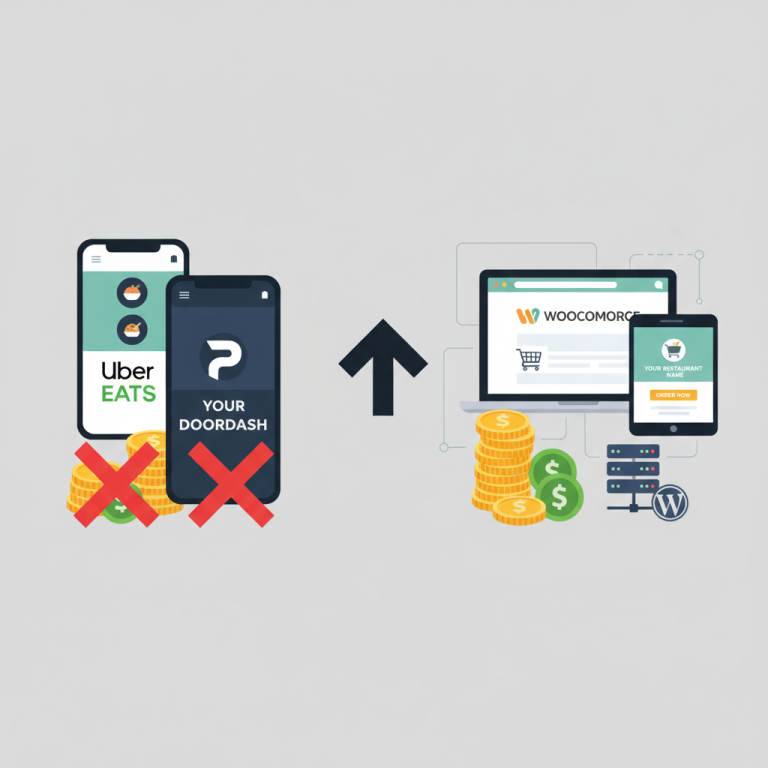
OpenTable will happily embed a widget on your site, but you’re paying per-cover fees and the customer data lives in their system, not yours. Fine for high-volume fine dining that wants OpenTable’s discovery network; a poor deal for neighborhood spots that just want bookings.
Why native WooCommerce matters
If you’re already using FoodMaster as your restaurant ordering plugin, staying inside the WooCommerce ecosystem for reservations pays off. Customer accounts, order history, loyalty points, and reservation history all live in one place. A guest who books table 4 for Saturday can log into the same account they used to order delivery last Tuesday — no duplicate profiles, no fractured data. That unified customer view is genuinely hard to replicate when your reservation tool is a separate SaaS.
For most independent restaurants I’d recommend one of two paths: Five Star Restaurant Reservations if you want the simplest possible restaurant-specific setup, or WooCommerce Bookings if you want everything unified with your existing ordering, loyalty, and customer data.
Step-by-Step Setup: Installing and Configuring Your Reservation Plugin
The walkthrough below uses Five Star Restaurant Reservations as the example because it’s free, restaurant-native, and beginner-friendly. The same principles apply to any plugin you choose.
1. Install and activate
From your WordPress admin, go to Plugins → Add New, search “Five Star Restaurant Reservations,” install, and activate. You’ll get a new menu item called Bookings.
2. Configure business hours
Navigate to Bookings → Settings → Booking Form. Set your opening and closing times for each day of the week. Be honest about your kitchen close, not your door close — booking a table at 10:45 PM when the kitchen shuts at 10:30 is a fast route to bad reviews.
3. Set party size and table capacity
Under the same settings panel, define minimum and maximum party sizes. If your largest table seats 8, cap it at 8 and add a note like “For parties of 9+, please email us directly.” Then set your total simultaneous capacity — for example, 40 covers between 7 PM and 9 PM. The plugin will automatically stop accepting new bookings once you hit that ceiling.
4. Add buffer times between bookings
This is the setting most owners skip and then regret. If you turn tables in 90 minutes on average, set your booking increments to 15 or 30 minutes and add a buffer so a 6:30 booking blocks a 6:15 booking on the same table. Skipping this creates chaos on Friday nights.
5. Configure blackout dates
Add holidays, private events, and staff training days as blackout dates. Christmas Day, your annual deep-clean shutdown, and the Tuesday you’re closed for a wedding buyout should all be blocked. Do this at the start of each quarter so you don’t get surprised.
6. Customize the confirmation flow
Under Notifications, edit the confirmation email template. Include: the reservation date and time, party size, restaurant address with a Google Maps link, parking notes, and a clear cancellation policy. This single email prevents 90% of “where do I park?” phone calls.
[IMAGE: WordPress admin dashboard showing a reservation plugin’s booking form settings with business hours, party size limits, and buffer time fields visible]
7. Place the booking form on your site
Most plugins provide a shortcode like [booking-form]. Add it to a dedicated /reservations page, plus embed it (or a “Book a Table” button linking to it) on your homepage hero section and menu page. More on that in the next section.
Designing a Frictionless Booking Experience for Customers
The technical setup is only half the job. The other half is making the form so easy to complete that guests finish it in under 30 seconds on their phone.
Only ask for what you’ll actually use
The ideal form has five fields: date, time, party size, name, and phone number. Email is a sixth if you want to send confirmations that way. Every additional field drops completion rates measurably. If you want dietary notes or special requests, make them optional with a small “Anything we should know?” text box.
Mobile-first, always
Over 70% of restaurant reservation traffic comes from mobile. Open your site on your own phone and complete a test booking. If any field is cramped, if the date picker doesn’t work smoothly, or if the submit button is hidden below the fold — fix it before you promote the feature.
Design a real confirmation page
Don’t just show “Thanks, we got it!” Show the actual booking details, an “Add to Calendar” button (Google, Apple, Outlook), your address, and a link to your menu. This is also a great place to invite guests to pre-order — “Want to skip the wait? Order your starters now for your 7:30 table.”
Expose the widget everywhere it makes sense
- Homepage: a “Book a Table” CTA in the hero
- Menu page: a floating or inline button (people who read the menu are ready to book)
- Google Business Profile: add your reservation URL as the booking link so the button appears in Google Search and Maps
- Instagram bio: a Linktree or direct link to /reservations
Use deposits strategically
You don’t need deposits for a Tuesday lunch, but for parties of 6+ or high-demand Friday/Saturday prime slots, a small deposit ($10–$20 per person) cuts no-shows dramatically. Because WooCommerce handles payments natively, if you’re using WooCommerce Bookings you can charge deposits with Stripe, PayPal, or Apple Pay in the same checkout flow you already use for delivery orders.
Automating Confirmations, Reminders, and No-Show Prevention
Automation is where a reservation system stops being a form and starts saving you real money. The three messages every booking should trigger:
- Immediate confirmation (email + optional SMS) — sent within seconds of booking
- 24-hour reminder — the single highest-impact message; this alone cuts no-shows meaningfully
- 2-hour reminder with a “Confirm / Cancel” link — gives you time to release the table to a waitlist if they cancel
SMS and WhatsApp integration
Email confirmations work, but SMS and WhatsApp have 90%+ open rates within 3 minutes. Most reservation plugins integrate with Twilio for SMS. For WhatsApp, tools like Twilio’s WhatsApp API or 360Dialog let you send templated confirmations. If you’ve already set up an SMS or WhatsApp notification workflow for your online orders, extend the same webhook to fire on new reservations — same infrastructure, double the value.
Cancellation policy
Write it in plain language and put it in the confirmation email: “Please cancel at least 2 hours before your booking. Parties of 6+ who no-show forfeit their $10/person deposit.” Vague policies get argued; specific ones get respected.
Waitlist functionality
When a prime slot is fully booked, offer a waitlist signup. If a cancellation comes in, the plugin (or a Zapier automation) can auto-notify the first person on the list. This is essentially free revenue — you’re re-selling the same table.
[IMAGE: mobile phone screen showing an SMS reservation reminder message with confirm and cancel buttons]
Combining Reservations With Online Ordering, Loyalty, and Analytics
This is where staying inside the WooCommerce ecosystem pays real dividends. When your reservations, orders, and customer accounts all live together, you can build experiences that standalone reservation platforms simply can’t.
Link reservations to customer accounts
Guests who book while logged into their WooCommerce account get their reservation attached to the same profile as their delivery history. On their next visit, your host sees: “This is Sarah’s fourth booking; she usually orders the mushroom risotto and doesn’t drink alcohol.” That’s the kind of hospitality that turns first-timers into regulars.
Pre-order for the table
Offer guests the option to pre-order starters, wine, or a set menu during the booking flow. This spreads your kitchen load, guarantees revenue, and lets you greet the table with drinks already poured. With FoodMaster’s dine-in and QR ordering features, you can even send guests a QR code in their confirmation email that pulls up your full menu on arrival — no printed menus needed.
Loyalty points on reservations
If you run a loyalty program (via a WooCommerce loyalty plugin), award points for completed reservations, not just orders. “Book 5 tables, get a free bottle of house wine” is a compelling repeat-visit hook, and it costs you almost nothing per redemption.
Track everything in Google Analytics 4
Set up a custom event called reservation_completed that fires on your booking confirmation page. In GA4, you’ll then see:
- Which traffic sources produce the most bookings (Google, Instagram, direct)
- Which pages guests visit before booking (menu page? about page?)
- Conversion rate from homepage visit to completed booking
Use this data for staffing too. If you consistently see 40+ covers booked between 7:30 and 8:30 on Saturdays, you know exactly when to schedule your second server. Guesswork replaced by numbers.
Common Mistakes to Avoid and
Commission-free ordering
Run restaurant orders on your own WordPress site
FoodMaster adds delivery, pickup, dine-in, POS, and kitchen tools — with zero per-order fees.