A customer finishes building a pizza order, reaches checkout, and discovers their address is outside the delivery area. Meanwhile, another order has been paid for but never reached the kitchen printer. Both problems started long before anyone switched on the oven.
A good online ordering system for business connects what customers buy with what staff can actually deliver. For restaurants, that means more than a menu and a payment button. This guide covers how to choose, build, and operate a system that holds up during dinner service—not just a quiet demonstration.
What Is an Online Ordering System for Business—and Who Needs One?
An online ordering system connects four activities: product selection, payment, order management, and fulfillment. Customers choose items, provide the information needed to fulfill them, and submit an order. Staff receive a structured record they can prepare, track, and complete.
A contact form usually stops at sending a message. It doesn’t necessarily validate prices, reserve inventory, collect payment, or confirm a collection time. A marketplace listing may provide ordering functionality, but the marketplace controls significant parts of the customer experience and commercial relationship.
Retailers use ordering systems to coordinate stock and shipping. Service businesses may need bookings, deposits, or appointment availability. Restaurants have a different constraint: the product often needs to be prepared and handed over within minutes.
Follow the order from customer to kitchen
Consider a pizzeria customer ordering two pizzas for collection at 7 p.m. They select sizes, remove olives, add a paid topping, choose a collection slot, and pay. The system needs to preserve those choices, apply the correct prices, and communicate the promised time to staff.
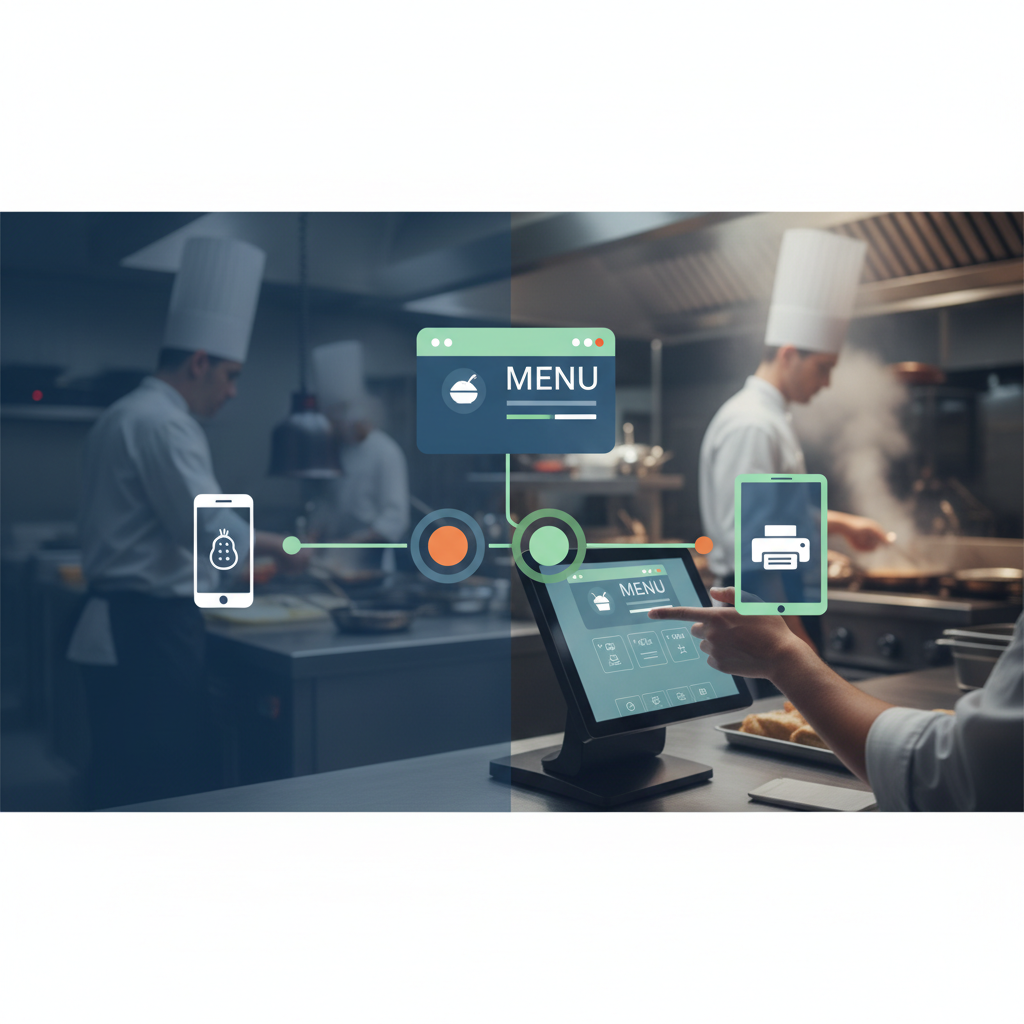
Next comes the operational handoff. The kitchen needs a readable ticket, the counter needs a way to identify the customer, and someone must handle exceptions if an ingredient runs out. A successful payment alone doesn’t prove the kitchen has accepted the order.
Cafés face similar issues with milk choices and breakfast cutoffs. Takeaway businesses need delivery boundaries and realistic preparation times. Restaurants offering dine-in ordering also need dependable table identification.
The practical test is simple: can an order travel from the customer’s phone to fulfillment without staff retyping it? Every manual transfer creates another opportunity for a missing modifier, incorrect address, or forgotten ticket. The right system reduces those transfers while keeping staff in control.
Essential Features to Look for Before Choosing a System
Start with the busiest service you expect to handle, not the longest feature list. A loyalty dashboard won’t rescue a checkout that accepts deliveries beyond your driver’s route.
- Mobile menu and modifiers: Clear categories, readable prices, required choices, selection limits, and correctly priced extras. Test a pizza with size, crust, and topping combinations.
- Fulfillment rules: Pickup and delivery schedules, preparation lead times, holiday closures, service areas, and minimum orders. Check how scheduled orders consume capacity.
- Payment options: Suitable gateways and digital wallets supported by your region, currency, devices, and checkout configuration.
- Transparent checkout: Delivery charges, taxes, minimum-order messages, and optional tips displayed before payment, with an easy guest-checkout path.
- Accessible ordering: Keyboard-operable controls, readable contrast, labeled fields, and errors that explain how to fix the problem.
Tipping deserves its own check. Customers should understand whether they’re leaving a voluntary gratuity or paying a mandatory charge. For WooCommerce, the checkout tipping and donation extension supports preset or custom amounts. Verify compatibility with your checkout implementation and confirm the accounting treatment before launch.
Ask what an integration actually does
“POS integration” isn’t a sufficient specification. Does it send paid orders into the POS automatically? Does it preserve modifiers, synchronize availability, and communicate refunds? Which system wins when prices disagree?
A kitchen display connection should carry preparation details and relevant status changes. Inventory integration needs a clear distinction between finished products and recipe ingredients: selling one burger is not automatically the same as deducting a bun and a measured portion of beef.
For accounting, inspect how the connection records taxes, tips, refunds, gateway fees, and settlements. Get each capability classified as native, a paid extension, an external subscription, or custom development.
Reliable payment, correct fulfillment rules, and dependable kitchen handoff are launch essentials. Loyalty automation and advanced forecasting can wait. Add them when there’s a measurable problem to solve.
[IMAGE: Mobile restaurant ordering screens showing pizza modifiers, an early delivery-area check, pickup scheduling, and checkout with clearly separated fees and optional tipping]
Hosted Platforms, Marketplaces, or WordPress: Compare Costs and Control
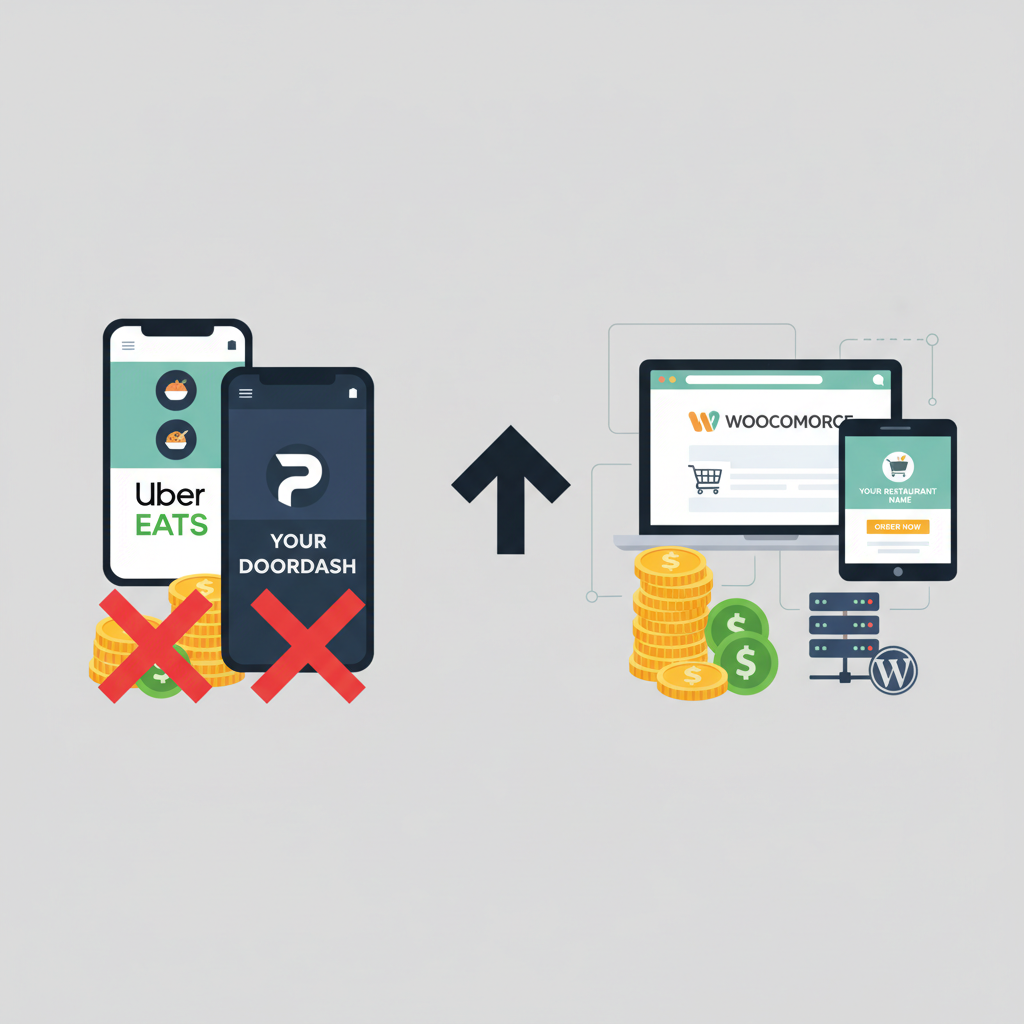
There are three broad routes to online ordering. Hosted platforms package much of the infrastructure for you. Marketplaces add access to their audience and may offer delivery services. WordPress with WooCommerce gives you a more configurable direct-ordering website, with more responsibility attached.
| Factor | Hosted ordering platform | Third-party marketplace | WordPress with WooCommerce |
|---|---|---|---|
| Setup effort | Often guided, within platform limits | Menu setup and merchant onboarding | Hosting, store setup, and compatibility testing |
| Customer-data access | Depends on contract and export tools | Often restricted by marketplace terms | Direct control of store records, subject to privacy obligations |
| Customization | Limited to supported features and integrations | Mostly standardized | Extensive, with development and maintenance costs |
| Maintenance | Provider manages the platform; merchant manages configuration | Marketplace manages its ordering infrastructure | Merchant or maintenance partner manages the site |
| Fulfillment workflows | Depend on supported pickup, delivery, and POS connections | Follow marketplace rules and available logistics | Configured through restaurant plugins and integrations |
A hypothetical monthly cost comparison
The following figures are illustrative assumptions, not vendor quotes or industry averages. Assume 800 orders generating $20,000 in monthly sales. For direct orders, an assumed processing rate of 2.9% plus $0.30 per transaction produces $580 plus $240: $820 in processing fees.
- Hosted platform: $120 subscription including hosting, $25 extensions, $150 merchant-side support, and $820 processing = $1,115 monthly.
- Marketplace: An assumed 20% commission inclusive of processing, plus $100 optional subscription charges = $4,100 monthly. Processing isn’t added again in this example.
- WordPress: $40 plugin licenses averaged monthly, $60 hosting, $25 extensions, $150 maintenance/support, and $820 processing = $1,095 monthly.
These totals exclude initial development, hardware, taxes, food, labor, and delivery costs. Actual agreements may charge processing separately from commission. Annual licenses may also require payment upfront rather than monthly.
Notice how close the two direct-ordering examples are. Self-managed ordering isn’t automatically cheaper. One awkward integration can erase a modest subscription saving.
For a restaurant wanting a branded direct channel, configurable food-ordering workflows, and control over its store records, WordPress is a strong choice. Marketplaces may generate additional demand, but don’t assume every marketplace customer would otherwise order directly. Compare contribution margin and customer acquisition, not fees in isolation.
How to Build a Restaurant Ordering Website with WordPress and WooCommerce
1. Write down the operating rules
Before installing anything, document opening hours, delivery boundaries, collection times, minimum orders, preparation lead times, and cancellation rules. Decide who can pause ordering during a rush. “We’ll work it out when orders arrive” is not a fulfillment strategy.
2. Choose hosting and a compatible theme
Choose hosting with HTTPS, backups, staging, and enough resources for dynamic checkout traffic. A staging environment lets you test updates away from the live store. Confirm who handles restoration and urgent support.
Select a mobile-first theme that works with WooCommerce and your restaurant plugin. Test menu navigation and modifier dialogs on an actual phone. Also confirm compatibility with the specific checkout you’re using: block-based and classic checkout support can differ across extensions.
3. Configure WooCommerce and the restaurant layer
Set the store address, currency, transactional emails, and relevant tax settings in WooCommerce. Have a qualified adviser confirm the treatment of prepared food, delivery fees, and tips in your jurisdiction.
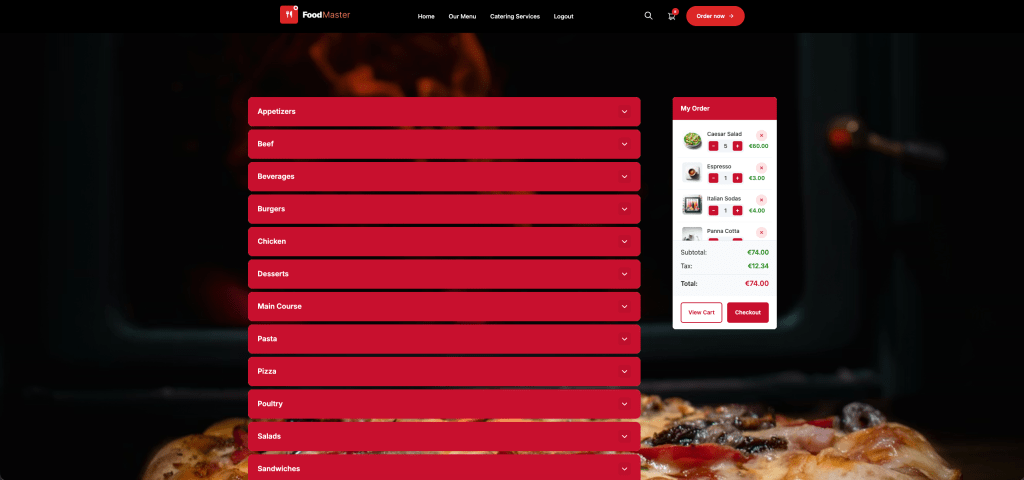
For the food-ordering layer, the FoodMaster (formerly WooFood) restaurant ordering plugin is the go-to WPSlash option. Built on WooCommerce, it supports delivery, pickup, and dine-in ordering, with POS, kitchen display, QR table ordering, and automatic printing capabilities.
That restaurant focus is useful: you’re adapting WooCommerce around food service rather than treating dinner like a parcel shipment. Verify current features, pricing, license terms, integration requirements, and compatibility before purchasing. Don’t assume every workflow, device, or third-party POS connection is included; zero commission doesn’t eliminate hosting or payment-processing fees.
4. Build a menu that staff can maintain
Organize categories around how customers order: pizzas, sides, drinks, and desserts, for example. Write concise descriptions and provide accurate dietary and allergen information. Don’t rely on photos to communicate ingredients.
Use variations for meaningful product versions and compatible modifier controls for extras. A large pizza with two extra toppings should display the final price before it’s added to the basket. Make required choices unmistakable, and establish how staff mark unavailable dishes without editing multiple systems.
5. Connect payments and fulfillment
Configure a reputable payment gateway and verify that payment callbacks update orders correctly. Test wallet availability on supported devices rather than assuming a visible logo means everything works.
Configure delivery eligibility, fees, pickup windows, and preparation times through the selected ordering tools. Test addresses near service-area boundaries. For scheduled ordering, confirm timezone settings and holiday exceptions, plus whether the system supports the capacity controls you need.
6. Run a dress rehearsal
Test successful, declined, and abandoned payments; refunds; invalid addresses; unavailable items; and orders placed near closing time. Confirm that modifiers, fulfillment times, and customer details reach the kitchen correctly.
Then place a small live payment where permitted and reconcile it through the gateway and store. Open quietly before promoting the site widely. The first test of your printer connection shouldn’t happen halfway through a Friday queue.
[IMAGE: Restaurant launch-testing workflow showing a mobile order passing through payment confirmation, WooCommerce order management, a kitchen display, and pickup handoff, with exception checkpoints]
Keep Ordering Fast, Secure, and Accessible During Busy Periods
Protect the store and its customer records
Use individual staff accounts, administrator two-factor authentication, and least-privilege permissions. Counter staff shouldn’t need plugin-installation access. Remove unused accounts and extensions, and keep WordPress, themes, plugins, and server software updated.
Schedule routine updates through staging, but don’t postpone urgent security fixes indefinitely. Keep backups separate from the production server and test restoration. For a busy store, the backup frequency should reflect how many new orders you could afford to lose.
Use payment methods that keep raw card details away from your WordPress database, while confirming your remaining PCI obligations with the payment provider. Collect only necessary customer data, define retention periods, and avoid sending addresses or phone numbers into unnecessary analytics tools.
Protect login and ordering endpoints with suitable firewall rules and rate limits. Watch for repeated low-value payment attempts that may indicate card testing. Apply extra verification selectively: aggressive challenges can block genuine customers and interfere with payment callbacks.
Test speed where customers actually order
Measure menu, product, basket, and checkout pages on mobile connections. Google’s published “good” Core Web Vitals thresholds are LCP within 2.5 seconds, INP within 200 milliseconds, and CLS no greater than 0.1, assessed at the 75th percentile. These are useful experience targets, not proof that checkout works.
Resize menu images, reduce unnecessary scripts, and inspect slow database queries. Configure caching around WooCommerce: cart, checkout, account pages, and customer-specific responses must not be served as shared cached content. Verify cache invalidation when prices or availability change.
Run coordinated load tests on a representative environment using sandbox payments. Simulate customers modifying baskets and submitting orders—not just loading the homepage.
Make failures understandable and recoverable
Complete an order using only a keyboard. Check visible focus, labeled modifier controls, readable contrast, and error messages tied to the affected fields. QR menus need a text URL or staff-assisted alternative, and checkout should remain usable when text is enlarged.
Assign someone to monitor the order dashboard independently of email and printing. If a payment appears stuck, check the gateway and order record before asking the customer to retry. If tickets stop arriving, use the dashboard as the fallback, pause ordering when necessary, and contact affected customers. Never solve uncertainty by accidentally charging twice.
Measure Results and Grow Repeat Orders After Launch
Start with a small dashboard and agreed definitions. Exclude test orders, handle refunds consistently, and avoid collecting more personal data than the measurement requires.
- Menu-to-cart conversion: Sessions with an add-to-cart event divided by menu-viewing sessions. Weak results suggest menu, pricing, availability, or usability problems.
- Checkout completion: Completed orders divided by checkout-start sessions. Investigate unexpected fees, payment failures, and rejected addresses when it falls.
- Average order value: Order revenue divided by orders. Define whether tax, delivery, and tips are excluded before comparing periods.
- Repeat purchase rate: Customers ordering at least twice divided by purchasing customers within a defined period. Recent customers have had less opportunity to return.
- Order accuracy: Correctly fulfilled orders divided by fulfilled orders, using a consistent issue log. This helps identify modifier and kitchen-handoff problems.
- Revenue by channel: Separate website, marketplace, and dine-in QR revenue, then compare associated costs. Track acquisition source separately from ordering channel.
Your first 30 days
During week one, review payment failures, missed tickets, and support questions daily. In week two, fix the biggest menu or checkout friction point. Add the direct ordering link to your Google Business Profile where the relevant option is available.
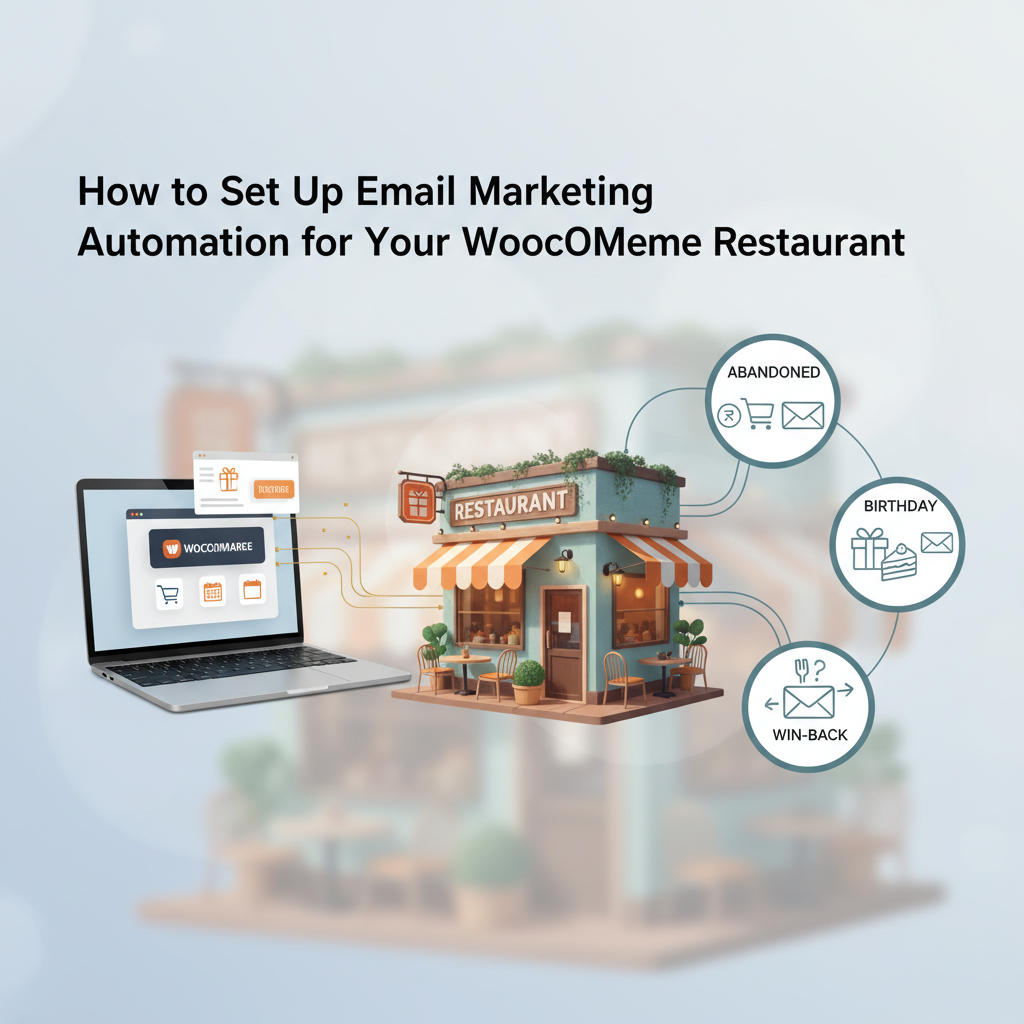
Use week three for a modest repeat-order offer with clear terms. Introduce abandoned-cart recovery only where you have the necessary consent or other lawful basis, provide an opt-out, and suppress messages after purchase.
In week four, consider a narrowly scoped AI experiment. Recommendations should use available menu items and approved product information, never inferred allergen safety. For demand forecasting, begin with a same-weekday sales baseline; only add complexity when sufficient historical data exists to evaluate accuracy. Keep identifiable customer information out of unnecessary AI workflows and require human approval for purchasing decisions.
Before committing to a platform, confirm five things: your hardest order works, the kitchen receives it correctly, total costs are understood, data access is clear, and someone owns maintenance and recovery.
That’s the standard worth buying against in 2026. A dependable ordering system helps customers finish dinner plans and helps staff fulfill them—without turning every busy evening into a troubleshooting session.
Commission-free ordering
Run restaurant orders on your own WordPress site
FoodMaster adds delivery, pickup, dine-in, POS, and kitchen tools — with zero per-order fees.