Why Order Notifications Matter for Restaurant Websites
Picture this: a hungry customer places an order on your restaurant’s website, hits “Place Order,” and then… silence. No confirmation email. No text message. Nothing but a blank screen and growing doubt. Did the order go through? Should they call? Should they just drive to the nearest fast food chain instead?
That scenario plays out thousands of times a day across WooCommerce-based restaurant sites, and it’s costing owners real money. A 2024 survey by the National Restaurant Association found that 67% of consumers expect an order confirmation within 60 seconds of placing a digital food order. When that confirmation doesn’t arrive, abandonment and support calls spike — and trust erodes fast.
On the restaurant side, the stakes are equally high. Without real-time notifications reaching your kitchen, orders sit unprocessed. A five-minute delay during a Friday dinner rush can cascade into 20-minute late deliveries, cold food, and one-star reviews. Automated email and SMS notifications solve both sides of this equation: customers get instant peace of mind, and your kitchen team gets a reliable, immediate alert for every incoming order.
If you’re running a WooCommerce restaurant ordering system, getting notifications right isn’t optional — it’s the backbone of your operation. Let’s walk through exactly how to set it up properly.
How WooCommerce Order Emails Work (And Why the Defaults Aren’t Enough for Restaurants)
WooCommerce ships with a built-in email notification system that handles the basics. Out of the box, you get emails triggered by specific order status changes:
- New Order — sent to the admin when a customer places an order
- Processing — sent to the customer when payment is confirmed
- Completed — sent to the customer when the order is marked complete
- Refunded — sent to the customer if a refund is issued
- Failed/On Hold — various status-based alerts
For a standard eCommerce store selling t-shirts or electronics, these defaults work reasonably well. For a restaurant? They fall short in critical ways.
First, there’s no concept of estimated delivery or pickup time in the default templates. A customer ordering pad thai for delivery needs to know it’ll arrive in 35 minutes, not just that the order is “processing.” Second, WooCommerce’s default order summary doesn’t handle food-specific details gracefully — toppings, extras, spice levels, special instructions, and add-ons often get buried or formatted poorly. Third, there’s no built-in way to send separate notifications to different staff members. Your kitchen manager needs the order details immediately; your accountant doesn’t need a ping at 9 PM on a Saturday.
The gap between a generic eCommerce confirmation and what a food ordering customer actually expects is significant. Bridging that gap requires customization at both the template and delivery level.
[IMAGE: Side-by-side comparison of a default WooCommerce order email versus a customized restaurant order email showing estimated delivery time, order items with toppings, and restaurant branding]
Setting Up Custom Email Notifications With WooCommerce Email Plugins
Step 1: Fix Email Deliverability First
Before you touch a single template, make sure your emails actually reach inboxes. WordPress uses PHP’s wp_mail() function by default, which many hosting providers throttle or block entirely. The result? Order confirmations that vanish into spam folders or never send at all.
Install WP Mail SMTP and connect it to a transactional email provider like SendGrid, Mailgun, or Postmark. These services authenticate your emails with proper SPF and DKIM records, dramatically improving deliverability. SendGrid’s free tier handles up to 100 emails per day — more than enough for most single-location restaurants.
Step 2: Redesign Your Email Templates
With deliverability sorted, it’s time to make your emails look and feel like they came from a professional restaurant, not a generic online store. Two solid options for visual email customization are Kadence WooCommerce Email Designer (free) and YayMail (freemium with a drag-and-drop builder).
Here’s what your restaurant order confirmation email should include:
- Restaurant logo and brand colors — instant recognition builds trust
- Order number and timestamp — for reference when calling in
- Complete order summary with individual items, toppings/extras, quantities, and special instructions displayed clearly
- Estimated preparation or delivery time — even a range like “30-45 minutes” reduces anxiety
- Order type (delivery, pickup, or dine-in) displayed prominently
- Pickup address with a Google Maps link — for pickup orders, link directly to
https://maps.google.com/?q=YOUR+ADDRESS - Contact phone number — so customers can reach you if something’s wrong
If you’re using FoodMaster as your restaurant ordering plugin, many of these details — order type, delivery/pickup time slots, and extras — are already structured in the order data, making it straightforward to pull them into your email templates using WooCommerce’s built-in placeholders and custom meta fields.
Step 3: Set Up Role-Based Admin Notifications
Your kitchen doesn’t need the same email your bookkeeper gets. Use a plugin like WooCommerce Extra Emails or the built-in additional recipients field in WooCommerce’s email settings (under WooCommerce → Settings → Emails → New Order) to route notifications to multiple addresses.
A practical setup for most restaurants:
- Kitchen email ([email protected]) — receives new order notifications with full item details, triggered immediately on order placement
- Manager email — receives a daily digest or only gets notified for orders above a certain value or flagged issues
- Customer email — receives the branded confirmation with ETA and order summary
How to Add SMS Order Notifications for Your Restaurant Using Twilio or Other Providers
Email is essential, but SMS is faster and harder to ignore. Text messages have a 98% open rate compared to email’s roughly 20%, according to Gartner research. For time-sensitive food orders, that difference matters enormously.
Setting Up Twilio for WooCommerce SMS Notifications
Twilio is the most widely used SMS API for WordPress integrations. Here’s how to get it running:
- Create a Twilio account at twilio.com. You’ll receive a free trial with enough credits to test thoroughly. After that, SMS costs roughly $0.0079 per message in the US — under a penny per text.
- Get a Twilio phone number. This is the number your SMS notifications will come from. Choose a local number to build familiarity with your customer base.
- Note your Account SID and Auth Token from the Twilio console dashboard. You’ll need these to connect to WordPress.
- Install a WooCommerce SMS plugin. Options include WooCommerce Twilio SMS Notifications (official extension) or free alternatives like Joy Of Text. Install, activate, and enter your Twilio credentials in the plugin settings.
- Configure SMS triggers. At minimum, set up these three:
- New Order (admin) — alerts your kitchen or manager instantly when an order comes in
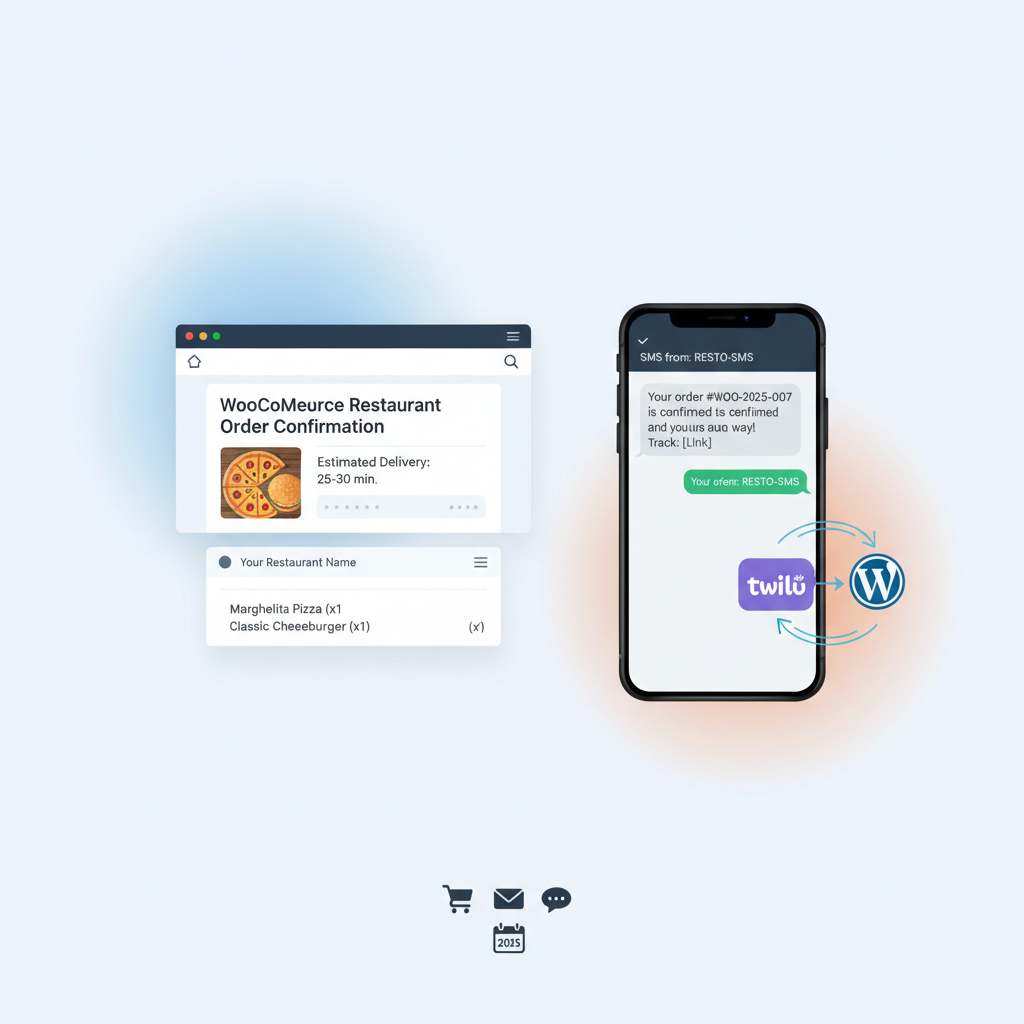
- Order Confirmed (customer) — sends the customer a text confirming their order and estimated time
- Out for Delivery (customer) — triggered when you change the order status, letting the customer know food is on the way
Writing Effective Restaurant SMS Templates
SMS messages have a 160-character limit per segment (longer messages get split and cost more). Keep them tight and useful:
New order alert (admin): “New order #{order_number} — {item_count} items, {order_type}. Total: {order_total}. View: {order_url}”
Order confirmed (customer): “Hi {first_name}! Your order #{order_number} from [Restaurant Name] is confirmed. Est. {delivery_time}. Questions? Call us: 555-0123”
Out for delivery (customer): “{first_name}, your order #{order_number} is on its way! Expected arrival: {delivery_time}. Enjoy your meal! 🍕”
Alternatives to Twilio
If Twilio feels like overkill for your operation, consider Vonage (formerly Nexmo), which offers competitive per-message pricing and a solid WordPress plugin ecosystem. BulkSMS is another option popular in Europe and Africa with straightforward API integration. For restaurants operating primarily in India, MSG91 offers strong regional coverage at lower rates.
[IMAGE: Screenshot of a WooCommerce SMS notification settings page showing Twilio configuration fields and SMS trigger options for different order statuses]
Automating Customer Follow-Up Messages: Order Ready, Out for Delivery, and Review Requests
The real power of automated notifications isn’t just confirming orders — it’s guiding customers through the entire experience and then bringing them back for more.
Status-Based Notifications Throughout the Order Lifecycle
WooCommerce’s order status system is the engine behind this automation. When you (or your staff) change an order’s status, it can trigger both email and SMS notifications automatically. Here’s a practical notification flow for a delivery order:
- Order Placed → Customer receives email + SMS confirmation with order details and ETA
- Preparing → Customer gets an SMS: “Your food is being prepared!”
- Ready for Pickup / Out for Delivery → Customer gets an SMS with driver ETA or pickup reminder
- Completed → Customer receives a confirmation email that their order is complete
FoodMaster’s food delivery plugin supports custom order statuses tailored to restaurant workflows — statuses like “Preparing,” “Ready,” and “Out for Delivery” that map directly to kitchen operations. This makes triggering status-specific notifications much cleaner than trying to repurpose WooCommerce’s default “Processing” and “Completed” statuses for food-specific stages.
Post-Delivery Follow-Up: Reviews and Retention
The most overlooked notification is the one that fires after the meal. Set up an automated email that sends 90 minutes to 2 hours after an order is marked complete. This email should:
- Ask how the meal was (with a direct link to leave a Google review or site review)
- Offer a small incentive for their next order — a 10% discount code or free delivery on their next purchase
- Keep the tone warm and personal, not transactional
You can automate this with AutomateWoo (a WooCommerce-native automation plugin) or a general marketing tool like FluentCRM, which runs entirely inside WordPress. Create a workflow that triggers on order status change to “Completed,” adds a 90-minute delay, then sends your follow-up email template.
Restaurants that implement post-order follow-ups consistently report a 15-25% increase in repeat order rates within the first three months. The combination of a timely review request and a discount code creates a natural feedback loop that feeds both your online reputation and your revenue.
Troubleshooting Common Notification Issues and Best Practices
Emails Landing in Spam
This is the single most common complaint. Nine times out of ten, it’s a DNS authentication issue. Make sure your domain has proper SPF, DKIM, and DMARC records configured. Your transactional email provider (SendGrid, Mailgun, Postmark) will give you the exact DNS records to add. Verify them using a tool like MXToolbox or Mail Tester (mail-tester.com — send a test email and get a deliverability score).
Also avoid spam trigger words in your subject lines. “FREE FOOD” in all caps will get flagged. “Your order from Mario’s Kitchen is confirmed” won’t.
SMS Not Sending Due to Phone Number Formatting
Twilio requires phone numbers in E.164 format: +1XXXXXXXXXX for US numbers, +44XXXXXXXXXX for UK, and so on. If your WooCommerce checkout collects phone numbers without country codes, your SMS plugin will fail silently. Fix this by either:
- Using a phone field plugin that enforces international formatting with a country code dropdown
- Configuring your SMS plugin to prepend a default country code for numbers that lack one
Notifications Firing Multiple Times
Duplicate notifications usually stem from payment gateway callbacks hitting your site multiple times, or caching plugins interfering with WooCommerce’s order processing hooks. Check your payment gateway’s webhook logs for duplicate events, and exclude WooCommerce’s checkout and order endpoints from any page caching or optimization plugins.
WooCommerce Email Queue Delays
WooCommerce relies on WordPress’s built-in cron system (wp-cron) to send emails, and wp-cron only fires when someone visits your site. During slow periods, this can mean a 10-15 minute delay. Fix this by setting up a real server-side cron job that hits wp-cron.php every minute. Your hosting provider’s documentation will have instructions, or ask their support team — it’s a two-minute configuration change that eliminates the delay entirely.
Best Practices Checklist
- Use a transactional email service — never rely on your hosting provider’s mail server for order emails
- Test with staging orders before going live — place test orders for every order type (delivery, pickup, dine-in) and verify every notification fires correctly
- Monitor your sending reputation — services like SendGrid provide dashboards showing bounce rates, spam complaints, and delivery rates
- Get explicit SMS consent — GDPR (EU), TCPA (US), and CASL (Canada) all require opt-in consent before sending marketing SMS messages. Add a clear checkbox at checkout. Transactional messages (order confirmations) generally don’t require separate consent, but marketing follow-ups do
- Include an unsubscribe option in every marketing SMS and email — it’s both a legal requirement and a trust signal
- Keep your notification plugins updated — SMS APIs change endpoints and authentication methods periodically, and outdated plugins break silently
Putting It All Together
A well-configured notification system transforms your WooCommerce Restaurant Website“>WooCommerce Restaurant in WordPress”>WooCommerce restaurant site from a passive order form into an active communication channel. Customers feel informed and cared for at every step. Your kitchen gets instant, reliable alerts. And your post-delivery follow-ups quietly build the repeat business that sustains a restaurant long-term.
Start with the foundation: install WP Mail SMTP, connect a transactional email provider, and customize your email templates with restaurant-specific details. Then layer on SMS via Twilio for the speed and visibility that email alone can’t match. Finally, automate your follow-ups to turn one-time orders into loyal regulars.
If you’re building your restaurant ordering system on WooCommerce, a plugin like FoodMaster gives you the restaurant-specific order statuses, delivery and pickup time management, and structured order data that make notification customization far more straightforward. Combined with the email and SMS setup outlined above, you’ll have a notification workflow that rivals — and often surpasses — what the big third-party delivery platforms offer, without giving up a cent in commissions.
Commission-free ordering
Run restaurant orders on your own WordPress site
FoodMaster adds delivery, pickup, dine-in, POS, and kitchen tools — with zero per-order fees.