Why Push Notifications Matter for Restaurant Websites
A customer browsed your menu at 11:30 AM, added a chicken shawarma plate to their cart, then got distracted by a meeting. By noon, they’ve forgotten about your restaurant entirely and ordered from whoever showed up first in their delivery app. That’s the scenario push notifications are designed to prevent — and they do it remarkably well.
Web push notifications are clickable messages sent directly to a subscriber’s browser or device, even when they’re not actively on your website. Unlike email, which sits in a crowded inbox competing with dozens of other messages, push notifications appear as native alerts on desktop and mobile screens. They’re immediate, hard to miss, and require zero personal information beyond a single “Allow” click.
The engagement numbers tell a compelling story. According to data published by PushEngage, web push notifications achieve average click-through rates between 5% and 15%, depending on industry and targeting quality. Compare that to email marketing‘s average open rate of roughly 21% across industries (per Mailchimp’s benchmarks), with actual click-through rates hovering around 2-3%. For restaurants specifically, the gap widens further because food decisions are inherently time-sensitive — a notification about today’s lunch special at 11:15 AM has an urgency that no email subject line can replicate.
Push notifications also complement the channels you’re likely already using. If you’ve set up email marketing and SMS for your WooCommerce restaurant, push notifications fill a distinct gap: they reach the customers who gave you browser permission but never shared their phone number or email. They’re a low-friction, high-visibility channel that’s tailor-made for promoting daily specials, flash deals, order status updates, and re-engagement campaigns.
What You Need Before Getting Started: Prerequisites and Plugin Options
Before you install anything, make sure your foundation is solid. Here’s what you need in place:
- A WordPress site running WooCommerce — Push notification plugins integrate with WooCommerce hooks to trigger automated messages based on order events, cart activity, and customer behavior.
- An SSL certificate (HTTPS) — Web push notifications require a secure connection. Most modern hosts include free SSL via Let’s Encrypt, so this shouldn’t be a blocker.
- A functional online ordering system — If you’re using a WooCommerce restaurant ordering plugin like FoodMaster, your menu items, delivery zones, and order workflows are already built on WooCommerce’s infrastructure, which means push notification triggers will work seamlessly with your existing setup.
Choosing a Push Notification Plugin
Several solid options exist for WordPress-based restaurants. Here’s a practical comparison:
OneSignal is the most widely used free push notification service. Its WordPress plugin connects in minutes, supports segmentation, and offers automated messaging. The free tier covers unlimited subscribers with basic features, making it a strong choice for small restaurants just getting started. The trade-off: advanced automation and analytics require the paid Growth plan (starting around $9/month).
PushEngage is purpose-built for marketing-driven push campaigns. It offers cart abandonment triggers, drip sequences, A/B testing, and detailed analytics out of the box. The free plan supports up to 200 subscribers and 30 campaigns per month — enough to test the waters. Paid plans start at $9/month for up to 50,000 subscribers, with WooCommerce-specific features unlocked at higher tiers.
Jetveo (formerly Push Monkey) and Jetveo Push are less common but offer decent WooCommerce integration. They tend to work better for general e-commerce than restaurant-specific use cases.
For most restaurant operations, OneSignal is the best starting point if budget is tight, and PushEngage is the better investment once you’re ready to run sophisticated automated campaigns. Both integrate cleanly with WooCommerce-based ordering systems.
[IMAGE: Side-by-side comparison table showing OneSignal vs PushEngage features including free tier limits, WooCommerce integration, segmentation options, and pricing tiers]
Step-by-Step: Installing and Configuring Push Notifications on Your WordPress Restaurant Site
Let’s walk through the setup using PushEngage as our primary example, since its WooCommerce integration is the most restaurant-friendly. The process with OneSignal follows a similar pattern.
Step 1: Create Your Account and Install the Plugin
Sign up at PushEngage’s website and complete the onboarding wizard, which asks for your site URL and basic business details. Then head to your WordPress dashboard, navigate to Plugins → Add New, search for “PushEngage,” and click Install Now → Activate. The plugin will prompt you to enter your API key, which you’ll find in your PushEngage dashboard under Site Settings → API Keys.
Step 2: Configure the Opt-In Prompt
This is the single most important decision you’ll make. The opt-in prompt is what visitors see when they’re asked to allow notifications. You have several styles:
- Single-step opt-in — The browser’s native permission dialog appears immediately. Simple but can feel aggressive.
- Two-step opt-in (recommended) — A custom slide-in or bell icon appears first, letting visitors understand the value before the browser dialog triggers. This typically converts 2-3x better because it gives context.
- Full-screen overlay — High visibility but can hurt user experience, especially on mobile. Use sparingly.
For a restaurant site, the two-step approach works best. Set your custom message to something specific: “Get notified about daily specials and exclusive deals — never miss a discount!” is far more compelling than a generic “Subscribe to notifications.” Configure the prompt to appear after the visitor has spent at least 5-10 seconds on the site or has scrolled past your menu, which signals genuine interest.
Step 3: Set Up the Welcome Notification
Every new subscriber should immediately receive a welcome notification confirming their subscription and delivering instant value. Navigate to PushEngage → Drip Autoresponders and create your first message. A strong welcome notification for a restaurant might read:
Title: “Welcome to [Restaurant Name]! 🎉”
Body: “Thanks for subscribing! Here’s 10% off your first online order. Use code WELCOME10 at checkout.”
Include your logo as the notification icon and link directly to your online menu page. This immediate reward sets the tone and proves the channel’s value from the first interaction.
Step 4: Connect WooCommerce Triggers
Under your push notification plugin’s automation settings, enable WooCommerce integration. This allows the plugin to detect cart additions, order status changes, and purchase history. If you’re running FoodMaster for your ordering system, these WooCommerce order statuses (processing, completed, on-hold) are already mapped correctly, so your push triggers will fire based on real order events without any extra configuration.
Step 5: Test Everything
Before going live, subscribe to your own notifications using Chrome on desktop and Safari or Chrome on mobile. Trigger a test order through your site and verify that the welcome notification, order confirmation, and any automated campaigns fire correctly. Check that notification icons render properly and links point to the right pages.
5 High-Converting Push Notification Campaigns Every Restaurant Should Automate
Once the technical setup is complete, the real value comes from the campaigns you run. Here are five automated campaigns that directly drive revenue for restaurant websites.
1. Order Status Updates
Customers who order food online want to know exactly what’s happening with their meal. Set up automated notifications triggered by WooCommerce order status changes:
- Order Confirmed: “Your order #1234 is confirmed! We’re firing up the grill. 🔥”
- Preparing: “Your food is being prepared right now. Estimated ready time: 25 minutes.”
- Out for Delivery: “Your order is on its way! Track your delivery here.”
These notifications reduce “where’s my food?” calls and build trust. If you’re using FoodMaster’s built-in order management with its kitchen display system, order statuses update in real time — making these push triggers highly accurate.
2. Abandoned Cart Recovery
Cart abandonment in food ordering is surprisingly common. Someone adds items, gets distracted, and forgets. Set up an automated push notification to fire 15-30 minutes after cart abandonment:
Title: “Your [item name] is getting cold! 🍕”
Body: “You left something delicious in your cart. Complete your order now and enjoy free delivery!”
PushEngage’s cart abandonment feature can dynamically insert the product name, making the notification feel personal rather than generic. Even a modest 5-8% recovery rate on abandoned carts translates to meaningful revenue over time.
3. Daily or Weekly Specials
This is where push notifications truly shine for restaurants. Schedule a recurring notification for your specials:
Title: “Today’s Special: BBQ Brisket Plate — $12.99”
Body: “Hand-smoked for 12 hours. Available until 8 PM or while supplies last. Order now!”
Send these at 10:45-11:00 AM for lunch specials and 4:30-5:00 PM for dinner, right when people are starting to think about their next meal.
4. Re-Engagement for Lapsed Customers
Target subscribers who haven’t placed an order in 7-14 days with a win-back message:
Title: “We miss you! Here’s 15% off 💛”
Body: “It’s been a while since your last order. Come back and save with code MISSYOU15.”
This campaign alone can reactivate a significant chunk of dormant customers who simply fell out of the habit.
5. Loyalty and Reward Reminders
If you run any kind of points or WooCommerce Restaurant Website: Safely Test Menu Changes, Plugin Updates, and Checkout Fixes Without Breaking Your Live Ordering System (Complete Guide)”>WooCommerce Restaurant Website”>rewards program, push notifications are the perfect channel for reminders:
Title: “You’re 50 points from a free dessert! 🍰”
Body: “One more order gets you there. Check your rewards balance now.”
These notifications tap into the psychological power of near-completion, motivating customers to place an order they might have otherwise skipped.
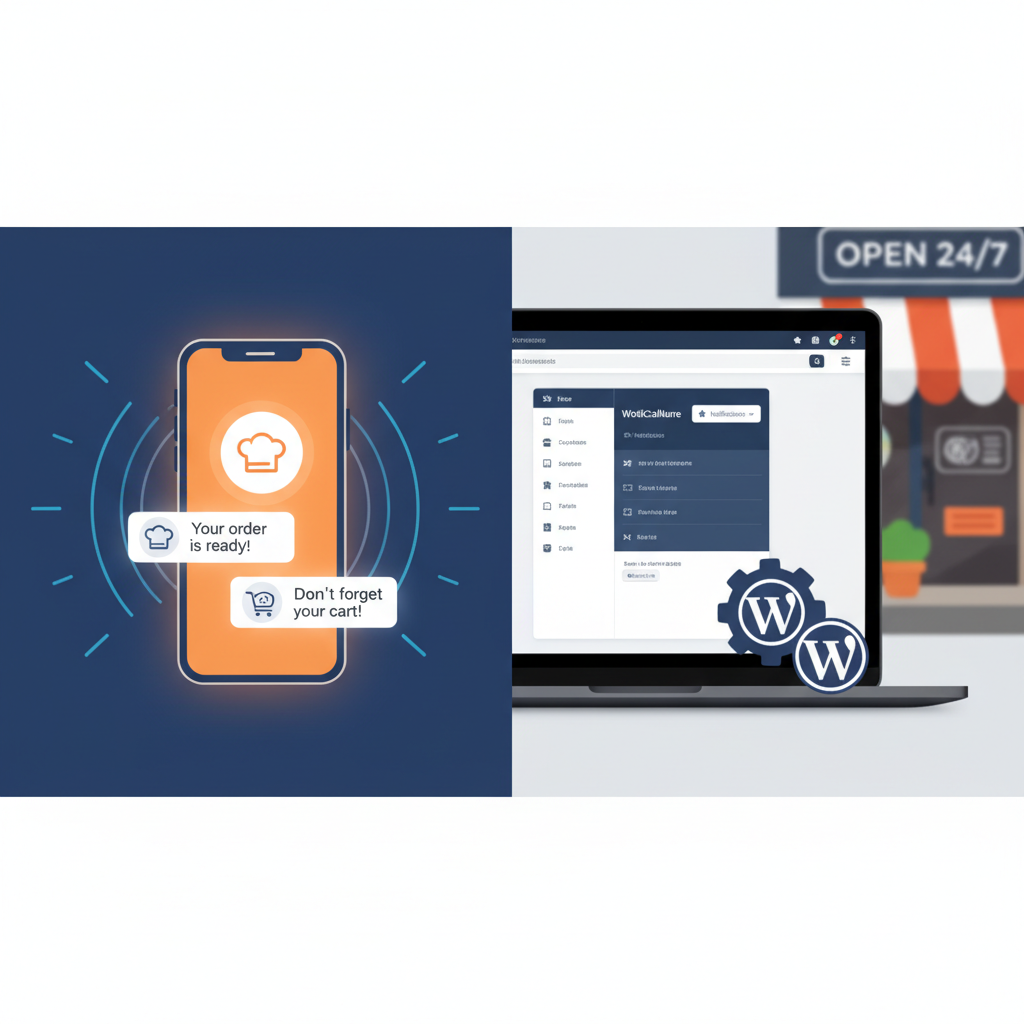
[IMAGE: Mockup showing three push notification examples on a mobile phone screen – an order status update, an abandoned cart recovery message, and a daily special promotion]
Segmenting Your Audience for Smarter Restaurant Notifications
Sending the same notification to every subscriber is a fast track to high unsubscribe rates. Segmentation lets you send the right message to the right customer, and it’s not as complicated as it sounds.
Behavioral Segments Worth Creating
Start with these foundational segments:
- Delivery vs. Pickup customers — Delivery customers respond to free delivery promos. Pickup customers respond to “skip the line” and ready-time notifications. If your ordering system tracks the fulfillment method (FoodMaster stores this as part of the WooCommerce order data), you can segment based on their preference.
- Frequent orderers vs. one-time buyers — Your top 20% of customers likely generate the majority of revenue. Create a “VIP” segment for anyone with 5+ orders and send them early access to new menu items or exclusive deals.
- Location-based segments — If you operate multiple locations, segment subscribers by their nearest restaurant. A customer in Brooklyn doesn’t need notifications about a special at your Manhattan location. Most push notification services support geographic targeting based on the subscriber’s IP at opt-in time.
- Cuisine preference segments — Track which menu categories customers order from most. Vegetarian customers get notifications about new plant-based additions. Customers who frequently order desserts get alerted when seasonal sweets drop.
Setting Up Segments in Your Dashboard
In PushEngage, navigate to Audience → Segments and create rules based on URL visits, custom events, or tags you assign through WooCommerce. For example, create a segment called “Delivery Customers” that includes anyone who visited your delivery checkout page. In OneSignal, you’ll use Tags — key-value pairs sent via the API or assigned through user actions.
The payoff is significant. Targeted push notifications can see click-through rates 2-3x higher than broadcast messages, according to PushEngage’s published case studies. More importantly, they dramatically reduce the “this is annoying” perception that drives people to unsubscribe.
Best Practices, Timing, and Common Mistakes to Avoid
Getting the technical setup right is only half the battle. How you use push notifications determines whether they become a revenue driver or an annoyance.
Optimal Send Times for Restaurant Notifications
Restaurant notifications are uniquely time-sensitive. The best windows are:
- 10:30 AM – 11:15 AM — Catches the pre-lunch decision window. People are starting to think about what to eat but haven’t committed yet.
- 4:30 PM – 5:15 PM — The dinner planning window. Families and individuals are deciding between cooking and ordering.
- Friday 3:00 PM – 4:00 PM — Weekend ordering intent spikes. This is prime time for weekend special promotions.
Avoid sending notifications before 9 AM or after 9 PM. Nothing kills subscriber trust faster than a buzzing phone at midnight about tomorrow’s lunch deal.
Frequency Caps
Set a hard limit of no more than one promotional notification per day and 3-5 per week maximum. Transactional notifications (order status updates) don’t count toward this cap since customers actively want those. Both PushEngage and OneSignal let you configure frequency capping in their dashboard settings.
A/B Testing
Test everything, but start with these two elements:
- Notification titles — Does “Today’s Special: Grilled Salmon” outperform “🔥 Limited Time: Grilled Salmon for $14.99”? The emoji and price anchor often win, but your audience may differ.
- Rich media vs. text-only — Notifications with food images tend to perform better for restaurants, but they also take longer to load on slow connections. Test both.
GDPR and Privacy Compliance
If you serve customers in the EU or UK, push notifications fall under GDPR’s consent requirements. The good news: the browser’s native permission dialog already constitutes explicit opt-in consent. However, you should still:
- Mention push notifications in your privacy policy, explaining what data you collect and how it’s used.
- Provide a clear way to unsubscribe (both PushEngage and OneSignal include this by default).
- Never use pre-checked boxes or deceptive opt-in language.
Common Mistakes That Cause High Opt-Out Rates
- Sending too many notifications — This is the #1 reason people unsubscribe. Respect the frequency caps.
- Generic, untargeted messages — “Check out our menu!” tells the subscriber nothing useful. Always include specifics: what’s special, what’s the price, why should they care right now.
- Triggering the opt-in prompt immediately on page load — Visitors who haven’t even seen your menu yet have no reason to subscribe. Delay the prompt by at least 5 seconds or one scroll action.
- Ignoring mobile formatting — Notification titles get truncated on mobile after roughly 40-50 characters. Keep titles short and front-load the most important words.
- Forgetting to update or pause seasonal campaigns — Sending a “Summer BBQ Special” notification in October damages credibility. Review your automated campaigns quarterly.
Pre-Launch Checklist
Before you flip the switch, run through this quick list:
- ✅ SSL certificate active and working
- ✅ Push notification plugin installed, API connected, and verified
- ✅ Two-step opt-in prompt configured with restaurant-specific messaging
- ✅ Welcome notification created with a discount code or value offer
- ✅ At least 2 automated campaigns set up (order status + one promotional)
- ✅ Frequency cap configured (max 1 promotional per day)
- ✅ Test notifications received on both desktop and mobile
- ✅ Privacy policy updated to mention push notifications
- ✅ Unsubscribe mechanism verified and working
Push notifications aren’t a magic bullet, but for restaurants running online ordering through WooCommerce, they’re one of the highest-ROI channels available. The combination of a solid food ordering plugin handling your menu and orders, paired with well-timed push notifications driving repeat business, creates a self-reinforcing loop: more orders, more subscribers, more targeted campaigns, more orders. Start with the basics — order updates and one weekly special — and expand from there as your subscriber list grows.
Commission-free ordering
Run restaurant orders on your own WordPress site
FoodMaster adds delivery, pickup, dine-in, POS, and kitchen tools — with zero per-order fees.