On this page
- Why AI Automation Matters for WooCommerce Restaurants
- Setting Up Your AI Toolkit: Accounts and WordPress Plugins
- The accounts
- The WordPress plugins
- Automating Menu Descriptions and Product Copy at Scale
- The base prompt structure
- Six ready-to-copy templates
- Bulk-generating for a whole menu
- AI-Powered Customer Support: Chatbots and Order Replies
- Setting up a chatbot that doesn’t hallucinate
- Automated order-status replies
- Smart Marketing Automation: Emails, Socials, and Review Responses
- Abandoned-cart emails
- Weekly newsletters and Instagram captions
- Responding to Google and Yelp reviews
- Analysing Orders and Predicting Demand With AI
- Step-by-step: turning orders into insight
If you run a WordPress Restaurant Website (2026)”>Restaurant Website (2026)”>Restaurant Website (2026)”>restaurant website on WooCommerce, you already know the grind: rewriting menu descriptions every time you add a special, answering the same “do you deliver to X postcode?” questions on Messenger, and staring at a spreadsheet of last month’s orders wondering which dishes are actually making money. This is exactly where AI tools like ChatGPT have quietly become a small restaurant’s most useful employee — one that works at 2 a.m., never calls in sick, and costs less than a bag of flour per month.
Below is a practical, no-hype walkthrough of how to plug ChatGPT (and its cousins Claude and Gemini) into a WooCommerce restaurant setup. No coding degree required — just a willingness to copy, paste, and double-check the output before it goes live.
Why AI Automation Matters for WooCommerce Restaurants
Most restaurant owners I talk to aren’t looking for a robot chef. They want their time back. A single-location pizzeria might spend 4–6 hours a week on menu updates, social captions, and replying to reviews. AI can realistically cut that in half.
Here’s where the wins are real, not marketing fluff:
- Menu copywriting: Generating 40 product descriptions in the tone of your brand in about 15 minutes.
- Customer support: Answering repetitive questions (hours, delivery zones, allergens) automatically through a trained chat widget.
- Marketing: Drafting weekly newsletters, Instagram captions, and review responses in seconds.
- Data analysis: Feeding a WooCommerce order CSV to ChatGPT and getting a plain-English summary of bestsellers, dead stock, and peak hours.
What AI can’t do (yet) is replace the human touch — recognising a regular’s voice on the phone, or knowing that Mrs. Papadopoulos always wants extra oregano. Treat it as a very fast junior assistant, not an autopilot.
Setting Up Your AI Toolkit: Accounts and WordPress Plugins
Before you automate anything, you need three things: an AI account, a way to connect it to WordPress, and a clear idea of what you’re going to feed it.
The accounts
- ChatGPT Plus (around $20/month) gives you GPT-4-class models, file uploads, and Advanced Data Analysis — ideal for menu writing and CSV crunching.
- Claude Pro from Anthropic is excellent for long documents (like pasting your entire menu and policies in one prompt).
- OpenAI API key — a separate, pay-as-you-go setup you’ll need if you want plugins to call ChatGPT directly from your WooCommerce site. Budget $5–$20/month for a small restaurant.
The WordPress plugins
Rather than glue everything together with duct tape, pick one plugin that acts as the bridge between WooCommerce and your AI account.
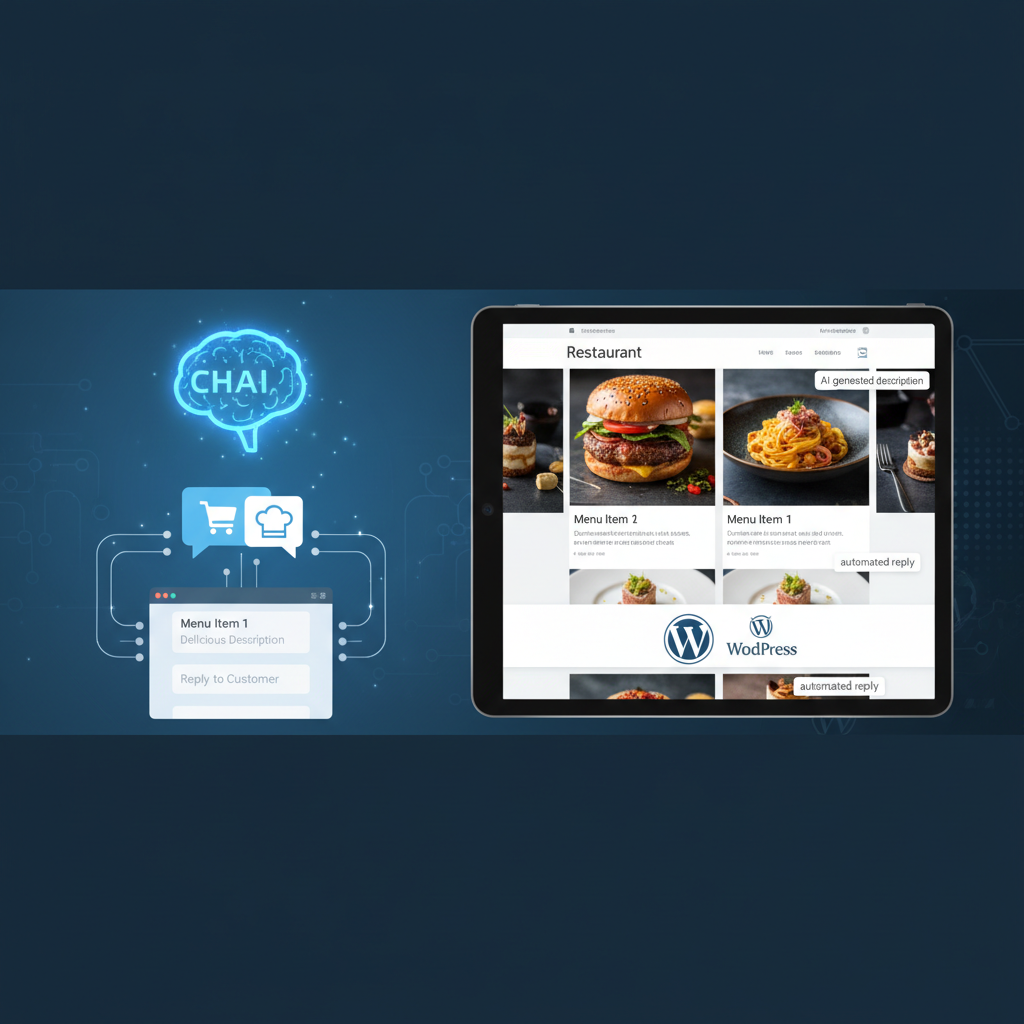
- AI Engine by Jordy Meow — the most popular free-plus-pro option. It adds a chatbot, a playground for bulk content generation, and can write directly into WooCommerce product fields.
- Uncanny Automator — best if you want AI to trigger on events (new order, abandoned cart, new review) and send outputs to email or SMS.
- CodeWP — more developer-focused, useful if you want AI to generate custom WooCommerce snippets safely.
Here’s a quick comparison to help you pick:
- Free and just experimenting? Start with AI Engine’s free version + a ChatGPT account. Copy-paste workflow.
- Want automation triggers? Uncanny Automator Pro + OpenAI API. Great for cart recovery emails.
- Running multiple locations? AI Engine Pro + API key, connected to a solid ordering system like FoodMaster’s WooCommerce restaurant plugin, so the AI has clean product data to work with.
One tip most tutorials skip: your AI outputs are only as good as your product data. If your WooCommerce menu is a mess of “Pizza 1”, “Pizza 2”, “Pizza with stuff”, clean that up first. FoodMaster’s structured product types (with add-ons, variations, and category tags) make the AI’s job dramatically easier because it can see ingredients, prices, and modifiers instead of guessing.
Automating Menu Descriptions and Product Copy at Scale
This is the single biggest time-saver for most restaurants. Instead of writing “Delicious homemade pizza with fresh ingredients” 30 times, you give ChatGPT a template and let it produce distinctive copy for each item.
The base prompt structure
Every good menu-writing prompt has four parts: role, context, constraints, and example. Here’s the skeleton:
“You are a menu copywriter for a [type] restaurant in [city]. Write a [word count] product description for [dish name] containing [ingredients]. Tone: [warm/playful/upscale]. Avoid clichés like ‘mouth-watering’ and ‘authentic’. End with a short sensory hook.”
Six ready-to-copy templates
1. Pizza: “Write a 40-word description for a Neapolitan pizza called ‘Diavola’ with San Marzano tomatoes, fior di latte, spicy salami, and basil. Wood-fired. Tone: relaxed Italian trattoria. No exclamation marks.”
2. Burger: “Write a 35-word description for the ‘Smash Royale’ — double smashed beef patty, American cheese, pickles, house burger sauce, brioche bun. Tone: confident, street-food. Mention the sear.”
3. Sushi: “Write a 30-word description for a Salmon Avocado Roll with cucumber and sesame. Tone: minimal, precise. Note that fish is sushi-grade and sourced weekly.”
4. Vegan: “Write a 45-word description for a Jackfruit Bao Bun with pickled slaw and sriracha mayo (vegan mayo). Tone: fun, not preachy. Do not use the words ‘plant-based’ or ‘guilt-free’.”
5. Kids menu: “Write a 25-word description for ‘Mini Margherita Pizza’ aimed at parents ordering for kids aged 4–10. Tone: reassuring, mentions no added sugar in the sauce.”
6. Daily special: “Write a 50-word description for tonight’s special: pan-seared sea bass with lemon risotto and samphire. Tone: seasonal, chef-driven. Mention that it’s available until sold out.”
[IMAGE: Screenshot of ChatGPT generating multiple restaurant menu descriptions in a table format]
Bulk-generating for a whole menu
For 20+ products, don’t do them one by one. Two approaches work well:
- AI Engine Playground: Paste a CSV of dish names and ingredients, use a template placeholder like
{title}and{ingredients}, and let it batch-generate descriptions you can review and push to WooCommerce. - WP All Import + a CSV: Generate all descriptions in a Google Sheet using the
=GPT()function (via a free add-on), then import the completed sheet straight into WooCommerce products.
Always review every description before publishing. AI will occasionally invent an ingredient (“hints of truffle” when there’s no truffle) — for allergen-sensitive items this is not a small mistake.
AI-Powered Customer Support: Chatbots and Order Replies
The second-biggest time drain for restaurant owners is answering the same five questions on repeat. “What time do you close?” “Do you deliver to my area?” “Is the pesto vegan?” A well-trained chatbot handles 70–80% of these without a human ever touching the keyboard.
Setting up a chatbot that doesn’t hallucinate
The single most important step is grounding — giving the AI a specific document to answer from, and telling it to refuse when it doesn’t know.
With AI Engine’s chatbot module, you can upload:
- A PDF or text file of your full menu with allergens
- Your delivery zones and postcodes
- Opening hours and holiday schedule
- House policies (refunds, minimum orders, dietary substitutions)
Then set the system prompt to something like: “You are the assistant for [Restaurant Name]. Only answer using the provided documents. If the question isn’t covered, say ‘Let me pass that to the team’ and collect the customer’s name and phone number.”
Tools worth evaluating: AI Engine (integrates natively with WordPress and WooCommerce), Tidio (has a hybrid live-chat + AI mode), and Chatbase (great for pure knowledge-base bots). If you use FoodMaster for ordering, the chatbot can direct customers straight into the menu flow instead of hanging around in chat forever.
Automated order-status replies
With Uncanny Automator you can wire up a recipe like: “When WooCommerce order status changes to ‘Preparing’, send an SMS to the customer using this ChatGPT-generated message referencing their name and the dish.” The result is personalised messages that don’t sound like they came from a printer.
Smart Marketing Automation: Emails, Socials, and Review Responses
Marketing is where AI shines — because the stakes per output are lower and the volume is higher.
Abandoned-cart emails
Restaurants have surprisingly high cart abandonment (people get distracted, or partners disagree on toppings). A ChatGPT-drafted three-email sequence, personalised with the items left in the cart, can recover a meaningful chunk of those orders. Sample prompt:
“Write a friendly 80-word abandoned cart email for a customer who left a Margherita pizza and garlic bread in their basket. Restaurant name: Nonna’s. Offer free delivery if they complete the order in the next 2 hours. No exclamation marks, warm but not desperate.”
Weekly newsletters and Instagram captions
Feed ChatGPT this week’s specials, an event (match night, quiz night), and ask for three caption variants per platform. Always request variants — the first draft is rarely the best, and having options helps you find your voice.
Responding to Google and Yelp reviews
This is delicate. AI is excellent at drafting calm, professional responses to negative reviews, which is often the hardest part emotionally. Prompt template:
“A customer left a 2-star review saying their delivery arrived 40 minutes late and the fries were cold. Draft a 60-word reply that: apologises specifically, doesn’t make excuses, offers a direct email to resolve, and doesn’t sound corporate.”
Never post AI-generated replies without reading them. One tone-deaf reply can undo a hundred good ones. If your brand voice is very specific, paste in three of your previous replies and tell ChatGPT to mimic that voice.
Analysing Orders and Predicting Demand With AI
This is the part most restaurant owners overlook, and it’s arguably the highest-value use of AI. Your WooCommerce database is a goldmine — you just need a translator.
Step-by-step: turning orders into insight
- In WooCommerce, go to WooCommerce → Orders and export the last 90 days as CSV (or use a plugin like Advanced Order Export).
- Open ChatGPT (Plus plan) and upload the CSV to a new chat with Advanced Data Analysis enabled.
- Start with a broad prompt: “This is a 90-day export of orders from my pizzeria. Summarise: top 10 bestsellers by revenue, bottom 10, average order value by day of week, and peak hours per weekday.”
- Follow up with targeted questions: “Which items are frequently bought together?” or “If I run a Tuesday promo, which two items should I bundle to maximise margin?”
- For forecasting: “Based on the last 12 weeks, estimate how many Margherita pizzas I should prep for next Friday between 7–9pm.”
[IMAGE: A restaurant owner reviewing an AI-generated sales analysis dashboard on a laptop]
Before uploading, strip out personal data — customer names, emails, phone numbers, and addresses. You only need product names, quantities, timestamps, and totals for analysis. A quick pass in Excel or Google Sheets to delete those columns takes two minutes and saves you a GDPR headache.
If you’re already using a structured ordering system like FoodMaster, exporting clean, well-categorised data is straightforward, which means the AI can give sharper answers about which add-ons drive the highest average order value.
Guardrails: Accuracy, Privacy,
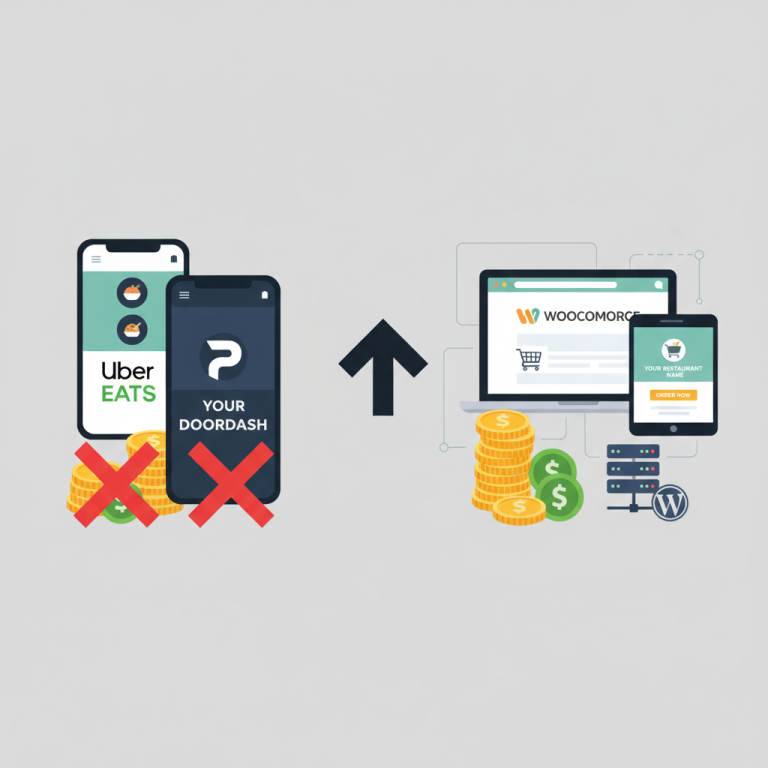
Commission-free ordering
Run restaurant orders on your own WordPress site
FoodMaster adds delivery, pickup, dine-in, POS, and kitchen tools — with zero per-order fees.