On this page
- Local SEO Essentials for Restaurants | Pro Tips For Hospitality Brands
- Set up Google Business Profile to drive menu clicks and online orders
- Fill in the profile fields customers use to choose a restaurant
- Use photos, posts, and review responses to build local trust
- Optimize website pages for city, neighborhood, and cuisine searches
- Add local keywords to title tags, headings, and menu content
- Create location pages and ordering paths for each service area
- Add schema markup and fix technical issues that affect local visibility
- Apply Restaurant, LocalBusiness, and Menu schema to key pages
- Speed up mobile ordering pages and keep NAP details consistent
- Track reviews, local performance, and next steps
- Get more Google reviews after dine-in, pickup, and delivery orders
- Measure local traffic and conversions with basic tools
- FAQs
- How long does local SEO take to improve restaurant orders?
- Which restaurant pages should I optimize first for local SEO?
- What should I fix first if my restaurant ranks but gets few orders?
- Related Blog Posts
If your restaurant is hard to find in local search, you lose orders. People who search terms like “pizza delivery near me” or “tacos open now” usually want four things fast: hours, menu, price, and pickup or delivery info.
I’d boil this down to six jobs:
- Set up your Google Business Profile right
- Keep hours, phone, and address accurate
- Link straight to your menu and online ordering page
- Build location pages for each city or neighborhood
- Add restaurant and menu schema
- Track reviews, clicks, and completed orders
A few numbers show why this matters:
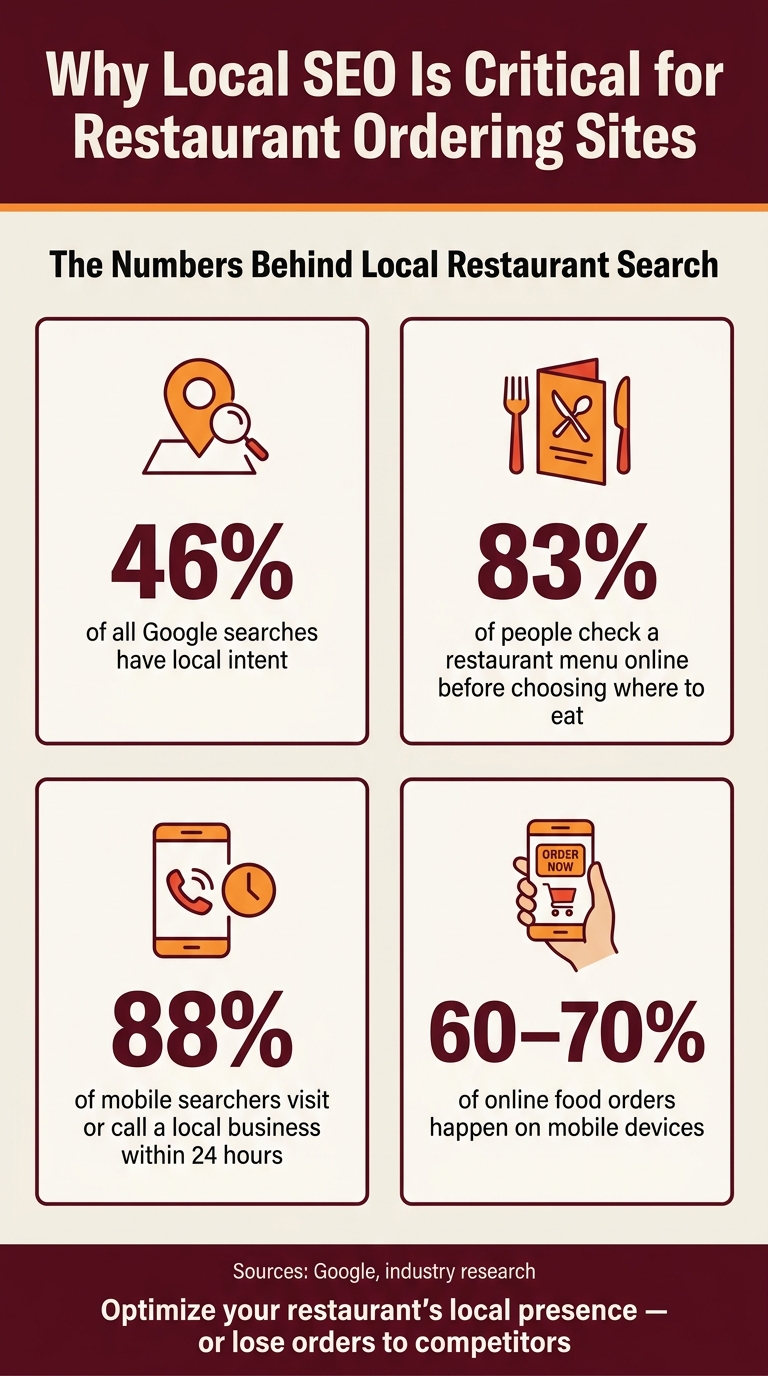
- 46% of Google searches have local intent
- 83% of people check a restaurant menu online before choosing
- 88% of mobile searchers visit or call a local business within 24 hours
- 60%–70% of online food orders happen on mobile
That means small problems can cost you sales fast. Wrong holiday hours, a missing order link, slow mobile pages, or mixed-up business details can send people to another restaurant in minutes.
If I were fixing local SEO for a restaurant ordering site, I’d start here:
- Clean up Google Business Profile
- Match your name, address, and phone everywhere
- Use local terms on menu and location pages
- Make mobile ordering pages load fast
- Ask for reviews after dine-in, pickup, and delivery
- Watch clicks, calls, and order conversions every month
The short version: local SEO for restaurants is about making it easy for nearby people to find you, trust you, and order without delay.
Local SEO Stats Every Restaurant Needs to Know
Local SEO Essentials for Restaurants | Pro Tips For Hospitality Brands
Beyond technical optimization, you can improve your brand presence by deriving inspiration from top restaurant websites to see how industry leaders convert visitors.
Set up Google Business Profile to drive menu clicks and online orders
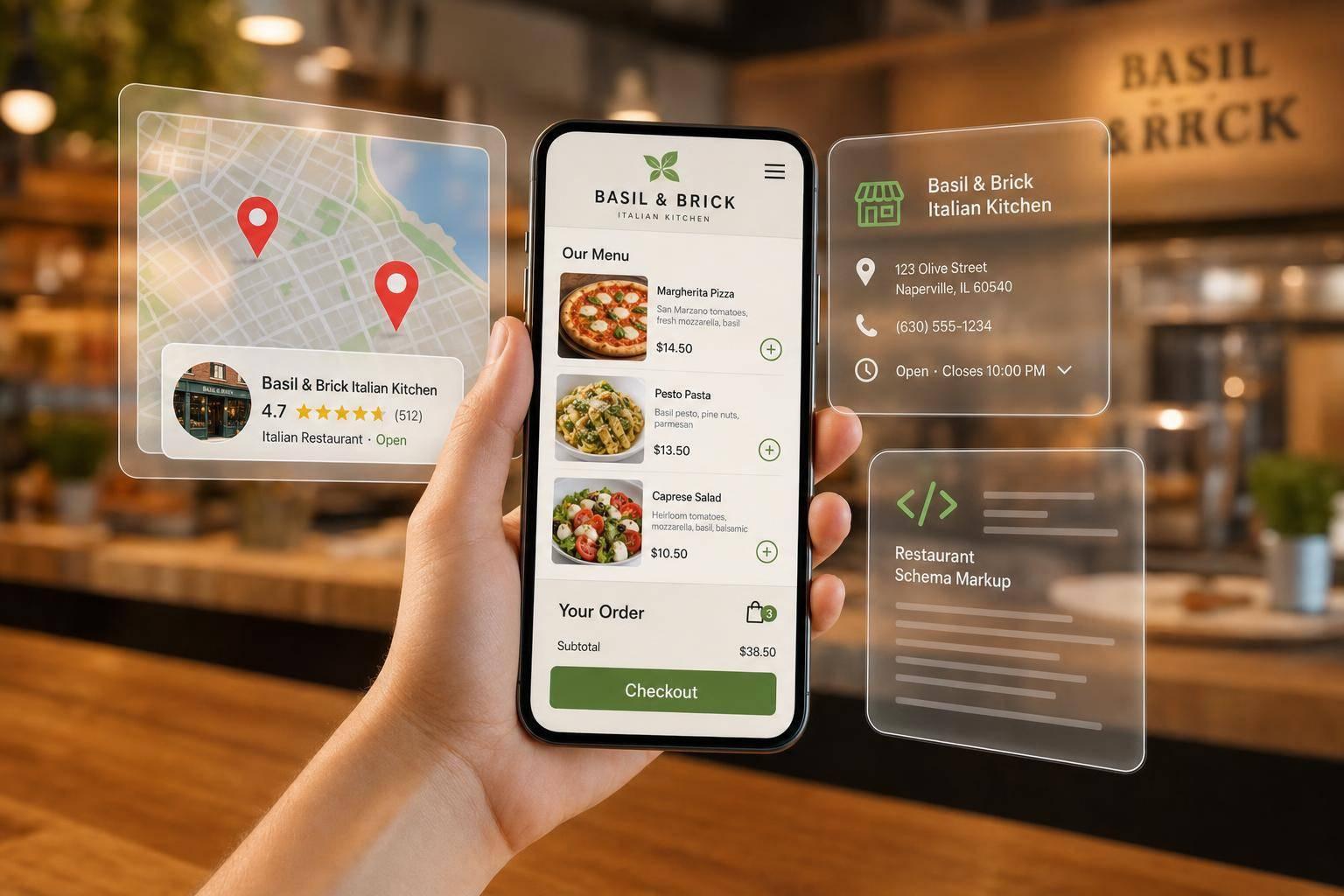
Once someone finds your restaurant in local search, your profile needs to answer the small questions that often decide where they order from next. Google Business Profile is often the first place nearby customers check for your hours, menu, and ordering link. So it needs to make that next step easy, whether that’s viewing your menu, calling your restaurant, or placing an order.
Fill in the profile fields customers use to choose a restaurant
Start with the basics: your business name, address, phone number, hours, and categories. Make sure they match how your business appears offline. Use your exact real-world name, and don’t add keywords to the business name. That can violate Google’s guidelines and put the profile at risk.
Your phone number matters too. Use a local number, and make sure it matches your website and your other listings.
For categories, go as specific as you can with your primary category. If you’re a pizza place, choose "Pizza restaurant". If you run a sushi spot, choose "Sushi restaurant." Then add secondary categories like "Takeout restaurant" or "Delivery restaurant" when they fit.
Attributes help customers sort out the details fast. Turn on every relevant option, including:
- Dine-in
- Takeout
- Curbside pickup
- Outdoor seating
- Vegetarian options
You should also link your menu to a mobile-friendly menu page and send your ordering link to your own online ordering system. And when your schedule changes for holidays or short-term updates, use Special hours so customers don’t show up at the wrong time.
After your profile is filled out, carry those same local terms and ordering details onto your website pages.
Use photos, posts, and review responses to build local trust
Photos do a lot of heavy lifting here. Add images of your top dishes, storefront, dining area, and pickup counter. Stick with natural lighting and skip heavy filters. A steady flow helps, so upload 10 to 20 new photos each month during normal service hours.
Google Posts give you another way to keep the profile active. A weekly post about a featured dish, a limited-time special, or updated delivery hours can help keep your listing current. Add a photo, then link the post to your ordering page.
Reviews matter just as much as visuals. Reply to every review within 24 hours. For positive reviews, keep the response short and personal. For negative ones, acknowledge the issue and take the conversation offline. That shows customers you’re paying attention and moving fast when something goes wrong.
Next, make sure your website and menu pages support those same local signals with local SEO schema and fast mobile loading.
Optimize website pages for city, neighborhood, and cuisine searches
Your website should answer two things right away: what you serve and where you serve it.
Add local keywords to title tags, headings, and menu content
Stick with one simple title format: cuisine + city + brand. For example: "Neapolitan Pizza Restaurant in Austin, TX | Order Online for Delivery & Pickup." Match your H1 to that same search intent. Then write the meta description like a short call to action, not a pile of keywords. A WordPress SEO plugin can help you edit title tags and meta descriptions with previews and character counts.
Use one or two local phrases. That’s enough. Don’t cram in every keyword version you can think of.
On menu and category pages, work local context into short intro text. Something like:
"Explore our specialty pizzas, baked fresh in our South Austin kitchen and available for delivery across downtown."
For image alt text, put accessibility first. Add a location only when it fits the image, such as "thin-crust pepperoni pizza for delivery in Austin." Also, mix up your alt text from image to image instead of repeating the same phrase over and over.
Create location pages and ordering paths for each service area
One broad locations page usually doesn’t do as much for neighborhood searches as a page built for that area. A URL like /locations/south-austin/ or /locations/lodo-denver/ gives each area its own shot to show up in search.
Each location page should include:
- Full NAP details for that location, formatted exactly as they appear on your Google Business Profile
- Service hours for dine-in, pickup, and delivery
- A clear delivery radius, such as "Delivery within 3 miles of Downtown Austin, minimum order $20."
Place an "Order Online" button above the fold, then repeat it after the map and again after any menu highlights. Add an interactive Google Map too. It helps customers check the location and adds local relevance.
If you run a ghost kitchen or delivery-only setup that serves several neighborhoods from one kitchen, make each page feel tied to that area. Use neighborhood-specific intro copy, local landmark mentions, and delivery time estimates that make sense for that part of town. Add enough original copy so each page is clearly different.
Also link your homepage, location pages, and menu pages together so people can move between them and place an order fast. A small location selector at the top of the menu page can help a lot, like: "You’re viewing: Downtown Austin. Switch to: North Austin." That little detail helps people make sure they’re ordering from the right spot.
Next, optimize your restaurant website for local SEO by adding schema and speeding up mobile ordering pages so customers and search engines can read them fast.
sbb-itb-7e654f7
Add schema markup and fix technical issues that affect local visibility
Once your local pages are live, optimize your restaurant’s local SEO and add structured data so Google can read them with less guesswork. Schema tells Google what your restaurant is, what’s on the menu, and where people can place an order.
Apply Restaurant, LocalBusiness, and Menu schema to key pages
Use the schema type that fits each page:
| Page | Schema Types | Key Properties |
|---|---|---|
| Homepage | Restaurant, LocalBusiness | Name, address, phone, hours, cuisine type, menu URL |
| Menu page | Menu, MenuSection, MenuItem | Section names, dish names, prices in USD |
| Online ordering page | MenuItem, Offer | Price, currency, availability, item variants |
Use JSON-LD and place the script in the <head> of each page. For the address, stick to U.S. postal formatting: "streetAddress": "123 Main St", "addressLocality": "Austin", "addressRegion": "TX", "postalCode": "78701", "addressCountry": "US". And pick one phone format, then use it everywhere, including in schema.
Once you’ve matched the right schema to each page, connect your homepage, menu, and order pages with hasMenu and OrderAction. Use the same @id across related schema blocks so Google can tell they all refer to the same restaurant entity. If you use a schema plugin, this is often handled through form fields. One more thing: keep menus in HTML.
To check your work, run it through Google’s Rich Results Test, the Schema Markup Validator, and the Enhancements section in Google Search Console. These tools help you spot missing fields, structure problems, and crawl issues. Never mark up reviews you did not receive.
Speed up mobile ordering pages and keep NAP details consistent
Mobile devices account for 60–70% of all online food orders. That means page speed isn’t just a nice extra. It affects revenue. If your ordering page drags, people leave.
Start with the basics. Compress food photos, use WebP, and defer nonessential scripts so they don’t stop the menu from loading. Then test your ordering pages in Google PageSpeed Insights and look closely at LCP and INP.
Faster pages can help rankings, but they also cut checkout drop-off. Trim extra form fields, turn on browser autofill for addresses, and make tap targets big enough for thumbs instead of mouse clicks.
NAP consistency is another site-wide check that’s easy to overlook. Use one exact NAP format across your website, Google Business Profile, and directories. Put your full NAP in the footer as crawlable text, and make sure it matches your JSON-LD schema character for character.
After these technical fixes are in place, track reviews and order conversions to see which pages perform best.
Track reviews, local performance, and next steps
Once your profile, pages, and schema are live, the job isn’t done. You need reviews and analytics to keep those assets turning into orders. In plain English: keep new reviews coming in, check key numbers once a month, and make small changes based on what the data shows.
Get more Google reviews after dine-in, pickup, and delivery orders
Use a review process your staff can follow every shift. For dine-in, train servers to mention reviews when they drop the check. Add a QR code that links straight to the "Write a review" link in your Google Business Profile on printed receipts and table cards.
For pickup, put that same QR code on takeout bag stickers and order receipts. For delivery, send an automated email or SMS 1–3 hours after the order is marked complete. That gives people time to eat before you ask for feedback.
Keep it simple. Ask once per order. Make the message short and specific so it doesn’t feel canned.
Aim for 10–15 new reviews per month with an 80%+ response rate, and track:
- Monthly review volume
- Average rating
- Response rate
- Recurring themes
- Average response time
- Negative-review turnaround
Those repeating review themes aren’t just nice to know. They tell you what to push next. If people keep praising your late-night delivery, feature it more. If they mention slow pickup, that’s a flag to fix the handoff process.
Measure local traffic and conversions with basic tools
Once review volume is steady, look at how local searches turn into clicks and orders.
Track local results in three basic tools. Google Business Profile Insights shows how people found you, whether through discovery searches or by typing your name directly. Watch menu clicks, website clicks, calls, and direction requests.
In Google Search Console, check impressions, clicks, and average position for non-branded searches like "[city] pizza delivery" or "order tacos [neighborhood]." If a menu page or ordering page gets lots of impressions but weak click-through, tighten up the meta title. Be specific. Include the cuisine, the location, and the ordering intent.
In Google Analytics 4, mark completed orders as conversions. Add UTM parameters to your GBP website link so you can see how much ordering traffic comes from local search versus other channels. Also break out mobile conversion rate from desktop. If mobile is trailing, that’s usually a sign of page speed issues or checkout friction.
| Tool | What to Check | How Often |
|---|---|---|
| Google Business Profile Insights | Discovery searches, menu clicks, direction requests | Monthly |
| Google Search Console | Local query impressions, CTR, mobile performance | Monthly |
| Google Analytics 4 | Order conversions by source, mobile vs. desktop conversion rate | Monthly |
Every quarter, review your GBP hours, menu links, photos, attributes, NAP consistency across major listings, seasonal items, and your mobile order flow test.
FAQs
How long does local SEO take to improve restaurant orders?
Local SEO takes time. It’s not a quick fix.
Social media can bring short bursts of attention, sure. But if you want a strong local search presence, you need steady work over time.
That work can pay off in a big way. Once your local presence is in place, it can bring in a steady flow of traffic and orders for months or even years – without the need to keep spending money on ads.
The key is consistency: site optimization, profile management, and technical fixes all play a major role in long-term growth.
Which restaurant pages should I optimize first for local SEO?
Start with your homepage and any dedicated location pages. If you run a single-location restaurant, your homepage should do the job of a main location page. That means showing your full address, a Google Map, current hours, and a clear online ordering call to action.
If you have more than one location, give each one its own page. Make sure your NAP details stay consistent, add schema markup, mention nearby neighborhoods or landmarks, and link straight to the online ordering menu.
What should I fix first if my restaurant ranks but gets few orders?
If your restaurant ranks but still gets few orders, the issue is often mobile performance or a clunky ordering process. People want to place an order in seconds. If your site loads slowly, feels hard to use, or shows a static menu, you’re likely losing sales.
Fix these first:
- Make the ordering flow mobile-first
- Improve site speed
- Add a clear order button
- Keep your online menu updated weekly
Related Blog Posts
Commission-free ordering
Run restaurant orders on your own WordPress site
FoodMaster adds delivery, pickup, dine-in, POS, and kitchen tools — with zero per-order fees.