
What is FoodMaster?
FoodMaster is a WordPress and WooCommerce restaurant ordering system. It includes the ordering plugin, the FoodMaster theme, a POS app, and automatic order printing so customers can place delivery, pickup, and dine-in orders on your own site.
Start with the Setup Wizard, then finish the rest in FoodMaster settings: license, order types, extras, hours, tables, and printing. Use the Multistore add-on only if you have more than one location.
- Delivery, pickup, and dine-in
- Extra options (toppings, add-ons, half-and-half pizza toppings)
- Hours per order type, plus holiday closures
- Distance limits by radius, map area, or postal code
- QR table ordering and a kitchen display (KDS)
- POS and automatic printing for Windows, Mac, Android, and iOS
- Export and import of configuration for backup or migration
How to install it
WooCommerce must be installed and active before you activate FoodMaster.
- Download FoodMaster from your WPSlash account. If you received a package with more than one zip (plugin, theme, or apps), unzip it first and upload only the zip you need.
- Go to Plugins → Add New → Upload Plugin, upload the FoodMaster plugin zip, and activate it.
- If you use the FoodMaster theme, go to Appearance → Themes → Add New → Upload Theme and activate it. The plugin is already included with the theme, so you do not need to upload it twice.
- Install the Multistore plugin only if you have more than one location.
After activation, FoodMaster opens the Setup Wizard. You can leave it and come back later from FoodMaster → Settings or FoodMaster → Setup Wizard.
Setup Wizard
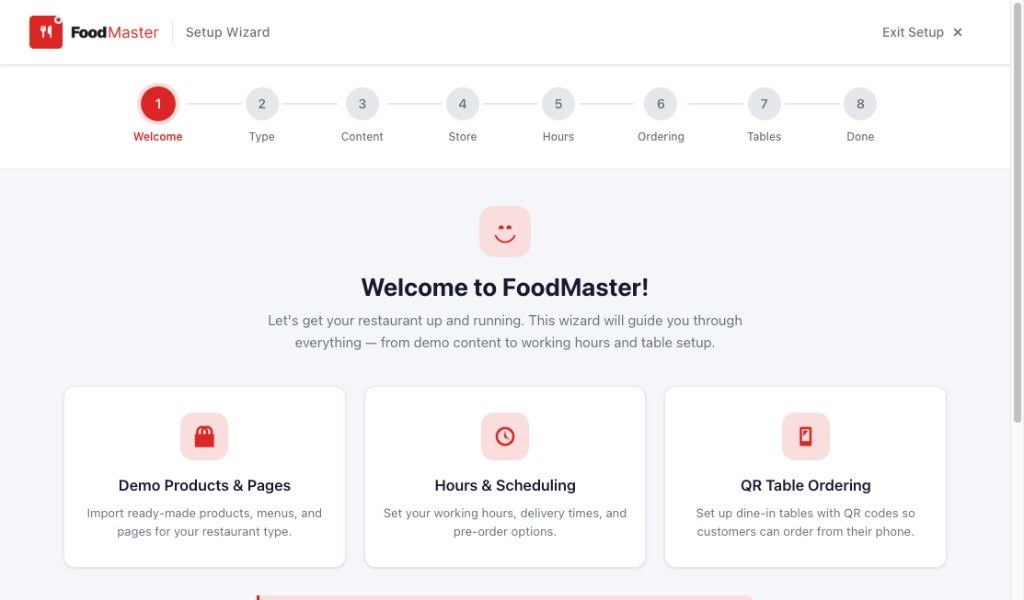
The wizard covers restaurant type, demo content, store details, hours, ordering, and tables. You can exit at any time; unfinished steps remain available in settings.
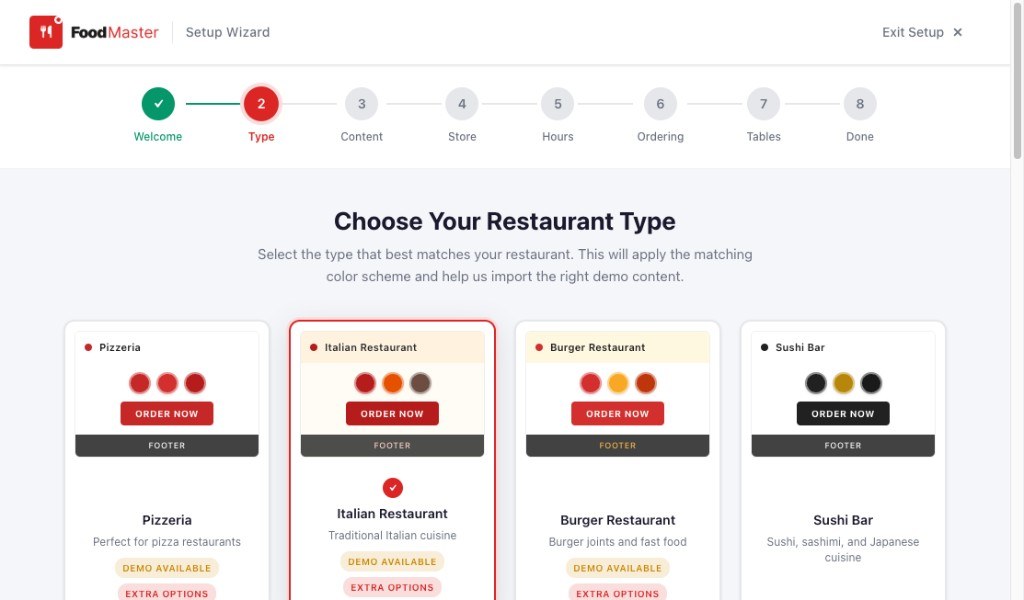
Choose your restaurant type
Pick the type that matches your menu. FoodMaster applies a matching color scheme and uses that type when importing demo content. Demo types include Pizzeria, Italian Restaurant, Burger Restaurant, and Sushi Bar.
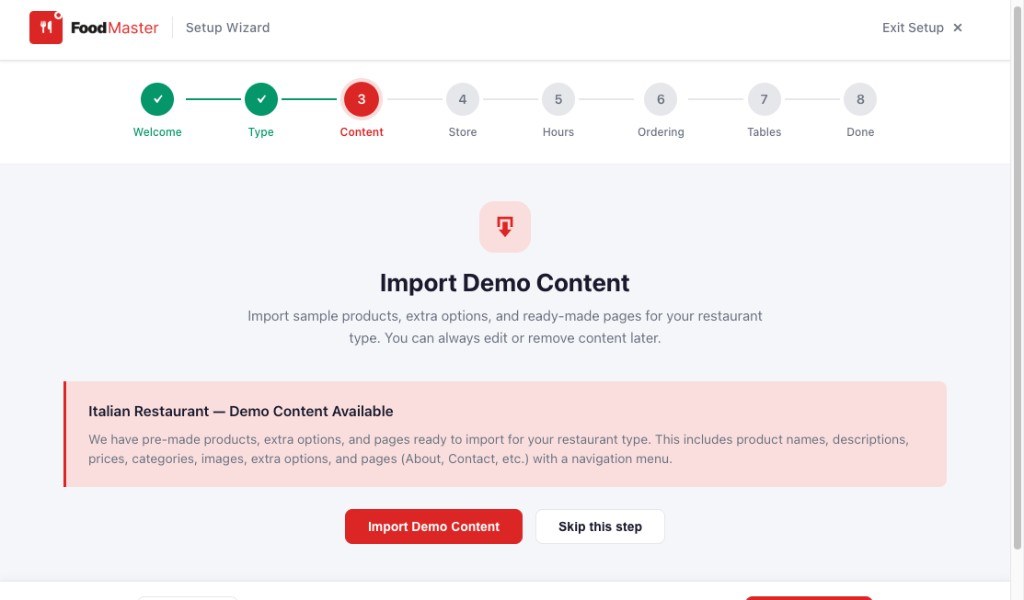
Import demo content
If demo content exists for the type you chose, you can import sample products, extra options, pages, and a navigation menu. You can edit or remove that content later. Skip this step if you already have products.
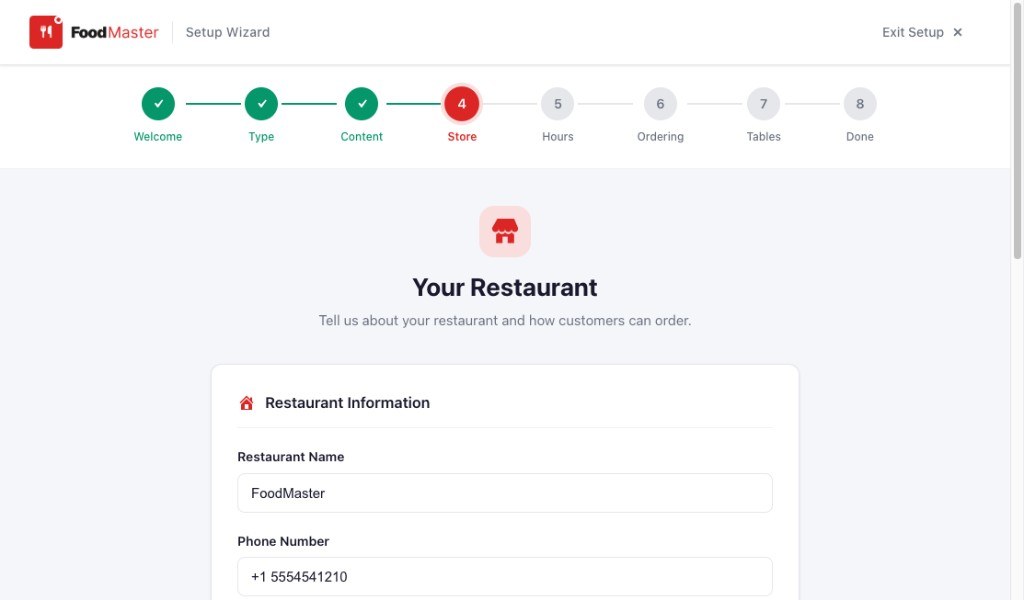
Store details
Enter your restaurant name and phone number. These are the details customers see when they order.
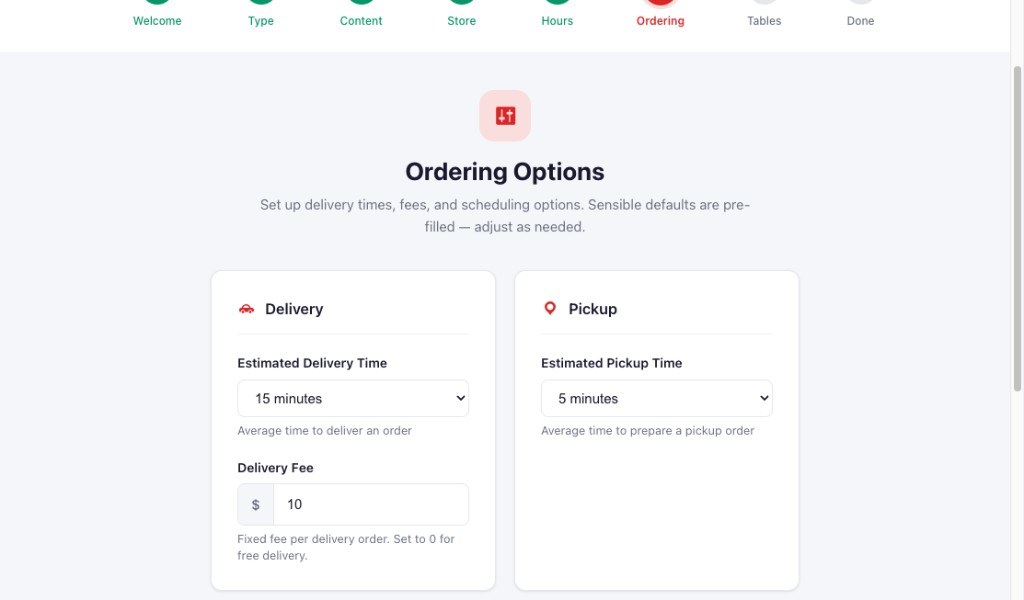
Ordering options
Set estimated delivery and pickup times and a delivery fee. Use 0 for free delivery. You can change these later under FoodMaster → Settings → Order Types.
License
Go to FoodMaster → Settings → General → License. Paste the license key from your WPSlash account and activate it for this domain.
When the license is active, you will see the status, the domain it is bound to, and the support expiry date. From the same screen you can recheck the status, deactivate the key, or reactivate it after moving the site.
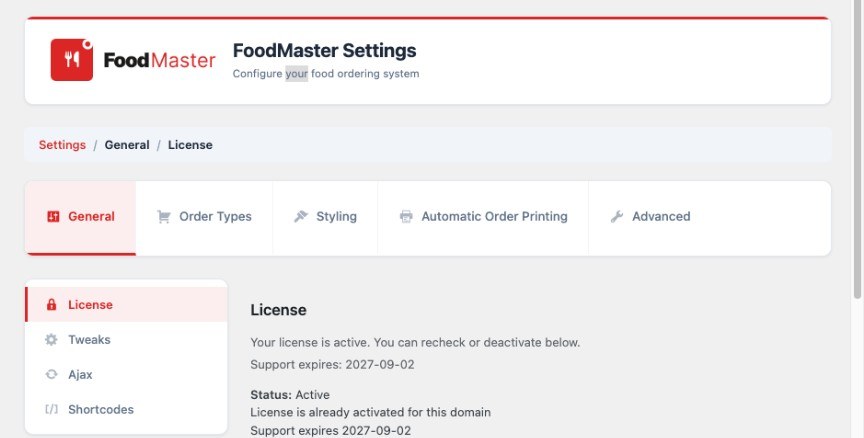
The same General tab also has Tweaks, Ajax, and Shortcodes:
- Tweaks — show product short descriptions in menus, hide extra-category names in the cart, enable RTL, and turn on compatibility options (Avada, WooCommerce Product Add-ons) when those plugins or themes are present.
- Ajax — open products in a modal and add them to the cart without a full page reload. You can also enable upsell products, related products, and the modern AJAX design.
- Shortcodes — examples in the admin for the menu shortcodes listed below.
Order types
Go to FoodMaster → Settings → Order Types. Enable Delivery, Pickup, and/or Dine-in, then set the default type for first-time visitors. If that default is later disabled, FoodMaster uses the first enabled type instead.
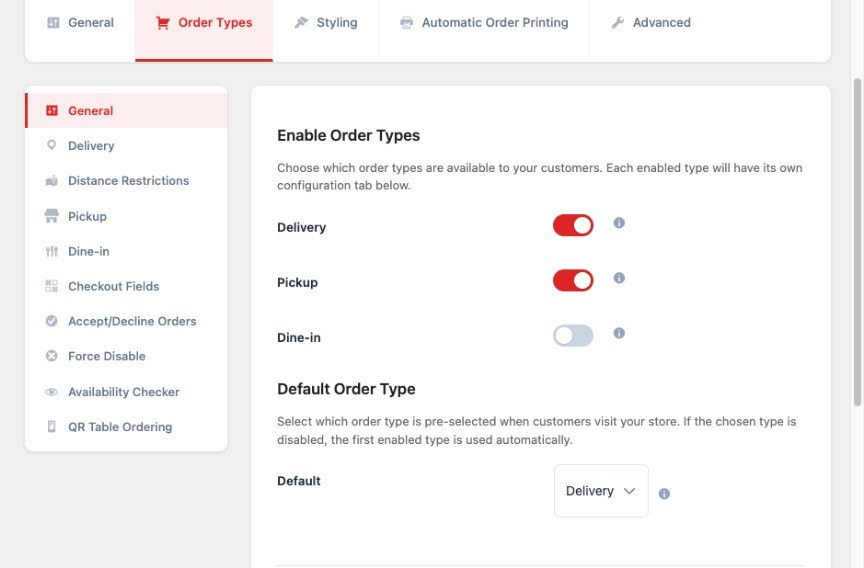
Each enabled type has its own screens in the left menu:
- Delivery / Pickup / Dine-in — fees, labels, and type-specific options.
- Distance Restrictions — limit delivery by maximum radius from the store address, by drawing a polygon on the map, or by a comma-separated list of postal codes. Postal codes do not need Google API keys. Radius and polygon modes need a store address. Maps JavaScript powers address autocomplete; Distance Matrix measures distance from the store.
- Checkout Fields — extra fields collected at checkout.
- Accept/Decline Orders — require the restaurant to accept each order live. You can auto-decline after a timeout, set “minutes to arrive” choices, skip accept/decline when the customer already picked a time, and choose a redirect page for declined orders.
- Force Disable — temporarily stop delivery, pickup, and/or dine-in without changing the rest of the configuration.
- Availability Checker — ask customers for an address before they order. Options include keeping the checker open until a valid address is entered, hiding the address field for pickup, and an enhanced checker with geolocation.
- QR Table Ordering — enable dine-in QR ordering, choose the menu page customers land on after a scan, set the table indicator text (use
{table_number}), QR size, the name printed on the QR, whether the table session clears automatically, and whether the table appears at checkout. Dine-in must be enabled. Create tables under FoodMaster → Tables.
Extra options
Extra options are toppings, add-ons, and similar choices attached to products. Open FoodMaster → Extra Options Management.
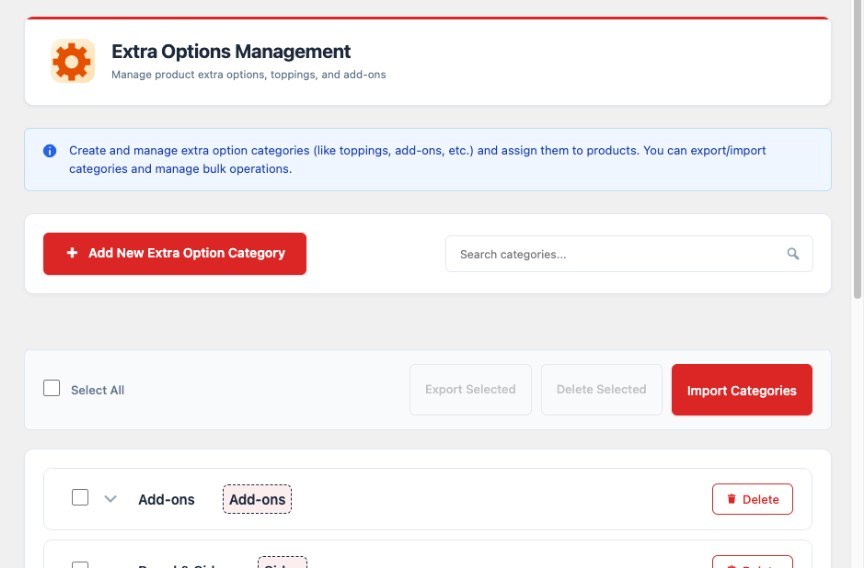
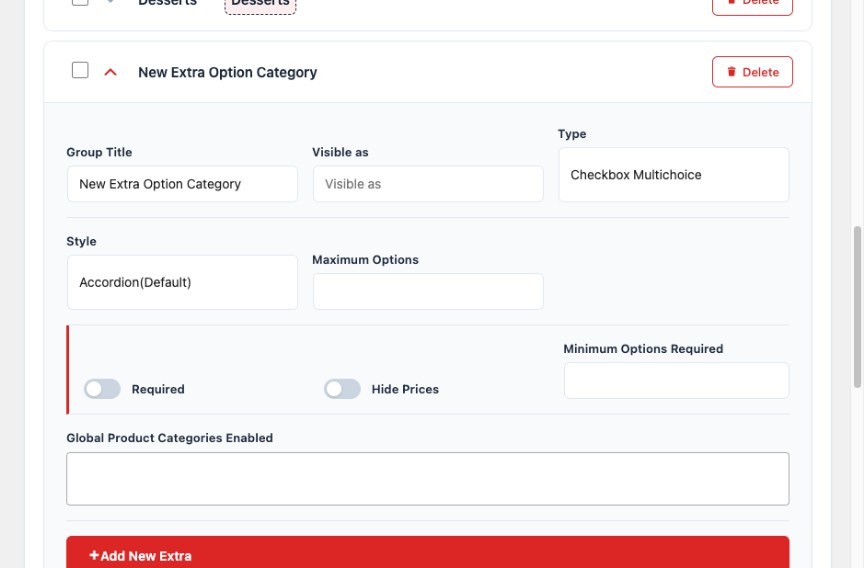
Click Add New Extra Option Category and set:
- Group Title — name in the admin
- Visible as — label customers see
- Type — how customers choose
- Style — Accordion (default) or Flat
- Maximum Options — used with Limited Choice
- Required / Hide Prices / Minimum Options Required
- Global Product Categories Enabled — optionally limit the group to WooCommerce product categories
Category types
- Checkbox Multichoice — any number of extras
- Limited Choice — up to the Maximum Options value
- Single Choice Radio — one option, shown as radio buttons
- Single Choice Select — one option, shown as a dropdown
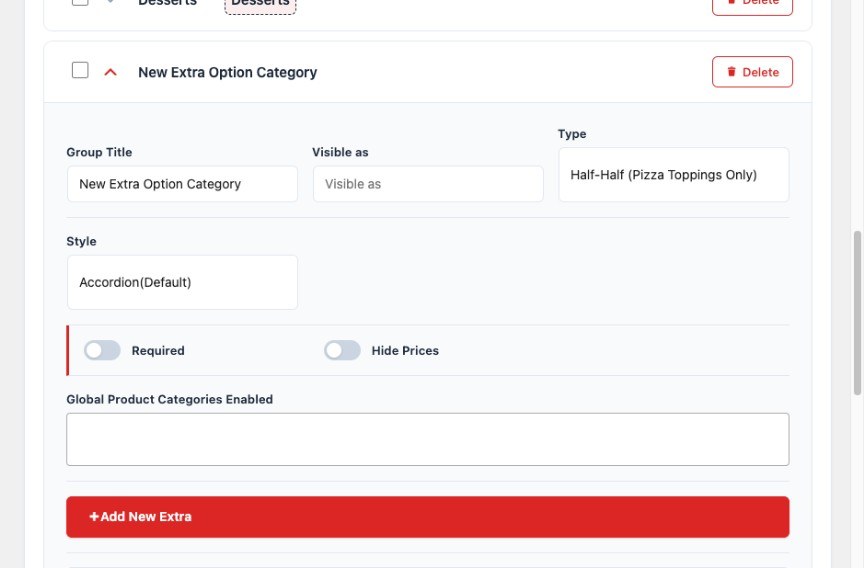
- Half-Half (Pizza Toppings Only) — toppings for the left half, right half, or whole pizza
Add extras to a category
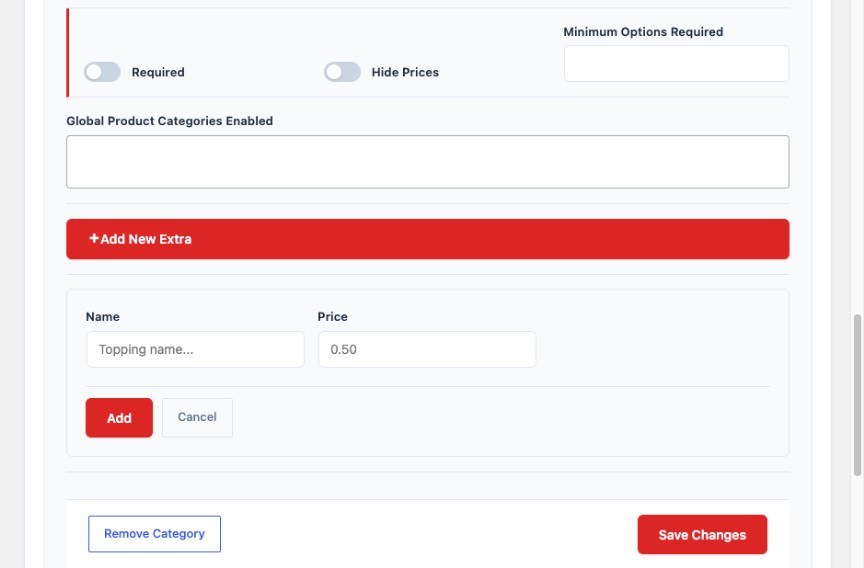
Open a category and click Add New Extra. Enter a name and a price (leave the price empty or set it to 0 if it is free), then click Add. Drag extras to change the order. Edit or remove them, then click Save Changes.
Assign categories to products
Open a WooCommerce simple product. Under Product data, open the FoodMaster Extra Options tab, select the categories that should appear, and drag them into order. Hold Ctrl (Windows) or Command (Mac) to select more than one.
On a variable product, set extra option categories on each variation after the variations exist.
Tables and QR ordering
QR table ordering needs three things: dine-in enabled, QR Table Ordering enabled under Order Types, and at least one table.
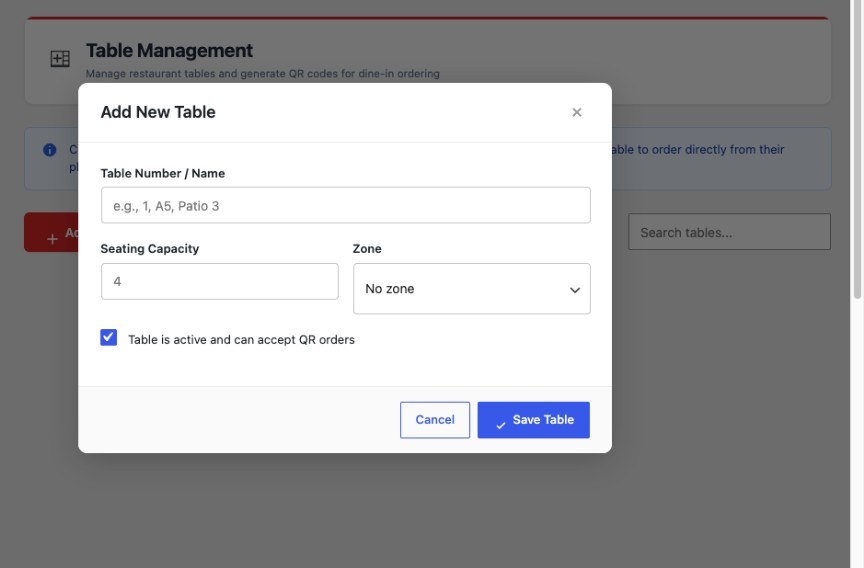
Go to FoodMaster → Tables and click Add New Table. Fill in:
- Table Number / Name — the label customers and staff see
- Seating Capacity
- Zone — none, Indoor, Outdoor, Bar, Terrace, or VIP
- Table is active and can accept QR orders
If Multistore is on, you can also assign the table to a store, or leave it global.
After you save a table, FoodMaster generates a QR code and an ordering URL. From the tables screen you can search, toggle a table active or inactive, copy the URL, download a PNG, or use Print All QR Codes for the dining room.
Customers scan the code, land on your menu page with dine-in selected, and see a table indicator. The default text is Table {table_number} - Dine In.
Delivery, pickup, and dine-in hours
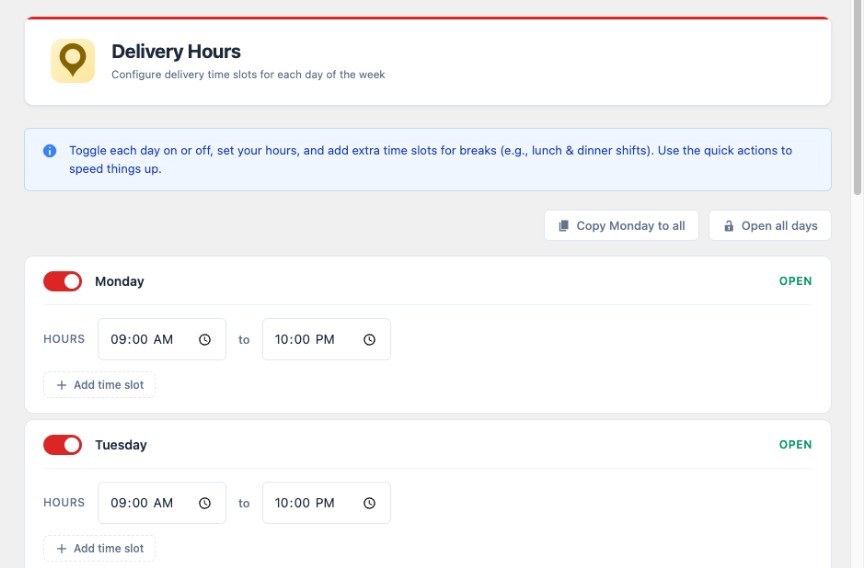
Open FoodMaster → Delivery Hours. Pickup Hours and Dine-in Hours work the same way. Toggle each day, set the open interval, and add extra slots for breaks or split shifts. Use Copy Monday to all or Open all days to fill the week quickly.
Holidays
Go to FoodMaster → Holidays. During an active holiday, customers see your message and cannot place orders.
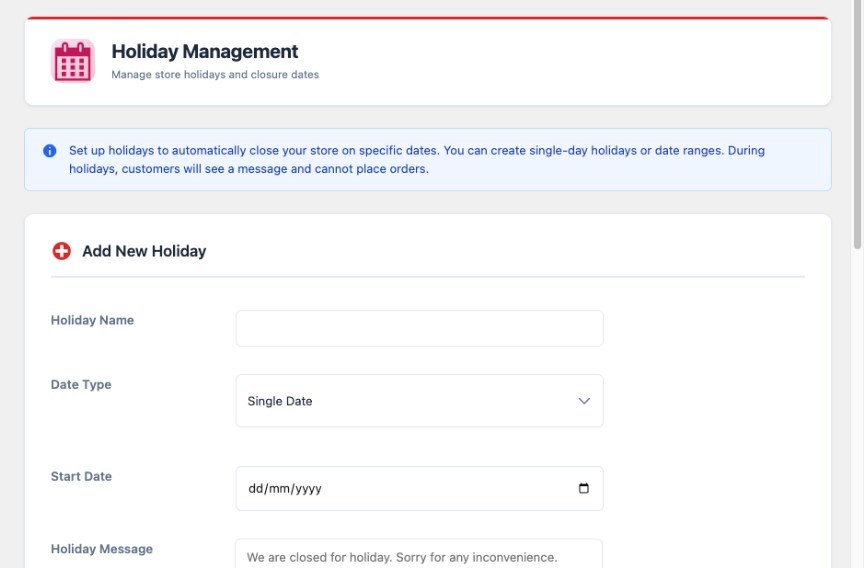
Add a holiday name, choose Single Date or Date Range, set the date or dates, and optionally customize the holiday message. Saved holidays can be deactivated without deleting them, then turned back on later.
Styling
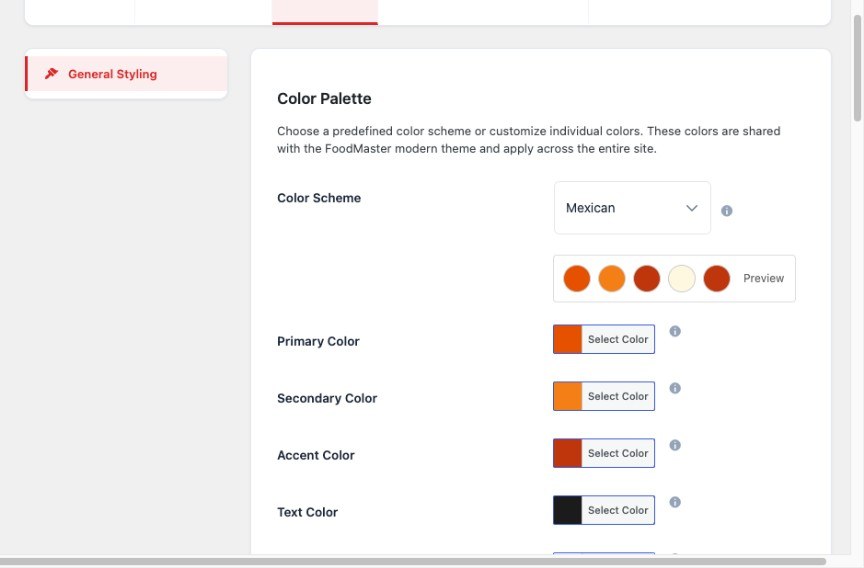
Go to FoodMaster → Settings → Styling → General Styling. Choose a color scheme or set Primary, Secondary, Accent, and Text colors. These colors are shared with the FoodMaster theme.
POS and automatic order printing
The same FoodMaster app is used as a point of sale at the counter and to print incoming orders on a thermal printer. Download it from FoodMaster → Settings → Automatic Order Printing → Downloads, or use the links below.
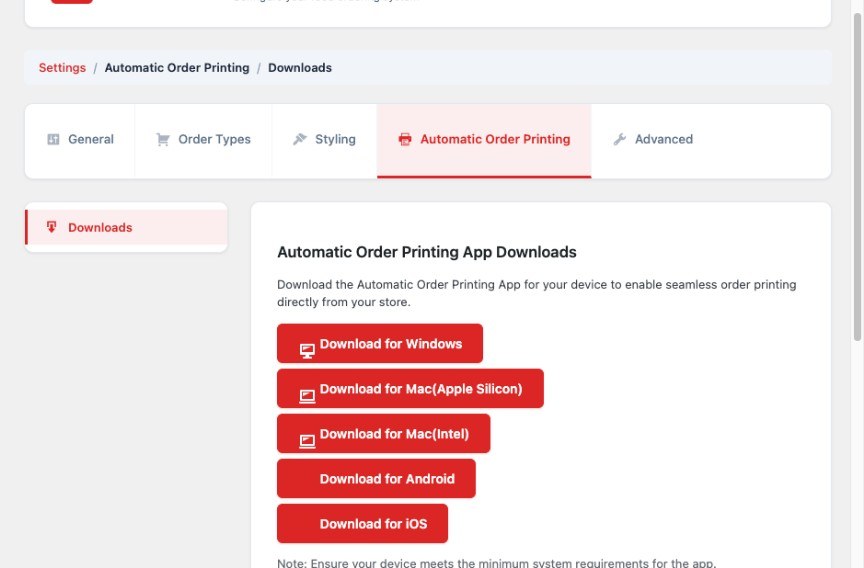
- Download for Windows
- Download for Mac (Apple Silicon)
- Download for Mac (Intel)
- Download for Android
- Download for iOS
Pretty permalinks must be enabled under Settings → Permalinks, otherwise the app cannot talk to the FoodMaster API. The clock on the device must also be correct.
In the app, enter your license key, the full site URL (including http:// or https://), and a WordPress username and password. Use an Administrator or Shop Manager account. If Multistore is active, use that location’s Multistore user — not the main admin — or the app will pull orders from every store.
- Automatic printing — new online orders print on your thermal printer. You can translate printed labels and optionally mark an order as completed after it prints.
- POS — take walk-in pickup or dine-in orders from the same catalog, including extra options, coupons, cash or card, and optional tips. Receipts can print automatically.
Kitchen Display (KDS)
Go to FoodMaster → Settings → Advanced → Kitchen Display (KDS). Enable KDS, then save. Open Settings → Permalinks and click Save once so WordPress registers the kitchen URL.
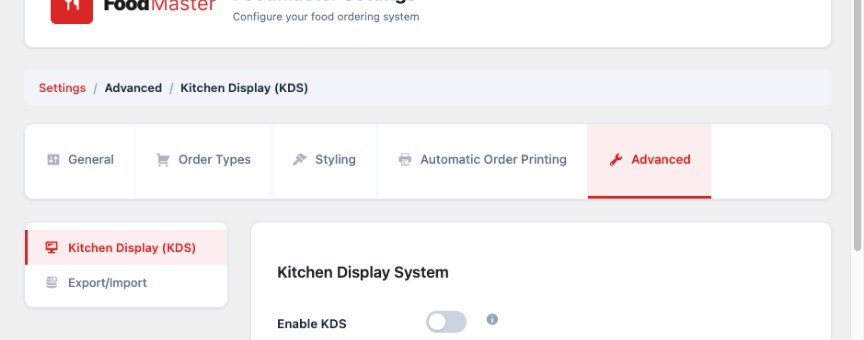
Open the kitchen screen at https://your-site.com/foodmaster-kitchen/ on a tablet or monitor. You can configure:
- Access PIN — 4–6 digits required to open the KDS. Leave this empty only if the screen is on a private network; a PIN is recommended.
- Auto-Refresh Interval — how often the screen checks for new orders (5–30 seconds).
- New Order Sound — play an alert when an order appears.
- Order Aging Warning / Critical — minutes until a ticket turns yellow, then red (defaults are 10 and 20).
- Sort Orders By — scheduled delivery, pickup, or dine-in time (ASAP first), or order date.
The KDS has four columns: New Orders, Preparing, Ready, and Done. Staff move tickets across the columns as the kitchen works. Completed tickets older than about an hour leave the Done column.
If Multistore is enabled, each store can use /foodmaster-kitchen/?store=ID so that kitchen sees only its own orders. The master URL shows all orders.
Export and import
Go to FoodMaster → Settings → Advanced → Export/Import to back up or move settings, extra options, and products.
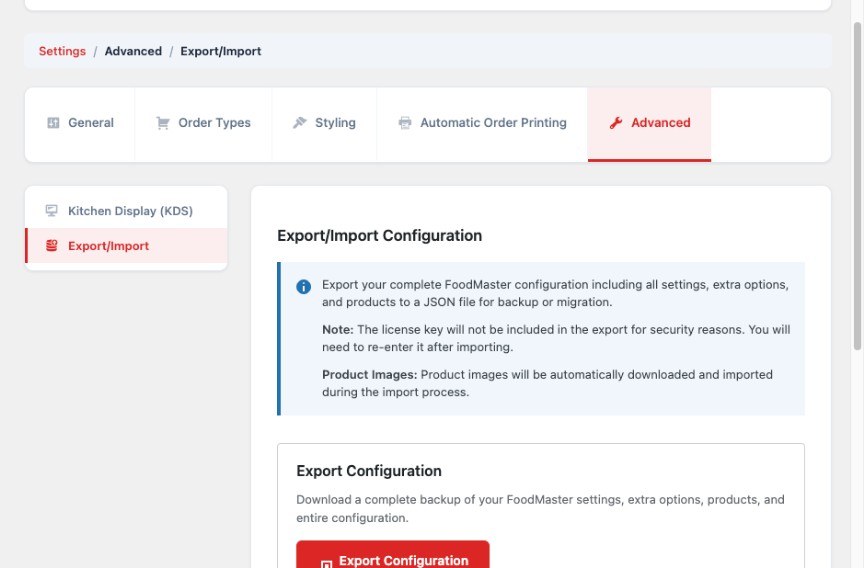
- Export Configuration downloads a JSON file. The license key is never included. After you import, you must activate the license again.
- Import Configuration uploads that JSON and overwrites the current FoodMaster settings. Product images are downloaded during import.
Do not import a file from another site unless you intend to replace this site’s FoodMaster configuration.
Statistics
Open FoodMaster → Statistics for revenue, order counts, average order value, completed orders, revenue over time, and a breakdown by order type. Choose a period and refresh when you need updated numbers.
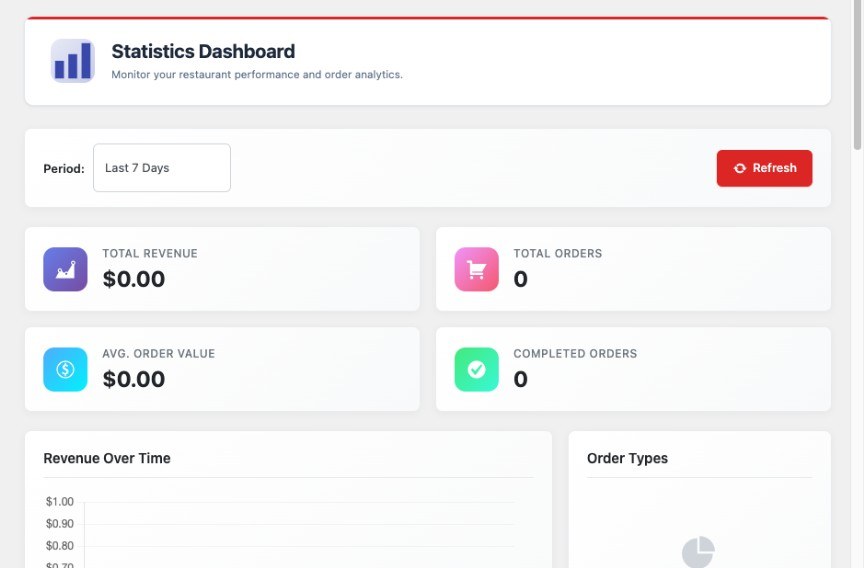
Depending on your license, the FoodMaster menu can also include Orders, Reports, and SMS. The Orders screen is the live list used with Accept/Decline. SMS sends order notifications when a gateway is configured.
Shortcodes
Add these to any page. Category slugs are WooCommerce product category slugs. Shortcodes use the foodmaster_ prefix.
- Accordion for every product category
Shortcode
[foodmaster_accordion] - Accordion opened by default
Shortcode
[foodmaster_accordion open="yes"] - Accordion for specific categories
Shortcode
[foodmaster_accordion category_slug="burger,pizza"] - Accordion with custom colors
Shortcode
[foodmaster_accordion category_slug="burger,pizza" text_color="white" background_color="#cc0000" border_color="#cc0000"] - Accordion for specific products — replace the IDs with your product IDs. The
iconandtitleattributes work when you show a single category or a custom product list.Shortcode[foodmaster_accordion ids="314,44,468" title="Today" text_color="white" background_color="#cc0000"] - Tabs
Shortcode
[foodmaster_tabs] [foodmaster_tab_item category_slug="burger" title="Burgers"] [/foodmaster_tabs] - Availability checker popup — opens for new visitors
Shortcode
[foodmaster_availability_popup] - Working hours
Shortcode
[foodmaster_working_hours] - Mini cart
Shortcode
[foodmaster_mini_cart]
Related layout shortcodes include [foodmaster_menu], [foodmaster_side_menu], [foodmaster_hero], [foodmaster_store_hours], [foodmaster_featured_product], and [foodmaster_daily_dishes]. These are most useful with the FoodMaster theme.
In the block editor, insert the FoodMaster accordion or handpicked tabs block and choose a category or all categories.
To show product text in those menus, fill in each product’s short description, then enable Show Product Short Description under FoodMaster → Settings → General → Tweaks.
Multistore
Install the Multistore plugin only if you have more than one location. It adds store management under FoodMaster and a Multistore User role.
- Create one WordPress user per location with the Multistore User role.
- Create a store for each location (address, email, phone, and maximum delivery distance).
- Assign that location’s user to the store.
Each Multistore user only sees their own orders. Connect the POS and printing app with that user’s login. If you use per-store KDS URLs, open that store’s kitchen link. Do not sign the app in as the site administrator when Multistore is on.
For developers
FoodMaster exposes WordPress filters and actions so you can change order types, fees, menu queries, templates, and the data sent to the POS / printing app without editing plugin files. Put custom code in a child theme functions.php or a small custom plugin. Plugin updates overwrite any edits inside foodmaster-plugin.
Settings live in the
foodmaster_optionsoption. Order meta uses thefoodmaster_prefix, with a fallback to the olderwoofood_prefix. Usefoodmaster_get_order_meta_compat( $order, 'order_type' )when you read FoodMaster fields from a WooCommerce order.
Template overrides
Copy a template from the plugin into your theme, keep the same relative path under foodmaster/, then change the copy. FoodMaster looks in the child theme first, then the parent theme, then the plugin.
| Override in your theme | Copies from the plugin |
|---|---|
yourtheme/foodmaster/modal/add-to-cart/simple.php |
Quick view add-to-cart for simple products |
yourtheme/foodmaster/modal/add-to-cart/variable.php |
Quick view add-to-cart for variable products |
yourtheme/foodmaster/menu-layouts/sticky-tabs/template.php |
Sticky tabs menu layout |
yourtheme/foodmaster/menu-layouts/accordion/template.php |
Accordion menu layout |
yourtheme/foodmaster/product-loops/default/template.php |
Default product card in the menu |
yourtheme/foodmaster/product-loops/card/template.php |
Card-style product loop |
yourtheme/foodmaster/elements/ |
Front-end elements such as store hours |
You can also swap a modal template path with foodmaster_locate_template:
add_filter( 'foodmaster_locate_template', function( $template, $slug, $name ) {
	if ( 'simple' === $slug ) {
		$custom = get_stylesheet_directory() . '/foodmaster/modal/add-to-cart/simple.php';
		if ( file_exists( $custom ) ) {
			return $custom;
		}
	}
	return $template;
}, 10, 3 );
Actions foodmaster_before_template_part and foodmaster_after_template_part fire around modal templates loaded through Foodmaster_Modal_Template_Loader::get_template().
Order types
Built-in types are delivery, pickup, and dinein. foodmaster_get_enabled_order_types() returns the types that are currently on. The plugin already uses foodmaster_order_types_filter to drop types you turned off in settings. Run your filter later (priority 20+) if you need to change labels or remove a type in code.
// Rename the pickup label.
add_filter( 'foodmaster_order_types_filter', function( $types ) {
	if ( isset( $types['pickup'] ) ) {
		$types['pickup'] = __( 'Collect in store', 'your-textdomain' );
	}
	return $types;
}, 20 );

// Force pickup as the default type on checkout.
add_filter( 'foodmaster_default_order_type_filter', function() {
	return 'pickup';
} );
The selected type is stored on the order as foodmaster_order_type (values: delivery, pickup, or dinein). Checkout also keeps it in the WooCommerce session as foodmaster_order_type.
Delivery fees and minimum order
foodmaster_delivery_fee_filter receives the numeric fee FoodMaster calculated (from distance ranges or the flat delivery fee) before it is added as a WooCommerce cart fee. foodmaster_minimum_amount_delivery_filter receives the minimum delivery subtotal.
// Add 2.00 to the delivery fee after 18:00.
add_filter( 'foodmaster_delivery_fee_filter', function( $fee ) {
	$hour = (int) current_time( 'G' );
	if ( $hour >= 18 ) {
		$fee += 2;
	}
	return $fee;
} );

// Raise the delivery minimum to 25.
add_filter( 'foodmaster_minimum_amount_delivery_filter', function( $minimum ) {
	return max( (float) $minimum, 25 );
} );
When the cart already meets the minimum, you can output extra mini-cart copy with foodmaster_minimum_amount_reached_message_minicart (HTML string, plus the minimum amount).
Preparation times
These filters receive the lead time in minutes from FoodMaster settings, then the plugin builds timeslots from that number.
foodmaster_adjust_delivery_timefoodmaster_adjust_pickup_timefoodmaster_adjust_dinein_time
// Add 15 minutes to delivery after 17:00.
add_filter( 'foodmaster_adjust_delivery_time', function( $minutes ) {
	if ( (int) current_time( 'G' ) >= 17 ) {
		return (int) $minutes + 15;
	}
	return (int) $minutes;
} );
On Multistore checkout the same values also pass through foodmaster_adjust_delivery_time_multistore_checkout, foodmaster_adjust_pickup_time_multistore_checkout, and foodmaster_adjust_dinein_time_multistore_checkout (minutes, then store ID). Thank-you / “time after order” screens use foodmaster_adjust_delivery_time_thankyou (and the pickup / dine-in equivalents), with the order ID as the second argument.
Return true from foodmaster_delivery_time_based_on_preparation_time to use product preparation time when calculating the shown delivery time. foodmaster_auto_calculate_delivery_time_after can turn on automatic “ready in” calculation after checkout.
Distance and postal codes
foodmaster_change_to_miles is a boolean. FoodMaster already hooks it from the Distance unit setting (miles vs km). Use it only if you need to override that setting in code. foodmaster_distance_type_filter receives the current restriction type: default (radius), polygon, or postalcode.
// Match postcodes by prefix (e.g. SW1 matches SW1A 1AA).
add_filter( 'foodmaster_check_postal_prefixes', '__return_true' );
Menu product query
Menu layouts query in-stock products in a category, ordered by menu_order ascending. You can change that query before it runs:
add_filter( 'foodmaster_filter_products_query', function( $args ) {
	// Hide a category from every FoodMaster menu query.
	$args['tax_query'][] = array(
		'taxonomy' => 'product_cat',
		'field'    => 'slug',
		'terms'    => array( 'hidden-from-menu' ),
		'operator' => 'NOT IN',
	);
	return $args;
} );

add_filter( 'foodmaster_default_orderby', function() {
	return 'title';
} );

add_filter( 'foodmaster_default_order', function() {
	return 'ASC';
} );
Product loop and add to cart
By default, simple products with extra options open the quick-view popup. Return true from foodmaster_skip_popup_simple_without_extra to add simple products with no extras straight to the cart:
add_filter( 'foodmaster_skip_popup_simple_without_extra', '__return_true' );Button labels:
add_filter( 'foodmaster_product_add_to_cart_text_ajax', function() {
	return __( 'Choose options', 'your-textdomain' );
} );

add_filter( 'foodmaster_product_add_to_cart_text_simple', function( $text, $product ) {
	return __( 'Add to order', 'your-textdomain' );
}, 10, 2 );

add_filter( 'foodmaster_product_add_to_cart_text_variable', function( $text ) {
	return __( 'Select size', 'your-textdomain' );
} );
Inject HTML around the product image or title in the menu loop. Values are passed through wp_kses_post.
add_filter( 'foodmaster_product_loop_after_title', function( $html, $product, $product_id ) {
	if ( $product && $product->is_featured() ) {
		$html .= '<span class="fm-badge">' . esc_html__( 'Popular', 'your-textdomain' ) . '</span>';
	}
	return $html;
}, 10, 3 );
The same foodmaster_product_loop_after_title filter is how FoodMaster prints allergen badges when that setting is on. Other loop filters: foodmaster_product_loop_before_image, foodmaster_product_loop_after_image, foodmaster_product_loop_before_title. Change the thumbnail size with foodmaster_accordion_image_size (default foodmaster-accordion, 60×60).
foodmaster_after_products_wrapper_open runs after the products wrapper opens in the accordion shortcode. It receives the category argument and the product IDs argument.
Extra options, allergens, and stores
These post types and taxonomies are registered by FoodMaster:
| Constant | Value |
|---|---|
FOODMASTER_EXTRA_OPTION_POST_TYPE |
foodmaster_xoption |
FOODMASTER_EXTRA_OPTION_TAXONOMY |
foodmaster_extra_option_category |
FOODMASTER_STORE_POST_TYPE |
foodmaster_xstore |
FOODMASTER_ALLERGEN_TAXONOMY |
foodmaster_allergen |
Category settings for extra options are stored in term meta under FOODMASTER_EXTRA_OPTION_TERM_META_KEY (foodmaster_extra_option_settings).
Quick view
Classic quick view runs do_action( 'foodmaster_quickview_product_content' ). FoodMaster attaches WooCommerce price, excerpt, and add-to-cart templates to that hook (priorities 10–25), with popup open/close at 9 and 99. Remove or add callbacks as you would on a single product page:
// Hide the short description inside classic quick view.
add_action( 'init', function() {
	remove_action( 'foodmaster_quickview_product_content', 'woocommerce_template_single_excerpt', 20 );
} );

// Add extra content before the add-to-cart form.
add_action( 'foodmaster_quickview_product_content', function() {
	echo '<p class="fm-qv-note">' . esc_html__( 'Allergens are listed on the product.', 'your-textdomain' ) . '</p>';
}, 21 );
The modern quick view fires foodmaster_modern_quickview_content instead. Image size for classic quick view is filterable with foodmaster_quickview_image_size (default foodmaster-quickview, 450×300).
Checkout
FoodMaster checkout fields (order type, time, date) are attached to the hook returned by foodmaster_checkout_hooks_location. Default: woocommerce_checkout_order_review.
add_filter( 'foodmaster_checkout_hooks_location', function() {
	return 'woocommerce_before_order_notes';
} );
When WooCommerce updates the order review, FoodMaster saves the selected type to the session and fires foodmaster_checkout_triggers with the parsed checkout fields and the current order type:
add_action( 'foodmaster_checkout_triggers', function( $posted, $order_type ) {
	if ( 'delivery' === $order_type ) {
		// Run extra delivery logic while checkout refreshes.
	}
}, 10, 2 );
If the overlay that appears outside working hours needs different copy, filter foodmaster_disabled_overlay_message.
REST API, POS, and printing
The desktop POS / printing app and mobile apps talk to the WordPress REST API. Routes are registered on both foodmaster/v2 and the legacy alias woofood/v2. Useful endpoints include /wp-json/foodmaster/v2/orders, /orders/update, /products, /products/categories, and /products/search/{term}. User login and profile routes live under foodmaster/v1 (also aliased as woofood/v1).
Before an order is added to the list the apps receive, you can drop it or change the payload:
// Do not send cancelled orders to the printing app.
add_filter( 'foodmaster_rest_include_order_in_software', function( $include, $order_data ) {
	if ( ! empty( $order_data['status'] ) && 'cancelled' === $order_data['status'] ) {
		return false;
	}
	return $include;
}, 10, 2 );

// Add a custom field to each order payload.
add_filter( 'foodmaster_rest_filter_order', function( $order_data ) {
	$order_data['kitchen_station'] = 'hot';
	return $order_data;
} );

// Change the product name on printed line items.
add_filter( 'foodmaster_rest_line_item_name', function( $name, $product_id ) {
	$sku = get_post_meta( $product_id, '_sku', true );
	return $sku ? $sku . ' — ' . $name : $name;
}, 10, 2 );
Return true from foodmaster_extra_options_to_key to print extra option names as Name: Value on a single line in the REST payload. After a product is edited through the REST API, FoodMaster fires foodmaster_rest_api_product_edited with the product ID.
Settings tabs
Add-ons can register extra tabs on FoodMaster → Settings:
add_filter( 'foodmaster_main_settings_tabs_list', function( $tabs ) {
	$tabs['my_addon'] = array(
		'label'       => __( 'My add-on', 'your-textdomain' ),
		'icon'        => 'admin-generic',
		'description' => __( 'Custom FoodMaster settings.', 'your-textdomain' ),
	);
	return $tabs;
} );

add_filter( 'foodmaster_sub_settings_tabs_list', function( $tabs ) {
	$tabs['my_addon']['general'] = array(
		'label' => __( 'General', 'your-textdomain' ),
		'icon'  => 'admin-settings',
	);
	return $tabs;
} );
Standalone admin screens are printed with actions such as foodmaster_render_main_settings_page, foodmaster_render_delivery_hours_page, and foodmaster_render_statistics_page.
Helper functions
foodmaster_get_order_types()— all type slugs and labels.foodmaster_get_enabled_order_types()— types still enabled afterfoodmaster_order_types_filter.foodmaster_get_default_order_type()— current default slug.foodmaster_get_order_type_by_key( $key )— label for a slug.foodmaster_get_order_meta_compat( $order, $key )— readfoodmaster_{key}withwoofood_{key}fallback (HPOS-safe).foodmaster_core_is_enabled()— whether core checkout behaviour is active (filterable viafoodmaster_core_functionality_enabled).
Registered image sizes: foodmaster-accordion (60×60), foodmaster-accordion-square (400×400), foodmaster-quickview (450×300), foodmaster-quickview-square (500×500).
Hook reference
The list below is the hooks used in the examples, plus a few more that are useful in real shops. It is not every hook in the plugin.
| Hook | Type | What it does |
|---|---|---|
foodmaster_order_types_filter |
Filter | Enabled order type slugs and labels |
foodmaster_default_order_type_filter |
Filter | Default order type slug |
foodmaster_delivery_fee_filter |
Filter | Delivery fee amount |
foodmaster_minimum_amount_delivery_filter |
Filter | Minimum delivery subtotal |
foodmaster_adjust_delivery_time |
Filter | Delivery lead time (minutes) |
foodmaster_adjust_pickup_time |
Filter | Pickup lead time (minutes) |
foodmaster_adjust_dinein_time |
Filter | Dine-in lead time (minutes) |
foodmaster_change_to_miles |
Filter | Use miles instead of km |
foodmaster_distance_type_filter |
Filter | Distance calculation type |
foodmaster_check_postal_prefixes |
Filter | Match postcodes by prefix |
foodmaster_filter_products_query |
Filter | WP_Query args for menu products |
foodmaster_default_orderby / foodmaster_default_order |
Filter | Menu product sort |
foodmaster_skip_popup_simple_without_extra |
Filter | Direct add to cart for simple items |
foodmaster_product_loop_* |
Filter | HTML around loop image and title |
foodmaster_product_add_to_cart_text_* |
Filter | Add to cart / Select labels |
foodmaster_locate_template |
Filter | Modal template path |
foodmaster_checkout_hooks_location |
Filter | WooCommerce hook for checkout fields |
foodmaster_checkout_triggers |
Action | Runs when checkout order review updates |
foodmaster_quickview_product_content |
Action | Classic quick view content |
foodmaster_modern_quickview_content |
Action | Modern quick view content |
foodmaster_rest_include_order_in_software |
Filter | Whether an order is sent to POS / printing |
foodmaster_rest_filter_order |
Filter | Order payload for POS / printing |
foodmaster_rest_line_item_name |
Filter | Line item name in that payload |
foodmaster_rest_api_product_edited |
Action | After a product is edited via REST |
foodmaster_main_settings_tabs_list |
Filter | Main settings tabs |
foodmaster_sub_settings_tabs_list |
Filter | Settings sub-tabs |
FAQ
Can I use FoodMaster with my own theme?
Yes. The plugin works with other themes. You may need extra CSS so the ordering UI matches your design.
What does Accept/Decline do?
When it is enabled under Order Types, the restaurant must accept the order live before it is finalized. You can accept or decline, and if you accept you can set the estimated time for the customer.
Do I have to fill in both Google API keys?
Only if you use address autocomplete or radius/polygon distance checks. Maps JavaScript is for autocomplete. Distance Matrix is for measuring distance from the store. Postal-code restrictions do not need Google keys. If a key is empty, that part will not work.
Where do I download the POS and printing app?
From FoodMaster → Settings → Automatic Order Printing → Downloads, or from the links in the POS and automatic order printing section above. The same app handles both POS and printing.
The printing app is not receiving orders. What should I check?
Enable pretty permalinks, use the full site URL, and sign in with Administrator, Shop Manager, or the correct Multistore user. Confirm the license is active for that domain and that the device clock is accurate.
The kitchen display URL shows a 404.
Enable KDS, save FoodMaster settings, then go to Settings → Permalinks and click Save to flush rewrite rules. The URL is /foodmaster-kitchen/.
Does export include my license key?
No. Re-enter the license after importing on the new site.
Which payment methods can I use?
Any WooCommerce payment gateway. FoodMaster uses WooCommerce for checkout and payment. The POS app also supports cash and card for in-store orders.
Where do developers find hooks?
See For developers for actions, filters, template overrides, and copy-paste examples taken from the current FoodMaster plugin.