
EU Guarantee Notice & GARAN Label for WooCommerce shows the official EU legal guarantee notice and the EU GARAN durability label in your shop. Since 27 September 2026, Directive (EU) 2024/825 requires traders selling goods to EU consumers to show the harmonised notice. Where the producer offers a free commercial guarantee of durability of more than two years, the EU GARAN label must be shown too. This guide covers installation, the settings, the product fields and what your customers see. Version: 1.1.0
The plugin is a templating tool, not legal advice. It shows the values you enter and does not check whether they are correct or whether your shop is compliant.
Requirements
- WordPress 6.2 or newer and PHP 7.4 or newer
- WooCommerce 8.0 or newer (High-Performance Order Storage and the Cart and Checkout blocks are supported)
- For each product: the producer’s commercial guarantee of durability, if any, and the minimum software-update period for goods with digital elements
Installation
- Download the plugin .zip from your wpslash.com licences page.
- Go to WordPress Admin > Plugins > Add New, click Upload Plugin and choose the file.
- Click Install Now and then Activate. WooCommerce must be active; otherwise the plugin stays idle and shows a notice.
Right after activation the harmonised notice already appears on every product page and at checkout with the default settings. Next, fill in the product fields so the EU GARAN label and software-update period appear where they apply.
Settings
Go to WooCommerce > EU Guarantee & GARAN. The page has four sections: Display, Appearance, Green claims scanner and Audit log and data. Click Save Changes at the bottom when you are done.
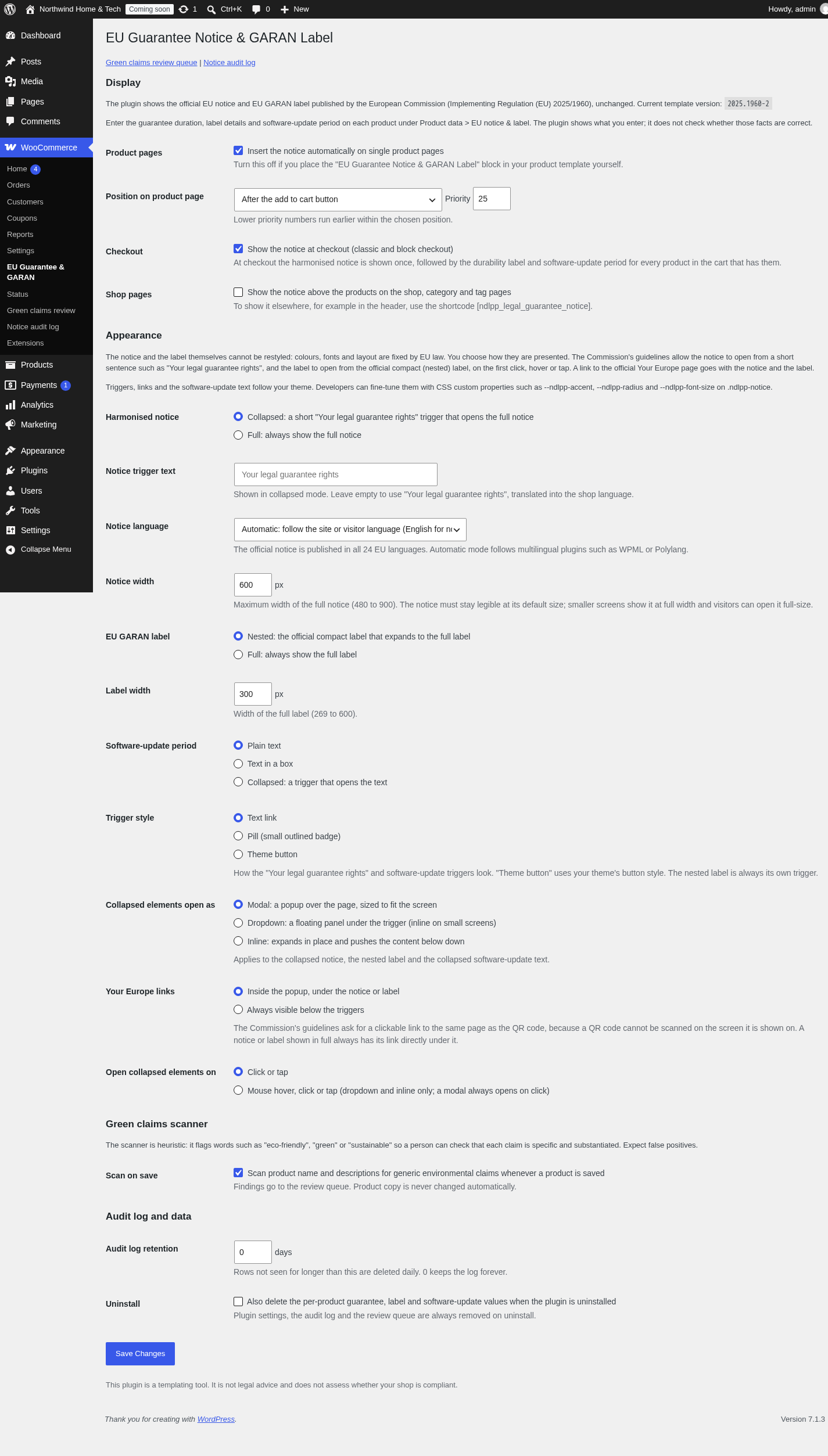
Display
- Product pages: insert the notice automatically on single product pages (on by default). Turn it off if you place the EU Guarantee Notice & GARAN Label block in your product template yourself.
- Position on product page: After the add to cart button (default), Product summary, After the product meta or Before the product tabs. Priority orders it among other content in the same position; lower runs earlier.
- Checkout: show the notice at checkout, classic and block checkout (on by default). The notice is shown once, followed by the EU GARAN label and software-update period of every product in the cart that has them.
- Shop pages: show the notice above the products on the shop, category and tag pages (off by default). To show it anywhere else, for example in the header, use the shortcode
[ndlpp_legal_guarantee_notice].
Appearance
The notice and the label are the official EU artwork; their colours, fonts and layout are fixed by Implementing Regulation (EU) 2025/1960 and cannot be changed. You choose how they are presented.
- Harmonised notice: Collapsed (default) shows a short “Your legal guarantee rights” trigger that opens the full notice. Full always shows the full notice.
- Notice trigger text: your own wording for the collapsed trigger. Leave empty to use “Your legal guarantee rights”, translated into the shop language.
- Notice language: Automatic follows the site language and multilingual plugins such as WPML or Polylang, with English as fallback. You can also pick one of the 24 EU languages.
- Notice width: maximum width of the full notice, 480 to 900 px.
- EU GARAN label: Nested (default) shows the official compact label that expands to the full label. Full always shows the full label.
- Label width: width of the full label, 269 to 600 px.
- Software-update period: Plain text, Text in a box or Collapsed behind a trigger.
- Trigger style: Text link, Pill (small outlined badge) or Theme button, which uses your theme’s button style.
- Collapsed elements open as: Modal (a popup over the page), Dropdown (a floating panel under the trigger) or Inline (expands in place).
- Your Europe links: the link to the official Your Europe page (the QR code destination) goes Inside the popup or is Always visible below the triggers. A notice or label shown in full always has its link directly under it.
- Open collapsed elements on: Click or tap, or Mouse hover, click or tap (dropdown and inline only; a modal always opens on click).
Triggers, links and the software-update text follow your theme’s fonts and colours. Developers can fine-tune them with CSS custom properties such as --ndlpp-accent, --ndlpp-radius and --ndlpp-font-size on .ndlpp-notice.
Green claims scanner
- Scan on save: check the product name and descriptions for generic environmental claims every time a product is saved (on by default). Findings go to the review queue; product copy is never changed.
Audit log and data
- Audit log retention: rows not seen for longer than this many days are deleted daily. 0 keeps the log forever.
- Uninstall: tick to also delete the per-product guarantee, label and software-update values when the plugin is uninstalled. Settings, the audit log and the review queue are always removed.
Set up each product
The harmonised notice is shown on every product. The EU GARAN label and the software-update period depend on the values you enter per product.
- Go to Products and edit a product.
- In the Product data box, open the EU notice & label tab.
- Fill in the fields below and click Update.
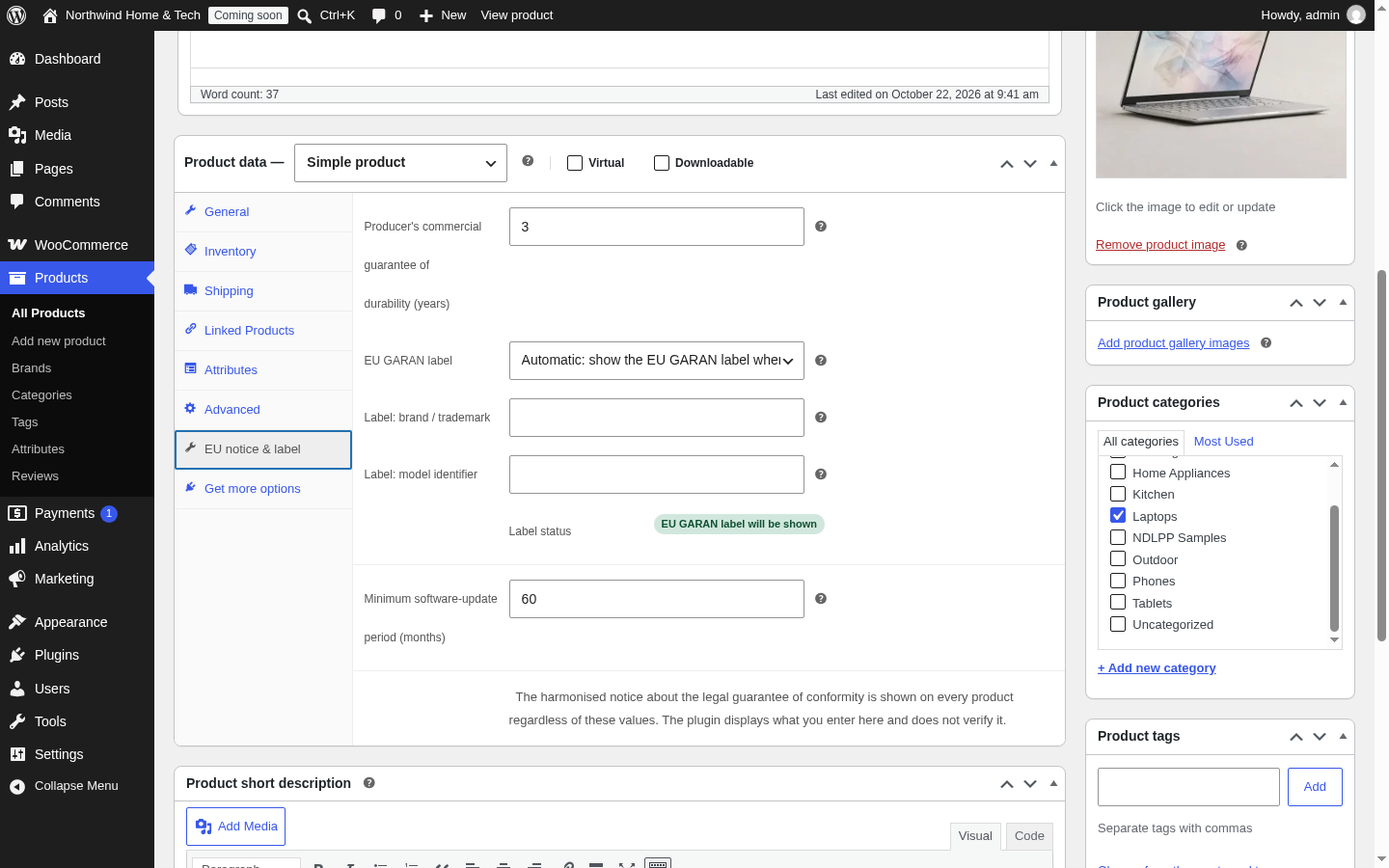
- Producer’s commercial guarantee of durability (years): whole or half years only (for example 3, 5 or 2.5), as printed on the label. Leave empty if there is none.
- EU GARAN label: Automatic shows the label when the guarantee is longer than 2 years. Choose Not eligible for any guarantee that is not offered by the producer, at no extra cost, covering the entire good (for example a paid extended warranty or a seller’s own warranty).
- Label: brand / trademark: the producer’s name printed on the label. Leave empty to use the product’s WooCommerce brand.
- Label: model identifier: printed on the label. Leave empty to use the SKU.
- Label status: shows whether the EU GARAN label will be shown with the values currently saved.
- Minimum software-update period (months): for goods with digital elements, the minimum period during which the producer provides software updates. Leave 0 if not applicable.
For variable products, enter the values on the parent product; all variations use them.
Examples
| Product | Guarantee (years) | EU GARAN label | Software updates (months) | Customers see |
|---|---|---|---|---|
| Laptop | 3 | Automatic | 60 | Notice, label “3”, software updates for 5 years |
| Washing machine | 5 | Automatic | 0 | Notice and label “5” |
| Electric kettle | 2 | Automatic | 0 | Notice only (2 years is not longer than 2) |
| Smartphone with a seller’s extended warranty | 5 | Not eligible | 72 | Notice and software updates for 6 years |
| Smart speaker | empty | Automatic | 48 | Notice and software updates for 4 years |
| T-shirt | empty | Automatic | 0 | Notice only |
What your customers see
Product page
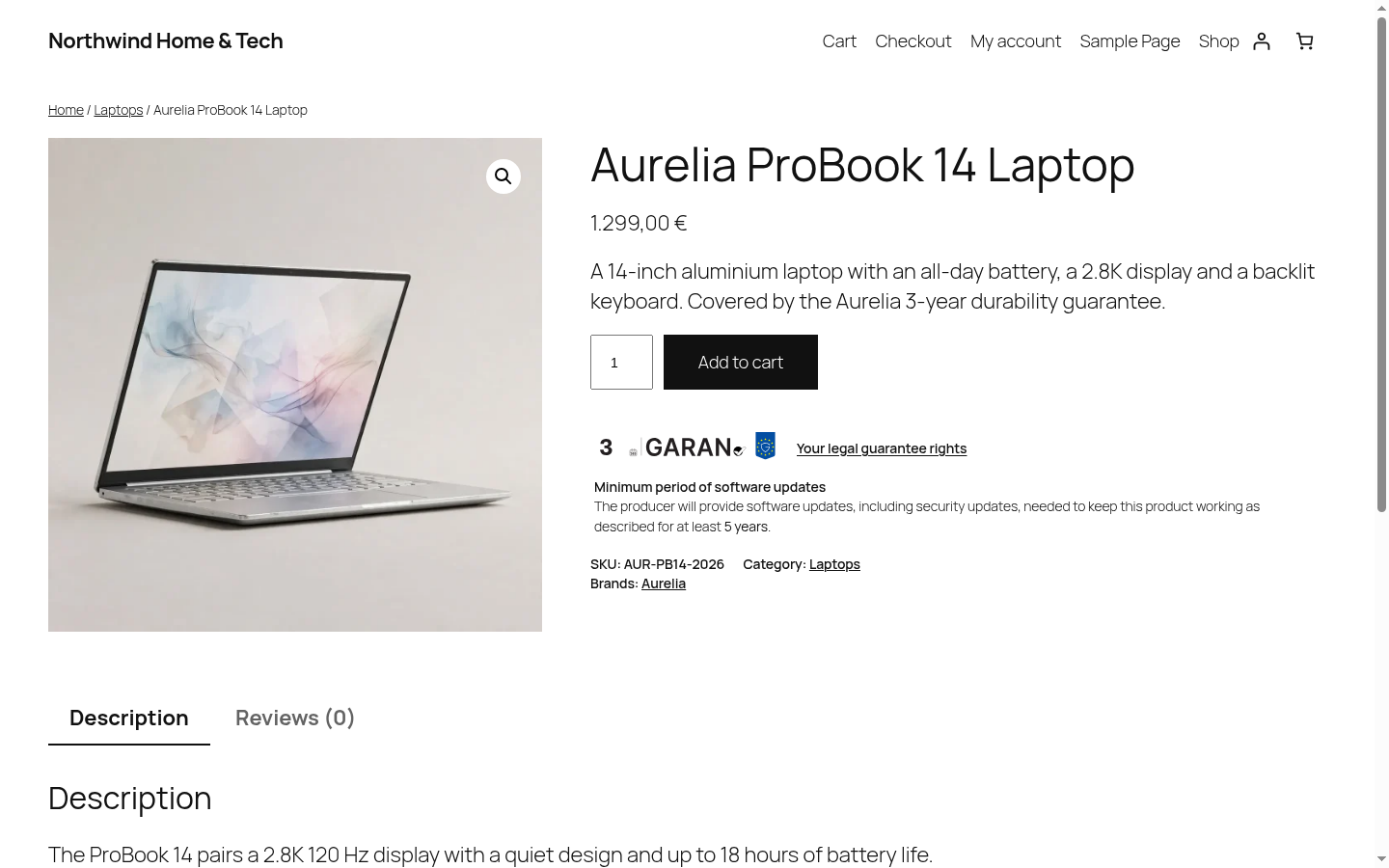
With the default settings, the compact EU GARAN label, the “Your legal guarantee rights” link and the software-update period appear right after the add to cart button.
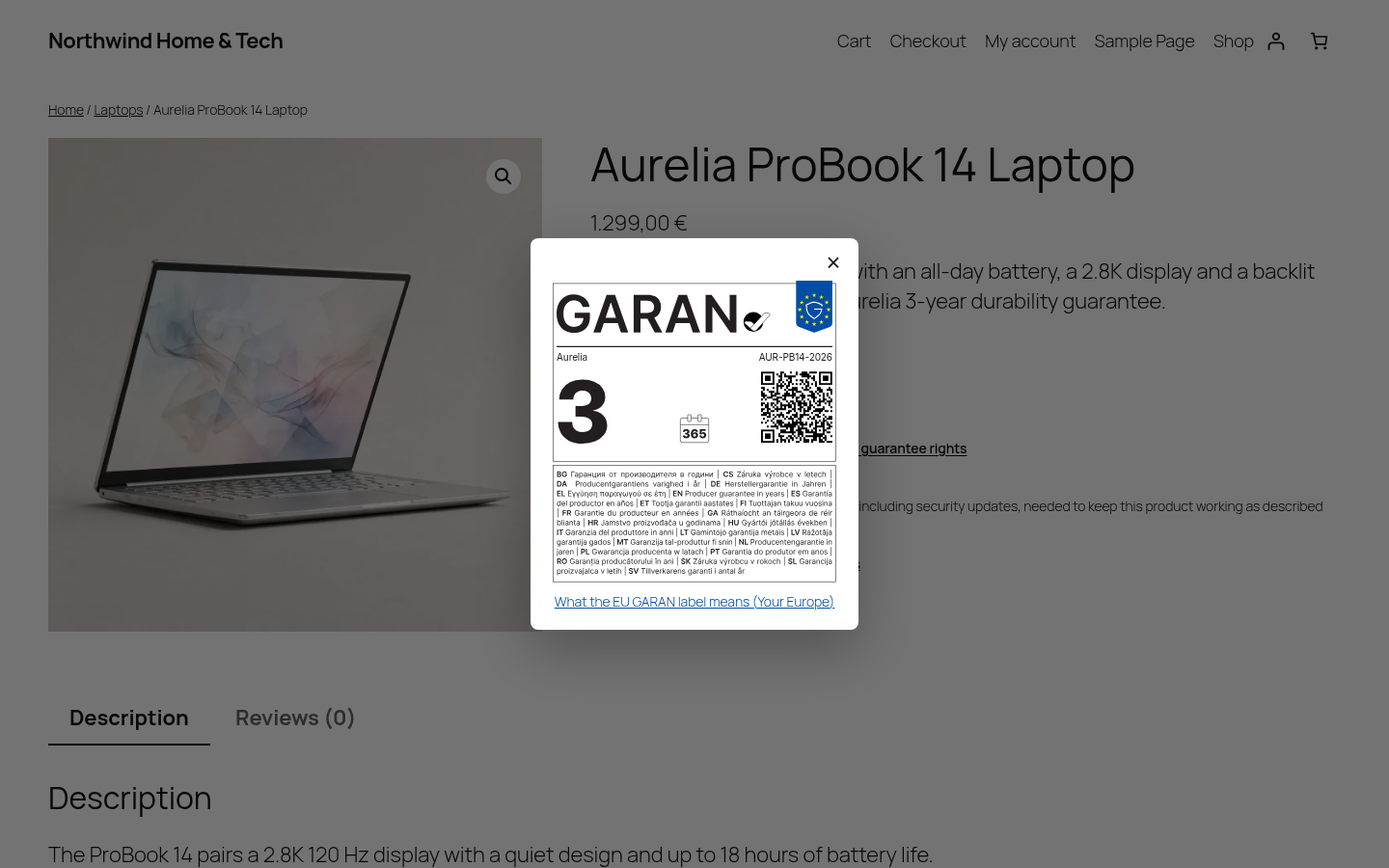
Clicking the compact label opens the full EU GARAN label with the years, brand and model filled in, and a link to the Your Europe page about the label.
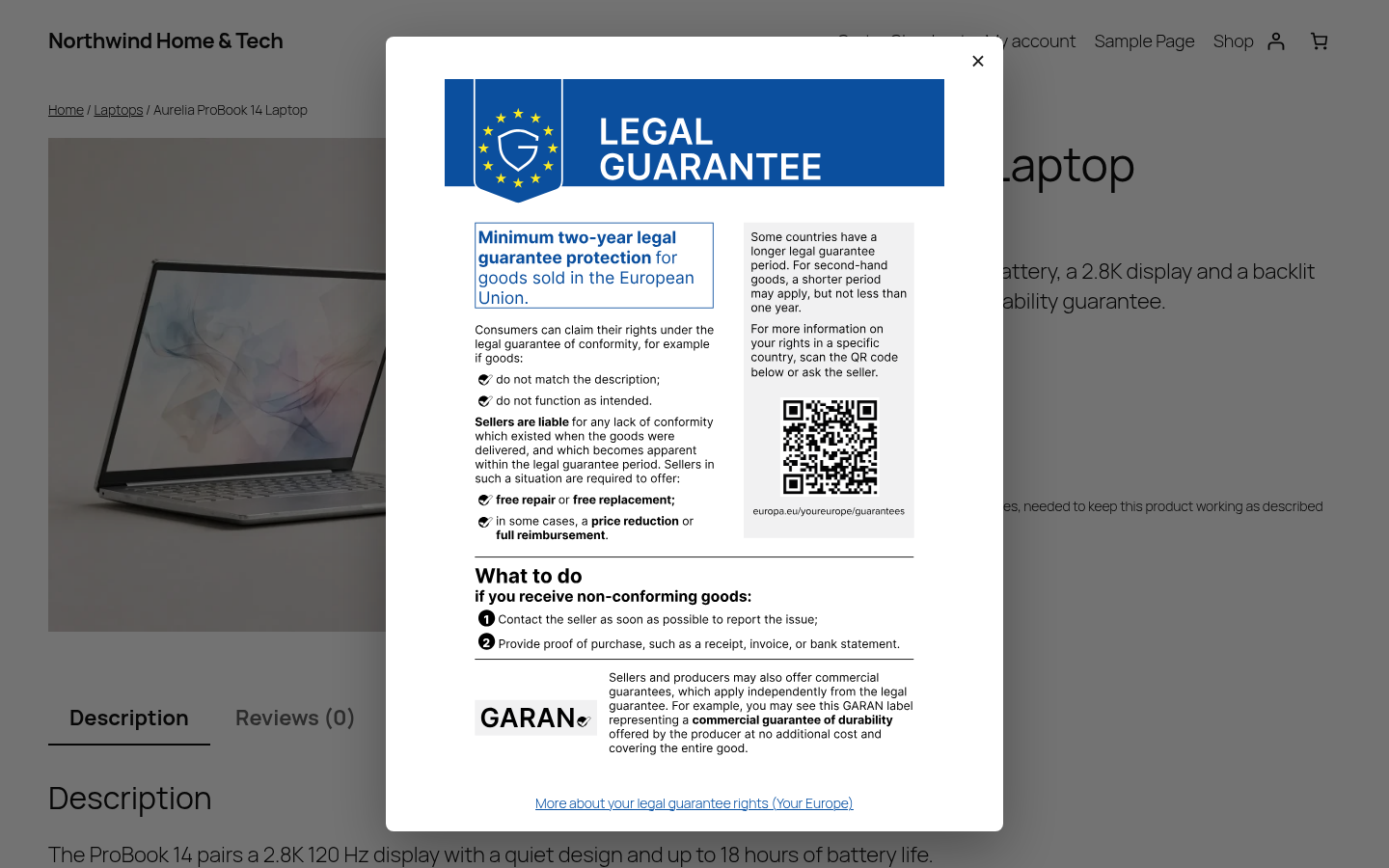
Clicking Your legal guarantee rights opens the official harmonised notice in the shop language, with a link to the Your Europe page about legal guarantees.
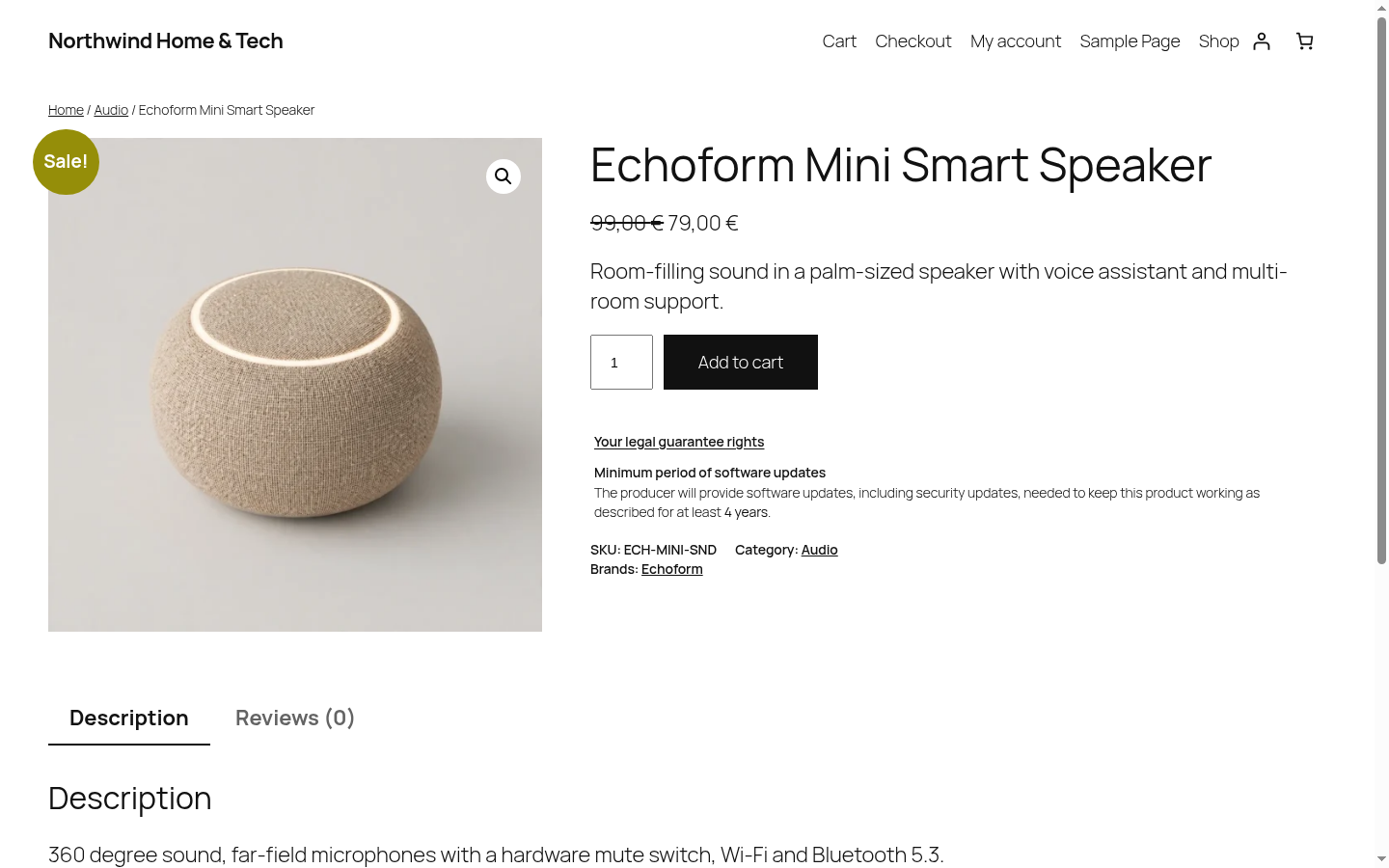
A product without a qualifying guarantee shows no label. If it has a software-update period, that is still shown.
Checkout
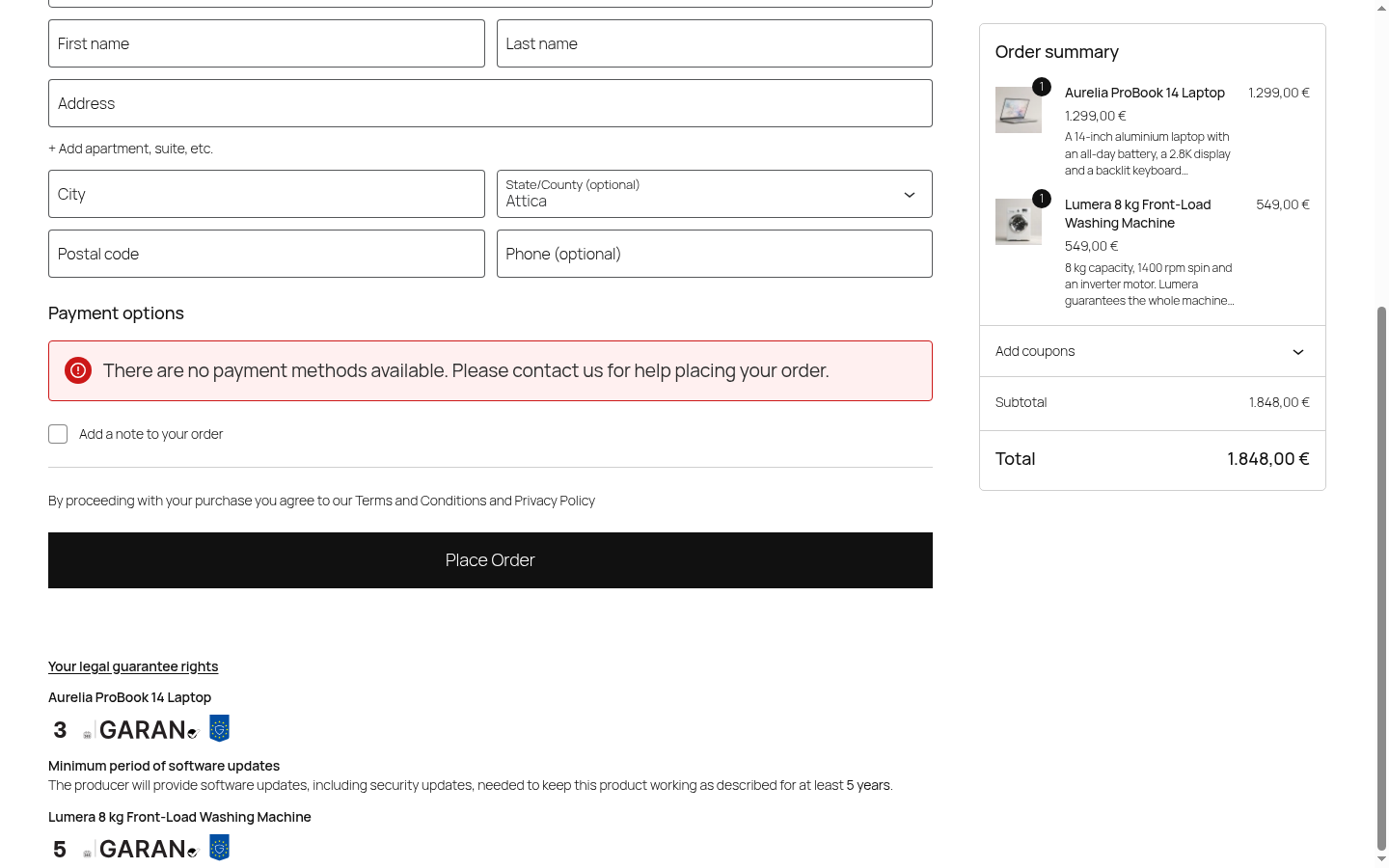
At checkout the notice is shown once, followed by the EU GARAN label of every product in the cart that has one. With the classic checkout it sits above the Place order button; with the block checkout it follows the checkout block.
Block and shortcode
In a block theme you can add the EU Guarantee Notice & GARAN Label block to the Single Product template in Appearance > Editor, then turn off Product pages in the settings so it is not shown twice. Use [ndlpp_legal_guarantee_notice] to place the notice anywhere else.
Review green claims
The directive also targets generic environmental claims such as “eco-friendly”, “green” or “climate neutral” that are not backed up. The plugin lists them so you can review them.
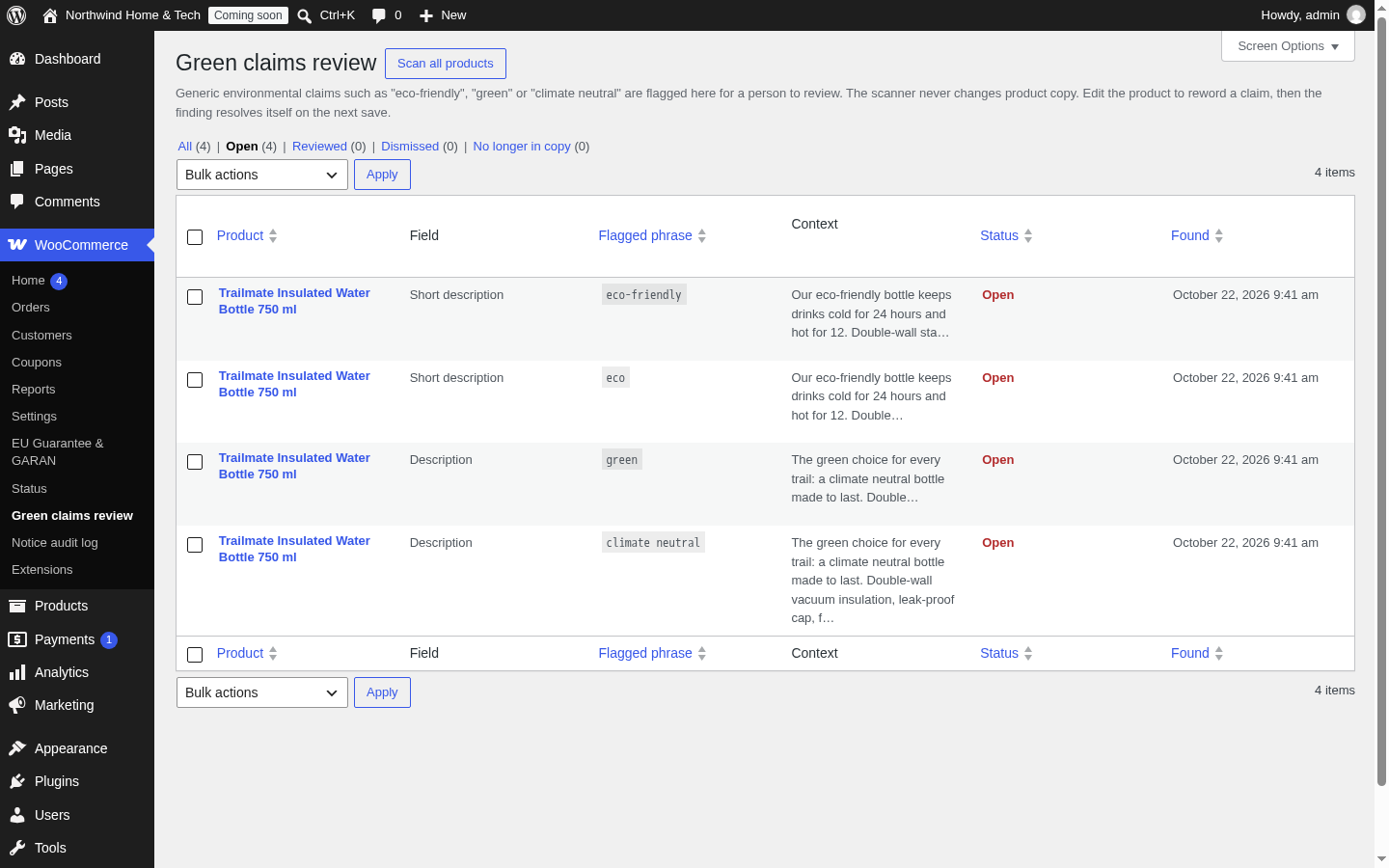
- Go to WooCommerce > Green claims review.
- Click Scan all products once to check the existing catalogue. After that, products are scanned whenever they are saved.
- For each finding, check the flagged phrase and its context. Edit the product to reword or substantiate the claim; the finding resolves itself on the next save.
The scanner is heuristic and will flag some phrases that are fine. It never edits your product copy.
Notice audit log
Go to WooCommerce > Notice audit log to see which notice version each product displayed on the live product page and at checkout, and when. Use Filter by location to show product pages or checkout only.
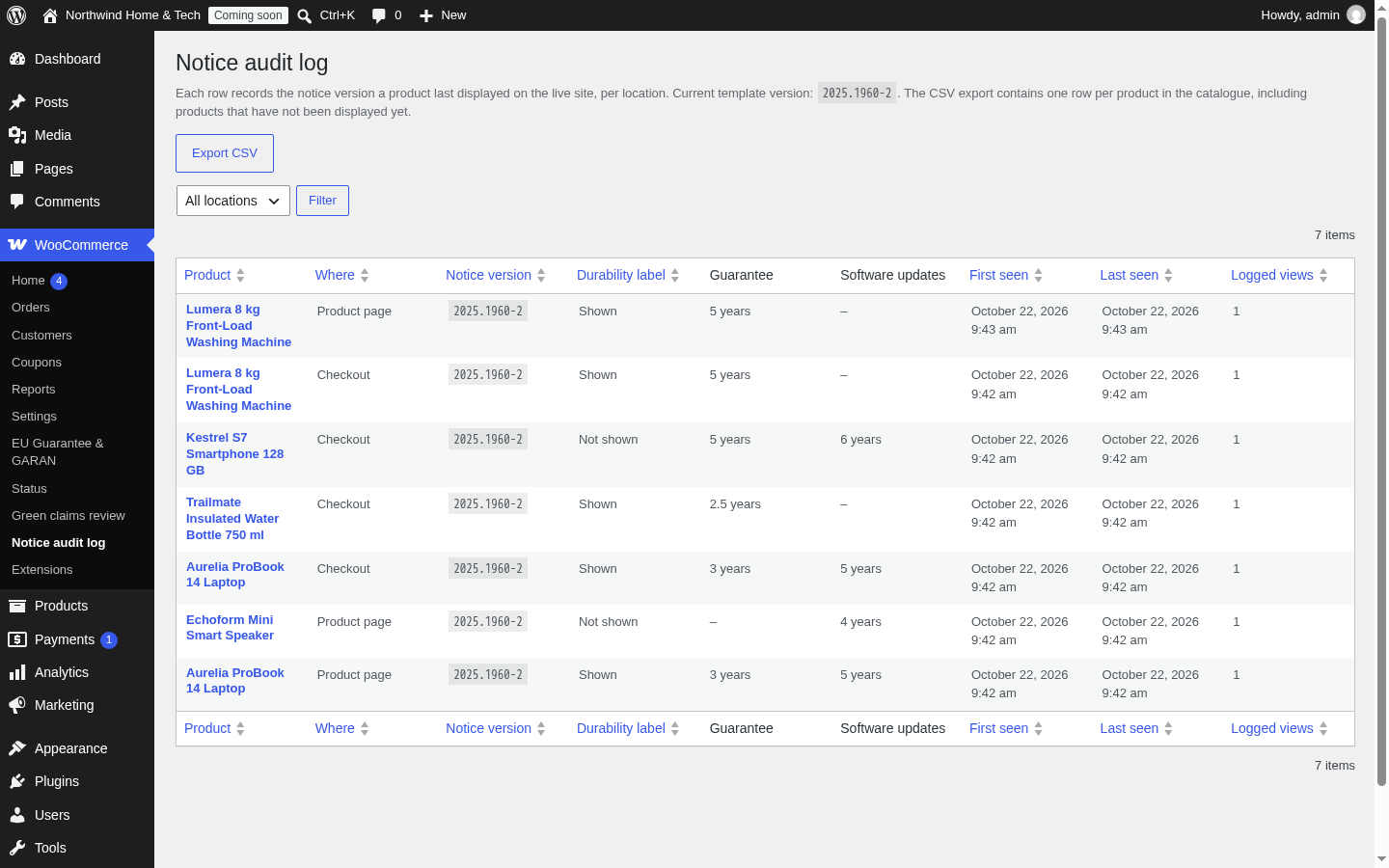
Click Export CSV for one row per product in the catalogue: the guarantee, eligibility and software-update values, whether a label is expected, and the notice version, label state, first and last seen time and view count. Products not shown yet are marked “not displayed yet”.
Troubleshooting
- The EU GARAN label does not show. The guarantee must be longer than 2 years and EU GARAN label must be set to Automatic. Exactly 2 years does not qualify. Check Label status on the product.
- The guarantee value is rejected. Only whole or half years are allowed (3, 5, 2.5), as on the official label.
- Labels disappeared after updating from 1.0. Version 1.0 stored the guarantee in months; 1.1 converts it to years. Values that are not a whole or half year (for example 25 months) are listed in an admin notice and the label stays hidden until you enter the duration in years.
- The notice shows twice on product pages. You placed the block in the template and automatic insertion is still on. Turn off Product pages in the settings.
- The notice is in the wrong language. Set Notice language to a fixed language, or check the language of your site or multilingual plugin.
- Brand or model is missing on the label. Fill in Label: brand / trademark and Label: model identifier, or give the product a WooCommerce brand and a SKU.
FAQ
Can I change the colours or text of the notice?
No. The notice and label are the official EU artwork, and the Commission’s guidelines forbid changing their colours, fonts, spacing or proportions. You can change how they are presented: collapsed or full, the trigger text and style, sizes, and the look of links and the software-update text.
Why is the notice collapsed by default?
The full notice is an A4 poster. The Commission’s practical guidelines let online shops show a sentence such as “Your legal guarantee rights” that opens the full notice on the first click or hover, and a compact nested label that opens the full label. Choose Full in the settings to always show them.
Does the plugin contact external services?
No. The artwork and font are bundled. The notice and label link to the European Commission’s Your Europe pages, which visitors open only when they click.
What happens on uninstall?
Plugin settings, the audit log and the review queue are removed. Per-product values are kept unless you tick Uninstall under Audit log and data before uninstalling.
For developers
ndlpp_generic_green_claims: filter the phrases the scanner flags.ndlpp_notice_html,ndlpp_checkout_notice_html,ndlpp_site_notice_html: filter the rendered HTML (at your own responsibility; the audit log still records the plugin’s template version).ndlpp_notice_language: filter the language of the notice and Your Europe links (ISO 639-1 code).ndlpp_label_brand,ndlpp_label_model: filter the brand and model printed on the label.ndlpp_notice_rendered: action fired on every render with product ID, context, template version and label state.ndlpp_manage_capability: capability for the admin screens (defaultmanage_woocommerce).