
Easy Mail Voucher for WooCommerce creates, prints, cancels and traces Easy Mail vouchers (shipping tickets) from your WooCommerce orders, using the Easy Mail Shipping web service. This guide covers installation, the settings and the daily workflow.
Requirements
- WordPress 6.0 or newer and WooCommerce 3.4 or newer (High-Performance Order Storage supported)
- PHP 7.4 or newer
- An Easy Mail account for the Shipping web service: the Username and Password Easy Mail gives you, and optionally your Customer ID
- A wpslash.com licence key for the plugin
Installation
- Download the plugin .zip from your wpslash.com licences page after purchase.
- Go to WordPress Admin > Plugins > Add New, click Upload Plugin and choose the file you downloaded.
- Click Install Now and then Activate.
- Paste your licence key on the licence screen the plugin opens and click Activate. Updates then arrive in your WordPress dashboard.
Setup and Configuration
Go to WooCommerce > Settings > WPSlash Voucher Settings. The tab has two sections: Global Settings and Easy Mail. If you also use another WPSlash courier plugin, they share this tab, the orders list voucher column and the Delivery Completed and Delivery Denied statuses.
Global Settings
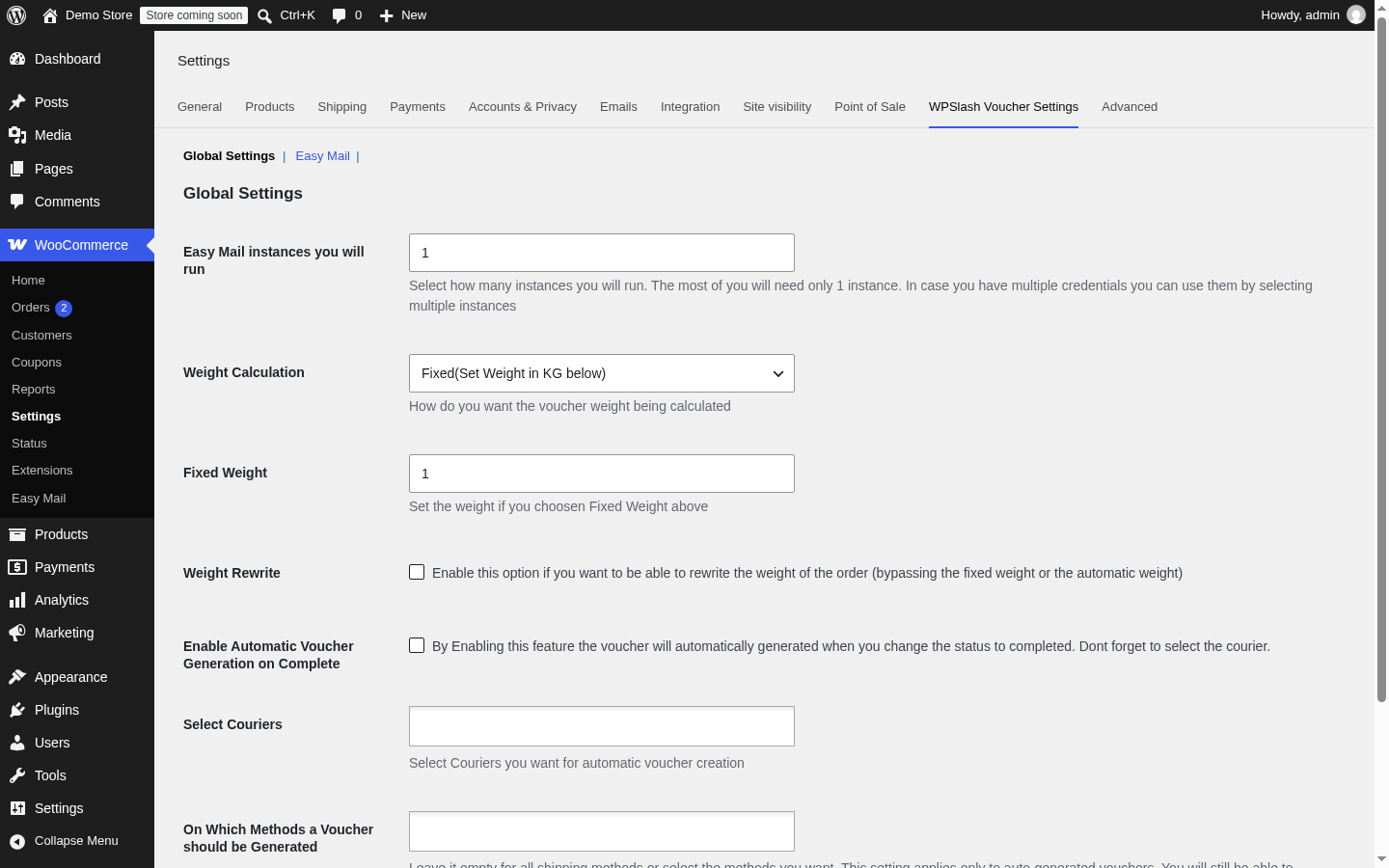
- Easy Mail instances you will run: most stores need 1. If you have more than one Easy Mail account, raise the number, save, and a section appears for each extra account.
- Weight Calculation: a fixed weight for every voucher, or automatic from the cart weight. With Fixed, set the weight in kg in Fixed Weight.
- Weight Rewrite: lets you change the weight per order before creating the voucher.
- Enable Automatic Voucher Generation on Complete: creates the voucher by itself when you mark an order as Completed.
Easy Mail
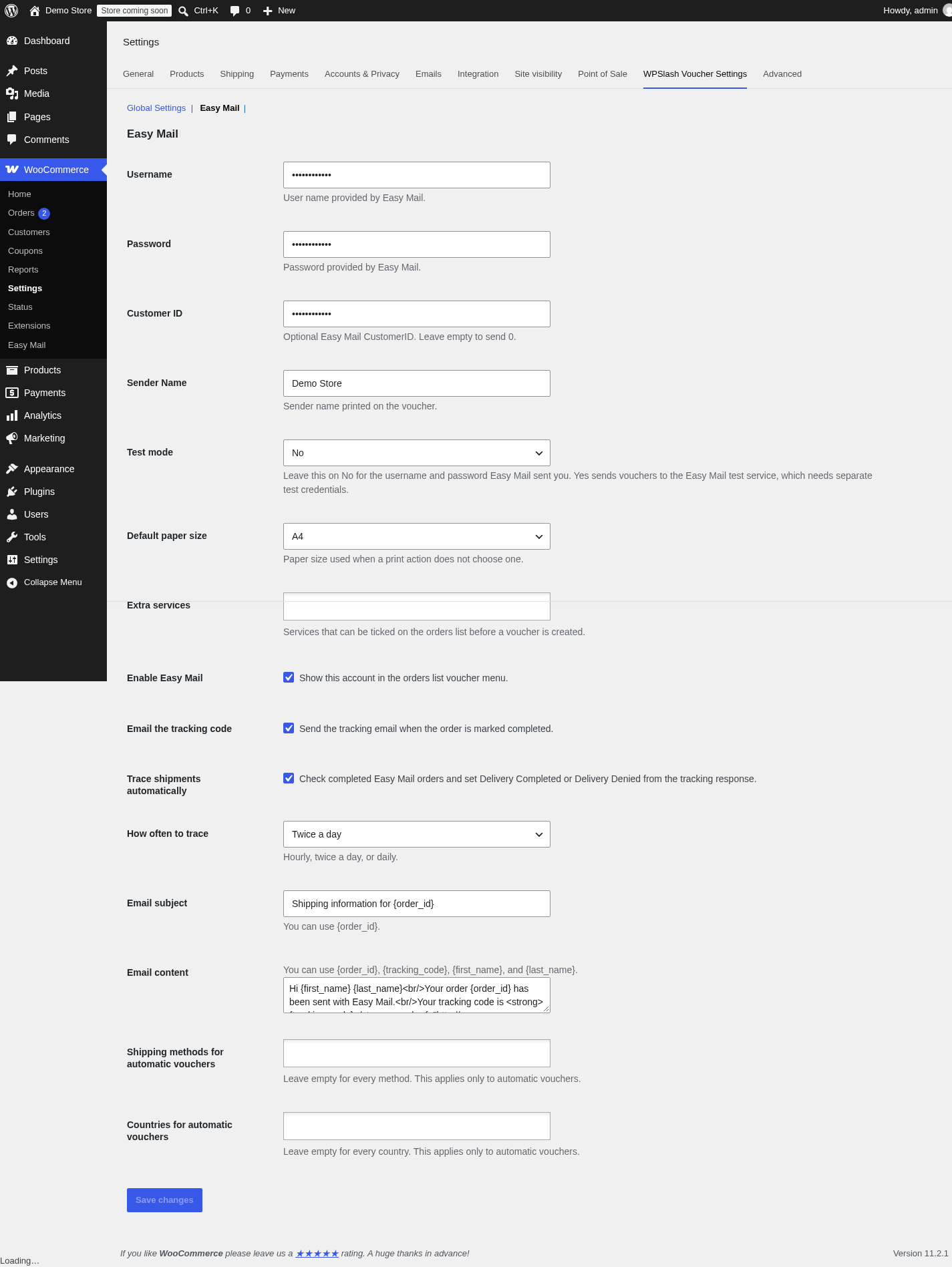
- Enter the Username and Password Easy Mail gave you. Customer ID is optional; leave it empty if Easy Mail did not give you one.
- Set the Sender Name printed on the voucher.
- Leave Test mode on No. Choose Yes only if Easy Mail gave you separate test credentials.
- Choose the Default paper size for printing: A4 or A6.
- In Extra services, pick the services you want to be able to tick on the orders list before creating a voucher.
- Check Enable Easy Mail to show this account in the orders list voucher menu.
- Check Email the tracking code to email the customer when the order is marked Completed, and edit the Email subject and Email content. You can use
{order_id},{tracking_code},{first_name}and{last_name}. - Check Trace shipments automatically to move completed Easy Mail orders to Delivery Completed or Delivery Denied, and choose How often to trace: every hour, twice a day or every day.
- With automatic voucher generation on, you can limit it to some shipping methods and countries. Leave them empty for all. You can always create a voucher by hand for any order.
- Click Save changes.
Usage
Create a voucher
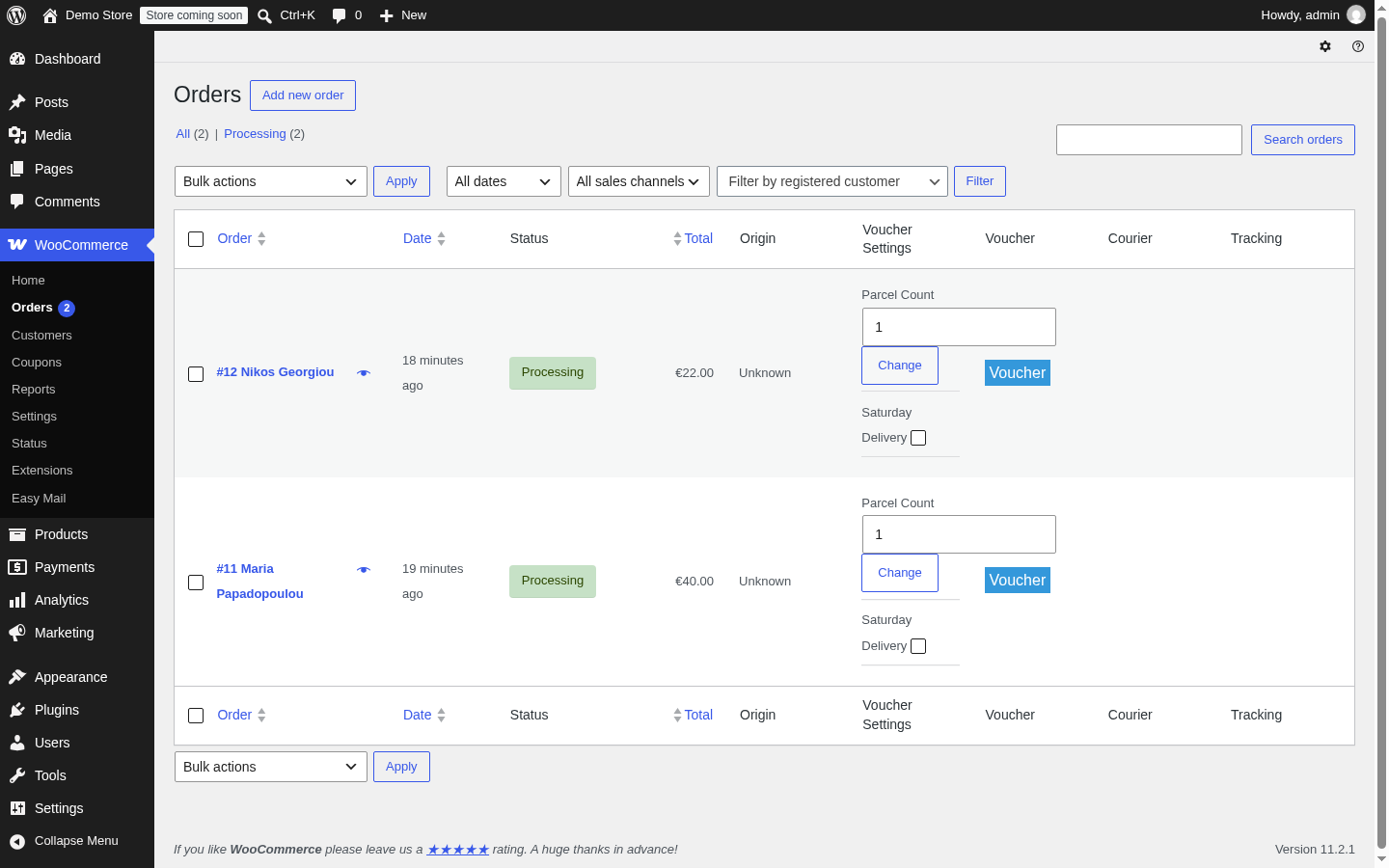
- Go to WooCommerce > Orders.
- In the Voucher Settings column of the order, check the Parcel Count (click Change after editing it) and tick Saturday Delivery or any extra service you enabled.
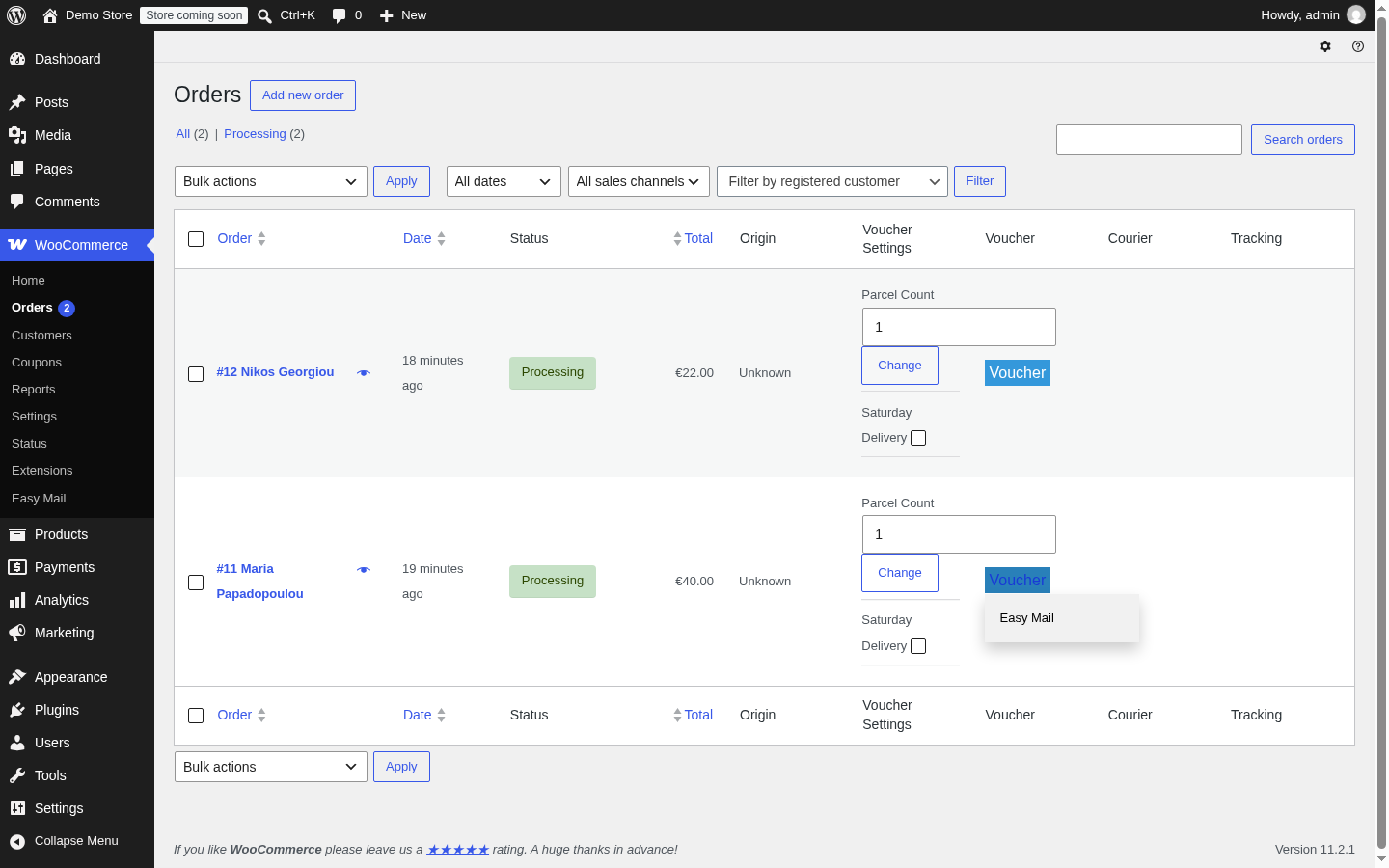
- Click Voucher and choose Easy Mail. The voucher is created and its number appears in the Tracking column. When the order is paid by cash on delivery, the amount is sent with the voucher.
Print, cancel and trace
After the voucher is created, the order shows the actions to print, cancel and trace it. Print a single voucher in A4 or A6, or select several orders and print them in bulk from the orders list.
Daily report
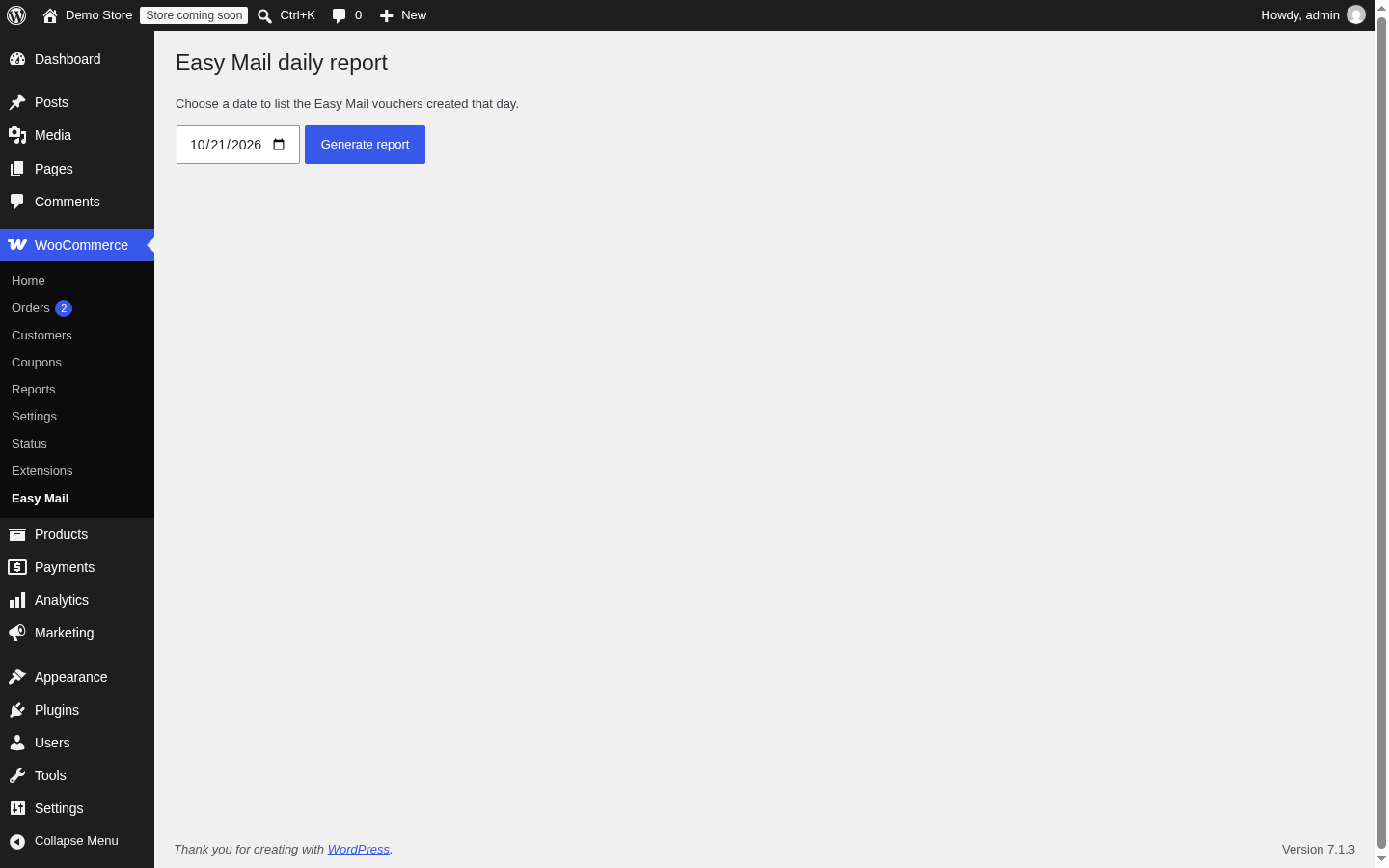
Go to WooCommerce > Easy Mail, choose a date and click Generate report to list the Easy Mail vouchers created that day. With more than one account, each enabled account has its own report page.
FAQs
Do I need an Easy Mail account?
Yes. You need the username and password Easy Mail gave you for the Shipping web service.
Can I use more than one Easy Mail account?
Yes. Set the number of instances in Global Settings, save, and enter each account in its own section.
Can the voucher be created automatically?
Yes. Enable Automatic Voucher Generation on Complete in Global Settings. The voucher is created when you mark the order as Completed.
Vouchers are not created and the error mentions the test service
Check that Test mode is No. Yes sends the request to the Easy Mail test service, which only accepts separate test credentials.
Is it compatible with WooCommerce HPOS?
Yes. Orders are read and updated through the WooCommerce order API.