
B2B for WooCommerce adds wholesale selling to a new or an existing retail store: customer groups with their own prices, quantity tiers, business registration with approval, quotes, tax exemptions, a prepaid balance, XML feeds for retailers, a REST API and a one-page wholesale order form. Every feature is a module you can switch off. This guide covers installation, every setting and the daily workflow.
Requirements
- WordPress 6.0 or newer and WooCommerce 8.0 or newer (High-Performance Order Storage and the Cart and Checkout blocks are supported)
- PHP 7.4 or newer
- A wpslash.com licence key for the plugin
- Optional: WordPress 6.9 or newer for the Abilities API registrations used by WordPress agents
Installation
- Download the plugin .zip from your wpslash.com licences page after purchase.
- Go to WordPress Admin > Plugins > Add New, click Upload Plugin and choose the file you downloaded.
- Click Install Now and then Activate.
- Paste your licence key on the licence screen the plugin opens and click Activate. Updates then arrive in your WordPress dashboard.
After activation you get a B2B menu in the admin sidebar (Customers, Groups, Quotes, Settings) and a B2B tab under WooCommerce > Settings. Your retail prices, products and customers are not changed.
Quick start: add wholesale prices to a retail store
- Go to B2B > Groups. The Wholesale group exists already; set its Discount off retail to, for example, 20.
- Go to B2B > Customers and click Activate next to each business customer, or Add customer to create one. Active customers in the Wholesale group now see 20% off every product, in the catalog, the cart and at checkout.
- Add the Wholesale Order Form block to a page (or use the Wholesale order page pattern) so buyers can filter the catalog, type quantities and add everything to the cart in one go.
- Optionally open a product and use its B2B tab to set a fixed price per group, quantity tiers, a minimum quantity or a pack size.
Settings
Go to WooCommerce > Settings > B2B. The tab has a General section with the module cards, and one section per module.
General: modules
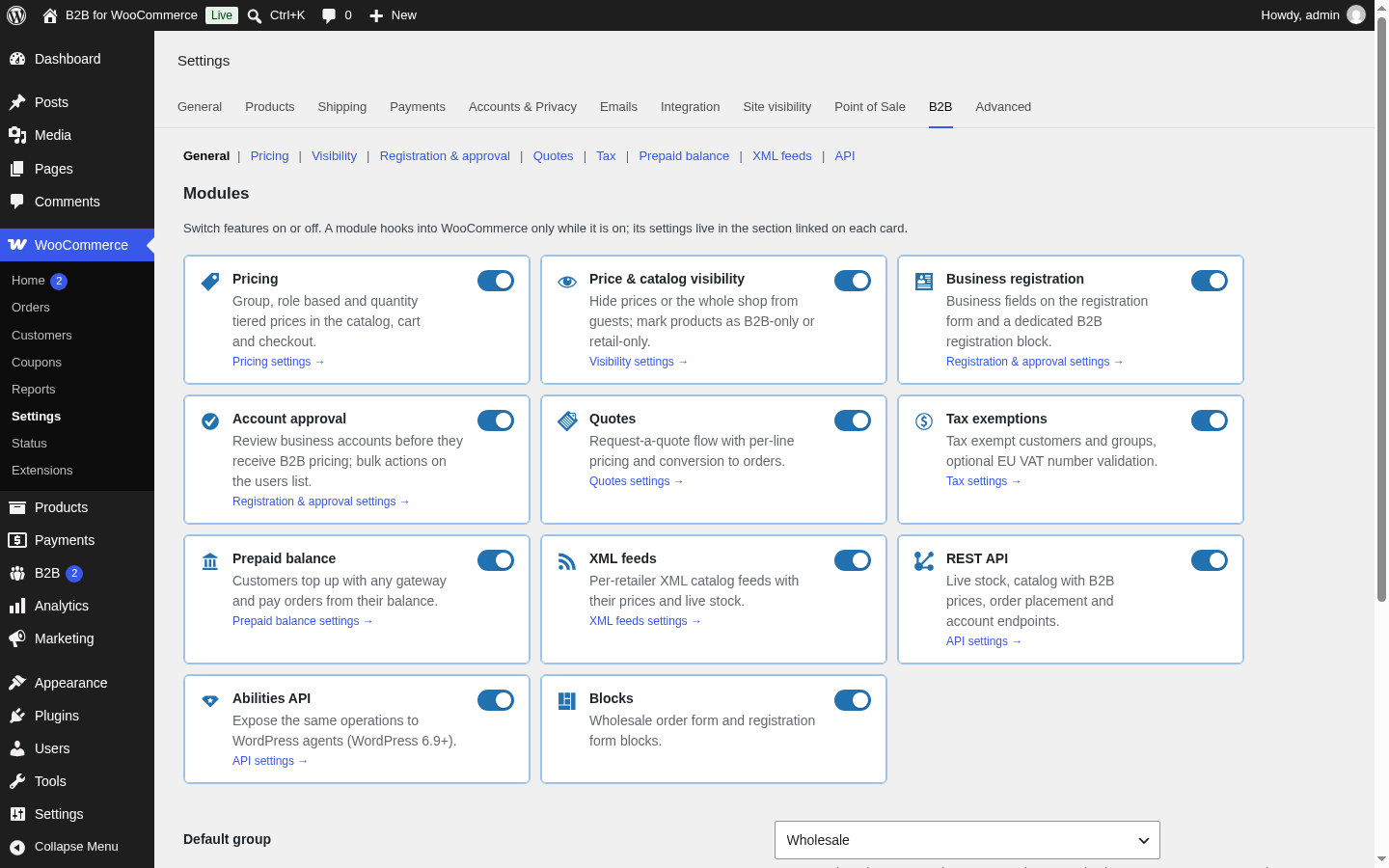 WooCommerce > Settings > B2B > General: switch modules on or off
Each card is a module. A module hooks into WooCommerce only while its switch is on, so you can run just the parts you need. The modules are Pricing, Price & catalog visibility, Business registration, Account approval, Quotes, Tax exemptions, Prepaid balance, XML feeds, REST API, Abilities API and Blocks. Below the cards:
- Default group: the group a customer belongs to when none is assigned, and the group new approvals go into.
- Login URL: where “Log in” links on hidden prices and the order form send visitors. Leave empty for the My Account page.
- Remove all data on uninstall: deletes groups, settings, balance ledgers and quotes when the plugin is uninstalled. Off by default.
Pricing
- Discounts apply to: the regular price or the current sale price when a product is on sale.
- Show retail price: shows the retail price struck through next to the B2B price.
- Show tier table: lists the quantity tiers on the product page.
- Enforce quantity rules: applies the minimum quantity and the pack step in the cart and at checkout, not only in the order form.
Visibility
- Prices visible to: everyone, logged-in customers, or approved B2B customers only. Hidden prices show the Hidden price text (for example “Log in for prices”) with a link to the login URL.
- Shop access: open to everyone, logged-in users only, or approved B2B customers only. Visitors without access are sent to the login URL.
- Per product, the Visibility field on the B2B tab marks a product as B2B only or Retail only; the other side never sees it.
Registration & approval
- Business fields on the WooCommerce registration form: adds Company, VAT / Tax ID, Phone and a message to the standard My Account registration form, so one form serves retail and business customers. The dedicated B2B Registration Form block always shows them.
- Required fields: choose which business fields are mandatory.
- Approval required: new business accounts wait as Pending until you activate them. Off means every registration is approved at once.
- Block login while pending: pending customers cannot log in until approved.
- Notification email: where the “new business account request” email goes. Customers receive the Account approved or Account rejected email; all three are editable under WooCommerce > Settings > Emails.
Quotes
- Quote button on products: shows Add to quote on product pages for business customers.
- Request a quote from the cart: turns the whole cart into a quote request with one click.
- Quote validity (days): how long a sent quote can be accepted; the default proposed on each quote.
Tax
- Validate EU VAT numbers with VIES: checks the VAT number a customer enters against the European Commission VIES service and stores the result. Nothing is sent to VIES while this is off.
- Auto tax-exempt validated EU businesses: marks customers with a valid VAT number from another EU country as tax exempt automatically.
- Tax exemption can also be set per customer in the Customers drawer, or for a whole group.
Prepaid balance
- Payment method title: the name of the “pay from my balance” option at checkout.
- Minimum top-up and Maximum top-up: limits for a single top-up.
- Allow negative balance: lets trusted customers order beyond their balance.
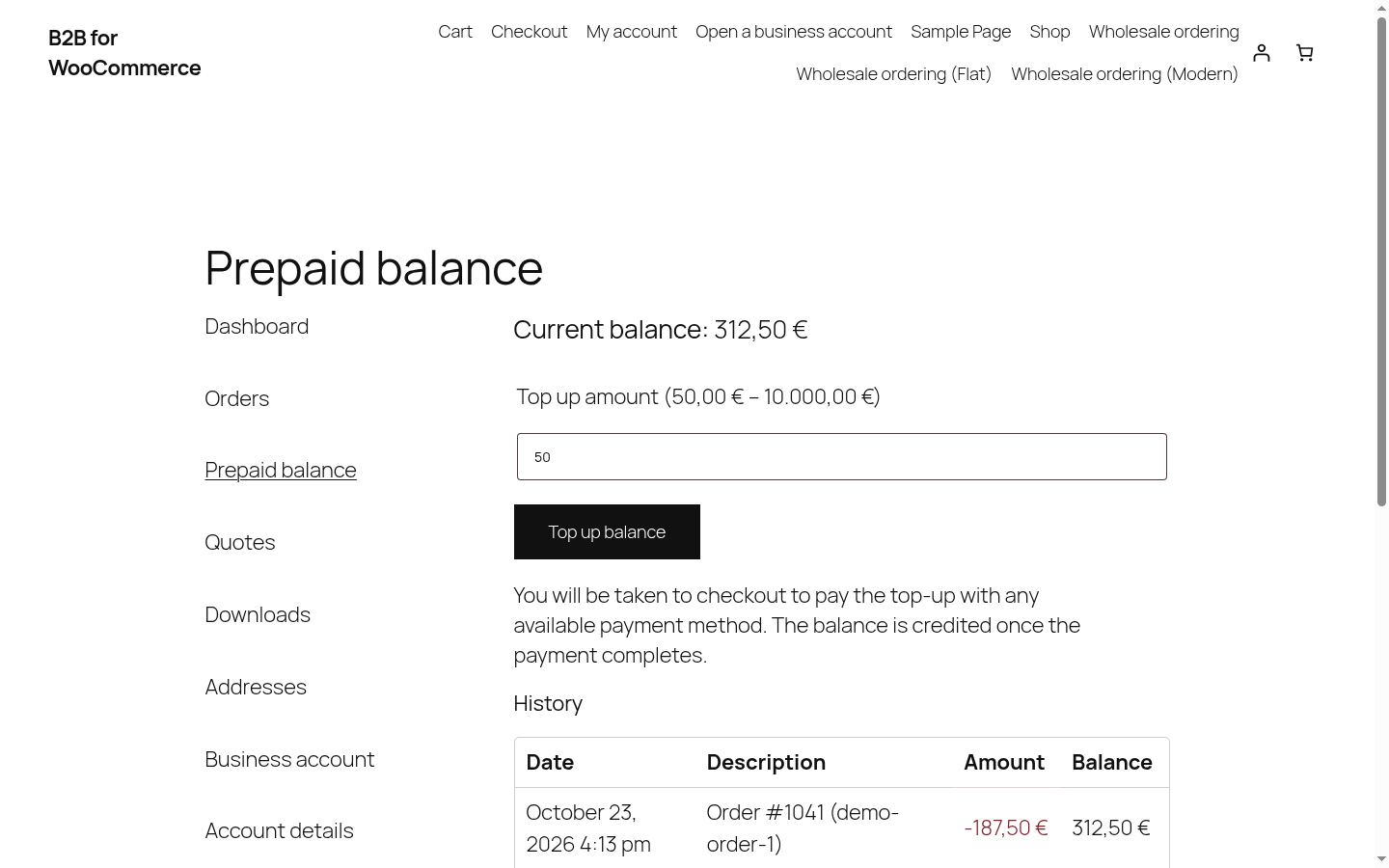
Customers top up from My Account > Prepaid balance; the top-up is paid at checkout with any WooCommerce payment method and credited when the payment completes. Refunds of orders paid from the balance go back to the balance.
XML feeds
- Global feed token: the secret in the group feed URLs, one per group. Regenerate it to revoke old links.
- Fields in the feed: switch on retail price, tiers, featured and gallery images, descriptions, categories, attributes, stock, weight, dimensions, tax class, brand and modified date.
- Cache (minutes), Include out-of-stock products and Write static files hourly (writes the feeds to the uploads folder on a schedule for very large catalogs).
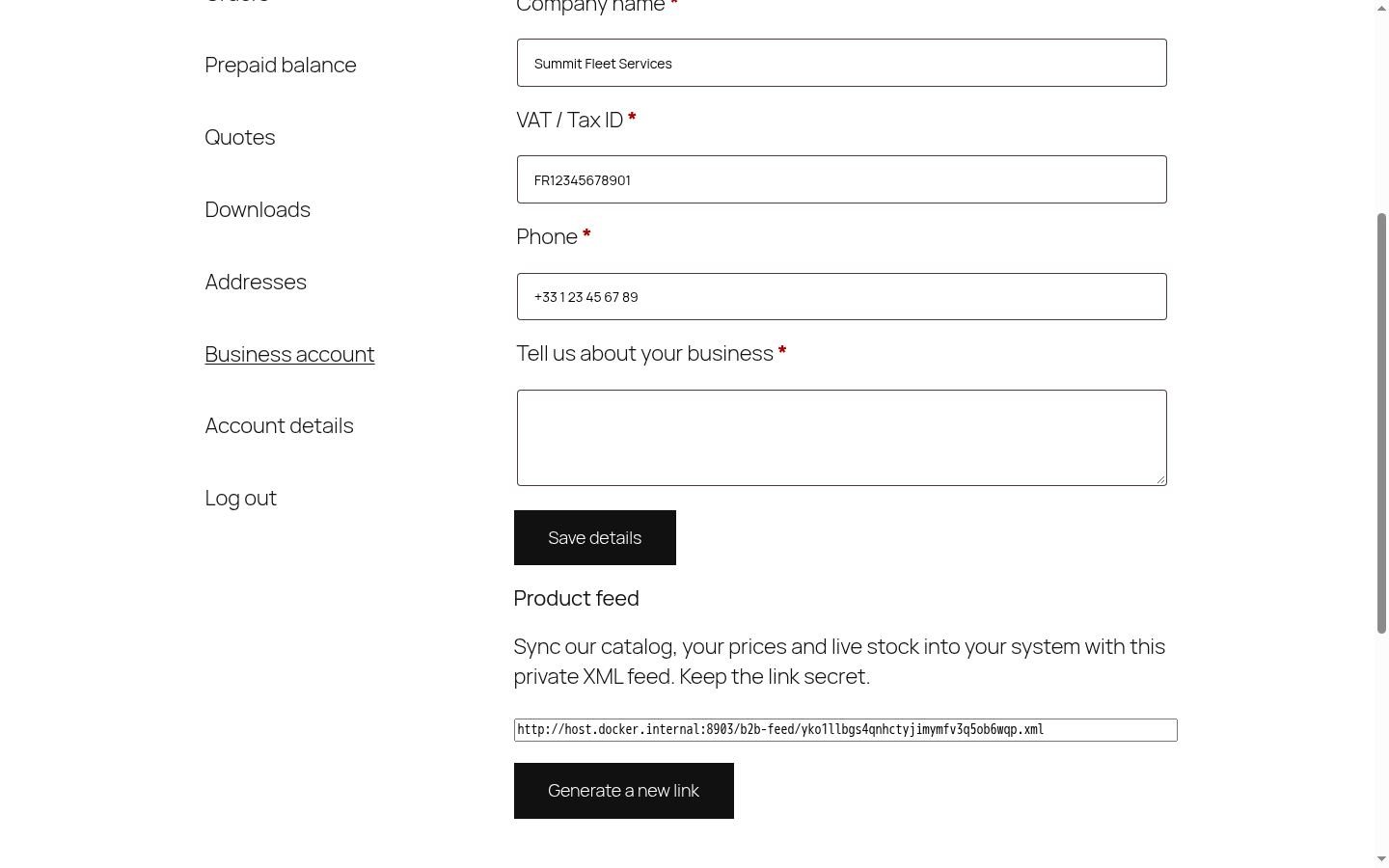
Every approved customer has a private feed link under My Account > Business account with their own prices and live stock; they can regenerate it themselves.
REST API
- Public stock endpoint: lets anyone read live stock from
/wp-json/b2b-for-woocommerce/v1/stock. Off means the endpoint needs authentication. - Status of API orders and Default payment method for orders placed through the API.
Endpoints under /wp-json/b2b-for-woocommerce/v1/: stock, products (with the caller’s prices), categories, orders (list and place orders), account, quotes and customers (shop managers only). Authenticate with a WooCommerce REST API key created for the business customer’s user, or with a WordPress application password. The user must be an approved B2B customer.
Groups
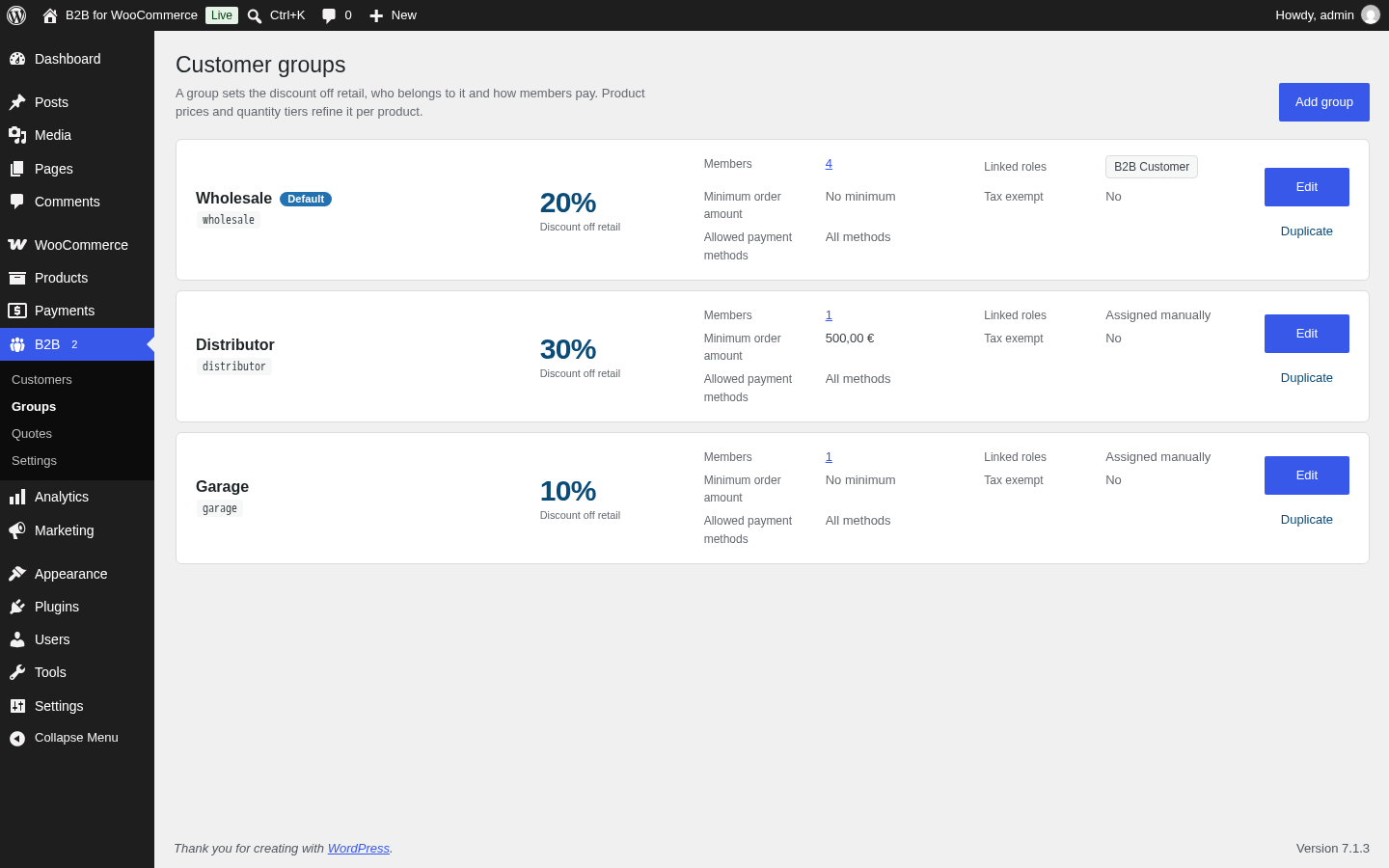 B2B > Groups
A group sets the discount off retail, who belongs to it and how its members pay. Click Add group or Edit to open the group drawer:
- Name and slug.
- Discount off retail: a percentage, or a fixed amount off, applied to every product unless the product sets its own group price.
- Linked roles: WordPress roles whose users belong to the group automatically. A customer can also be assigned to a group directly.
- Minimum order amount, Allowed payment methods and Tax exempt.
Customers
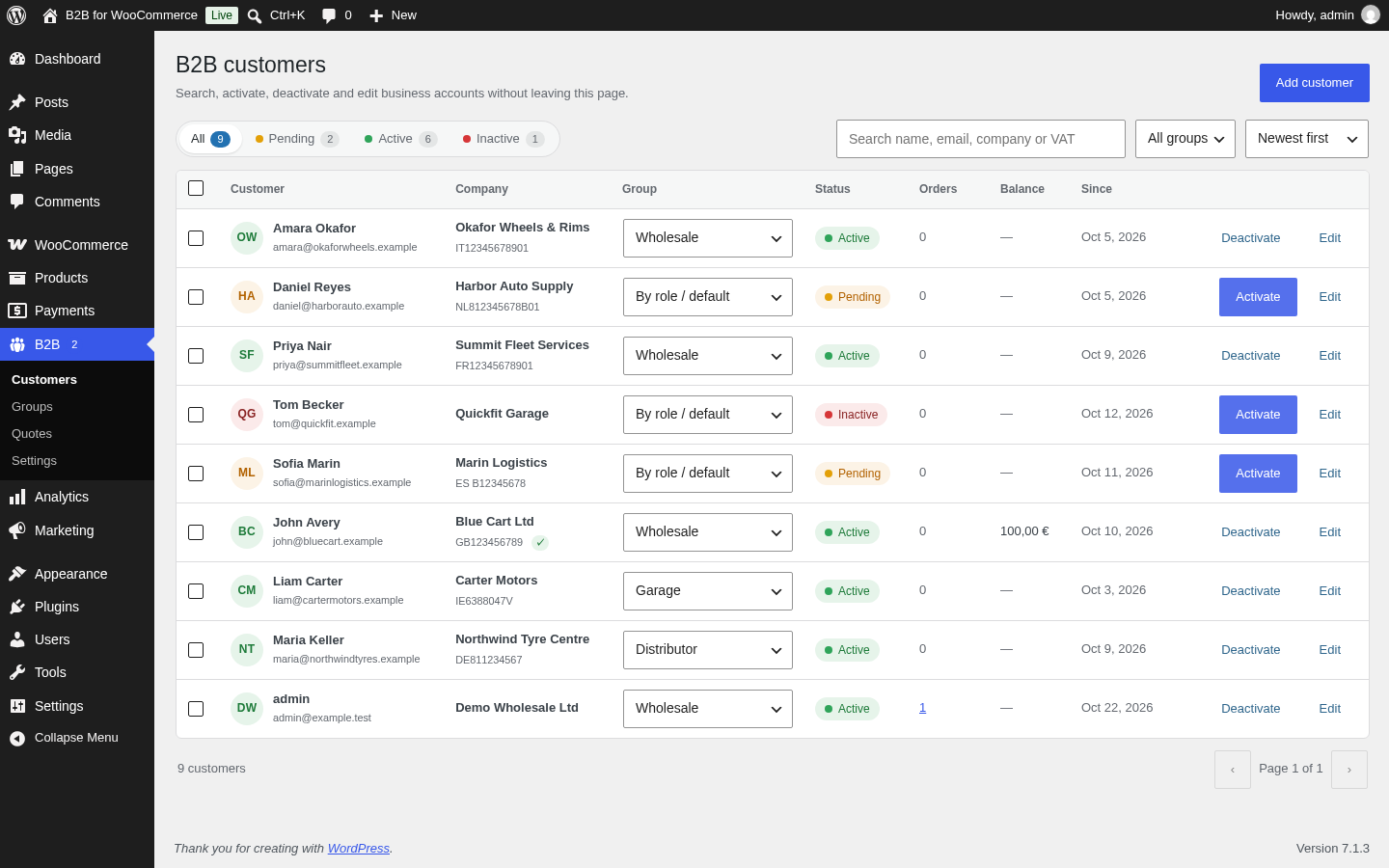 B2B > Customers
B2B > Customers is a single page for every business account. Use the All, Pending, Active and Inactive segments, search by name, email, company or VAT number, and filter by group. In the list you can change a customer’s group from the dropdown, and click Activate or Deactivate. Tick several customers for the bulk actions.
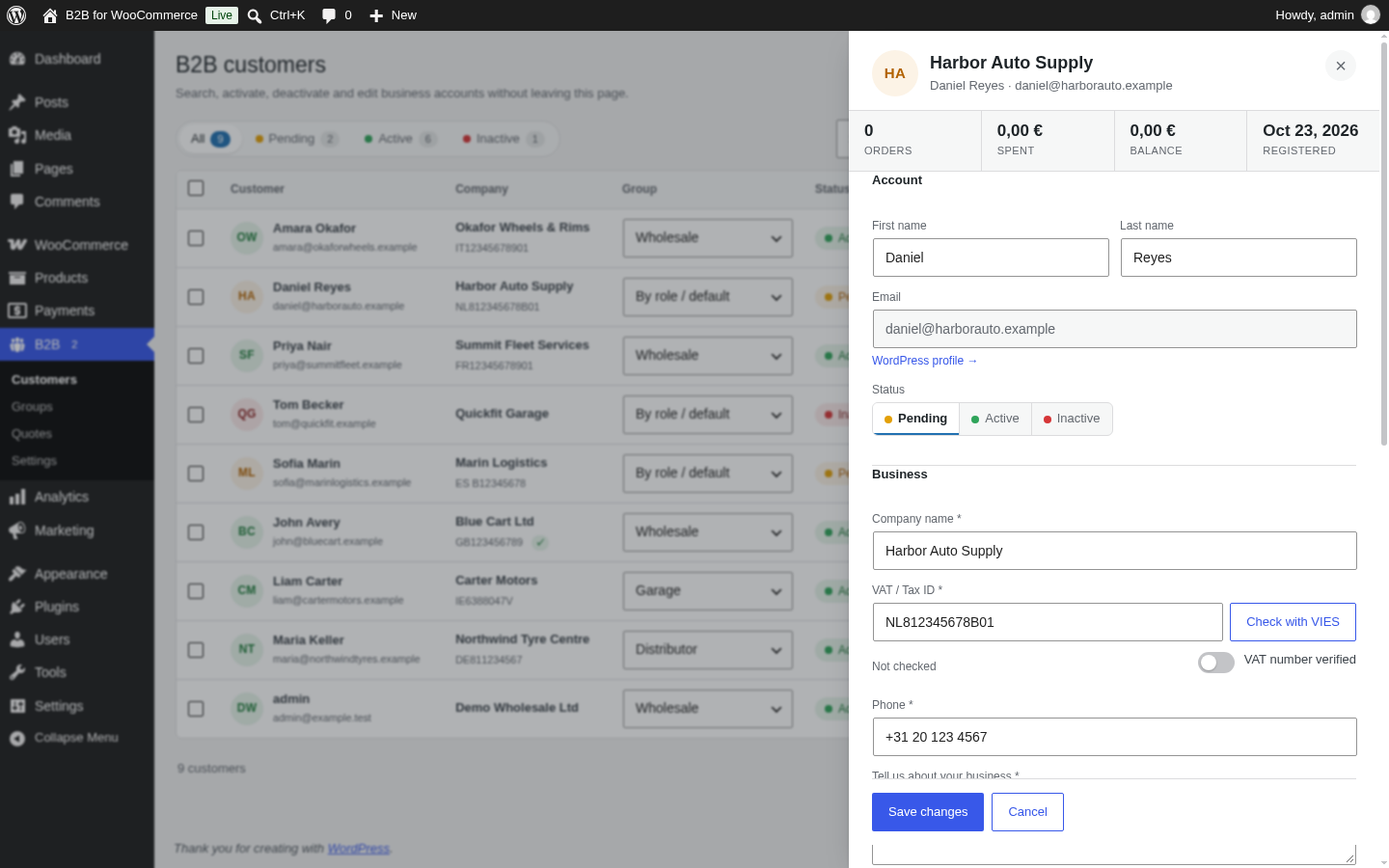
Edit opens the drawer with the account details, the status, the business details with a Check with VIES button for the VAT number, the tax exemption switch, the prepaid balance with its ledger and a manual adjustment, the private feed link and an internal note. Add customer creates a business account from the same drawer.
Product prices, tiers and quantity rules
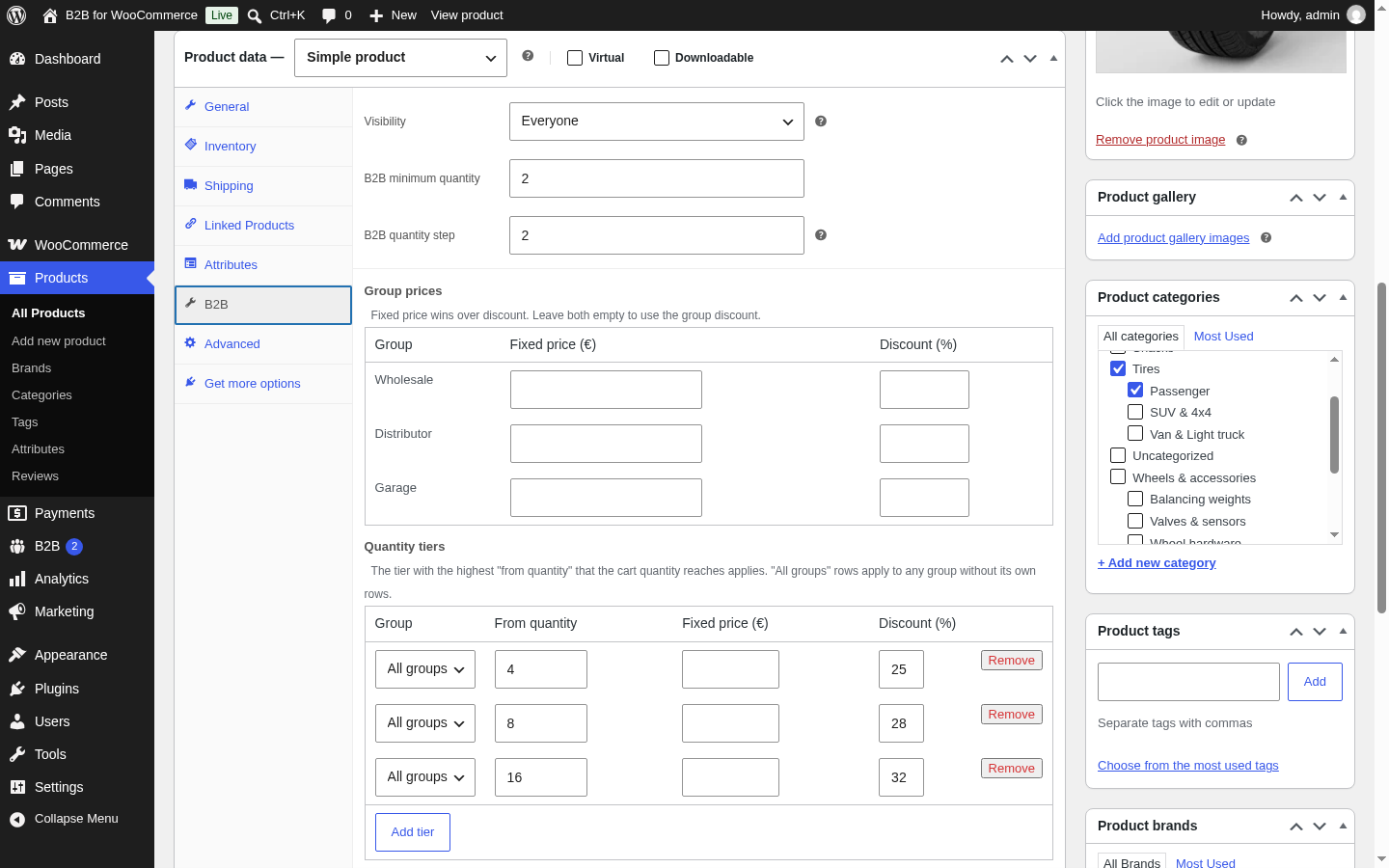
Open a product and click the B2B tab under Product data. Variable products have the same fields on each variation.
- Visibility: Everyone, B2B only or Retail only.
- B2B minimum quantity and B2B quantity step: for example minimum 2 in packs of 2 for tires sold in pairs.
- Group prices: a fixed price or a discount per group for this product. A fixed price wins over a discount; leave both empty to use the group’s discount.
- Quantity tiers: rows of “from quantity” with a fixed price or a discount, for one group or for All groups. The tier with the highest “from quantity” that the cart quantity reaches applies.
The wholesale order form
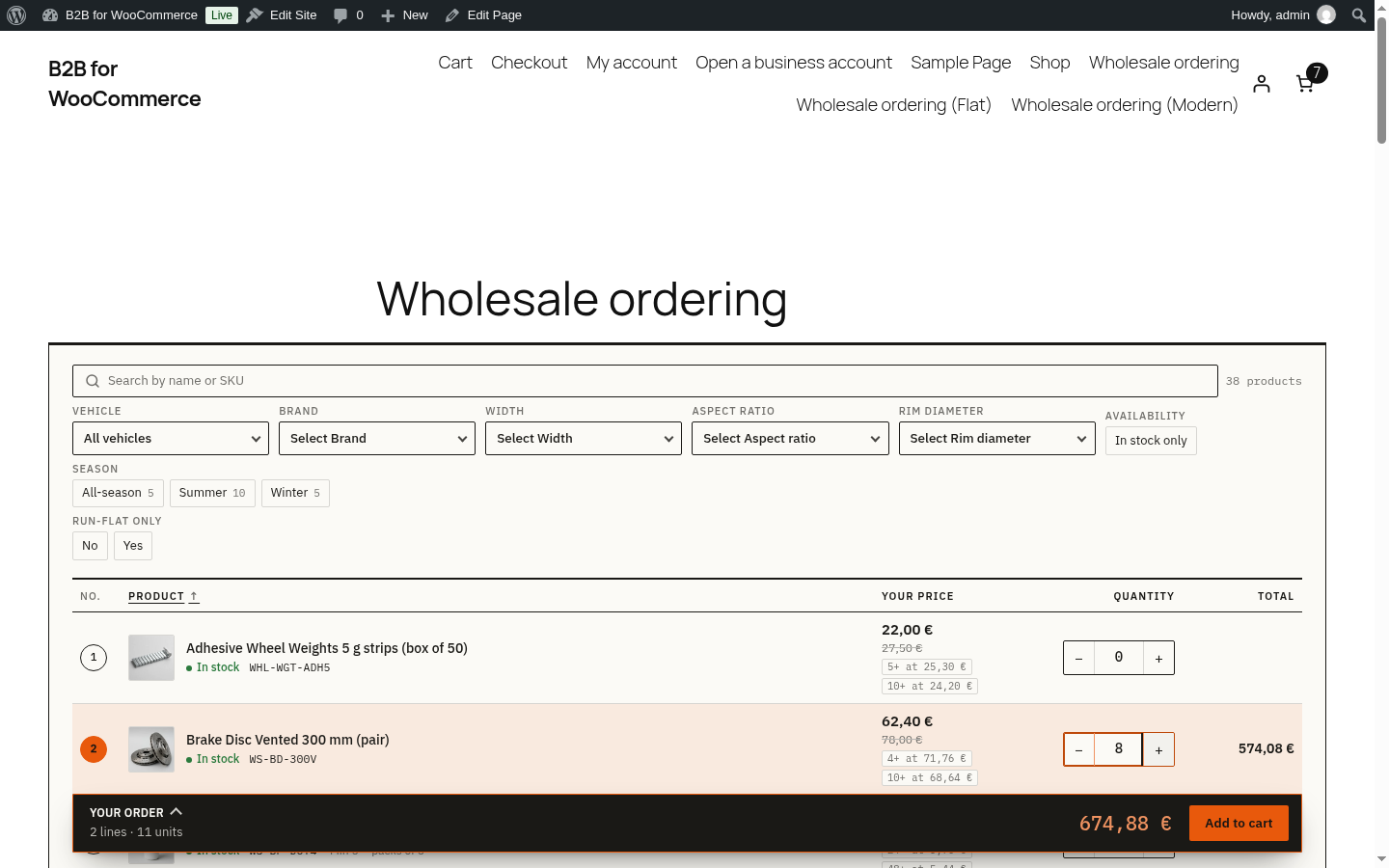
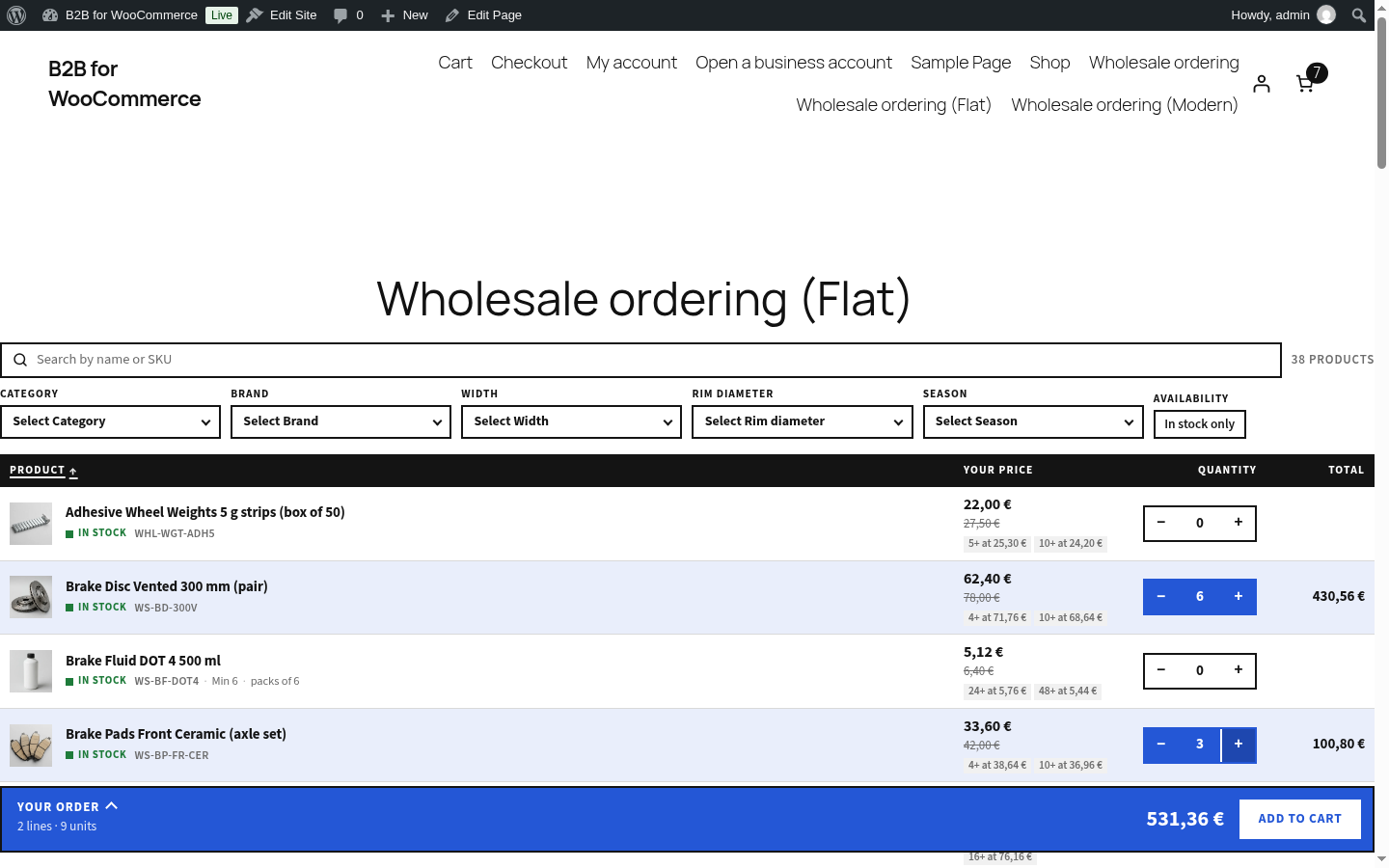
Add the Wholesale Order Form block to any page, or insert the Wholesale order page pattern. Logged-in business customers get a one-page catalog: search by name or SKU, a category tree, attribute filters, “in stock only”, sortable columns, their prices with the quantity tiers, quantity steppers that respect the minimum and the pack size, variable products as expandable groups, and a running order bar at the bottom. Add to cart adds every line at once. Clicking any price hides all prices, which is useful when showing the screen to a third party; clicking the empty price cell shows them again.
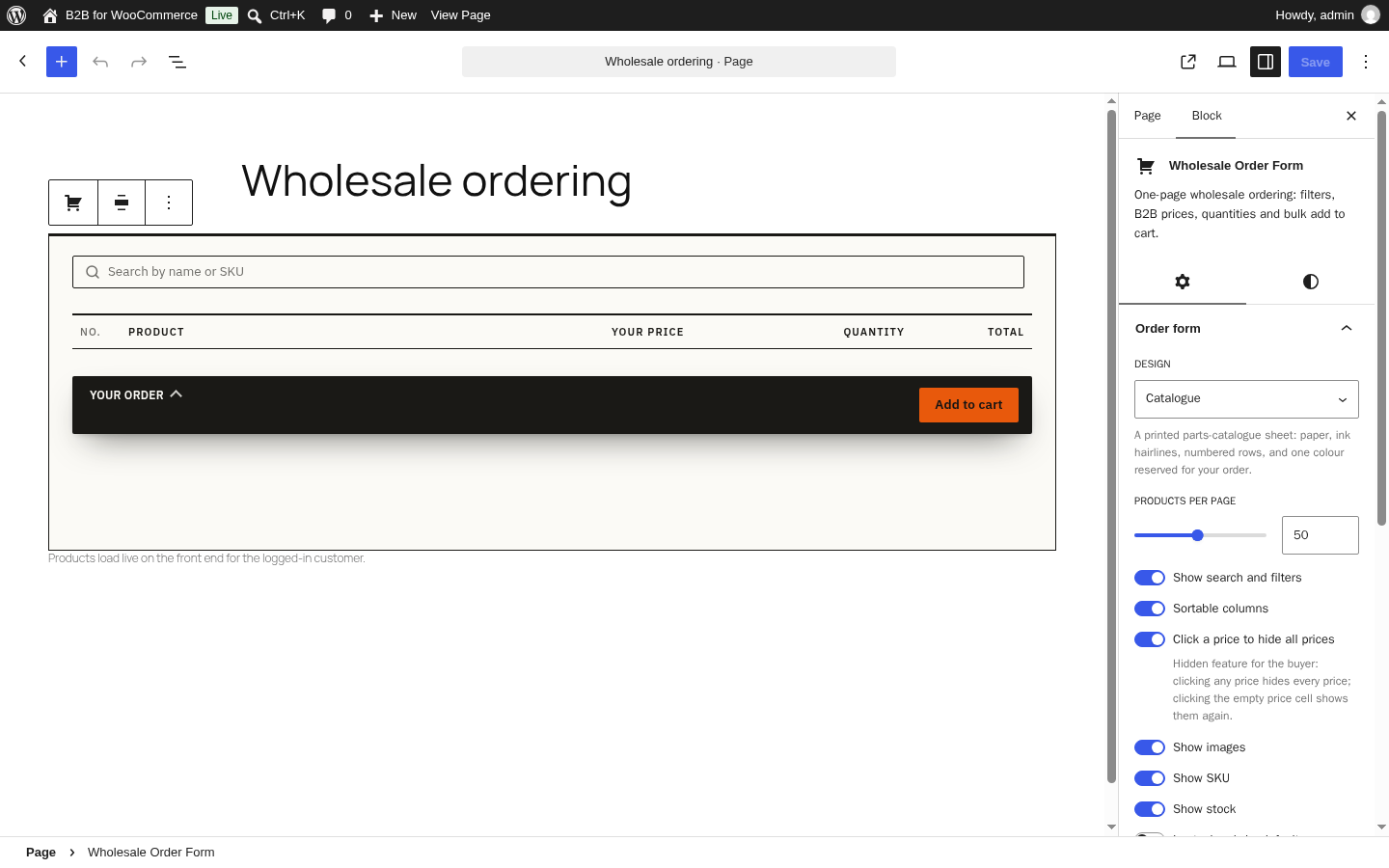
The block settings in the editor sidebar:
- Order form: the design, products per page, search and filters, sortable columns, click-a-price-to-hide, images, SKU, stock and “in stock only by default”.
- Colours: shown for the Catalogue, Modern and Flat designs. Pick any colour for each slot; text on a chosen colour switches between black and white by itself. Reset a colour to return to the design default.
- Products shown: include or exclude categories, tags and products (by SKU or ID). Empty means the whole catalog.
- Filters: category sidebar or everything in the top bar, single or multiple selection, one or two header rows, pills, fields or minimal style, filter name inside or above the box, size, filters per row (0 spreads them evenly), placeholder text, search box and its width, the “In stock only” filter, the result count and which global attributes to offer.
- Filter order: drag the filters into the order you want.
- Each filter: rename a filter, set its placeholder, show it as a dropdown or as chips, single or multiple selection, and show or hide product counts.
Designs
The Design option decides how the form looks. Theme inherits the fonts and colours of your theme. The other three ship their own fonts and look the same in every theme:
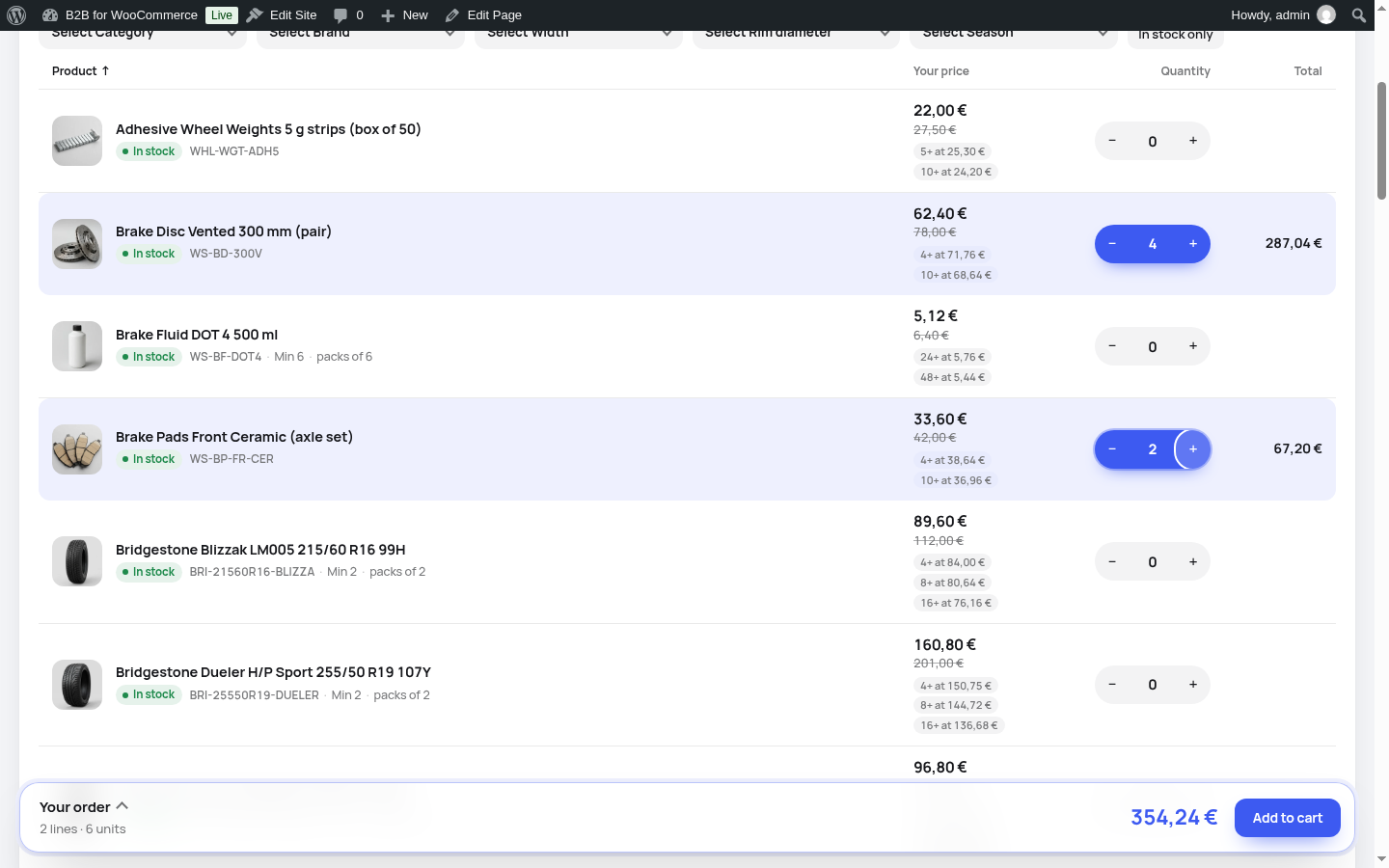
- Catalogue: a printed parts-catalogue sheet with numbered rows and one colour reserved for the lines in your order. Colours: Paper, Ink, Your order.
- Modern: a contemporary app surface. Colours: Canvas, Panels, Text, Accent.
- Flat: solid blocks for the table header, selected filters and the order bar. Colours: Background, Text, Accent.
Shortcode
Page builders and classic themes can use the shortcode with the same options:
[b2b_wholesale_order_form design="catalogue" colors="accent:#0f766e" filter_layout="top" filter_attributes="pa_brand,pa_size" header_rows="two" filter_style="field" label_position="above" search_width="full" exclude_categories="uncategorized" per_page="50"]Other attributes: show_sku, show_stock, show_images, in_stock_only, show_filters, filter_categories, filter_multi, filter_search, filter_size, filter_columns, filter_placeholder, show_search, show_stock_toggle, show_count, filter_order, show_price_toggle, sortable, include_categories, include_tags, exclude_tags, include_products, exclude_products (yes/no values for switches, comma-separated slugs for lists).
Business registration
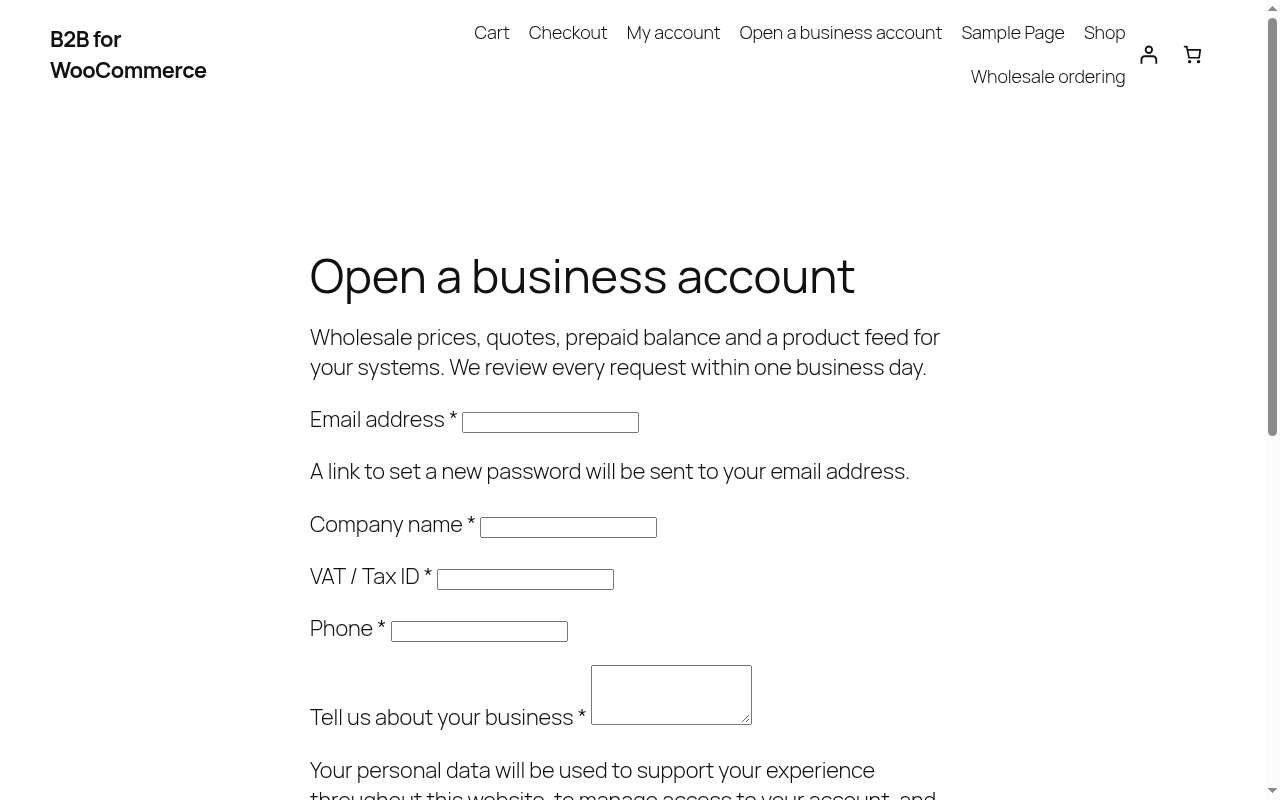
Add the B2B Registration Form block to a page (or the Business registration page pattern). It needs “Allow customers to create an account on the My Account page” to be on under WooCommerce > Settings > Accounts & Privacy. New requests appear as Pending under B2B > Customers and you receive the notification email. Existing customers can request a business account from My Account > Business account.
Quotes
 B2B > Quotes
- A business customer clicks Add to quote on products or Request a quote for this cart, reviews the quote basket under My Account > Quotes and sends the request with a message.
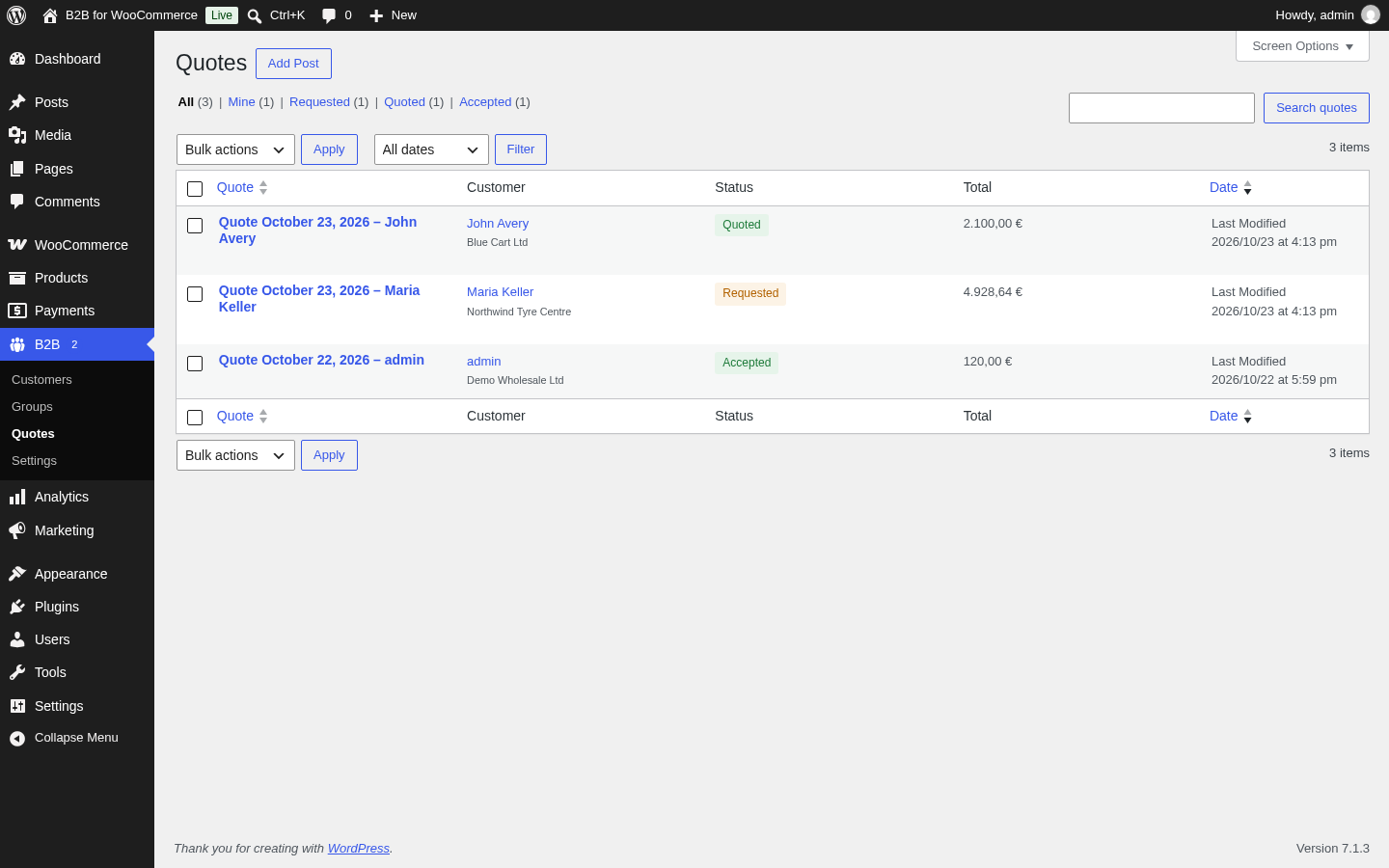
- The request appears under B2B > Quotes as Requested. Open it, enter a Quoted unit price per line, a message and the validity in days, and click Save and send quote to customer, or Decline request.
- The customer receives the quote email and can Accept and order from My Account: an order is created with the quoted prices and the customer pays it as usual. Quotes expire after the validity period.
What business customers see in My Account
 My Account > Business account
- Business account: their status and group, the company details, and the private XML feed link with a button to generate a new one.
- Quotes: the quote basket, sent requests and received quotes.
- Prepaid balance: the current balance, a top-up form and the ledger.
 My Account > Prepaid balance
XML feeds for retailers
Each approved customer’s feed is at /b2b-feed/<token>.xml and contains the products they may see, with their prices, tiers and live stock. Group feeds are at /b2b-feed/group/<group>/<global token>.xml. Feeds are cached for the number of minutes set in the XML feeds section and refreshed when products change. The fields are chosen in the settings; the structure is one <product> element per product or variation with sku, name, price, stock and the enabled optional fields.
Frequently asked questions
My store is retail today. Will my retail customers notice anything?
No. Retail prices, products and the checkout stay as they are. Only approved business customers get B2B prices, and only the pages where you place the blocks change.
Can a product have different B2B prices per group?
Yes. On the product’s B2B tab set a fixed price or a discount per group, and add quantity tiers for a single group or for all groups.
The Quotes list or the order form is empty
Check that the module is switched on under WooCommerce > Settings > B2B > General, and that the customer is Active under B2B > Customers. The order form only shows products the customer may see, so also check the product visibility and the block’s “Products shown” rules.
VIES says the server is unreachable
The VIES service is sometimes down or blocked by the host’s firewall. The plugin tries the REST and the SOAP interface and reports clearly when neither answers; you can switch the “VAT number verified” toggle by hand in the customer drawer.
Does it work with HPOS and the block checkout?
Yes. High-Performance Order Storage and the Cart and Checkout blocks are fully supported, as are classic themes and block themes.