
Trendyol Integration for WooCommerce connects your store to Trendyol International. It sends your WooCommerce products to Trendyol with their categories, brands and attributes, keeps stock and prices in sync in real time, imports Trendyol orders into WooCommerce by webhook, updates their status, prints the carrier voucher and sends the customer invoice. This guide covers installation, every setting and the daily workflow.
Requirements
- WordPress 6.5 or newer and WooCommerce 7.0 or newer (High-Performance Order Storage supported)
- PHP 7.4 or newer
- A Trendyol International seller account and its API credentials: Seller ID, API Key and API Secret (Trendyol Seller Panel, Account Details > Integration Details)
- A public HTTPS address for your store, so Trendyol can send order webhooks
- A SKU (or Trendyol barcode) on every product and variation you want to sell
- A wpslash.com licence key for the plugin
Installation
- Download the plugin .zip from your wpslash.com licences page after purchase.
- Go to WordPress Admin > Plugins > Add New, click Upload Plugin and choose the file you downloaded.
- Click Install Now and then Activate. WooCommerce must be active first.
- Paste your licence key on the licence screen the plugin opens and click Activate. Updates then arrive in your WordPress dashboard.
The plugin adds two pages under WooCommerce: Trendyol (connection, sync, webhook, invoice and order import settings) and Trendyol Product Sync (category, brand and attribute mapping, export and XML feed).
Setup and Configuration
1. Connect your Trendyol account (API tab)
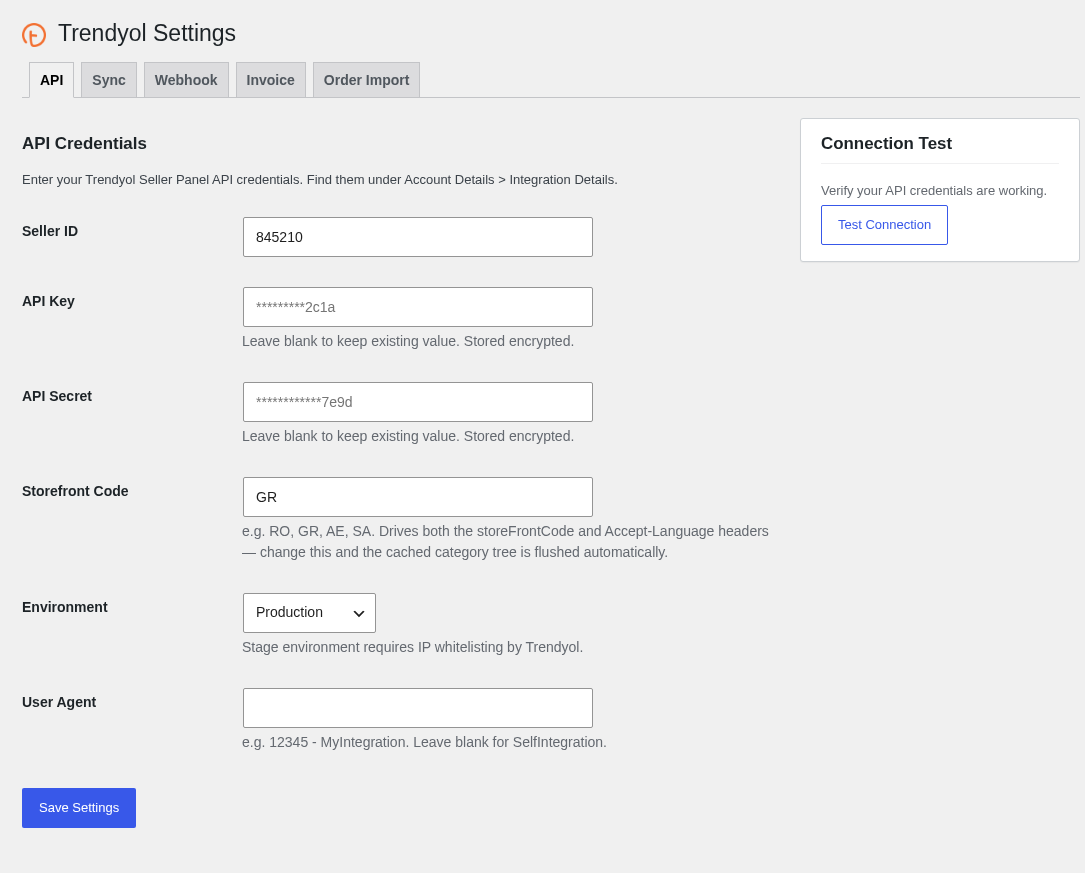
- Go to WooCommerce > Trendyol, tab API.
- Enter your Seller ID, API Key and API Secret. The key and secret are stored encrypted. Once saved, leave those fields blank to keep the stored values.
- Set the Storefront Code of the country you sell in, for example
GRorRO. It sets the storefront and language of the API calls. When you change it, the cached Trendyol category tree is cleared. - Leave Environment on Production. Stage (Testing) only works after Trendyol whitelists your server IP.
- Leave User Agent empty unless Trendyol gave you an integration name (empty sends
{Seller ID} - SelfIntegration). - Click Save Settings, then Test Connection. You should see Connection successful! API credentials are valid.
2. Choose what to sync (Sync tab)
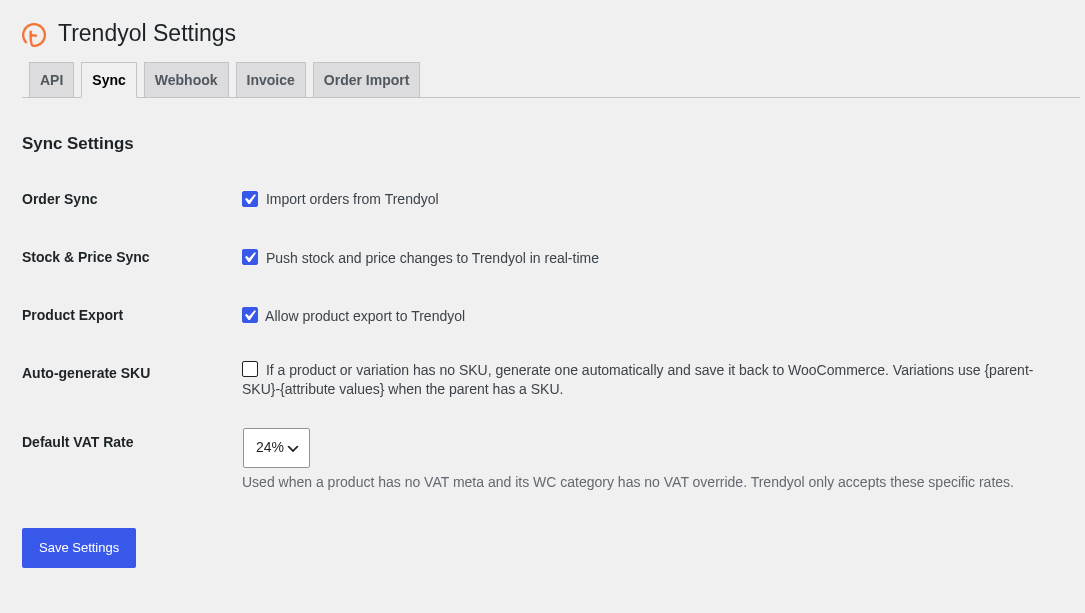
- Order Sync: import orders from Trendyol (on by default).
- Stock & Price Sync: push stock and price changes to Trendyol in real time (on by default).
- Product Export: allow product export to Trendyol (on by default).
- Auto-generate SKU: give products and variations without a SKU one automatically and save it in WooCommerce. Variations get
{parent SKU}-{attribute values}. - Default VAT Rate: used when neither the product nor its category has a VAT rate. Trendyol only accepts 0, 6, 11, 13, 21 and 24%.
3. Receive orders in real time (Webhook tab)
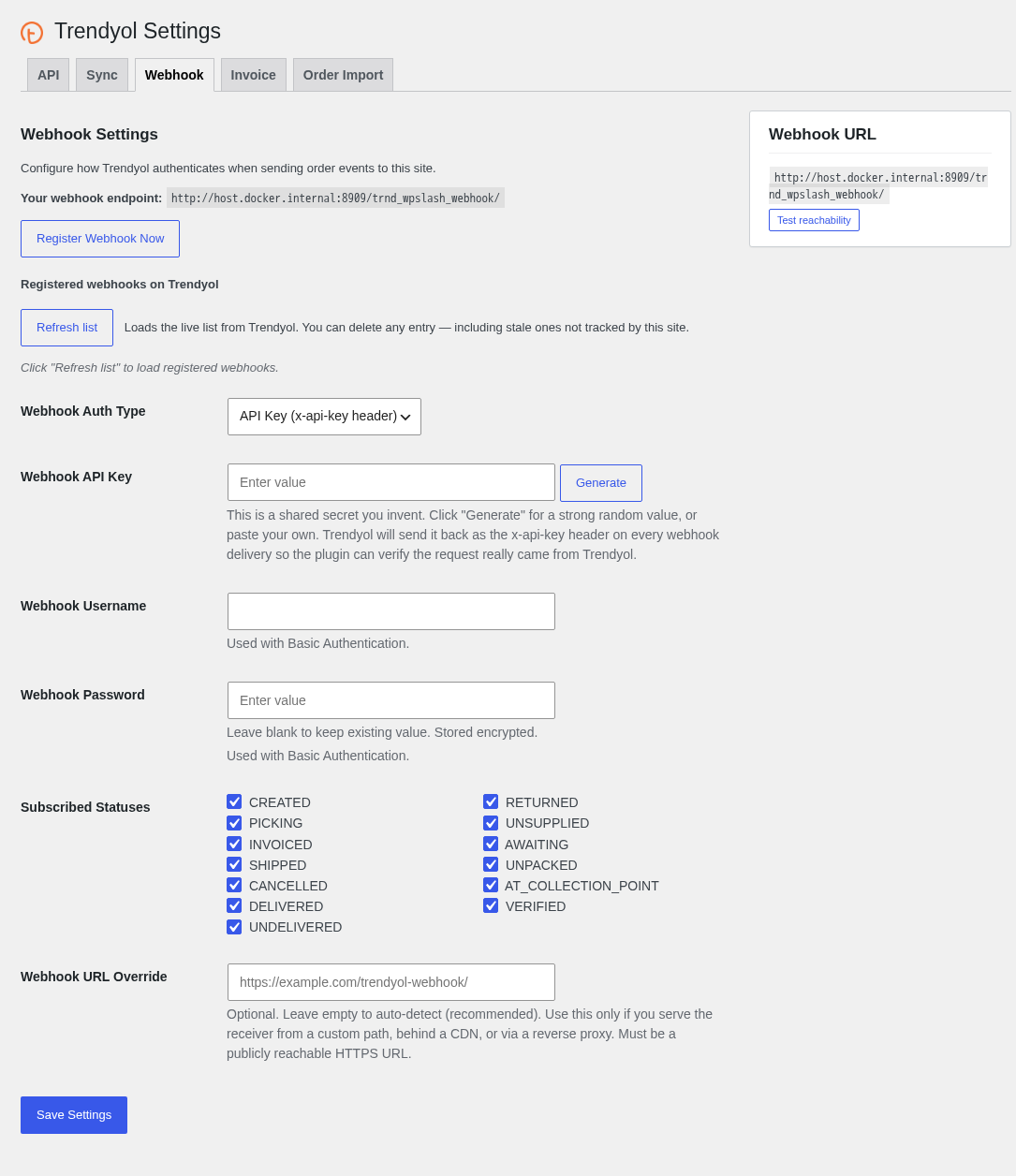
Trendyol sends every new order and status change to Your webhook endpoint (by default https://yourstore.com/trnd_wpslash_webhook/). Trendyol rejects webhook addresses that contain the words “trendyol” or “localhost” or point to a private IP, and the default path avoids all of them.
- Keep Webhook Auth Type on API Key (x-api-key header) and click Generate next to Webhook API Key. Trendyol sends this secret with every delivery so the plugin can check that the request is genuine. With Basic Authentication, fill in Webhook Username and Webhook Password instead.
- In Subscribed Statuses, keep all statuses ticked unless you have a reason to skip some.
- Click Save Settings, then Register Webhook Now. Saving the API key or the storefront code also registers the webhook automatically.
- Refresh list under Registered webhooks on Trendyol shows what Trendyol has on file, and you can delete old entries there. Test reachability checks that the endpoint answers from outside.
Use Webhook URL Override only if your site is behind a CDN, a reverse proxy or a custom path. It must be a public HTTPS address.
4. Send invoices (Invoice tab)
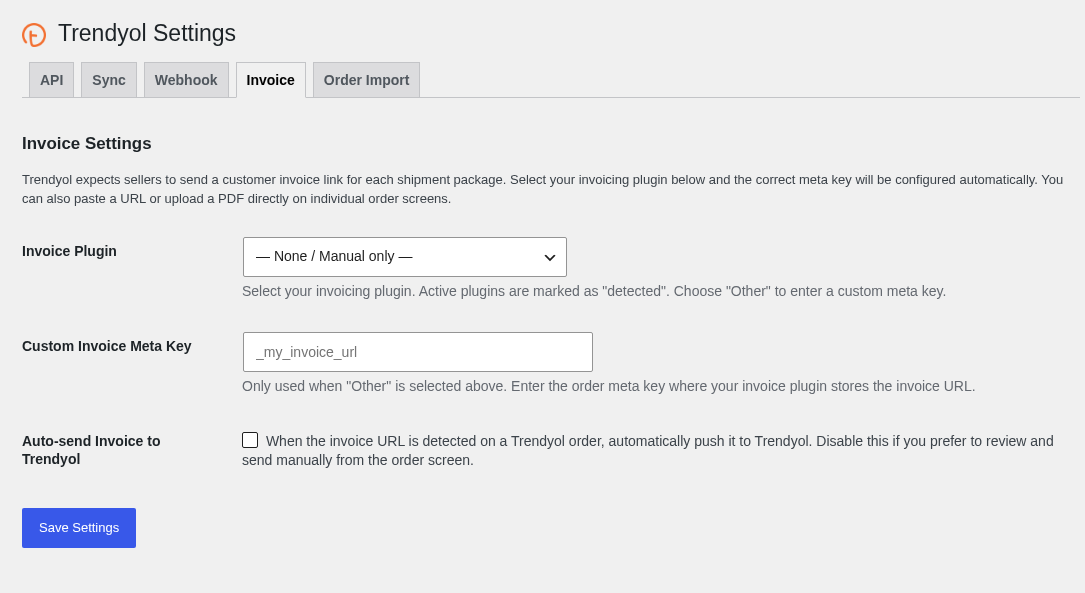
Trendyol expects a customer invoice link for each shipment package. In Invoice Plugin, choose the plugin that creates your invoices: WooCommerce PDF Invoices & Packing Slips, WPO WooCommerce PDF Invoices, Billingo, Germanized for WooCommerce, or Other (custom meta key) with the order meta key that holds the invoice URL in Custom Invoice Meta Key. Plugins found on your site are marked “(detected)”. Check Auto-send Invoice to Trendyol to send the link as soon as the invoice exists. With — None / Manual only — you send invoices from the order screen.
5. Order Import tab
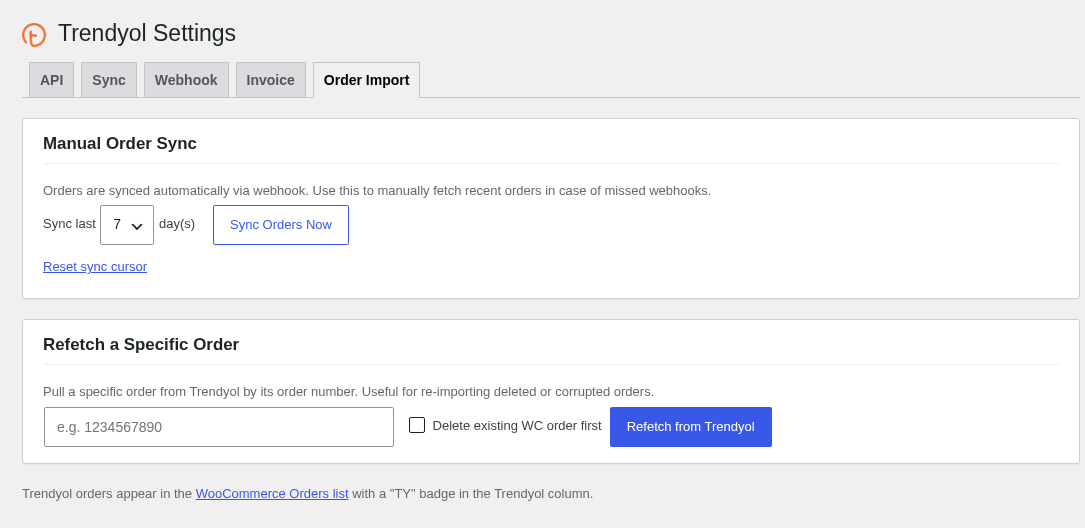
Orders arrive by webhook, and a fallback sync also checks Trendyol every 30 minutes. Use this tab when you set up the plugin or think an order was missed:
- Manual Order Sync: choose Sync last 1, 3, 7, 14 or 30 day(s) and click Sync Orders Now. Reset sync cursor makes the next sync start over.
- Refetch a Specific Order: enter the Trendyol order number and click Refetch from Trendyol. Tick Delete existing WC order first to rebuild it from scratch.
6. Map your categories
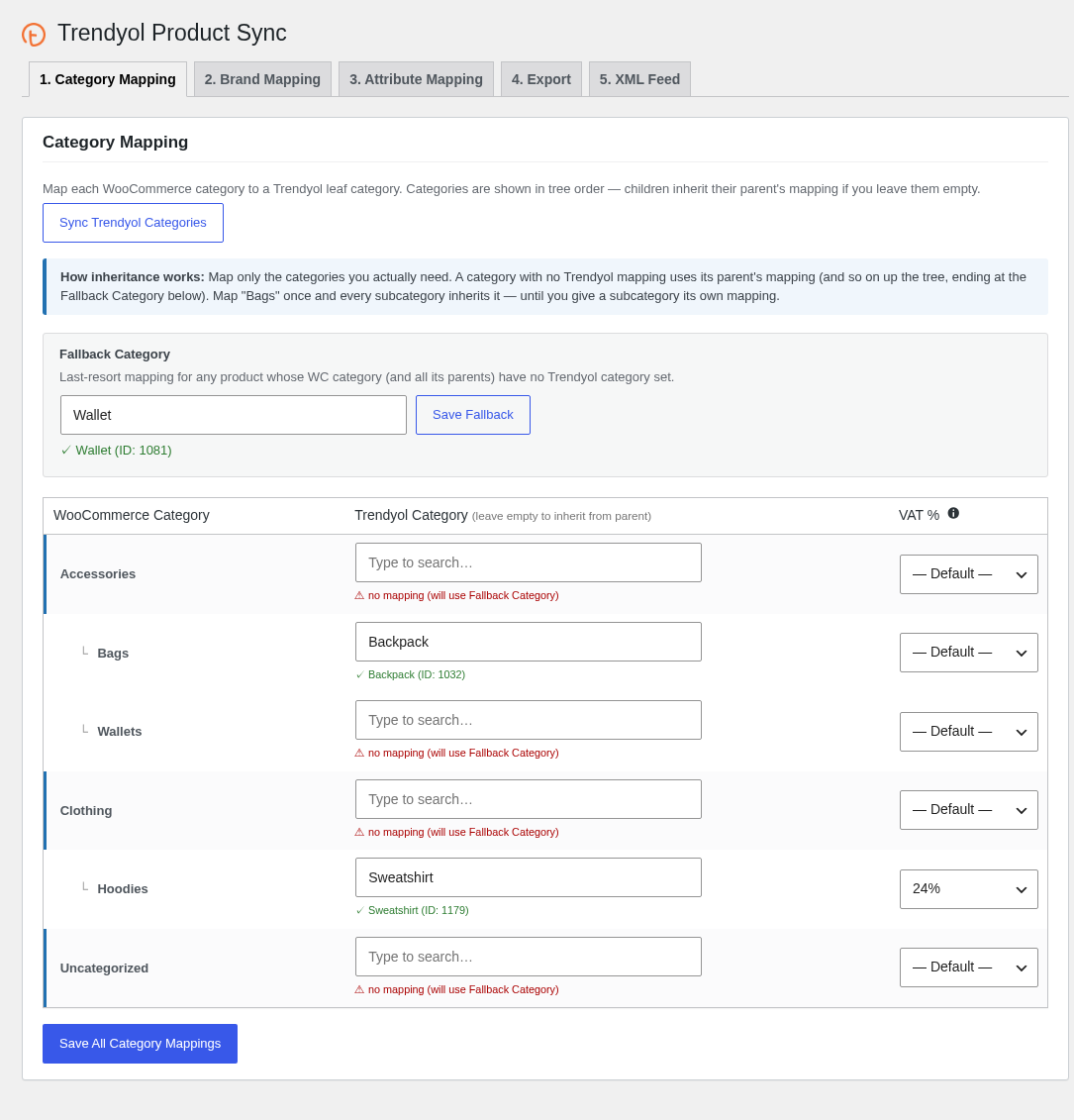
- Go to WooCommerce > Trendyol Product Sync. The tabs follow the setup order. Click Sync Trendyol Categories once to download the Trendyol category tree. It refreshes by itself every day.
- For each WooCommerce category, type in Trendyol Category and pick a leaf category. You only need to map the categories you use: a category left empty inherits its parent’s mapping.
- Set a Fallback Category and click Save Fallback. It is used for products whose category and parents have no mapping.
- Optionally set VAT % per category to override the default VAT rate.
- Click Save All Category Mappings.
7. Map your brands
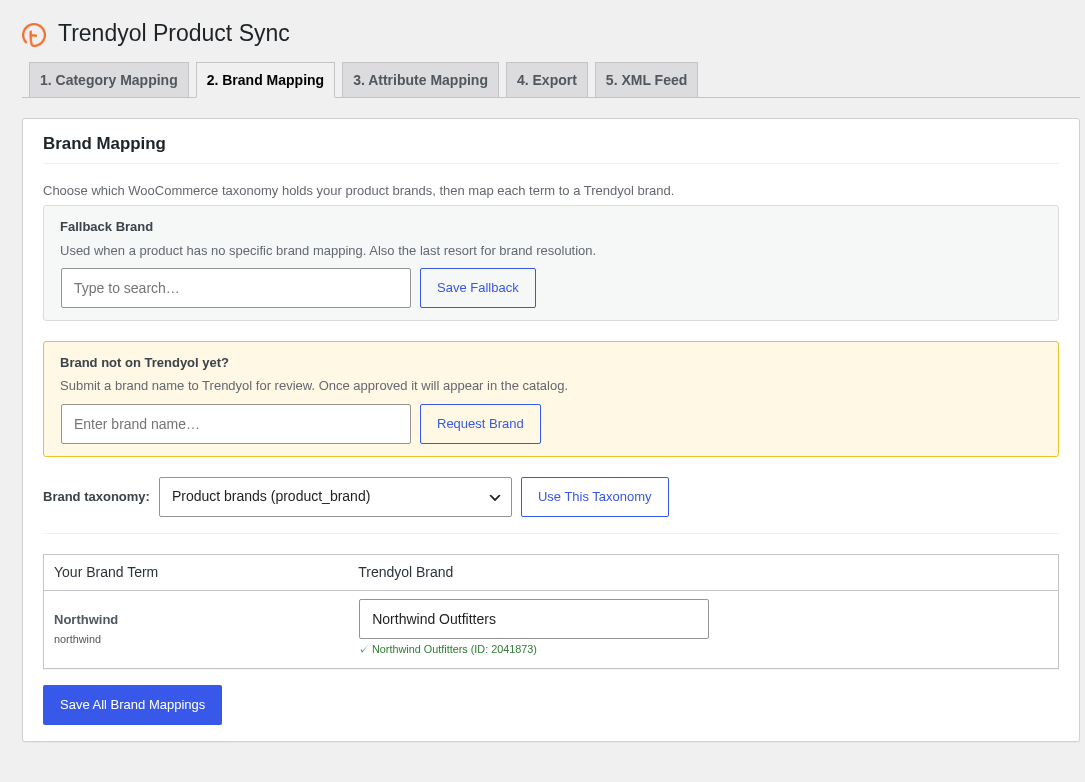
- In Brand taxonomy, choose where your brands are stored, for example Product brands (product_brand), and click Use This Taxonomy.
- For each of your brands, type in Trendyol Brand. Brands are searched live on Trendyol. Click Save All Brand Mappings.
- Set a Fallback Brand for products without a mapped brand.
- If your brand is not on Trendyol yet, enter it under Brand not on Trendyol yet? and click Request Brand. It appears once Trendyol approves it.
8. Map attributes
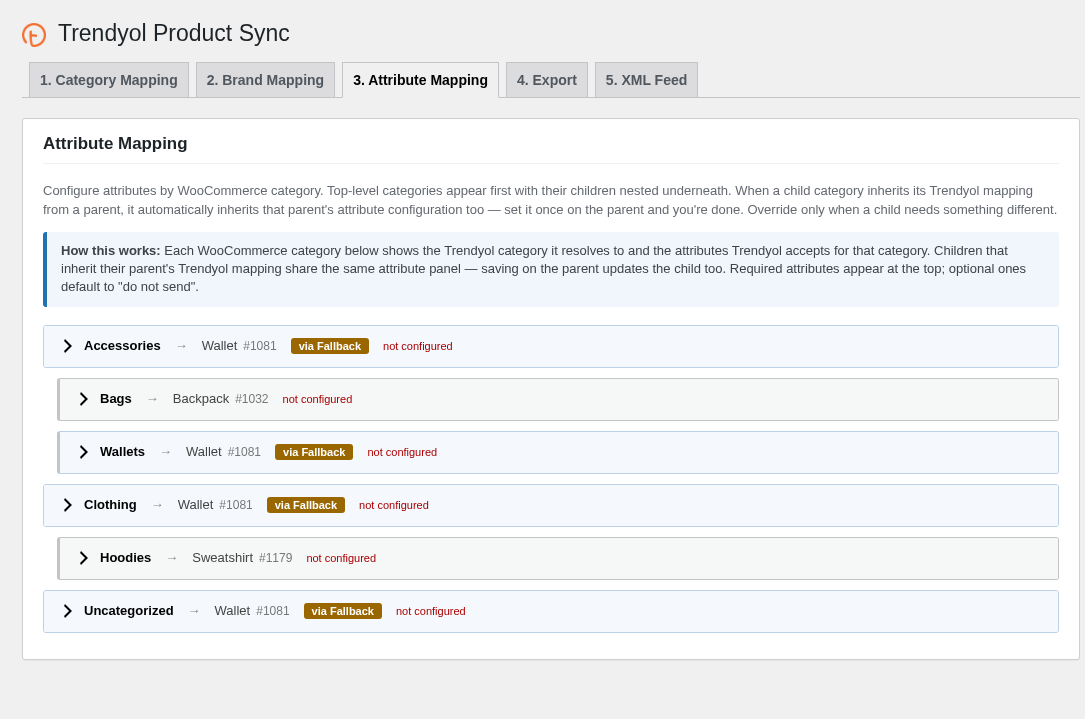
Each WooCommerce category shows the Trendyol category it resolves to. Open a category to load the attributes Trendyol accepts for it (colour, size, material and so on). Required attributes are listed first: match each to a WooCommerce attribute or a fixed value. Optional attributes default to “do not send”. Child categories that inherit their parent’s Trendyol category share its attribute settings, so set them once on the parent.
9. Export your products
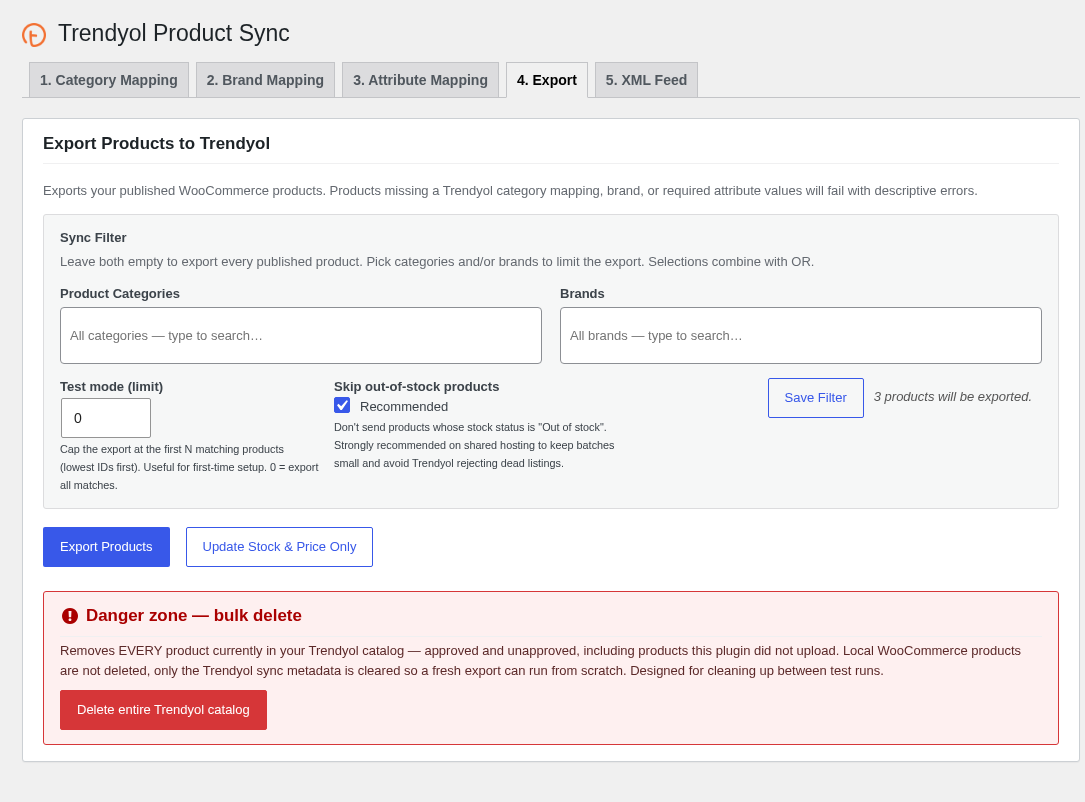
- In Sync Filter, leave Product Categories and Brands empty to export every published product, or pick some to limit the export.
- For a first test, set Test mode (limit) to a few products. 0 exports everything that matches.
- Keep Skip out-of-stock products checked, then click Save Filter. The screen shows how many products will be exported.
- Click Export Products. Trendyol processes the batch in the background and approves new products in your Seller Panel.
Each product and variation is sent with its SKU as the Trendyol barcode. Variable products are sent variation by variation, so every variation needs its own SKU. Products without a mapped category, a brand, the required attributes or a SKU fail with a message that names the problem. Update Stock & Price Only resends stock and prices without touching product content.
Danger zone — bulk delete: Delete entire Trendyol catalog removes every product from your Trendyol catalog, including products this plugin did not upload. Your WooCommerce products stay. Use it only to clean up test runs.
Stock and price sync
With Stock & Price Sync on, every change to the stock, regular or sale price, or stock status of a product or variation is queued and sent to Trendyol about 30 seconds later, together with other changes made in the meantime. That includes orders from your own store, so Trendyol never sells stock you no longer have.
10. XML product feed (optional)
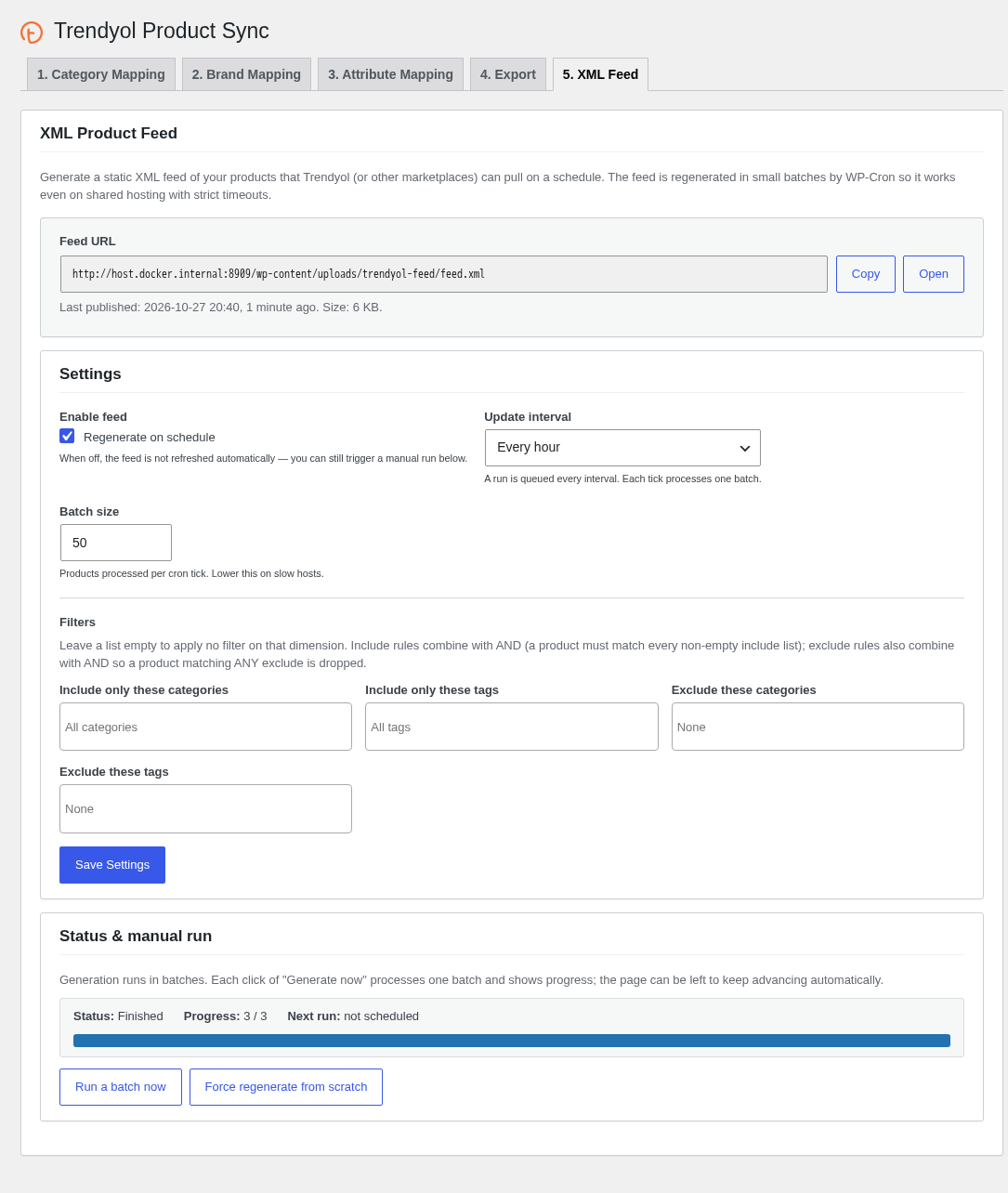
The plugin can also publish a static XML feed of your products that Trendyol, or another marketplace, reads on a schedule. Copy the Feed URL, check Enable feed, choose the Update interval (every hour, 12 hours or 24 hours) and the Batch size, and limit it with the include and exclude filters. Run a batch now builds the next batch, and Force regenerate from scratch rebuilds the whole feed. The feed needs no API credentials.
Usage
Trendyol orders in WooCommerce
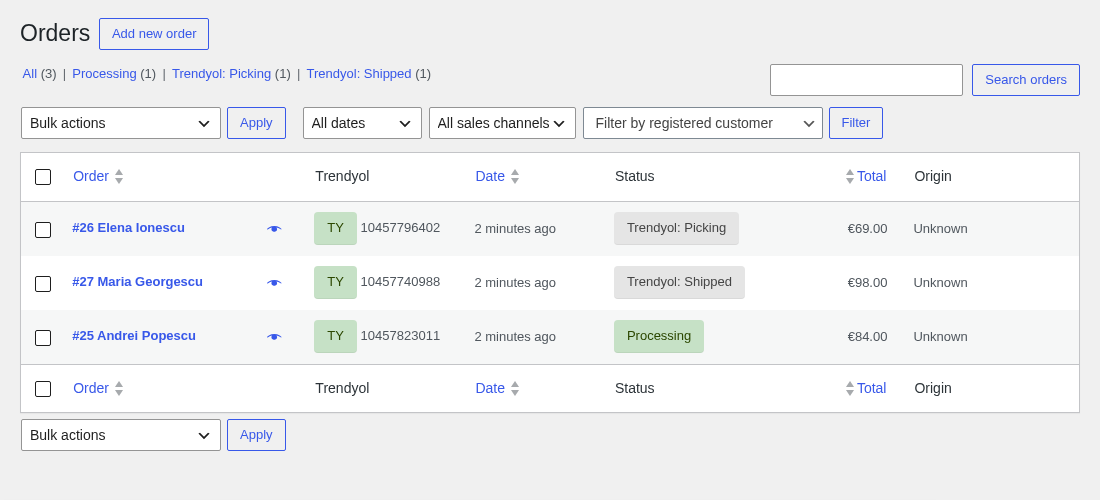
Every Trendyol order appears in WooCommerce > Orders with a TY badge and the Trendyol order number in the Trendyol column. Stock is reduced as soon as the order is created. The WooCommerce status follows the Trendyol package status:
- Created: Processing
- Picking, Invoiced, Shipped, Delivered, Undelivered, Unpacked, At Collection Point, Verified: Trendyol: Picking, Trendyol: Invoiced, Trendyol: Shipped and so on
- Awaiting: On hold. Cancelled and UnSupplied: Cancelled. Returned: Refunded
Picking, invoicing, shipping and vouchers
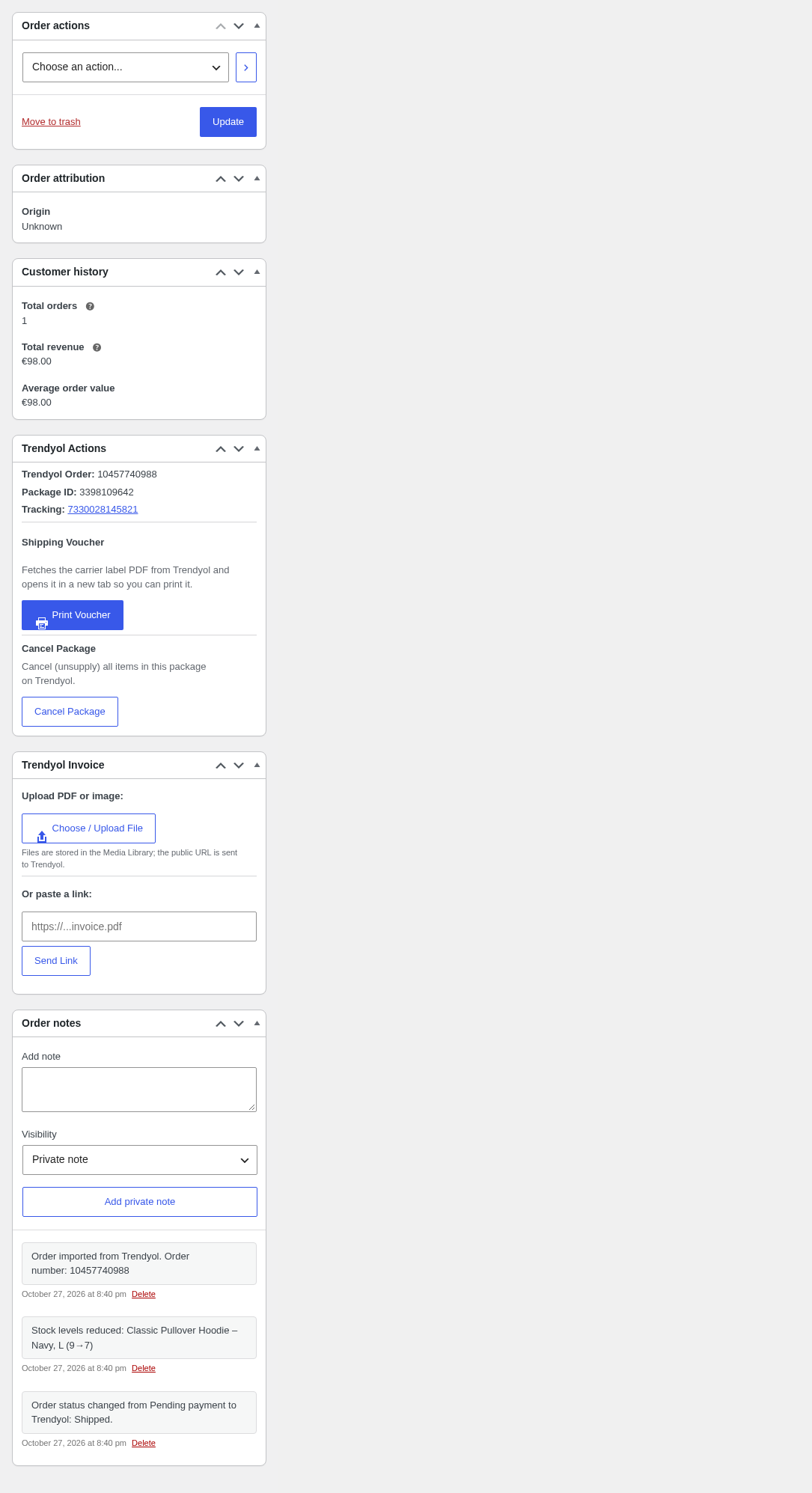
- Order actions: choose Trendyol: Set Picking, Trendyol: Set Invoiced or Trendyol: Set Shipped and click Apply to update the package on Trendyol.
- Trendyol Actions shows the Trendyol order number, package ID and tracking number. Once the carrier assigns a tracking number, Print Voucher opens the carrier label PDF in a new tab. Cancel Package cancels (unsupplies) all items of the package on Trendyol.
- Trendyol Invoice: send the invoice of the order by uploading a PDF or image (Choose / Upload File), or paste a link and click Send Link. If your invoice plugin already made one, the box offers to send it.
Logs and status
Every API call, export batch and order import is logged. Open WooCommerce > Status > Logs and choose the trendyol-woocommerce log. WooCommerce > Status also has a Trendyol section with the version, environment, sync switches and webhook ID to include in support tickets.
FAQs
Where do I find my Trendyol API credentials?
In the Trendyol Seller Panel under Account Details > Integration Details: your Seller ID, API Key and API Secret. If Test Connection reports an authentication error, copy the key and secret again without spaces.
Does it support variable products?
Yes. Each variation is sent as its own Trendyol item, with its SKU as barcode and its own stock and price. Map the colour and size attributes in Attribute Mapping. If some variations have no SKU, turn on Auto-generate SKU.
Orders do not arrive. What should I check?
Check that the webhook is registered (Refresh list on the Webhook tab), that Test reachability passes and that your site is reachable over public HTTPS. Missed orders still arrive through the 30-minute fallback sync, or right away with Sync Orders Now on the Order Import tab.
An order line says “[Unlinked Trendyol product]”. Why?
The barcode of that Trendyol item matched no WooCommerce product or variation, so the line was added as a fee and its stock was not reduced. Set the SKU of the matching product or variation to the Trendyol barcode, or export the product again from the plugin.
Which VAT rates can I use?
Trendyol accepts 0, 6, 11, 13, 21 and 24%. Set a default on the Sync tab and override it per category in Category Mapping.
Is it compatible with WooCommerce HPOS?
Yes. The plugin supports High-Performance Order Storage.