
Skroutz Marketplace & XML for WooCommerce connects your store to Skroutz.gr. It builds the Skroutz XML product feed (simple and variable products, sizes, colours, EAN, shipping cost), receives Skroutz Marketplace orders into WooCommerce so you can accept or reject them, shows the courier voucher and tracking number, and sends stock and price changes to Skroutz through the Products API. This guide covers installation, every setting and the daily workflow.
Requirements
- WordPress 6.5 or newer and WooCommerce 3.4 or newer (High-Performance Order Storage supported)
- PHP 7.4 or newer
- A Skroutz Merchants account. For Marketplace orders you also need the API Token from your Skroutz Merchant Account, and for live updates a separate Products API Token.
- A wpslash.com licence key for the plugin
Installation
- Download the plugin .zip from your wpslash.com licences page after purchase.
- Go to WordPress Admin > Plugins > Add New, click Upload Plugin and choose the file you downloaded.
- Click Install Now and then Activate. WooCommerce must be active first.
- Paste your licence key on the licence screen the plugin opens and click Activate. Updates then arrive in your WordPress dashboard.
Setup and Configuration
Go to WooCommerce > Settings > Skroutz Smart Cart. The tab has three sections: Smart Cart Settings, XML Feed and Products API (Live Updates). Start with the XML feed: Skroutz lists your products from the feed, and Marketplace orders and live updates only work for products that are already in it.
XML Feed
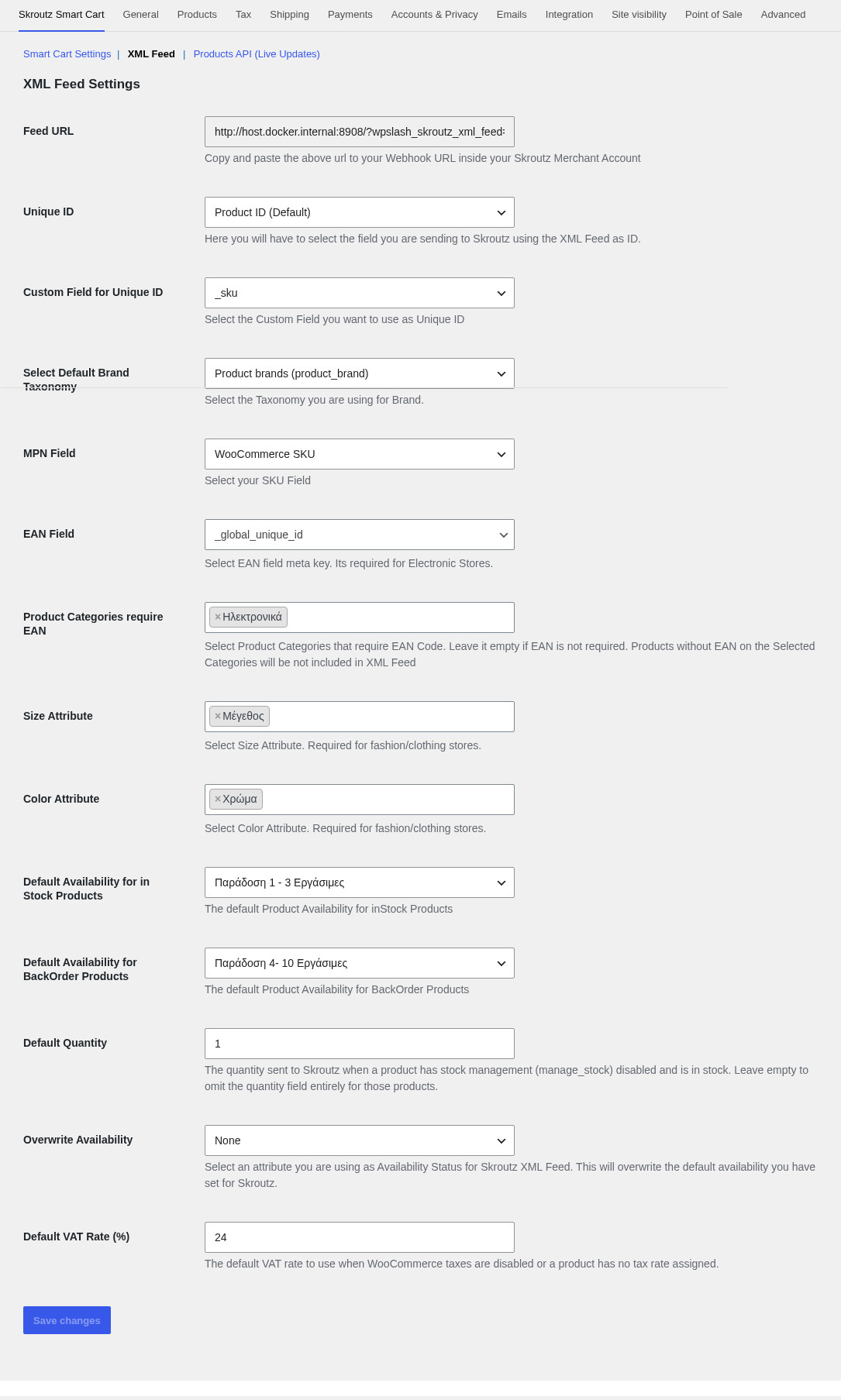
- Feed URL: the address of your feed. Copy it into your Skroutz Merchant Account when you register the feed.
- Unique ID: the value sent to Skroutz as the product ID: Product ID (Default), SKU or a Custom Field (pick it in Custom Field for Unique ID). Choose it once and keep it: changing it later makes Skroutz see your products as new ones.
- Select Default Brand Taxonomy: where your brands live, for example WooCommerce Brands (product_brand) or a brand attribute. It fills the manufacturer of each product.
- MPN Field: the manufacturer code: WooCommerce SKU, an Attribute (set it in Select Attibute) or a Custom Field (set it in Custom Field for MPN Field).
- EAN Field: the product meta key that holds the EAN/barcode. The WooCommerce field GTIN, UPC, EAN, or ISBN is stored as
_global_unique_id. Skroutz requires EAN for electronics. - Product Categories require EAN: products in these categories are left out of the feed when they have no EAN. Leave it empty if you don’t need it.
- Size Attribute and Color Attribute: the attributes you use for size and colour. Fashion and footwear stores need them.
- Default Availability for in Stock Products and Default Availability for BackOrder Products: the delivery time shown on Skroutz, for example Παράδοση 1 – 3 Εργάσιμες. Overwrite Availability lets an attribute set a different availability per product.
- Default Quantity: the quantity sent for in-stock products that don’t manage stock. Leave it empty to leave the quantity out.
- Default VAT Rate (%): used when WooCommerce taxes are off or a product has no tax rate (24 by default).
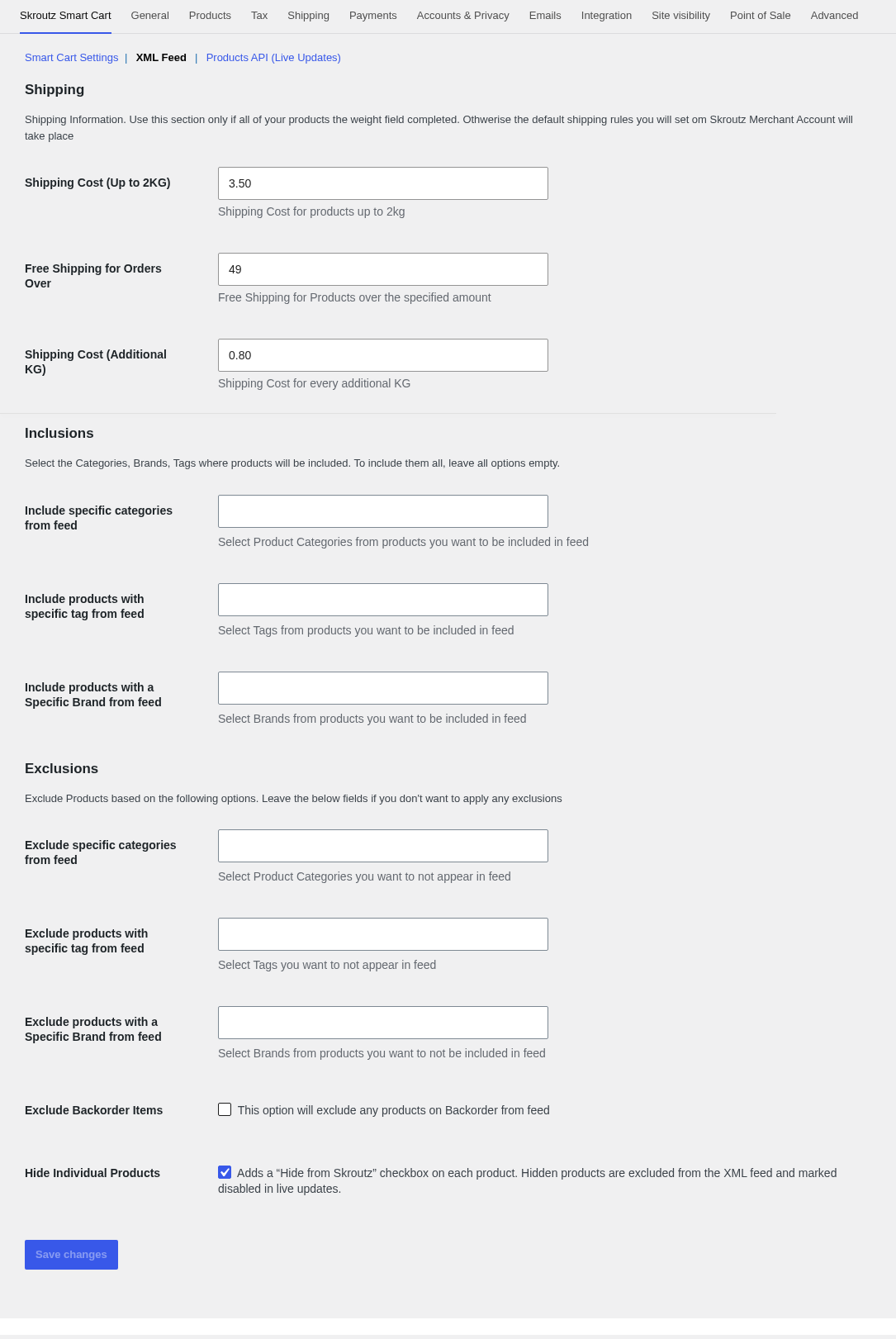
- Shipping: Shipping Cost (Up to 2KG), Shipping Cost (Additional KG) and Free Shipping for Orders Over calculate the shipping cost of each product from its weight. Use this only if all your products have a weight. Otherwise leave it empty and the shipping rules of your Skroutz Merchant Account apply.
- Inclusions: send only some categories, tags or brands. Leave all three empty to include everything.
- Exclusions: leave out categories, tags or brands, and with Exclude Backorder Items every product on backorder. Hide Individual Products adds a Hide from Skroutz checkbox to each product and variation.
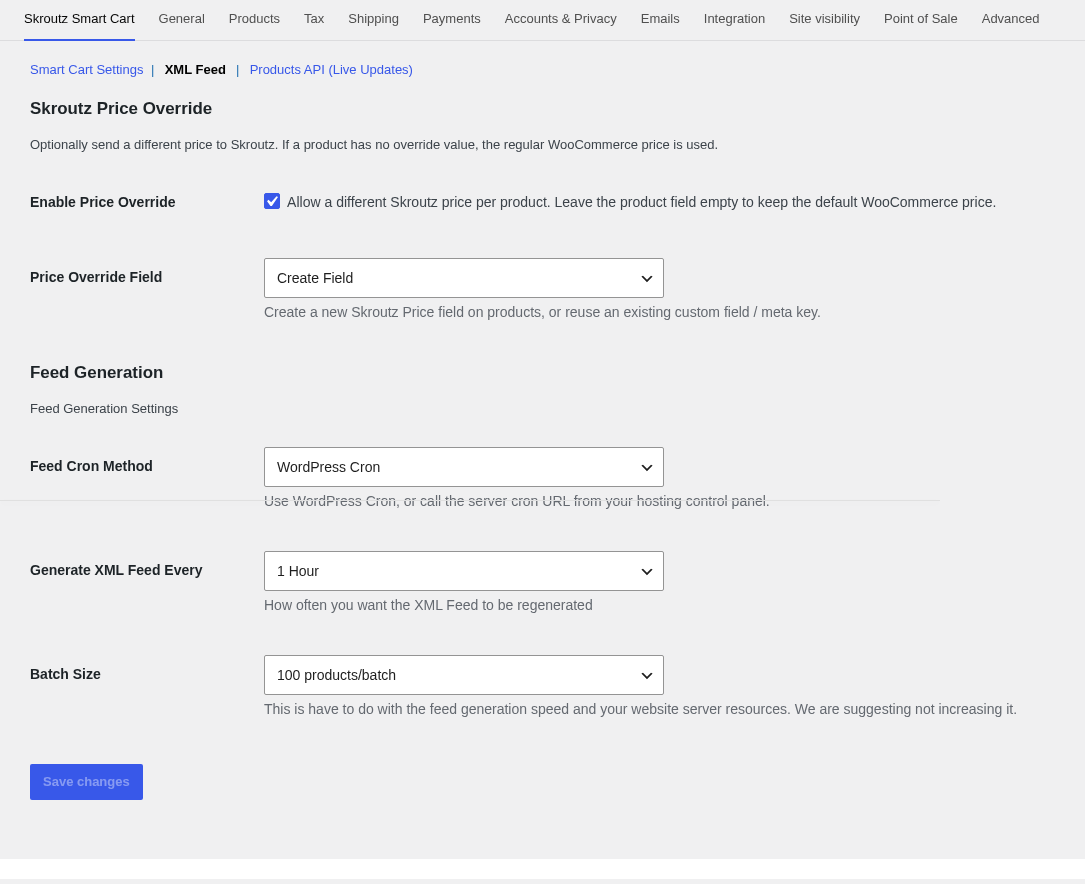
- Enable Price Override: send a different price to Skroutz. With Price Override Field set to Create Field, a Skroutz Price field appears on every product and variation. If you already keep that price in a meta key, choose Already using another field and select it in Custom Price Meta Key. Products with no value use their WooCommerce price.
- Feed Cron Method: WordPress Cron rebuilds the feed on schedule. If your site has little traffic or WP-Cron is off, choose Server Cron (URL) and call the Server Cron URL from your hosting control panel, for example every 5 minutes. Each call builds the next batch.
- Generate XML Feed Every: 1, 2, 6, 12 or 24 hours.
- Batch Size: products per batch (100 by default). Keep the default unless your server is fast.
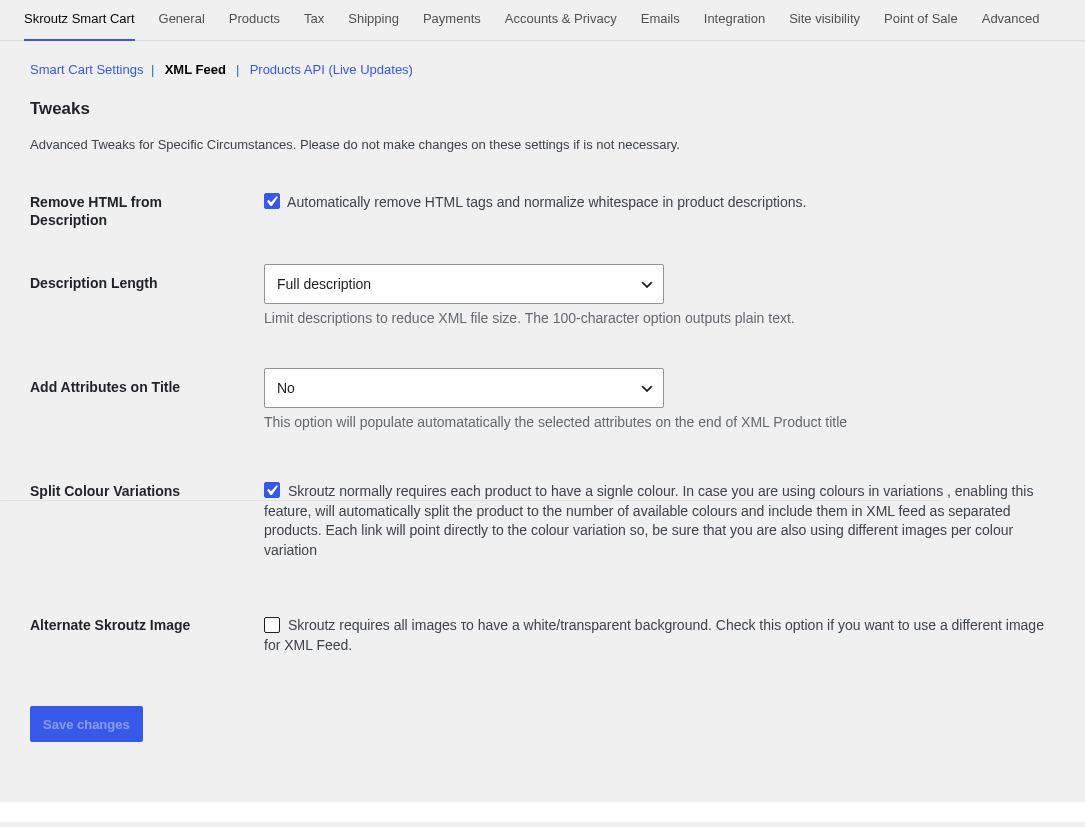
- Remove HTML from Description and Description Length (Full description or First 100 characters) keep the feed small.
- Add Attributes on Title: adds the size and colour, or all attributes, to the end of the product name in the feed.
- Split Colour Variations: Skroutz expects one colour per product. With this on, a product sold in several colours is sent as one product per colour, each linking to its colour and listing its sizes. Give each colour variation its own image.
- Alternate Skroutz Image: Skroutz wants images on a white or transparent background. Turn it on to send a different image: Create Field adds a Skroutz Alternate Image box to products and variations, or pick the custom fields you already use.
Click Save changes. Saving the XML Feed section clears the feed state, so the next run builds it again from the start.
Smart Cart Settings (Marketplace orders)
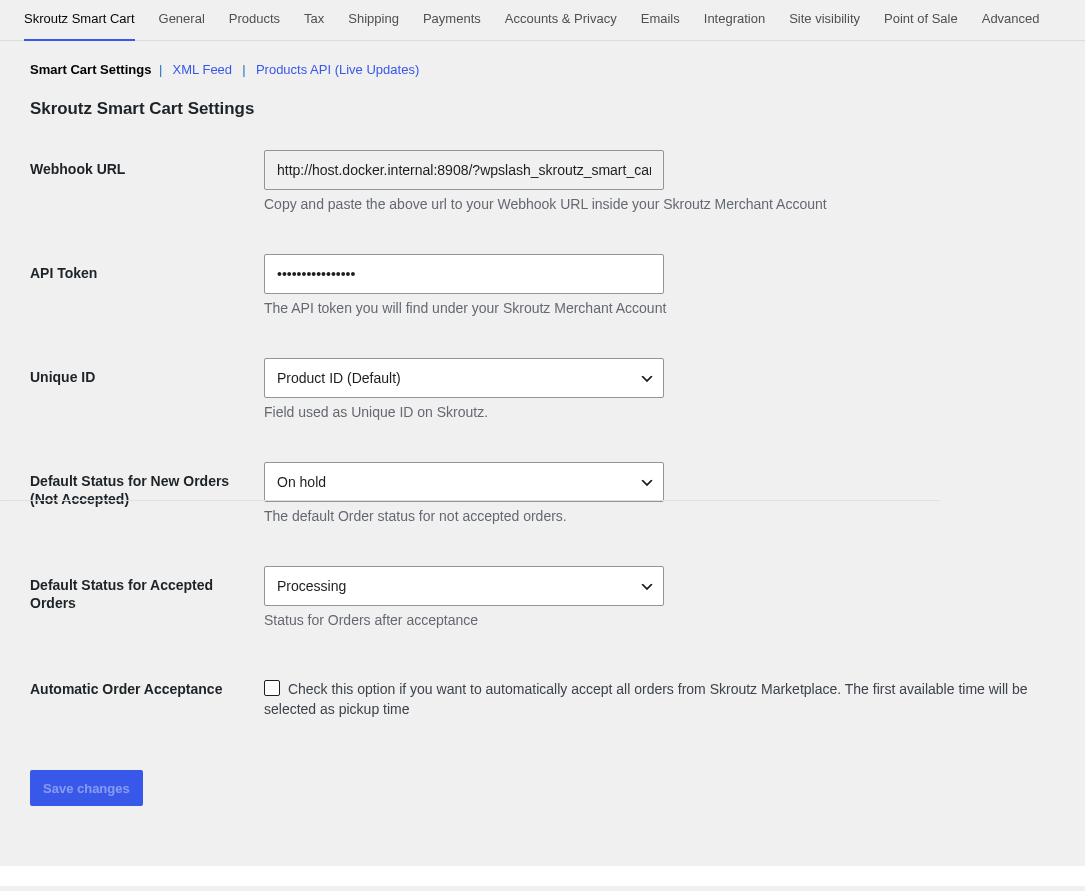
- Copy the Webhook URL and paste it as the webhook URL in your Skroutz Merchant Account. Skroutz sends new and updated orders to it.
- Paste the API Token from your Skroutz Merchant Account. The plugin uses it to accept and reject orders.
- Set Unique ID to the same value as the Unique ID of the XML feed, so incoming orders find the right products.
- Choose Default Status for New Orders (Not Accepted) (On hold by default) and Default Status for Accepted Orders (Processing by default).
- Optionally check Automatic Order Acceptance: every Skroutz order is accepted as soon as it arrives, with the first available pickup time.
- Click Save changes.
Products API (Live Updates)
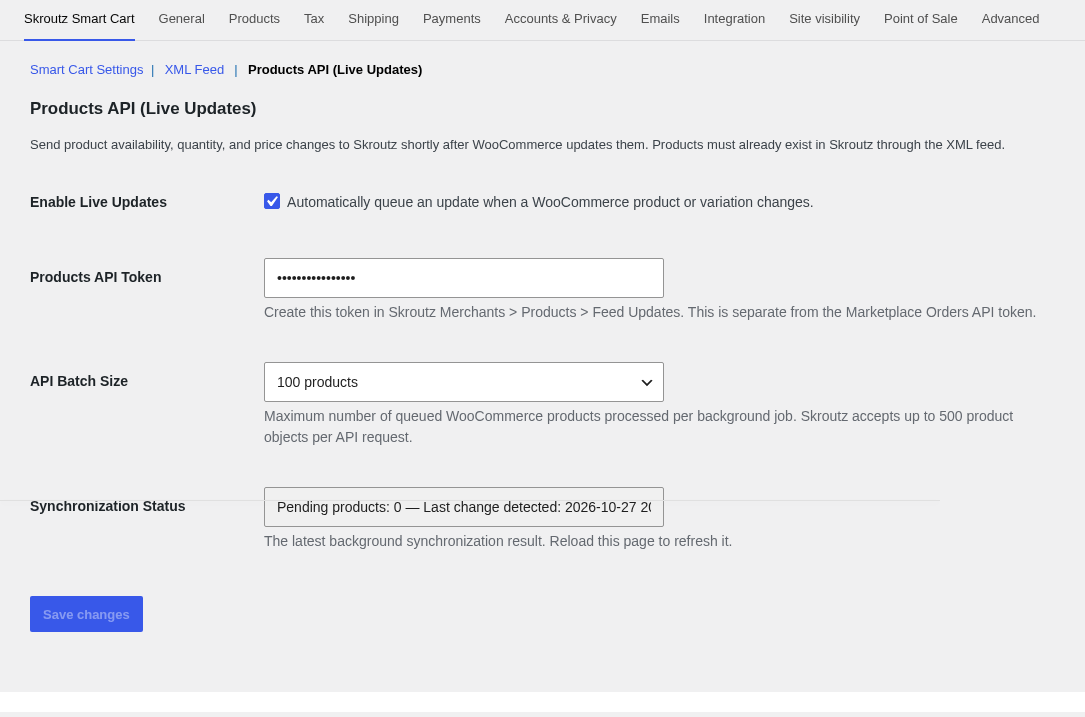
The feed refreshes on its schedule. Live updates send availability, quantity and price changes to Skroutz shortly after they happen in WooCommerce, for example when a product sells out.
- In Skroutz Merchants, go to Products > Feed Updates and create a token. It is separate from the Marketplace orders API token.
- Check Enable Live Updates and paste the token in Products API Token.
- Keep API Batch Size at 100 unless you change thousands of products at once (Skroutz accepts up to 500 per request).
- Click Save changes. Synchronization Status shows the pending products and the last send. Reload the page to refresh it.
Live updates only change products Skroutz already has from your XML feed. New products still reach Skroutz through the feed.
Product settings
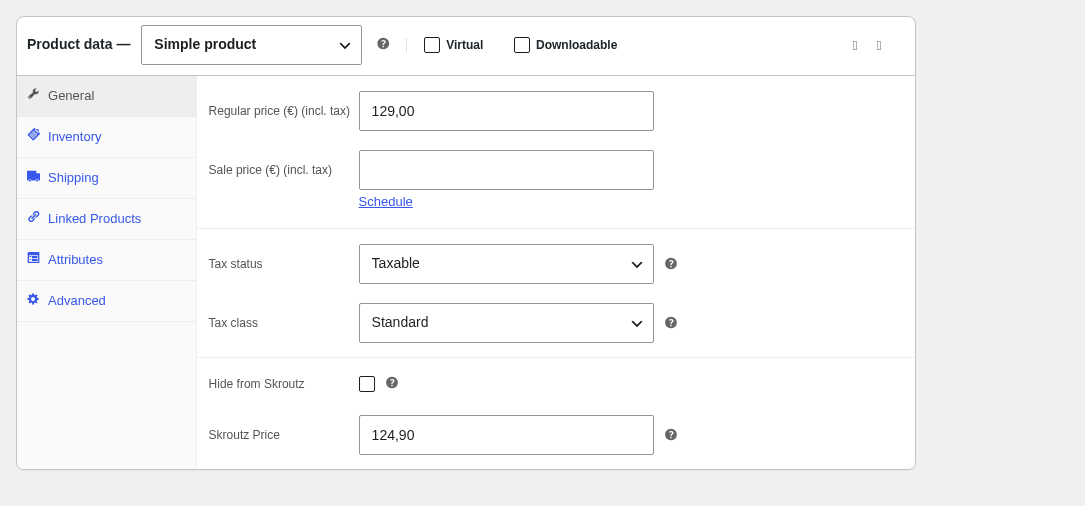
When Enable Price Override and Hide Individual Products are on, the General tab of each product has a Skroutz Price field and a Hide from Skroutz checkbox. Fill in the EAN in GTIN, UPC, EAN, or ISBN (or in the field you chose as EAN Field).
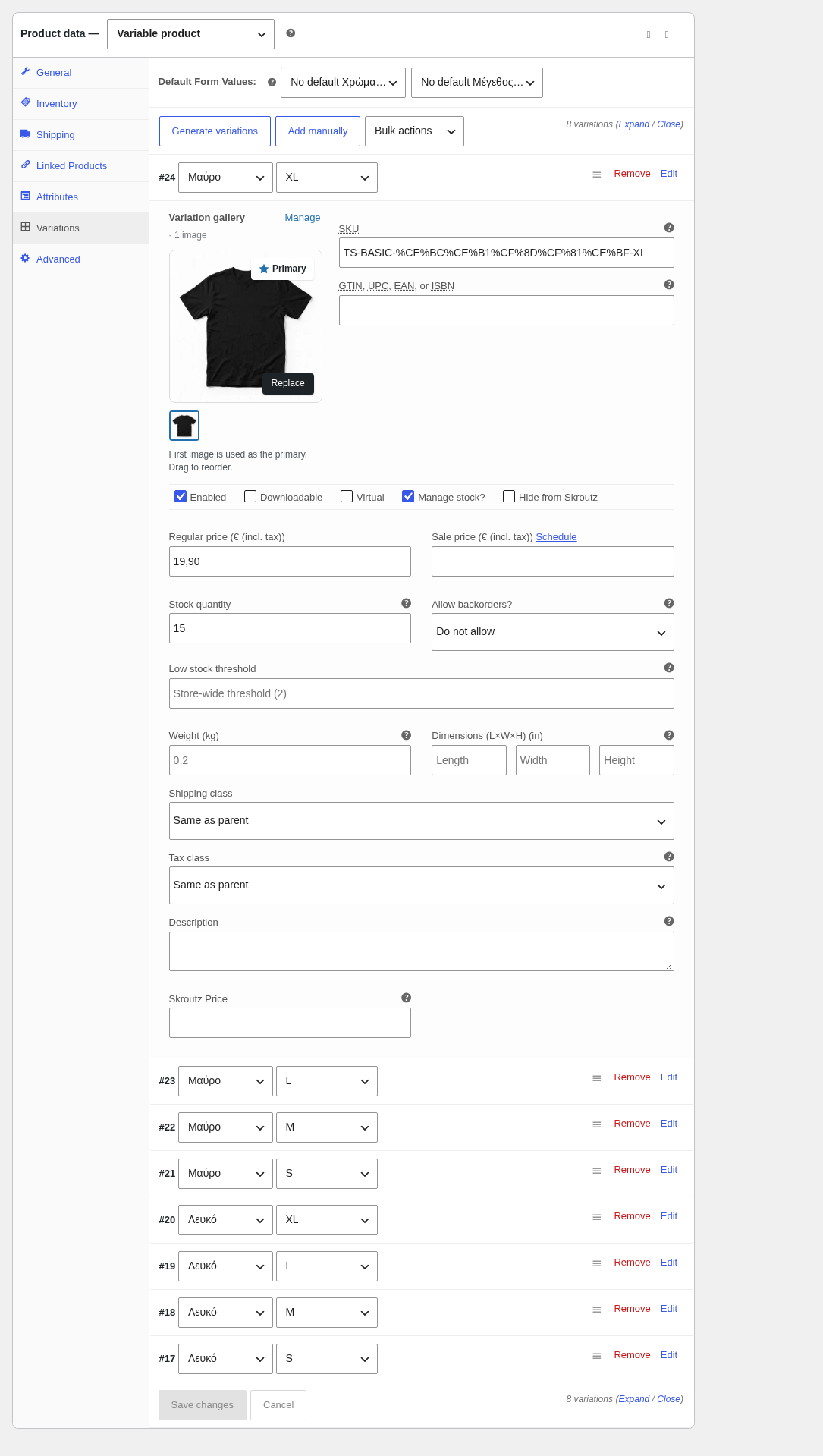
Each variation has its own Hide from Skroutz checkbox and Skroutz Price. An empty variation price falls back to the variation’s WooCommerce price, or the parent’s Skroutz price.
Usage
Register the XML feed on Skroutz
- Open the Feed URL once in your browser. The first time it shows Please wait while the XML file is getting created for first time…. with the percentage completed. Reload until the XML appears.
- Copy the Feed URL into your Skroutz Merchant Account. Skroutz reads it on its own schedule, and the plugin rebuilds it every Generate XML Feed Every hours.
A simple product with EAN, a Skroutz price and free shipping looks like this in the feed:
<product>
  <id><![CDATA[35]]></id>
  <mpn><![CDATA[SM-ANC-700]]></mpn>
  <ean>5201234567890</ean>
  <name><![CDATA[Ασύρματα Ακουστικά Bluetooth ANC]]></name>
  <price_with_vat>124.90</price_with_vat>
  <vat>24.00</vat>
  <instock>Y</instock>
  <availability>Παράδοση 1 - 3 Εργάσιμες</availability>
  <quantity><![CDATA[24]]></quantity>
  <weight><![CDATA[0.4kg]]></weight>
  <shipping><![CDATA[0]]></shipping>
  <manufacturer><![CDATA[SoundMax]]></manufacturer>
</product>
A variable product lists every size in a <variations> block with its own SKU, price and quantity. With Split Colour Variations on, the white and the black version of a t-shirt become two products (16.Λευκό and 16.Μαύρο):
<color><![CDATA[Λευκό]]></color>
<variations>
  <variation>
    <variationid>16.Λευκό.M</variationid>
    <availability>Παράδοση 1 - 3 Εργάσιμες</availability>
    <manufacturersku><![CDATA[TS-BASIC-WHITE-M]]></manufacturersku>
    <price_with_vat>19.90</price_with_vat>
    <size><![CDATA[M]]></size>
    <quantity>10</quantity>
  </variation>
</variations>
With Server Cron (URL) you can also check the feed from the Server Cron URL: add &status to see its progress, &force to rebuild it now, or &reset to clear a stuck run.
Accept or reject Skroutz orders
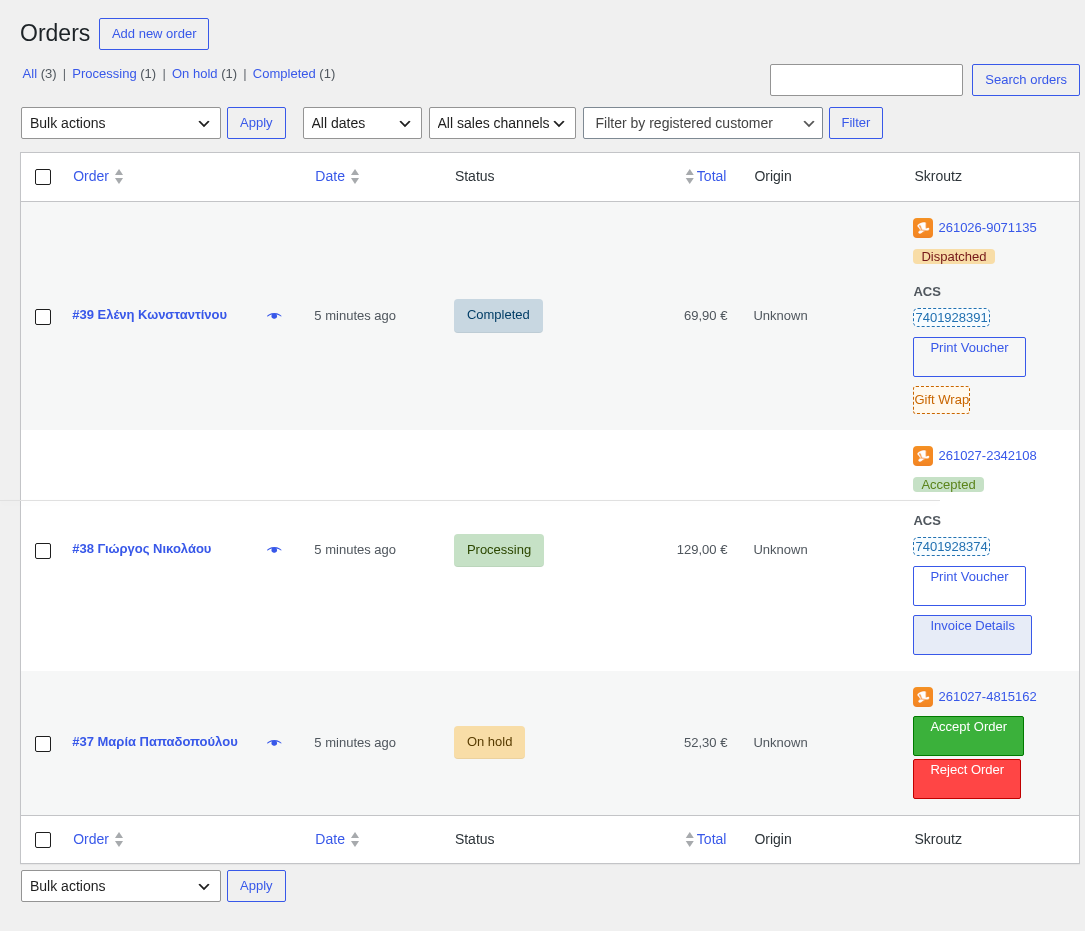
Every Skroutz order arrives in WooCommerce > Orders with the customer, the products and the Skroutz price, in the status you set for new orders. Stock is reduced straight away. The Skroutz column shows the Skroutz order code (it links to the order in Skroutz Merchants), its state on Skroutz, the courier and tracking number, and Gift Wrap or Invoice Details when the customer asked for them.
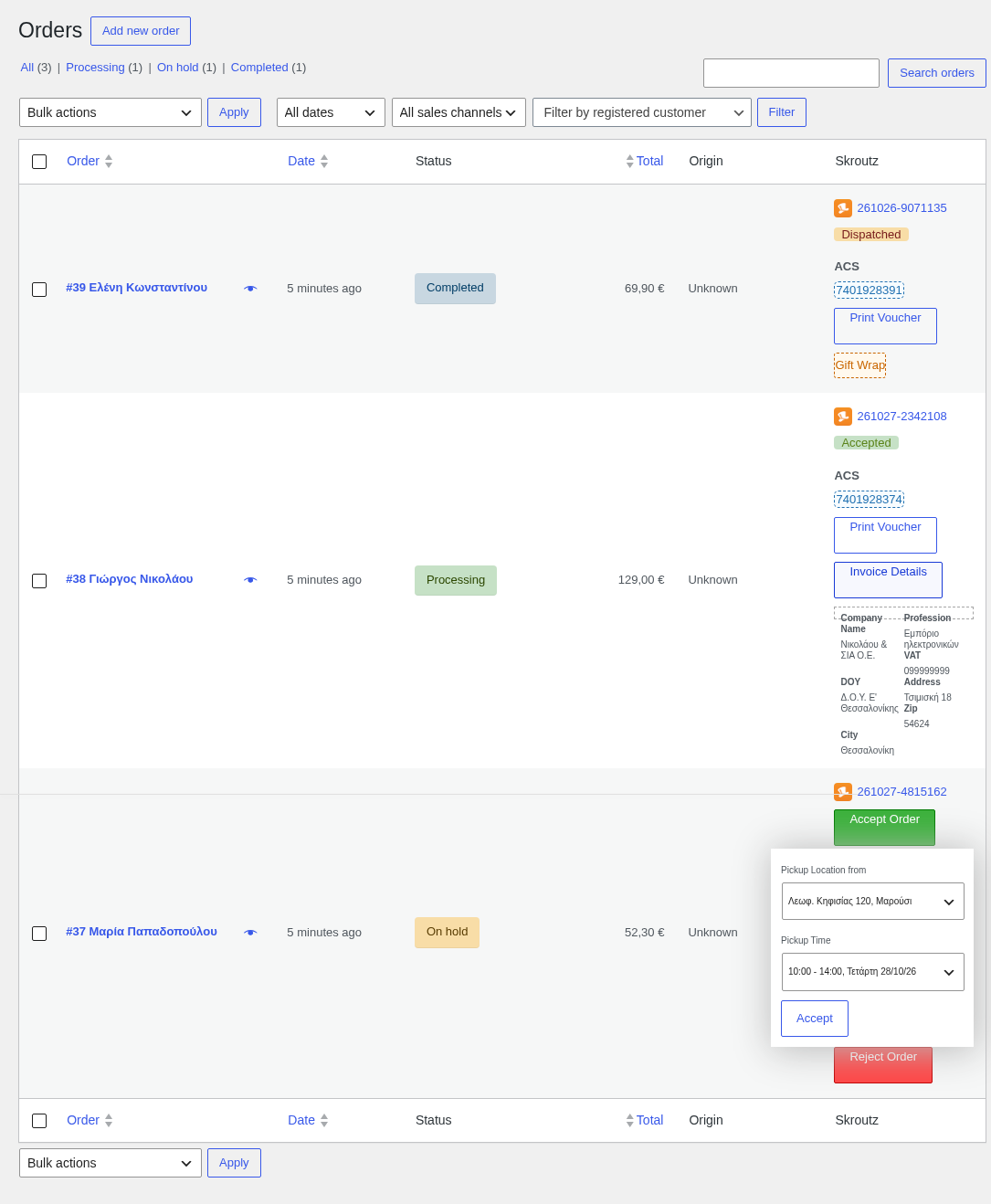
- Click Accept Order in the Skroutz column.
- Choose the Pickup Location from and the Pickup Time the courier should come. Only future pickup windows are listed.
- Click Accept. The order moves to the accepted status and Skroutz issues the courier voucher.
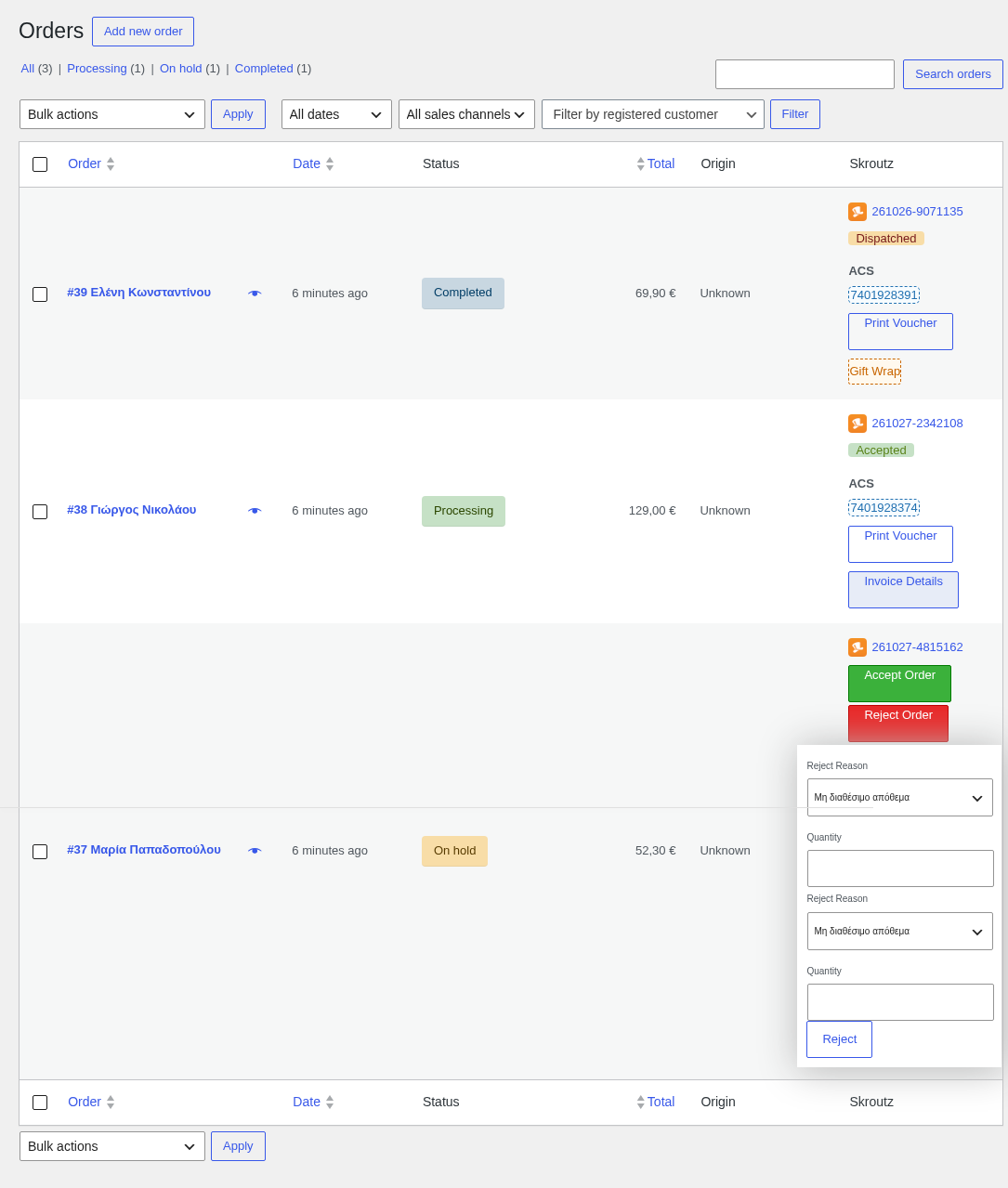
To reject, click Reject Order, choose a Reject Reason for each item and, when the reason needs it, the Quantity you still have. Click Reject. Skroutz offers the reasons, so they follow the language of your Skroutz account.
Vouchers, tracking and order status
- After acceptance the column shows Voucher is not ready yet until Skroutz issues the voucher, then a Print Voucher button.
- Skroutz keeps the order up to date: Accepted, Dispatched, Delivered, Cancelled, Rejected, Expired or Returned. A dispatched order is marked Completed in WooCommerce, and a cancelled or rejected one Cancelled.
- The orders search finds an order by its Skroutz code, courier or tracking number.
- If an ordered product can’t be matched (for example the Unique ID changed), the order is still created and an order note lists the products that were not added.
FAQs
Does it support variable products?
Yes. Select your Size Attribute and Color Attribute in the XML Feed section. Sizes go into the <variations> block of each product. For several colours, turn on Split Colour Variations so each colour is a separate Skroutz product.
Why is a product missing from the feed?
Check the Inclusions and Exclusions, the Hide from Skroutz checkbox, Exclude Backorder Items, and whether its category is in Product Categories require EAN without an EAN. Changes appear after the next feed build.
The feed does not update. What can I do?
WordPress Cron only runs when the site has visits. Switch Feed Cron Method to Server Cron (URL) and call the Server Cron URL from your hosting control panel every few minutes.
Do I need two different Skroutz tokens?
Yes, if you use both features. The API Token in Smart Cart Settings is for Marketplace orders. The Products API Token is created in Skroutz Merchants > Products > Feed Updates and is only for live updates. The XML feed itself needs no token.
Can orders be accepted automatically?
Yes. Check Automatic Order Acceptance in Smart Cart Settings. Each order is accepted when it arrives, with the first pickup location and pickup time Skroutz offers.
Is it compatible with WooCommerce HPOS?
Yes. The plugin supports High-Performance Order Storage.